change time HONDA CIVIC 2023 Service Manual
[x] Cancel search | Manufacturer: HONDA, Model Year: 2023, Model line: CIVIC, Model: HONDA CIVIC 2023Pages: 840, PDF Size: 26.53 MB
Page 418 of 840
416
uuHonda LogR*uPerformance Monitor
Features
Performance Monitor
You can check your vehicle conditions and vi ew individual scores for different areas
of performance.
There are five screens, and you can switch between them as necessary.
ImageImage NameDescription
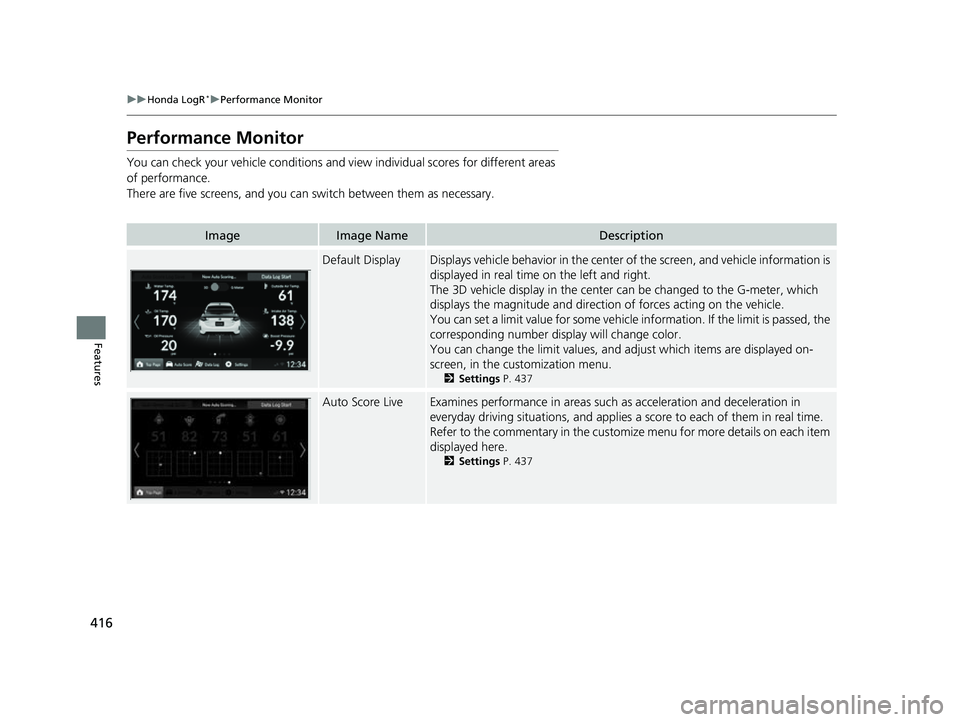
Default DisplayDisplays vehicle behavior in the center of the screen, and vehicle information is
displayed in real time on the left and right.
The 3D vehicle display in the center can be changed to the G-meter, which
displays the magnitude and directio n of forces acting on the vehicle.
You can set a limit value for some vehicle information. If the limit is passed, the
corresponding number display will change color.
You can change the limit values, and adjust which items are displayed on-
screen, in the cu stomization menu.
2Settings P. 437
Auto Score LiveExamines performance in areas such as acceleration and deceleration in
everyday driving situations, and applies a score to each of them in real time.
Refer to the commentary in the customize menu for more details on each item
displayed here.
2 Settings P. 437
23 CIVIC HATCHBACK TYPE R-31T406100_03.book 416 ページ 2022年6月23日 木曜日 午後9時28分
Page 419 of 840
417
uuHonda LogR*uPerformance Monitor
Features
ImageImage NameDescription
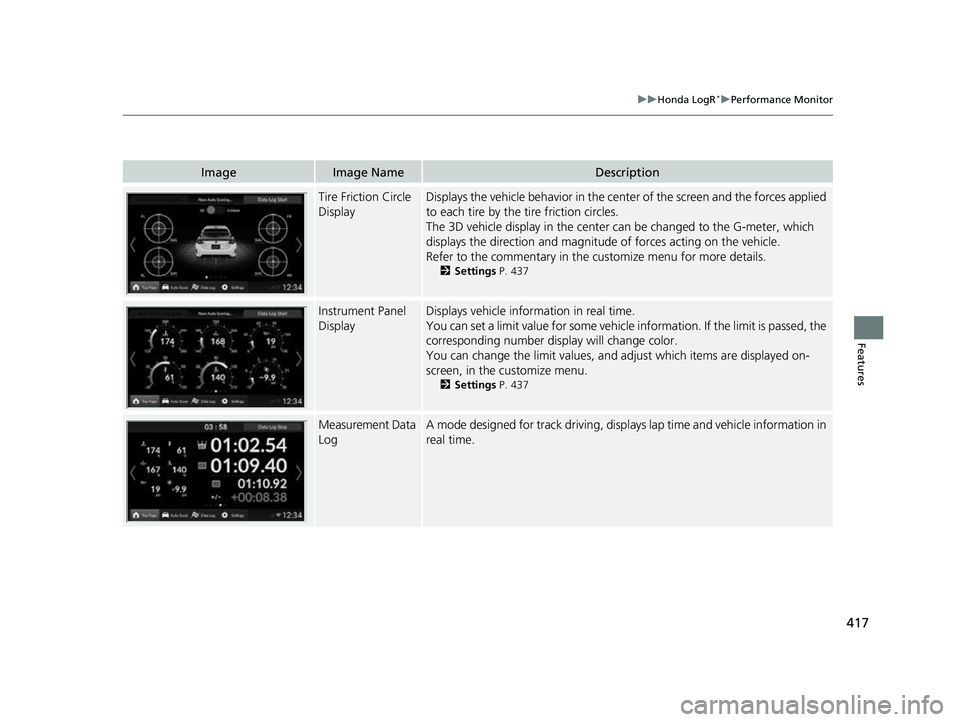
Tire Friction Circle
DisplayDisplays the vehicle behavior in the cent er of the screen and the forces applied
to each tire by the tire friction circles.
The 3D vehicle display in the center can be changed to the G-meter, which
displays the direction and magnitude of forces acting on the vehicle.
Refer to the commentary in the cu stomize menu for more details.
2Settings P. 437
Instrument Panel
DisplayDisplays vehicle inform ation in real time.
You can set a limit value for some vehicle information. If the limit is passed, the
corresponding number display will change color.
You can change the limit values, and adjust which items are displayed on-
screen, in the customize menu.
2 Settings P. 437
Measurement Data
LogA mode designed for track driving, displa ys lap time and vehicle information in
real time.
23 CIVIC HATCHBACK TYPE R-31T406100_03.book 417 ページ 2022年6月23日 木曜日 午後9時28分
Page 424 of 840
uuHonda LogR*uAuto Score Mode
422
Features
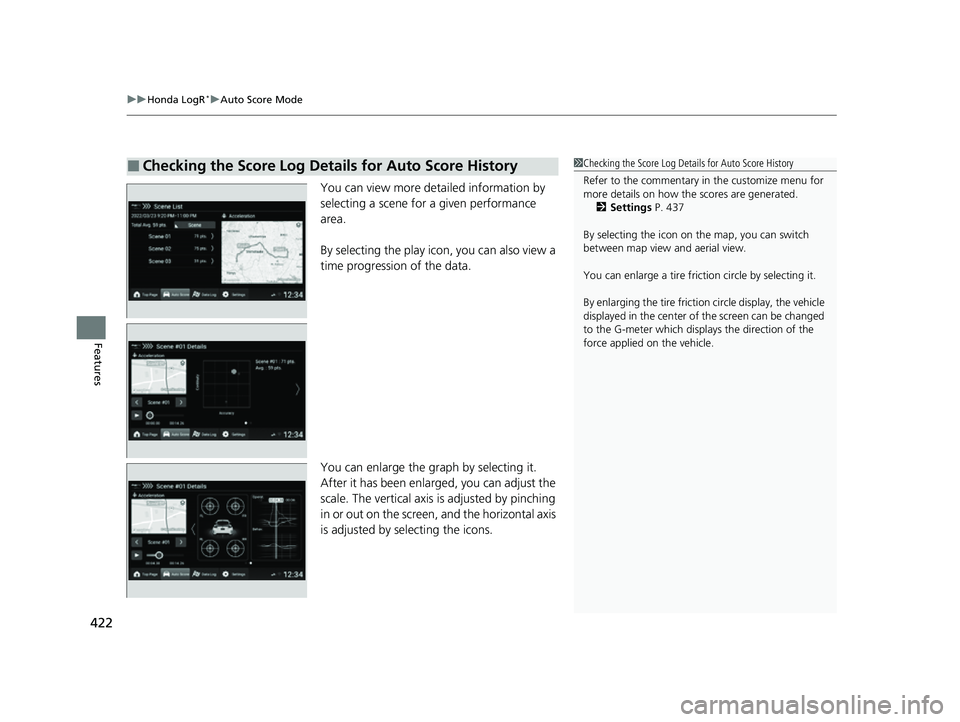
You can view more deta iled information by
selecting a scene for a given performance
area.
By selecting the play icon, you can also view a
time progression of the data.
You can enlarge the gr aph by selecting it.
After it has been enlarged, you can adjust the
scale. The vertical axis is adjusted by pinching
in or out on the screen, and the horizontal axis
is adjusted by selecting the icons.
■Checking the Score Log Details for Auto Score History1 Checking the Score Log Details for Auto Score History
Refer to the commentary in the customize menu for
more details on how the scores are generated.
2 Settings P. 437
By selecting the icon on the map, you can switch
between map view and aerial view.
You can enlarge a tire fricti on circle by selecting it.
By enlarging the tire friction circle display, the vehicle
displayed in the center of the screen can be changed
to the G-meter which displays the direction of the
force applied on the vehicle.
23 CIVIC HATCHBACK TYPE R-31T406100_03.book 422 ページ 2022年6月23日 木曜日 午後9時28分
Page 428 of 840
426
uuHonda LogR*uData Log Mode
Features
■Set location
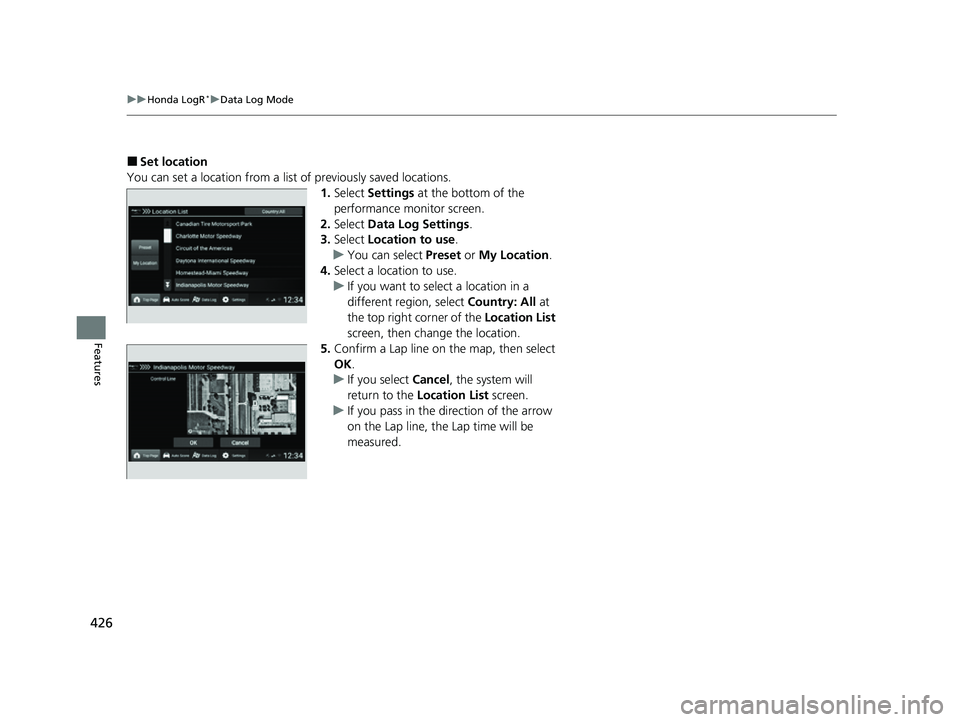
You can set a location from a list of previously saved locations. 1.Select Settings at the bottom of the
performance monitor screen.
2. Select Data Log Settings .
3. Select Location to use .
u You can select Preset or My Location.
4. Select a location to use.
u If you want to select a location in a
different region, select Country: All at
the top right corner of the Location List
screen, then change the location.
5. Confirm a Lap line on the map, then select
OK .
u If you select Cancel, the system will
return to the Location List screen.
u If you pass in the direction of the arrow
on the Lap line, the Lap time will be
measured.
23 CIVIC HATCHBACK TYPE R-31T406100_03.book 426 ページ 2022年6月23日 木曜日 午後9時28分
Page 429 of 840
Continued427
uuHonda LogR*uData Log Mode
Features
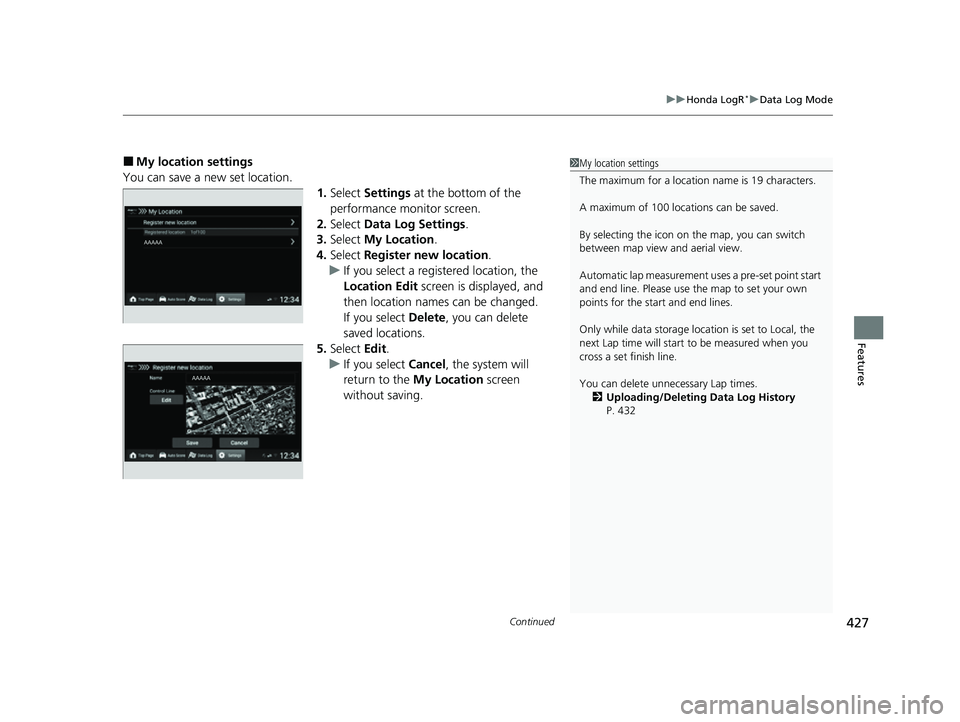
■My location settings
You can save a new set location. 1.Select Settings at the bottom of the
performance monitor screen.
2. Select Data Log Settings .
3. Select My Location.
4. Select Register new location .
u If you select a registered location, the
Location Edit screen is displayed, and
then location names can be changed.
If you select Delete, you can delete
saved locations.
5. Select Edit.
u If you select Cancel, the system will
return to the My Location screen
without saving.1 My location settings
The maximum for a location name is 19 characters.
A maximum of 100 locations can be saved.
By selecting the icon on the map, you can switch
between map view and aerial view.
Automatic lap measurement uses a pre-set point start
and end line. Please use the map to set your own
points for the start and end lines.
Only while data storage location is set to Local, the
next Lap time will start to be measured when you
cross a set finish line.
You can delete unne cessary Lap times.
2 Uploading/Deleting Data Log History
P. 432
23 CIVIC HATCHBACK TYPE R-31T406100_03.book 427 ページ 2022年6月23日 木曜日 午後9時28分
Page 431 of 840
Continued429
uuHonda LogR*uData Log Mode
Features
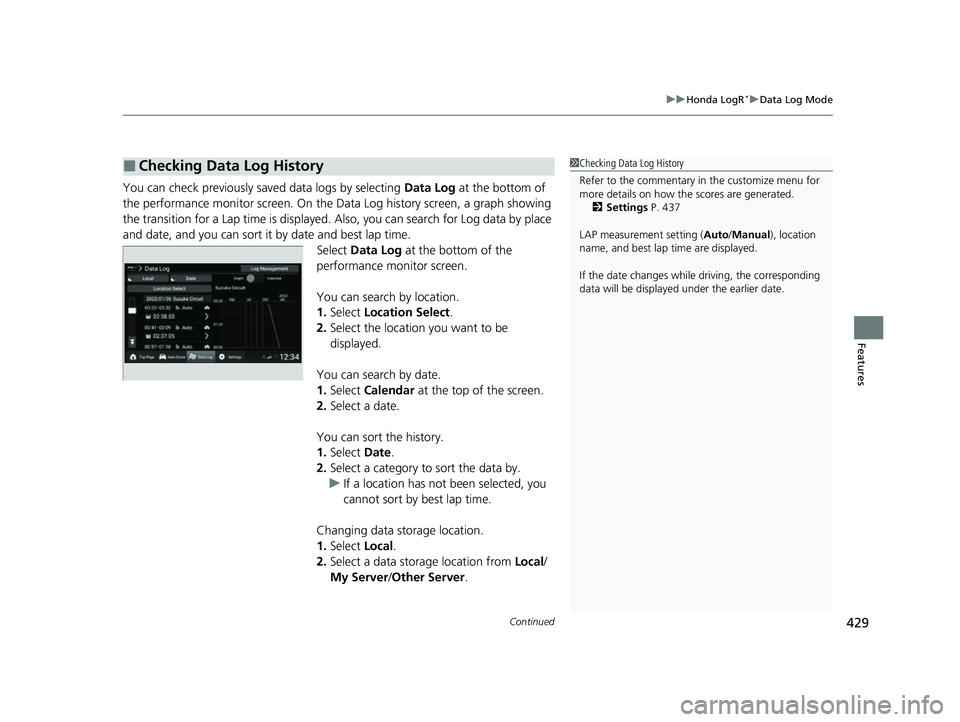
You can check previously saved data logs by selecting Data Log at the bottom of
the performance monitor screen. On the Da ta Log history screen, a graph showing
the transition for a Lap time is displayed. Also, you can search for Log data by place
and date, and you can sort it by date and best lap time. Select Data Log at the bottom of the
performance monitor screen.
You can search by location.
1. Select Location Select .
2. Select the location you want to be
displayed.
You can search by date.
1. Select Calendar at the top of the screen.
2. Select a date.
You can sort the history.
1. Select Date.
2. Select a category to sort the data by.
u If a location has not been selected, you
cannot sort by best lap time.
Changing data storage location.
1. Select Local.
2. Select a data storage location from Local/
My Server /Other Server.
■Checking Data Log History1 Checking Data Log History
Refer to the commentary in the customize menu for
more details on how the scores are generated.
2 Settings P. 437
LAP measurement setting ( Auto/Manual), location
name, and best lap time are displayed.
If the date changes whil e driving, the corresponding
data will be displaye d under the earlier date.
23 CIVIC HATCHBACK TYPE R-31T406100_03.book 429 ページ 2022年6月23日 木曜日 午後9時28分
Page 433 of 840
Continued431
uuHonda LogR*uData Log Mode
Features
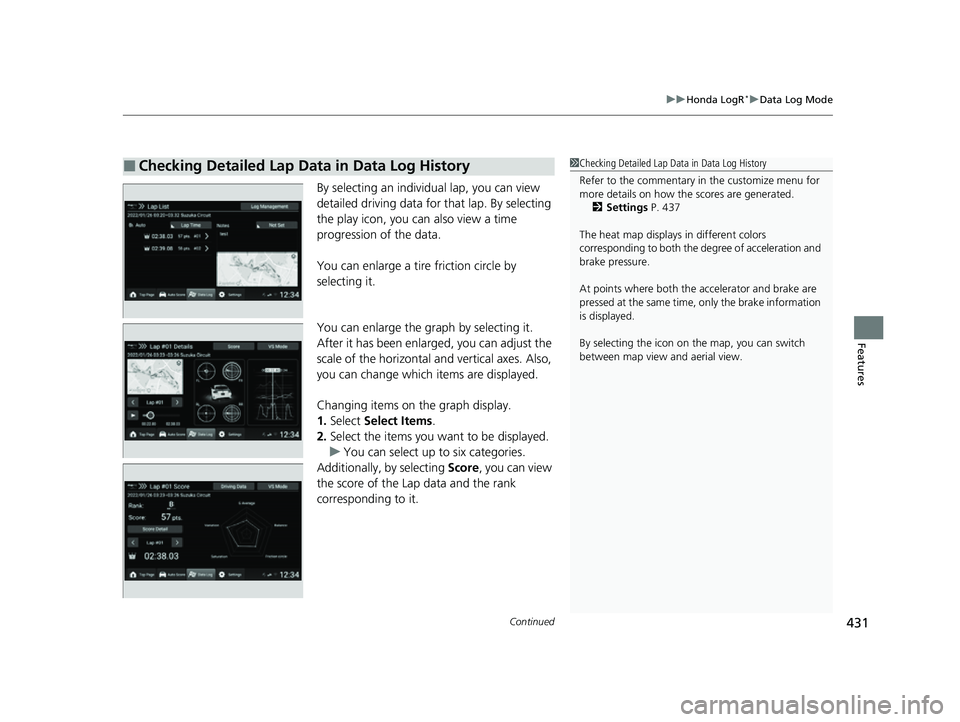
By selecting an individual lap, you can view
detailed driving data for that lap. By selecting
the play icon, you ca n also view a time
progression of the data.
You can enlarge a tire friction circle by
selecting it.
You can enlarge the graph by selecting it.
After it has been enlarged, you can adjust the
scale of the horizontal and vertical axes. Also,
you can change which items are displayed.
Changing items on the graph display.
1. Select Select Items .
2. Select the items you want to be displayed.
u You can select up to six categories.
Additionally, by selecting Score, you can view
the score of the Lap data and the rank
corresponding to it.
■Checking Detailed Lap Data in Data Log History1 Checking Detailed Lap Data in Data Log History
Refer to the commentary in the customize menu for
more details on how the scores are generated.
2 Settings P. 437
The heat map displays in different colors
corresponding to both the degree of acceleration and
brake pressure.
At points where both the ac celerator and brake are
pressed at the same time, only the brake information
is displayed.
By selecting the icon on the map, you can switch
between map view and aerial view.
23 CIVIC HATCHBACK TYPE R-31T406100_03.book 431 ページ 2022年6月23日 木曜日 午後9時28分
Page 436 of 840
uuHonda LogR*uData Log Mode
434
Features
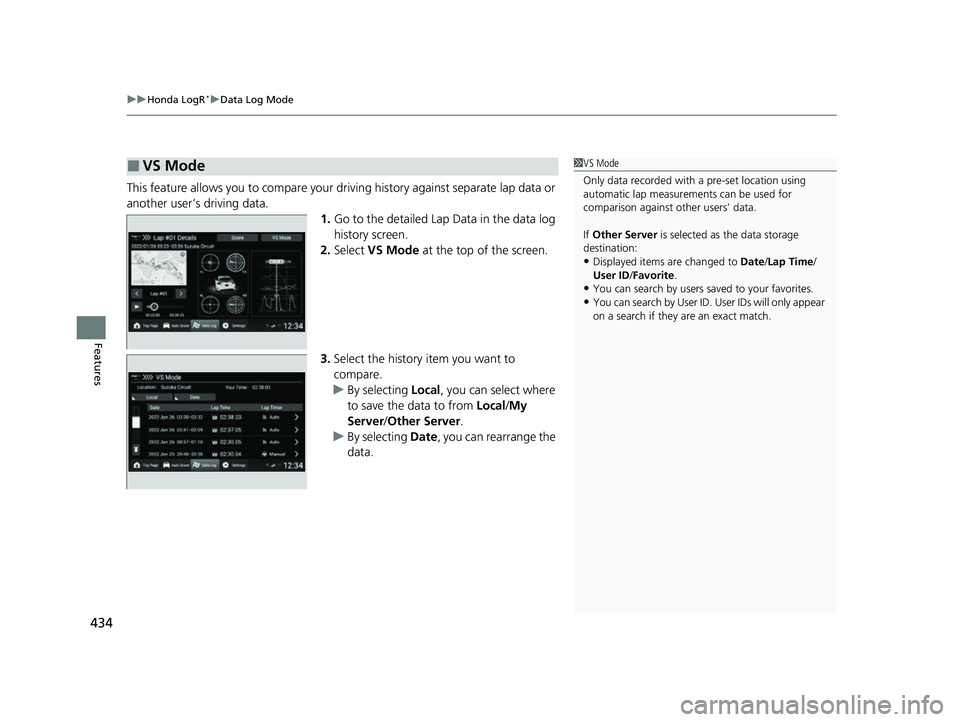
This feature allows you to compare your dr iving history against separate lap data or
another user’s driving data.
1.Go to the detailed Lap Data in the data log
history screen.
2. Select VS Mode at the top of the screen.
3. Select the history item you want to
compare.
u By selecting Local, you can select where
to save the data to from Local/My
Server/ Other Server.
u By selecting Date, you can rearrange the
data.
■VS Mode1 VS Mode
Only data recorded with a pre-set location using
automatic lap measurements can be used for
comparison against other users’ data.
If Other Server is selected as the data storage
destination:
•Displayed items are changed to Date/Lap Time /
User ID /Favorite .
•You can search by users saved to your favorites.
•You can search by User ID. User IDs will only appear
on a search if they are an exact match.
23 CIVIC HATCHBACK TYPE R-31T406100_03.book 434 ページ 2022年6月23日 木曜日 午後9時28分
Page 437 of 840
435
uuHonda LogR*uData Log Mode
Features
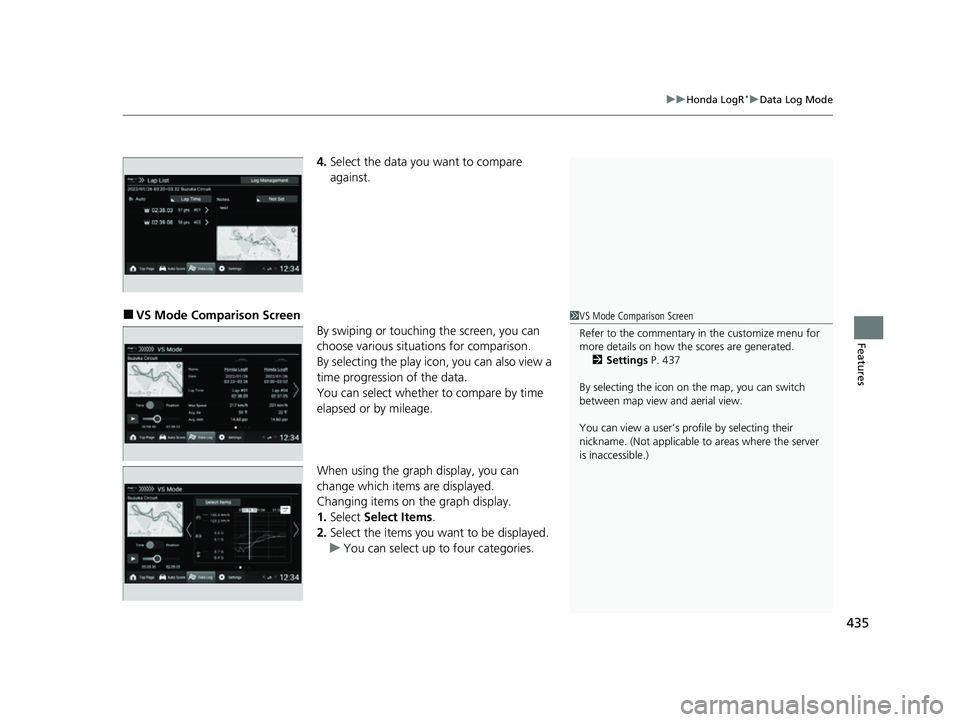
4. Select the data you want to compare
against.
■VS Mode Comparison Screen
By swiping or touching the screen, you can
choose various situations for comparison.
By selecting the play icon, you can also view a
time progression of the data.
You can select whether to compare by time
elapsed or by mileage.
When using the graph display, you can
change which items are displayed.
Changing items on the graph display.
1.Select Select Items .
2. Select the items you want to be displayed.
u You can select up to four categories.1VS Mode Comparison Screen
Refer to the commentary in the customize menu for
more details on how the scores are generated.
2 Settings P. 437
By selecting the icon on the map, you can switch
between map view and aerial view.
You can view a user’s pr ofile by selecting their
nickname. (Not applicable to areas where the server
is inaccessible.)
23 CIVIC HATCHBACK TYPE R-31T406100_03.book 435 ページ 2022年6月23日 木曜日 午後9時28分
Page 441 of 840
439
uuHonda LogR*uCustomize
Continued
Features
*1:Default setting
Setting ItemOverviewOptions
3D Vehicle Color Settings
You can set and display vehicle’s color
information. You can select the vehicle color,
and the changes will reflect on the 3D vehicle
display.
Vehicle color
Log
Management
Import
You can import files ge nerated by the in-
vehicle apps export function.
When multiple files are in the image folder, a
timestamp is included in new file names.
—
Export
You can export data stor ed on the in-vehicle
app (driving logs and setting information) to a
USB memory stick.
—
Delete logYou can delete data stored on the in-vehicle
app (drive logs and setting information).—
Log
automatic
deletion
settingsData LogYou can set whether to automatically delete
logs in Data Log mode and Auto Score mode.ON/OFF*1
Auto ScoreON /OFF*1
23 CIVIC HATCHBACK TYPE R-31T406100_03.book 439 ページ 2022年6月23日 木曜日 午後9時28分