buttons HONDA CR-Z 2012 1.G User Guide
[x] Cancel search | Manufacturer: HONDA, Model Year: 2012, Model line: CR-Z, Model: HONDA CR-Z 2012 1.GPages: 333, PDF Size: 10.43 MB
Page 146 of 333
145
uuAudio without Navigation SystemuPlaying a CD
Continued
Features
Playing a CD
Your audio system supports audio CDs, CD-Rs and CD-RWs in either MP3 or WMA
format. With the CD loaded, press the CD button.
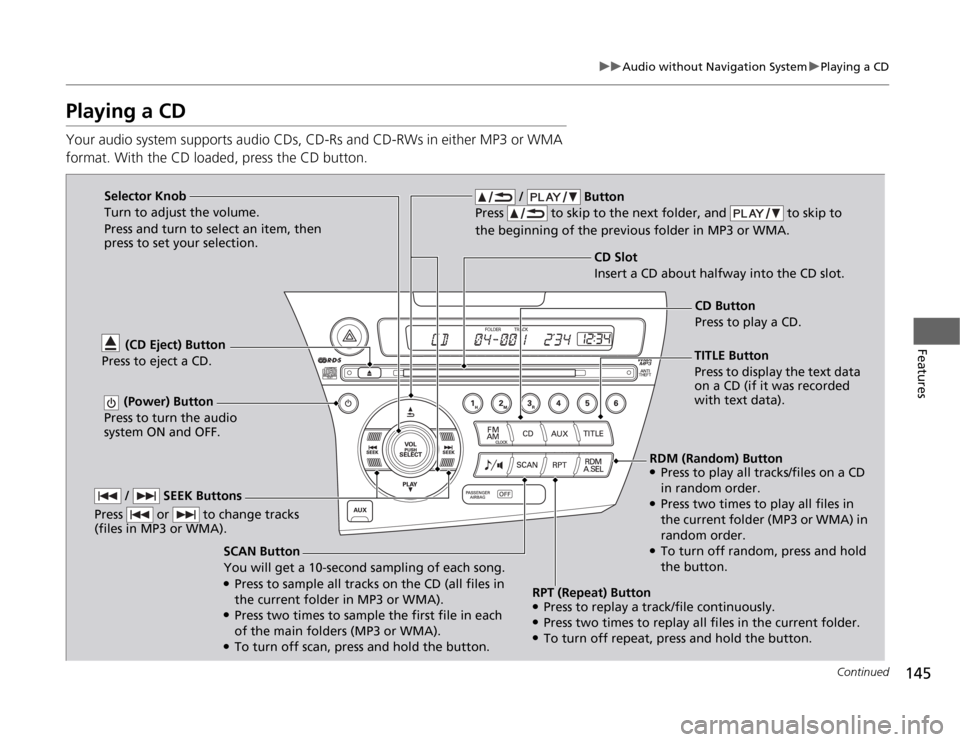
SCAN Button
You will get a 10-second sampling of each song. ●Press to sample all tracks on the CD (all files in
the current folder in MP3 or WMA).
● Press two times to sample the first file in each
of the main folders (MP3 or WMA).
● To turn off scan, press and hold the button.
(CD Eject) Button
Press to eject a CD.
/ Button
Press to skip to the next folder, and to skip to
the beginning of the previous folder in MP3 or WMA.
(Power) Button
Press to turn the audio
system ON and OFF.
CD Slot
Insert a CD abou t halfway into the CD slot.
/ SEEK Buttons
Press or to change tracks
(files in MP3 or WMA).
Selector Knob
Turn to adjust the volume.
Press and turn to select an item, then press to set your selection.
TITLE Button
Press to display the text data on a CD (if it was recorded with text data).CD Button
Press to play a CD.
RDM (Random) Button
● Press to play all tracks/files on a CD
in random order.
● Press two times to play all files in
the current folder (MP3 or WMA) in
random order.
● To turn off random, press and hold the button.
RPT (Repeat) Button ● Press to replay a track/file continuously.
● Press two times to replay all files in the current folder.
● To turn off repeat, press and hold the button.
Page 148 of 333
147
uuAudio without Navigation SystemuPlaying an iPod®
Continued
Features
Playing an iPod ®
Connect the iPod ® using your dock connector to the USB adapter cable, then press
the AUX button. 2 USB Adapter Cable P. 137
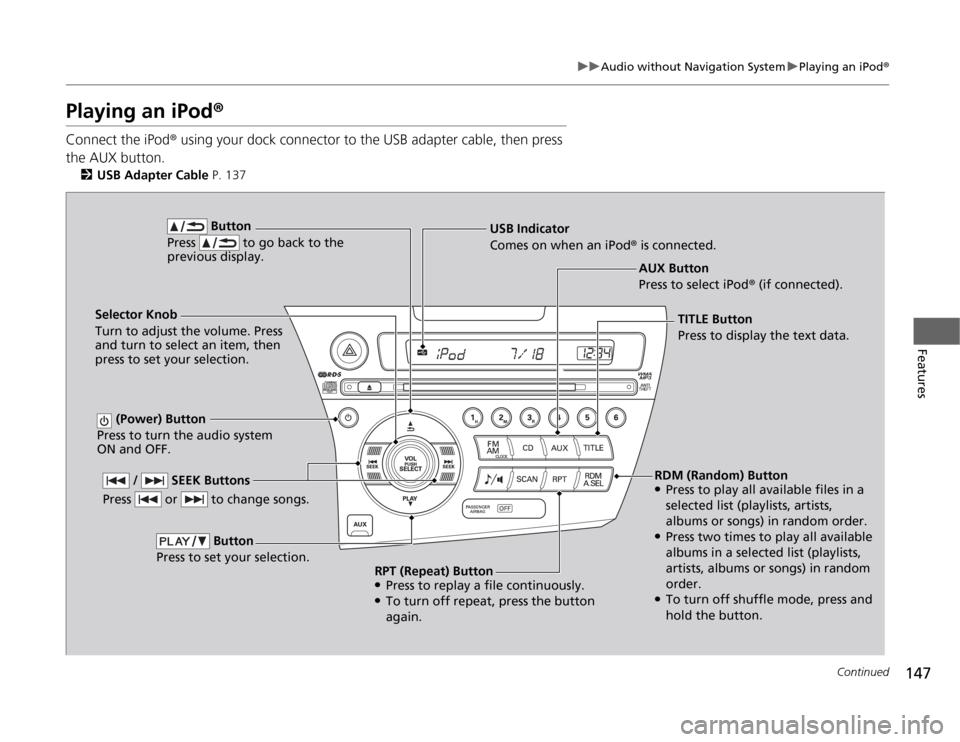
AUX Button
Press to select iPod® (if connected).
Button
Press to go back to the previous display.
(Power) Button
Press to turn the audio system
ON and OFF.
Selector Knob
Turn to adjust the volume. Press
and turn to select an item, then
press to set your selection. USB Indicator
Comes on when an iPod
® is connected.
/ SEEK Buttons
Press or to change songs.
Button
Press to set your selection.
TITLE Button Press to display the text data.
RDM (Random) Button ● Press to play all available files in a
selected list (playlists, artists,
albums or songs) in random order.
● Press two times to play all available
albums in a selected list (playlists,
artists, albums or songs) in random
order.
● To turn off shuffle mode, press and
hold the button.
RPT (Repeat) Button ●
Press to replay a file continuously.
● To turn off repeat, press the button
again.
Page 150 of 333
149
uuAudio without Navigation SystemuPlaying a USB Flash Drive
Continued
Features
Playing a USB Flash Drive
Your audio system reads and plays sound files on a USB flash drive in either MP3,
WMA or AAC*1
format.
Connect your USB flash drive to the USB adapter cable, then press the AUX button. 2 USB Adapter Cable P. 137
*1:Only AAC format files recorded with iTunes ® are playable on this unit.
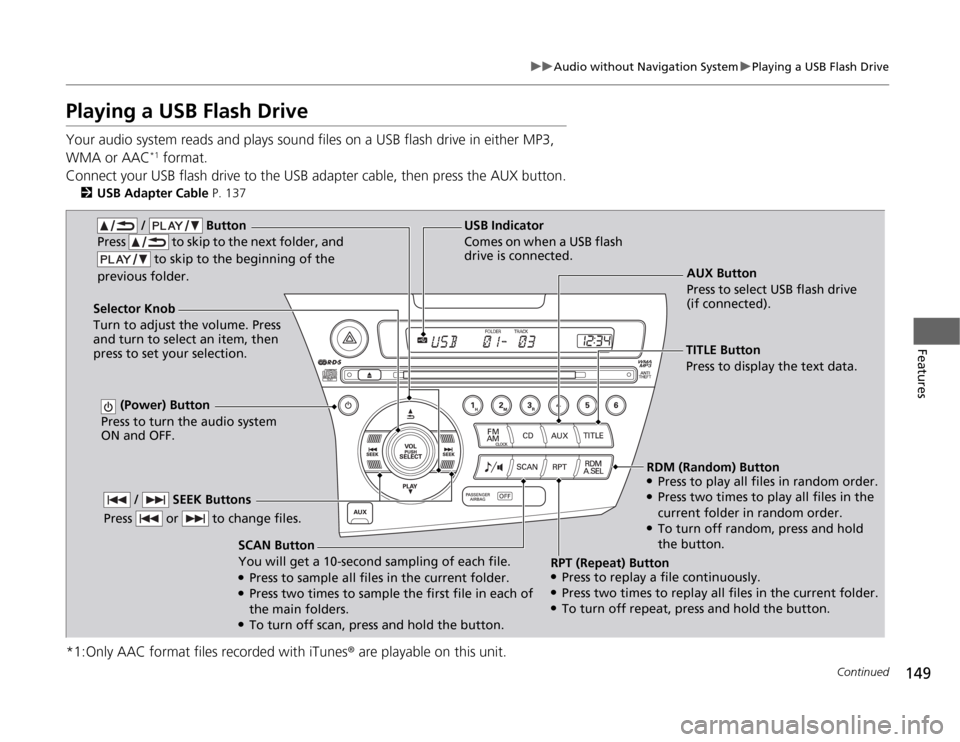
AUX Button
Press to select USB flash drive (if connected).
SCAN Button You will get a 10-second sampling of each file.
● Press to sample all files in the current folder.
● Press two times to sample the first file in each of
the main folders.
● To turn off scan, press and hold the button.
(Power) Button
Press to turn the audio system
ON and OFF.
Selector Knob Turn to adjust the volume. Press and turn to select an item, then
press to set your selection. USB Indicator
Comes on when a USB flash
drive is connected.
/ Button
Press to skip to the next folder, and
to skip to the b eginning of the
previous folder.
/ SEEK Buttons
Press or to change files.
TITLE Button
Press to display the text data.
RDM (Random) Button ● Press to play all files in random order.
● Press two times to play all files in the
current folder in random order.
● To turn off random, press and hold
the button.
RPT (Repeat) Button ● Press to replay a file continuously.
● Press two times to replay all files in the current folder.
● To turn off repeat, press and hold the button.
Page 152 of 333
151
Continued
Features
Audio with Navigation System *
Audio System Basic Operation
To use the audio system function, the ignition switch must be in ACCESSORY
(q
or
ON
(w .
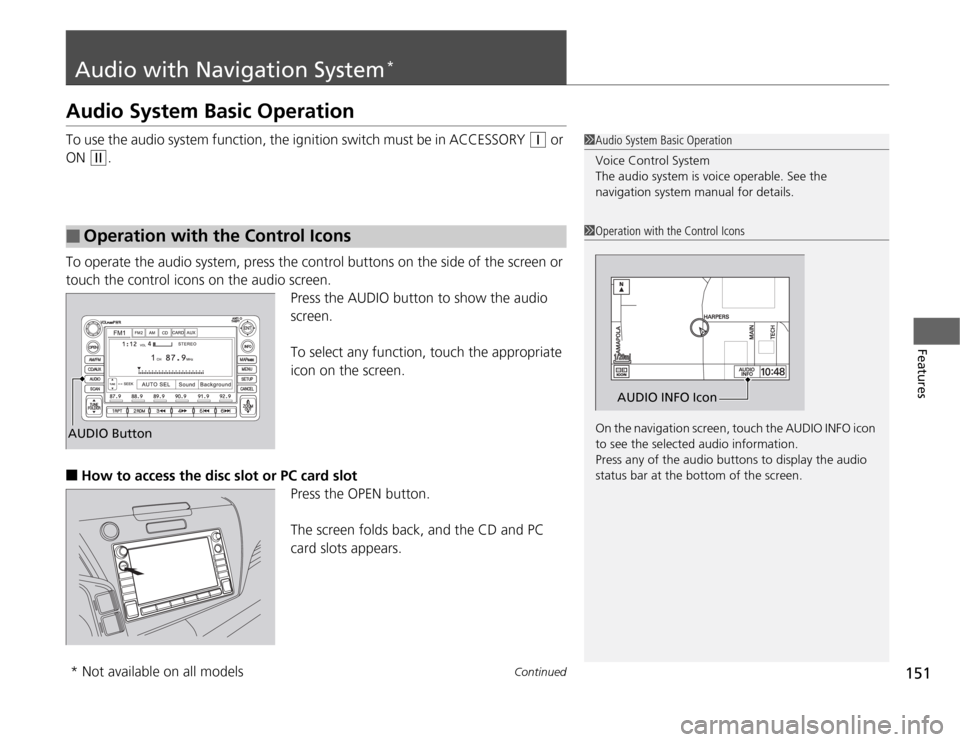
To operate the audio system, press the control buttons on the side of the screen or
touch the control icons on the audio screen. Press the AUDIO button to show the audio screen.
To select any function, touch the appropriate icon on the screen.
■ How to access the disc slot or PC card slot
Press the OPEN button.
The screen folds back, and the CD and PC
card slots appears.
1Audio System Basic Operation
Voice Control System
The audio system is voice operable. See the navigation system manual for details.
■Operation with the Control Icons1Operation with the Control Icons
On the navigation screen, touch the AUDIO INFO icon
to see the selected audio information.
Press any of the audio buttons to display the audio
status bar at the bottom of the screen.
AUDIO INFO Icon
AUDIO Button
* Not available on all models
Page 155 of 333
154
uuAudio with Navigation System*uPlaying the AM/FM Radio
Features
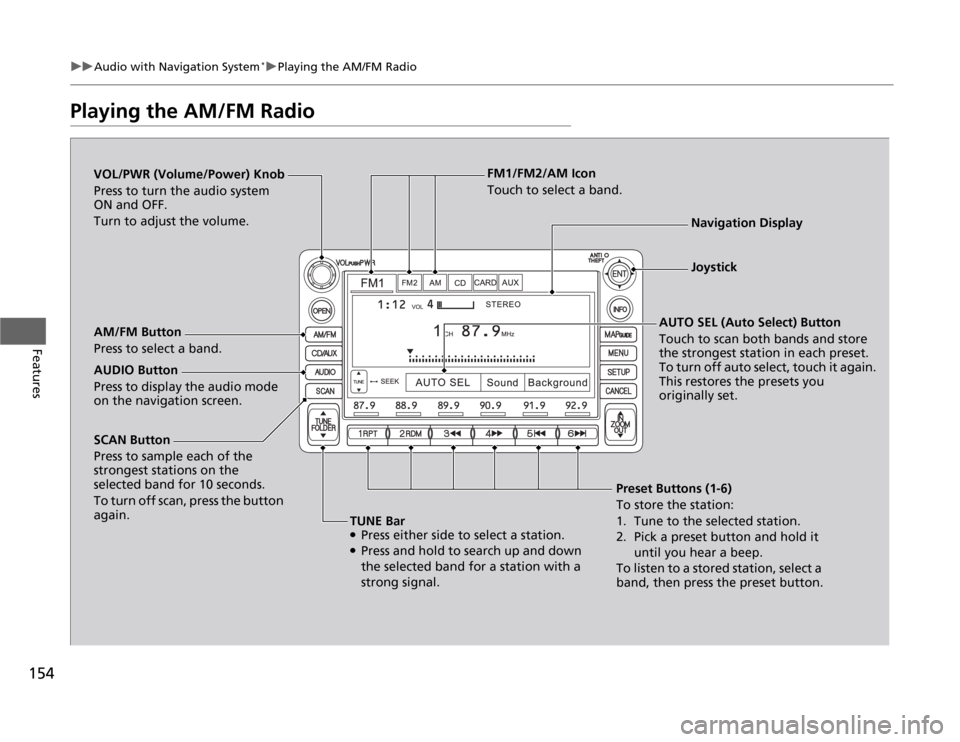
Playing the AM/FM Radio
SCAN Button
Press to sample each of the
strongest stations on the
selected band for 10 seconds.
To turn off scan, press the button
again.
VOL/PWR (Volume/Power) Knob
Press to turn the audio system
ON and OFF.
Turn to adjust the volume.
Preset Buttons (1-6)
To store the station:
1. Tune to the selected station.
2. Pick a preset button and hold it until you hear a beep.
To listen to a stored station, select a
band, then press the preset button.
AM/FM Button
Press to select a band.
AUTO SEL (Auto Select) Button
Touch to scan both bands and store the strongest station in each preset.
To turn off auto select, touch it again.
This restores the presets you originally set.
TUNE Bar ● Press either side to select a station.
● Press and hold to search up and down
the selected band for a station with a
strong signal.
AUDIO Button
Press to display the audio mode on the navigation screen. FM1/FM2/AM Icon
Touch to select a band.
Navigation Display
Joystick
Page 157 of 333
156
uuAudio with Navigation System*uPlaying a CD
Features
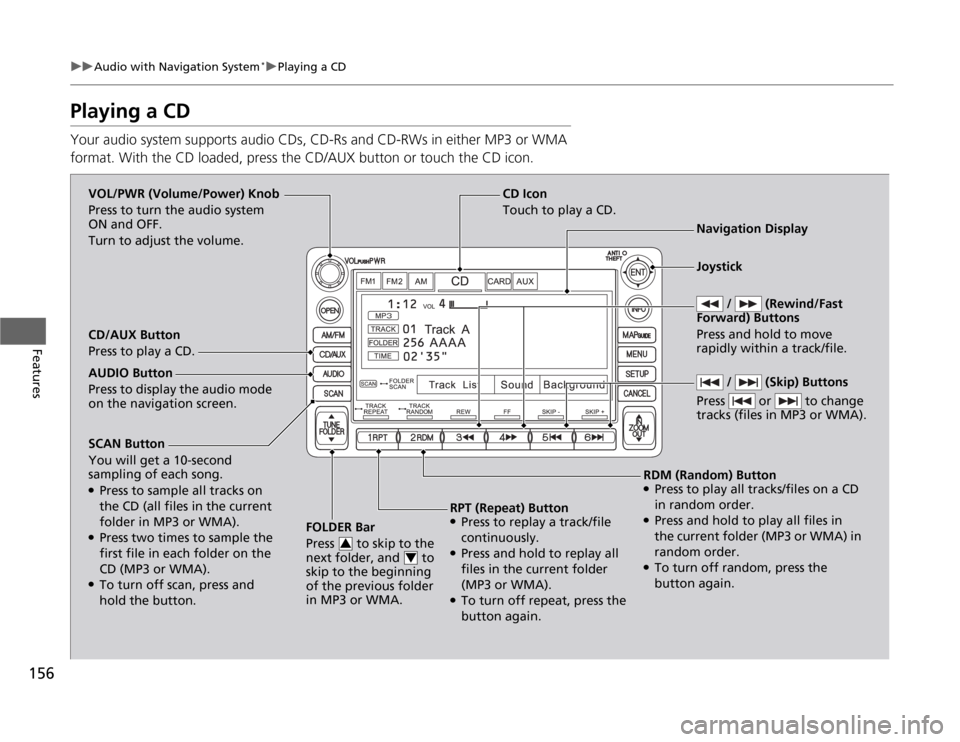
Playing a CD
Your audio system supports audio CDs, CD-Rs and CD-RWs in either MP3 or WMA
format. With the CD loaded, press the CD/AUX button or touch the CD icon.
SCAN Button You will get a 10-second
sampling of each song. ●
Press to sample all tracks on
the CD (all files in the current
folder in MP3 or WMA).
● Press two times to sample the
first file in each folder on the
CD (MP3 or WMA).
● To turn off scan, press and
hold the button. FOLDER Bar
Press to skip to the
next folder, and to
skip to the beginning
of the previous folder in MP3 or WMA.
3
4
CD Icon
Touch to play a CD.
VOL/PWR (Volume/Power) Knob
Press to turn the audio system
ON and OFF.
Turn to adjust the volume.
Navigation Display
CD/AUX Button
Press to play a CD.
RDM (Random) Button● Press to play all tracks/files on a CD
in random order.
● Press and hold to play all files in
the current folder (MP3 or WMA) in
random order.
● To turn off random, press the
button again.
RPT (Repeat) Button
● Press to replay a track/file
continuously.
● Press and hold to replay all
files in the current folder (MP3 or WMA).
● To turn off repeat, press the
button again.
AUDIO Button
Press to display the audio mode on the navigation screen.
/ (Skip) Buttons
Press or to change
tracks (files in MP3 or WMA).
Joystick
/ (Rewind/Fast
Forward) Buttons Press and hold to move
rapidly within a track/file.
Page 159 of 333
158
uuAudio with Navigation System*uPlaying a PC Card
Features
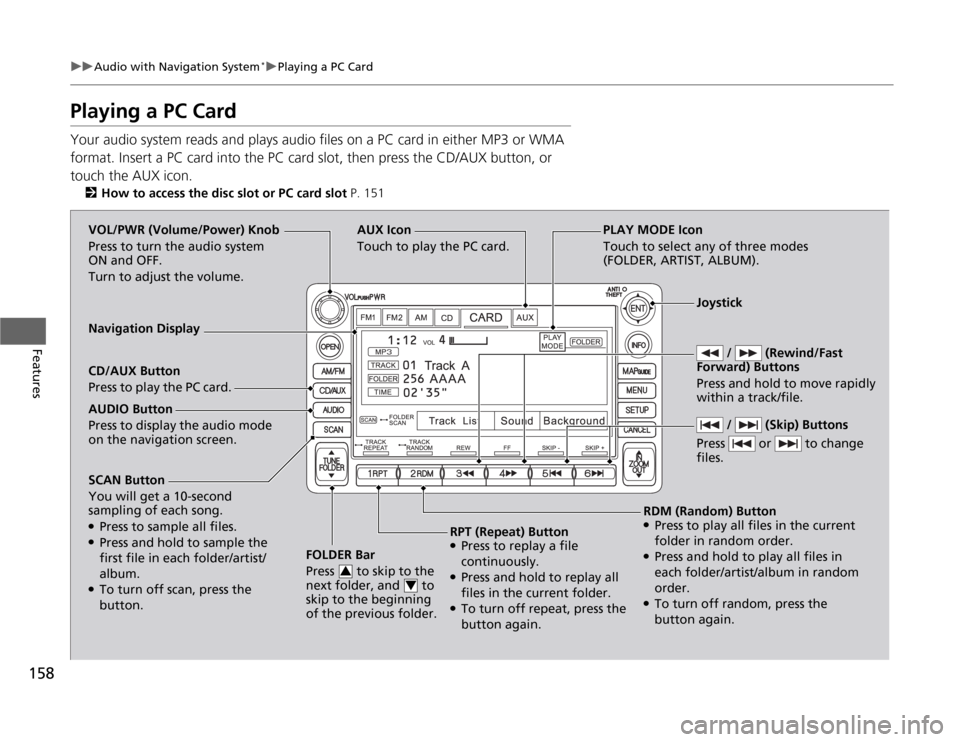
Playing a PC Card
Your audio system reads and plays audio files on a PC card in either MP3 or WMA
format. Insert a PC card into the PC card slot, then press the CD/AUX button, or touch the AUX icon.
2 How to access the disc slot or PC card slot P. 151
SCAN Button You will get a 10-second
sampling of each song. ●
Press to sample all files.
● Press and hold to sample the
first file in each folder/artist/ album.
● To turn off scan, press the
button. FOLDER Bar
Press to skip to the
next folder, and to
skip to the beginning
of the previous folder.
3
4
AUX Icon Touch to play the PC card.
/ (Rewind/Fast
Forward) Buttons
Press and hold to move rapidly within a track/file. VOL/PWR (Volume/Power) Knob
Press to turn the audio system
ON and OFF.
Turn to adjust the volume.
Navigation Display CD/AUX Button
Press to play the PC card.
RDM (Random) Button
● Press to play all files in the current
folder in random order.
● Press and hold to play all files in
each folder/artist/album in random order.
● To turn off random, press the
button again.
RPT (Repeat) Button
● Press to replay a file
continuously.
● Press and hold to replay all
files in the current folder.
● To turn off repeat, press the
button again.
AUDIO Button
Press to display the audio mode on the navigation screen.
/ (Skip) Buttons
Press or to change files.
Joystick
PLAY MODE Icon
Touch to select any of three modes
(FOLDER, ARTIST, ALBUM).
Page 163 of 333
162
uuAudio with Navigation System*uPlaying an iPod
®
Features
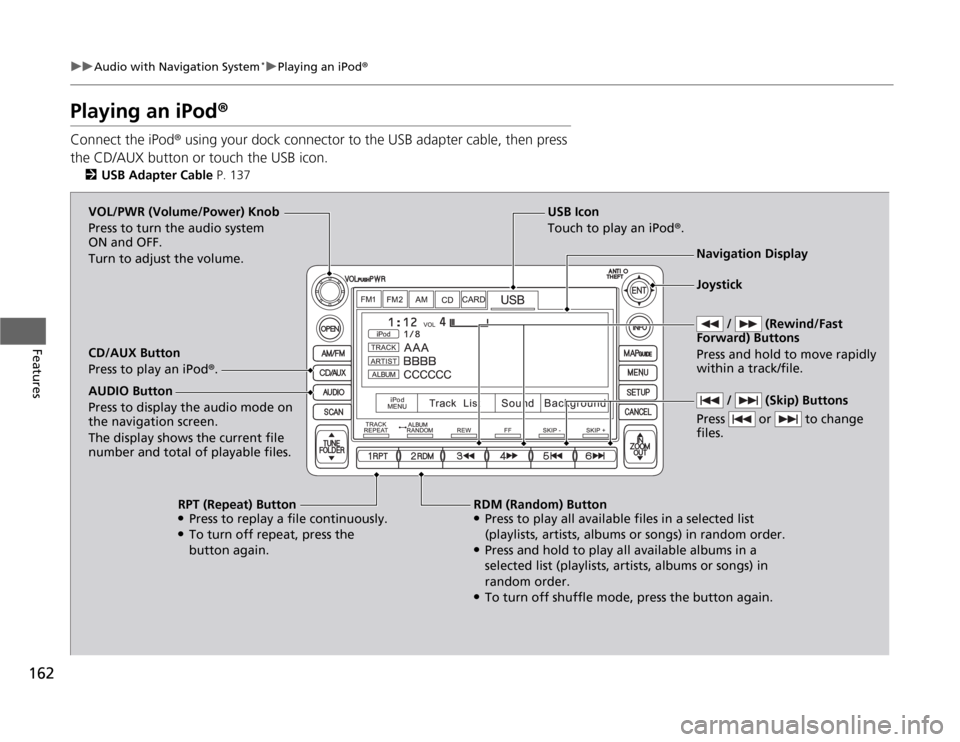
Playing an iPod ®
Connect the iPod ® using your dock connector to the USB adapter cable, then press
the CD/AUX button or touch the USB icon. 2 USB Adapter Cable P. 137
USB Icon
Touch to play an iPod ®.
/ (Rewind/Fast
Forward) Buttons
Press and hold to move rapidly within a track/file. VOL/PWR (Volume/Power) Knob
Press to turn the audio system
ON and OFF.
Turn to adjust the volume. Navigation Display
CD/AUX Button
Press to play an iPod ®.
RDM (Random) Button
● Press to play all available files in a selected list
(playlists, artists, albums or songs) in random order.
● Press and hold to play all available albums in a
selected list (playlists, artists, albums or songs) in
random order.
● To turn off shuffle mode, press the button again.
RPT (Repeat) Button
● Press to replay a file continuously.
● To turn off repeat, press the
button again.
AUDIO Button Press to display the audio mode on
the navigation screen.
The display shows the current file
number and total of playable files.
/ (Skip) Buttons
Press or to change files.
Joystick
Page 164 of 333
Continued163
uuAudio with Navigation System*uPlaying an iPod
®
Features
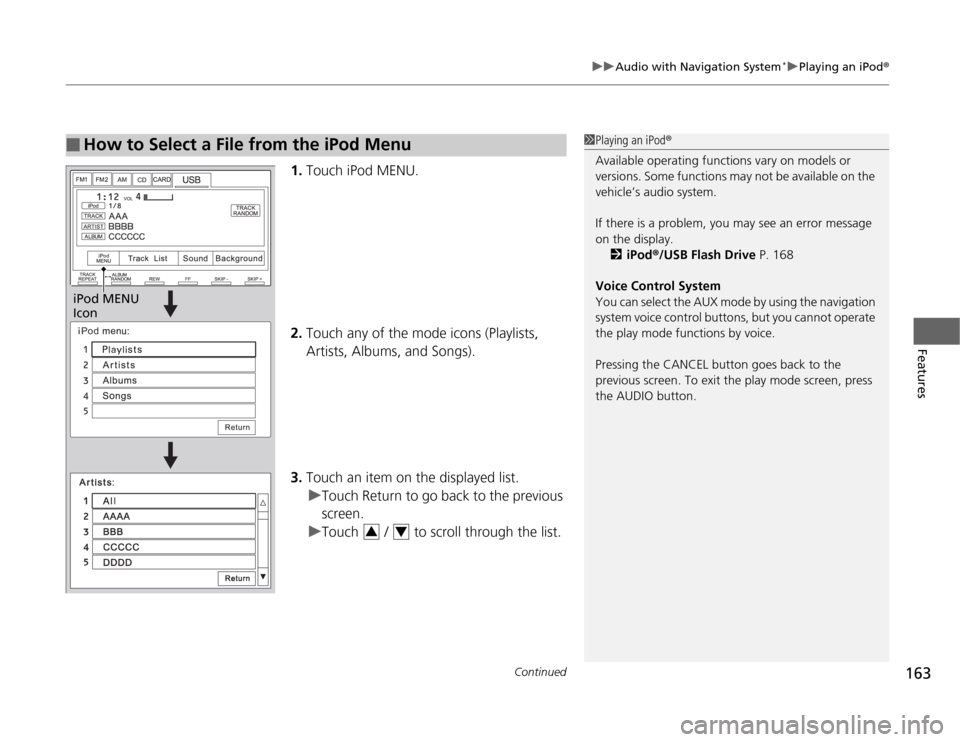
1.Touch iPod MENU.
2. Touch any of the mode icons (Playlists, Artists, Albums, and Songs).
3. Touch an item on the displayed list.
uTouch Return to go back to the previous screen.
uTouch / to scroll through the list.
■How to Select a File from the iPod Menu1Playing an iPod ®
Available operating functions vary on models or
versions. Some functions may not be available on the
vehicle’s audio system.
If there is a problem, you may see an error message
on the display. 2 iPod ®/USB Flash Drive P. 168
Voice Control System
You can select the AUX mode by using the navigation
system voice control buttons, but you cannot operate
the play mode functions by voice.
Pressing the CANCEL button goes back to the
previous screen. To exit the play mode screen, press
the AUDIO button.
iPod MENU
Icon
34
Page 166 of 333
165
uuAudio with Navigation System*uPlaying a USB Flash Drive
Continued
Features
Playing a USB Flash Drive
Your audio system reads and plays sound files on a USB flash drive in either MP3,
WMA or AAC*1
format.
Connect your USB flash drive to the USB adapter cable, then press the CD/AUX
button or touch the USB icon. 2 USB Adapter Cable P. 137
*1: Only AAC format files recorded with iTunes ® are playable on this unit.
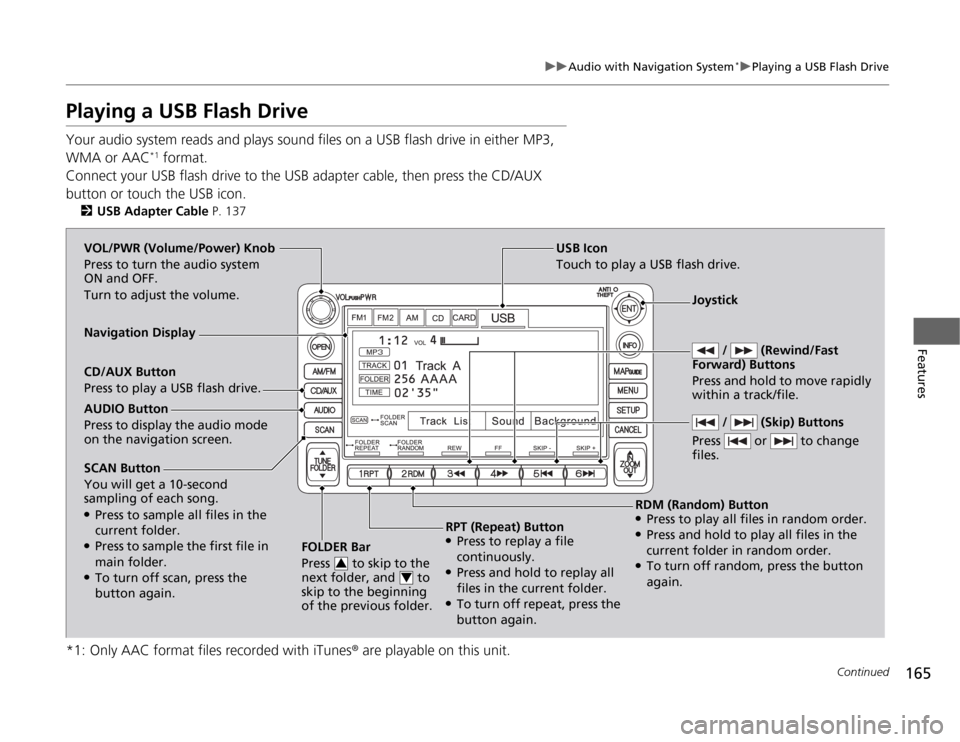
SCAN Button You will get a 10-second
sampling of each song. ●
Press to sample all files in the current folder.
● Press to sample the first file in main folder.
● To turn off scan, press the
button again. FOLDER Bar
Press to skip to the
next folder, and to
skip to the beginning
of the previous folder.
3
4
USB Icon
Touch to play a USB flash drive.
/ (Rewind/Fast
Forward) Buttons
Press and hold to move rapidly within a track/file. VOL/PWR (Volume/Power) Knob
Press to turn the audio system
ON and OFF.
Turn to adjust the volume.
Navigation Display CD/AUX Button
Press to play a USB flash drive.
RDM (Random) Button
● Press to play all files in random order.
● Press and hold to play all files in the
current folder in random order.
● To turn off random, press the button
again.
RPT (Repeat) Button
● Press to replay a file
continuously.
● Press and hold to replay all
files in the current folder.
● To turn off repeat, press the
button again.
AUDIO Button
Press to display the audio mode on the navigation screen.
/ (Skip) Buttons
Press or to change files.
Joystick