navigation HONDA CROSSTOUR 2013 1.G User Guide
[x] Cancel search | Manufacturer: HONDA, Model Year: 2013, Model line: CROSSTOUR, Model: HONDA CROSSTOUR 2013 1.GPages: 573, PDF Size: 25.21 MB
Page 219 of 573
218
uuAudio System Basic OperationuAudio/Information Screen
Features
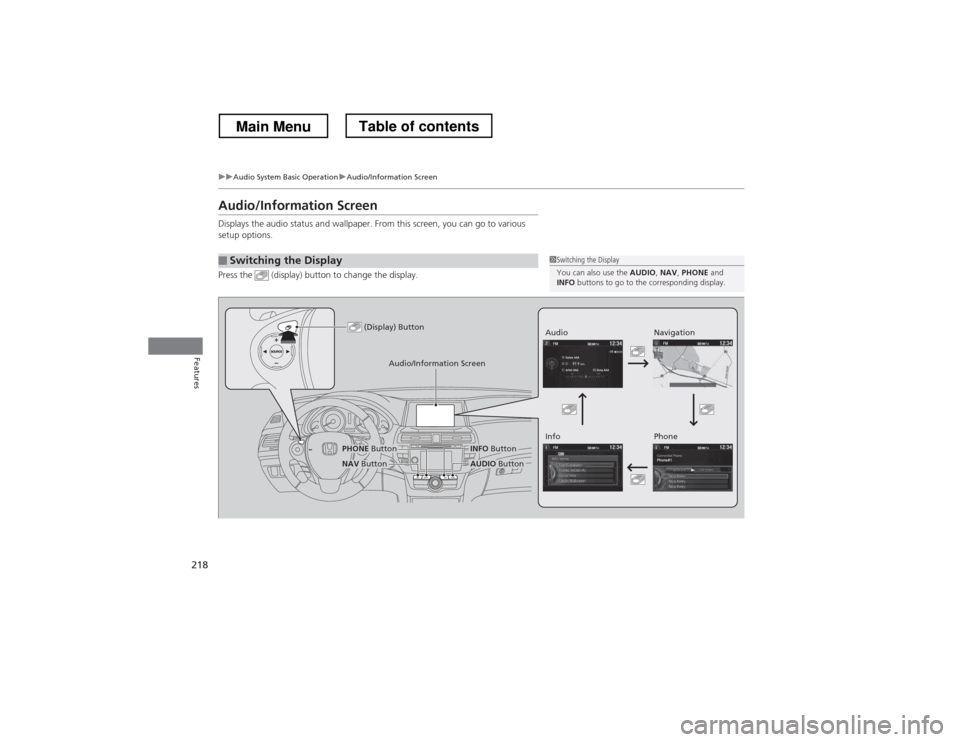
Audio/Information Screen
Displays the audio status and wallpaper. From this screen, you can go to various
setup options.
Press the (display) button to change the display.
■Switching the Display1Switching the Display
You can also use the AUDIO, NAV , PHONE and
INFO buttons to go to the corresponding display.
(Display) ButtonAudio
Info
Audio/Information Screen
Navigation Phone
AUDIO ButtonNAV Button
PHONE ButtonINFO Button
Main MenuTable of contents
Page 220 of 573
219
uuAudio System Basic OperationuAudio/Information Screen
Continued
Features
■Audio
Shows the current audio information.
■ Navigation
Shows the navigation screen. 2 Refer to the Navigation System Manual
■ Phone
Shows the HFL information. 2
Bluetooth ® HandsFreeLink ® P. 367
■ Info
Shows the Trip Computer or Clock/Wallpaper and other information. Rotate
to select an item, then press .
■ Trip computer (Current Drive)
Shows the range, and instant and average fuel economy of the current trip, as well
as the average fuel economy from your last trip.
■ Trip computer (History of Trip A)
Shows the range, average fuel economy and distances traveled for the current trip, as well
as the average fuel economy and distances traveled during the last three driving cycles.
Each time you reset the trip meter A, the information on the display updates. The
history of the previous three driving cycles is kept.
■ Deleting the history manually
1. Move on the History of Trip A screen to select Delete History, then press .
2. You will receive a confirmation message on the screen. Rotate to select Yes,
then press .
■ Clock/Wallpaper
Shows a clock screen or an image you import.
Main MenuTable of contents
Page 225 of 573
224
uuAudio System Basic OperationuVoice Control Operation
Features
Voice Control Operation
Your vehicle has a voice control system that allows hands-free operation of most of
the navigation system functions.
The voice control system uses the (Talk) and (hang-up/back) buttons on the
steering wheel and a microphone near the map lights on the ceiling.
To achieve optimum voice recognition when using the navigation voice control system:•Make sure the correct screen is displayed for the voice command that you are
using.
• Close the windows and moonroof.
• Adjust the dashboard and side vents so air does not blow onto the microphone
on the ceiling.
• Speak clearly in a clear, natural speaking voice without pausing between words.
• Reduce any background noise if possible. The system may misinterpret your
command if more than one person is speaking at the same time.
• Refer to the Voice Help feature.
2 Refer to the navigation System Manual
■Voice Recognition
1Voice Control Operation
When you press the button, a helpful prompt asks
what you would like to do. Press and release the
button again to bypass this prompt and give a command.
1Voice Recognition
The voice control system can only be used from the
driver’s seat because the microphone unit removes
noises from the front passenger’s side.
Main MenuTable of contents
Page 226 of 573
225
uuAudio System Basic OperationuVoice Control Operation
Continued
Features
The system accepts these commands on the
Voice Portal screen.
• Call Your contact name
• Call Phone Number
• Find nearest POI category name
• Go home
• Route menu
• Cancel route
The system accepts these commands on any screen. • Call by number
• Call by name
Contacts that are imported from your
phone to the vehicle are all made available
by voice. Voice Tags can also be recorded
for each of your Speed Dial entries.
■Voice Portal Commands
■Phone Commands 2
Refer to the Navigation System Manual
The system accepts these commands on any screen. • Trip computer
• Traffic information
• Display clock
• Display wallpaper
■Navigation Commands
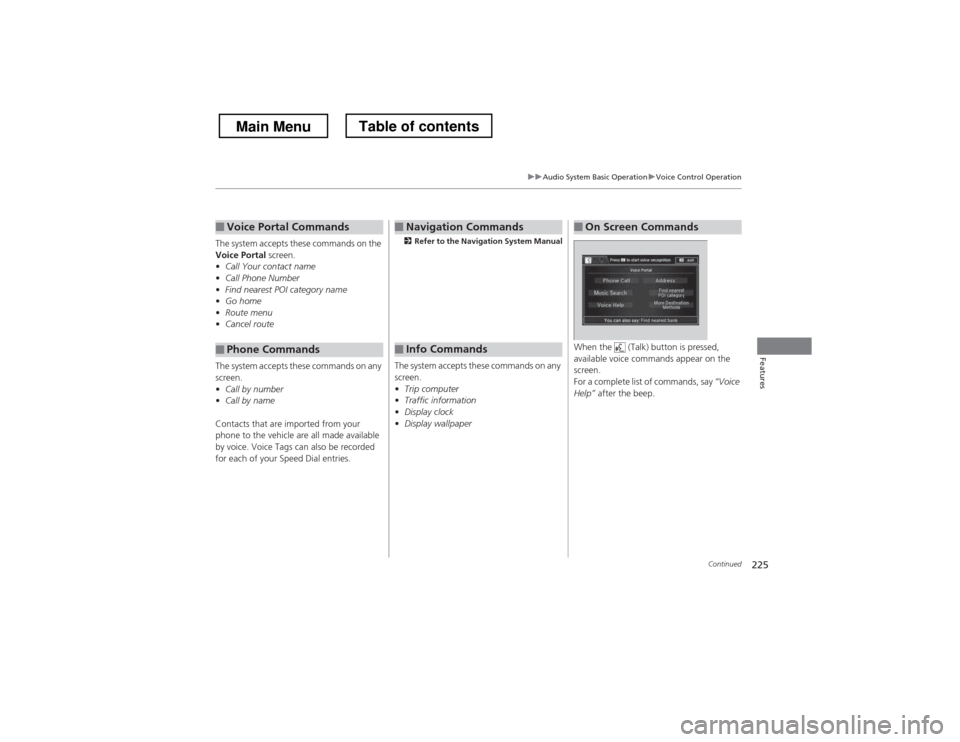
■Info Commands When the (Talk) button is pressed,
available voice commands appear on the screen.
For a complete list of commands, say
“Voice
Help” after the beep.
■On Screen Commands
Main MenuTable of contents
Page 252 of 573
251
uuAudio System Basic OperationuPlaying Hard Disc Drive (HDD) Audio
Features
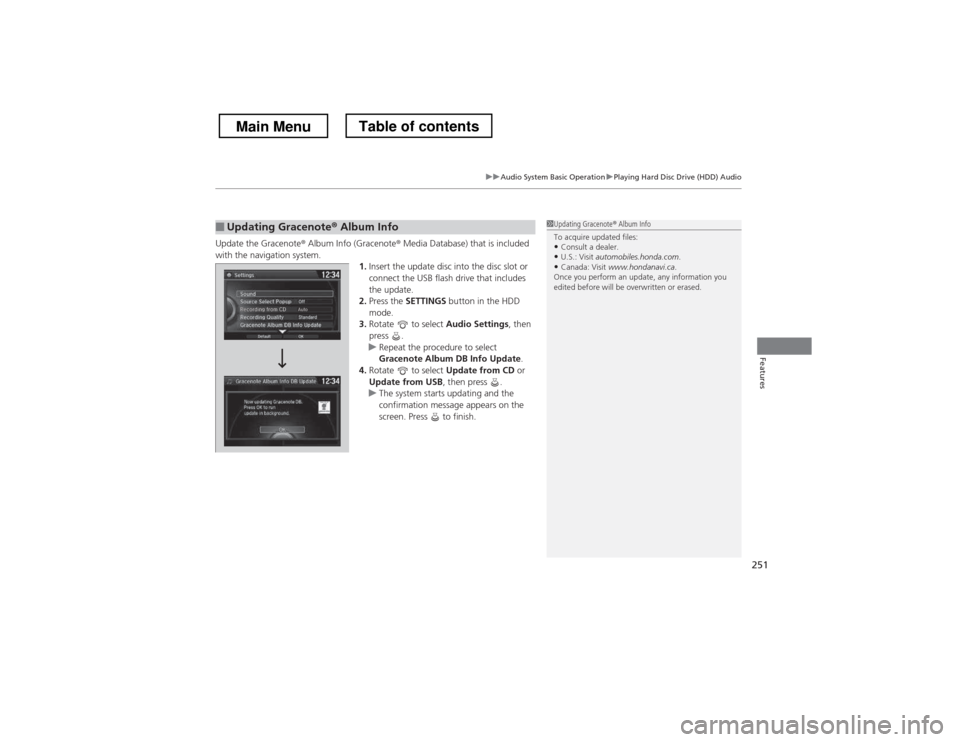
Update the Gracenote® Album Info (Gracenote ® Media Database) that is included
with the navigation system. 1.Insert the update disc into the disc slot or
connect the USB flash drive that includes
the update.
2. Press the SETTINGS button in the HDD
mode.
3. Rotate to select Audio Settings, then
press .
uRepeat the procedure to select
Gracenote Album DB Info Update .
4. Rotate to select Update from CD or
Update from USB , then press .
uThe system starts updating and the
confirmation message appears on the
screen. Press to finish.
■Updating Gracenote ® Album Info1Updating Gracenote ® Album Info
To acquire updated files: • Consult a dealer.
• U.S.: Visit automobiles.honda.com .
• Canada: Visit www.hondanavi.ca .
Once you perform an update, any information you
edited before will be overwritten or erased.
Main MenuTable of contents
Page 271 of 573
270
uuAudio Error MessagesuHard Disc Drive (HDD) Audio
Features
Hard Disc Drive (HDD) Audio
If an error occurs while playing the Hard Disc Drive (HDD) Audio, you may see the
following error messages. If you cannot clear the error message, contact a dealer.
Error MessageSolution
Navigation system is suspended due to low air pressure.
System will resume when vehicle moves to an area of lower altitude.The HDD is inoperable due to low atmospheric pressure. Move
your vehicle to a lower altitude where atmospheric pressure is
higher.
HDD access error.
Please consult your dealer.—
The navigation system temperature is too high. For
protection, the system will shut off until it cools down.Turn the audio system off and allow the player to cool down until
the error message is cleared.
The navigation system temperature is too low. For
protection, the system will shut off until it warms up.The navigation system has difficulty reading the HDD when the
temperature is below approximately -22°F (-30°C). The navigation
system starts up automatically when the display warms up.
Unplayable FileAppears when a file format not supported. Current track will be
skipped. The next supported track plays automatically.
Models with navigation system
Main MenuTable of contents
Page 278 of 573
277
uuGeneral Information on the Audio SystemuRecommended CDs
Continued
Features
Recommended CDs •Use only high-quality CD-R or CD-RW discs labeled for audio use.
• Use only CD-R or CD-RW discs on which the recordings are closed.
• Play only standard round-shaped CDs.
• Some software files may not allow for audio play or text data display.
• Some versions of MP3, WMA, or AAC formats may be unsupported.
1Recommended CDs
A Dual-disc cannot play on this audio unit. If recorded
under certain conditions, a CD-R or CD-RW may not play either.
Manufactured under license under U.S. Patent Nos:
5,956,674; 5,974,380; 6,487,535 & other U.S. and
worldwide patents issued & pending. DTS, the
Symbol, & DTS and the Symbol together are
registered trademarks & DTS 2.0 Channel is a
trademark of DTS, Inc. Product includes software.
©DTS, Inc. All Rights Reserved.
■CDs with MP3, WMA, or AAC files
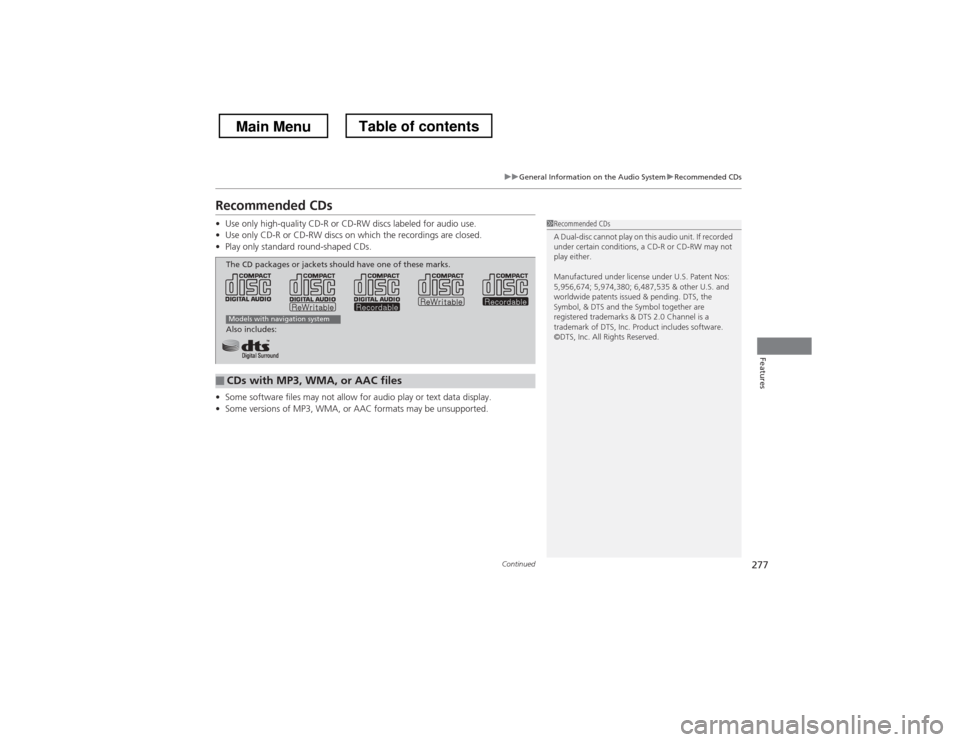
The CD packages or jackets should have one of these marks.
Also includes:
Models with navigation system
Main MenuTable of contents
Page 282 of 573
281
Continued
Features
Customized Features *
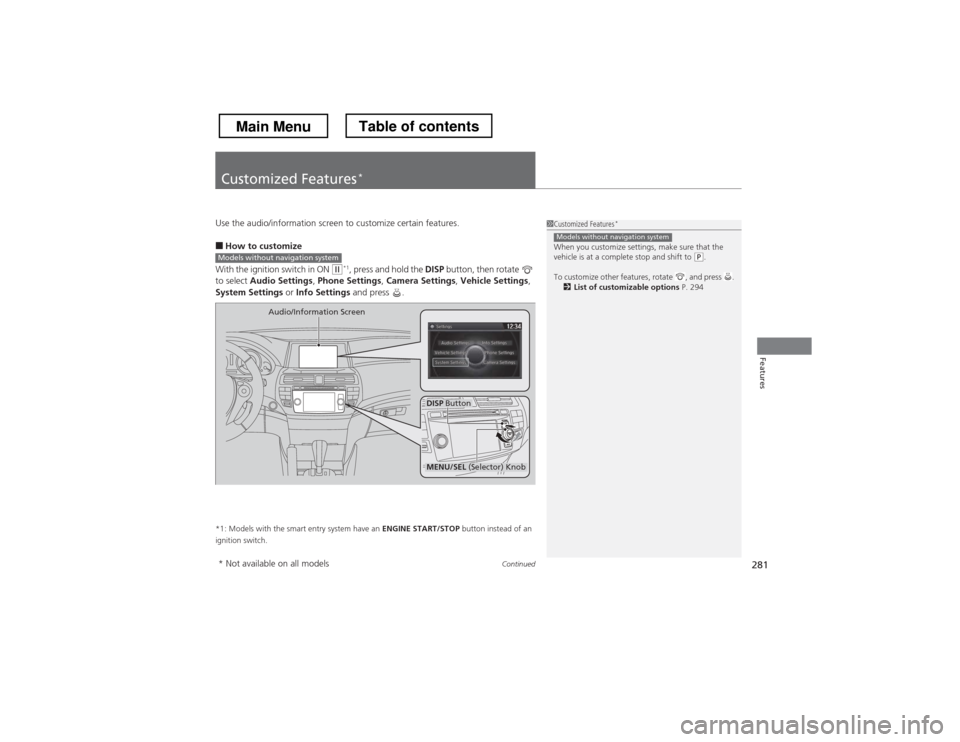
Use the audio/information screen to customize certain features. ■
How to customize
With the ignition switch in ON
(w *1
, press and hold the DISP button, then rotate
to select Audio Settings , Phone Settings , Camera Settings , Vehicle Settings ,
System Settings or Info Settings and press .
*1: Models with the smart entry system have an ENGINE START/STOP button instead of an
ignition switch.
1Customized Features *
When you customize settings, make sure that the
vehicle is at a complete stop and shift to
(P .
To customize other features, rotate , and press . 2 List of customizable options P. 294
Models without navigation system
Models without navigation system
DISP Button
Audio/Information Screen
MENU/SEL
(Selector) Knob
* Not available on all models
Main MenuTable of contents
Page 283 of 573
uuCustomized Features*u
282
Features
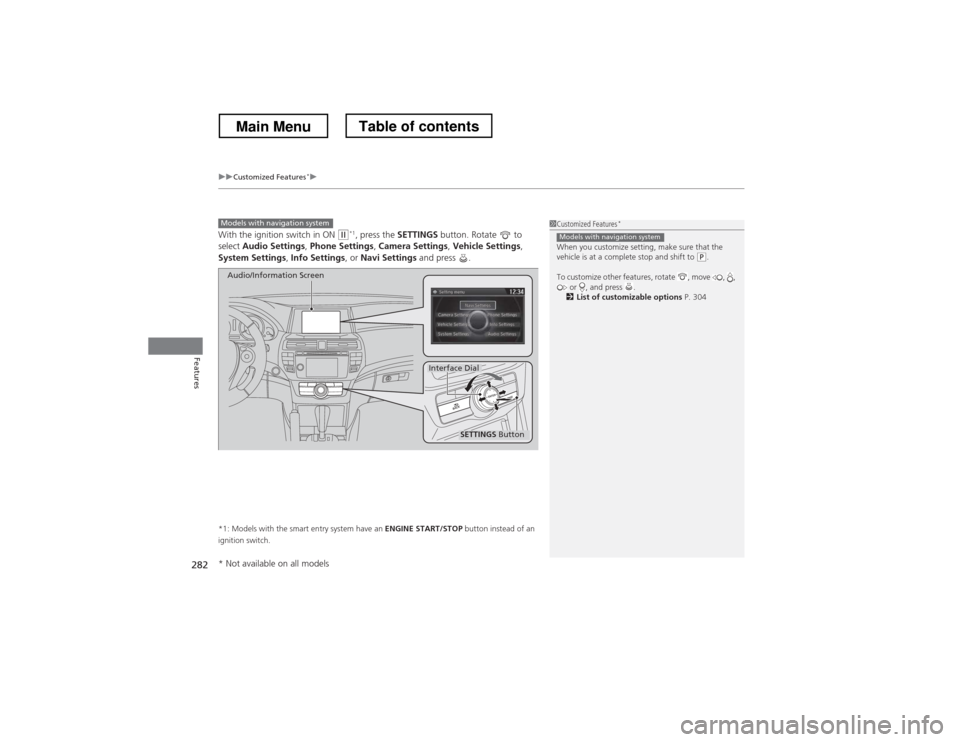
With the ignition switch in ON (w*1
, press the SETTINGS button. Rotate to
select Audio Settings , Phone Settings , Camera Settings , Vehicle Settings ,
System Settings , Info Settings , or Navi Settings and press .
*1: Models with the smart entry system have an ENGINE START/STOP button instead of an
ignition switch.
Models with navigation system
SETTINGS Button
Audio/Information Screen
Interface Dial
1Customized Features *
When you customize setting, make sure that the
vehicle is at a complete stop and shift to
(P .
To customize other features, rotate , move , , or , and press .
2 List of customizable options P. 304
Models with navigation system
* Not available on all models
Main MenuTable of contents
Page 284 of 573
283
uuCustomized Features*u
Continued
Features
■
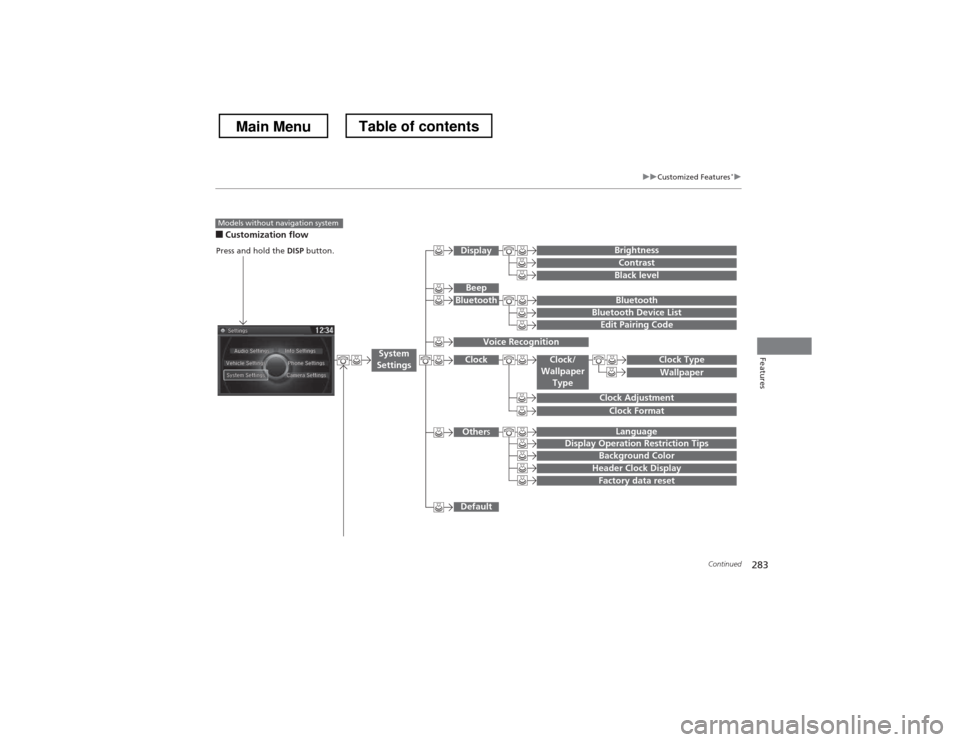
Customization flow
Models without navigation system
Clock Format
Background Color
Header Clock Display
Factory data reset
Clock Adjustment
Press and hold the DISP button.
Language
Default
Edit Pairing Code
Bluetooth
Bluetooth Device List
Brightness
Contrast
Black level
Beep
Clock/
Wallpaper
TypeClock Type
Wallpaper
System
Settings
Bluetooth
Display
Clock
Other s
Display Operation Restriction Tips
Voice Recognition
Main MenuTable of contents