steering HONDA FIT 2020 (in English) Service Manual
[x] Cancel search | Manufacturer: HONDA, Model Year: 2020, Model line: FIT, Model: HONDA FIT 2020Pages: 599, PDF Size: 41.91 MB
Page 222 of 599
uuAudio System Basic Operation uPlaying AM/FM Radio
220
Features
Provides text data information related to your selected RDS capable FM station.
■To find an RDS station from Station List
1. Press while listening to an FM station.
2. Rotate to select the station, then press .
■Update List
Updates your available station list at any time.
1. Press while listening to an FM station.
2. Rotate to select Update List, then press .
■Radio text
Displays the radio text informat ion of the selected RDS station.
1. Press the MENU/CLOCK button.
2. Rotate to select Settings, then press .
3. Rotate to select RDS Settings, then press .
4. Rotate to select Radio Text, then press .
■Scan
Samples each of the strongest stations on the selected band for 10 seconds.
1. Press the MENU/CLOCK button.
2. Rotate to select Scan, then press .
To turn off scan, press .
■Radio Data System (RDS)1 Playing AM/FM Radio
The ST indicator appears on the display indicating
stereo FM broadcasts.
Stereo reproduction in AM is not available.
You can store 6 AM stations and 12 FM stations into
the preset memory.
Switching the Audio Mode
Press the SOURCE button on the steering wheel.
2 Audio Remote Controls
* P. 210
Models with audio remote controls
1Radio Data System (RDS)
When you select an RDS-capable FM station, the RDS
automatically turns on, and the frequency display
changes to the station name. However, when the
signals of that station become weak, the display
changes from the statio n name to the frequency.
* Not available on all models
20 FIT-31T5A6500.book 220 ページ 2019年9月26日 木曜日 午後4時41分
Page 254 of 599
252
uuAudio System Basic Operation uVoice Control Operation
Features
Voice Control Operation
Your vehicle has a voice control system that allows hands-free operation.
The voice control system uses the (T alk) and (hang-up/back) buttons on the
steering wheel and a microphone near the map lights on the ceiling.
To achieve optimum voice recognition when using the voice control system:
• Make sure the correct screen is displa yed for the voice command that you are
using.
The system recognizes only certain commands. Available voice commands.
2 Voice Portal Screen P. 253
•Close the windows and moonroof*.
• Adjust the dashboard and side vents so air does not blow onto the microphone
on the ceiling.
• Speak clearly in a natural speaking vo ice without pausing between words.
• Reduce any background noise if possible. The system may misinterpret your
command if more than one person is speaking at the same time.
■Voice Recognition
1Voice Control Operation
When you press the button, a helpful prompt asks
what you would like to do. Press and release the
button again to bypass this prompt and give a
command.
* Not available on all models
20 FIT-31T5A6500.book 252 ページ 2019年9月26日 木曜日 午後4時41分
Page 258 of 599
uuAudio System Basic Operation uPlaying AM/FM Radio
256
Features
To store a station:
1. Tune to the selected station.
2. Select and hold the preset number fo r the station you want to store.
You can also store a preset station by the following procedure.
1. Tune to the selected station.
2. Select the open/close ic on to display a list.
3. Select the Preset tab.
4. Select and hold the preset number fo r the station you want to store.
Lists the strongest stations on the selected band.
1. Select the open/close ic on to display a list.
2. Select the Station List tab.
3. Select the station.
■Manual update
Updates your available station list at any time.
1. Select the open/close ic on to display a list.
2. Select the Station List tab.
3. Select Refresh .
■Preset Memory
■Station List
1Preset Memory
The ST indicator appears on the display indicating
stereo FM broadcasts.
Stereo reproduction in AM is not available.
Switching the Audio Mode
Press the SOURCE button on the steering wheel or
select SOURCE on the screen.
2 Audio Remote Controls
* P. 210
You can store 6 AM stations and 12 FM stations into
preset memory.
HD Radio Technology manufactured under license
from iBiquity Digi tal Corporation. U.S. and Foreign
Patents. For patents see http://dts.com/patents. HD
Radio, Artist Experience, and the HD, HD Radio, and
"ARC" logos are registered trademarks or
trademarks of iBiquity Di gital Corporation in the
United States and/ or other countries.
Models with HD RadioTM
* Not available on all models
20 FIT-31T5A6500.book 256 ページ 2019年9月26日 木曜日 午後4時41分
Page 262 of 599
uuAudio System Basic Operation uPlaying SiriusXM ® Radio
260
Features
1. Select .
2. Select Tune Mode .
3. Select Channel Mode or Category Mode .
■To Change the Tune Mode1Playing SiriusXM ® Radio
In the channel mode, all available channels are
selectable. In the categor y mode, you can select a
channel within a ca tegory (Jazz, Rock, Classical, etc.).
There may be instances when SiriusXM ® Radio does
not broadcast all the data fi elds (artist name, title).
This does not indicate a problem with your audio
system.
SiriusXM ® Radio stations load in ascending order,
which can take about a minute. Once they have
loaded you will be able to scroll up or down to make
your selections.
Switching the Audio Mode
Press the SOURCE button on the steering wheel or
select SOURCE on the screen.
2 Audio Remote Controls
* P. 210
Tune Start:
When you change to a preset channel, a song being
played on that channel restarts from the beginning
with this function. This can be turned on or off from
the Audio Settings screen.
2 Customized Features P. 328
* Not available on all models
20 FIT-31T5A6500.book 260 ページ 2019年9月26日 木曜日 午後4時41分
Page 273 of 599
Continued271
uuAudio System Basic Operation uSong By VoiceTM (SBV)
Features
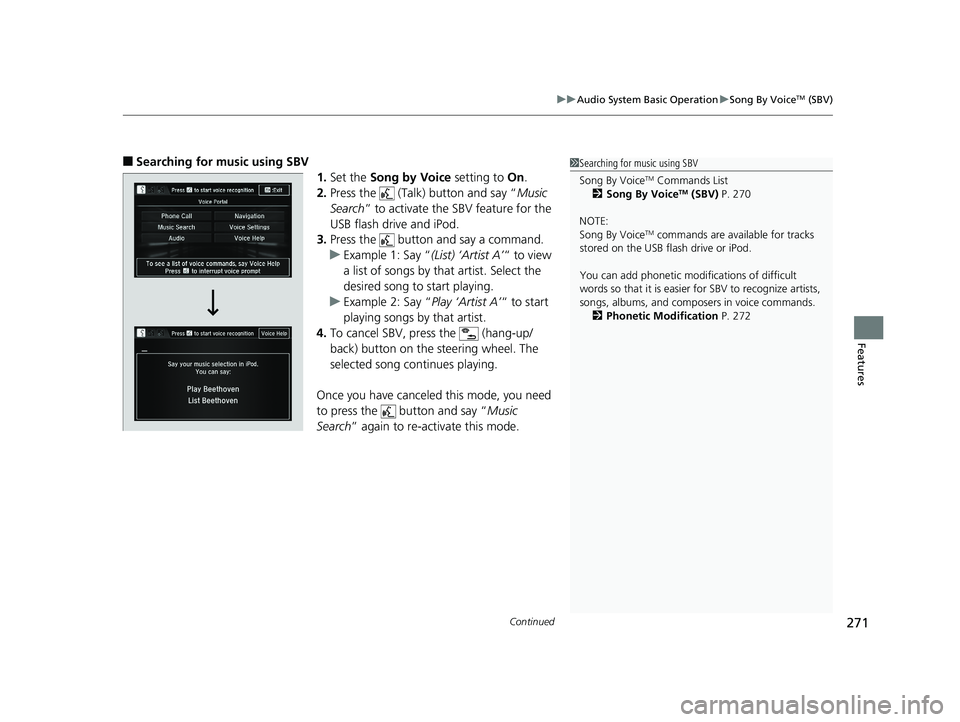
■Searching for music using SBV
1.Set the Song by Voice setting to On.
2. Press the (Talk) button and say “ Music
Search ” to activate the SBV feature for the
USB flash drive and iPod.
3. Press the button and say a command.
u Example 1: Say “ (List) ‘Artist A’“ to view
a list of songs by th at artist. Select the
desired song to start playing.
u Example 2: Say “ Play ‘Artist A’“ to start
playing songs by that artist.
4. To cancel SBV, press the (hang-up/
back) button on the steering wheel. The
selected song continues playing.
Once you have canceled this mode, you need
to press the button and say “ Music
Search ” again to re-activate this mode.1Searching for music using SBV
Song By Voice
TM Commands List
2 Song By VoiceTM (SBV) P. 270
NOTE:
Song By Voice
TM commands are available for tracks
stored on the USB flash drive or iPod.
You can add phonetic modi fications of difficult
words so that it is easier for SBV to recognize artists,
songs, albums, and composers in voice commands. 2 Phonetic Modification P. 272
20 FIT-31T5A6500.book 271 ページ 2019年9月26日 木曜日 午後4時41分
Page 290 of 599
288
uuAudio System Basic Operation uSiri ® Eyes Free
Features
Siri ® Eyes Free
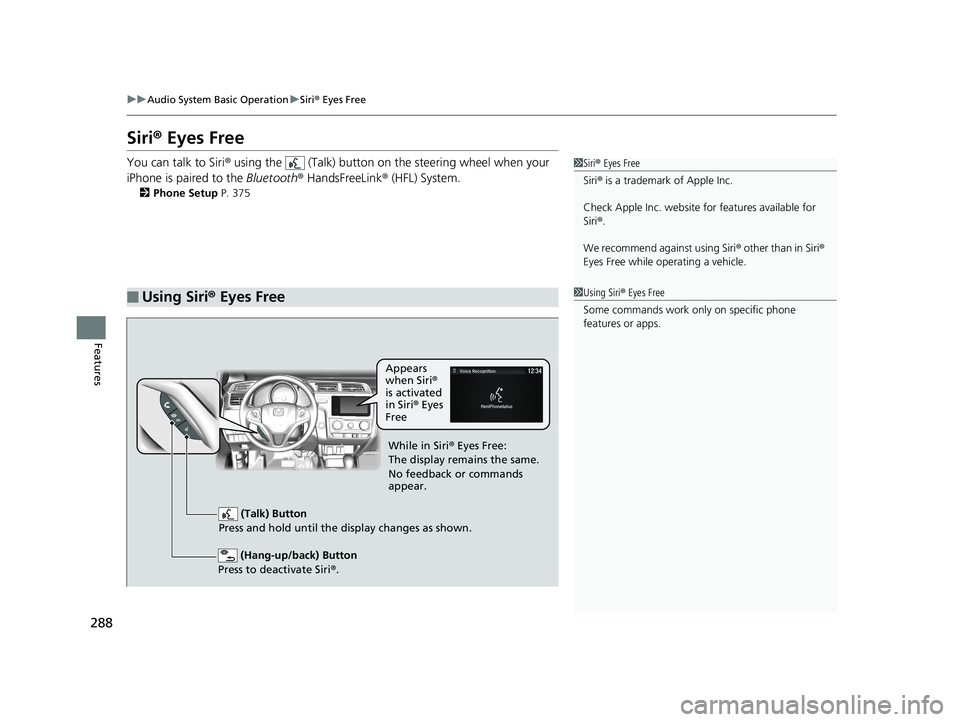
You can talk to Siri ® using the (Talk) button on the steering wheel when your
iPhone is paired to the Bluetooth® HandsFreeLink ® (HFL) System.
2Phone Setup P. 375
■Using Siri® Eyes Free
1 Siri ® Eyes Free
Siri ® is a trademark of Apple Inc.
Check Apple Inc. website for features available for
Siri ®.
We recommend against using Siri ® other than in Siri ®
Eyes Free while operating a vehicle.
1 Using Siri ® Eyes Free
Some commands work only on specific phone
features or apps.
(Hang-up/back) Button
Press to deactivate Siri ®.
(Talk) Button
Press and hold until the display changes as shown.
Appears
when Siri®
is activated
in Siri ® Eyes
Free
While in Siri ® Eyes Free:
The display remains the same.
No feedback or commands
appear.
20 FIT-31T5A6500.book 288 ページ 2019年9月26日 木曜日 午後4時41分
Page 319 of 599
317
Features
General Information on the Audio System
SiriusXM® Radio Service
1.You need your radio ID ready before regist ering for subscription. To see the ID in
the display: Select Channel 000.
2. Have your radio ID and credit card numb er ready, and either call or visit the
SiriusXM ® website to subscribe.
Switch to the SiriusXM ® mode by using the SOURCE button on the steering wheel,
or through the audio/informations screen, and stay in this mode for about 30
minutes until the service is activated. Make sure your vehicle is in an open area with
good reception.
Check antenna:
The SiriusXM ® antenna is disconnected or shorted. Contact a dealer.
No Signal:
The signal is too weak in the current location.
Channel Not Subscribed:
You are not subscribed to the channel selected.
Subscription Updated:
SiriusXM ® radio is receiving informati on update from the network.
Replay Memory Almost Full:
The Recording memory is nearly full.
Replay Memory Full:
The recording memory is full.
■Subscribing to SiriusXM ® Radio
■Receiving SiriusXM ® Radio
■SiriusXM ® Radio Display Messages
1 Subscribing to SiriusXM ® Radio
Contact Information for SiriusXM ® Radio:
•U.S.: SiriusXM ® Radio at www.siriusxm.com/
subscribenow or 1-866-635-2349.
•Canada: SiriusXM ® Canada at www.siriusxm.ca/
subscribe-now , or 1-877-209-0079.
1Receiving SiriusXM ® Radio
The SiriusXM ® satellites are in orbit over the equator;
therefore, objects south of the vehicle may cause
satellite reception interruptions. Sa tellite signals are
more likely to be blocked by tall buildings and
mountains the farther north you travel from the
equator.
You may experience rece ption problems under the
following circumstances:
•In a location with an obstruction to the south of
your vehicle.
•In tunnels
•On the lower level of a multi-tiered road•Large items carried on the roof rack
20 FIT-31T5A6500.book 317 ページ 2019年9月26日 木曜日 午後4時41分
Page 339 of 599
337
uuCustomized Features u
Continued
Features
*1 : Default Setting
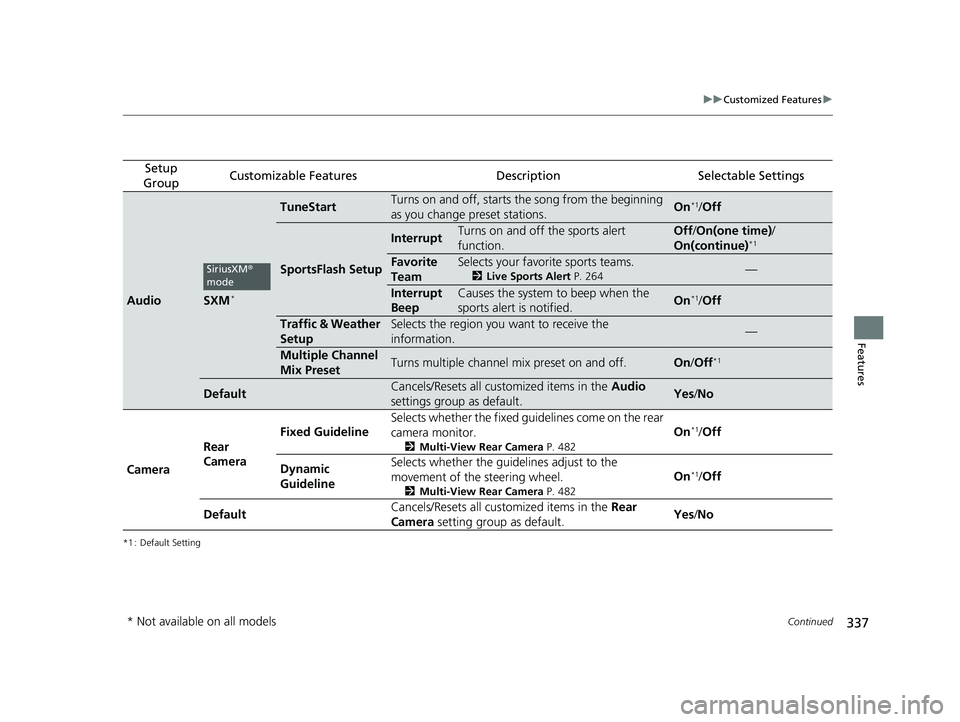
Setup
GroupCustomizable FeaturesDescriptionSelectable Settings
AudioSXM*
TuneStartTurns on and off, starts the song from the beginning
as you change preset stations.On*1/ Off
SportsFlash Setup
InterruptTurns on and off the sports alert
function.Off /On(one time) /
On(continue)*1
Favorite
TeamSelects your favorite sports teams.
2 Live Sports Alert P. 264—
Interrupt
BeepCauses the system to beep when the
sports alert is notified.On*1/ Off
Traffic & Weather
SetupSelects the region you want to receive the
information.—
Multiple Channel
Mix PresetTurns multiple channel mix preset on and off.On /Off*1
DefaultCancels/Resets all customized items in the Audio
settings group as default.Yes /No
Camera Rear
Camera Fixed Guideline
Selects whether the fixed guid
elines come on the rear
camera monitor.
2 Multi-View Rear Camera P. 482
On*1/Off
Dynamic
Guideline Selects whether the guid
elines adjust to the
movement of the steering wheel.
2 Multi-View Rear Camera P. 482
On*1/Off
Default Cancels/Resets all customized items in the
Rear
Camera setting group as default. Yes
/No
SiriusXM ®
mode
* Not available on all models
20 FIT-31T5A6500.book 337 ページ 2019年9月26日 木曜日 午後4時41分
Page 370 of 599
368
Features
Bluetooth® HandsFreeLink ®
The Bluetooth ® HandsFreeLink ® (HFL) allows you to place and receive phone calls
using your vehicle’s audio system, without handling your mobile phone.
Using HFL
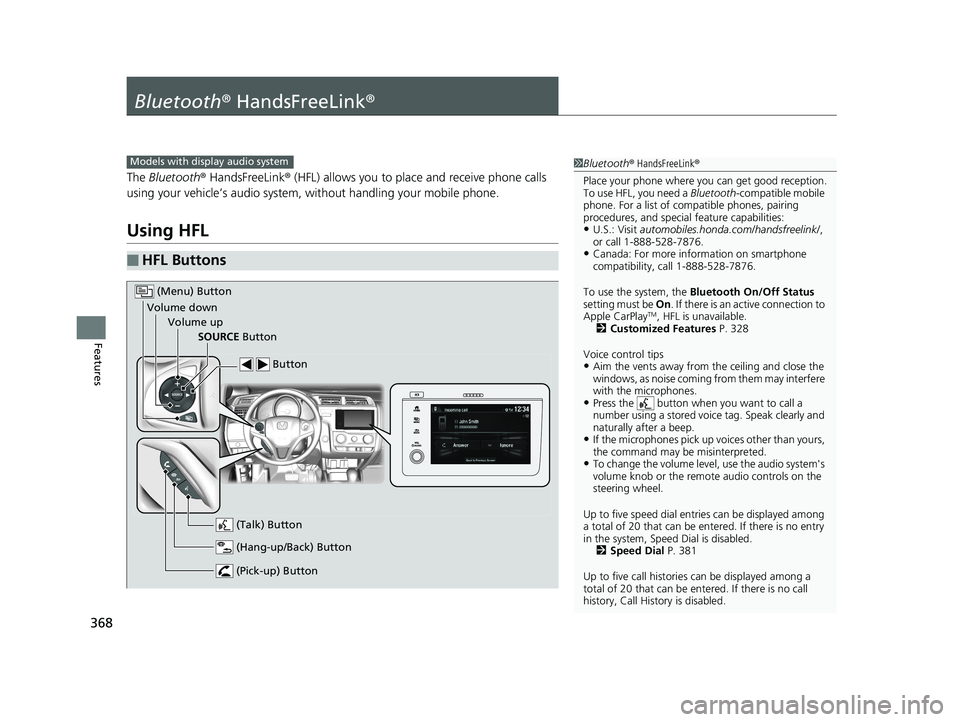
■HFL Buttons
1 Bluetooth ® HandsFreeLink ®
Place your phone where y ou can get good reception.
To use HFL, you need a Bluetooth-compatible mobile
phone. For a list of compatible phones, pairing
procedures, and special feature capabilities:
•U.S.: Visit automobiles.honda.com /handsfreelink/,
or call 1-888-528-7876.
•Canada: For more info rmation on smartphone
compatibility, call 1-888-528-7876.
To use the system, the Bluetooth On/Off Status
setting must be On . If there is an active connection to
Apple CarPlay
TM, HFL is unavailable.
2 Customized Features P. 328
Voice control tips
•Aim the vents away from the ceiling and close the
windows, as noise coming fr om them may interfere
with the microphones.
•Press the button when you want to call a
number using a stored voic e tag. Speak clearly and
naturally after a beep.
•If the microphones pick up vo ices other than yours,
the command may be misinterpreted.
•To change the volume level, use the audio system's
volume knob or the remote audio controls on the
steering wheel.
Up to five speed dial entries can be displayed among
a total of 20 that can be en tered. If there is no entry
in the system, Speed Dial is disabled. 2 Speed Dial P. 381
Up to five call historie s can be displayed among a
total of 20 that can be entered. If there is no call
history, Call History is disabled.
Models with display audio system
(Pick-up) Button
(Hang-up/Back) Button
Volume up
(Talk) Button
(Menu) Button
Volume downSOURCE Button Button
20 FIT-31T5A6500.book 368 ページ 2019年9月26日 木曜日 午後4時41分
Page 403 of 599
Continued401
uuBefore Driving uDriving Preparation
Driving
• Store or secure all items on board properly.
u Carrying too much cargo, or improperly storing it, can affect your vehicle’s
handling, stability, sto pping distance, and tires, and make it unsafe.
2Maximum Load Limit P. 403
•Do not pile items higher than the seat height.
u They can block your view and may be thrown forward in the event of sudden
braking.
• Do not place anything in the front seat footwells. Make sure to secure the floor
mat
*.
u An object or unsecured floor mat can in terfere with your brake and accelerator
pedal operation while driving.
• If you have any animals on board, do not let them move around in the vehicle.
u They may interfere with driving and a crash could occur.
• Securely close and lock al l doors and the tailgate.
2Locking/Unlocking the Doors from the Inside P. 135
•Adjust your seating position properly.
u Adjust the head restraint, too.
2Adjusting the Seats P. 174
2 Adjusting the front head restraint positions P. 181
•Adjust the mirrors and steering wh eel properly for your driving.
u Adjust them while sitting in the proper driving position.
2 Adjusting the Mirrors P. 173
2 Adjusting the Steering Wheel P. 172
■Interior Checks1Interior Checks
The headlight aim is set by the factory, and does not
need to be adjusted. Howeve r, if you regularly carry
heavy items in the cargo area, have the aiming
readjusted at a dealer or by a qualified technician.
* Not available on all models
20 FIT-31T5A6500.book 401 ページ 2019年9月26日 木曜日 午後4時41分