display HONDA PILOT 2016 3.G Owners Manual
[x] Cancel search | Manufacturer: HONDA, Model Year: 2016, Model line: PILOT, Model: HONDA PILOT 2016 3.GPages: 661, PDF Size: 37.79 MB
Page 332 of 661
331
uuBlu-ray/DVD Rear Entertainment System*uPlaying Audio
Continued
Features
Playing Audio
You can play a USB, iPod, auxiliary video (rear), or auxiliary audio (front) from the
rear seats.
■System Controls
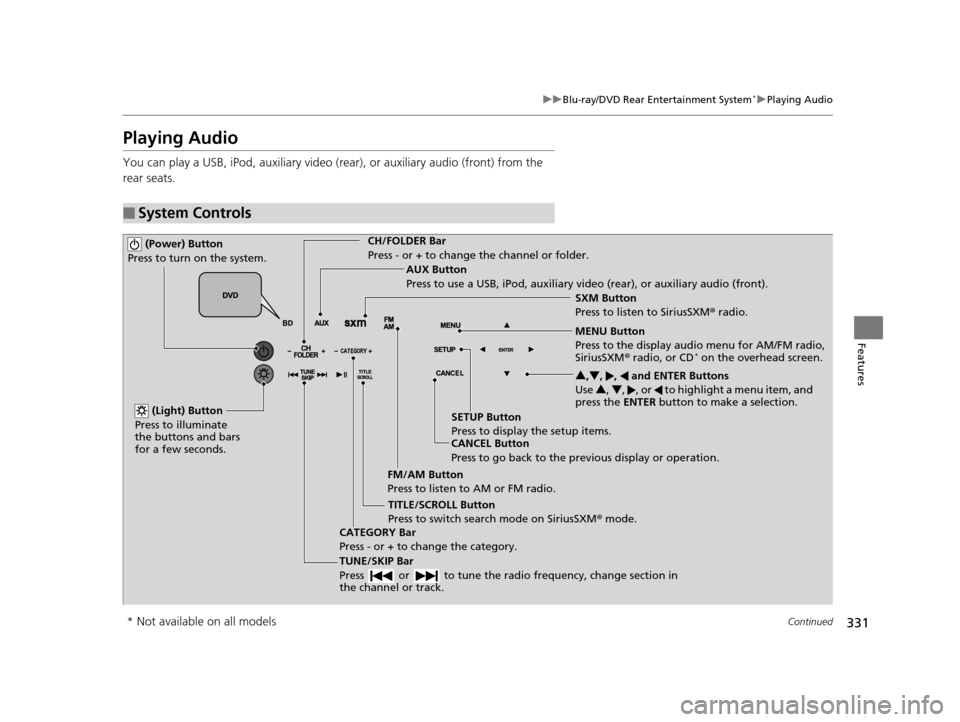
(Power) Button
Press to turn on the system.CH/FOLDER Bar
Press - or + to change the channel or folder.
(Light) Button
Press to illuminate
the buttons and bars
for a few seconds.
TUNE/SKIP Bar
Press or to tune the radi o frequency, change section in
the channel or track.
TITLE/SCROLL Button
Press to switch search mode on SiriusSXM ® mode.
CANCEL Button
Press to go back to the previous display or operation. 3
,4 , , and ENTER Buttons
Use 3, 4 , , or to highlight a menu item, and
press the ENTER button to make a selection.
CATEGORY Bar
Press - or + to change the category. AUX Button
Press to use a USB, iPod, auxiliary video (rear), or auxiliary audio (front).
FM/AM Button
Press to listen to AM or FM radio. SETUP Button
Press to display the setup items. SXM Button
Press to listen to SiriusSXM
® radio.
MENU Button
Press to the display audio menu for AM/FM radio,
SiriusSXM ® radio, or CD
* on the overhead screen.
* Not available on all models
16 PILOT-31TG76000.book 331 ページ 2015年6月15日 月曜日 午前11時30分
Page 333 of 661
uuBlu-ray/DVD Rear Entertainment System*uPlaying Audio
332
Features
To play the AM/FM radio, press the AM/FM button on the remote.
When you press the MENU button on the remote while the radio is playing, the
audio menu appears on the overhead screen.
The available functions are the same as those of the front audio system. The TUNE/
SKIP bar on the remote works the same as the Skip/Seek icons (<>) on the front
touch screen for AM/FM radio operation.
2 Playing AM/FM Radio P. 265
To play the SiriusXM® radio, press the SXM button on the remote.
When you press the MENU button on the remote while the radio is playing, the
audio menu appears on the overhead screen.
The available functions are the same as those of the front audio system. The TUNE/
SKIP bar on the remote works the same as the Skip/Seek icons (<>) on the front
touch screen for SiriusXM ® radio operation.
2Playing SiriusXM ® Radio P. 270
To change the mode between category and channel, press the TITLE/SCROLL
button on the remote for five seconds.
■Playing AM/FM Radio in the Rear
■Playing SiriusXM ® Radio in the Rear
1 System Controls
You can operate the Blu-ray/DVD rear entertainment
system on the front display.
16 PILOT-31TG76000.book 332 ページ 2015年6月15日 月曜日 午前11時30分
Page 337 of 661
336
uuBlu-ray/DVD Rear Entertainment System*uPlayable Discs
Features
■Java
Java is a registered trademark of Oracle and/or its affiliates.
■HDMI
HDMI, the HDMI Logo, and High-Definition Multimedia Interface ar e trademarks or registered trademarks of HDMI Licensing LLC in the
United States and other countries.
■Cinavia
This product uses Cinavia technology to limit the use of unauthorized copies of some commercially-produced film and videos and their
soundtracks. When a prohibited use of an unauthorized copy is detected, a message will be displayed and playback or copying wil l be
interrupted.
More information about Cinavia technology is provided at Cinavia Online Consumer Information Center at http://www.cinavia.com . To
request additional information about Cinavia by mail, send a postcard with your mailing address to: Cinavia Consumer Informatio n Center,
P.O. Box 86851, San Diego, CA, 92138, USA.
This product incorporates proprietary technology under license fro m Verance Corporation and is protected by U.S. Patent 7,369,677 and
other U.S. and worldwide patents issued and pending as well as copyright and trade secret protection for certain aspects of suc h
technology. Cinavia is a trademark of Verance Corporation. Copyri ght 2004-2012 Verance Corporation. All rights reserved by Verance.
Reverse engineering or di sassembly is prohibited.
16 PILOT-31TG76000.book 336 ページ 2015年6月15日 月曜日 午前11時30分
Page 340 of 661
Continued339
uuBlu-ray/DVD Rear Entertainment System*uPlayable Discs
Features
This unit is compatible wi th NTSC and PAL color TV systems. Use discs that are
labeled as NTSC or PAL. Capability of this unit to play discs other than NTSC or PAL
TV system (SECAM) is not guaranteed.
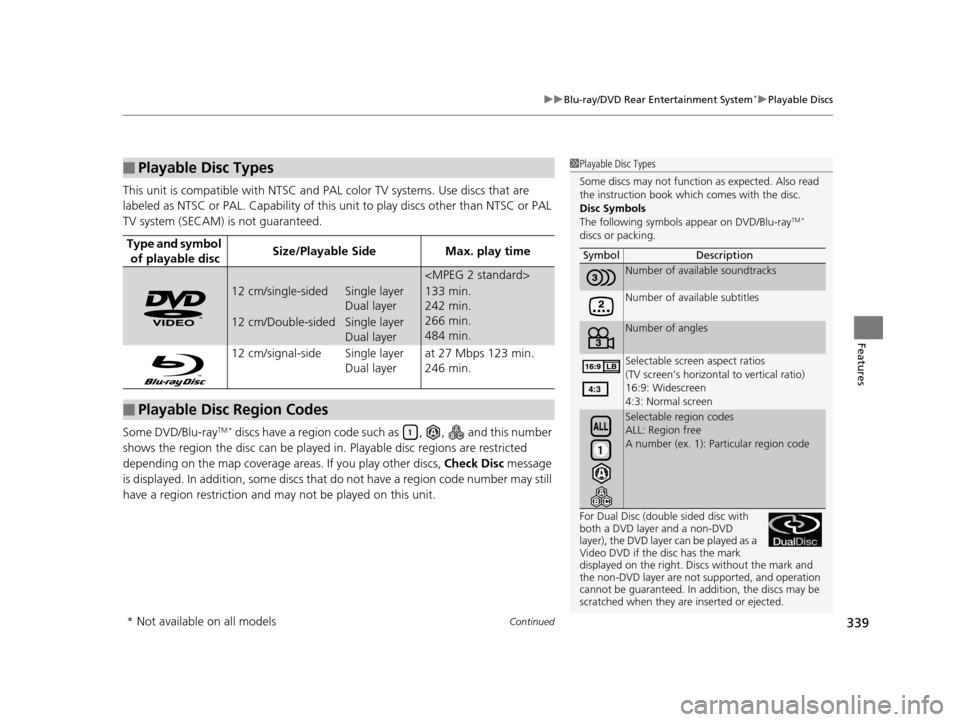
Some DVD/Blu-ray
TM * discs have a region code such as , , and this number
shows the region the disc can be played in. Playable disc regions are restricted
depending on the map coverage areas. If you play other discs, Check Disc message
is displayed. In addition, some discs that do not have a region code number may still
have a region restriction and may not be played on this unit.
■Playable Disc Types
Type and symbol of playable discSize/Playable SideMax. play time
12 cm/single-sidedSingle layer
Dual layer133 min.
242 min.
266 min.
484 min.
12 cm/Double-sidedSingle layer
Dual layer
12 cm/signal-side Single layer
Dual layerat 27 Mbps 123 min.
246 min.
■Playable Disc Region Codes
1 Playable Disc Types
Some discs may not function as expected. Also read
the instruction book which comes with the disc.
Disc Symbols
The following symbols appear on DVD/Blu-ray
TM *
discs or packing.
For Dual Disc (doubl e sided disc with
both a DVD layer and a non-DVD
layer), the DVD layer can be played as a
Video DVD if the disc has the mark
displayed on the right. Disc s without the mark and
the non-DVD layer are not supported, and operation
cannot be guaranteed. In a ddition, the discs may be
scratched when they are inserted or ejected. Symbol Description
Number of avai
lable soundtracks
Number of available subtitles
Number of angles
Selectable screen aspect ratios
(TV screen’s horizontal to vertical ratio)
16:9: Widescreen
4:3: Normal screen
Selectable region codes
ALL: Region free
A number (ex. 1): Pa rticular region code
* Not available on all models
16 PILOT-31TG76000.book 339 ページ 2015年6月15日 月曜日 午前11時30分
Page 344 of 661
343
uuCustomized Features u
Continued
Features
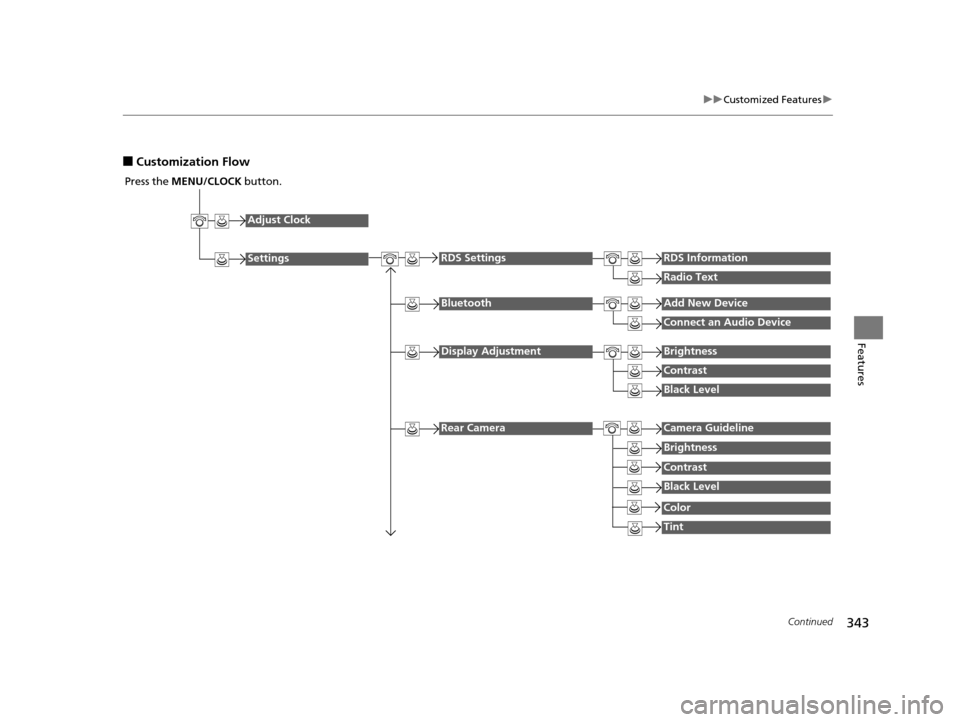
■Customization Flow
Press the MENU/CLOCK button.
Adjust Clock
Settings
BluetoothAdd New Device
Connect an Audio Device
Display AdjustmentBrightness
Contrast
Black Level
Rear CameraCamera Guideline
RDS SettingsRDS Information
Radio Text
Brightness
Contrast
Black Level
Color
Tint
16 PILOT-31TG76000.book 343 ページ 2015年6月15日 月曜日 午前11時30分
Page 345 of 661
344
uuCustomized Features u
Features
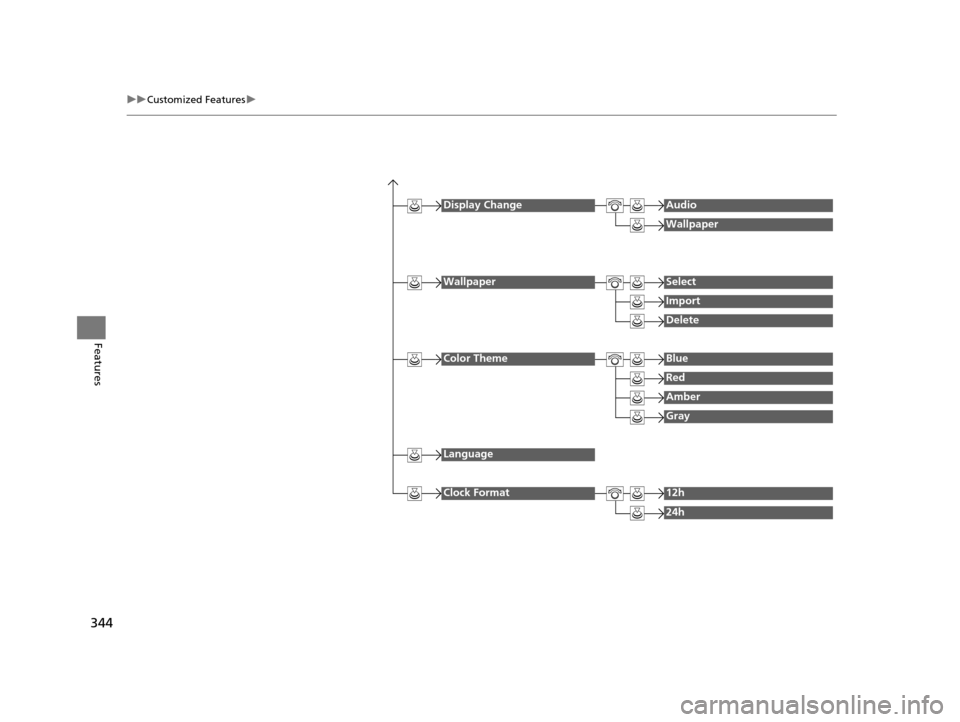
Display ChangeAudio
Wallpaper
WallpaperSelect
Import
Delete
Color ThemeBlue
Red
Amber
Gray
Language
Clock Format12h
24h
16 PILOT-31TG76000.book 344 ページ 2015年6月15日 月曜日 午前11時30分
Page 347 of 661
346
uuCustomized Features u
Features
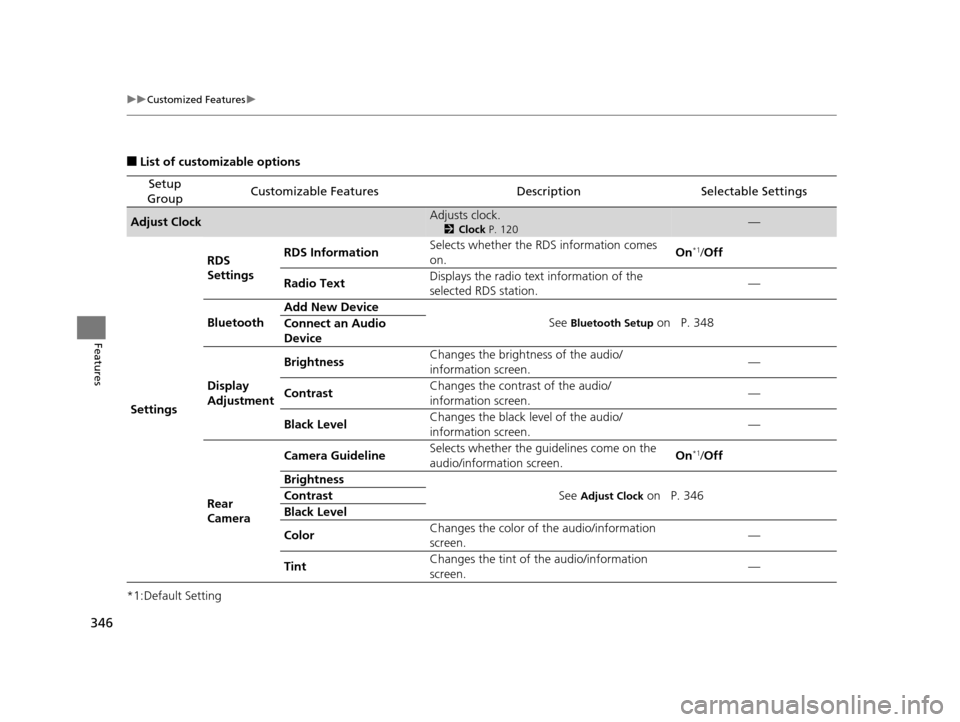
■List of customizable options
*1:Default Setting
Setup
GroupCustomizable FeaturesDescriptionSelectable Settings
Adjust ClockAdjusts clock.
2 Clock P. 120—
Settings RDS
Settings
RDS Information
Selects whether the RDS information comes
on. On
*1/
Off
Radio Text Displays the radio text information of the
selected RDS station. —
Bluetooth Add New Device
See
Bluetooth Setup on P. 348
Connect an Audio
Device
Display
Adjustment Brightness
Changes the brightness of the audio/
information screen. —
Contrast Changes the contrast of the audio/
information screen. —
Black Level Changes the black level of the audio/
information screen.
—
Rear
Camera Camera Guideline
Selects whether the guidelines come on the
audio/information screen. On
*1/
Off
Brightness See
Adjust Clock on P. 346
Contrast
Black Level
Color Changes the color of
the audio/information
screen. —
Tint Changes the tint of
the audio/information
screen. —
16 PILOT-31TG76000.book 346 ページ 2015年6月15日 月曜日 午前11時30分
Page 348 of 661
347
uuCustomized Features u
Continued
Features
*1:Default Setting
Setup
GroupCustomizable FeaturesDescriptionSelectable Settings
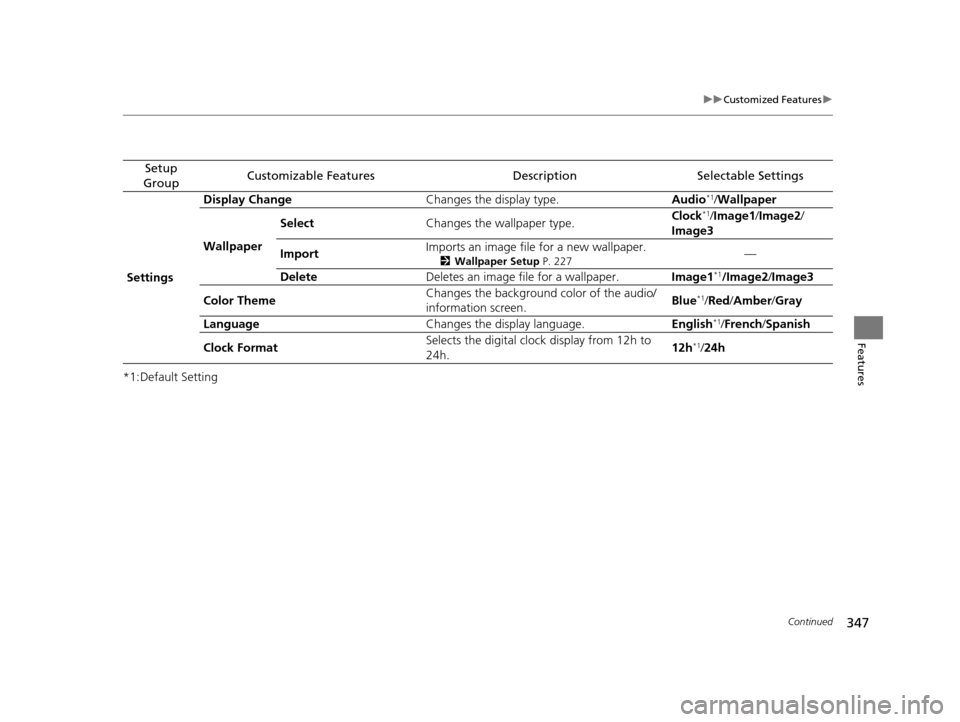
Settings Display Change
Changes the display type. Audio
*1/Wallpaper
Wallpaper Select
Changes the wallpaper type. Clock*1/
Image1 /Image2/
Image3
Import Imports an image file for a new wallpaper.
2
Wallpaper Setup P. 227—
Delete Deletes an image file for a wallpaper. Image1
*1/Image2/Image3
Color Theme Changes the background color of the audio/
information screen.
Blue
*1/
Red /Amber /Gray
Language Changes the display language. English
*1/French /Spanish
Clock Format Selects the digital cloc
k display from 12h to
24h. 12h
*1/
24h
16 PILOT-31TG76000.book 347 ページ 2015年6月15日 月曜日 午前11時30分
Page 350 of 661
Continued349
uuCustomized Features u
Features
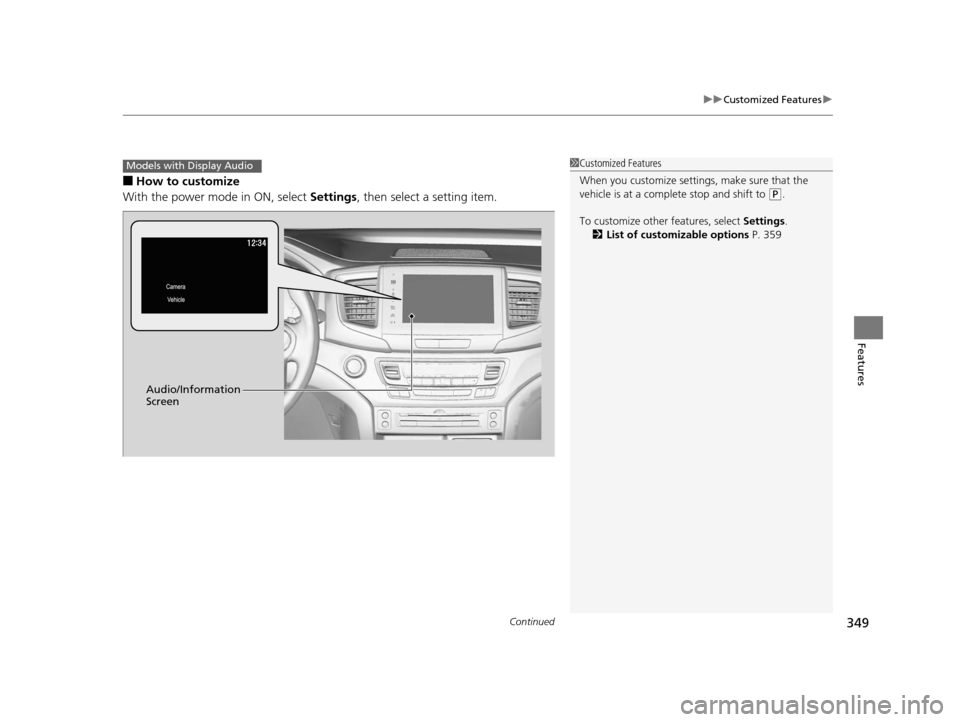
■How to customize
With the power mode in ON, select Settings, then select a setting item.
1Customized Features
When you customize settings, make sure that the
vehicle is at a complete stop and shift to
(P.
To customize other features, select Settings.
2 List of customizable options P. 359
Models with Display Audio
Audio/Information
Screen
16 PILOT-31TG76000.book 349 ページ 2015年6月15日 月曜日 午前11時30分
Page 351 of 661
350
uuCustomized Features u
Features
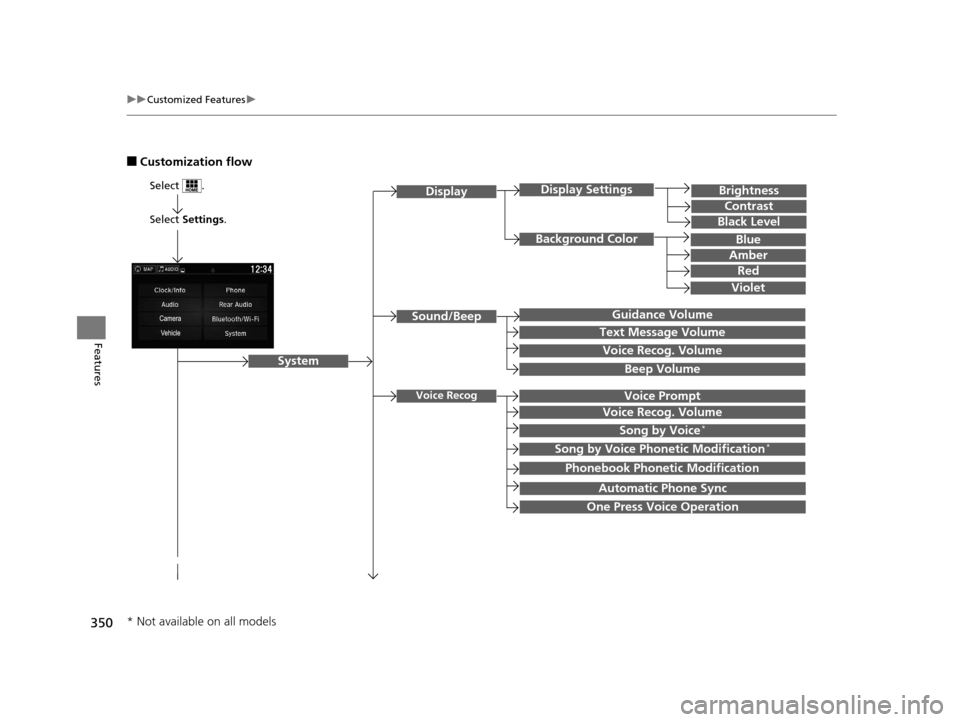
■Customization flow
Select Settings.
Brightness
Contrast
Black Level
Sound/Beep
System
DisplayDisplay Settings
Background Color
Guidance Volume
Text Message Volume
Select .
Voice RecogVoice Prompt
Blue
Amber
Red
Violet
Voice Recog. Volume
Beep Volume
Voice Recog. Volume
Song by Voice*
Song by Voice Phonetic Modification*
Phonebook Phonetic Modification
Automatic Phone Sync
One Press Voice Operation
* Not available on all models
16 PILOT-31TG76000.book 350 ページ 2015年6月15日 月曜日 午前11時30分