reset HONDA PILOT 2023 User Guide
[x] Cancel search | Manufacturer: HONDA, Model Year: 2023, Model line: PILOT, Model: HONDA PILOT 2023Pages: 814, PDF Size: 29.02 MB
Page 157 of 814
156
uuGauges and Displays uDriver Information Interface Ri ght Side Area (B-type-Meter)
Instrument Panel
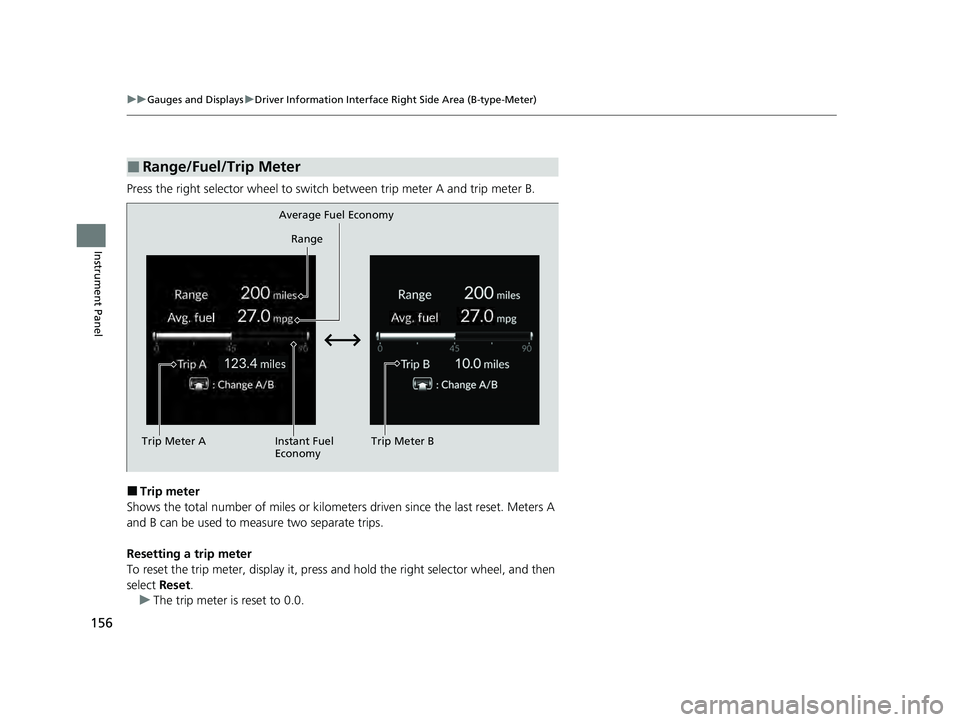
Press the right selector wheel to switch between trip meter A and trip meter B.
■Trip meter
Shows the total number of miles or kilomete rs driven since the last reset. Meters A
and B can be used to measure two separate trips.
Resetting a trip meter
To reset the trip meter, display it, press an d hold the right selector wheel, and then
select Reset.
u The trip meter is reset to 0.0.
■Range/Fuel/Trip Meter
Trip Meter A Range
Average Fuel Economy
Instant Fuel
Economy Trip Meter B
23 PILOT-31T906000_03.book 156 ページ 2022年10月31日 月曜日 午前10時26分
Page 158 of 814
Continued157
uuGauges and Displays uDriver Information Interface Right Side Area (B-type-Meter)
Instrument Panel
■Average fuel economy
Shows the estimated average fuel economy of each trip meter in mpg or l/100 km.
The display is updated at set intervals. Wh en a trip meter is reset, the average fuel
economy is also reset.
■Instant fuel economy
Shows the instant fuel economy as a bar graph in mpg or l/100 km.
■Range
Shows the estimated distance you can trave l on the remaining fuel. This estimated
distance is based on the vehicle’s current fuel economy.
1 Average fuel economy
You can change when to reset the average fuel
economy.
2 Customized Features P. 429
1Range
The driving range displayed is only an estimate and
may differ from the actual distance the vehicle can
travel.
23 PILOT-31T906000_03.book 157 ページ 2022年10月31日 月曜日 午前10時26分
Page 160 of 814
Continued159
uuGauges and Displays uDriver Information Interface Right Side Area (B-type-Meter)
Instrument Panel
■Trip meter
2 Trip meter P. 156
■Elapsed time
Shows the time elapsed since Trip A or Trip B was reset.
■Average speed
Shows the average speed in mph or km/h since Trip A or Trip B was reset.
■Compass
Shows the compass screen.
■Turn-by-Turn Directions
When driving guidance is provided by the navigation system, Apple CarPlay or
Android Auto, turn-by-turn directions to your destination appear.
2 Refer to the Navigation System Manual
2 Apple CarPlay P. 385
2 Android Auto
TM P. 392
■Navigation
1Elapsed time
You can change when to reset the elapsed time.
2 Customized Features P. 429
1Average speed
You can change when to reset the average speed.
2 Customized Features P. 429
1Navigation
When the compass or turn-by-turn directions are
displayed, you can contro l some navigation system
functions on the driver information interface by
pressing the right selector wheel.
2 Refer to the Navigation System Manual
You can select whether to have the turn-by-turn
display come on or not dur ing the route guidance.
2 Customized Features P. 429
Turn-by-turn directions may not be available for all
apps.
23 PILOT-31T906000_03.book 159 ページ 2022年10月31日 月曜日 午前10時26分
Page 163 of 814
uuGauges and Displays uDriver Information Interface Ri ght Side Area (B-type-Meter)
162
Instrument Panel
■The Driver Attention Monitor resets when:
• The engine is turned off.
• The driver unfastens the seat belt and op ens the door while the vehicle is stopped.
■For the Driver Attention Monitor to function:
• The vehicle must be traveling above 25 mph (40 km/h).
• The electric power steering (EPS) system indicator must be off.
■Depending on driving conditions or other factors, the Driver Attention
Monitor may not function in the following circumstances:
• The steering assist function of the Lane Keeping Assist System (LKAS) is active.
2Lane Keeping Assist System (LKAS) P. 612
•The condition of the road is poor; e.g., the surface is unpaved or bumpy.
• It is windy.
• The driver is frequently op erating the vehicle in an assertive manner, such as
changing lanes or accelerating.
■Customizing
You can change the Driver Attention Monitor settings. Select Tactile And Audible
Alert , Tactile Alert , or OFF.
2Customized Features P. 429
1For the Driver Attention Monitor to function:
The bars on the driver information interface remain
grayed out unless the Driv er Attention Monitor is
functioning.
23 PILOT-31T906000_03.book 162 ページ 2022年10月31日 月曜日 午前10時26分
Page 173 of 814
uuGauges and Displays uHead-Up Display*
172
Instrument Panel
■Adjusting the head-up display brightness
Roll the right selector wheel to scroll to select HUD brightness, then press the right
selector wheel.
Brighten: Roll the right selector wheel up.
Dim : Roll the right selector wheel down.
Press the right selector wheel to exit.
■Adjusting the head-up display height
Roll the right selector wheel to scroll to select HUD height, then press the right
selector wheel.
Raise the head-up display : Roll the right selector wheel up.
Lower the head-up display : Roll the right selector wheel down.
Press the right selector wheel to exit.1 Adjusting the head-up display height
When you unlock and open the driver’s door with a
remote transmitter or keyless access system, the
head-up display adjusts auto matically to one of the
two preset positions.
23 PILOT-31T906000_03.book 172 ページ 2022年10月31日 月曜日 午前10時26分
Page 192 of 814
191
uuLocking and Unlocking the Doors uLocking/Unlocking the Doors from the Outside
Controls
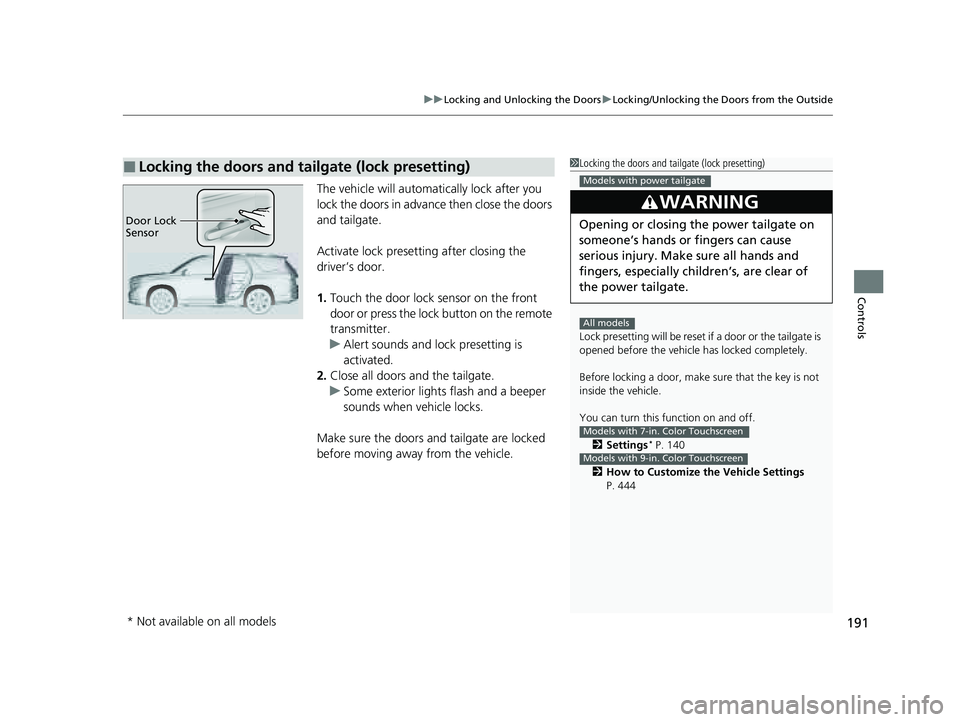
The vehicle will automatically lock after you
lock the doors in advance then close the doors
and tailgate.
Activate lock presetting after closing the
driver’s door.
1. Touch the door lock sensor on the front
door or press the lock button on the remote
transmitter.
u Alert sounds and lock presetting is
activated.
2. Close all doors and the tailgate.
u Some exterior lights flash and a beeper
sounds when vehicle locks.
Make sure the doors and tailgate are locked
before moving away from the vehicle.
■Locking the doors and tailgate (lock presetting)1 Locking the doors and tailgate (lock presetting)
Lock presetting will be reset if a door or the tailgate is
opened before the vehicle has locked completely.
Before locking a door, make sure that the key is not
inside the vehicle.
You can turn this function on and off.
2 Settings
* P. 140
2 How to Customize the Vehicle Settings
P. 444
3WARNING
Opening or closing the power tailgate on
someone’s hands or fingers can cause
serious injury. Make sure all hands and
fingers, especially children’s, are clear of
the power tailgate.
Models with power tailgate
All models
Models with 7-in. Color Touchscreen
Models with 9-in. Color Touchscreen
Door Lock
Sensor
* Not available on all models
23 PILOT-31T906000_03.book 191 ページ 2022年10月31日 月曜日 午前10時26分
Page 234 of 814
233
uuOperating the Switches Around the Steering Wheel uDriving Position Memory System*
Continued
Controls
Driving Position Memory System*
You can store two driver’s seat positions (except for power lumbar) and outside
mirrors position with the driv ing position memory system.
When you unlock and open the driver’s door with a keyless remote, the seat and
outside mirrors automatically adjust to one of the preset positions.
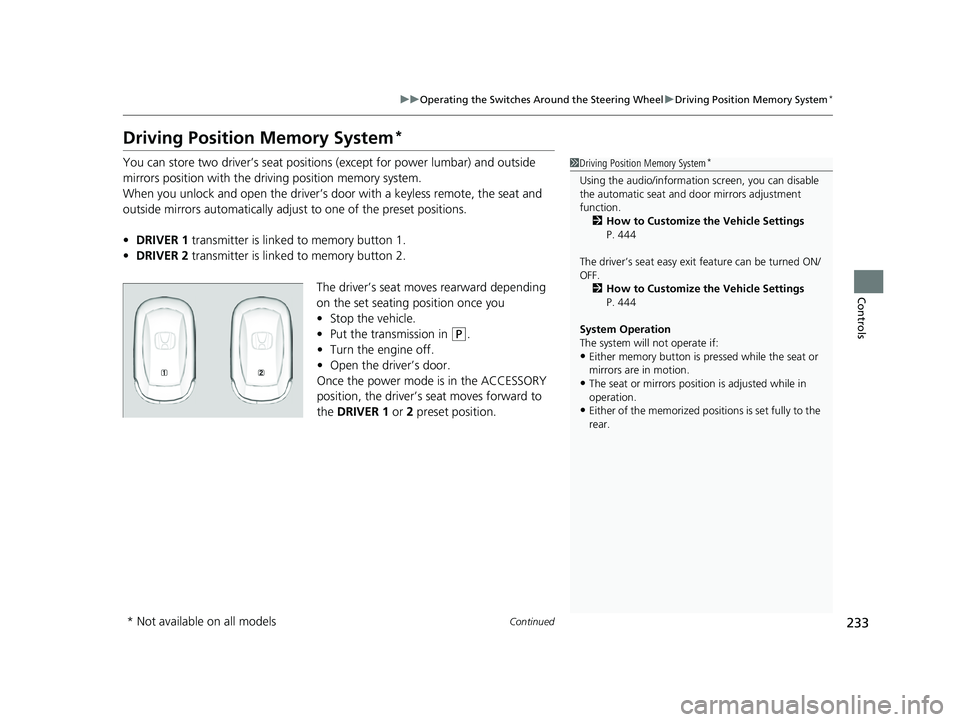
• DRIVER 1 transmitter is linked to memory button 1.
• DRIVER 2 transmitter is linked to memory button 2.
The driver’s seat moves rearward depending
on the set seating position once you
•Stop the vehicle.
• Put the transmission in
(P.
• Turn the engine off.
• Open the driv er’s door.
Once the power mode is in the ACCESSORY
position, the driver’s seat moves forward to
the DRIVER 1 or 2 preset position.
1 Driving Position Memory System*
Using the audio/informati on screen, you can disable
the automatic seat and d oor mirrors adjustment
function. 2 How to Customize the Vehicle Settings
P. 444
The driver’s seat easy exit feature can be turned ON/
OFF. 2 How to Customize the Vehicle Settings
P. 444
System Operation
The system will not operate if:
•Either memory button is pressed while the seat or
mirrors are in motion.
•The seat or mirrors positi on is adjusted while in
operation.
•Either of the memorized positions is set fully to the
rear.
* Not available on all models
23 PILOT-31T906000_03.book 233 ページ 2022年10月31日 月曜日 午前10時26分
Page 277 of 814
uuInterior Convenience Items uOther Interior Convenience Items
276
Controls
■When charging does not start
Perform one of the solution s in the following table.
IndicatorCauseSolution
Green
&
AmberBlinking
simulta- neously
There is an obstacle(s) between
the charging area and the
device.Remove the
obstacle(s).
The device is not within the
charging area. Pick up and reset the
device to the center of
the charging area
where is located.
The temperature of the wireless
charger pad increases. Temporarily suspend
charging the device.
Wait for the
temperature to drop
and attempt to charge
the device again.
AmberBlinkingThe wireless charger is faulty.Contact a dealer for
repairs.
1
Wireless Charger*
This system consumes a lot of power. Do not use the
system for a long time when the engine is not
running. This may weaken the battery, making it
difficult to start the engine.
When using the wireless charger, check the user’s manual
that came with the compatible device you want to charge.
3CAUTION
Metal objects between the charge pad
and the device to be charged will get
hot and can burn you.
• Always remove foreign objects from
the charge pad before charging the
device.
• Be sure the surface is clear of dust and
other debris before charging.
• Do not spill liquids (i. e. water, drinks,
etc.) on the charger and the device.
• Do not use oil, grease, alcohol,
benzine or thinner for cleaning the
charge pad.
• Do not cover the system with towels,
clothing, or other objects while
charging etc.
• Avoid spraying aerosols which may
come in contact with the charge pad
surface.
* Not available on all models
23 PILOT-31T906000_03.book 276 ページ 2022年10月31日 月曜日 午前10時26分
Page 297 of 814
296
uuAudio System uAudio Remote Controls
Features
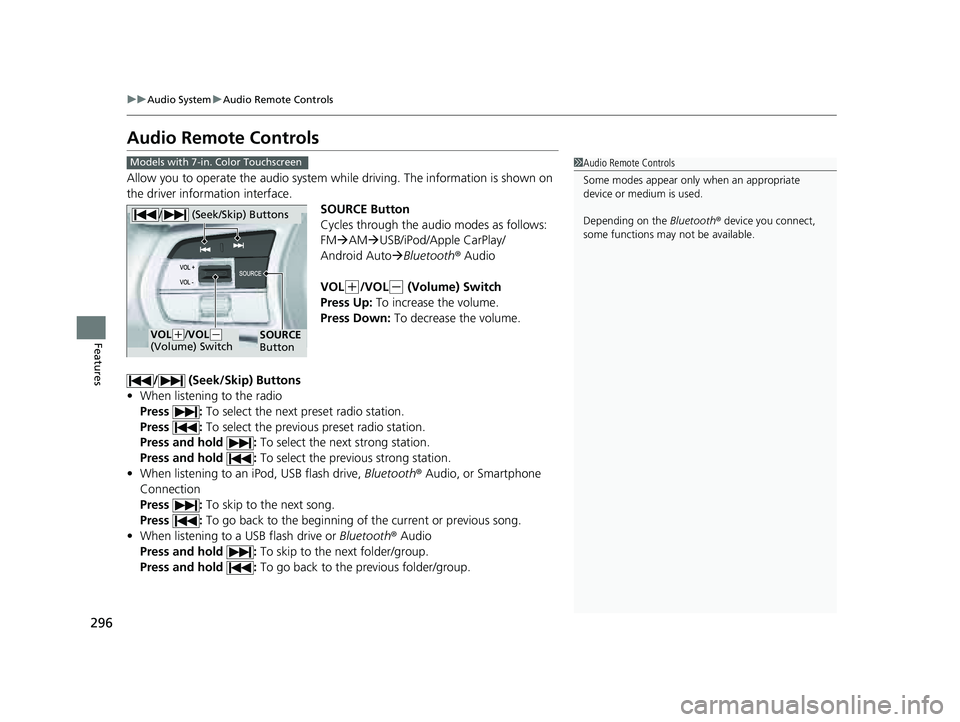
Audio Remote Controls
Allow you to operate the audio system wh ile driving. The information is shown on
the driver information interface.
SOURCE Button
Cycles through the audio modes as follows:
FMAM USB/iPod/Apple CarPlay/
Android Auto Bluetooth ® Audio
VOL
(+/VOL(- (Volume) Switch
Press Up: To increase the volume.
Press Down: To decrease the volume.
/ (Seek/Skip) Buttons
• When listening to the radio
Press : To select the next preset radio station.
Press : To select the previous preset radio station.
Press and hold : To select the next strong station.
Press and hold : To select the previous strong station.
• When listening to an iPod, USB flash drive, Bluetooth® Audio, or Smartphone
Connection
Press : To skip to the next song.
Press : To go back to the beginning of the current or previous song.
• When listening to a USB flash drive or Bluetooth® Audio
Press and hold : To skip to the next folder/group.
Press and hold : To go back to the previous folder/group.
1Audio Remote Controls
Some modes appear only when an appropriate
device or medium is used.
Depending on the Bluetooth® device you connect,
some functions may not be available.Models with 7-in. Color Touchscreen
/ (Seek/Skip) Buttons
SOURCE
ButtonVOL( +/VOL(-
(Volume) Switch
23 PILOT-31T906000_03.book 296 ページ 2022年10月31日 月曜日 午前10時26分
Page 299 of 814
298
uuAudio System uAudio Remote Controls
Features
/ (Seek/Skip) Buttons
• When listening to the radio
Press : To select the next preset radio station.
Press : To select the previous preset radio station.
Press and hold : To select the next strong station.
Press and hold : To select the previous strong station.
• When listening to an iPod, USB flash drive, Bluetooth® Audio, or Smartphone
Connection
Press : To skip to the next song.
Press : To go back to the beginning of the current or previous song.
• When listening to a USB flash drive
Press and hold : To skip to the next folder.
Press and hold : To go back to the previous folder.
23 PILOT-31T906000_03.book 298 ページ 2022年10月31日 月曜日 午前10時26分