check HONDA RIDGELINE 2017 2.G Service Manual
[x] Cancel search | Manufacturer: HONDA, Model Year: 2017, Model line: RIDGELINE, Model: HONDA RIDGELINE 2017 2.GPages: 606, PDF Size: 13.21 MB
Page 152 of 606
151
uuOperating the Switches Around the Steering Wheel uAuto High-Beam (High Beam Support System)*
Controls
■To manually cancel th e system temporarily
You can cancel the operation when you manually change the headlights to high
beams. Push the lever forward until you hear a click, or lightly pull the lever towards
you to flash high beams. The auto high-beam indicator goes off.
If you want the auto high-beam operation to resume at once, pull the lever towards
you.
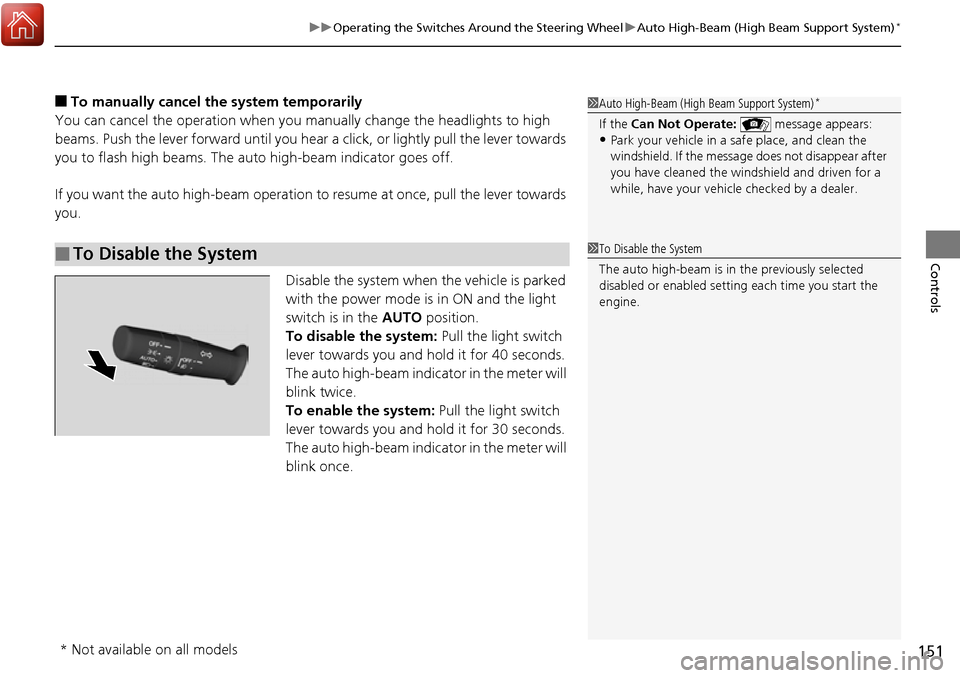
Disable the system when the vehicle is parked
with the power mode is in ON and the light
switch is in the AUTO position.
To disable the system: Pull the light switch
lever towards you and hold it for 40 seconds.
The auto high-beam indicator in the meter will
blink twice.
To enable the system: Pull the light switch
lever towards you and hold it for 30 seconds.
The auto high-beam indicator in the meter will
blink once.
■To Disable the System
1 Auto High-Beam (High Beam Support System)*
If the Can Not Operate: message appears:•Park your vehicle in a safe place, and clean the
windshield. If the message does not disappear after
you have cleaned the winds hield and driven for a
while, have your vehicle checked by a dealer.
1 To Disable the System
The auto high-beam is in the previously selected
disabled or enabled setti ng each time you start the
engine.
* Not available on all models
Page 165 of 606
164
uuAdjusting the Seats uRear Seats
Controls
Rear Seats
The right and left cushions can be raised independently to make room for cargo.
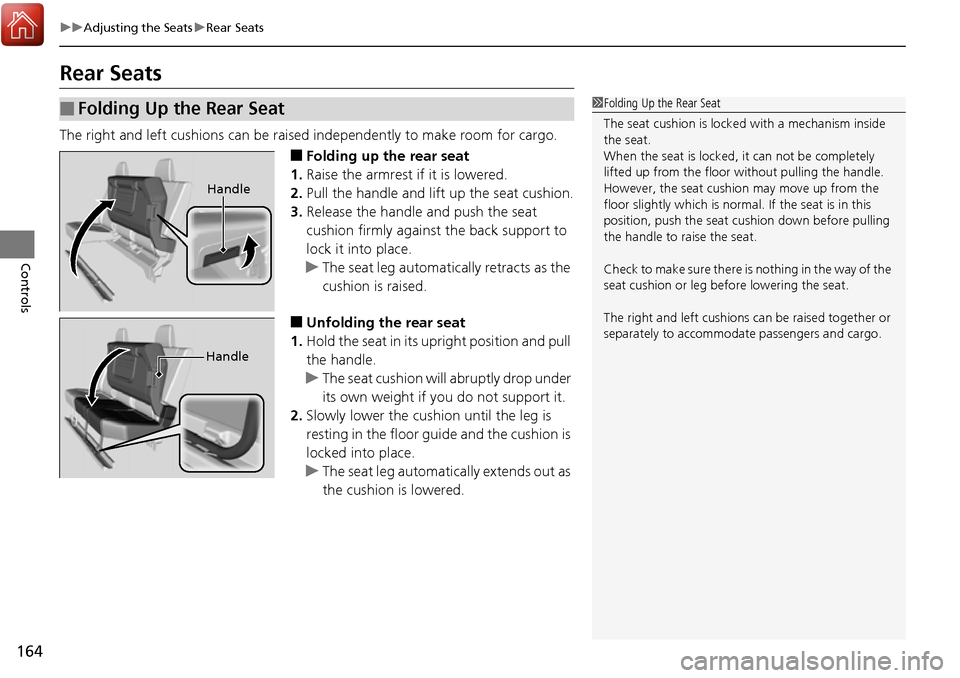
■Folding up the rear seat
1. Raise the armrest if it is lowered.
2. Pull the handle and lift up the seat cushion.
3. Release the handle and push the seat
cushion firmly against the back support to
lock it into place.
u The seat leg automatically retracts as the
cushion is raised.
■Unfolding the rear seat
1. Hold the seat in its upright position and pull
the handle.
u The seat cushion will abruptly drop under
its own weight if you do not support it.
2. Slowly lower the cushion until the leg is
resting in the floor gu ide and the cushion is
locked into place.
u The seat leg automatically extends out as
the cushion is lowered.
■Folding Up the Rear Seat1Folding Up the Rear Seat
The seat cushion is locked with a mechanism inside
the seat.
When the seat is locked, it can not be completely
lifted up from the floor without pulling the handle.
However, the seat cushion may move up from the
floor slightly which is normal. If the seat is in this
position, push the seat cu shion down before pulling
the handle to raise the seat.
Check to make sure there is nothing in the way of the
seat cushion or leg be fore lowering the seat.
The right and left cushions can be ra ised together or
separately to accommoda te passengers and cargo.
Handle
Handle
Page 202 of 606
201
uuAudio System uAudio System Theft Protection
Features
Audio System Theft Protection
The audio system is disabled when it is disconnected from the power source, such as
when the battery is disconnected or goes dead. In certain conditions, the system
may display a code entry screen. If this occurs, reactivate the audio system.
■Reactivating the audio system
1. Set the power mode to ON.
2. Turn on the audio system.
3. Press and hold the audio system power button for more than two seconds.
u The audio system is reac tivated when the audio co ntrol unit establishes a
connection with the vehicle control unit. If the control unit fails to recognize
the audio unit, you must go to a dealer and have the audio unit checked.
1 Audio System Theft Protection
Find the audio system’s se curity code and serial
number label in your owner’s manual kit.
We recommend that you write down the serial
number in this owner’s manual.
Do not store the label in your vehicle. If you lose the
label, you must first retrie ve the serial number, and
then obtain the code.
You can find out about your serial number and
security code from a dealer.
U.S. models
Page 227 of 606
226
uuAudio System Basic Operation uAudio/Information Screen
Features
■HondaLink
Connects with your smartphone*1 to play personalized music, information, and
social media streams.
2 HondaLink® P. 276
■Smartphone Connection
Displays the Apple CarPlay or Android Auto .
2Apple CarPlay P. 284
2 Android Auto P. 287
■Truck Bed Audio*
Displays the Truck Bed Audio System screen.
2Truck Bed Audio System* P. 291
*1: Available on specific phones only. Check
handsfreelink.honda.com for U.S. and
www.handsfreelink.ca for Canada for compatible phones and hondalink.com for U.S. and
honda.ca/hondalink for Canada for feature details.
* Not available on all models
Page 256 of 606
Continued255
uuAudio System Basic Operation uPlaying SiriusXM ® Radio*
Features
The system can record up to the last 60 minutes broadcast of your currently tuned
channel as well as the last 30 minutes broadcast of preset channels, starting from
the moment you turn the vehicle on. If y ou tuned to preset channel, the system
records up to 60 minutes of a broadcast instead of up to 30 minutes. You can
rewind and replay the last 30 or 60 minutes of a broadcast.
1. Select .
2. Select Playback Position .
3. Move the gauge to the position you want to replay.
To play or pause on playback mode:
1. Select .
2. Select Play/Pause .
■Returning to real-time broadcast
1. Select .
2. Select Play Live Broadcast .
■Replay Function1Replay Function
The system starts storing broadcast in memory when
the power mode is turned ON. You can go back to
the program from that point.
You can no longer repl ay any program once the
power mode is turned off as it erases memory.
You can check how long the program has been
stored in memory from th e audio/information screen.
After 30 or 60 minutes of recording the system will
automatically start deleting the oldest data.
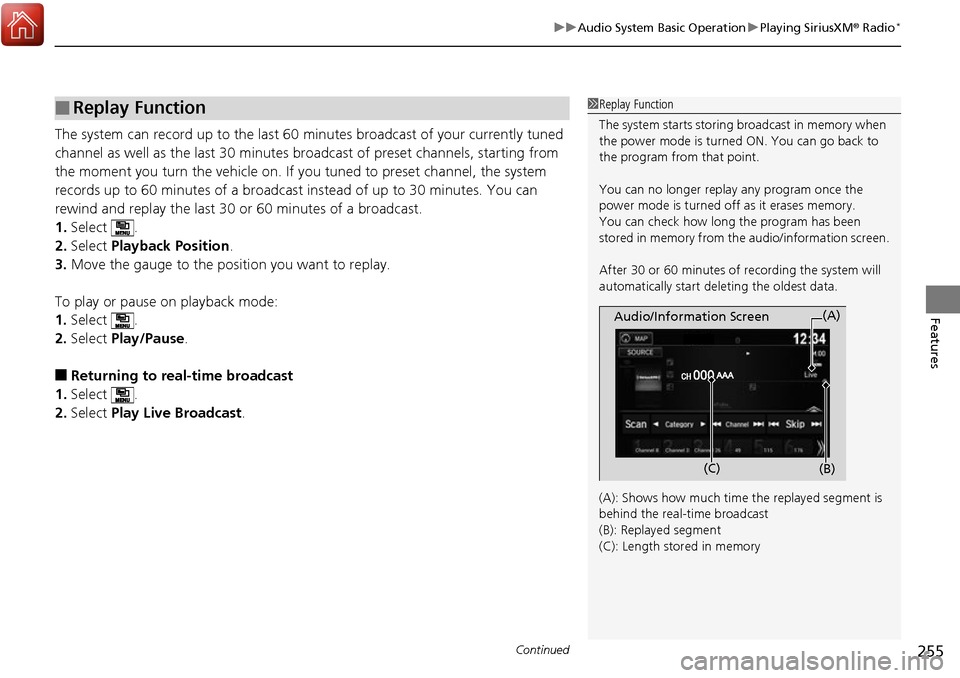
(A): Shows how much time the replayed segment is
behind the real-time broadcast
(B): Replayed segment
(C): Length stored in memory
Audio/Information Screen
(C) (B)(A)
Page 270 of 606
269
uuAudio System Basic Operation uPlaying Pandora ®
Continued
Features
Playing Pandora ®
Your audio system allows you to listen to music from the Pandora ® app on a
compatible smartphone.
This function is available when the phone is paired an d connected to the vehicle’s
Bluetooth ® HandsFreeLink ® (HFL) system, or with an iPhone, you can connect using
your USB cable to the USB port.
2 Phone Setup P. 370
2 USB Port(s) P. 199
U.S. models
1Playing Pandora ®
Pandora ®, the Pandora logo, and the Pandora trade
dress are trademarks or registered trademarks of
Pandora Media, Inc., used with permission. Pandora
is only available in certai n countries. Visit the Pandora
website for more information.
To find out if your phone is compatible with this
feature, visit www.handsfreelink.honda.com , or call
1-888-528-7876.
To use this service in your vehicle, the Pandora ® app
must first be installed on your phone. Visit
www.pandora.com for more information.
Pandora ® is free, personalized radio that plays music
and comedy you’ll love. Just start with the name of
one of your favorite arti sts, songs, comedians or
composers and Pandora ® will create a custom station
that plays similar tracks. Pandora® also features
hundreds of genre stations ranging from Dubstep to
Smooth Jazz to Power Workout.
If you cannot operate Pandora ® through the audio
system, it may be streaming through Bluetooth®
Audio. Make sure Pandora ® mode on your audio
system is selected.
If your phone is connecte d to Android Auto, Pandora
will be available only through the Android Auto
interface. Visit the Android Auto website to check
compatibility.
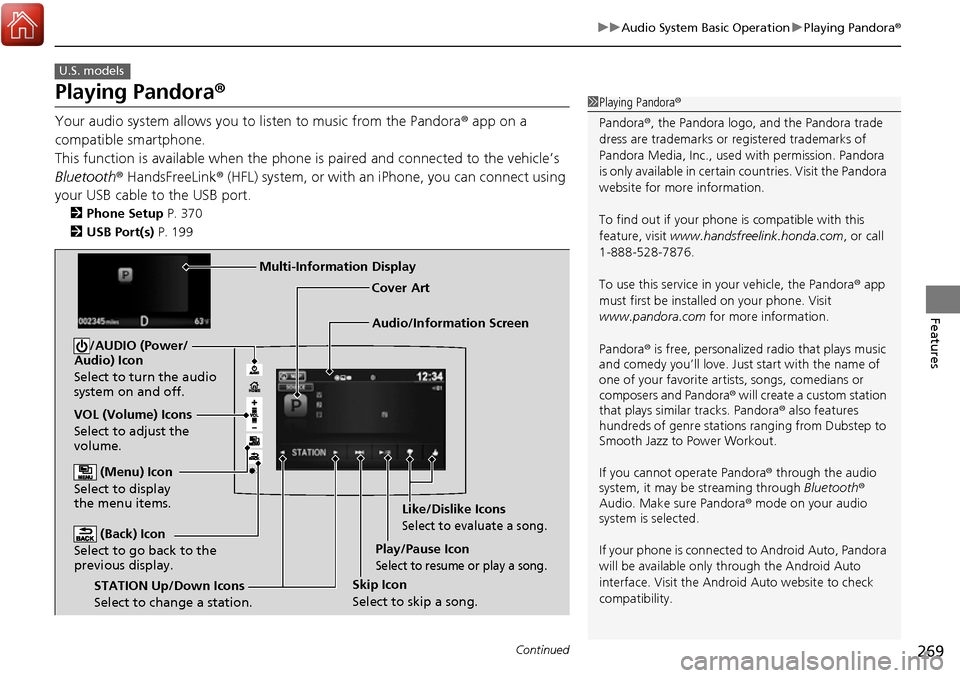
Audio/Information Screen Cover Art
VOL (Volume) Icons
Select to adjust the
volume. (Back) Icon
Select to go back to the
previous display.
/AUDIO (Power/
Audio) Icon
Select to turn the audio
system on and off.
(Menu) Icon
Select to display
the menu items.
Play/Pause Icon
Select to resume or play a song.
STATION Up/Down Icons
Select to change a station. Skip Icon
Select to skip a song.Like/Dislike Icons
Select to evaluate a song.
Multi-Information Display
Page 275 of 606
274
uuAudio System Basic Operation uPlaying Bluetooth ® Audio
Features
Playing Bluetooth® Audio
Your audio system allows you to listen to music from your Bluetooth-compatible
phone.
This function is available when the phone is paired and connected to the vehicle’s
Bluetooth ® HandsFreeLink ® (HFL) system.
2 Phone Setup P. 370
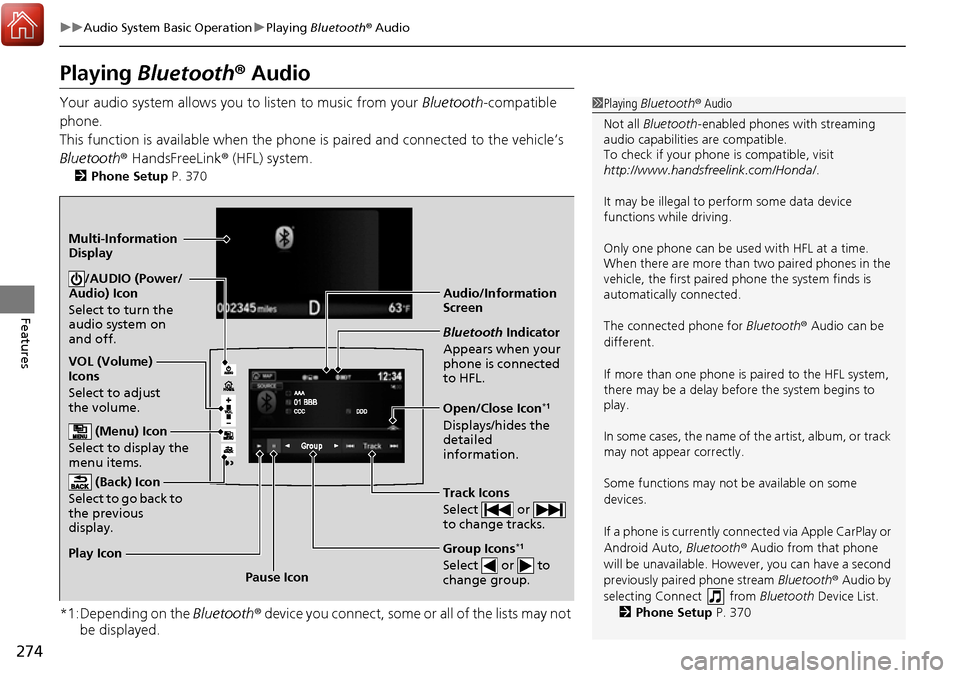
*1:Depending on the Bluetooth® device you connect, some or all of the lists may not
be displayed.
1 Playing Bluetooth ® Audio
Not all Bluetooth -enabled phones with streaming
audio capabilities are compatible.
To check if your phone is compatible, visit
http://www.handsfr eelink.com/Honda/.
It may be illegal to perform some data device
functions while driving.
Only one phone can be used with HFL at a time.
When there are more than two paired phones in the
vehicle, the first paired phone the system finds is
automatically connected.
The connected phone for Bluetooth® Audio can be
different.
If more than one phone is paired to the HFL system,
there may be a delay before the system begins to
play.
In some cases, the name of the artist, album, or track
may not appear correctly.
Some functions may not be available on some
devices.
If a phone is currently conne cted via Apple CarPlay or
Android Auto, Bluetooth® Audio from that phone
will be unavailable. Howe ver, you can have a second
previously paired phone stream Bluetooth® Audio by
selecting Connect from Bluetooth Device List.
2 Phone Setup P. 370
Audio/Information
Screen
VOL (Volume)
Icons
Select to adjust
the volume.
(Back) Icon
Select to go back to
the previous
display./AUDIO (Power/
Audio) Icon
Select to turn the
audio system on
and off.
(Menu) Icon
Select to display the
menu items.
Group Icons*1
Select or to
change group.Pause Icon
Play Icon
Bluetooth
Indicator
Appears when your
phone is connected
to HFL.
Track Icons
Select or
to change tracks.
Open/Close Icon*1
Displays/hides the
detailed
information.
Multi-Information
Display
Page 277 of 606
276
uuAudio System Basic Operation uHondaLink ®
Features
HondaLink ®
HondaLink® connects you to the latest information from Honda. You can connect
your phone wirelessly through Wi-Fi or Bluetooth®.
2Wi-Fi Connection P. 281
2 Phone Setup P. 370
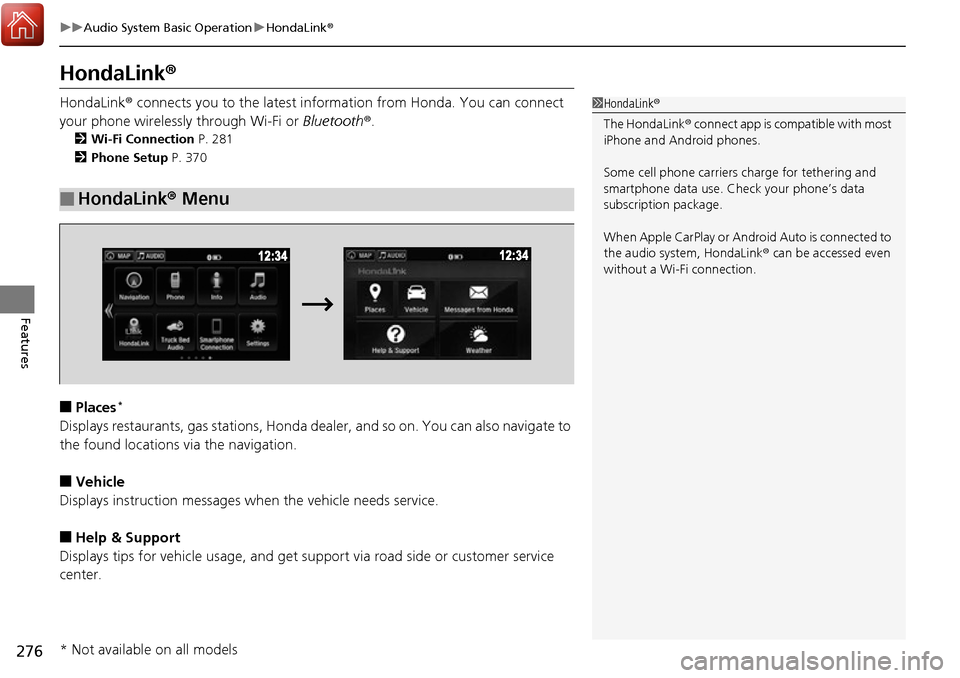
■Places*
Displays restaurants, gas stations, Honda dealer, and so on. You can also navigate to
the found locations via the navigation.
■Vehicle
Displays instruction messages wh en the vehicle needs service.
■Help & Support
Displays tips for vehicle usage, and get support via road side or customer service
center.
■HondaLink® Menu
1HondaLink ®
The HondaLink ® connect app is compatible with most
iPhone and Android phones.
Some cell phone carriers charge for tethering and
smartphone data use. Check your phone’s data
subscription package.
When Apple CarPlay or Android Auto is connected to
the audio system, HondaLink® can be accessed even
without a Wi-Fi connection.
* Not available on all models
Page 279 of 606
278
uuAudio System Basic Operation uHondaLink ®
Features
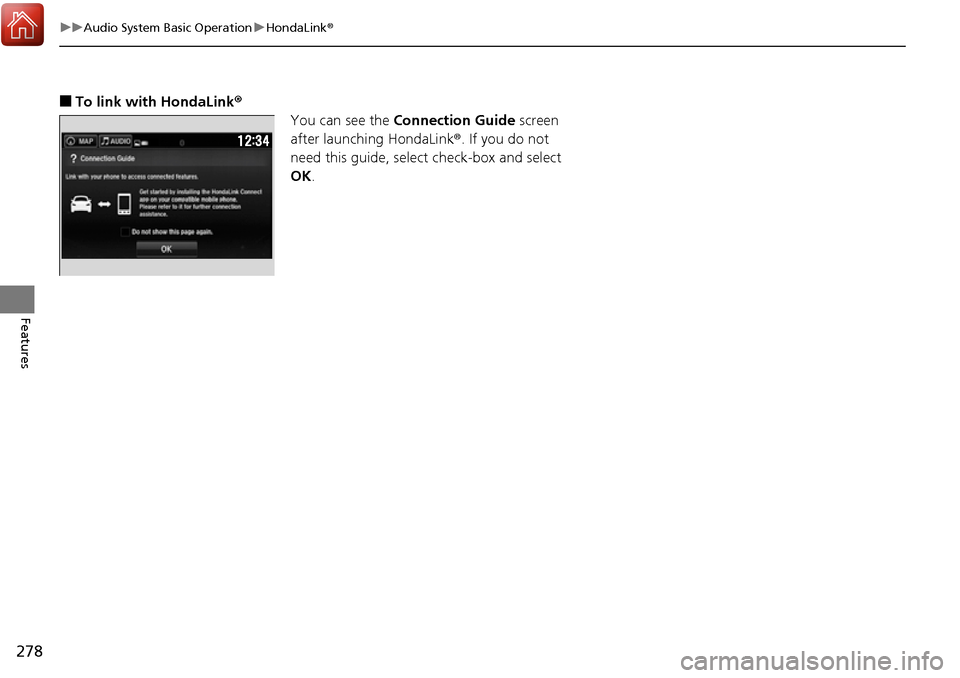
■To link with HondaLink ®
You can see the Connection Guide screen
after launching HondaLink ®. If you do not
need this guide, select check-box and select
OK .
Page 280 of 606
279
uuAudio System Basic Operation uHondaLink ®
Continued
Features
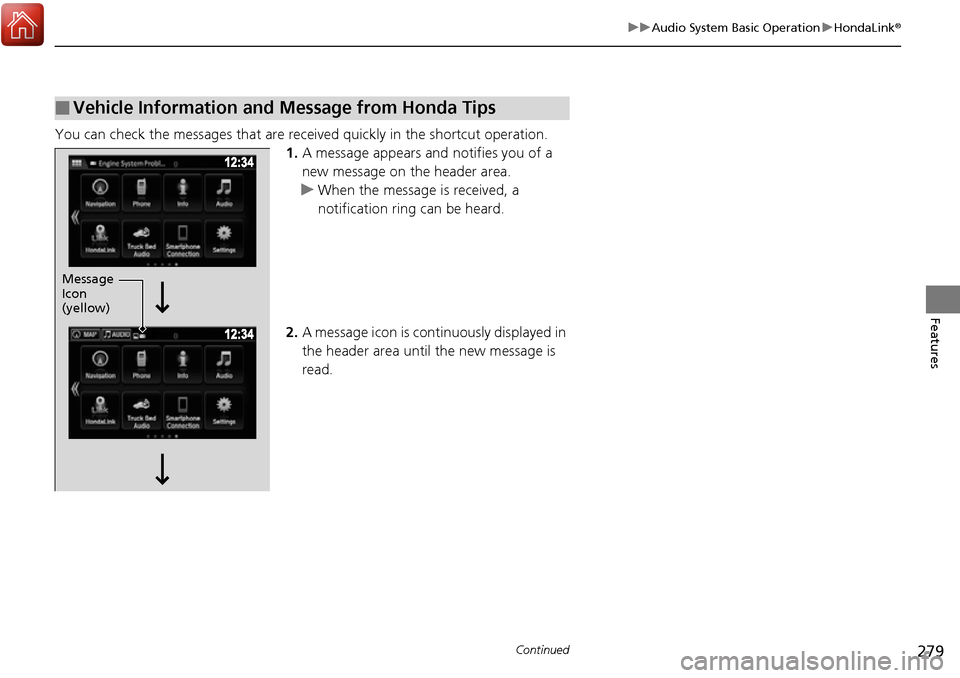
You can check the messages that are receiv ed quickly in the shortcut operation.
1. A message appears and notifies you of a
new message on the header area.
u When the message is received, a
notification ring can be heard.
2. A message icon is continuously displayed in
the header area until the new message is
read.
■Vehicle Information and Message from Honda Tips
Message
Icon
(yellow)