check HONDA RIDGELINE 2017 2.G Workshop Manual
[x] Cancel search | Manufacturer: HONDA, Model Year: 2017, Model line: RIDGELINE, Model: HONDA RIDGELINE 2017 2.GPages: 606, PDF Size: 13.21 MB
Page 282 of 606
281
uuAudio System Basic Operation uWi-Fi Connection
Continued
Features
Wi-Fi Connection
You can connect the Display Audio to the Internet using Wi-Fi and browse websites
or use online services on the audio/information screen. If your phone has cell
hotspot capabilities, the system can be tethered to the phone. Use the following
steps to setup.
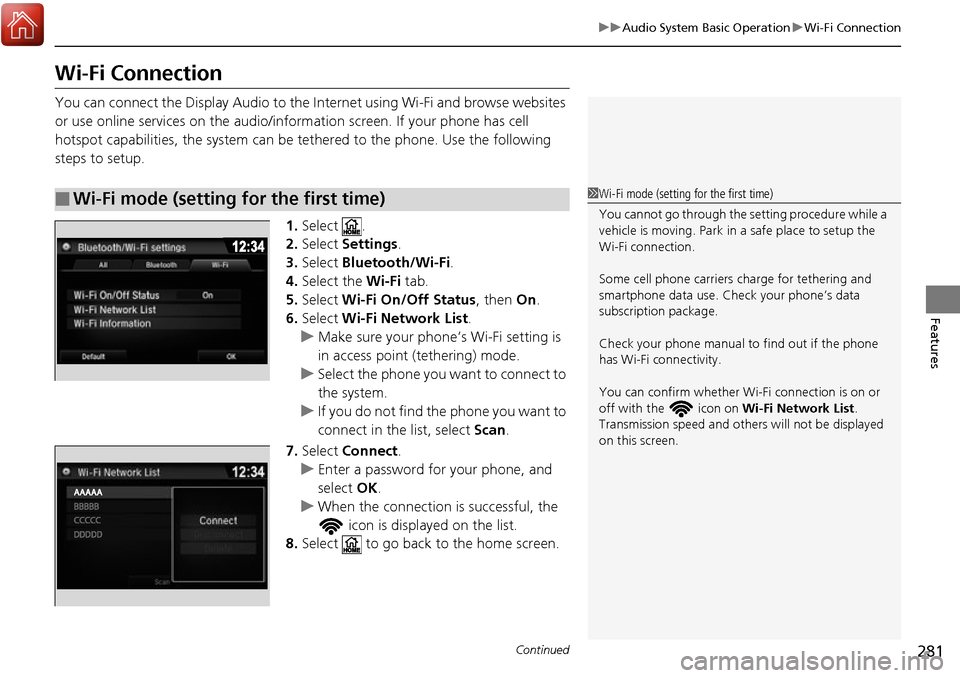
1.Select .
2. Select Settings .
3. Select Bluetooth/Wi-Fi .
4. Select the Wi-Fi tab.
5. Select Wi-Fi On/Off Status , then On.
6. Select Wi-Fi Network List .
u Make sure your phone’ s Wi-Fi setting is
in access point (tethering) mode.
u Select the phone you want to connect to
the system.
u If you do not find the phone you want to
connect in the list, select Scan .
7. Select Connect .
u Enter a password for your phone, and
select OK .
u When the connection is successful, the
icon is displayed on the list.
8. Select to go back to the home screen.
■Wi-Fi mode (setting for the first time)1Wi-Fi mode (setting for the first time)
You cannot go through the setting procedure while a
vehicle is moving. Park in a safe place to setup the
Wi-Fi connection.
Some cell phone carriers charge for tethering and
smartphone data use. Check your phone’s data
subscription package.
Check your phone manual to find out if the phone
has Wi-Fi connectivity.
You can confirm whether Wi -Fi connection is on or
off with the icon on Wi-Fi Network List.
Transmission speed and others will not be displayed
on this screen.
Page 284 of 606
283
uuAudio System Basic Operation uSiri Eyes Free
Features
Siri Eyes Free
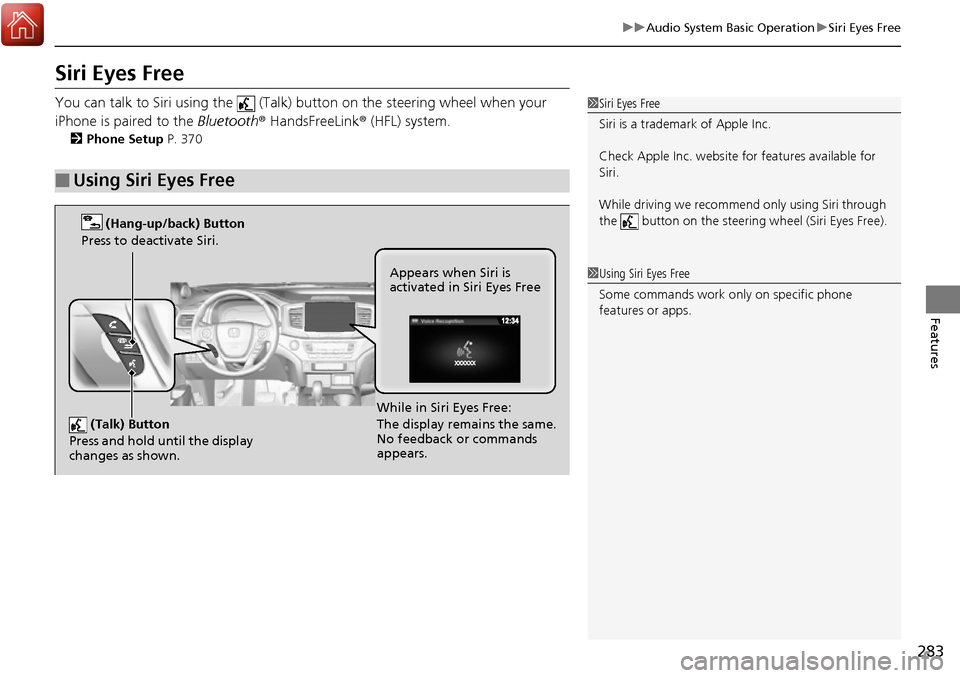
You can talk to Siri using the (Talk) button on the steering wheel when your
iPhone is paired to the Bluetooth® HandsFreeLink ® (HFL) system.
2Phone Setup P. 370
■Using Siri Eyes Free
1Siri Eyes Free
Siri is a trademark of Apple Inc.
Check Apple Inc. website for features available for
Siri.
While driving we recomme nd only using Siri through
the button on the steering wheel (Siri Eyes Free).
1 Using Siri Eyes Free
Some commands work only on specific phone
features or apps.
(Talk) Button
Press and hold until the display
changes as shown.
(Hang-up/back) Button
Press to deactivate Siri.
While in Siri Eyes Free:
The display remains the same.
No feedback or commands
appears. Appears when Siri is
activated in Siri Eyes Free
Page 285 of 606
284
uuAudio System Basic Operation uApple CarPlay
Features
Apple CarPlay
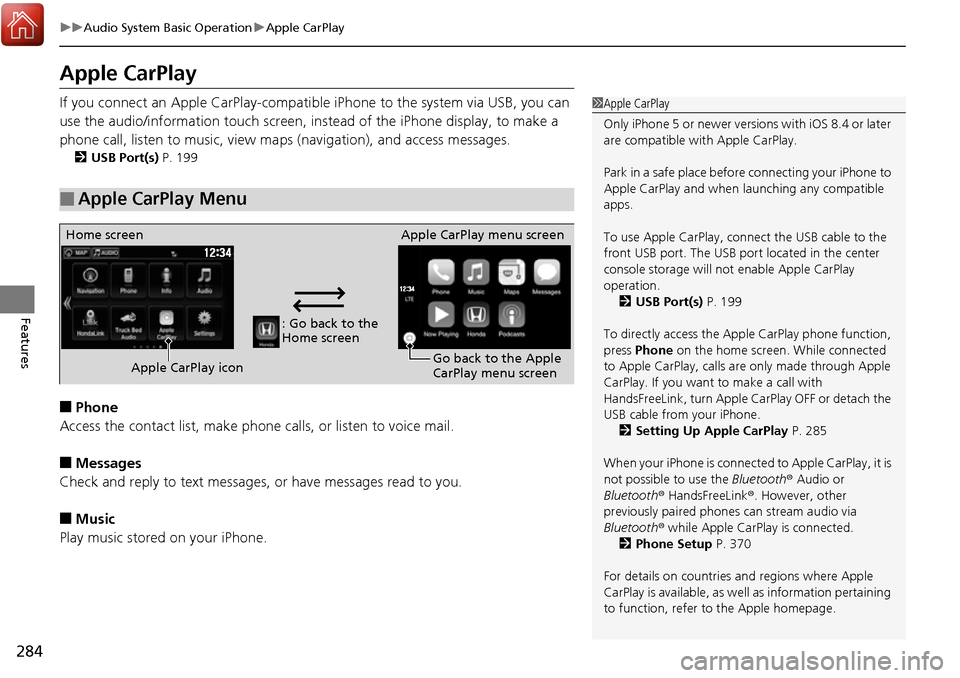
If you connect an Apple CarPlay-compatible iPhone to the system via USB, you can
use the audio/information t ouch screen, instead of the iPhone display, to make a
phone call, listen to music, view ma ps (navigation), and access messages.
2USB Port(s) P. 199
■Phone
Access the contact list, make phon e calls, or listen to voice mail.
■Messages
Check and reply to text messages, or have messages read to you.
■Music
Play music stored on your iPhone.
■Apple CarPlay Menu
1 Apple CarPlay
Only iPhone 5 or newer versions with iOS 8.4 or later
are compatible with Apple CarPlay.
Park in a safe place before connecting your iPhone to
Apple CarPlay and when launching any compatible
apps.
To use Apple CarPlay, connect the USB cable to the
front USB port. The USB por t located in the center
console storage will not enable Apple CarPlay
operation.
2 USB Port(s) P. 199
To directly access the Apple CarPlay phone function,
press Phone on the home screen. While connected
to Apple CarPlay, calls are only made through Apple
CarPlay. If you want to make a call with
HandsFreeLink, turn Apple CarPlay OFF or detach the
USB cable from your iPhone. 2 Setting Up Apple CarPlay P. 285
When your iPhone is connected to Apple CarPlay, it is
not possible to use the Bluetooth ® Audio or
Bluetooth ® HandsFreeLink ®. However, other
previously paired phones can stream audio via
Bluetooth ® while Apple CarPlay is connected.
2 Phone Setup P. 370
For details on c ountries and regions where Apple
CarPlay is available, as well as information pertaining
to function, refer to the Apple homepage.
: Go back to the
Home screen
Home screen
Apple CarPlay icon Apple CarPlay menu screen
Go back to the Apple
CarPlay menu screen
Page 292 of 606
291
uuAudio System Basic Operation uTruck Bed Audio System*
Features
Truck Bed Audio System*
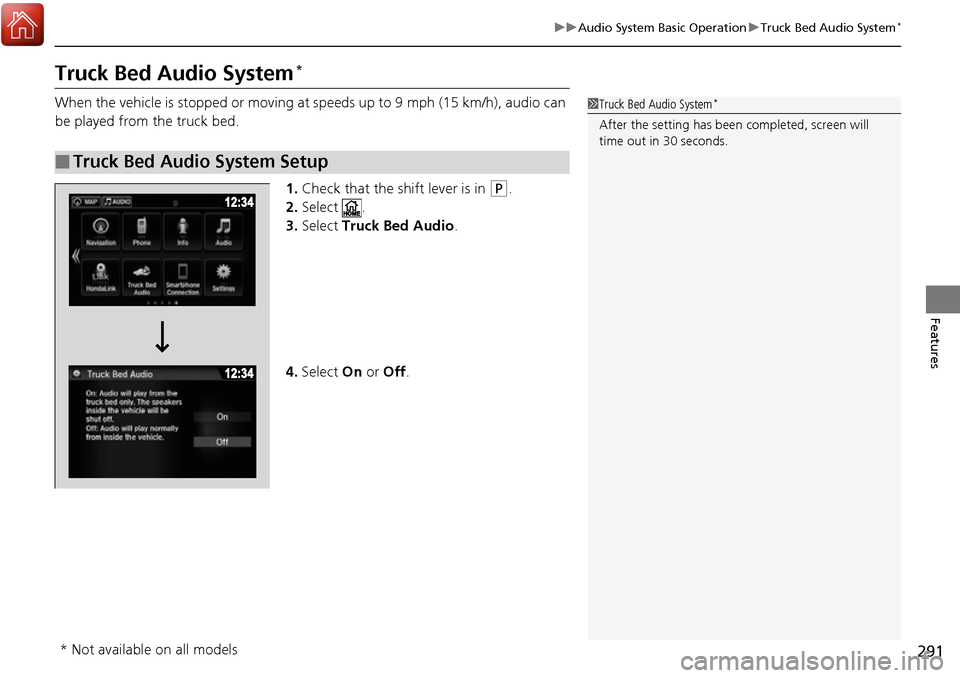
When the vehicle is stopped or moving at speeds up to 9 mph (15 km/h), audio can
be played from the truck bed.
1.Check that the shift lever is in
(P.
2. Select .
3. Select Truck Bed Audio .
4. Select On or Off .
■Truck Bed Audio System Setup
1Truck Bed Audio System*
After the setting has been completed, screen will
time out in 30 seconds.
* Not available on all models
Page 293 of 606
292
Features
Audio Error Messages
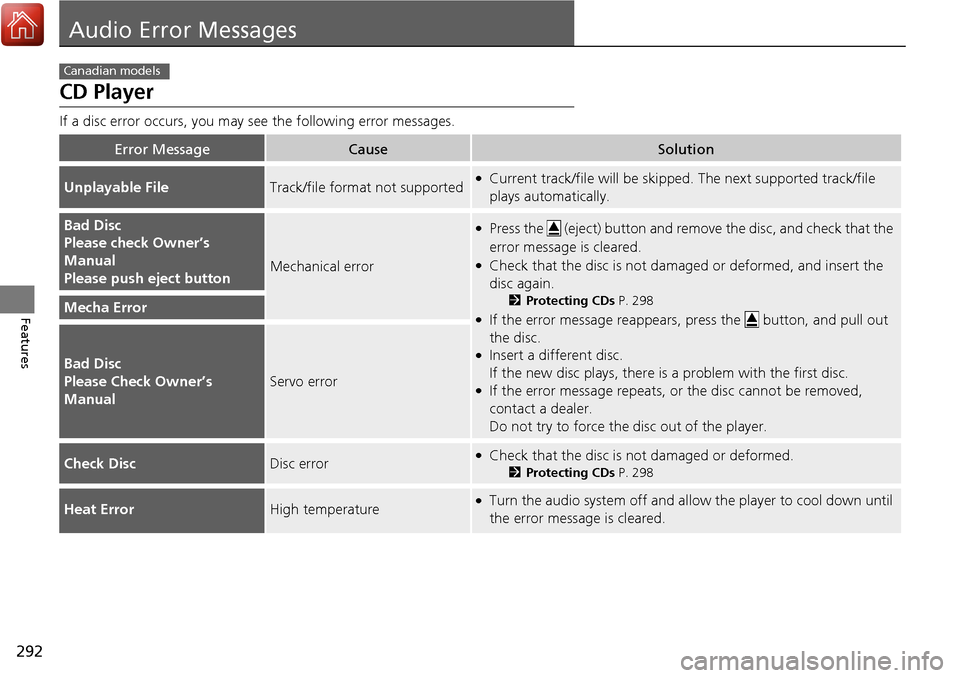
CD Player
If a disc error occurs, you may see the following error messages.
Error MessageCauseSolution
Unplayable FileTrack/file format not supported●Current track/file will be skippe d. The next supported track/file
plays automatically.
Bad Disc
Please check Owner’s
Manual
Please push eject button
Mechanical error
●Press the (eject) button and remove the disc, and check that the
error message is cleared.
●Check that the disc is not damaged or deformed, and insert the
disc again.
2 Protecting CDs P. 298
●If the error message reappears, press the button, and pull out
the disc.
●Insert a different disc.
If the new disc plays, there is a problem with the first disc.
●If the error message repeats, or the disc cannot be removed,
contact a dealer.
Do not try to force the disc out of the player.
Mecha Error
Bad Disc
Please Check Owner’s
Manual
Servo error
Check DiscDisc error●Check that the disc is not damaged or deformed.
2Protecting CDs P. 298
Heat ErrorHigh temperature●Turn the audio system off and allo w the player to cool down until
the error message is cleared.
Canadian models
Page 294 of 606
293
uuAudio Error Messages uiPod/USB Flash Drive
Features
iPod/USB Flash Drive
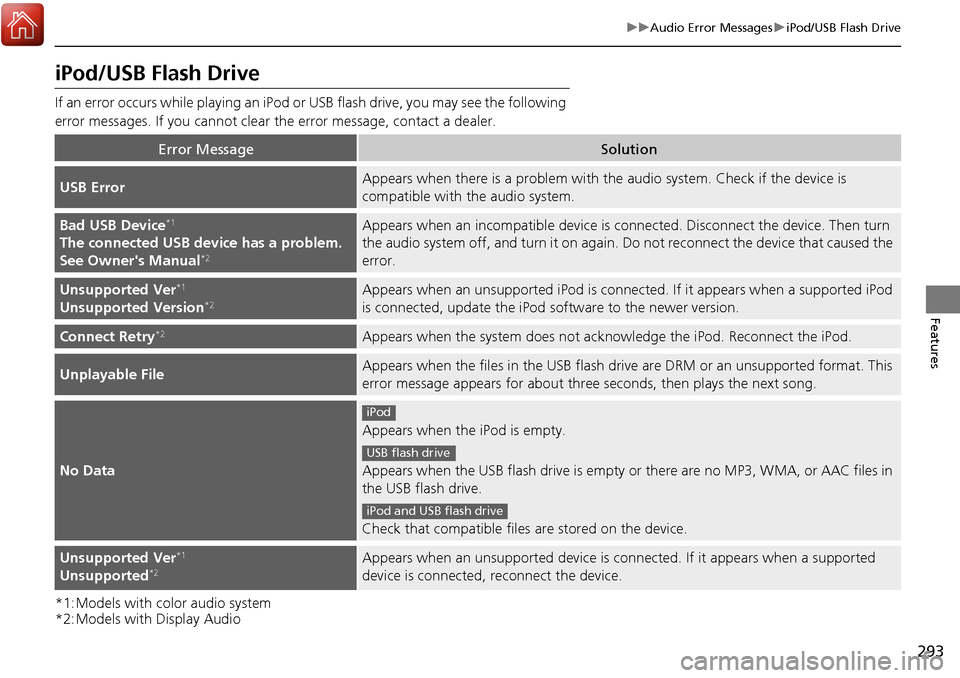
If an error occurs while playing an iPod or USB flash drive, you may see the following
error messages. If you cannot clear the error message, contact a dealer.
*1:Models with color audio system
*2:Models with Display Audio
Error MessageSolution
USB ErrorAppears when there is a problem with th e audio system. Check if the device is
compatible with the audio system.
Bad USB Device*1
The connected USB device has a problem.
See Owner's Manual*2
Appears when an incomp atible device is connected. Disconnect the device. Then turn
the audio system off, and turn it on again. Do not reconnect the device that caused the
error.
Unsupported Ver*1
Unsupported Version*2Appears when an unsupported iPod is connecte d. If it appears when a supported iPod
is connected, update the iPod software to the newer version.
Connect Retry*2Appears when the system does not ack nowledge the iPod. Reconnect the iPod.
Unplayable FileAppears when the files in the USB flash driv e are DRM or an unsupported format. This
error message appears for about three seconds, then plays the next song.
No Data
Appears when the iPod is empty.
Appears when the USB flash drive is empty or there are no MP3, WMA, or AAC files in
the USB flash drive.
Check that compatible files are stored on the device.
Unsupported Ver*1
Unsupported*2Appears when an unsupported device is co nnected. If it appears when a supported
device is connected, reconnect the device.
iPod
USB flash drive
iPod and USB flash drive
Page 295 of 606
294
uuAudio Error Messages uPandora®*
Features
Pandora ®*
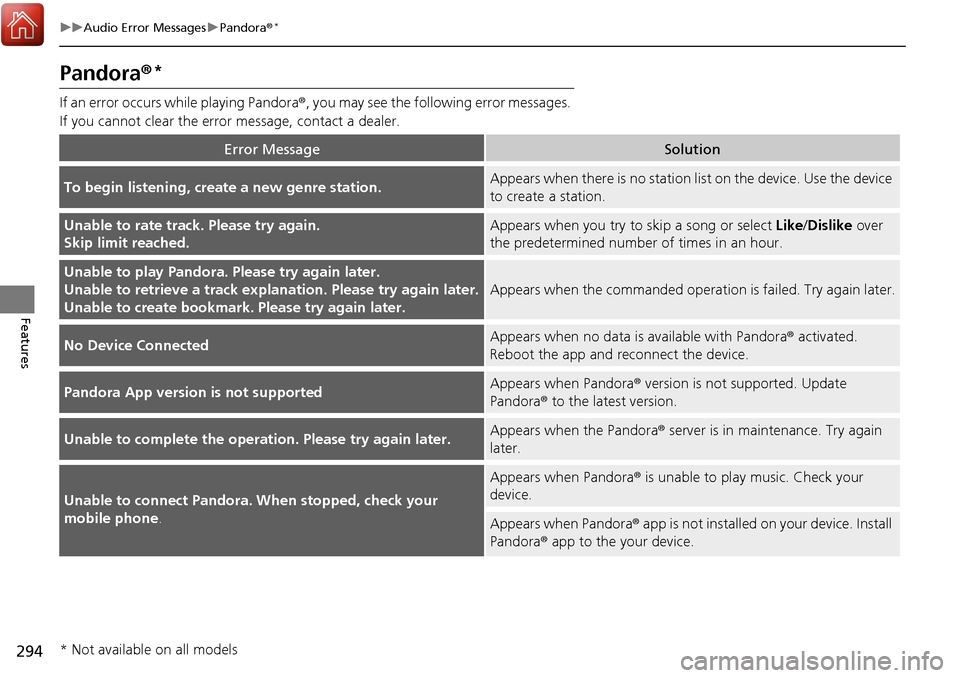
If an error occurs while playing Pandora ®, you may see the following error messages.
If you cannot clear the error message, contact a dealer.
Error MessageSolution
To begin listening, create a new genre station.Appears when there is no station lis t on the device. Use the device
to create a station.
Unable to rate track. Please try again.
Skip limit reached.Appears when you try to skip a song or select Like/Dislike over
the predetermined number of times in an hour.
Unable to play Pandora. Please try again later.
Unable to retrieve a track explan ation. Please try again later.
Unable to create bookmark. Please try again later.
Appears when the commanded operation is failed. Try again later.
No Device ConnectedAppears when no data is available with Pandora® activated.
Reboot the app and reconnect the device.
Pandora App version is not supportedAppears when Pandora ® version is not supported. Update
Pandora® to the latest version.
Unable to complete the operat ion. Please try again later.Appears when the Pandora® server is in maintenance. Try again
later.
Unable to connect Pandora. When stopped, check your
mobile phone.
Appears when Pandora ® is unable to play music. Check your
device.
Appears when Pandora ® app is not installed on your device. Install
Pandora® app to the your device.
* Not available on all models
Page 362 of 606
361
uuBluetooth ® HandsFreeLink ®u HFL Menus
Features
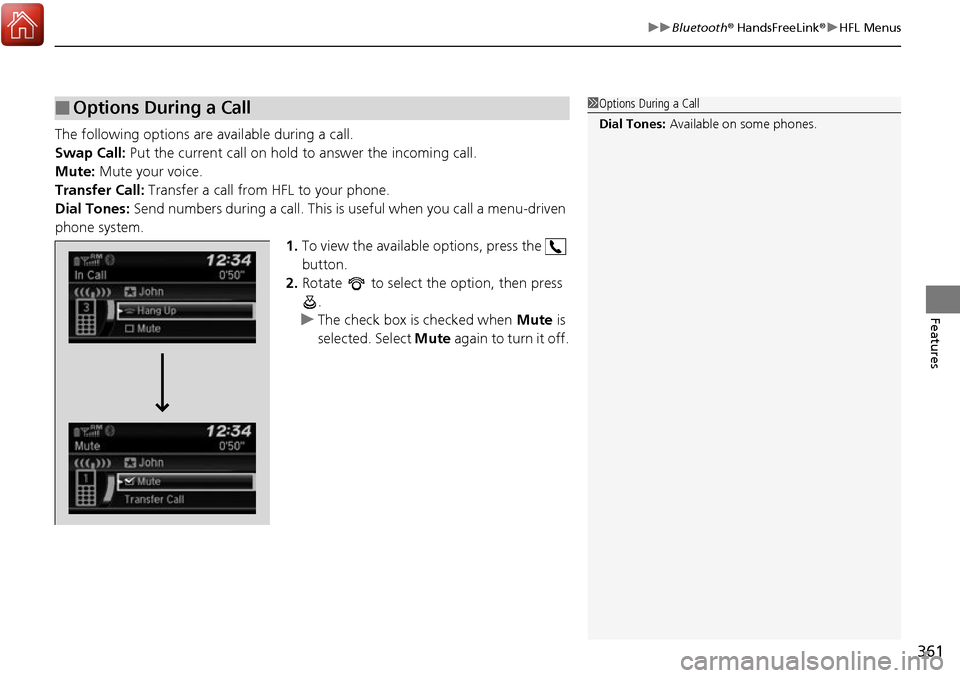
The following options are available during a call.
Swap Call: Put the current call on hold to answer the incoming call.
Mute: Mute your voice.
Transfer Call: Transfer a call from HFL to your phone.
Dial Tones: Send numbers during a call. This is useful when you call a menu-driven
phone system. 1.To view the available options, press the
button.
2. Rotate to select the option, then press
.
u The check box is checked when Mute is
selected. Select Mute again to turn it off.
■Options During a Call1Options During a Call
Dial Tones: Available on some phones.
Page 397 of 606
396
Driving
Before Driving
Driving Preparation
Check the following items before you start driving.
• Make sure there are no obstructions on the windows, door mirrors, exterior
lights, or other parts of the vehicle.
u Remove any frost, snow, or ice.
u Remove any snow on the roof, as this can slip down and obstruct your field of
vision while driving. If frozen solid , remove ice once it has softened.
u When removing ice from around the wheel s, be sure not to damage the wheel
or wheel components.
• Make sure the hood is securely closed.
u If the hood opens while driving, your front view will be blocked.
• Make sure the tires are in good condition.
u Check air pressure, check for damage and excessive wear.
2 Checking and Maintaining Tires P. 531
•Make sure the tailgate is fully closed when it is not being used as an extended
pickup bed.
• Make sure the trunk is secu rely closed and locked.
• Make sure there are no people or objects behind or around the vehicle.
u There are blind spots from the inside.
■Exterior Checks1Exterior Checks
NOTICE
When doors are frozen s hut, use warm water around
the door edges to melt any ice. Do not try to force
them open, as this can damage the rubber trim
around the doors. When done, wipe dry to avoid
further freezing.
Do not pour warm water into the key cylinder.
You will be unable to insert the key if the water
freezes in the hole.
Heat from the engine and exhaust can ignite
flammable material s left under the hood, causing a
fire. If you’ve parked y our vehicle for an extended
period, inspect and remove any debris that may have
collected, such as dried grass and leaves that have
fallen or have been carried in for use as a nest by a
small animal. Also check under the hood for leftover
flammable materials after you or someone else has
performed maintenance on your vehicle.
Page 398 of 606
Continued397
uuBefore Driving uDriving Preparation
Driving
• Store or secure all items on board properly.
u Carrying too much cargo, or improperly storing it, can affect your vehicle’s
handling, stability, sto pping distance, and tires, and make it unsafe.
2Maximum Load Limit P. 399
•Do not pile items higher than the seat height.
u They can block your view and may be thrown forward in the event of sudden
braking.
• Do not place anything in the front seat footwells. Make sure to secure the floor
mat.
u An object or unsecured floor mat can in terfere with your brake and accelerator
pedal operation while driving.
• If you have any animals on board, do no t let them move around in the vehicle.
u They may interfere with driv ing and a crash could occur.
• Securely close and lock all doors.
2Locking/Unlocking the Doors from the Inside P. 119
•Adjust your seating position properly.
u Adjust the head restraint, too.
2Adjusting the Seats P. 161
2 Adjusting the front head restraint positions P. 166
•Adjust the mirrors and steering wh eel properly for your driving.
u Adjust them while sitting in the proper driving position.
2 Adjusting the Steering Wheel P. 158
2 Adjusting the Mirrors P. 159
■Interior Checks1Interior Checks
The headlight aim is set by the factory, and does not
need to be adjusted. Howeve r, if you regularly carry
heavy items in the cargo area or tow a trailer, have
the aiming readjusted at a dealer or by a qualified
technician.