phone Hyundai Azera 2017 Owner's Guide
[x] Cancel search | Manufacturer: HYUNDAI, Model Year: 2017, Model line: Azera, Model: Hyundai Azera 2017Pages: 520, PDF Size: 16.33 MB
Page 273 of 520
Features of your vehicle
194
4
Bluetooth®Wireless
Technology A UDIO MODE
Using Bluetooth®Wireless
Technology Audio Mode
Playing/Pausing Bluetooth®
Wireless TechnologyAudio
Once a Bluetooth®Wireless
Technology device is connected, the
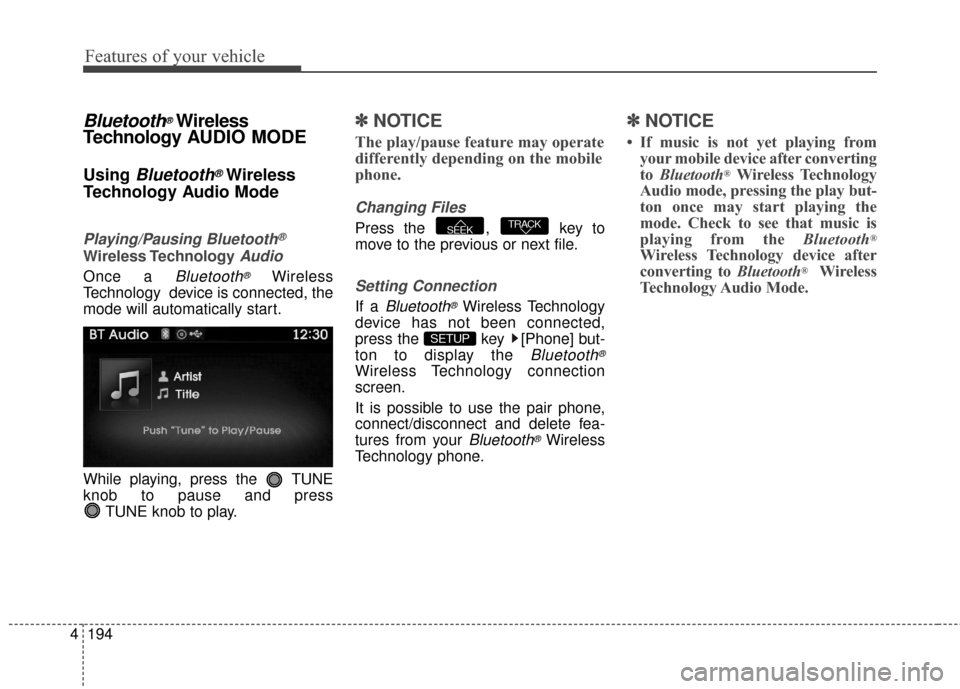
mode will automatically start.
While playing, press the TUNE
knob to pause and press TUNE knob to play.
✽ ✽NOTICE
The play/pause feature may operate
differently depending on the mobile
phone.
Changing Files
Press the , key to
move to the previous or next file.
Setting Connection
If a Bluetooth®Wireless Technology
device has not been connected,
press the key [Phone] but-
ton to display the
Bluetooth®
Wireless Technology connection
screen.
It is possible to use the pair phone,
connect/disconnect and delete fea-
tures from your
Bluetooth®Wireless
Technology phone.
✽ ✽ NOTICE
• If music is not yet playing from
your mobile device after converting
to Bluetooth
®Wireless Technology
Audio mode, pressing the play but-
ton once may start playing the
mode. Check to see that music is
playing from the Bluetooth
®
Wireless Technology device after
converting to Bluetooth®Wireless
Technology Audio Mode.
SETUP
TRACKSEEK
Page 274 of 520
4195
Features of your vehicle
Pairing a Bluetooth®Wireless
Technology Device
What is Bluetooth® Wireless
Technology Pairing?
Pairing refers to the process of syn-
chronizing your
Bluetooth®Wireless
Technology phone or device with the
car audio system for connection.
Pairing is necessary to connect and
use the
Bluetooth®Wireless
Technology feature.
Pairing Key / Key
on the Steering Remote
Controller
When No Devices have been
Paired
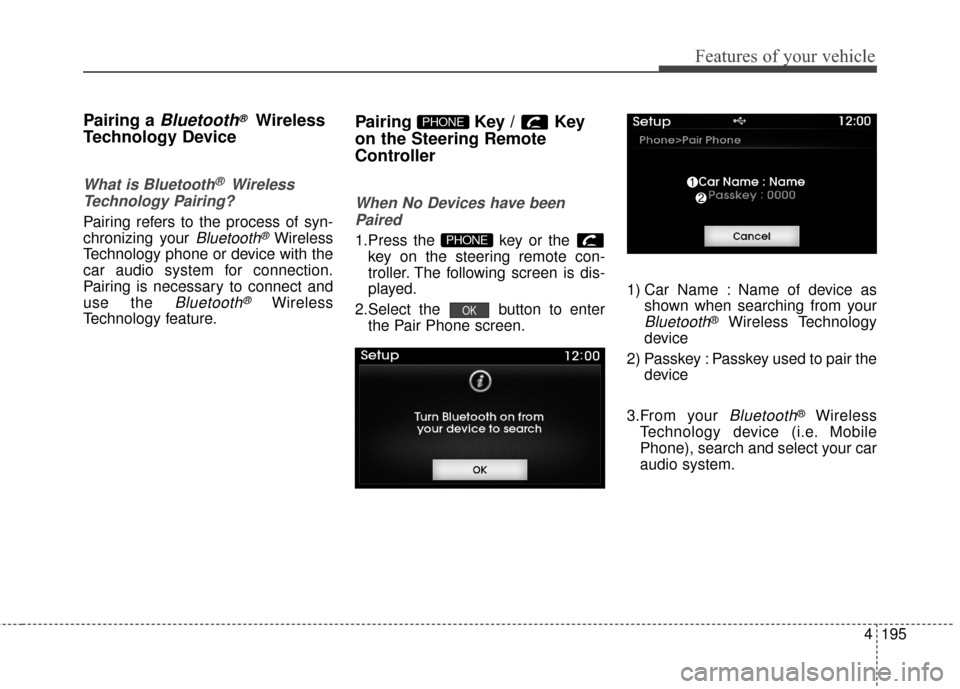
1.Press the key or the key on the steering remote con-
troller. The following screen is dis-
played.
2.Select the button to enter the Pair Phone screen. 1) Car Name : Name of device as
shown when searching from your
Bluetooth®Wireless Technology
device
2) Passkey : Passkey used to pair the device
3.From your
Bluetooth®Wireless
Technology device (i.e. Mobile
Phone), search and select your car
audio system.
OK
PHONE
PHONE
Page 275 of 520
![Hyundai Azera 2017 Owners Guide Features of your vehicle
196
4
[Non SSP supported device]
(SSP: Secure Simple Pairing)
4. After a few moments, a screen is
displayed where the passkey is
entered.
Hear, enter the passkey “0000” to](/img/35/14459/w960_14459-274.png "Hyundai Azera 2017 Owners Guide Features of your vehicle
196
4
[Non SSP supported device]
(SSP: Secure Simple Pairing)
4. After a few moments, a screen is
displayed where the passkey is
entered.
Hear, enter the passkey “0000” to")
Features of your vehicle
196
4
[Non SSP supported device]
(SSP: Secure Simple Pairing)
4. After a few moments, a screen is
displayed where the passkey is
entered.
Hear, enter the passkey “0000” to
pair your
Bluetooth®Wireless
Technology device with the car
audio system.
[SSP supported device]
4. After a few moments, a screen is displayed 6 digits passkey.
Hear, check the passkey on your
Bluetooth®Wireless Technology
device and confirm.
5. Once pairing is complete, the fol- lowing screen is displayed.
✽ ✽NOTICE
If Bluetooth®Wireless Technology
devices are paired but none are cur-
rently connected, pressing the key or the key on the
steering wheel displays the following
screen. Press the [Pair] button to
pair a new device or press the
[Connect] to connect a previously
paired device.
Pairing through [PHONE]
Setup
Press the key Select
[Phone] Select [Pair Phone]
Select TUNE knob
1.The following steps are the same
as those described in the section
"When No Devices have been
Paired" on the previous page.SETUP
PHONE
Page 276 of 520
4197
Features of your vehicle
✽
✽NOTICE
•Bluetooth®Wireless Technology
features supported within the
vehicle are as follows. Some fea-
tures may not be supported
depending on your Bluetooth
®
Wireless Technology device.
- Outgoing/Incoming Handsfree
calls
- Operations during a call (Switch to Private, Switch to call waiting,
MIC on/off)
- Downloading Call History
- Downloading Mobile Contacts
- Bluetooth
®Wireless Technology
device auto connection
- Bluetooth Audio Streaming
• Up to five Bluetooth
®Wireless
Technology devices can be paired
to the Car Handsfree system.
• Only one Bluetooth
®Wireless
Technology device can be connect-
ed at a time.
• Other devices cannot be paired while a Bluetooth
®Wireless
Technology device is connected. (Continued)(Continued)
• Only
Bluetooth
®Wireless
Technology Handsfree and
Bluetooth audio related features
are supported.
• Bluetooth related operations are possible only within devices that
support Handsfree or audio fea-
tures, such as a Bluetooth
®
Wireless Technology mobile phone
or a Bluetooth audio device.
• If a connected Bluetooth
®Wireless
Technology device becomes dis-
connected due to being out of com-
munication range, turning the
device OFF, or a Bluetooth
®
Wireless Technology communica-
tion error, corresponding
Bluetooth
®Wireless Technology
devices are automatically searched
and reconnected.
• If the system becomes unstable due to communication errors
between the car Handsfree and the
Bluetooth
®Wireless Technology
device, reset the device by turning
off and back on again. Upon reset-
ting Bluetooth
®Wireless
Technology device, the system will
be restored. (Continued)(Continued)
• After pairing is complete, a con-
tacts download request is sent
once to the mobile phone. Some
mobile phones may require confir-
mation upon receiving a download
request, ensure your mobile phone
accepts the connection. Refer to
your phones user’s manual for
additional information regarding
phone pairing and connections.
Page 277 of 520
![Hyundai Azera 2017 Owners Guide Features of your vehicle
198
4
Connecting a Device
Press the key Select
[Phone] Select [Paired Phone List]
1) Connected Phone : Device that is
currently connected
2) Paired Phone : Device that is pa](/img/35/14459/w960_14459-276.png "Hyundai Azera 2017 Owners Guide Features of your vehicle
198
4
Connecting a Device
Press the key Select
[Phone] Select [Paired Phone List]
1) Connected Phone : Device that is
currently connected
2) Paired Phone : Device that is pa")
Features of your vehicle
198
4
Connecting a Device
Press the key Select
[Phone] Select [Paired Phone List]
1) Connected Phone : Device that is
currently connected
2) Paired Phone : Device that is paired but not connected From the paired phone list, select the
device you want to connect and
Select the button.
Changing Priority
What is Priority?
It is possible to pair up to five
Bluetooth®Wireless Technology
devices with the car audio system.
The "Change Priority" feature is used
to set the connection priority of
paired phones.
Press the key Select
[Phone] Select [Paired Phone List]
SETUP
ConnectSETUP
Page 278 of 520
4199
Features of your vehicle
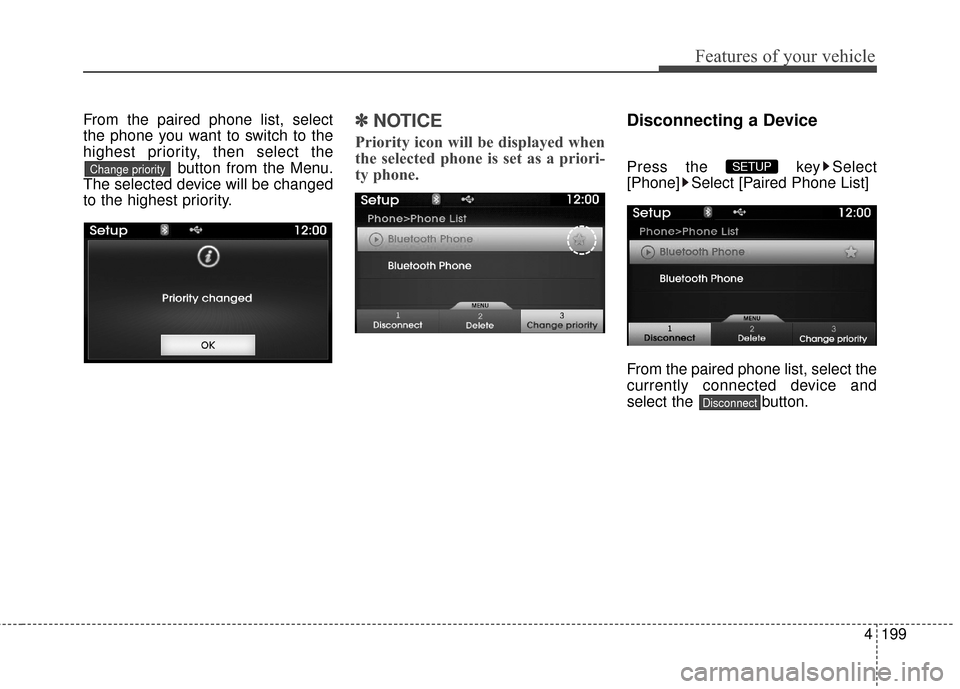
From the paired phone list, select
the phone you want to switch to the
highest priority, then select thebutton from the Menu.
The selected device will be changed
to the highest priority.✽ ✽ NOTICE
Priority icon will be displayed when
the selected phone is set as a priori-
ty phone.
Disconnecting a Device
Press the key Select
[Phone] Select [Paired Phone List]
From the paired phone list, select the
currently connected device and
select the button.
Disconnect
SETUP Change priority
Page 279 of 520
![Hyundai Azera 2017 Owners Guide Features of your vehicle
200
4
Deleting a Device
Press the key Select
[Phone] Select [Paired Phone List]
From the paired phone list, select the
device you want to delete and select
the button.
✽ âœ](/img/35/14459/w960_14459-278.png "Hyundai Azera 2017 Owners Guide Features of your vehicle
200
4
Deleting a Device
Press the key Select
[Phone] Select [Paired Phone List]
From the paired phone list, select the
device you want to delete and select
the button.
✽ âœ")
Features of your vehicle
200
4
Deleting a Device
Press the key Select
[Phone] Select [Paired Phone List]
From the paired phone list, select the
device you want to delete and select
the button.
✽ ✽
NOTICE
• When deleting the currently con-
nected device, the device will auto-
matically be disconnected to pro-
ceed with the deleting process.
• If a paired Bluetooth
®Wireless
Technology device is deleted, the
device’s call history and contacts
data will also be deleted.
• To re-use a deleted device, you must pair the device again.
Delete
SETUP
Page 280 of 520
4201
Features of your vehicle
USING Bluetooth®Wireless
Technology
Phone Menu Screen
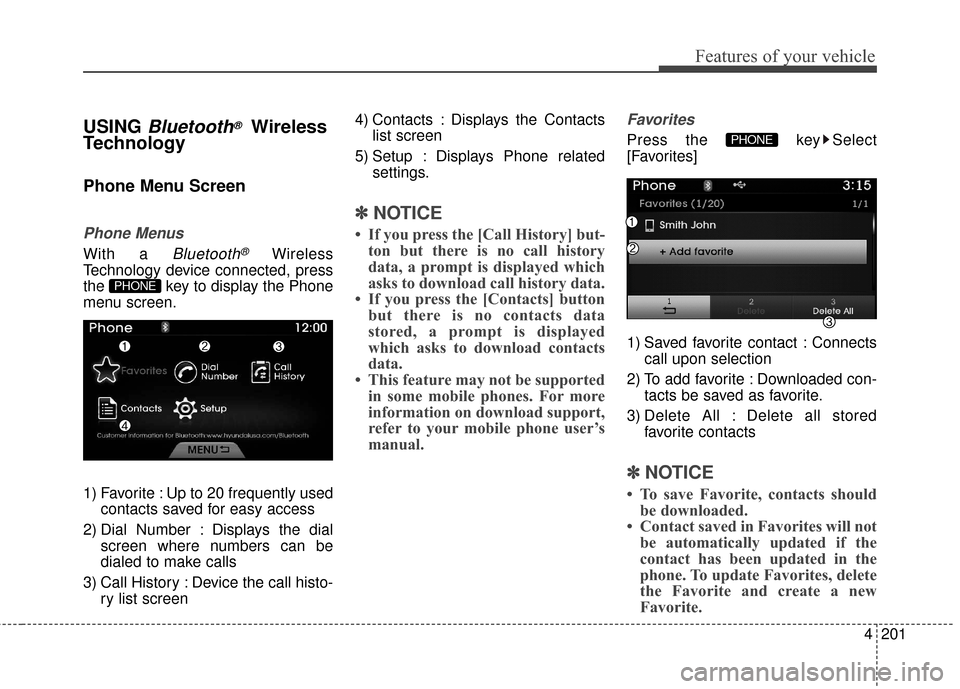
Phone Menus
With a Bluetooth®Wireless
Technology device connected, press
the key to display the Phone
menu screen.
1) Favorite : Up to 20 frequently used contacts saved for easy access
2) Dial Number : Displays the dial screen where numbers can be
dialed to make calls
3) Call History : Device the call histo- ry list screen 4) Contacts : Displays the Contacts
list screen
5) Setup : Displays Phone related settings.
✽ ✽NOTICE
• If you press the [Call History] but-
ton but there is no call history
data, a prompt is displayed which
asks to download call history data.
• If you press the [Contacts] button but there is no contacts data
stored, a prompt is displayed
which asks to download contacts
data.
• This feature may not be supported in some mobile phones. For more
information on download support,
refer to your mobile phone user’s
manual.
Favorites
Press the key Select
[Favorites]
1) Saved favorite contact : Connects
call upon selection
2) To add favorite : Downloaded con- tacts be saved as favorite.
3) Delete All : Delete all stored favorite contacts
✽ ✽NOTICE
• To save Favorite, contacts should
be downloaded.
• Contact saved in Favorites will not be automatically updated if the
contact has been updated in the
phone. To update Favorites, delete
the Favorite and create a new
Favorite.
PHONE
PHONE
Page 281 of 520
![Hyundai Azera 2017 Owners Guide Features of your vehicle
202
4
Calling by Dialing a Number
Press the key Select [Dial
Number]
1) Dial Pad : Used to enter phone
number
2) Call : If a number has been entered, calls the number If no
n](/img/35/14459/w960_14459-280.png "Hyundai Azera 2017 Owners Guide Features of your vehicle
202
4
Calling by Dialing a Number
Press the key Select [Dial
Number]
1) Dial Pad : Used to enter phone
number
2) Call : If a number has been entered, calls the number If no
n")
Features of your vehicle
202
4
Calling by Dialing a Number
Press the key Select [Dial
Number]
1) Dial Pad : Used to enter phone
number
2) Call : If a number has been entered, calls the number If no
number has been entered, switch-
es to call history screen
3) End : Deletes the entered phone number
4) Delete : Deletes entered numbers one digit at a time
Answering Calls
Answering a Call
Answering a call with a Bluetooth®
Wireless Technology device connect-
ed will display the following screen.
1) Caller : Displays the other party’sname when the incoming caller is
saved within your contacts
2) Incoming Number : Displays the incoming number
3) Accept : Accept the incoming call
4) Reject : Reject the incoming call
✽ ✽ NOTICE
• When an incoming call pop-up is
displayed, most Audio and SETUP
mode features are disabled. Only
the call volume will operate.
• The telephone number may not be properly displayed in some mobile
phones.
• When a call is answered with the mobile phone, the call mode will
automatically revert to Private
mode.
PHONE
Page 282 of 520
4203
Features of your vehicle
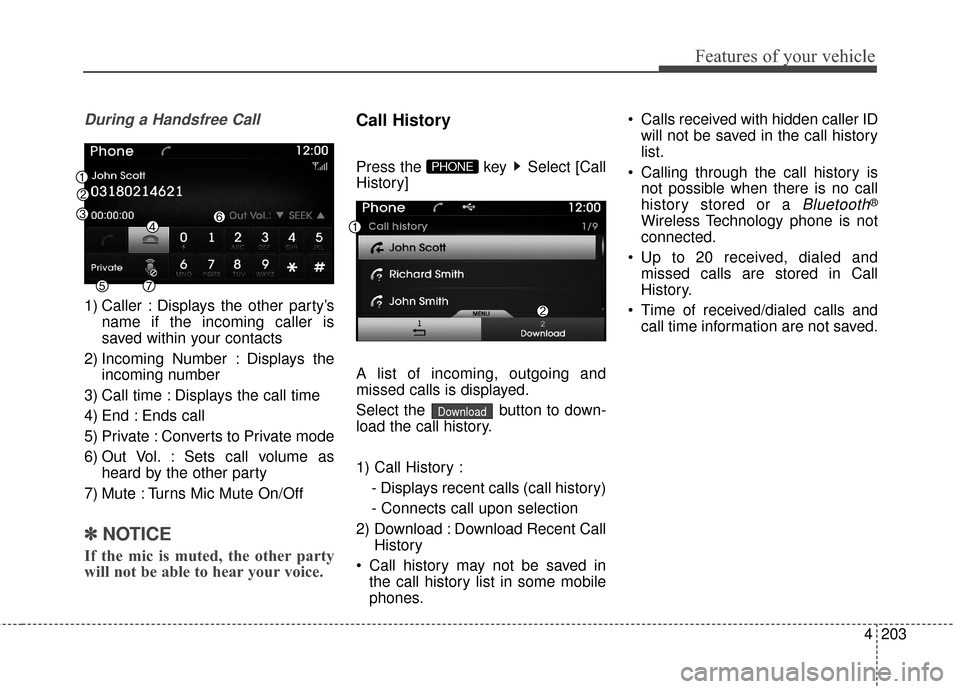
During a Handsfree Call
1) Caller : Displays the other party’sname if the incoming caller is
saved within your contacts
2) Incoming Number : Displays the incoming number
3) Call time : Displays the call time
4) End : Ends call
5) Private : Converts to Private mode
6) Out Vol. : Sets call volume as heard by the other party
7) Mute : Turns Mic Mute On/Off
✽ ✽ NOTICE
If the mic is muted, the other party
will not be able to hear your voice.
Call History
Press the key Select [Call
History]
A list of incoming, outgoing and
missed calls is displayed.
Select the button to down-
load the call history.
1) Call History :
- Displays recent calls (call history)
- Connects call upon selection
2) Download : Download Recent Call History
Call history may not be saved in the call history list in some mobile
phones. Calls received with hidden caller ID
will not be saved in the call history
list.
Calling through the call history is not possible when there is no call
history stored or a
Bluetooth®
Wireless Technology phone is not
connected.
Up to 20 received, dialed and missed calls are stored in Call
History.
Time of received/dialed calls and call time information are not saved.
Download
PHONE