change Hyundai Azera 2017 Workshop Manual
[x] Cancel search | Manufacturer: HYUNDAI, Model Year: 2017, Model line: Azera, Model: Hyundai Azera 2017Pages: 520, PDF Size: 16.33 MB
Page 251 of 520
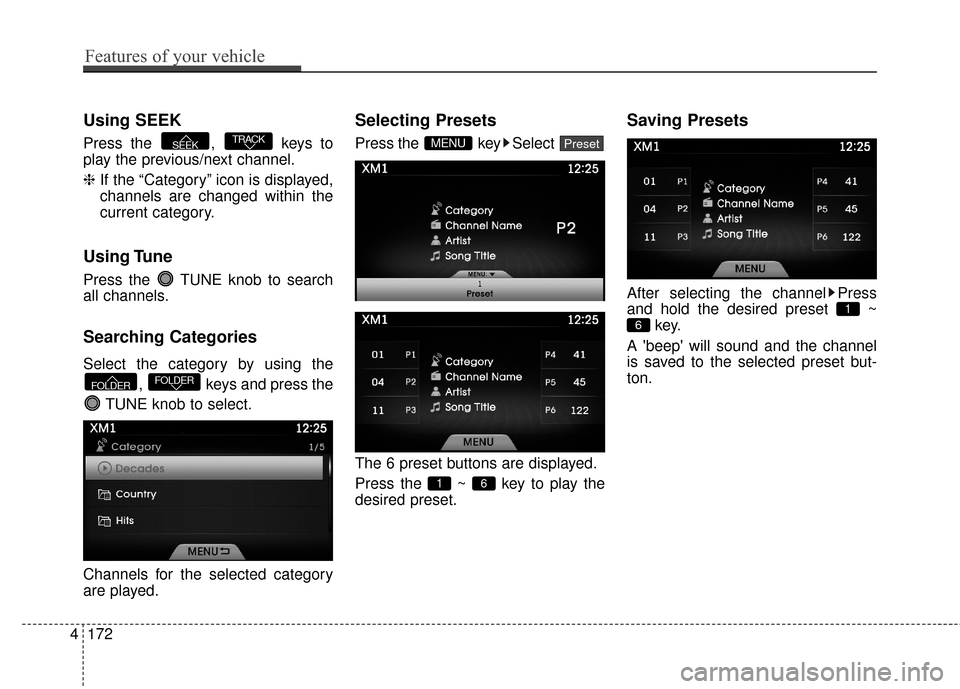
Using SEEK
Press the , keys to
play the previous/next channel.
❈If the “Category” icon is displayed,
channels are changed within the
current category.
Using Tune
Press the TUNE knob to search
all channels.
Searching Categories
Select the category by using the
, keys and press the
TUNE knob to select.
Channels for the selected category
are played.
Selecting Presets
Press the key Select
The 6 preset buttons are displayed.
Press the ~ key to play the
desired preset.
Saving Presets
After selecting the channel Press
and hold the desired preset ~ key.
A 'beep' will sound and the channel
is saved to the selected preset but-
ton.
6
1
6 1
PresetMENU
FOLDERFOLDER
TRACKSEEK
4172
Features of your vehicle
Page 252 of 520
SCAN
Press the key to scan all
channels with superior reception for
10 seconds each.
Once scan is complete, the previous-
ly played channel will be restored.
During Scan, pressing the
key again will cancel the scan opera-
tion and restore the previously
played channel.
If the “Category” icon is displayed,
channels are changed within the cur-
rent category.
SCAN
SCAN
Features of your vehicle
173
4
Page 253 of 520
![Hyundai Azera 2017 Workshop Manual MEDIA MODE
Pressing the key will change
the operating mode in order of
CD
➟USB(iPod)➟AUX➟My Music ➟
BT Audio.
If [Mode Pop up] is turned on within[Display], then pressing thekey will display](/img/35/14459/w960_14459-252.png "Hyundai Azera 2017 Workshop Manual MEDIA MODE
Pressing the key will change
the operating mode in order of
CD
➟USB(iPod)➟AUX➟My Music ➟
BT Audio.
If [Mode Pop up] is turned on within[Display], then pressing thekey will display")
MEDIA MODE
Pressing the key will change
the operating mode in order of
CD
➟USB(iPod)➟AUX➟My Music ➟
BT Audio.
If [Mode Pop up] is turned on within[Display], then pressing thekey will display the Media
mode Pop-up screen.
Use the TUNE knob to move the
focus. Press the knob to select.
✽ ✽ NOTICE
• If the key is pressed with
the system power off, then the
power will turn on and the most
recently played media mode will
be played.
• The media mode pop up screen can be displayed only when there
are two or more media modes
turned on.MEDIA
MEDIA
SETUP
MEDIA
4174
Features of your vehicle
Page 259 of 520
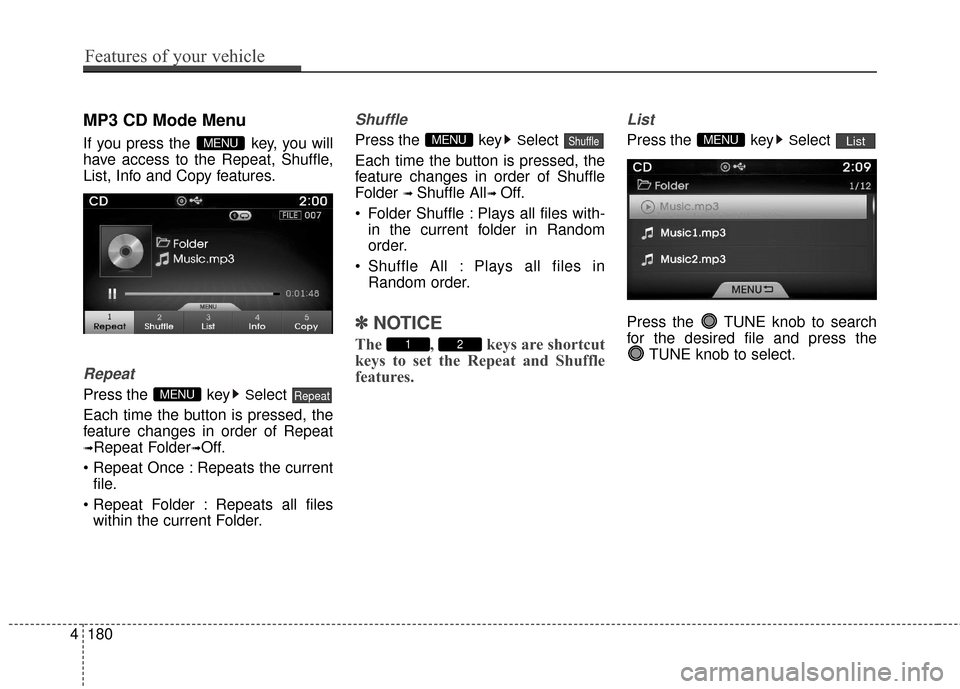
MP3 CD Mode Menu
If you press the key, you will
have access to the Repeat, Shuffle,
List, Info and Copy features.
Repeat
Press the keySelect
Each time the button is pressed, the
feature changes in order of Repeat
➟Repeat Folder➟Off.
Repeats the current file.
: Repeats all files within the current Folder.
Shuffle
Press the keySelect
Each time the button is pressed, the
feature changes in order of Shuffle
Folder
➟ Shuffle All➟ Off.
Folder Shuffle : Plays all files with- in the current folder in Random
order.
Shuffle All : Plays all files in Random order.
✽ ✽ NOTICE
The , keys are shortcut
keys to set the Repeat and Shuffle
features.
List
Press the keySelect
Press the TUNE knob to search
for the desired file and press the TUNE knob to select.ListMENU
21
ShuffleMENU
RepeatMENU
MENU
4180
Features of your vehicle
Page 261 of 520
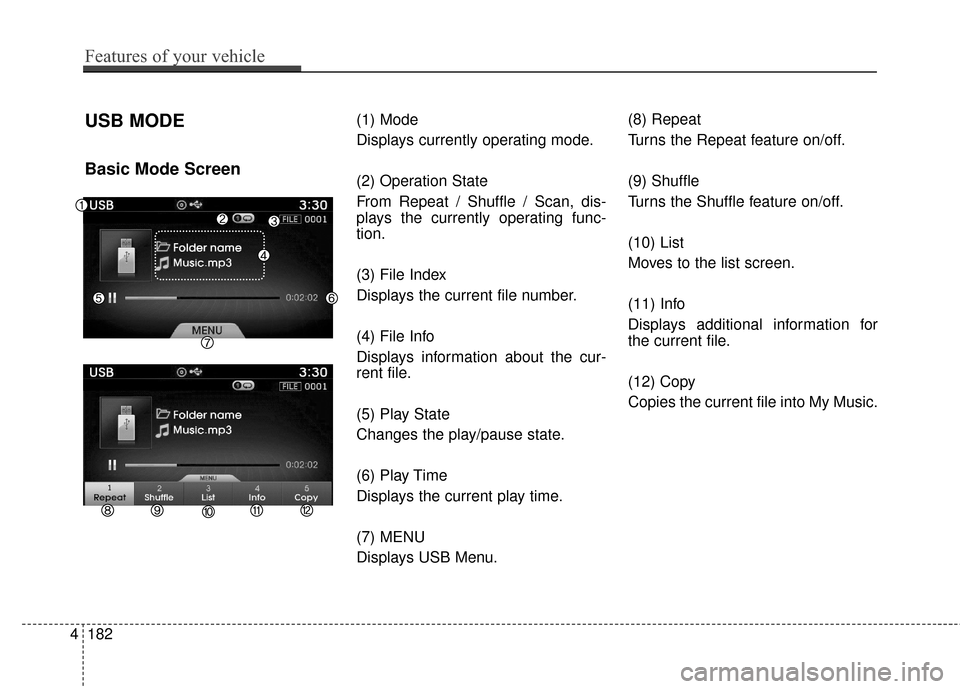
USB MODE
Basic Mode Screen
(1) Mode
Displays currently operating mode.
(2) Operation State
From Repeat / Shuffle / Scan, dis-
plays the currently operating func-
tion.
(3) File Index
Displays the current file number.
(4) File Info
Displays information about the cur-
rent file.
(5) Play State
Changes the play/pause state.
(6) Play Time
Displays the current play time.
(7) MENU
Displays USB Menu.(8) Repeat
Turns the Repeat feature on/off.
(9) Shuffle
Turns the Shuffle feature on/off.
(10) List
Moves to the list screen.
(11) Info
Displays additional information for
the current file.
(12) Copy
Copies the current file into My Music.
4182
Features of your vehicle
Page 263 of 520
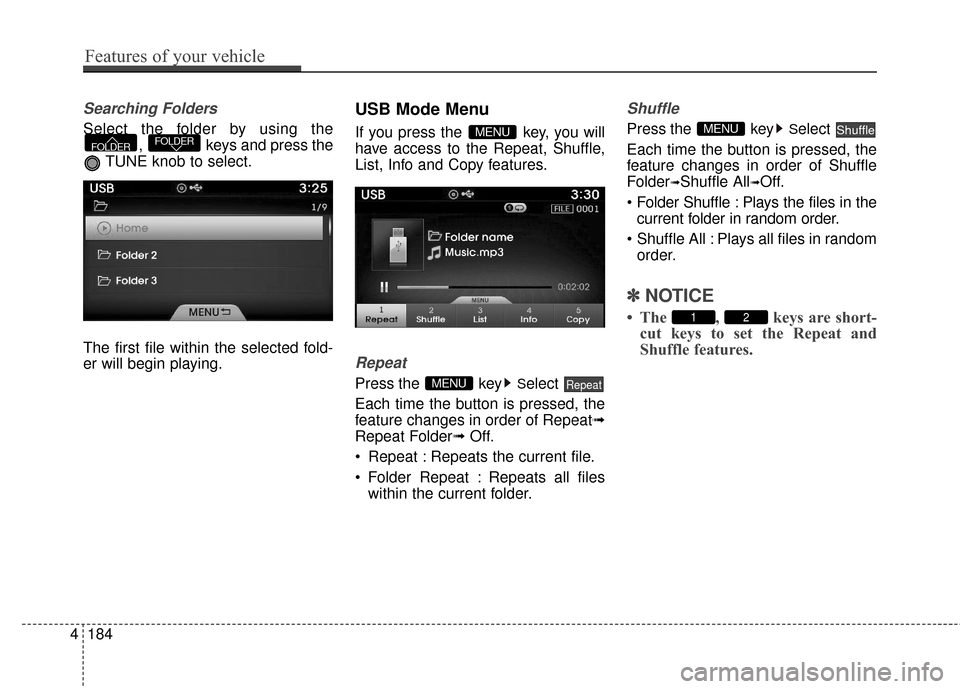
Searching Folders
Select the folder by using the, keys and press the
TUNE knob to select.
The first file within the selected fold-
er will begin playing.
USB Mode Menu
If you press the key, you will
have access to the Repeat, Shuffle,
List, Info and Copy features.
Repeat
Press the keySelect
Each time the button is pressed, the
feature changes in order of Repeat➟
Repeat Folder➟ Off.
Repeat : Repeats the current file.
Folder Repeat : Repeats all files within the current folder.
Shuffle
Press the keySelect
Each time the button is pressed, the
feature changes in order of Shuffle
Folder
➟Shuffle All➟Off.
: Plays the files in the current folder in random order.
All : Plays all files in random order.
✽ ✽ NOTICE
• The , keys are short-
cut keys to set the Repeat and
Shuffle features.21
ShuffleMENU
RepeatMENU
MENUFOLDERFOLDER
4184
Features of your vehicle
Page 265 of 520
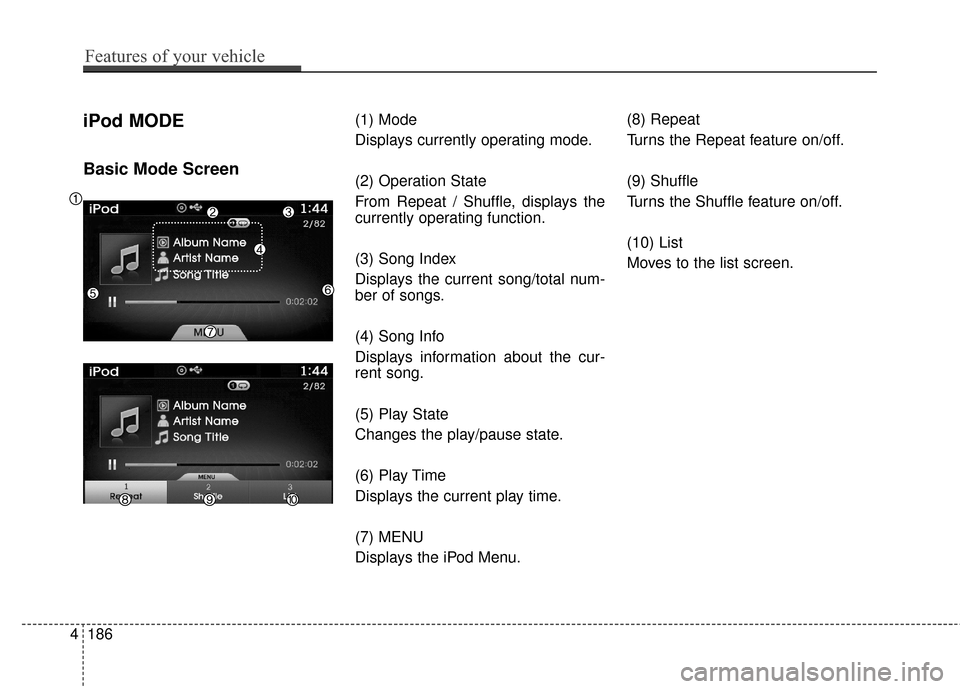
iPod MODE
Basic Mode Screen
(1) Mode
Displays currently operating mode.
(2) Operation State
From Repeat / Shuffle, displays the
currently operating function.
(3) Song Index
Displays the current song/total num-
ber of songs.
(4) Song Info
Displays information about the cur-
rent song.
(5) Play State
Changes the play/pause state.
(6) Play Time
Displays the current play time.
(7) MENU
Displays the iPod Menu.(8) Repeat
Turns the Repeat feature on/off.
(9) Shuffle
Turns the Shuffle feature on/off.
(10) List
Moves to the list screen.
4186
Features of your vehicle
Page 277 of 520
![Hyundai Azera 2017 Workshop Manual Features of your vehicle
198
4
Connecting a Device
Press the key Select
[Phone] Select [Paired Phone List]
1) Connected Phone : Device that is
currently connected
2) Paired Phone : Device that is pa](/img/35/14459/w960_14459-276.png "Hyundai Azera 2017 Workshop Manual Features of your vehicle
198
4
Connecting a Device
Press the key Select
[Phone] Select [Paired Phone List]
1) Connected Phone : Device that is
currently connected
2) Paired Phone : Device that is pa")
Features of your vehicle
198
4
Connecting a Device
Press the key Select
[Phone] Select [Paired Phone List]
1) Connected Phone : Device that is
currently connected
2) Paired Phone : Device that is paired but not connected From the paired phone list, select the
device you want to connect and
Select the button.
Changing Priority
What is Priority?
It is possible to pair up to five
Bluetooth®Wireless Technology
devices with the car audio system.
The "Change Priority" feature is used
to set the connection priority of
paired phones.
Press the key Select
[Phone] Select [Paired Phone List]
SETUP
ConnectSETUP
Page 278 of 520
4199
Features of your vehicle
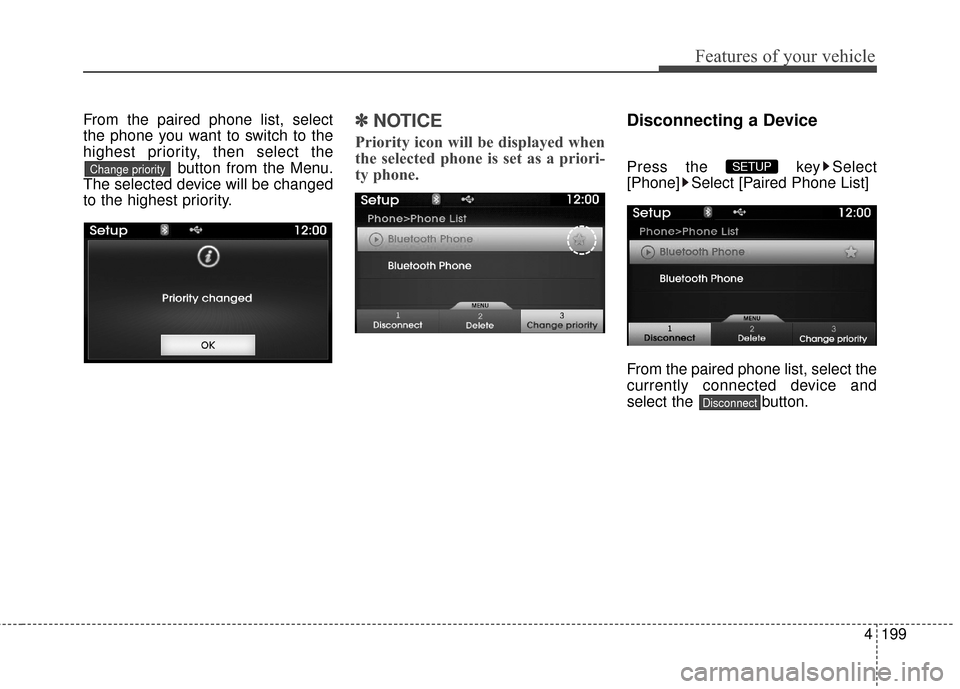
From the paired phone list, select
the phone you want to switch to the
highest priority, then select thebutton from the Menu.
The selected device will be changed
to the highest priority.✽ ✽ NOTICE
Priority icon will be displayed when
the selected phone is set as a priori-
ty phone.
Disconnecting a Device
Press the key Select
[Phone] Select [Paired Phone List]
From the paired phone list, select the
currently connected device and
select the button.
Disconnect
SETUP Change priority
Page 284 of 520
4205
Features of your vehicle
VOICE RECOGNITION
Using Voice Recognition
Starting Voice Recognition
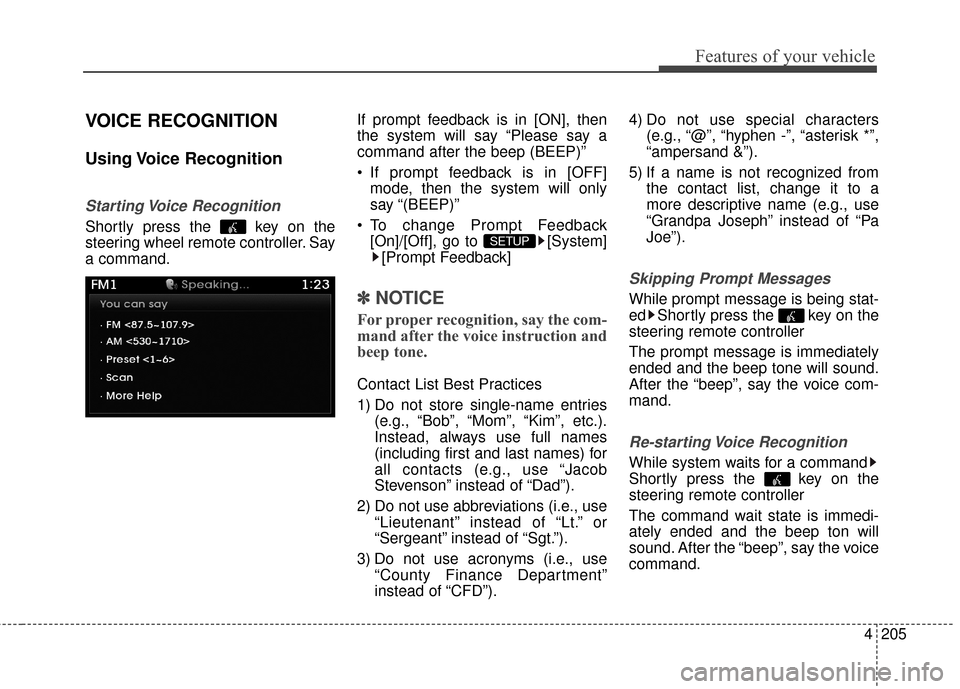
Shortly press the key on the
steering wheel remote controller. Say
a command.If prompt feedback is in [ON], then
the system will say “Please say a
command after the beep (BEEP)”
If prompt feedback is in [OFF]
mode, then the system will only
say “(BEEP)”
To change Prompt Feedback [On]/[Off], go to [System][Prompt Feedback]
✽ ✽ NOTICE
For proper recognition, say the com-
mand after the voice instruction and
beep tone.
Contact List Best Practices
1) Do not store single-name entries
(e.g., “Bob”, “Mom”, “Kim”, etc.).
Instead, always use full names
(including first and last names) for
all contacts (e.g., use “Jacob
Stevenson” instead of “Dad”).
2) Do not use abbreviations (i.e., use “Lieutenant” instead of “Lt.” or
“Sergeant” instead of “Sgt.”).
3) Do not use acronyms (i.e., use “County Finance Department”
instead of “CFD”). 4) Do not use special characters
(e.g., “@”, “hyphen -”, “asterisk *”,
“ampersand &”).
5) If a name is not recognized from the contact list, change it to a
more descriptive name (e.g., use
“Grandpa Joseph” instead of “Pa
Joe”).
Skipping Prompt Messages
While prompt message is being stat-
ed Shortly press the key on the
steering remote controller
The prompt message is immediately
ended and the beep tone will sound.
After the “beep”, say the voice com-
mand.
Re-starting Voice Recognition
While system waits for a command
Shortly press the key on the
steering remote controller
The command wait state is immedi-
ately ended and the beep ton will
sound. After the “beep”, say the voice
command.
SETUP