Drive Hyundai Creta 2019 Manual Online
[x] Cancel search | Manufacturer: HYUNDAI, Model Year: 2019, Model line: Creta, Model: Hyundai Creta 2019Pages: 472, PDF Size: 13.39 MB
Page 210 of 472
3-125
Convenient features of your vehicle
3
Sunvisor
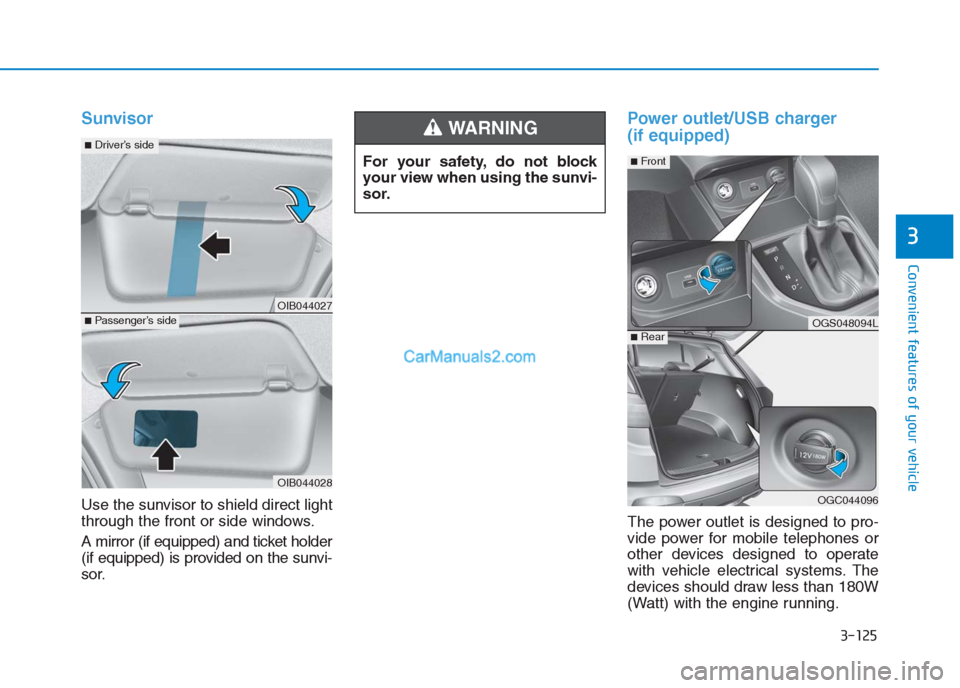
Use the sunvisor to shield direct light
through the front or side windows.
A mirror (if equipped) and ticket holder
(if equipped) is provided on the sunvi-
sor.
Power outlet/USB charger
(if equipped)
The power outlet is designed to pro-
vide power for mobile telephones or
other devices designed to operate
with vehicle electrical systems. The
devices should draw less than 180W
(Watt) with the engine running. For your safety, do not block
your view when using the sunvi-
sor.
WARNING
OIB044027
OIB044028
■Passenger’s side
■Driver’s side
OGS048094L
OGC044096
■Rear
■Front
Page 213 of 472
Luggage net holder
(if equipped)
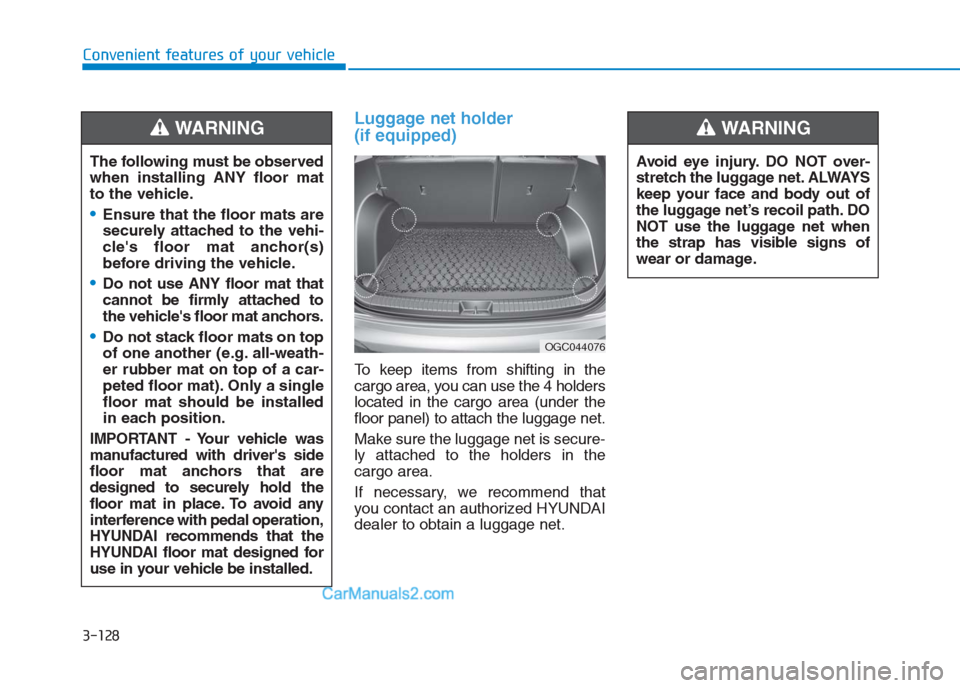
To keep items from shifting in the
cargo area, you can use the 4 holders
located in the cargo area (under the
floor panel) to attach the luggage net.
Make sure the luggage net is secure-
ly attached to the holders in the
cargo area.
If necessary, we recommend that
you contact an authorized HYUNDAI
dealer to obtain a luggage net. The following must be observed
when installing ANY floor mat
to the vehicle.
Ensure that the floor mats are
securely attached to the vehi-
cle's floor mat anchor(s)
before driving the vehicle.
Do not use ANY floor mat that
cannot be firmly attached to
the vehicle's floor mat anchors.
Do not stack floor mats on top
of one another (e.g. all-weath-
er rubber mat on top of a car-
peted floor mat). Only a single
floor mat should be installed
in each position.
IMPORTANT - Your vehicle was
manufactured with driver's side
floor mat anchors that are
designed to securely hold the
floor mat in place. To avoid any
interference with pedal operation,
HYUNDAI recommends that the
HYUNDAI floor mat designed for
use in your vehicle be installed.
WARNING
OGC044076
Avoid eye injury. DO NOT over-
stretch the luggage net. ALWAYS
keep your face and body out of
the luggage net’s recoil path. DO
NOT use the luggage net when
the strap has visible signs of
wear or damage.
WARNING
Convenient features of your vehicle
3-128
Page 227 of 472
4-13
Multimedia System
4
Operating the device while driv-
ing could lead to accidents due
to a lack of attention to external
surroundings. First park the
vehicle before operating the
device.
Adjust the volume to levels that
allow the driver to hear sounds
from outside of the vehicle.
Driving in a state where external
sounds cannot be heard may
lead to accidents.
Pay attention to the volume set-
ting when turning the device on.
A sudden output of extreme vol-
ume upon turning the device on
could lead to hearing impair-
ment. (Adjust the volume to a
suitable level before turning off
the device.)
Turn on the car engine before
using this device. Do not oper-
ate the audio system for long
periods of time only with the
ignition turned on as such oper-
ations may lead to battery dis-
charge.
(Continued)(Continued)
Do not subject the device to
severe shock or impact. Direct
pressure onto the front side of
the monitor may cause damage
to the LCD.
When cleaning the device, make
sure to turn off the device and
use a dry and smooth cloth.
Never use tough materials,
chemical cloths, or solvents
(alcohol, benzene, thinners, etc.).
As such materials may damage
the device panel or cause
color/quality deterioration.
Do not place beverages close to
the audio system. Spilling bever-
ages may lead to system mal-
function.
In this case of product malfunc-
tion, please contact your place of
purchase or After Service center.
Placing the audio system within
an electromagnetic environment
may result in noise interference.
Prevent caustic solutions such
as perfume and cosmetic oil
from contacting the dashboard
because they may cause dam-
age or discoloration.
NOTICE
Driving while distracted can
result in a loss of vehicle con-
trol that may lead to an acci-
dent, severe personal injury,
and death. The driver’s primary
responsibility is in the safe and
legal operation of a vehicle, and
use of any handheld devices,
other equipment, or vehicle sys-
tems which take the driver’s
eyes, attention and focus away
from the safe operation of a
vehicle or which are not permis-
sible by law should never be
used during operation of the
vehicle.
WARNING
Page 231 of 472
4-17
Multimedia System
4
(Continued)
• Some USB devices may not be sup-
ported due to compatibility issues.
• Avoid contact between the USB con-
nector and bodily parts or foreign
objects.
• Repeated connecting/disconnecting
of USB devices within short periods
of time may result in product mal-
function.
• A strange noise may occur when dis-
connecting the USB.
• Make sure to connect/disconnect
external USB devices with the audio
power turned off.
• The amount of time required to rec-
ognize the USB device may differ
depending on the type, size or file
formats stored on the USB. Such
differences in time are not indica-
tions of malfunctions.
• The vehicle audio system only sup-
ports USB devices designed to play
music files.
• USB images and videos are not sup-
ported.
(Continued)(Continued)
• Do not use the USB interface to
charge batteries or USB accessories
that generate heat. Doing so may
lead to worsened performance or
damage to the audio system.
• The audio system may not recognize
the USB device if separately pur-
chased USB hubs and extension
cables are being used. Connect the
USB device directly with the USB
port of the vehicle.
• When using mass storage USB
devices with separate logical drives,
only files saved to the root drive can
be played.
• Files may not properly operate if
application programs are installed
on the USBs.
• The audio system may not operate
normally if MP3 Players, cellular
phones, digital cameras, or other
electronic devices (USB devices not
recognized as portable disk drives)
are connected with the audio sys-
tem.
(Continued)(Continued)
• Charging through the USB may not
work for some mobile devices.
• The device may not support normal
operation when using an atypical
USB memory device (miniature,
keychain, etc.). For best results, use
a typical USB device that has a
metal case.
• The device may not support normal
operation when using formats such
as HDD Type, CF, or SD Memory.
• The device will not support files
locked by DRM (Digital Rights
Management.).
• USB memory sticks used by con-
necting an Adaptor (SD Type or CF
Type) may not be properly recog-
nized.
• The device may not operate proper-
ly when using USB HDDs or USBs
subject to connection failures
caused by vehicle vibrations. (e.g. i-
stick type)
(Continued)
Page 237 of 472
4-23
Multimedia System
4
Bluetooth®is a feature that
enables drivers to make hands-
free calls. Connecting the head
unit with a Bluetooth
®phone
allows the user to conveniently
make calls, receive calls, and
manage the phonebook. Before
using Bluetooth
®, carefully read
the contents of this user’s man-
ual.
Excessive use or operations
while driving may lead to negli-
gent driving practices and be
the cause of accidents. Do not
operate the device excessively
while driving.
Viewing the screen for pro-
longed periods of time is dan-
gerous and may lead to acci-
dents. When driving, view the
screen only for short periods of
time. Before connecting the head unit
with the Bluetooth
®device, check
to see that the mobile device sup-
ports Bluetooth
®features.
Even if the mobile device supports
Bluetooth
®, the device will not
be found during device searches
if the device has been set to hid-
den state or the Bluetooth
®
power is turned off. Disable the
hidden state or turn on the
Bluetooth
®power prior to
searching/connecting with the
head unit.
If a Bluetooth
®device becomes
disconnected due to being out
of communication range, turn-
ing the device OFF, or a
Bluetooth
®communication
error, corresponding Bluetooth®
devices are automatically
searched and reconnected.
(Continued)
NOTICENOTICE
Focus on the road while driv-
ing. The driver’s primary
responsibility is in the safe
and legal operation of the
vehicle. Drivers should not
use any hand held devices or
other equipment or vehicle
systems that distract the driv-
er during vehicle operation.
Do not stare at the multimedia
screen for long periods of
time while driving. Staring at
the screen for prolonged peri-
ods of time can lead to traffic
accidents and can result in
personal injuries.
Pairing Bluetooth
®devices
and use of other Bluetooth®
features are not supported
when the vehicle is in motion.
For safety, please first park
your vehicle.
WARNING
Page 251 of 472
4-37
Multimedia System
4
Operating the device while driv-
ing could lead to accidents due
to a lack of attention to external
surroundings. First park the
vehicle before operating the
device.
Adjust the volume to levels that
allow the driver to hear sounds
from outside of the vehicle.
Driving in a state where external
sounds cannot be heard may
lead to accidents.
Pay attention to the volume set-
ting when turning the device on.
A sudden output of extreme vol-
ume upon turning the device on
could lead to hearing impair-
ment. (Adjust the volume to a
suitable level before turning off
the device.)
Turn on the car engine before
using this device. Do not oper-
ate the audio system for long
periods of time only with the
ignition turned on as such oper-
ations may lead to battery dis-
charge.
(Continued)(Continued)
Do not subject the device to
severe shock or impact. Direct
pressure onto the front side of
the monitor may cause damage
to the LCD.
When cleaning the device, make
sure to turn off the device and
use a dry and smooth cloth.
Never use tough materials,
chemical cloths, or solvents
(alcohol, benzene, thinners,
etc.). As such materials may
damage the device panel or
cause color/quality deterioration
Do not place beverages close to
the audio system. Spilling bever-
ages may lead to system mal-
function.
In this case of product malfunc-
tion, please contact your place of
purchase or After Service center.
Placing the audio system within
an electromagnetic environment
may result in noise interference.
Prevent caustic solutions such
as perfume and cosmetic oil
from contacting the dashboard
because they may cause dam-
age or discoloration.
NOTICE
Driving while distracted can
result in a loss of vehicle con-
trol that may lead to an acci-
dent, severe personal injury,
and death. The driver’s primary
responsibility is in the safe and
legal operation of a vehicle, and
use of any handheld devices,
other equipment, or vehicle sys-
tems which take the driver’s
eyes, attention and focus away
from the safe operation of a
vehicle or which are not permis-
sible by law should never be
used during operation of the
vehicle.
WARNING
Page 256 of 472
4-42
Multimedia System
(Continued)
• Some USB devices are not recog-
nized due to compatibility issues.
• Do not touch the USB connections.
• Connecting and disconnecting USB
devices rapidly over a short period
of time can cause equipment failure.
• Abnormal sounds may be audible
when the USB device is disconnected.
• Turn the audio off before connecting
or disconnecting external USB
devices.
• Recognition may take longer
depending on the type, capacity or
file format of the external USB
device. This is not a product mal-
function.
• Use of USB devices for purposes
other than playing music files is pro-
hibited.
• Image display and video playback
are not supported.
• Use of USB accessories, including
charge and heat though the USB
interface, can lead to reduced prod-
uct performance or malfunctions.
Do not use USB devices or acces-
sories for these purposes.
(Continued)(Continued)
• Use of aftermarket USB hubs and
extension cables can result in the
vehicle’s audio system failing to rec-
ognize your USB device. Connect
the USB device directly to the multi-
media port of your vehicle.
• When using high-capacity USB
devices with logical drive divisions,
only files saved on the highest level
logical drive can be played.
If applications are loaded on a USB
drive, file playback may fail.
• Some MP3 players, cell phones, dig-
ital cameras, etc. (USB devices that
are not recognized as mobile stor-
age) may not operate normally
when connected.
• Operation is guaranteed only for
standard (Metal Cover Type) USB
Memory drives.
• Operation of HDD, CF, SD and mem-
ory stick devices is not guaranteed.
• DRM (Digital Rights Management)
files cannot be played.
(Continued)(Continued)
• SD-type USB memory, CF-type
USB memory, and other USB mem-
ory devices that require adapters
for connection are not supported.
• Proper operation of USB HDDs or
USB drives with connectors that
loosen due to vehicle vibrations is
not guaranteed. (iStick, etc.)
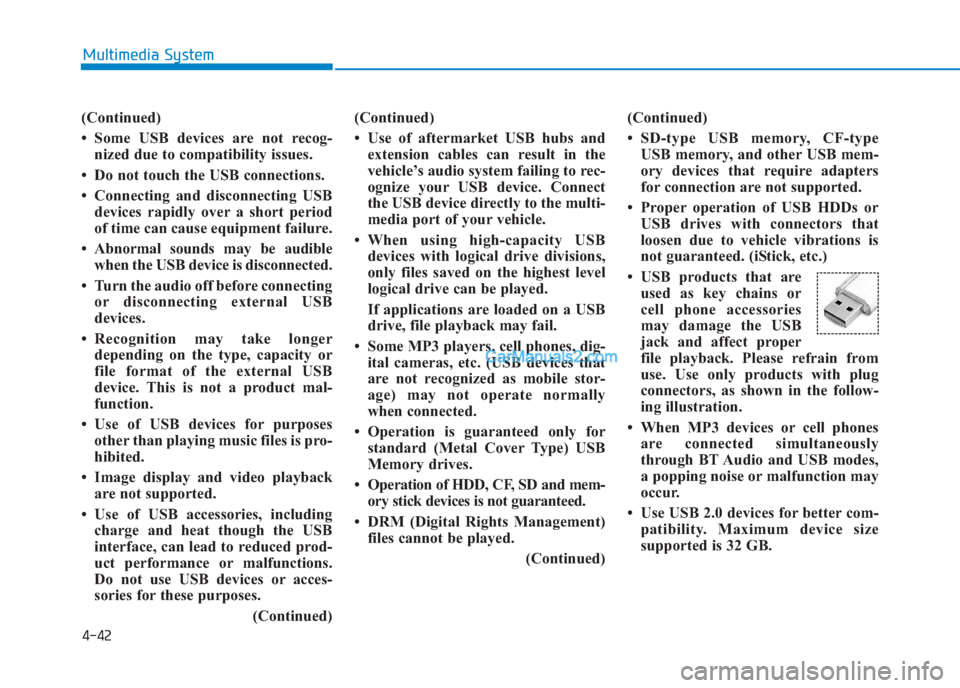
• USB products that are
used as key chains or
cell phone accessories
may damage the USB
jack and affect proper
file playback. Please refrain from
use. Use only products with plug
connectors, as shown in the follow-
ing illustration.
• When MP3 devices or cell phones
are connected simultaneously
through BT Audio and USB modes,
a popping noise or malfunction may
occur.
• Use USB 2.0 devices for better com-
patibility. Maximum device size
supported is 32 GB.
Page 257 of 472
4-43
Multimedia System
4
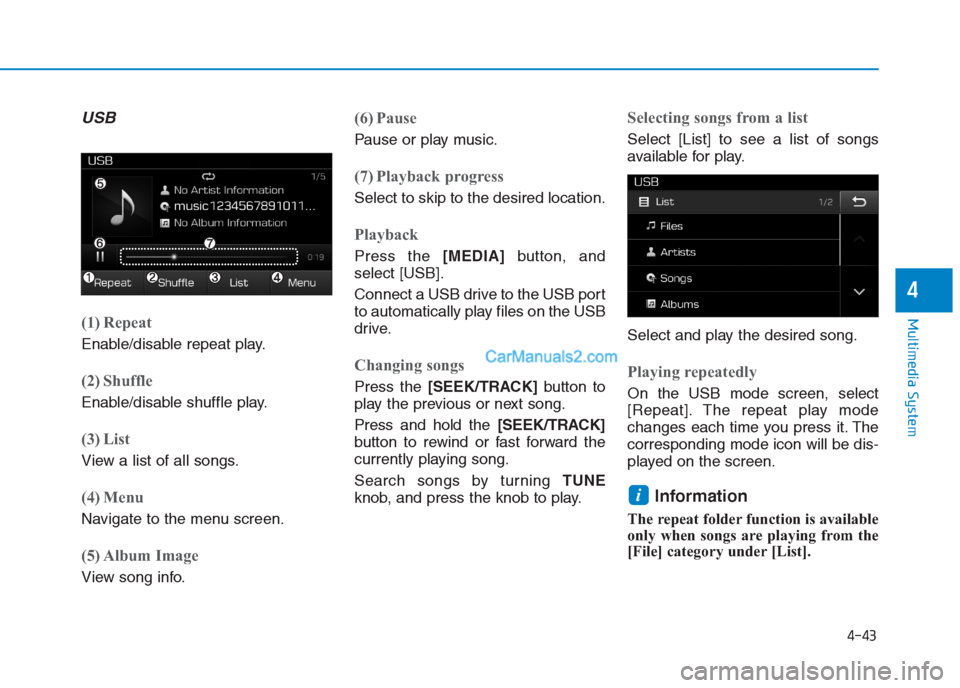
USB
(1) Repeat
Enable/disable repeat play.
(2) Shuffle
Enable/disable shuffle play.
(3) List
View a list of all songs.
(4) Menu
Navigate to the menu screen.
(5) Album Image
View song info.
(6) Pause
Pause or play music.
(7) Playback progress
Select to skip to the desired location.
Playback
Press the [MEDIA]button, and
select [USB].
Connect a USB drive to the USB port
to automatically play files on the USB
drive.
Changing songs
Press the [SEEK/TRACK]button to
play the previous or next song.
Press and hold the [SEEK/TRACK]
button to rewind or fast forward the
currently playing song.
Search songs by turning TUNE
knob, and press the knob to play.
Selecting songs from a list
Select [List] to see a list of songs
available for play.
Select and play the desired song.
Playing repeatedly
On the USB mode screen, select
[Repeat]. The repeat play mode
changes each time you press it. The
corresponding mode icon will be dis-
played on the screen.
Information
The repeat folder function is available
only when songs are playing from the
[File] category under [List].
i
Page 261 of 472
4-47
Multimedia System
4
Information
- Using Bluetooth®Audio
• Bluetooth
®Audio mode can only be
used if a Bluetooth®-enabled phone
is connected. Only devices that sup-
port Bluetooth
®audio can be used.
• If the Bluetooth
®-enabled phone is
disconnected during play, the music
stops.
• When the TRACK UP/DOWN but-
tons are used during Bluetooth
®
audio streaming, a popping noise or
sound interruptions may occur,
depending on the cell phone device.
• Depending on the cell phone model,
the audio streaming function may
not be supported.
• If a phone call is made or received
when music is playing in Bluetooth
®
Audio mode, the call may mix with
the music.
• When returning to Bluetooth
®
Audio mode after ending a call, play
might not resume automatically for
some cell phone models. Bluetooth
®Handsfree is a fea-
ture that enables drivers to prac-
tice safe driving. Connecting the
car audio system with a
Bluetooth
®phone allows the
user to conveniently make calls,
receive calls, and manage the
phone book. Before using the
Bluetooth
®, carefully read the
contents of this user’s manual.
Excessive use or operations
while driving may lead to negli-
gent driving practices and be
the cause of accidents.
Do not operate the device exces-
sively while driving.
Viewing the screen for pro-
longed periods of time is dan-
gerous and may lead to acci-
dents.
When driving, view the screen
only for short periods of time.
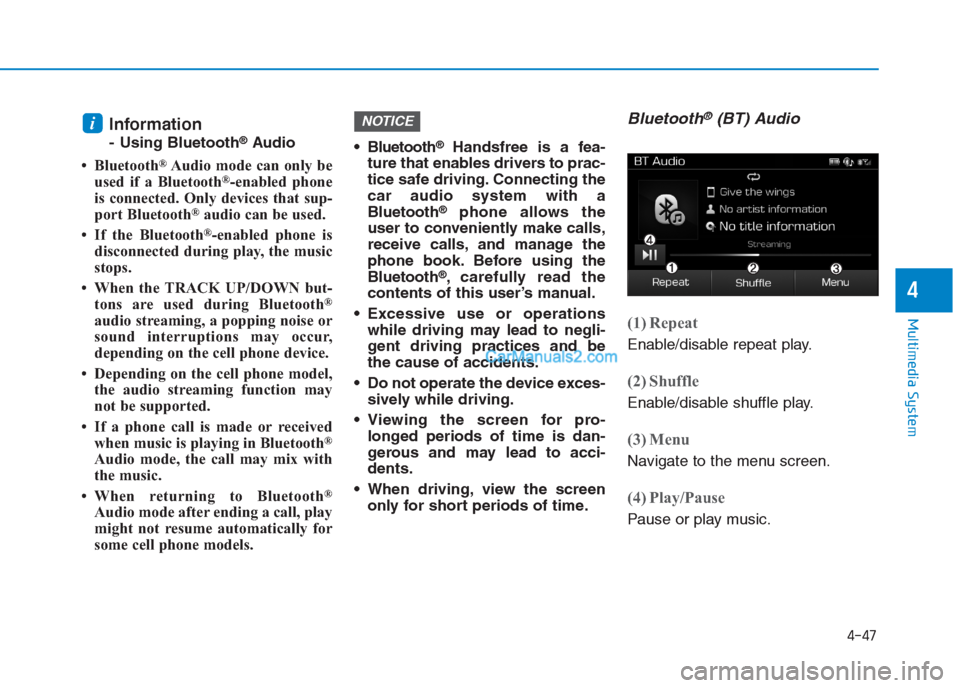
Bluetooth®(BT) Audio
(1) Repeat
Enable/disable repeat play.
(2) Shuffle
Enable/disable shuffle play.
(3) Menu
Navigate to the menu screen.
(4) Play/Pause
Pause or play music.
NOTICEi
Page 263 of 472
4-49
Multimedia System
4
Phone
Information
- Using Bluetooth®(BT) Phone
• Bluetooth
®is a near-field wireless
networking technology that uses the
2.4 GHz frequency to connect vari-
ous devices within a certain distance
wirelessly.
• The technology is used in PCs,
peripherals, Bluetooth
®phones,
tablet PCs, household appliances
and automobiles. Devices support-
ing Bluetooth
®can exchange data at
high speeds without physical cable
connections.
• Bluetooth
®Handsfree devices enable
convenient access to phone functions
through cell phones equipped with
Bluetooth
®.
• Some Bluetooth
®devices may not be
supported by the Bluetooth®
Handsfree function.
(Continued)(Continued)
• When Bluetooth
®is connected and
calls are attempted through a con-
nected cell phone from outside the
vehicle, the call is connected
through the Bluetooth
®Handsfree
function of the vehicle.
• Please be sure to disconnect the
Bluetooth
®Handsfree function
throughyour Bluetooth®device or
the audio screen.
Safety precautions
The Bluetooth®Handsfree function
helps drivers to drive safely. By
connecting a Bluetooth
®-enabled
phone to the vehicle’s audio sys-
tem, phone calls can be made and
received through the audio system
and contacts can be managed.
Consult the user manual before
use.
Excessive manipulation of controls
while driving, making it difficult to
pay attention to the road ahead,
can lead to accidents. Do not oper-
ate the device excessively while
driving.
Looking at the screen for a pro-
longed time increases the risk of
accidents. Keep time spent looking
at the screen to a minimum.
i