change Hyundai Elantra 2016 Workshop Manual
[x] Cancel search | Manufacturer: HYUNDAI, Model Year: 2016, Model line: Elantra, Model: Hyundai Elantra 2016Pages: 669, PDF Size: 31.96 MB
Page 269 of 669
4183
Features of your vehicle
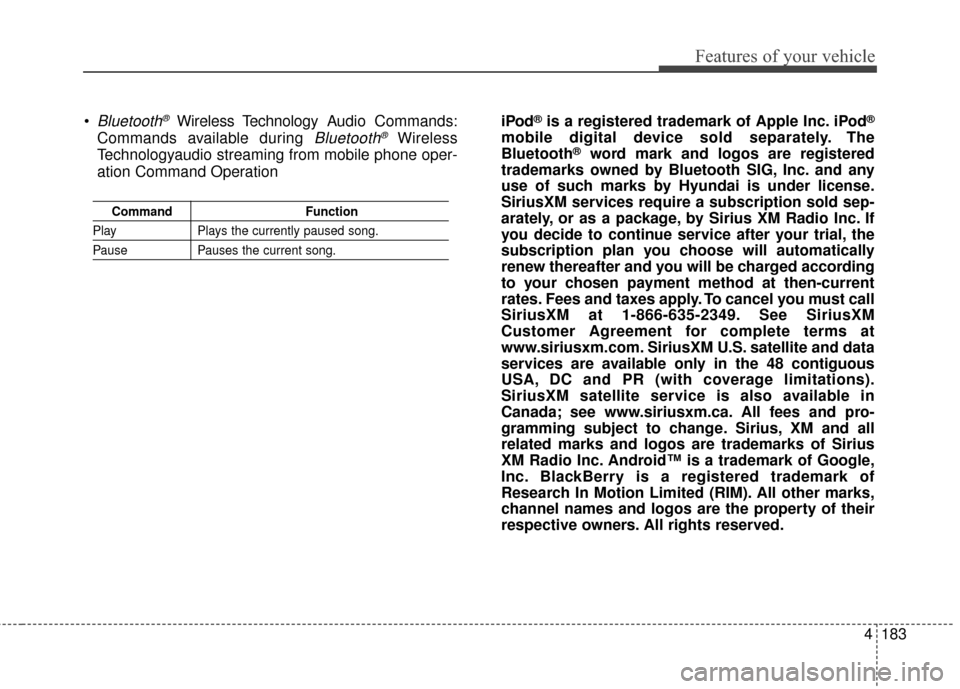
Bluetooth®Wireless Technology Audio Commands:
Commands available during
Bluetooth®Wireless
Technologyaudio streaming from mobile phone oper-
ation Command Operation
Command Function
PlayPlays the currently paused song.
PausePauses the current song.
iPod®is a registered trademark of Apple Inc. iPod®
mobile digital device sold separately. The
Bluetooth®word mark and logos are registered
trademarks owned by Bluetooth SIG, Inc. and any
use of such marks by Hyundai is under license.
SiriusXM services require a subscription sold sep-
arately, or as a package, by Sirius XM Radio Inc. If
you decide to continue service after your trial, the
subscription plan you choose will automatically
renew thereafter and you will be charged according
to your chosen payment method at then-current
rates. Fees and taxes apply. To cancel you must call
SiriusXM at 1-866-635-2349. See SiriusXM
Customer Agreement for complete terms at
www.siriusxm.com. SiriusXM U.S. satellite and data
services are available only in the 48 contiguous
USA, DC and PR (with coverage limitations).
SiriusXM satellite service is also available in
Canada; see www.siriusxm.ca. All fees and pro-
gramming subject to change. Sirius, XM and all
related marks and logos are trademarks of Sirius
XM Radio Inc. Android™ is a trademark of Google,
Inc. BlackBerry is a registered trademark of
Research In Motion Limited (RIM). All other marks,
channel names and logos are the property of their
respective owners. All rights reserved.
Page 272 of 669
Features of your vehicle
186
4
SYSTEM CONTROLLERS
AND FUNCTIONS
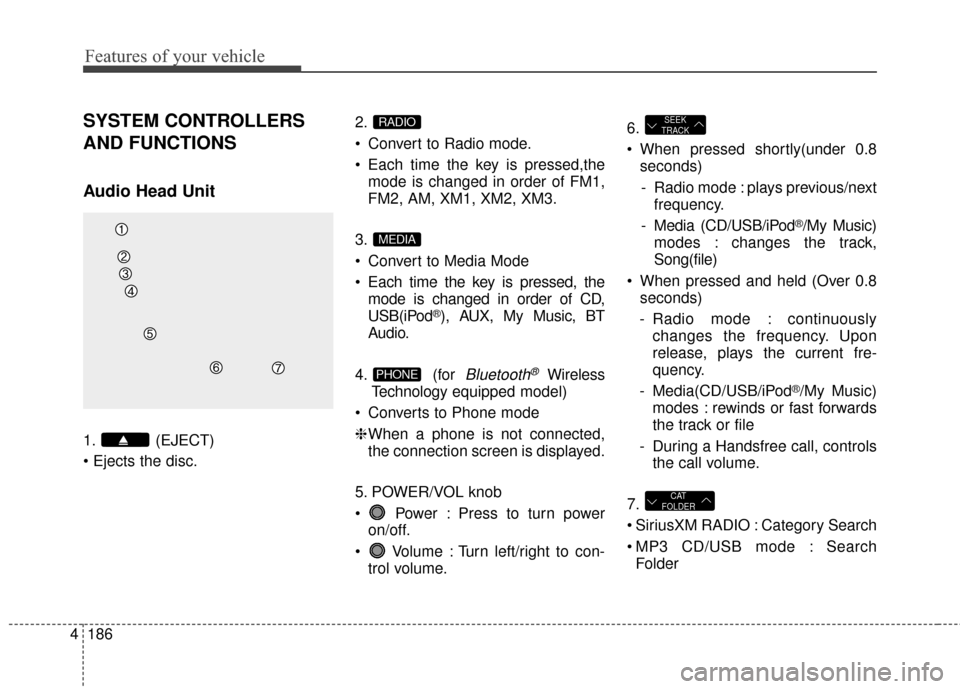
Audio Head Unit
1. (EJECT)
2.
Convert to Radio mode.
Each time the key is pressed,the
mode is changed in order of FM1,
FM2, AM, XM1, XM2, XM3.
3.
Convert to Media Mode
Each time the key is pressed, the mode is changed in order of CD,
USB(iPod
®), AUX, My Music, BT
Audio.
4. (for
Bluetooth®Wireless
Technology equipped model)
Converts to Phone mode
❈ When a phone is not connected,
the connection screen is displayed.
5. POWER/VOL knob
Power : Press to turn power on/off.
Volume : Turn left/right to con- trol volume. 6.
When pressed shortly(under 0.8
seconds)
- Radio mode : plays previous/next frequency.
- Media (CD/USB/iPod
®/My Music)
modes : changes the track,
Song(file)
When pressed and held (Over 0.8 seconds)
- Radio mode : continuously changes the frequency. Upon
release, plays the current fre-
quency.
- Media(CD/USB/iPod
®/My Music)
modes : rewinds or fast forwards
the track or file
- During a Handsfree call, controls the call volume.
7.
SiriusXM RADIO : Category Search
MP3 CD/USB mode : Search Folder
CAT
FOLDER
SEEK
TRACK
PHONE
MEDIA
RADIO
Page 273 of 669
4187
Features of your vehicle
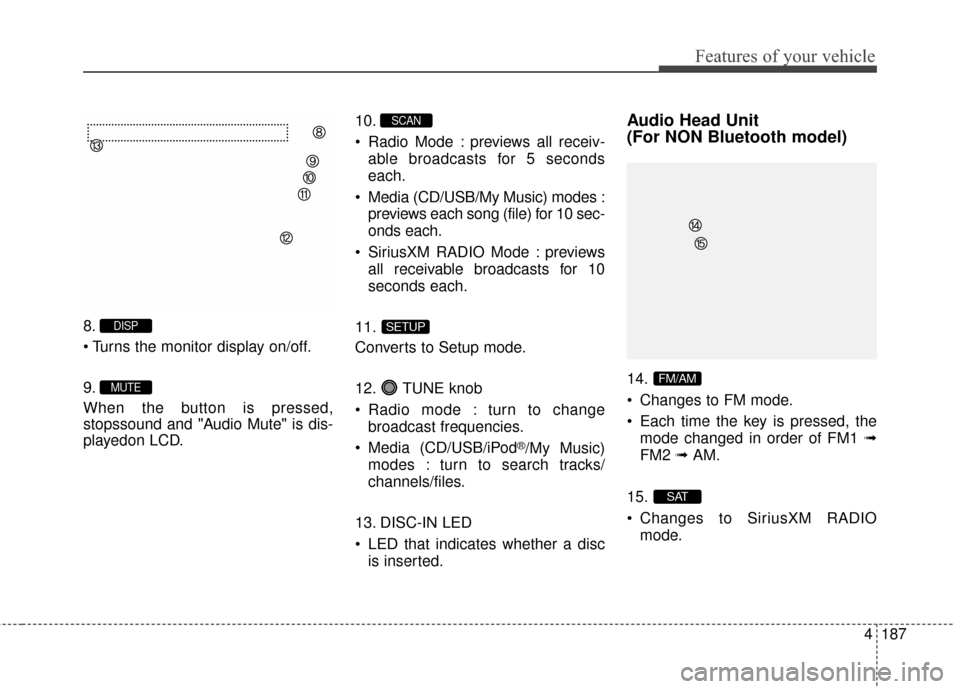
8.
9.
When the button is pressed,
stopssound and "Audio Mute" is dis-
playedon LCD.10.
Radio Mode : previews all receiv-
able broadcasts for 5 seconds
each.
Media (CD/USB/My Music) modes : previews each song (file) for 10 sec-
onds each.
SiriusXM RADIO Mode : previews all receivable broadcasts for 10
seconds each.
11.
Converts to Setup mode.
12. TUNE knob
Radio mode : turn to change broadcast frequencies.
Media (CD/USB/iPod
®/My Music)
modes : turn to search tracks/
channels/files.
13. DISC-IN LED
LED that indicates whether a disc is inserted.
Audio Head Unit
(For NON Bluetooth model)
14.
Changes to FM mode.
Each time the key is pressed, themode changed in order of FM1 ➟
FM2 ➟AM.
15.
Changes to SiriusXM RADIO mode.
SAT
FM/AM
SETUP
SCAN
MUTE
DISP
Page 276 of 669
Features of your vehicle
190
4
SYSTEM CONTROLLERS
AND FUNCTIONS
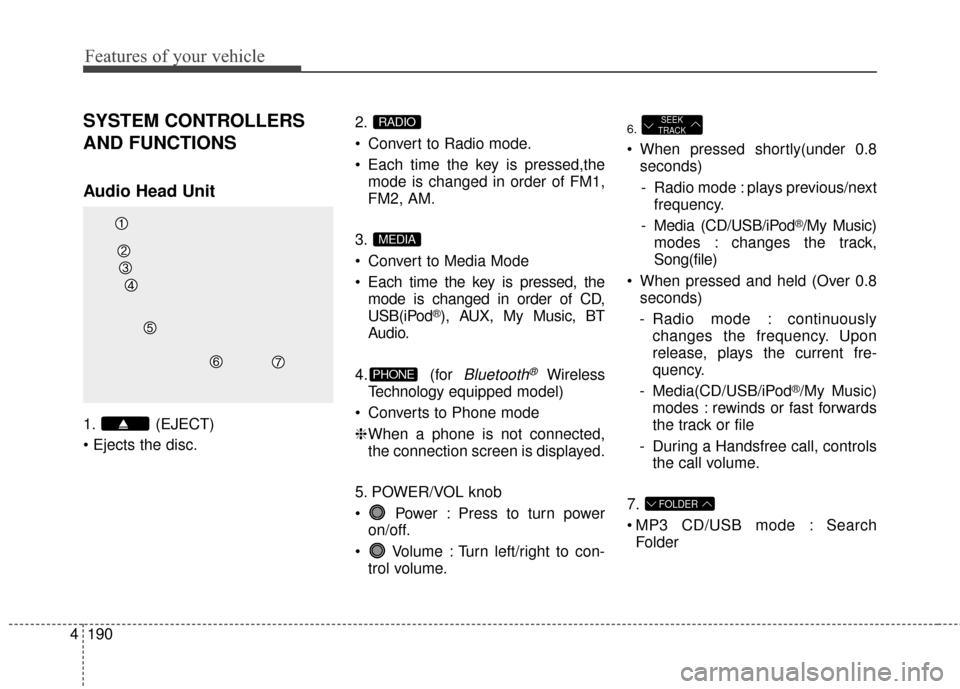
Audio Head Unit
1. (EJECT)
2.
Convert to Radio mode.
Each time the key is pressed,the
mode is changed in order of FM1,
FM2, AM.
3.
Convert to Media Mode
Each time the key is pressed, the mode is changed in order of CD,
USB(iPod
®), AUX, My Music, BT
Audio.
4. (for
Bluetooth®Wireless
Technology equipped model)
Converts to Phone mode
❈ When a phone is not connected,
the connection screen is displayed.
5. POWER/VOL knob
Power : Press to turn power on/off.
Volume : Turn left/right to con- trol volume.
6.
When pressed shortly(under 0.8seconds)
- Radio mode : plays previous/next frequency.
- Media (CD/USB/iPod
®/My Music)
modes : changes the track,
Song(file)
When pressed and held (Over 0.8 seconds)
- Radio mode : continuously changes the frequency. Upon
release, plays the current fre-
quency.
- Media(CD/USB/iPod
®/My Music)
modes : rewinds or fast forwards
the track or file
- During a Handsfree call, controls the call volume.
7.
MP3 CD/USB mode : Search Folder
FOLDER
SEEK
TRACK
PHONE
MEDIA
RADIO
Page 277 of 669
4191
Features of your vehicle
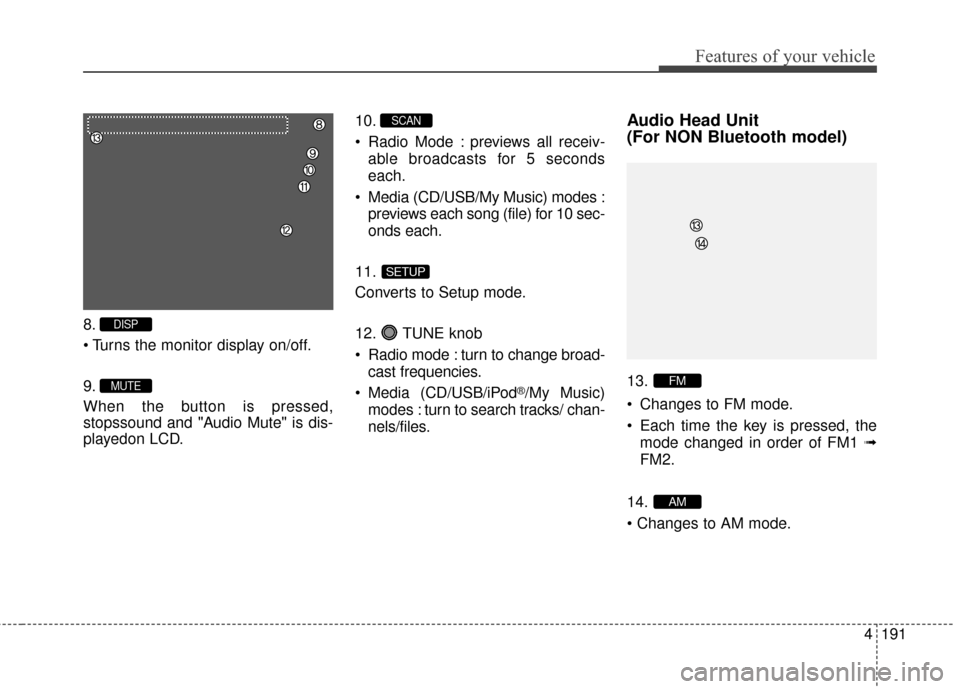
8.
9.
When the button is pressed,
stopssound and "Audio Mute" is dis-
playedon LCD.10.
Radio Mode : previews all receiv-
able broadcasts for 5 seconds
each.
Media (CD/USB/My Music) modes : previews each song (file) for 10 sec-
onds each.
11.
Converts to Setup mode.
12. TUNE knob
Radio mode : turn to change broad- cast frequencies.
Media (CD/USB/iPod
®/My Music)
modes : turn to search tracks/ chan-
nels/files.
Audio Head Unit
(For NON Bluetooth model)
13.
Changes to FM mode.
Each time the key is pressed, the mode changed in order of FM1 ➟
FM2.
14.
AM
FM
SETUP
SCAN
MUTE
DISP
Page 278 of 669
Features of your vehicle
192
4
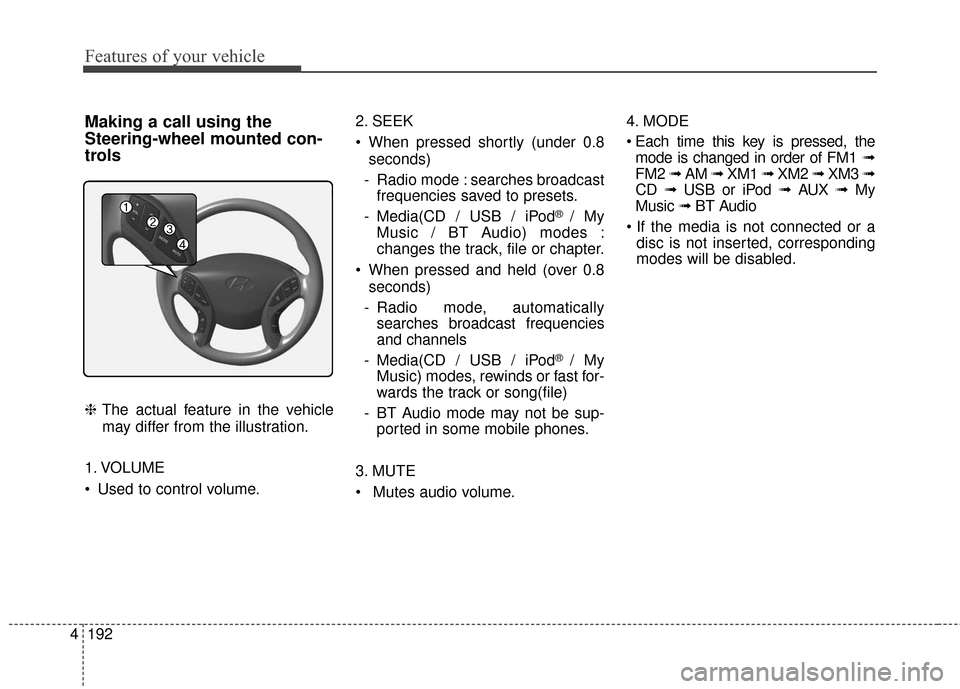
Making a call using the
Steering-wheel mounted con-
trols
❈ The actual feature in the vehicle
may differ from the illustration.
1. VOLUME
Used to control volume. 2. SEEK
When pressed shortly (under 0.8
seconds)
- Radio mode : searches broadcast frequencies saved to presets.
- Media(CD / USB / iPod
® / My
Music / BT Audio) modes :
changes the track, file or chapter.
When pressed and held (over 0.8 seconds)
- Radio mode, automatically searches broadcast frequencies
and channels
- Media(CD / USB / iPod
® / My
Music) modes, rewinds or fast for-
wards the track or song(file)
- BT Audio mode may not be sup- ported in some mobile phones.
3. MUTE
Mutes audio volume. 4. MODE
mode is changed in order of FM1 ➟
FM2 ➟ AM ➟ XM1 ➟ XM2 ➟ XM3 ➟
CD ➟ USB or iPod ➟ AUX ➟ My
Music ➟ BT Audio
disc is not inserted, corresponding
modes will be disabled.
Page 282 of 669
Features of your vehicle
196
4
NOTE:
SiriusXM services require a sub-
scription sold separately, or as a
package, by Sirius XM Radio Inc. If
you decide to continue service
after your trial, the subscription
plan you choose will automatical-
ly renew thereafter and you will be
charged according to your chosen
payment method at then-current
rates. Fees and taxes apply. To
cancel you must call SiriusXM at
1-866-635-2349. See SiriusXM
Customer Agreement for com-
plete terms at www.siriusxm.com.
SiriusXM U.S. satellite and data
services are available only in the
48 contiguous USA, DC and PR
(with coverage limitations).
SiriusXM satellite service is also
available in Canada; see www.sir-
iusxm. ca. All fees and program-
ming subject to change. Sirius,
XM and all related marks and
logos are trademarks of Sirius XM
Radio Inc.
Page 284 of 669
Features of your vehicle
198
4
Using SEEK
Press the key to play the
previous/next channel.
❈ If the “Category” icon is displayed,
channels are changed within the
current category.
Using Tune
Turn the TUNE knob to select the
desired channel.
SCAN
Press the key to scan all
channels with superior reception for
10 seconds each.
Once scan is complete, the previous-
ly played channel will be restored.
During Scan, pressing the
key again will cancel the scan opera-
tion and restore the previously
played channel.
If the “Category” icon is displayed,
channels are changed within the cur-
rent category.
Searching Categories
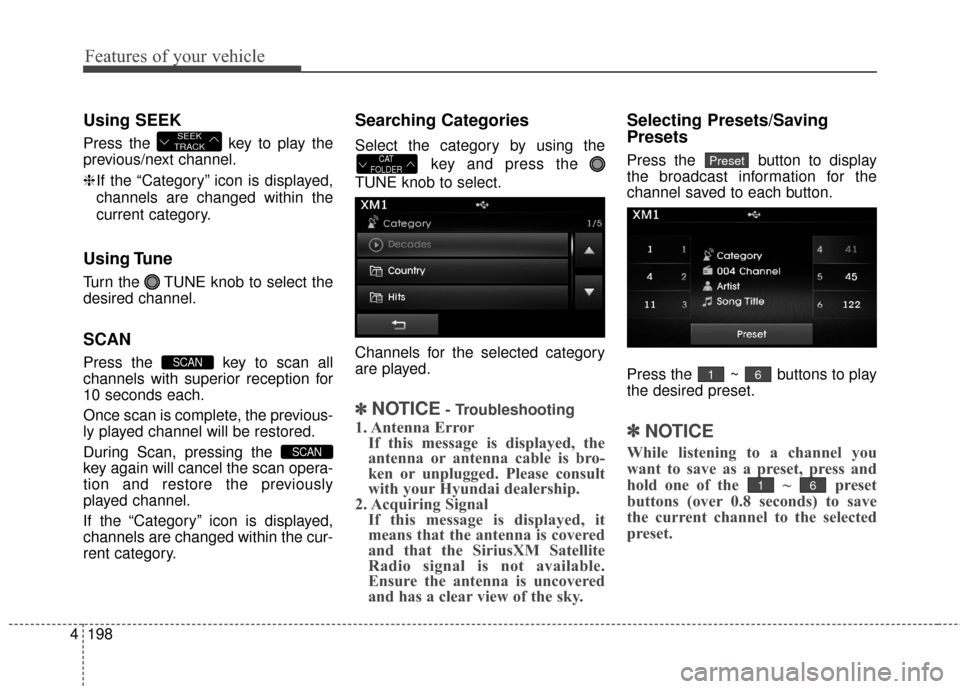
Select the category by using the
key and press the
TUNE knob to select.
Channels for the selected category
are played.
✽ ✽NOTICE- Troubleshooting
1. Antenna Error If this message is displayed, the
antenna or antenna cable is bro-
ken or unplugged. Please consult
with your Hyundai dealership.
2. Acquiring Signal If this message is displayed, it
means that the antenna is covered
and that the SiriusXM Satellite
Radio signal is not available.
Ensure the antenna is uncovered
and has a clear view of the sky.
Selecting Presets/Saving
Presets
Press the button to display
the broadcast information for the
channel saved to each button.
Press the ~ buttons to play
the desired preset.
✽ ✽ NOTICE
While listening to a channel you
want to save as a preset, press and
hold one of the ~ preset
buttons (over 0.8 seconds) to save
the current channel to the selected
preset.
61
61
PresetCAT
FOLDER
SCAN
SCAN
SEEK
TRACK
Page 286 of 669
![Hyundai Elantra 2016 Workshop Manual Features of your vehicle
200
4
MEDIA MODE
Pressing the key will change
the operating mode in order of CD
➟
USB(iPod®) ➟ AUX ➟ My Music ➟BT
Audio.
If [Mode Pop up] is turned on within
[Displ](/img/35/14551/w960_14551-285.png "Hyundai Elantra 2016 Workshop Manual Features of your vehicle
200
4
MEDIA MODE
Pressing the key will change
the operating mode in order of CD
➟
USB(iPod®) ➟ AUX ➟ My Music ➟BT
Audio.
If [Mode Pop up] is turned on within
[Displ")
Features of your vehicle
200
4
MEDIA MODE
Pressing the key will change
the operating mode in order of CD
➟
USB(iPod®) ➟ AUX ➟ My Music ➟BT
Audio.
If [Mode Pop up] is turned on within
[Display], then pressing the
key will display the Media
Pop-up Mode screen.
Turn the TUNE knob to move the
focus. Press the knob to select.
✽ ✽ NOTICE
The media mode pop up screen can
be displayed only when there are
two or more media modes turned
on.
Title Icon
When a Bluetooth®Wireless
Technology, iPod®, USB, or AUX
device is connected or a CD is
inserted, the corresponding mode
icon will be displayed.
Icon Title
Bluetooth®Wireless Technology
CD
iPod®
USB
AUXMEDIA
SETUP
MEDIA
Page 287 of 669
4201
Features of your vehicle
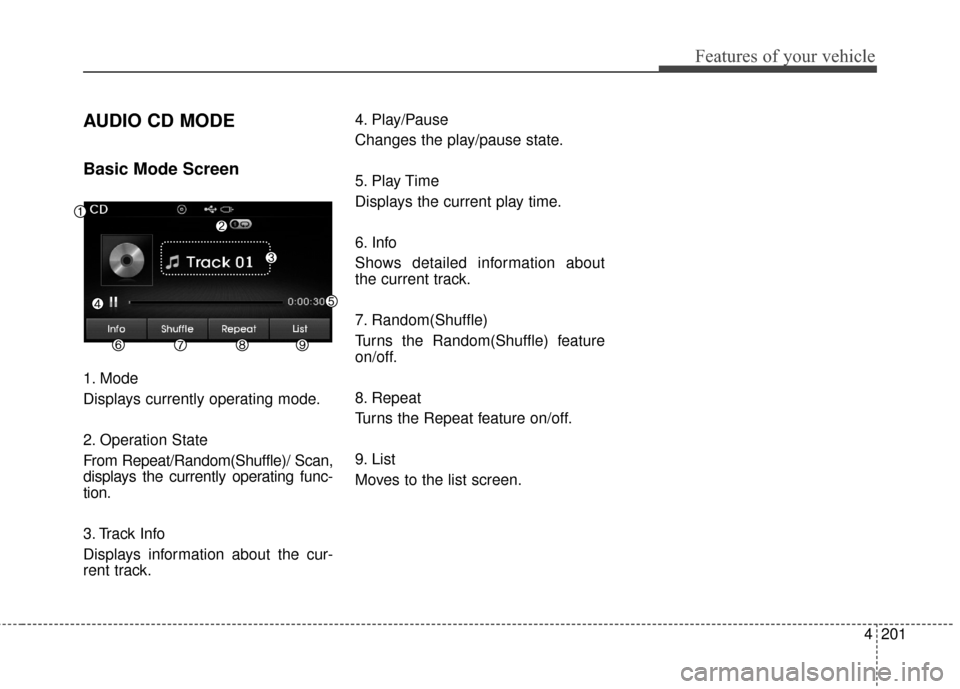
AUDIO CD MODE
Basic Mode Screen
1. Mode
Displays currently operating mode.
2. Operation State
From Repeat/Random(Shuffle)/ Scan,
displays the currently operating func-
tion.
3. Track Info
Displays information about the cur-
rent track.4. Play/Pause
Changes the play/pause state.
5. Play Time
Displays the current play time.
6. Info
Shows detailed information about
the current track.
7. Random(Shuffle)
Turns the Random(Shuffle) feature
on/off.
8. Repeat
Turns the Repeat feature on/off.
9. List
Moves to the list screen.