change Hyundai Elantra 2016 Owner's Guide
[x] Cancel search | Manufacturer: HYUNDAI, Model Year: 2016, Model line: Elantra, Model: Hyundai Elantra 2016Pages: 669, PDF Size: 31.96 MB
Page 222 of 669
Features of your vehicle
136
4
SYSTEM CONTROLLERS
AND FUNCTIONS
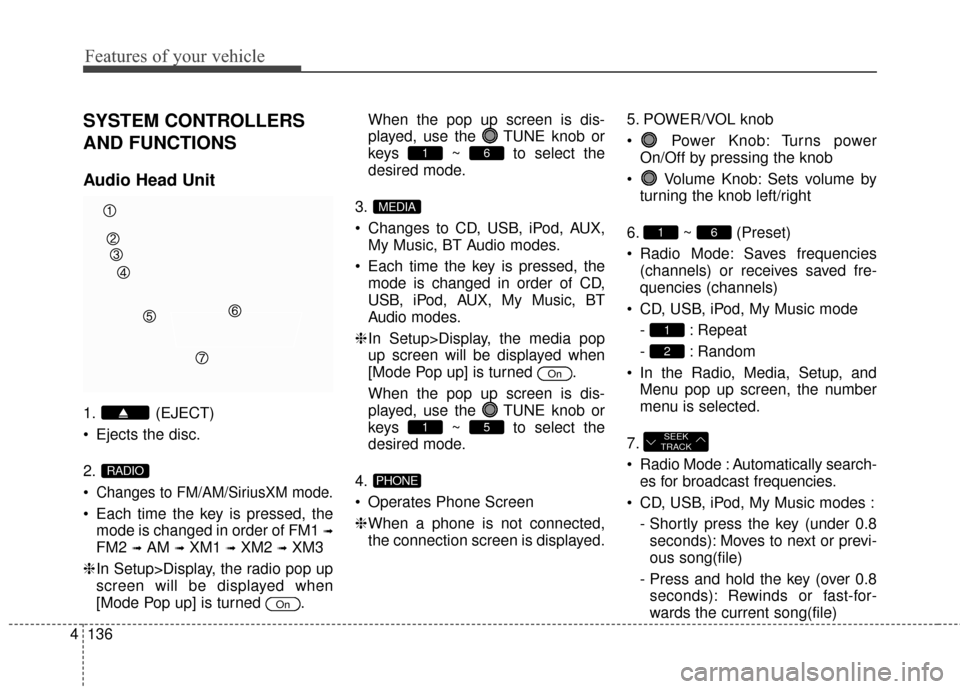
Audio Head Unit
1. (EJECT)
Ejects the disc.
2.
Changes to FM/AM/SiriusXM mode.
Each time the key is pressed, the
mode is changed in order of FM1
➟
FM2 ➟AM ➟XM1 ➟XM2 ➟XM3
❈ In Setup>Display, the radio pop up
screen will be displayed when
[Mode Pop up] is turned . When the pop up screen is dis-
played, use the TUNE knob or
keys ~ to select the
desired mode.
3.
Changes to CD, USB, iPod, AUX, My Music, BT Audio modes.
Each time the key is pressed, the mode is changed in order of CD,
USB, iPod, AUX, My Music, BT
Audio modes.
❈ In Setup>Display, the media pop
up screen will be displayed when
[Mode Pop up] is turned .
When the pop up screen is dis-
played, use the TUNE knob or
keys ~ to select the
desired mode.
4.
Operates Phone Screen
❈ When a phone is not connected,
the connection screen is displayed. 5. POWER/VOL knob
Power Knob: Turns power
On/Off by pressing the knob
Volume Knob: Sets volume by turning the knob left/right
6. ~ (Preset)
Radio Mode: Saves frequencies (channels) or receives saved fre-
quencies (channels)
CD, USB, iPod, My Music mode - : Repeat
- : Random
In the Radio, Media, Setup, and Menu pop up screen, the number
menu is selected.
7.
Radio Mode : Automatically search- es for broadcast frequencies.
CD, USB, iPod, My Music modes : - Shortly press the key (under 0.8seconds): Moves to next or previ-
ous song(file)
- Press and hold the key (over 0.8 seconds): Rewinds or fast-for-
wards the current song(file)
SEEK
TRACK
2
1
61
PHONE
51
On
MEDIA
61
On
RADIO
Page 223 of 669
4137
Features of your vehicle
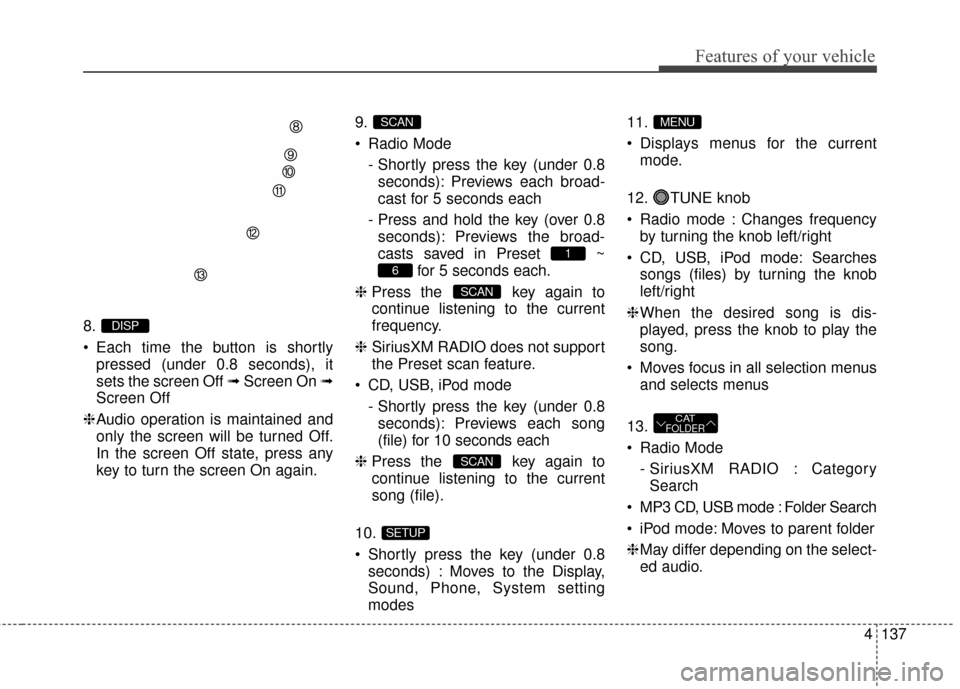
8.
Each time the button is shortlypressed (under 0.8 seconds), it
sets the screen Off ➟ Screen On ➟
Screen Off
❈ Audio operation is maintained and
only the screen will be turned Off.
In the screen Off state, press any
key to turn the screen On again. 9.
Radio Mode
- Shortly press the key (under 0.8seconds): Previews each broad-
cast for 5 seconds each
- Press and hold the key (over 0.8 seconds): Previews the broad-
casts saved in Preset ~ for 5 seconds each.
❈ Press the key again to
continue listening to the current
frequency.
❈ SiriusXM RADIO does not support
the Preset scan feature.
CD, USB, iPod mode - Shortly press the key (under 0.8seconds): Previews each song
(file) for 10 seconds each
❈ Press the key again to
continue listening to the current
song (file).
10.
Shortly press the key (under 0.8 seconds) : Moves to the Display,
Sound, Phone, System setting
modes 11.
Displays menus for the current
mode.
12. TUNE knob
Radio mode : Changes frequency by turning the knob left/right
CD, USB, iPod mode: Searches songs (files) by turning the knob
left/right
❈ When the desired song is dis-
played, press the knob to play the
song.
Moves focus in all selection menus and selects menus
13.
Radio Mode - SiriusXM RADIO : CategorySearch
MP3 CD, USB mode : Folder Search
iPod mode: Moves to parent folder
❈ May differ depending on the select-
ed audio.
CATFOLDER
MENU
SETUP
SCAN
SCAN
6
1
SCAN
DISP
Page 224 of 669
Features of your vehicle
138
4
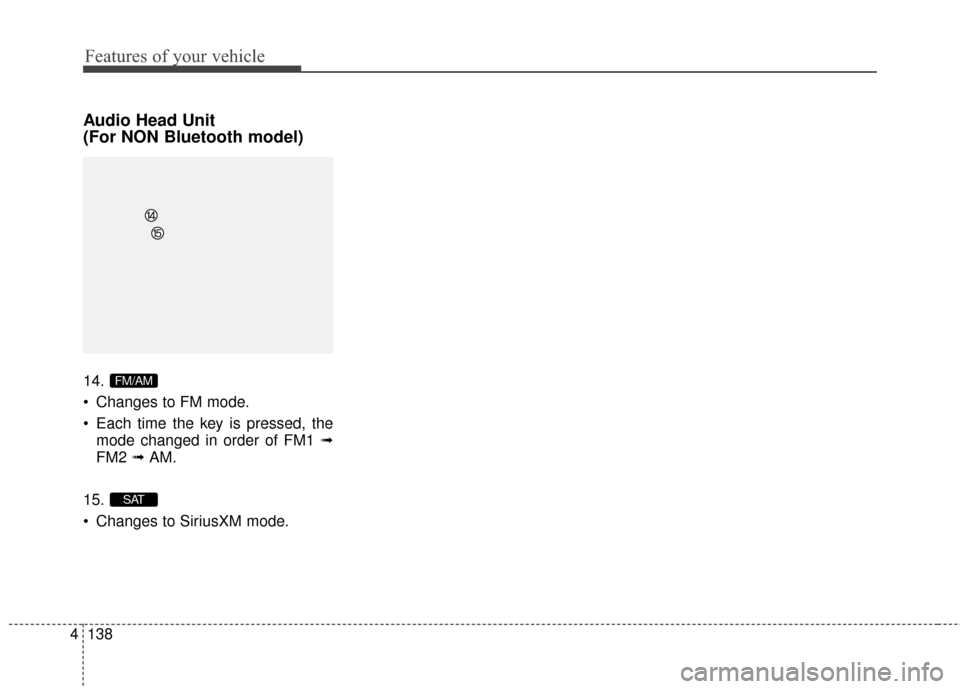
Audio Head Unit
(For NON Bluetooth model)
14.
Changes to FM mode.
Each time the key is pressed, the
mode changed in order of FM1 ➟
FM2 ➟ AM.
15.
Changes to SiriusXM mode.
SAT
FM/AM
Page 227 of 669
4141
Features of your vehicle
SYSTEM CONTROLLERS
AND FUNCTIONS
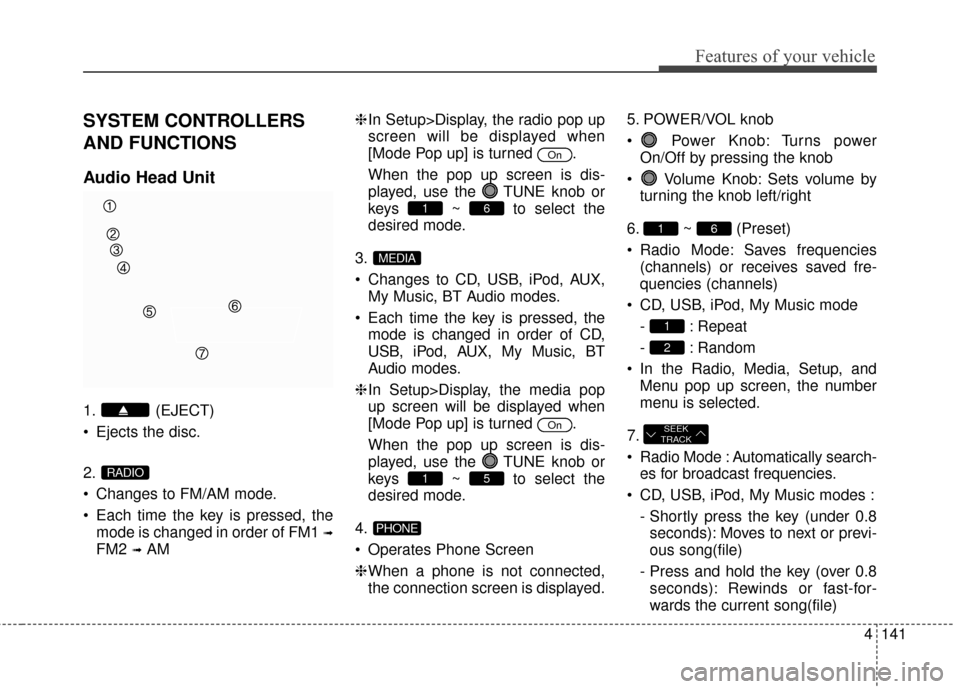
Audio Head Unit
1. (EJECT)
Ejects the disc.
2.
Changes to FM/AM mode.
Each time the key is pressed, themode is changed in order of FM1
➟
FM2 ➟AM ❈
In Setup>Display, the radio pop up
screen will be displayed when
[Mode Pop up] is turned .
When the pop up screen is dis-
played, use the TUNE knob or
keys ~ to select the
desired mode.
3.
Changes to CD, USB, iPod, AUX, My Music, BT Audio modes.
Each time the key is pressed, the mode is changed in order of CD,
USB, iPod, AUX, My Music, BT
Audio modes.
❈ In Setup>Display, the media pop
up screen will be displayed when
[Mode Pop up] is turned .
When the pop up screen is dis-
played, use the TUNE knob or
keys ~ to select the
desired mode.
4.
Operates Phone Screen
❈ When a phone is not connected,
the connection screen is displayed. 5. POWER/VOL knob
Power Knob: Turns power
On/Off by pressing the knob
Volume Knob: Sets volume by turning the knob left/right
6. ~ (Preset)
Radio Mode: Saves frequencies (channels) or receives saved fre-
quencies (channels)
CD, USB, iPod, My Music mode - : Repeat
- : Random
In the Radio, Media, Setup, and Menu pop up screen, the number
menu is selected.
7.
Radio Mode : Automatically search- es for broadcast frequencies.
CD, USB, iPod, My Music modes : - Shortly press the key (under 0.8seconds): Moves to next or previ-
ous song(file)
- Press and hold the key (over 0.8 seconds): Rewinds or fast-for-
wards the current song(file)
SEEK
TRACK
2
1
61
PHONE
51
On
MEDIA
61
On
RADIO
Page 228 of 669
Features of your vehicle
142
4
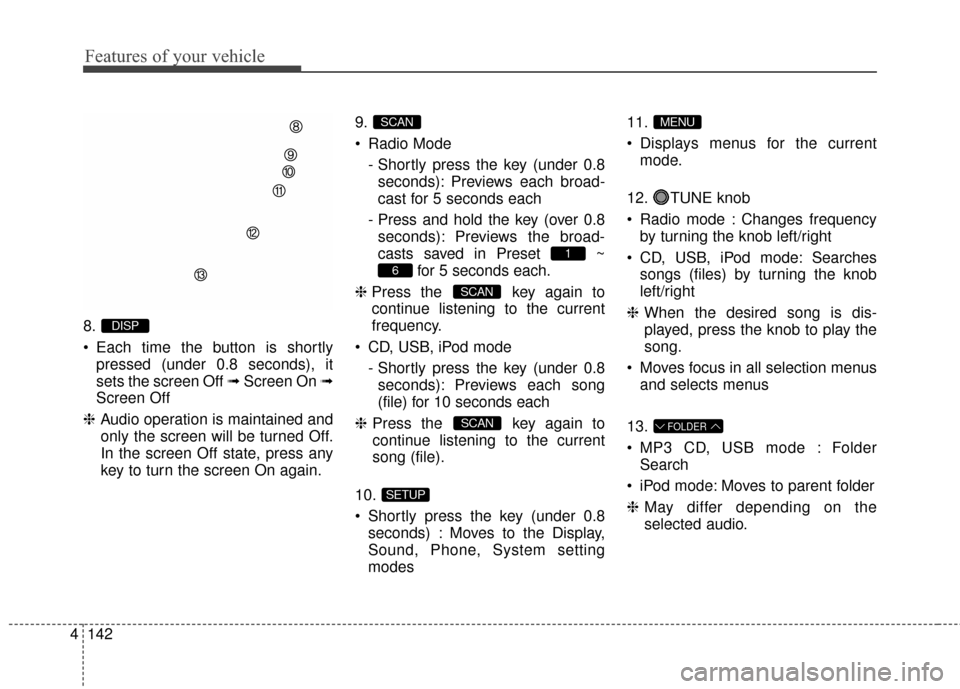
8.
Each time the button is shortly
pressed (under 0.8 seconds), it
sets the screen Off ➟ Screen On ➟
Screen Off
❈ Audio operation is maintained and
only the screen will be turned Off.
In the screen Off state, press any
key to turn the screen On again. 9.
Radio Mode
- Shortly press the key (under 0.8seconds): Previews each broad-
cast for 5 seconds each
- Press and hold the key (over 0.8 seconds): Previews the broad-
casts saved in Preset ~ for 5 seconds each.
❈ Press the key again to
continue listening to the current
frequency.
CD, USB, iPod mode - Shortly press the key (under 0.8seconds): Previews each song
(file) for 10 seconds each
❈ Press the key again to
continue listening to the current
song (file).
10.
Shortly press the key (under 0.8 seconds) : Moves to the Display,
Sound, Phone, System setting
modes 11.
Displays menus for the current
mode.
12. TUNE knob
Radio mode : Changes frequency by turning the knob left/right
CD, USB, iPod mode: Searches songs (files) by turning the knob
left/right
❈ When the desired song is dis-
played, press the knob to play the
song.
Moves focus in all selection menus and selects menus
13.
MP3 CD, USB mode : Folder Search
iPod mode: Moves to parent folder
❈ May differ depending on the
selected audio.
FOLDER
MENU
SETUP
SCAN
SCAN
6
1
SCAN
DISP
Page 229 of 669
4143
Features of your vehicle
Audio Head Unit
(For NON Bluetooth model)
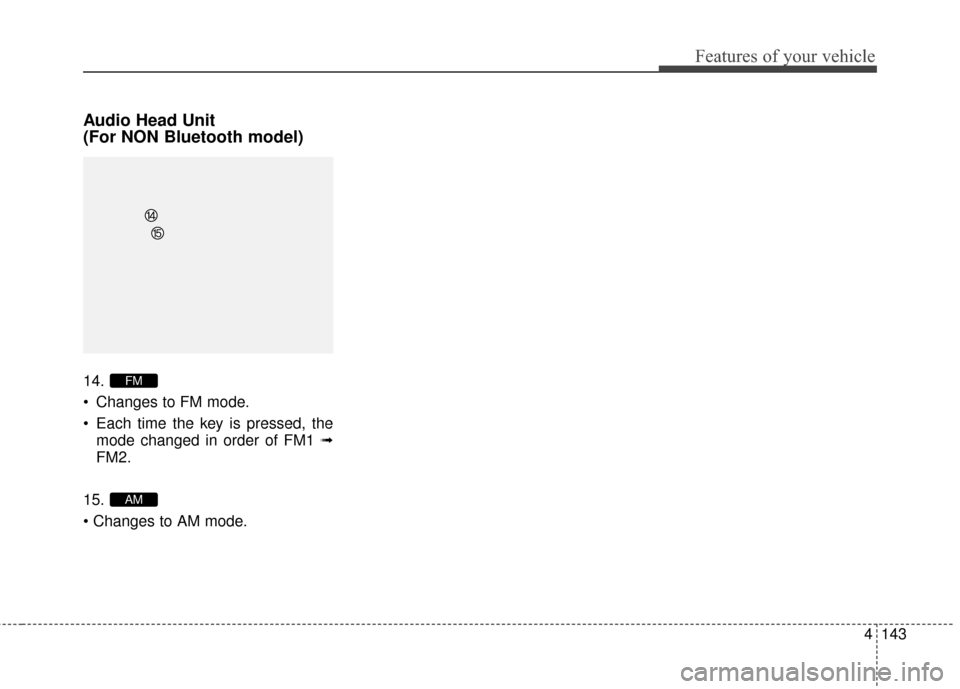
14.
Changes to FM mode.
Each time the key is pressed, themode changed in order of FM1 ➟
FM2.
15.
AM
FM
Page 230 of 669
![Hyundai Elantra 2016 Owners Guide Features of your vehicle
144
4
SETUP
Display Settings
Press the key Select
[Display] through TUNE knob or
key Select menu through
TUNE knob
Mode Pop up
[Mode Pop up] Changes /
selection mode
Duri](/img/35/14551/w960_14551-229.png "Hyundai Elantra 2016 Owners Guide Features of your vehicle
144
4
SETUP
Display Settings
Press the key Select
[Display] through TUNE knob or
key Select menu through
TUNE knob
Mode Pop up
[Mode Pop up] Changes /
selection mode
Duri")
Features of your vehicle
144
4
SETUP
Display Settings
Press the key Select
[Display] through TUNE knob or
key Select menu through
TUNE knob
Mode Pop up
[Mode Pop up] Changes /
selection mode
During On state, press the
or key to display the mode
change pop up screen.
Media Display
When playing an MP3 file, select the
desired display info from ‘Folder/File’
or ‘Album/Artist/Song’.
SOUND SETTINGS
Press the key Select
[Sound] through TUNE knob or key Select menu through
TUNE knob
2
SETUP
MEDIA
RADIO
OffOn
1
SETUP
Page 233 of 669
![Hyundai Elantra 2016 Owners Guide 4147
Features of your vehicle
SYSTEM SETTINGS
Press the key Select [System]
through tune knob or key Select
menu through TUNE knob
Memory Information
Displays currently used memory and
total system](/img/35/14551/w960_14551-232.png "Hyundai Elantra 2016 Owners Guide 4147
Features of your vehicle
SYSTEM SETTINGS
Press the key Select [System]
through tune knob or key Select
menu through TUNE knob
Memory Information
Displays currently used memory and
total system")
4147
Features of your vehicle
SYSTEM SETTINGS
Press the key Select [System]
through tune knob or key Select
menu through TUNE knob
Memory Information
Displays currently used memory and
total system memory.
Select [Memory Information] OK
The currently used memory is dis-
played on the left side while the total
system memory is displayed on the
right side.
Prompt Feedback
This feature is used to change voice
command feedback between Normal
and Expert modes.
Select [Prompt Feedback] Set
through
TUNEknob
Normal(On) : This mode is for beginner users and provides
detailed instructions during voice
command operation. Expert(Off) :
This mode is for expert
users and omits some information
during voice command operation.
(When using Expert mode, guid-
ance instructions can be heard
through the [Help] or [Menu] com-
mands.
Language
This menu is used to set the display
and voice recognition language.
Select [Language] Set through TUNE
knob
❈ The system will reboot after the
language is changed.
❈ Language support by region
- English, Francais, Espanol
4
SETUP
Page 234 of 669
Features of your vehicle
148
4
RADIO : FM, AM OR
SiriusXM
SEEK
Press the key
Shortly pressing the key (under 0.8
seconds): Changes the frequency.
Pressing and holding the key (over 0.8 seconds): Automatically search-
es for the next frequency.
Preset SEEK
Press the ~ key
Shortly pressing the key (under 0.8seconds): Plays the frequency
saved in the corresponding key.
Pressing and holding the key (over 0.8 seconds): Pressing and holding
the desired key from ~
will save the currently playing
broadcast to the selected key and
sound a BEEP.
SCAN
Press the key
Shortly pressing the key (under 0.8
seconds): The broadcast frequen-
cy increases and previews each
broadcast for 5 seconds each.
After scanning all frequencies,
returns and plays the current
broadcast frequency.
Pressing and holding the key (over 0.8 seconds): Previews the broad-
casts saved in Preset ~
for 5 seconds each.
Selecting through manual
search
Turn the TUNE knob left/right to
adjust the frequency.
61
SCAN
61
61
SEEK
TRACK
Page 237 of 669
4151
Features of your vehicle
NOTE:
SiriusXM services require a sub-
scription sold separately, or as a
package, by Sirius XM Radio Inc. If
you decide to continue service
after your trial, the subscription
plan you choose will automatical-
ly renew thereafter and you will be
charged according to your chosen
payment method at then-current
rates. Fees and taxes apply. To
cancel you must call SiriusXM at
1-866-635-2349. See SiriusXM
Customer Agreement for com-
plete terms at www.siriusxm.com.
SiriusXM U.S. satellite and data
services are available only in the
48 contiguous USA, DC and PR
(with coverage limitations).
SiriusXM satellite service is also
available in Canada; see www.sir-
iusxm. ca. All fees and program-
ming subject to change. Sirius,
XM and all related marks and
logos are trademarks of Sirius XM
Radio Inc.