change Hyundai Elantra 2016 Manual Online
[x] Cancel search | Manufacturer: HYUNDAI, Model Year: 2016, Model line: Elantra, Model: Hyundai Elantra 2016Pages: 669, PDF Size: 31.96 MB
Page 348 of 669
Features of your vehicle
262
4
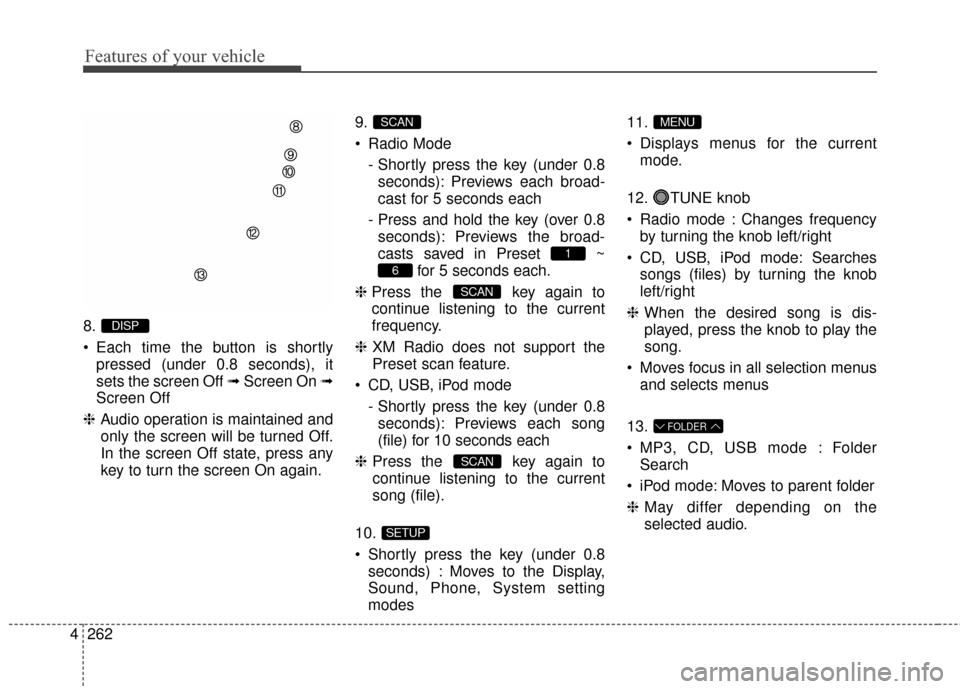
8.
Each time the button is shortly
pressed (under 0.8 seconds), it
sets the screen Off ➟ Screen On ➟
Screen Off
❈ Audio operation is maintained and
only the screen will be turned Off.
In the screen Off state, press any
key to turn the screen On again. 9.
Radio Mode
- Shortly press the key (under 0.8seconds): Previews each broad-
cast for 5 seconds each
- Press and hold the key (over 0.8 seconds): Previews the broad-
casts saved in Preset ~ for 5 seconds each.
❈ Press the key again to
continue listening to the current
frequency.
❈ XM Radio does not support the
Preset scan feature.
CD, USB, iPod mode - Shortly press the key (under 0.8seconds): Previews each song
(file) for 10 seconds each
❈ Press the key again to
continue listening to the current
song (file).
10.
Shortly press the key (under 0.8 seconds) : Moves to the Display,
Sound, Phone, System setting
modes 11.
Displays menus for the current
mode.
12. TUNE knob
Radio mode : Changes frequency by turning the knob left/right
CD, USB, iPod mode: Searches songs (files) by turning the knob
left/right
❈ When the desired song is dis-
played, press the knob to play the
song.
Moves focus in all selection menus and selects menus
13.
MP3, CD, USB mode : Folder Search
iPod mode: Moves to parent folder
❈ May differ depending on the
selected audio.
FOLDER
MENU
SETUP
SCAN
SCAN
6
1
SCAN
DISP
Page 349 of 669
4263
Features of your vehicle
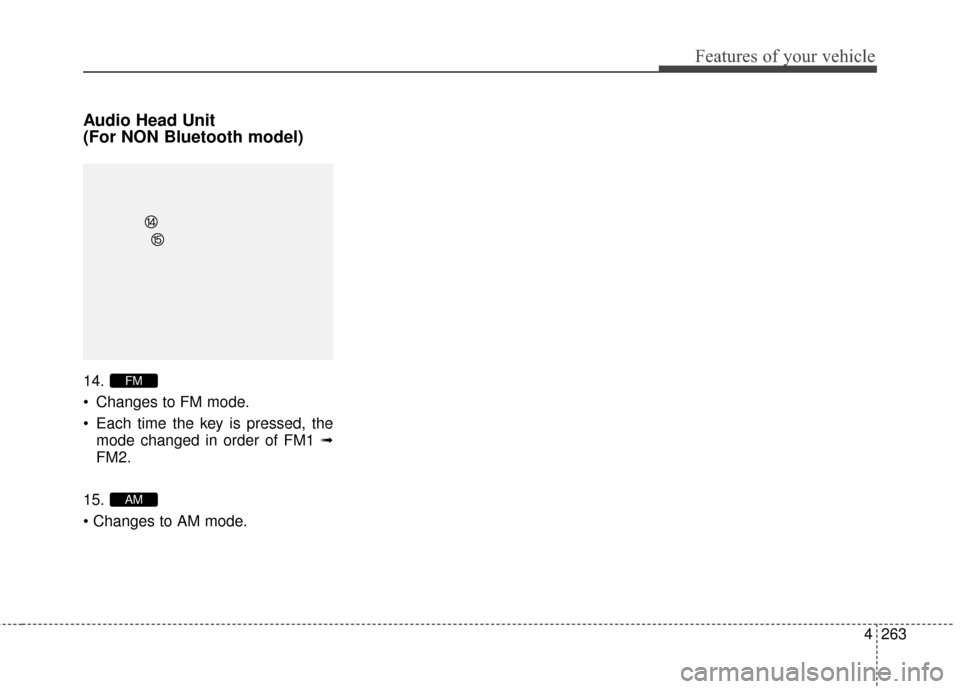
Audio Head Unit
(For NON Bluetooth model)
14.
Changes to FM mode.
Each time the key is pressed, themode changed in order of FM1 ➟
FM2.
15.
AM
FM
Page 350 of 669
![Hyundai Elantra 2016 Manual Online Features of your vehicle
264
4
SETUP
Display Settings
Press the key Select
[Display] through TUNE knob or
key Select menu through
TUNE knob
Mode Pop up
[Mode Pop up] Changes /
selection mode
Duri](/img/35/14551/w960_14551-349.png "Hyundai Elantra 2016 Manual Online Features of your vehicle
264
4
SETUP
Display Settings
Press the key Select
[Display] through TUNE knob or
key Select menu through
TUNE knob
Mode Pop up
[Mode Pop up] Changes /
selection mode
Duri")
Features of your vehicle
264
4
SETUP
Display Settings
Press the key Select
[Display] through TUNE knob or
key Select menu through
TUNE knob
Mode Pop up
[Mode Pop up] Changes /
selection mode
During On state, press the
or key to display the mode
change pop up screen.
Media Display
When playing an MP3 file, select the
desired display info from ‘Folder/File’
or ‘Album/Artist/Song’.
MEDIA
RADIO
OffOn
1
SETUP
Page 353 of 669
![Hyundai Elantra 2016 Manual Online 4267
Features of your vehicle
SYSTEM SETTINGS
Press the key Select [System]
through tune knob or key Select
menu through TUNE knob
Memory Information
Displays currently used memory and
total system](/img/35/14551/w960_14551-352.png "Hyundai Elantra 2016 Manual Online 4267
Features of your vehicle
SYSTEM SETTINGS
Press the key Select [System]
through tune knob or key Select
menu through TUNE knob
Memory Information
Displays currently used memory and
total system")
4267
Features of your vehicle
SYSTEM SETTINGS
Press the key Select [System]
through tune knob or key Select
menu through TUNE knob
Memory Information
Displays currently used memory and
total system memory.
Select [Memory Information] OK
The currently used memory is dis-
played on the left side while the total
system memory is displayed on the
right side.
Prompt Feedback
This feature is used to change voice
command feedback between Normal
and Expert modes.
Select [Prompt Feedback] Set
through
TUNEknob
Normal(On) : This mode is for beginner users and provides
detailed instructions during voice
command operation. Expert(Off) :
This mode is for expert
users and omits some information
during voice command operation.
(When using Expert mode, guid-
ance instructions can be heard
through the [Help] or [Menu] com-
mands.
Language
This menu is used to set the display
and voice recognition language.
Select [Language] Set through TUNE
knob
❈ The system will reboot after the
language is changed.
❈ Language support by region
- English, Francais, Espanol
4
SETUP
Page 354 of 669
Features of your vehicle
268
4
RADIO : FM, AM OR
SIRIUSXM
TM
SEEK
Press the key
Shortly pressing the key (under 0.8
seconds): Changes the frequency.
Pressing and holding the key (over 0.8 seconds): Automatically search-
es for the next frequency.
Preset SEEK
Press the ~ key
Shortly pressing the key (under 0.8seconds): Plays the frequency
saved in the corresponding key.
Pressing and holding the key (over 0.8 seconds): Pressing and holding
the desired key from ~
will save the currently playing
broadcast to the selected key and
sound a BEEP.
SCAN
Press the key
Shortly pressing the key (under 0.8
seconds): The broadcast frequen-
cy increases and previews each
broadcast for 5 seconds each.
After scanning all frequencies,
returns and plays the current
broadcast frequency.
Pressing and holding the key (over 0.8 seconds): Previews the broad-
casts saved in Preset ~
for 5 seconds each.
Selecting through manual
search
Turn the TUNE knob left/right to
adjust the frequency.
FM : Changes by 200KHz
AM : Changes by 10KHz
61
SCAN
61
61
SEEK
TRACK
Page 356 of 669
Features of your vehicle
270
4
SIRIUSXMTMRADIO
Using XM satellite Radio
Your vehicle is equipped with a 3
month complimentary period of XM
Satellite Radio. XM provides access
to over 130 channels of music, infor-
mation, and entertainment program-
ming.
SEEK
Press the key
Shortly pressing the key (under 0.8
seconds): select previous or next
channel.
Pressing and holding the key (over 0.8 seconds): continuously move
to previous or next channel.
❈ If the "Category" icon is displayed,
channels are changed within the
current category.
SCAN
Press the key
Shortly pressing the key (under 0.8 seconds): Previews each broad-
cast for 10 seconds each
❈ Press the key again to con-
tinue listening to the current fre-
quency
❈ If the "Category" icon is displayed,
channels are changed within the
current category.
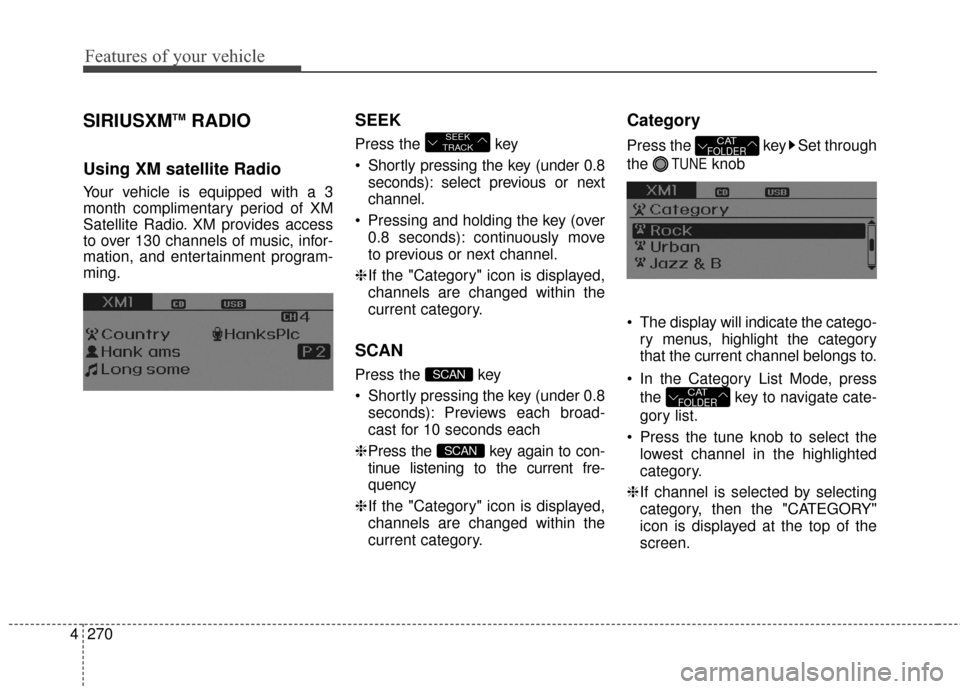
Category
Press the key Set through
the
TUNEknob
The display will indicate the catego- ry menus, highlight the category
that the current channel belongs to.
In the Category List Mode, press the key to navigate cate-
gory list.
Press the tune knob to select the lowest channel in the highlighted
category.
❈ If channel is selected by selecting
category, then the "CATEGORY"
icon is displayed at the top of the
screen.
CATFOLDER
CATFOLDER
SCAN
SCAN
SEEK
TRACK
Page 357 of 669
4271
Features of your vehicle
Preset
Press the ~ key
Shortly pressing the key (under 0.8seconds): Plays the frequency
saved in the corresponding key.
Pressing and holding the key (over 0.8 seconds): Pressing and holding
the desired key from ~
will save the current broadcast to
the selected key and sound a
BEEP.
Tune
Rotate TUNE knob : Changes
the channel number or scrolls cate-
gory list.
Press TUNE knob : Selects the menu.
Menu
Select category menu through the TUNE knob Press the key
Select [ Info] through the TUNE
knob or key
Info (Information)
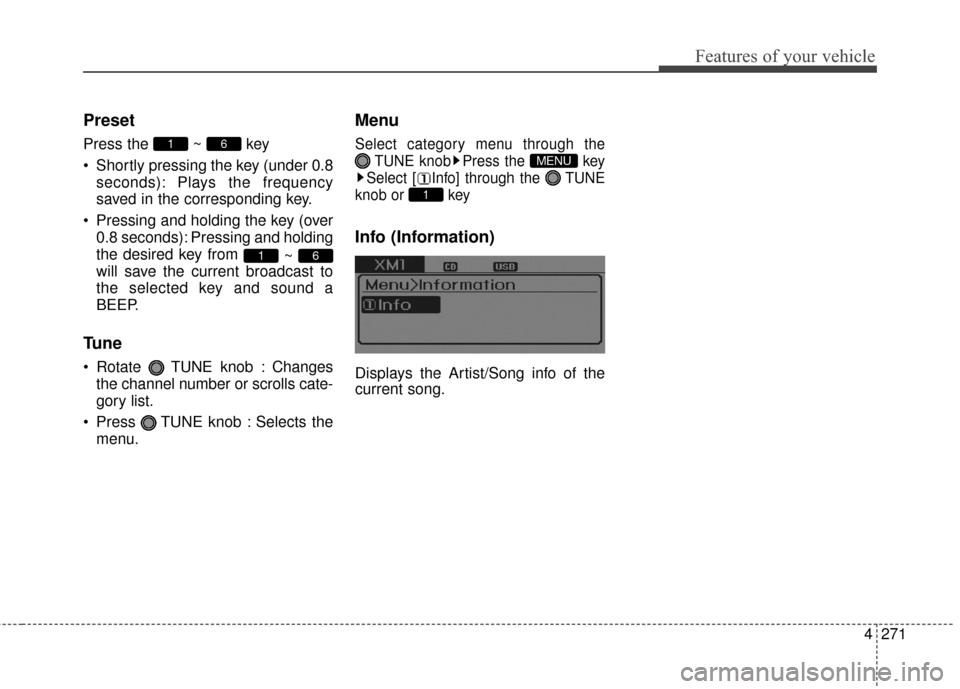
Displays the Artist/Song info of the
current song.
1
MENU
61
61
Page 358 of 669
Features of your vehicle
272
4
BASIC METHOD OF USE :
Audio CD / MP3 CD / USB /
iPod
®/ My Music
Press the key to change the
mod mode in order of CD
➟
USB(iPod®) ➟ AUX ➟ My Music ➟ BT
Audio.
The folder/file name is displayed on
the screen.
❈ The CD is automatically played
when a CD is inserted.
❈ The USB music is automatically
played when a USB is connected.
Repeat
While song (file) is playing
(RPT) key
Audio CD, MP3 CD, USB, iPod
®, My
Music mode: RPT on screen
To repeat one song (Shortly press-
ing the key (under 0.8 seconds)):
Repeats the current song.
MP3 CD, USB mode: FLD.RPT on
screen
To repeat folder (Pressing the key twice).
❈ Press the key again to turn
off repeat.
Random
While song (file) is playing
(RDM) key
Audio CD, iPod
®, My Music mode:
RDM on screen
Random (press the key : Plays all
songs in random order.
MP3 CD, USB mode: FLD.RDM on
screen
Folder Random (press the key : Plays all files within the current
folder in random order.
MP3 CD, USB mode : ALL RDM on
screen
All Random (pressing twice): Plays all files in random order.
❈ Press the key again to turn
off repeat.
2RDM
2 RDM
1
1
MEDIA
Page 363 of 669
![Hyundai Elantra 2016 Manual Online 4277
Features of your vehicle
Information
Press the key Set [ Info]
through the
TUNEknob or key.
Displays information of the current
song.
❈ Press the key to turn off
info display.
Delete
Press](/img/35/14551/w960_14551-362.png "Hyundai Elantra 2016 Manual Online 4277
Features of your vehicle
Information
Press the key Set [ Info]
through the
TUNEknob or key.
Displays information of the current
song.
❈ Press the key to turn off
info display.
Delete
Press")
4277
Features of your vehicle
Information
Press the key Set [ Info]
through the
TUNEknob or key.
Displays information of the current
song.
❈ Press the key to turn off
info display.
Delete
Press the key Set [ Delete]
through the TUNEknob or key.
Deletes currently playing file
In the play screen, pressing delete
will delete the currently playing song.
Deletes file from list
➀Select the file you wish to delete by
using the TUNE knob.
➁ Press the key and select
the delete menu to delete the
selected file.
Delete All
Press the key Set [ Del.All]
through the TUNEknob or key.
Deletes all songs of My Music.
Delete Selection
Press the key Set [ Del.Sel]
through the TUNEknob or key.
Songs within My Music are selected
and deleted.
➀Select the songs you wish to
delete from the list.
➁ After selecting, press the
key and select the delete menu.
AUX
AUX is used to play external MEDIA
currently connected with the AUX
terminal.
AUX mode will automatically start
when an external device is connect-
ed to the AUX terminal.
If an external device is connected,
you can also press the key to
change to AUX mode.
❈AUX mode cannot be started
unless there is an external device
connected to the AUX terminal.
MEDIA
MENU
6
MENU
5
MENU
MENU
4
MENU
MENU
3
MENU
Page 364 of 669
Features of your vehicle
278
4
Bluetooth®Wireless
Technology AUDIO
What is
Bluetooth®Wireless
Technology?
Bluetooth®Wireless Technology allows
devices to be connected in a short dis-
tance, including hands-free devices,
stereo headsets, wireless remote con-
trollers, etc. For more information, visit
the
Bluetooth®Wireless Technology
website
at www.Bluetooth.com
Before using Bluetooth®Wireless
Technology audio features
Bluetooth®Wireless Technology
audio may not be supported
depending on the compatibility of
your
Bluetooth®Wireless
Technology mobile phone.
In order to use
Bluetooth®Wireless
Technology audio, you must first
pair and connect the
Bluetooth®
Wireless Technology mobile phone.
Bluetooth®Wireless Technology
audio can be used only when the
[Audio Streaming] of Phone is
turned .
❈ Setting
Bluetooth®Wireless
Technology Audio Streaming :
Press the key Select
[Phone] through the tune knob or key Select [Audio Streaming]
through the TUNE knob Set
/
Starting Bluetooth®Wireless
Technology Audio
Press the key to change
the mode in order of CD ➟ USB ➟
AUX ➟ My Music ➟ BT Audio.
If BT Audio is selected,
Bluetooth®
Wireless Technology audio will
start playing.
❈ Audio may not automatically start
playing in some mobile phones.
Using the Bluetooth®Wireless
Technology audio features
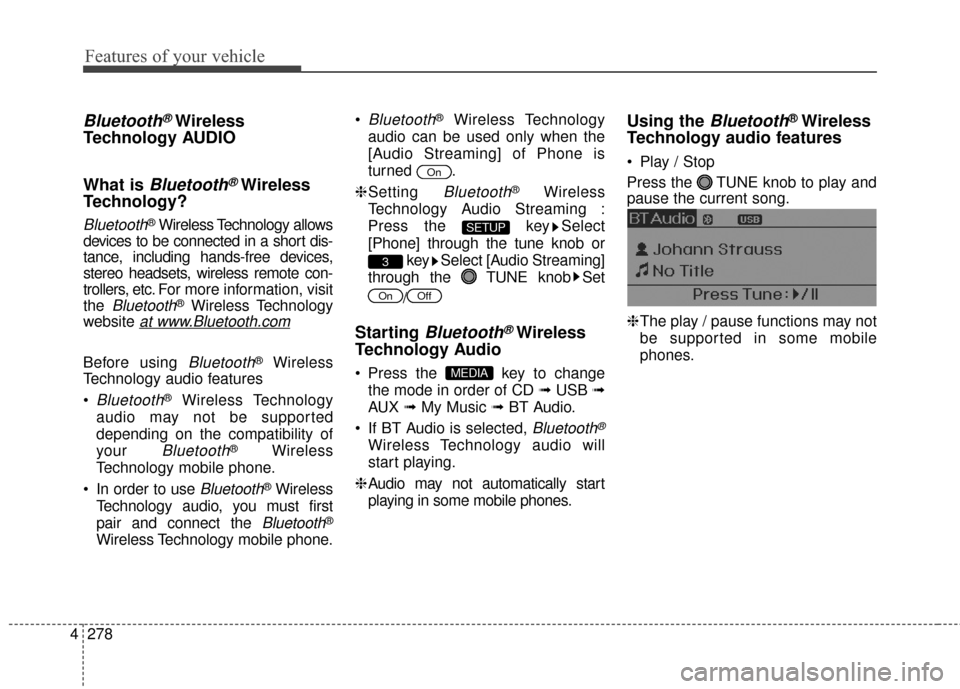
Play / Stop
Press the TUNE knob to play and
pause the current song.
❈ The play / pause functions may not
be supported in some mobile
phones.
MEDIA
OffOn
3
SETUP
On