change Hyundai Elantra 2016 Owners Manual
[x] Cancel search | Manufacturer: HYUNDAI, Model Year: 2016, Model line: Elantra, Model: Hyundai Elantra 2016Pages: 669, PDF Size: 31.96 MB
Page 370 of 669
![Hyundai Elantra 2016 Owners Manual Features of your vehicle
284
4
Connecting a Device
Press the key Select
[Phone] Select [Paired Phone List]
1) Connected Phone : Device that is
currently connected
2) Paired Phone : Device that is pa](/img/35/14551/w960_14551-369.png "Hyundai Elantra 2016 Owners Manual Features of your vehicle
284
4
Connecting a Device
Press the key Select
[Phone] Select [Paired Phone List]
1) Connected Phone : Device that is
currently connected
2) Paired Phone : Device that is pa")
Features of your vehicle
284
4
Connecting a Device
Press the key Select
[Phone] Select [Paired Phone List]
1) Connected Phone : Device that is
currently connected
2) Paired Phone : Device that is paired but not connected From the paired phone list, select the
device you want to connect and
select [Connect].
Changing Priority
What is Priority?
It is possible to pair up to five
Bluetooth®Wireless Technology
devices with the car audio system.
The "Change Priority" feature is used
to set the connection priority of
paired phones.
Press the key Select
[Phone] Select [Paired Phone List]
SETUP
SETUP
Page 371 of 669
![Hyundai Elantra 2016 Owners Manual 4285
Features of your vehicle
From the paired phone list, select
the phone you want to switch to the
highest priority, then select [Change
Priority] button from the Menu. The
selected device will be c](/img/35/14551/w960_14551-370.png "Hyundai Elantra 2016 Owners Manual 4285
Features of your vehicle
From the paired phone list, select
the phone you want to switch to the
highest priority, then select [Change
Priority] button from the Menu. The
selected device will be c")
4285
Features of your vehicle
From the paired phone list, select
the phone you want to switch to the
highest priority, then select [Change
Priority] button from the Menu. The
selected device will be changed to
the highest priority.✽ ✽ NOTICE
Priority icon will be displayed when
the selected phone is set as a priori-
ty phone.
Disconnecting a Device
Press the key Select
[Phone] Select [Paired Phone List]
From the paired phone list, select the
currently connected device and
select [Disconnect] button.SETUP
Page 377 of 669
4291
Features of your vehicle
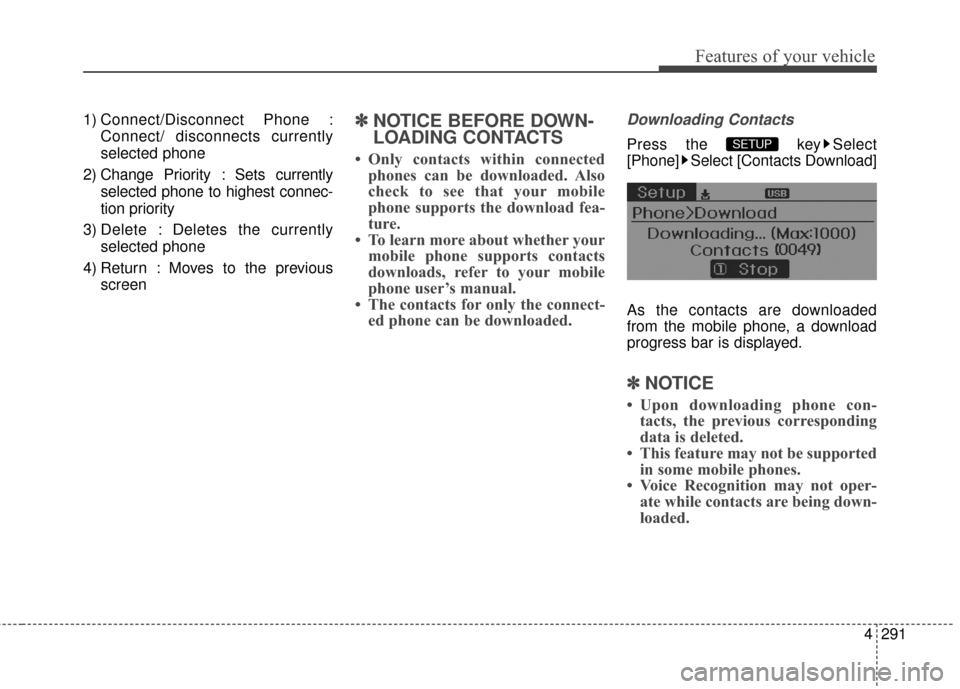
1) Connect/Disconnect Phone :Connect/ disconnects currently
selected phone
2) Change Priority : Sets currently selected phone to highest connec-
tion priority
3) Delete : Deletes the currently selected phone
4) Return : Moves to the previous screen✽ ✽NOTICE BEFORE DOWN-
LOADING CONTACTS
• Only contacts within connected
phones can be downloaded. Also
check to see that your mobile
phone supports the download fea-
ture.
• To learn more about whether your mobile phone supports contacts
downloads, refer to your mobile
phone user’s manual.
• The contacts for only the connect- ed phone can be downloaded.
Downloading Contacts
Press the key Select
[Phone] Select [Contacts Download]
As the contacts are downloaded
from the mobile phone, a download
progress bar is displayed.
✽ ✽ NOTICE
• Upon downloading phone con-
tacts, the previous corresponding
data is deleted.
• This feature may not be supported in some mobile phones.
• Voice Recognition may not oper- ate while contacts are being down-
loaded.
SETUP
Page 378 of 669
![Hyundai Elantra 2016 Owners Manual Features of your vehicle
292
4
Outgoing Volume
Press the key Select
[Phone] Select [Outgoing Volume]
Use TUNE knob to adjust the out-
going volume level.
✽ ✽
NOTICE
While on a call, the volume](/img/35/14551/w960_14551-377.png "Hyundai Elantra 2016 Owners Manual Features of your vehicle
292
4
Outgoing Volume
Press the key Select
[Phone] Select [Outgoing Volume]
Use TUNE knob to adjust the out-
going volume level.
✽ ✽
NOTICE
While on a call, the volume")
Features of your vehicle
292
4
Outgoing Volume
Press the key Select
[Phone] Select [Outgoing Volume]
Use TUNE knob to adjust the out-
going volume level.
✽ ✽
NOTICE
While on a call, the volume can be
changed by using the key.
Turning Bluetooth System Off
Press the key Select
[Phone] Select [Bluetooth System
Off]
Once
Bluetooth®Wireless Technology
is turned off,
Bluetooth®Wireless
Technology related features will not be
supported within the audio system.
✽ ✽ NOTICE
To turn Bluetooth®Wireless
Technology back on, go to
[Phone] and select “Yes”.SETUP
SETUP
SEEK
TRACK
SETUP
Page 379 of 669
![Hyundai Elantra 2016 Owners Manual 4293
Features of your vehicle
VOICE RECOGNITION
Using Voice Recognition
Starting Voice Recognition
Shortly press the key on the
steering wheel. Say a command.
If prompt feedback is in [ON], then
th](/img/35/14551/w960_14551-378.png "Hyundai Elantra 2016 Owners Manual 4293
Features of your vehicle
VOICE RECOGNITION
Using Voice Recognition
Starting Voice Recognition
Shortly press the key on the
steering wheel. Say a command.
If prompt feedback is in [ON], then
th")
4293
Features of your vehicle
VOICE RECOGNITION
Using Voice Recognition
Starting Voice Recognition
Shortly press the key on the
steering wheel. Say a command.
If prompt feedback is in [ON], then
the system will say “Please say a
command after the beep (BEEP)”
If prompt feedback is in [OFF]mode, then the system will only
say “(BEEP)”
To change Prompt Feedback [On]/[Off], go to [System][Prompt Feedback]
✽ ✽ NOTICE
For proper recognition, say the com-
mand after the voice instruction and
beep tone.
Contact List Best Practices
1) Do not store single-name entries
(e.g., “Bob”, “Mom”, “Kim”, etc.).
Instead, always use full names
(including first and last names) for
all contacts (e.g., use “Jacob
Stevenson” instead of “Dad”).
2) Do not use abbreviations (i.e., use “Lieutenant” instead of “Lt.” or
“Sergeant” instead of “Sgt.”).
3) Do not use acronyms (i.e., use “County Finance Department”
instead of “CFD”).
4) Do not use special characters (e.g., “@”, “hyphen -”, “asterisk *”,
“ampersand &”).
5) If a name is not recognized from the contact list, change it to a
more descriptive name (e.g., use
“Grandpa Joseph” instead of “Pa
Joe”).
Skipping Prompt Messages
While prompt message is being stat-
ed Shortly press the key on the
steering remote controller
The prompt message is immediately
ended and the beep tone will sound.
After the “beep”, say the voice com-
mand.
Re-starting Voice Recognition
While system waits for a command
Shortly press the key on the
steering remote controller
The command wait state is immedi-
ately ended and the beep ton will
sound. After the “beep”, say the voice
command.
SETUP
Page 387 of 669
4301
Features of your vehicle
Bluetooth®Wireless Technology Audio Commands:
Commands available during
Bluetooth®Wireless
Technologyaudio streaming from mobile phone oper-
ation Command Operation
Command Function
PlayPlays the currently paused song.
PausePauses the current song.
SiriusXM™ service requires a subscription, sold
separately, after 3-month trial included with vehicle
purchase. If you decide to continue your
SiriusXM™ service at the end of your trial sub-
scription, the plan you choose will automatically
renew and bill at then-current rates until you call us
at 1-866-635-2349 to cancel. See our Customer
Agreement for complete terms at
www.siriusxm.com. Other fees and taxes apply. All
fees and programming are subject to change.
Sirius satellite service is available only to those at
least 18 and older in the 48 contiguous USA, D.C.,
and PR (with coverage limitations). Our Internet
radio service is available throughout our satellite
service area and in AK and HI. Certain channels are
not available on our Internet radio service or on
mobile devices. SiriusXM Traffic available in select
markets. See siriusxm.com/traffic for more infor-
mation. © 2013 Sirius XM Radio Inc. Sirius, XM and
all related marks and logos are trademarks of
Sirius XM Radio Inc. iPod
®is a registered trade-
mark of Apple Inc. iPod®mobile digital device sold
separately. The
Bluetooth®word mark and logos
are registered trademarks owned by Bluetooth SIG,
Inc. and any use of such marks by Hyundai is under
license. A
Bluetooth®enabled cell phone is
required to use
Bluetooth®wireless technology. All
rights reserved.
Page 390 of 669
Features of your vehicle
304
4
SYSTEM CONTROLLERS
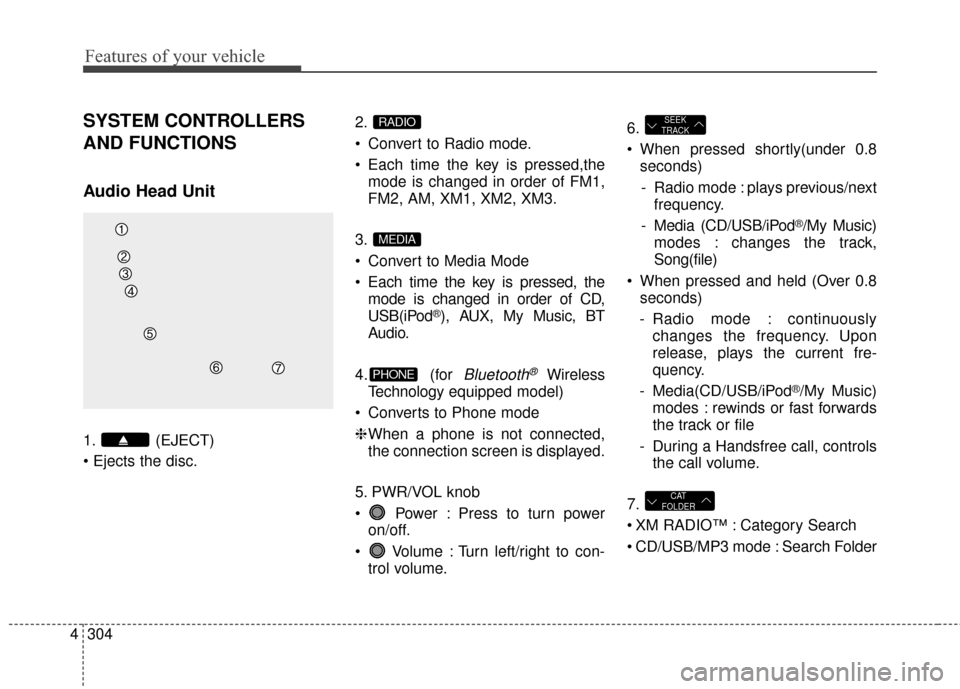
AND FUNCTIONS
Audio Head Unit
1. (EJECT)
2.
Convert to Radio mode.
Each time the key is pressed,the
mode is changed in order of FM1,
FM2, AM, XM1, XM2, XM3.
3.
Convert to Media Mode
Each time the key is pressed, the mode is changed in order of CD,
USB(iPod
®), AUX, My Music, BT
Audio.
4. (for
Bluetooth®Wireless
Technology equipped model)
Converts to Phone mode
❈ When a phone is not connected,
the connection screen is displayed.
5. PWR/VOL knob
Power : Press to turn power on/off.
Volume : Turn left/right to con- trol volume. 6.
When pressed shortly(under 0.8
seconds)
- Radio mode : plays previous/next frequency.
- Media (CD/USB/iPod
®/My Music)
modes : changes the track,
Song(file)
When pressed and held (Over 0.8 seconds)
- Radio mode : continuously changes the frequency. Upon
release, plays the current fre-
quency.
- Media(CD/USB/iPod
®/My Music)
modes : rewinds or fast forwards
the track or file
- During a Handsfree call, controls the call volume.
7.
XM RADIO™ : Category Search
CD/USB/MP3 mode : Search Folder
CAT
FOLDER
SEEK
TRACK
PHONE
MEDIA
RADIO
Page 391 of 669
4305
Features of your vehicle
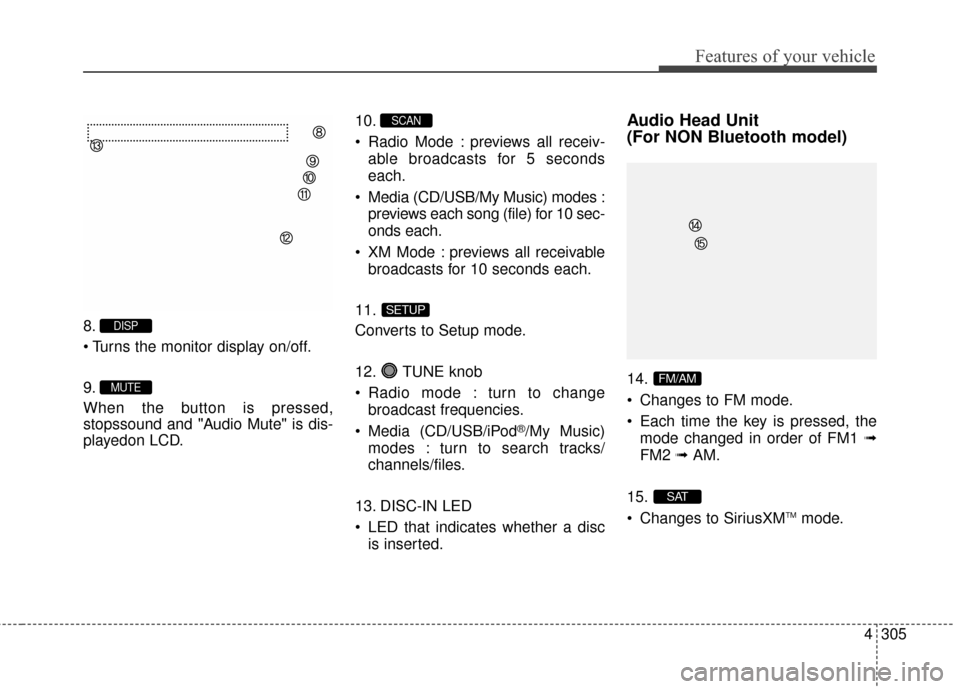
8.
9.
When the button is pressed,
stopssound and "Audio Mute" is dis-
playedon LCD.10.
Radio Mode : previews all receiv-
able broadcasts for 5 seconds
each.
Media (CD/USB/My Music) modes : previews each song (file) for 10 sec-
onds each.
XM Mode : previews all receivable broadcasts for 10 seconds each.
11.
Converts to Setup mode.
12. TUNE knob
Radio mode : turn to change broadcast frequencies.
Media (CD/USB/iPod
®/My Music)
modes : turn to search tracks/
channels/files.
13. DISC-IN LED
LED that indicates whether a disc is inserted.
Audio Head Unit
(For NON Bluetooth model)
14.
Changes to FM mode.
Each time the key is pressed, themode changed in order of FM1 ➟
FM2 ➟AM.
15.
Changes to SiriusXM
TMmode.
SAT
FM/AM
SETUP
SCAN
MUTE
DISP
Page 394 of 669
Features of your vehicle
308
4
SYSTEM CONTROLLERS
AND FUNCTIONS
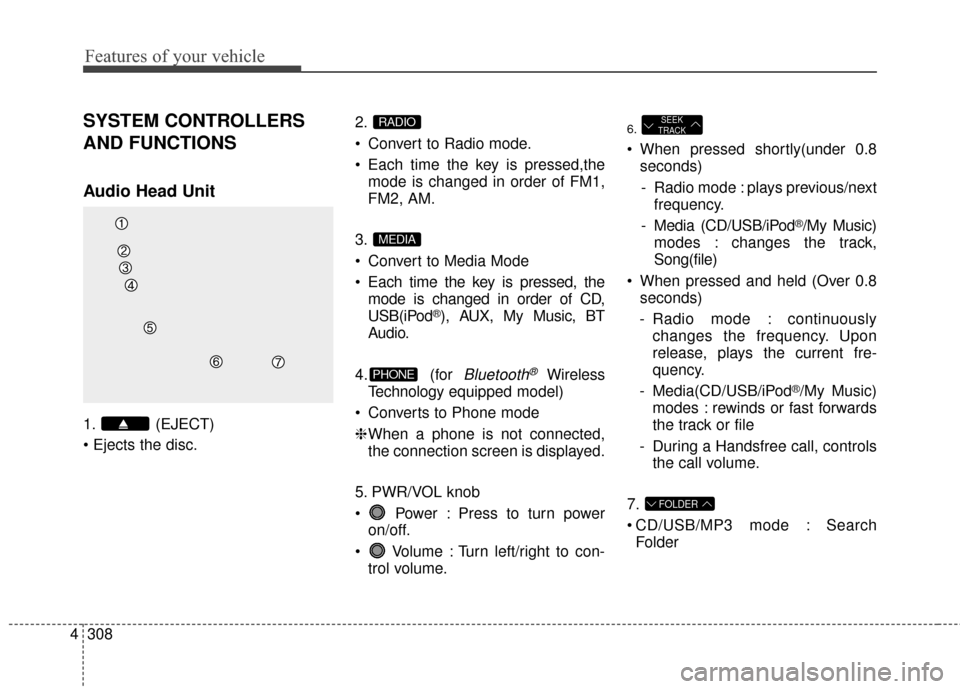
Audio Head Unit
1. (EJECT)
2.
Convert to Radio mode.
Each time the key is pressed,the
mode is changed in order of FM1,
FM2, AM.
3.
Convert to Media Mode
Each time the key is pressed, the mode is changed in order of CD,
USB(iPod
®), AUX, My Music, BT
Audio.
4. (for
Bluetooth®Wireless
Technology equipped model)
Converts to Phone mode
❈ When a phone is not connected,
the connection screen is displayed.
5. PWR/VOL knob
Power : Press to turn power on/off.
Volume : Turn left/right to con- trol volume.
6.
When pressed shortly(under 0.8seconds)
- Radio mode : plays previous/next frequency.
- Media (CD/USB/iPod
®/My Music)
modes : changes the track,
Song(file)
When pressed and held (Over 0.8 seconds)
- Radio mode : continuously changes the frequency. Upon
release, plays the current fre-
quency.
- Media(CD/USB/iPod
®/My Music)
modes : rewinds or fast forwards
the track or file
- During a Handsfree call, controls the call volume.
7.
CD/USB/MP3 mode : Search Folder
FOLDER
SEEK
TRACK
PHONE
MEDIA
RADIO
Page 395 of 669
4309
Features of your vehicle
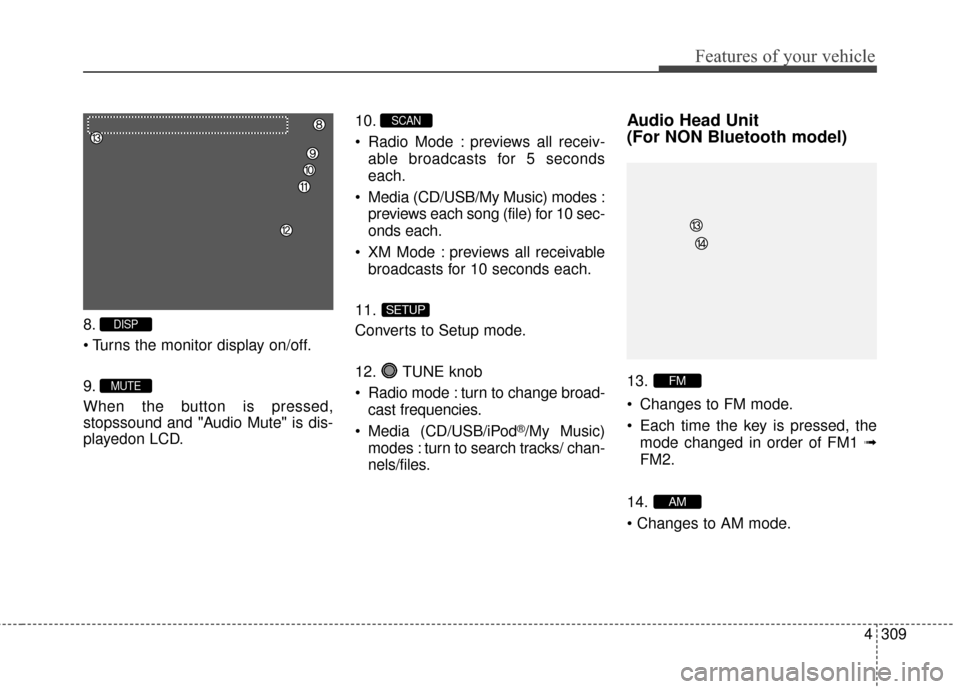
8.
9.
When the button is pressed,
stopssound and "Audio Mute" is dis-
playedon LCD.10.
Radio Mode : previews all receiv-
able broadcasts for 5 seconds
each.
Media (CD/USB/My Music) modes : previews each song (file) for 10 sec-
onds each.
XM Mode : previews all receivable broadcasts for 10 seconds each.
11.
Converts to Setup mode.
12. TUNE knob
Radio mode : turn to change broad- cast frequencies.
Media (CD/USB/iPod
®/My Music)
modes : turn to search tracks/ chan-
nels/files.
Audio Head Unit
(For NON Bluetooth model)
13.
Changes to FM mode.
Each time the key is pressed, the mode changed in order of FM1 ➟
FM2.
14.
AM
FM
SETUP
SCAN
MUTE
DISP