Drive mode HYUNDAI KONA 2022 User Guide
[x] Cancel search | Manufacturer: HYUNDAI, Model Year: 2022, Model line: KONA, Model: HYUNDAI KONA 2022Pages: 579, PDF Size: 35.31 MB
Page 124 of 579
04
4-31
OTM040024
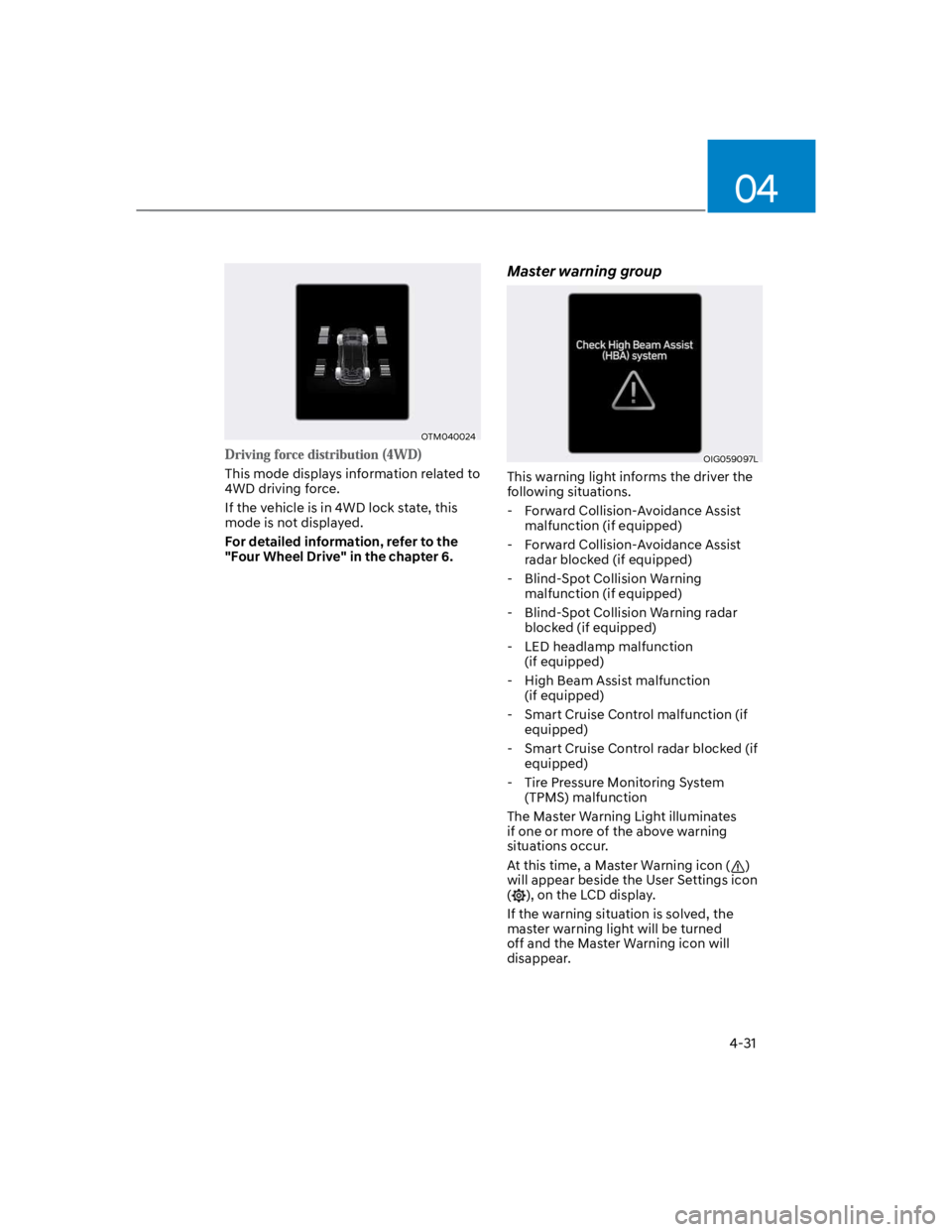
This mode displays information related to
4WD driving force.
If the vehicle is in 4WD lock state, this
mode is not displayed.
For detailed information, refer to the
"Four Wheel Drive" in the chapter 6.
Master warning group
OIG059097L
This warning light informs the driver the
following situations.
- Forward Collision-Avoidance Assist
malfunction (if equipped)
- Forward Collision-Avoidance Assist
radar blocked (if equipped)
- Blind-Spot Collision Warning
malfunction (if equipped)
- Blind-Spot Collision Warning radar
blocked (if equipped)
- LED headlamp malfunction
(if equipped)
- High Beam Assist malfunction
(if equipped)
- Smart Cruise Control malfunction (if
equipped)
- Smart Cruise Control radar blocked (if
equipped)
- Tire Pressure Monitoring System
(TPMS) malfunction
The Master Warning Light illuminates
if one or more of the above warning
situations occur.
At this time, a Master Warning icon ()
will appear beside the User Settings icon
(), on the LCD display.
If the warning situation is solved, the
master warning light will be turned
off and the Master Warning icon will
disappear.
Page 125 of 579
Instrument cluster
4-32
OCN7040026L
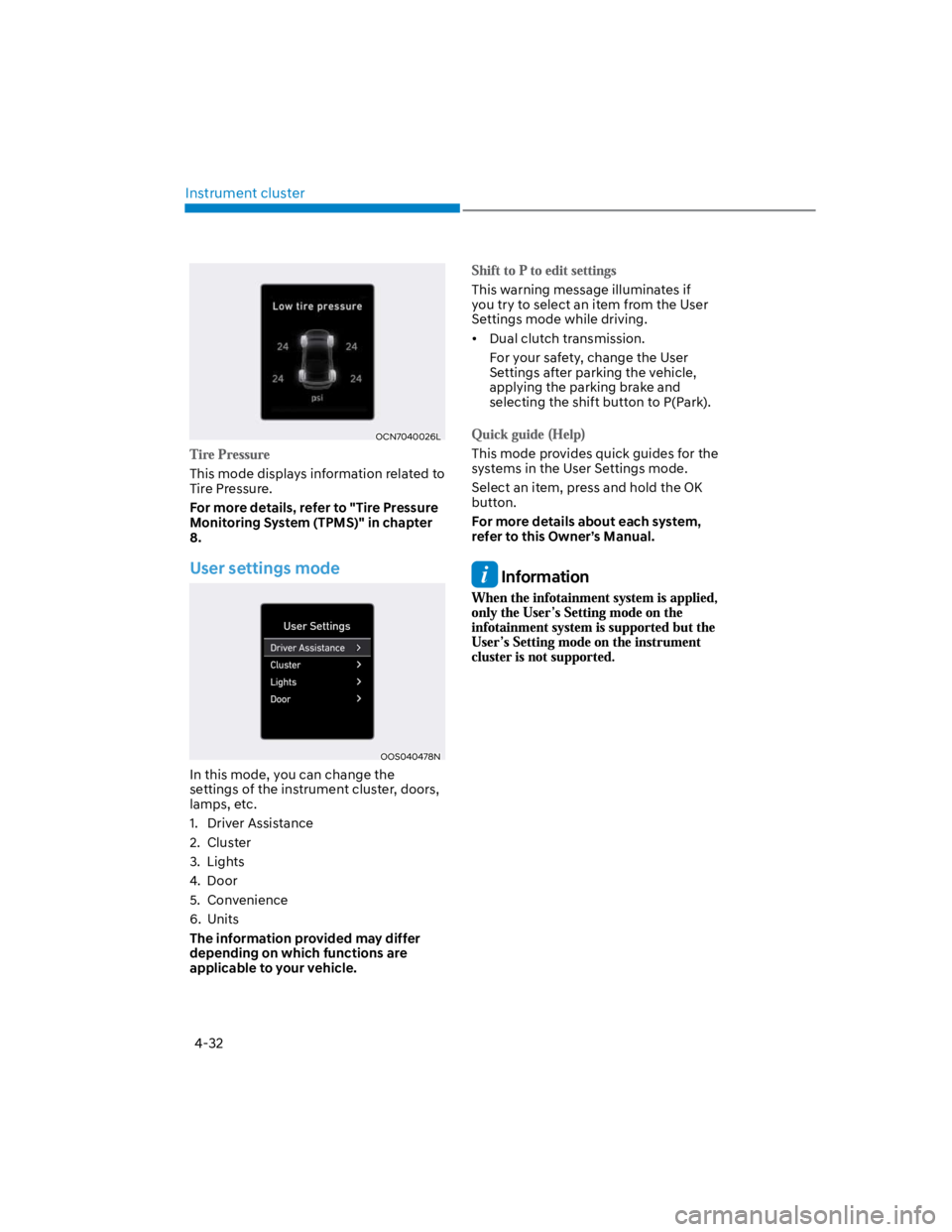
This mode displays information related to
Tire Pressure.
For more details, refer to "Tire Pressure
Monitoring System (TPMS)" in chapter
8.
User settings mode
OOS040478N
In this mode, you can change the
settings of the instrument cluster, doors,
lamps, etc.
1. Driver Assistance
2. Cluster
3. Lights
4. Door
5. Convenience
6. Units
The information provided may differ
depending on which functions are
applicable to your vehicle.
This warning message illuminates if
you try to select an item from the User
Settings mode while driving.
Dual clutch transmission.
For your safety, change the User
Settings after parking the vehicle,
applying the parking brake and
selecting the shift button to P(Park).
This mode provides quick guides for the
systems in the User Settings mode.
Select an item, press and hold the OK
button.
For more details about each system,
refer to this Owner’s Manual.
Information
Page 131 of 579
Instrument cluster
4-38
Trip computer (Type A)
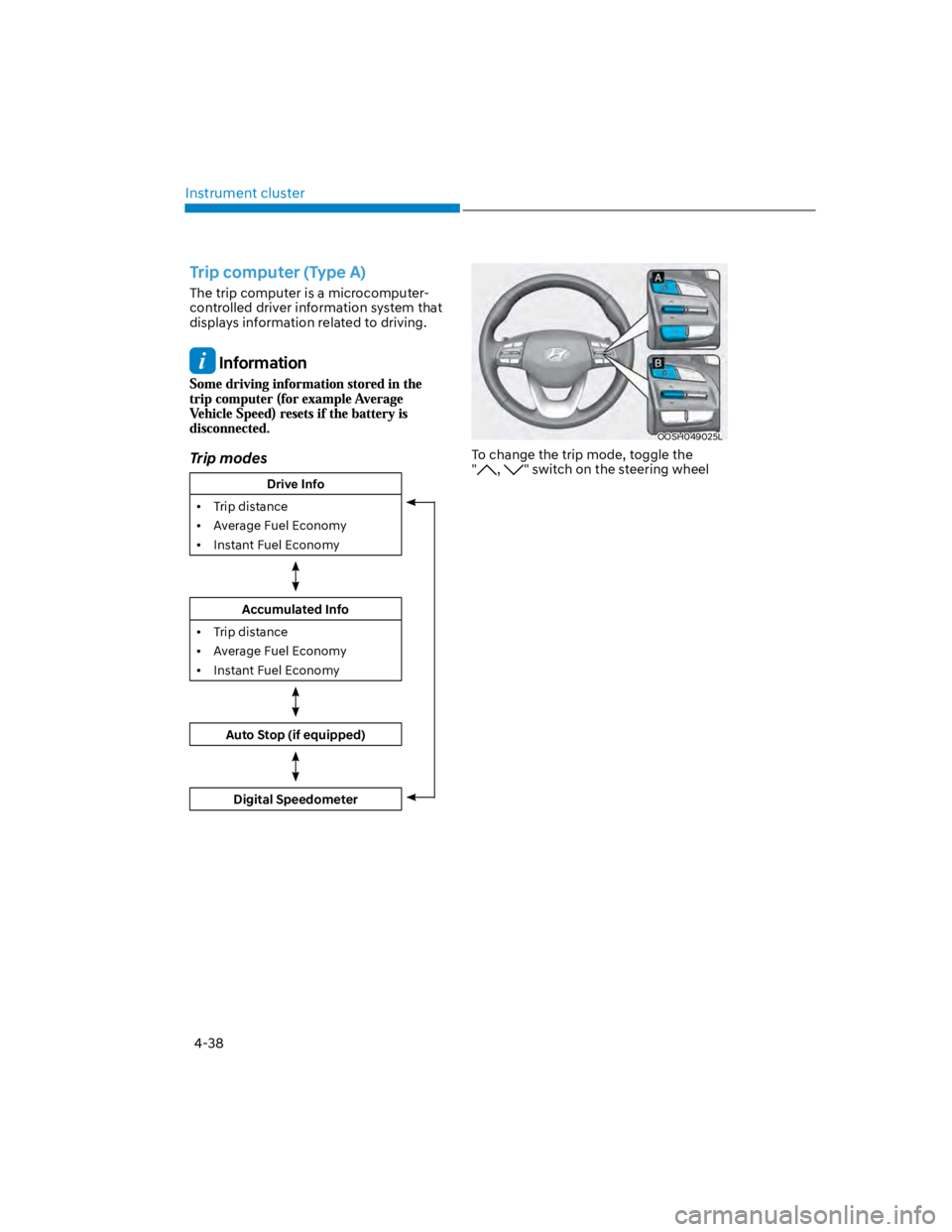
The trip computer is a microcomputer-
controlled driver information system that
displays information related to driving.
Information
Trip modes
Drive Info
Trip distance
Average Fuel Economy
Instant Fuel Economy
Accumulated Info
Trip distance
Average Fuel Economy
Instant Fuel Economy
Auto Stop (if equipped)
Digital Speedometer
OOSH049025L
To change the trip mode, toggle the
", " switch on the steering wheel
Page 133 of 579
Instrument cluster
4-40
Trip computer (Type B)
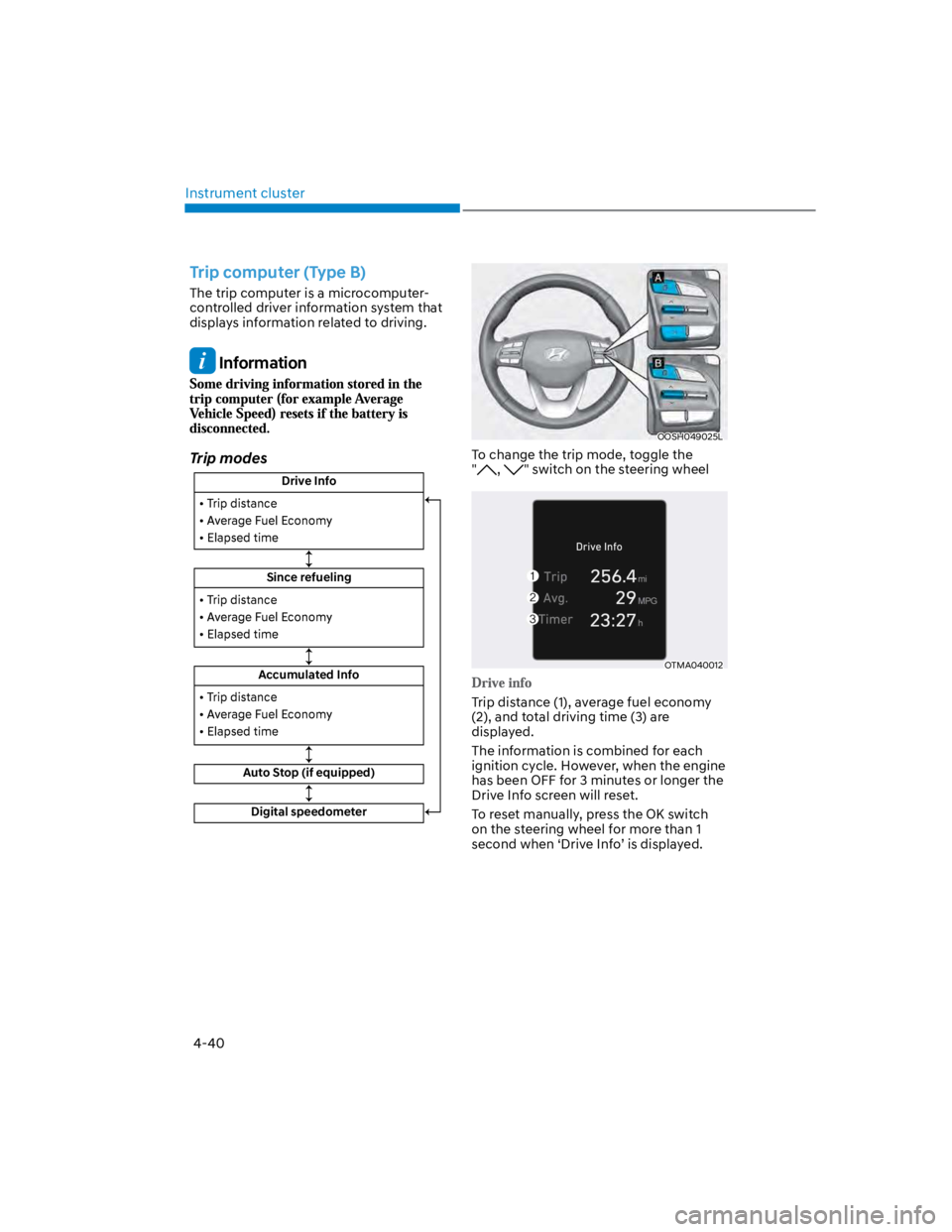
The trip computer is a microcomputer-
controlled driver information system that
displays information related to driving.
Information
Trip modes
Drive Info
Since refueling
Accumulated Info
Auto Stop (if equipped)
Digital speedometer
OOSH049025L
To change the trip mode, toggle the
", " switch on the steering wheel
OTMA040012
Trip distance (1), average fuel economy
(2), and total driving time (3) are
displayed.
The information is combined for each
ignition cycle. However, when the engine
has been OFF for 3 minutes or longer the
Drive Info screen will reset.
To reset manually, press the OK switch
on the steering wheel for more than 1
second when ‘Drive Info’ is displayed.
Page 138 of 579
Convenient features
5-4
Remote key (if equipped)
OOS050035N
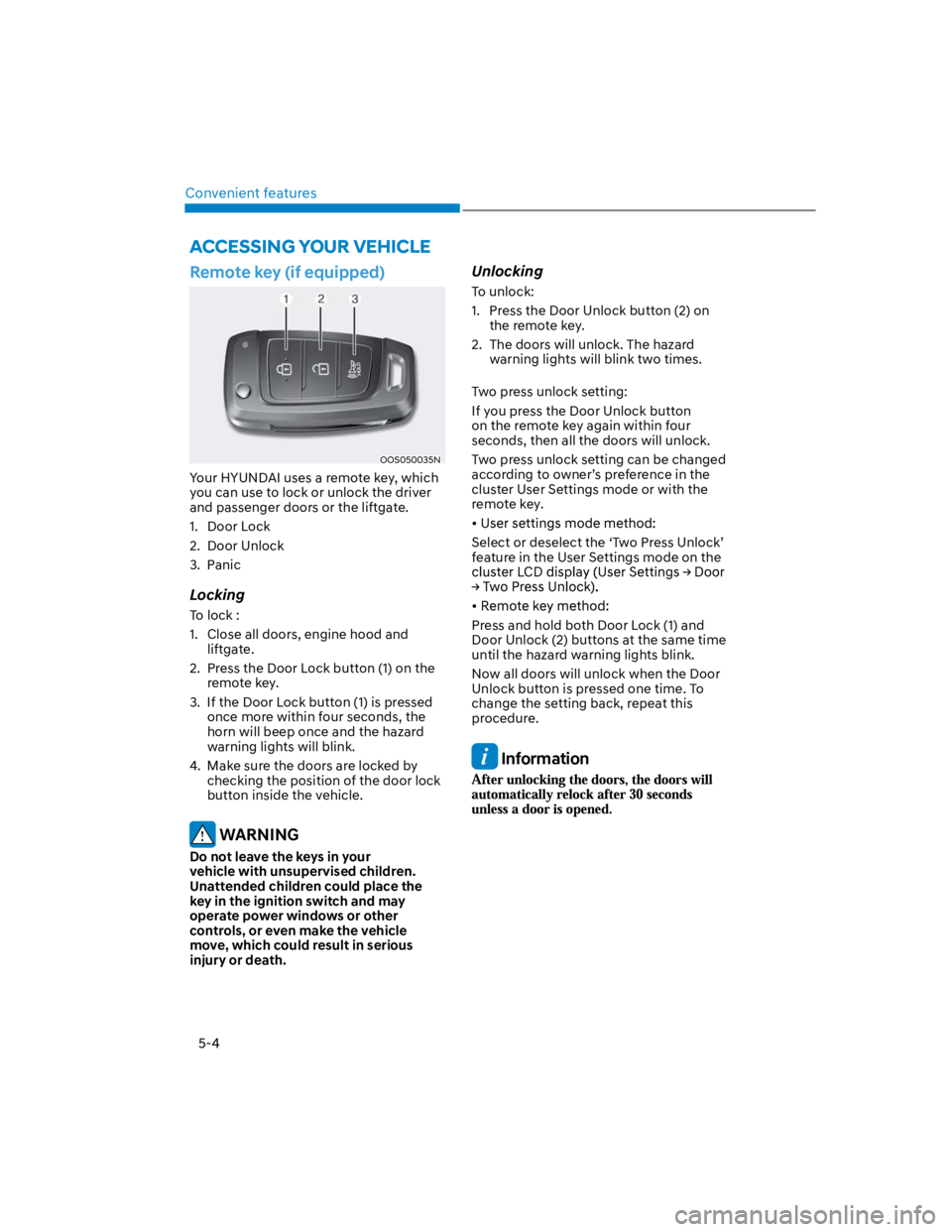
Your HYUNDAI uses a remote key, which
you can use to lock or unlock the driver
and passenger doors or the liftgate.
1. Door Lock
2. Door Unlock
3. Panic
Locking
To lock :
1. Close all doors, engine hood and
liftgate.
2. Press the Door Lock button (1) on the
remote key.
3. If the Door Lock button (1) is pressed
once more within four seconds, the
horn will beep once and the hazard
warning lights will blink.
4. Make sure the doors are locked by
checking the position of the door lock
button inside the vehicle.
WARNING
Do not leave the keys in your
vehicle with unsupervised children.
Unattended children could place the
key in the ignition switch and may
operate power windows or other
controls, or even make the vehicle
move, which could result in serious
injury or death.
Unlocking
To unlock:
1. Press the Door Unlock button (2) on
the remote key.
2. The doors will unlock. The hazard
warning lights will blink two times.
Two press unlock setting:
If you press the Door Unlock button
on the remote key again within four
seconds, then all the doors will unlock.
Two press unlock setting can be changed
according to owner’s preference in the
cluster User Settings mode or with the
remote key.
Select or deselect the ‘Two Press Unlock’
feature in the User Settings mode on the
Press and hold both Door Lock (1) and
Door Unlock (2) buttons at the same time
until the hazard warning lights blink.
Now all doors will unlock when the Door
Unlock button is pressed one time. To
change the setting back, repeat this
procedure.
Information
ACCESSING YOUR VEHICLE
Page 143 of 579
05
5-9
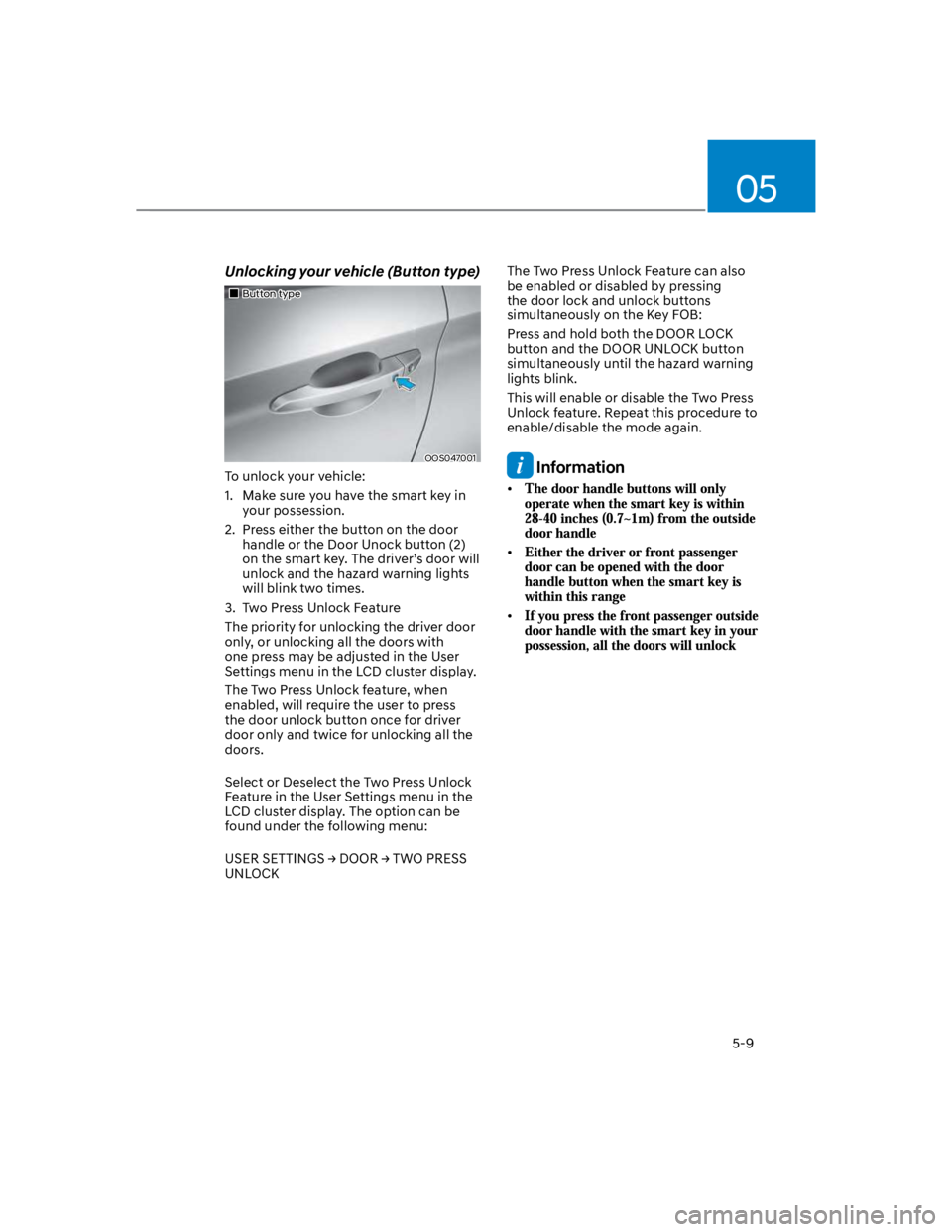
Unlocking your vehicle (Button type)
Button type
OOS047001
To unlock your vehicle:
1. Make sure you have the smart key in
your possession.
2. Press either the button on the door
handle or the Door Unock button (2)
on the smart key. The driver’s door will
unlock and the hazard warning lights
will blink two times.
3. Two Press Unlock Feature
The priority for unlocking the driver door
only, or unlocking all the doors with
one press may be adjusted in the User
Settings menu in the LCD cluster display.
The Two Press Unlock feature, when
enabled, will require the user to press
the door unlock button once for driver
door only and twice for unlocking all the
doors.
Select or Deselect the Two Press Unlock
Feature in the User Settings menu in the
LCD cluster display. The option can be
found under the following menu:
UNLOCK
The Two Press Unlock Feature can also
be enabled or disabled by pressing
the door lock and unlock buttons
simultaneously on the Key FOB:
Press and hold both the DOOR LOCK
button and the DOOR UNLOCK button
simultaneously until the hazard warning
lights blink.
This will enable or disable the Two Press
Unlock feature. Repeat this procedure to
enable/disable the mode again.
Information
Page 144 of 579
Convenient features
5-10
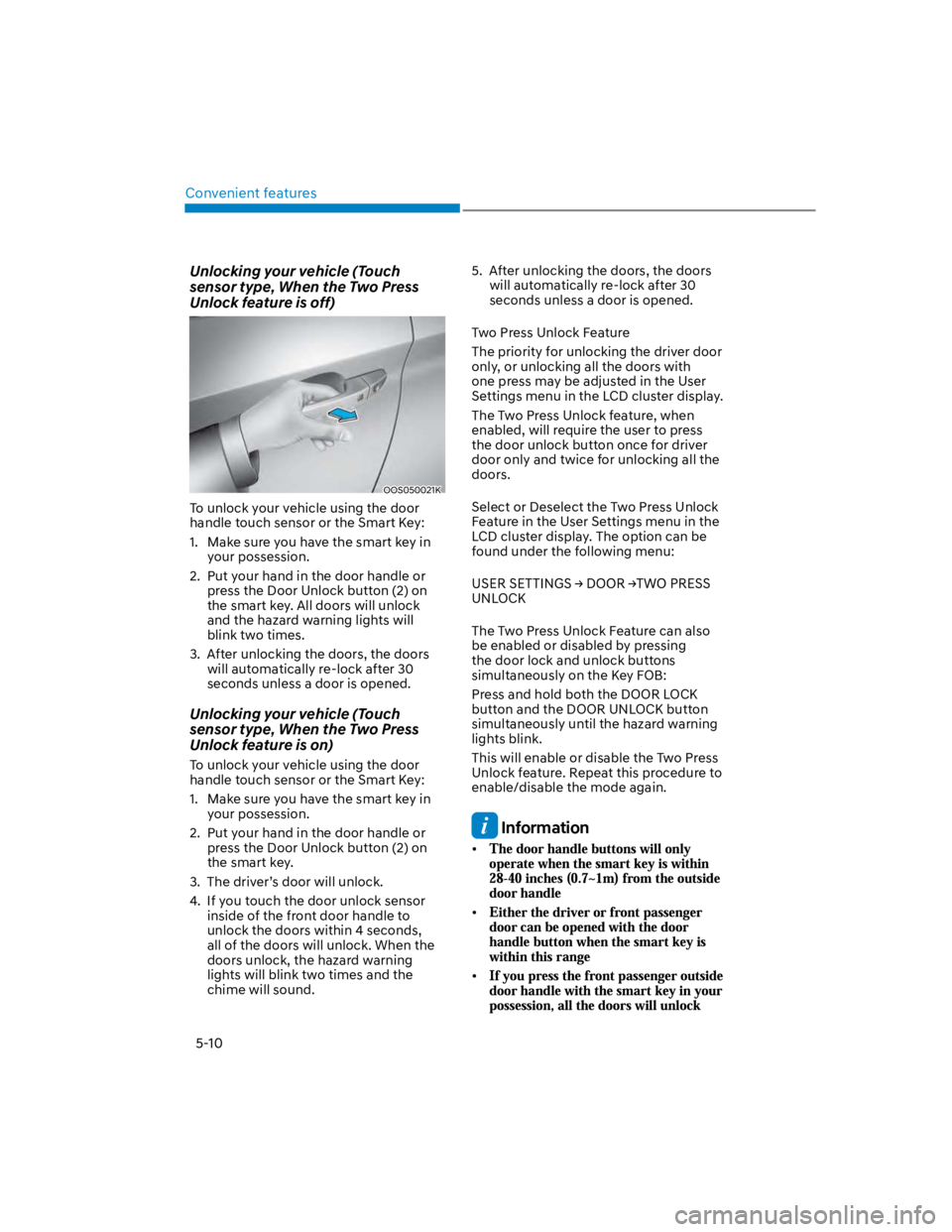
Unlocking your vehicle (Touch
sensor type, When the Two Press
Unlock feature is off)
OOS050021K
To unlock your vehicle using the door
handle touch sensor or the Smart Key:
1. Make sure you have the smart key in
your possession.
2. Put your hand in the door handle or
press the Door Unlock button (2) on
the smart key. All doors will unlock
and the hazard warning lights will
blink two times.
3. After unlocking the doors, the doors
will automatically re-lock after 30
seconds unless a door is opened.
Unlocking your vehicle (Touch
sensor type, When the Two Press
Unlock feature is on)
To unlock your vehicle using the door
handle touch sensor or the Smart Key:
1. Make sure you have the smart key in
your possession.
2. Put your hand in the door handle or
press the Door Unlock button (2) on
the smart key.
3. The driver’s door will unlock.
4. If you touch the door unlock sensor
inside of the front door handle to
unlock the doors within 4 seconds,
all of the doors will unlock. When the
doors unlock, the hazard warning
lights will blink two times and the
chime will sound.
5. After unlocking the doors, the doors
will automatically re-lock after 30
seconds unless a door is opened.
Two Press Unlock Feature
The priority for unlocking the driver door
only, or unlocking all the doors with
one press may be adjusted in the User
Settings menu in the LCD cluster display.
The Two Press Unlock feature, when
enabled, will require the user to press
the door unlock button once for driver
door only and twice for unlocking all the
doors.
Select or Deselect the Two Press Unlock
Feature in the User Settings menu in the
LCD cluster display. The option can be
found under the following menu:
UNLOCK
The Two Press Unlock Feature can also
be enabled or disabled by pressing
the door lock and unlock buttons
simultaneously on the Key FOB:
Press and hold both the DOOR LOCK
button and the DOOR UNLOCK button
simultaneously until the hazard warning
lights blink.
This will enable or disable the Two Press
Unlock feature. Repeat this procedure to
enable/disable the mode again.
Information
Page 152 of 579
Convenient features
5-18
You can manage multiple digital keys
from the Digital key app. From the list of
digital keys you own, select the vehicle
you want to make your priority vehicle.
For more information, please refer to
the ‘Tutorial’ on your Digital key app.
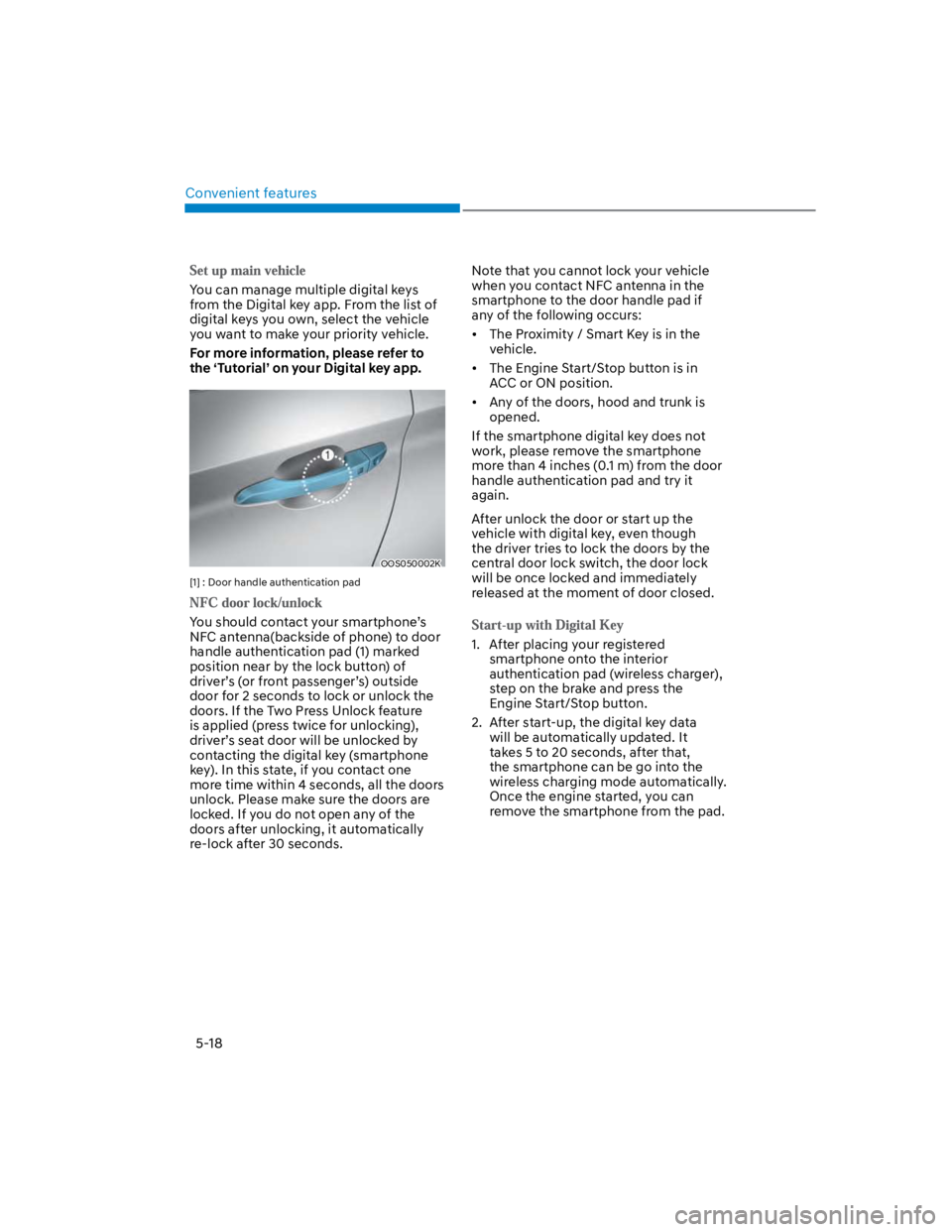
OOS050002K
[1] : Door handle authentication pad
You should contact your smartphone’s
NFC antenna(backside of phone) to door
handle authentication pad (1) marked
position near by the lock button) of
driver’s (or front passenger’s) outside
door for 2 seconds to lock or unlock the
doors. If the Two Press Unlock feature
is applied (press twice for unlocking),
driver’s seat door will be unlocked by
contacting the digital key (smartphone
key). In this state, if you contact one
more time within 4 seconds, all the doors
unlock. Please make sure the doors are
locked. If you do not open any of the
doors after unlocking, it automatically
re-lock after 30 seconds.
Note that you cannot lock your vehicle
when you contact NFC antenna in the
smartphone to the door handle pad if
any of the following occurs:
The Proximity / Smart Key is in the
vehicle.
The Engine Start/Stop button is in
ACC or ON position.
Any of the doors, hood and trunk is
opened.
If the smartphone digital key does not
work, please remove the smartphone
more than 4 inches (0.1 m) from the door
handle authentication pad and try it
again.
After unlock the door or start up the
vehicle with digital key, even though
the driver tries to lock the doors by the
central door lock switch, the door lock
will be once locked and immediately
released at the moment of door closed.
1. After placing your registered
smartphone onto the interior
authentication pad (wireless charger),
step on the brake and press the
Engine Start/Stop button.
2. After start-up, the digital key data
will be automatically updated. It
takes 5 to 20 seconds, after that,
the smartphone can be go into the
wireless charging mode automatically.
Once the engine started, you can
remove the smartphone from the pad.
Page 204 of 579

Convenient features
5-70
Battery saver function
The purpose of this feature is to prevent
the battery from being discharged.
The system automatically turns off the
position lamp when the driver turns the
vehicle off and opens the driver-side
door.
With this feature, the position lamps will
turn off automatically if the driver parks
on the side of road at night.
If necessary, to keep the lamps on when
the vehicle is turned off, perform the
following:
(1) Open the driver-side door.
(2) Turn the position lamps OFF and ON
again using the headlamp switch on
the steering column.
Headlamp delay function
(if equipped)
If the key is removed from the ignition
switch or placed in the ACC position
or the LOCK/OFF position with the
headlamps ON, the headlamps (and/
or parking lamps) remain on for about
5 minutes. However, if the driver’s door
is opened and closed, the headlights
are turned off after 15 seconds. Also,
with the engine off if the driver’s door is
opened and closed, the headlamps (and/
or parking lamps) are turned off after 15
seconds.
The headlamps (and/or parking lamps)
can be turned off by pressing the lock
button on the remote key or smart key
twice or turning the headlamp switch to
the OFF or AUTO position.
You can activate or deactivate the
Headlamp Delay function from the User
Settings Mode in the LCD display.
For more information, refer to the “LCD
Display” section in this chapter.
NOTICE
If the driver exits the vehicle through
another door besides the driver
door, the battery saver function
does not operate and the headlamp
delay function does not turn OFF
automatically.
This may cause the battery to
discharge. To avoid battery discharge,
turn OFF the headlamps manually from
the headlamp switch before exiting the
vehicle.
Page 219 of 579
05
5-85
WARNING
Continued use of the climate control
system operation in Recirculation
mode for a prolonged period of
time may cause drowsiness to the
occupants in the cabin. This may lead
to loss of vehicle control which may
lead to an accident.
Continued use of the climate control
system operation in Recirculation
mode with the A/C OFF may allow
humidity to increase inside the
cabin. This may cause condensation
to accumulate on the windshield and
obscure visibility.
Do not sleep in your vehicle or
remain parked in your vehicle with
the windows up and either the
heater or the air conditioning ON for
prolonged periods of time. Doing so
may increase the levels of carbon
dioxide in the cabin which may lead
to serious injury or death.
Fan speed control (1)
Turn the knob to the right to increase
the fan speed and airflow. Turn the knob
to the left to decrease fan speed and
airflow.
Setting the fan speed control knob to the
“0” position turns off the fan.
NOTICE
Operating the fan speed when the
ignition switch is in the ON position
could cause the battery to discharge.
Operate the fan speed when the engine
is running.
Air conditioning A/C (5)
Push the A/C button to turn the system
on (indicator light will illuminate) and off.
System operation
Ventilation
1. Set the mode to the position.
2. Set the air intake control to the
outside (fresh) air position.
3. Set the temperature control to the
desired position.
4. Set the fan speed control to the
desired speed.
Heating
1. Set the mode to the position.
2. Set the air intake control to the
outside (fresh) air position.
3. Set the temperature control to the
desired position.
4. Set the fan speed control to the
desired speed.
5. If dehumidified heating is desired,
turn the air conditioning system (if
equipped) on.
If the windshield fogs up, set the mode
to the or position.
To help keep dust or unpleasant fumes
from entering the vehicle through the
ventilation system, temporarily set the
air intake control to the recirculated
air position. Be sure to return the
control to the fresh air position when
the irritation has passed to keep fresh
air in the vehicle. This will help keep
the driver alert and comfortable.
To prevent interior fog on the
windshield, set the air intake control
to the fresh air position and fan speed
to the desired position, turn on the air
conditioning system, and adjust the
temperature control to the desired
temperature.