ECO Hyundai Santa Fe 2016 Owner's Manual
[x] Cancel search | Manufacturer: HYUNDAI, Model Year: 2016, Model line: Santa Fe, Model: Hyundai Santa Fe 2016Pages: 759, PDF Size: 29.36 MB
Page 307 of 759
![Hyundai Santa Fe 2016 Owners Manual Features of your vehicle
210
4
VOICE RECOGNITION
Using Voice Recognition
Starting Voice Recognition
Shortly press the key on the
steering wheel. Say a command. If prompt feedback is in [ON], then
t](/img/35/16331/w960_16331-306.png "Hyundai Santa Fe 2016 Owners Manual Features of your vehicle
210
4
VOICE RECOGNITION
Using Voice Recognition
Starting Voice Recognition
Shortly press the key on the
steering wheel. Say a command. If prompt feedback is in [ON], then
t")
Features of your vehicle
210
4
VOICE RECOGNITION
Using Voice Recognition
Starting Voice Recognition
Shortly press the key on the
steering wheel. Say a command. If prompt feedback is in [ON], then
the system will say “Please say a
command after the beep (BEEP)”
mode, then the system will only say
“(BEEP)”
[On]/[Off], go to [System] [Prompt Feedback]
✽ ✽ NOTICE
For proper recognition, say the com-
mand after the voice instruction and
beep tone.
Contact List Best Practices
1) Do not store single-name entries
(e.g., “Bob”, “Mom”, “Kim”, etc.).
Instead, always use full names
(including first and last names) for
all contacts (e.g., use “Jacob
Stevenson” instead of “Dad”).
2) Do not use abbreviations (i.e., use “Lieutenant” instead of “Lt.” or
“Sergeant” instead of “Sgt.”).
3) Do not use acronyms (i.e., use “County Finance Department”
instead of “CFD”). 4) Do not use special characters
(e.g., “@”, “hyphen -”, “asterisk *”,
“ampersand &”).
5) If a name is not recognized from the contact list, change it to a
more descriptive name (e.g., use
“Grandpa Joseph” instead of “Pa
Joe”).
Skipping Prompt Messages
While prompt message is being stat-
ed Shortly press the key on the
steering remote controller
The prompt message is immediately
ended and the beep tone will sound.
After the “beep”, say the voice com-
mand.
Re-starting Voice Recognition
While system waits for a command
Shortly press the key on the
steering remote controller
The command wait state is immedi-
ately ended and the beep will sound.
After the “beep”, say the voice com-
mand.
SETUP
Page 308 of 759
4211
Features of your vehicle
ENDING VOICE
RECOGNITION
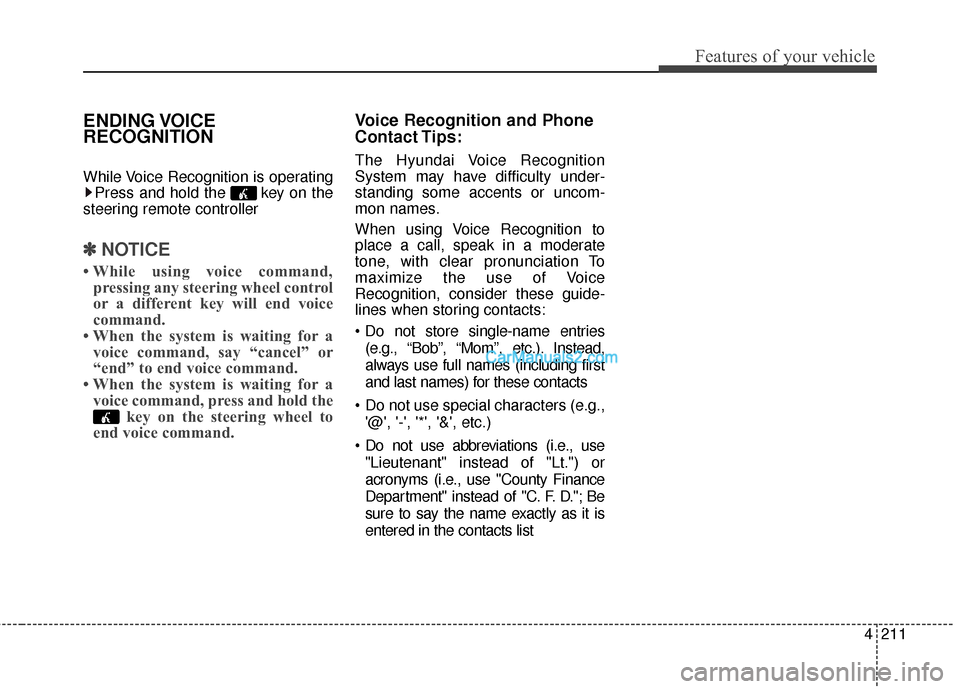
While Voice Recognition is operatingPress and hold the key on the
steering remote controller
✽ ✽ NOTICE
• While using voice command,
pressing any steering wheel control
or a different key will end voice
command.
• When the system is waiting for a voice command, say “cancel” or
“end” to end voice command.
• When the system is waiting for a voice command, press and hold the key on the steering wheel to
end voice command.
Voice Recognition and Phone
Contact Tips:
The Hyundai Voice Recognition
System may have difficulty under-
standing some accents or uncom-
mon names.
When using Voice Recognition to
place a call, speak in a moderate
tone, with clear pronunciation To
maximize the use of Voice
Recognition, consider these guide-
lines when storing contacts:
(e.g., “Bob”, “Mom”, etc.). Instead,
always use full names (including first
and last names) for these contacts
'@', '-', '*', '&', etc.)
"Lieutenant" instead of "Lt.") or
acronyms (i.e., use "County Finance
Department" instead of "C. F. D."; Be
sure to say the name exactly as it is
entered in the contacts list
Page 309 of 759
Features of your vehicle
212
4
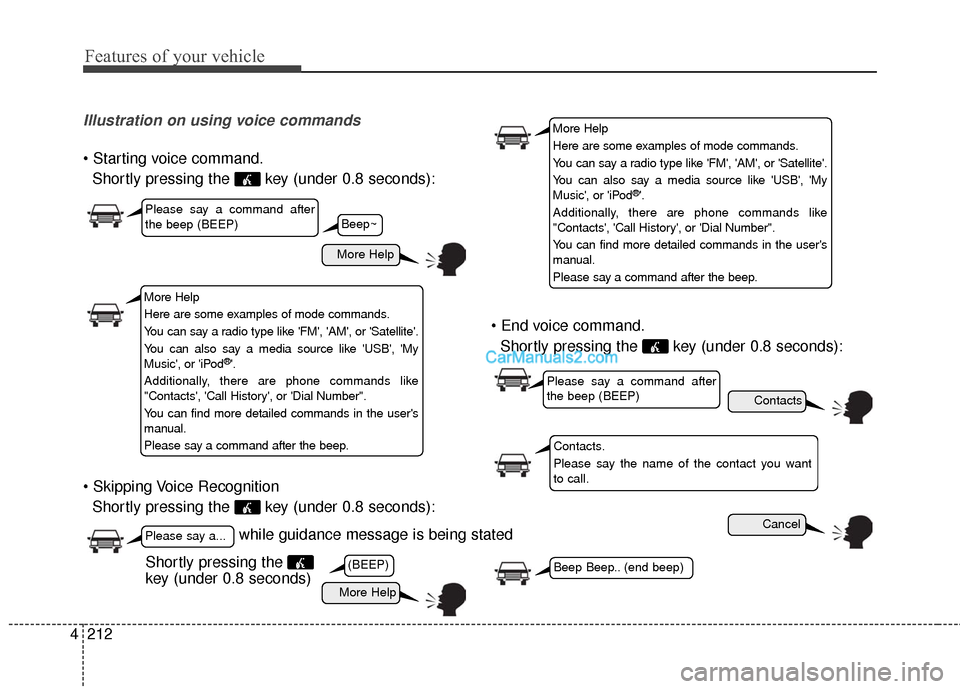
Illustration on using voice commands
Shortly pressing the key (under 0.8 seconds):
Shortly pressing the key (under 0.8 seconds):
Shortly pressing the key (under 0.8 seconds):
while guidance message is being stated
More Help
Contacts
Cancel
More Help
Please say a command after
the beep (BEEP)
Please say a...
Contacts.
Please say the name of the contact you want
to call.
(BEEP)Beep Beep.. (end beep)Shortly pressing the
key (under 0.8 seconds)
Beep~
More Help
Here are some examples of mode commands.
You can say a radio type like 'FM', 'AM', or 'Satellite'.
You can also say a media source like 'USB', 'My
Music', or 'iPod
®'.
Additionally, there are phone commands like
"Contacts', 'Call History', or 'Dial Number".
You can find more detailed commands in the user's
manual.
Please say a command after the beep.
More Help
Here are some examples of mode commands.
You can say a radio type like 'FM', 'AM', or 'Satellite'.
You can also say a media source like 'USB', 'My
Music', or 'iPod
®'.
Additionally, there are phone commands like
"Contacts', 'Call History', or 'Dial Number".
You can find more detailed commands in the user's
manual.
Please say a command after the beep.
Please say a command after
the beep (BEEP)
Page 310 of 759
4213
Features of your vehicle
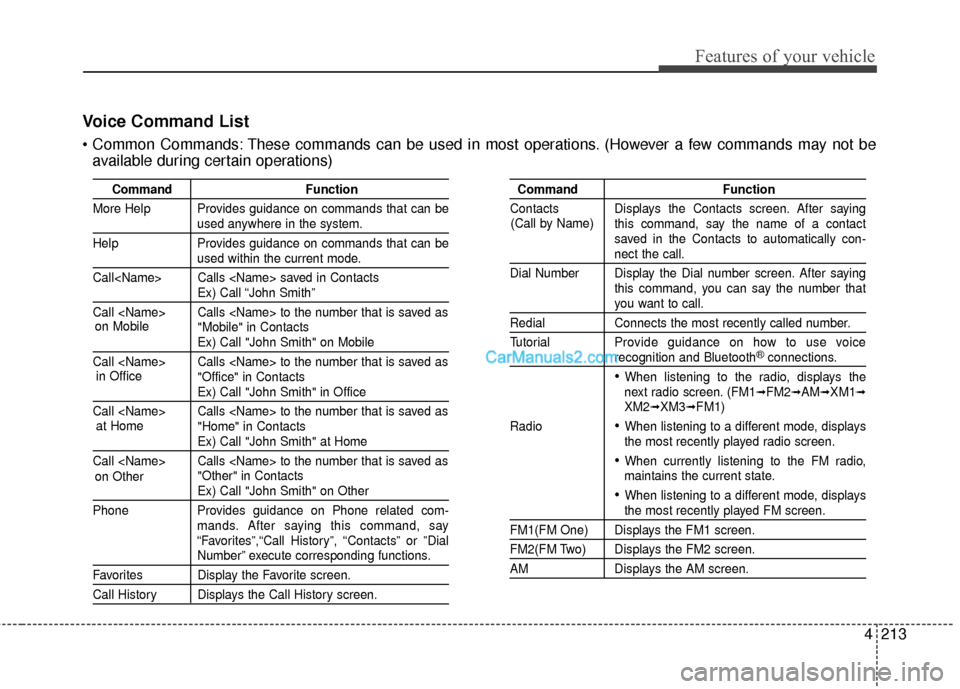
Voice Command List
These commands can be used in most operations. (However a few commands may not beavailable during certain operations)
Command Function
More Help Provides guidance on commands that can be
used anywhere in the system.
Help Provides guidance on commands that can be
used within the current mode.
Call
Ex) Call “John Smith”
Call
Ex) Call "John Smith" on Mobile
Call
Ex) Call "John Smith" in Office
Call
Ex) Call "John Smith" at Home
Call
Ex) Call "John Smith" on Other
Phone Provides guidance on Phone related com- mands. After saying this command, say
“Favorites”,“Call History”, “Contacts” or ”Dial
Number” execute corresponding functions.
Favorites Display the Favorite screen.
Call History Displays the Call History screen.
Command Function
Contacts Displays the Contacts screen. After saying this command, say the name of a contact
saved in the Contacts to automatically con-
nect the call.
Dial Number Display the Dial number screen. After saying this command, you can say the number that
you want to call.
RedialConnects the most recently called number.
Tutorial Pro vide guidance on how to use voice
recognition and Bluetooth®connections.
When listening to the radio, displays the
next radio screen. (FM1➟FM2➟AM➟XM1➟XM2➟XM3➟FM1)
Radio
When listening to a different mode, displays
the most recently played radio screen.
When currently listening to the FM radio,
maintains the current state.
When listening to a different mode, displaysthe most recently played FM screen.
FM1(FM One) Displays the FM1 screen.
FM2(FM Two) Displays the FM2 screen.
AM Displays the AM screen.
(Call by Name)
on Mobile
in Officeat Home
on Other
Page 312 of 759
4215
Features of your vehicle
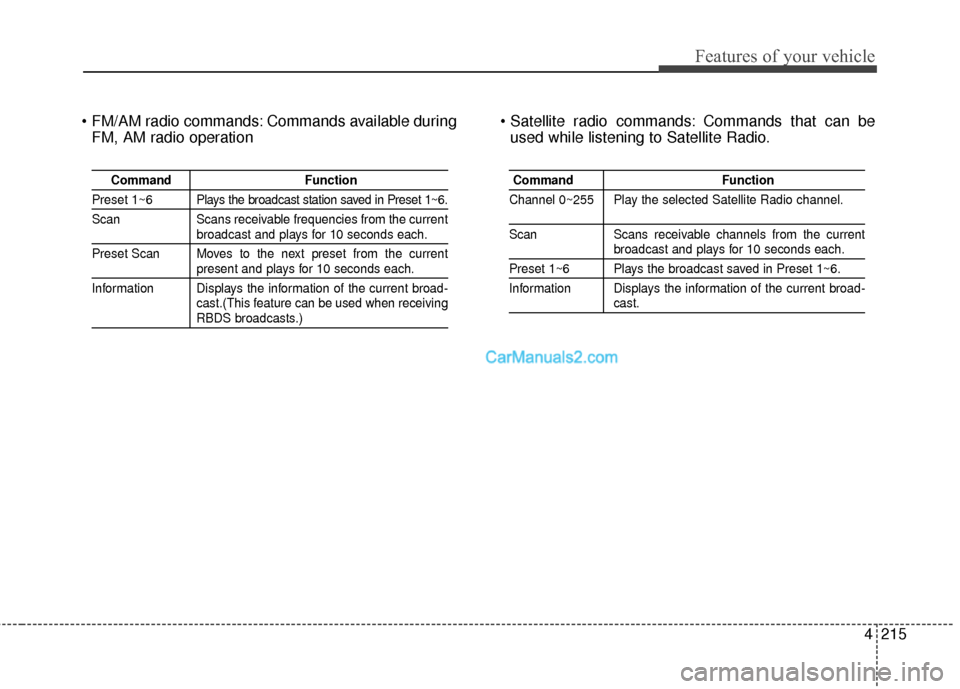
Commands available duringFM, AM radio operation Commands that can be
used while listening to Satellite Radio.
Command Function
Preset 1~6 Plays the broadcast station saved in Preset 1~6.
Scan Scans receivable frequencies from the current
broadcast and plays for 10 seconds each.
Preset Scan Moves to the next preset from the current
present and plays for 10 seconds each.
Information Displays the information of the current broad- cast.(This feature can be used when receiving
RBDS broadcasts.)
Command Function
Channel 0~255 Play the selected Satellite Radio channel.
Scan Scans receivable channels from the currentbroadcast and plays for 10 seconds each.
Preset 1~6 Plays the broadcast saved in Preset 1~6.
Information Displays the information of the current broad-
cast.
Page 316 of 759
4219
Features of your vehicle
Blue Link®
Hyundai aims to offer differentiated
customer values through a
‘Connected Car Life,’ which provides
consumers with fast and reliable IT
technology. As consumers’ lifestyles
become more and more mobile in
thanks to remarkable advances in
smart phones, tablet PCs and overall
wireless telecommunication, new
lifestyle patterns demand seamless
connection between one’s office,
home, outdoors and automobiles.
Blue Link
®is Hyundai's innovative
telematics solution that combines
safety, service, and infotainment into
a complete package. It works to both
help simplify Hyundai owners' lives
and reduce distracted driving. The
Blue Link
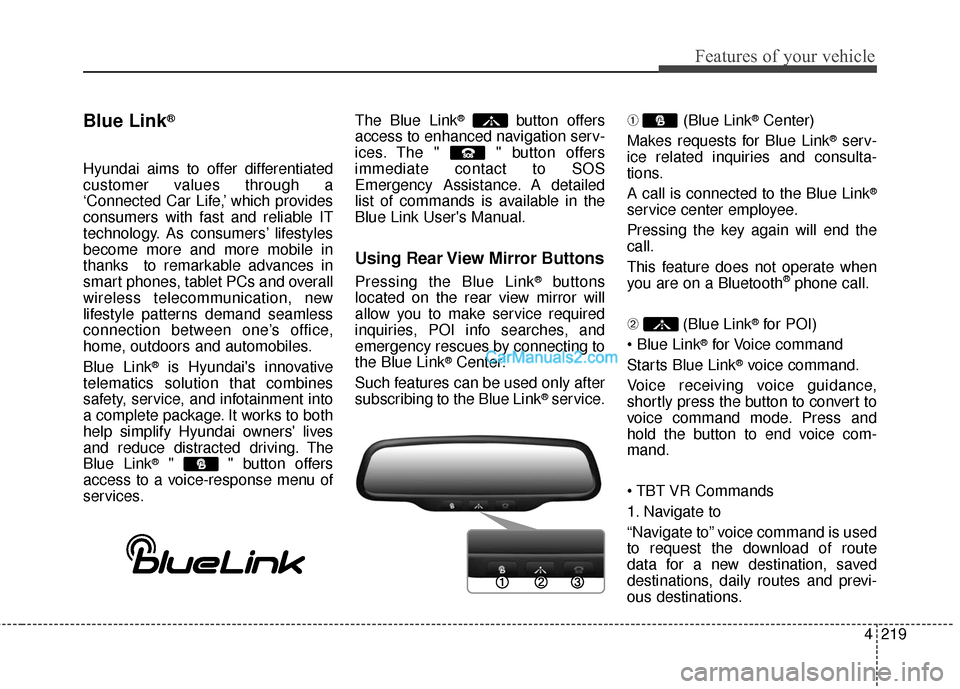
®" " button offers
access to a voice-response menu of
services. The Blue Link
®button offers
access to enhanced navigation serv-
ices. The " " button offers
immediate contact to SOS
Emergency Assistance. A detailed
list of commands is available in the
Blue Link User's Manual.
Using Rear View Mirror Buttons
Pressing the Blue Link®buttons
located on the rear view mirror will
allow you to make service required
inquiries, POI info searches, and
emergency rescues by connecting to
the Blue Link
®Center.
Such features can be used only after
subscribing to the Blue Link
®service. ➀
(Blue Link
®Center)
Makes requests for Blue Link
®serv-
ice related inquiries and consulta-
tions.
A call is connected to the Blue Link
®
service center employee.
Pressing the key again will end the
call.
This feature does not operate when
you are on a Bluetooth
®phone call.
\b (Blue Link
®for POI)
®for Voice command
Starts Blue Link
®voice command.
Voice receiving voice guidance,
shortly press the button to convert to
voice command mode. Press and
hold the button to end voice com-
mand.
1. Navigate to
“Navigate to” voice command is used
to request the download of route
data for a new destination, saved
destinations, daily routes and previ-
ous destinations.
Page 318 of 759
4221
Features of your vehicle
Eco Coach
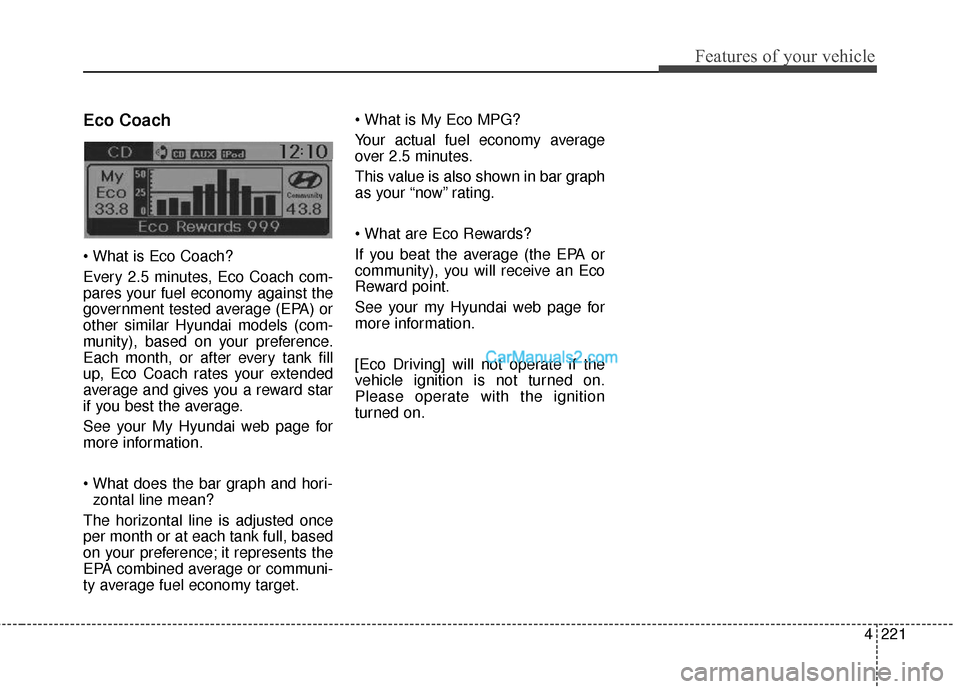
Every 2.5 minutes, Eco Coach com-
pares your fuel economy against the
government tested average (EPA) or
other similar Hyundai models (com-
munity), based on your preference.
Each month, or after every tank fill
up, Eco Coach rates your extended
average and gives you a reward star
if you best the average.
See your My Hyundai web page for
more information.
zontal line mean?
The horizontal line is adjusted once
per month or at each tank full, based
on your preference; it represents the
EPA combined average or communi-
ty average fuel economy target.
Your actual fuel economy average
over 2.5 minutes.
This value is also shown in bar graph
as your “now” rating.
If you beat the average (the EPA or
community), you will receive an Eco
Reward point.
See your my Hyundai web page for
more information.
[Eco Driving] will not operate if the
vehicle ignition is not turned on.
Please operate with the ignition
turned on.
Page 321 of 759
Features of your vehicle
224
4
SYSTEM CONTROLLERS
AND FUNCTIONS
Audio Head Unit
(for HD RADIOTMequipped model)
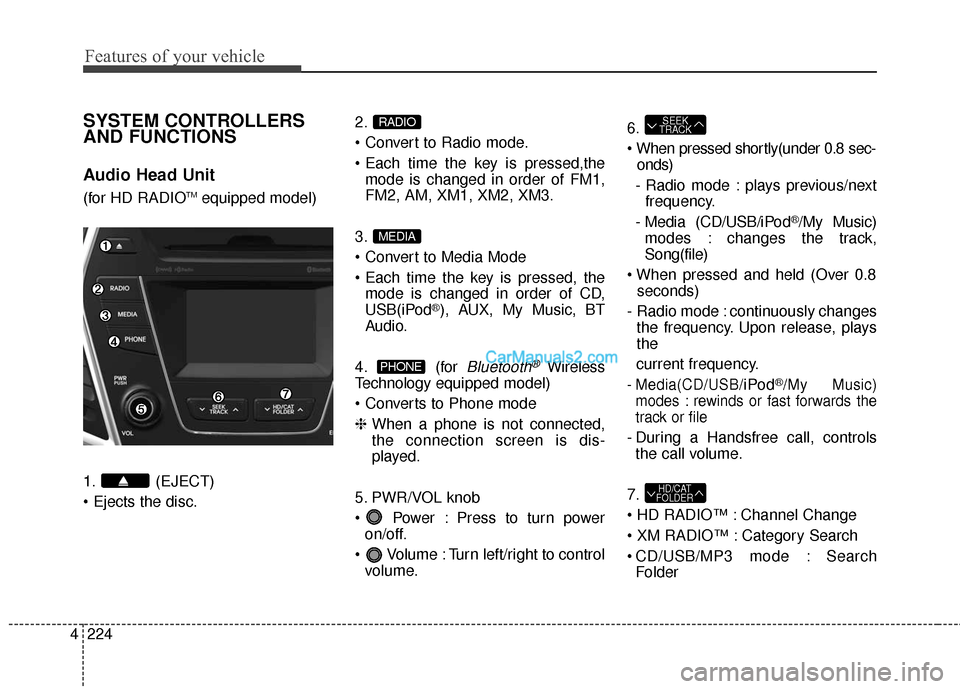
1. (EJECT)
2.
mode is changed in order of FM1,
FM2, AM, XM1, XM2, XM3.
3.
mode is changed in order of CD,
USB(iPod
®), AUX, My Music, BT
Audio.
4. (for
Bluetooth®Wireless
Technology equipped model)
❈ When a phone is not connected,
the connection screen is dis-
played.
5. PWR/VOL knob
Power : Press to turn power on/off.
Volume : Turn left/right to control volume. 6.
onds)
- Radio mode : plays previous/next frequency.
- Media (CD/USB/iPod
®/My Music)
modes : changes the track,
Song(file)
seconds)
- Radio mode : continuously changes the frequency. Upon release, plays
the
current frequency.
- Media(CD/USB/iPod®/My Music)
modes : rewinds or fast forwards the
track or file
- During a Handsfree call, controls the call volume.
7.
Channel Change
Category Search
CD/USB/MP3 mode : Search Folder
HD/CAT
FOLDER
SEEK
TRACK
PHONE
MEDIA
RADIO
Page 322 of 759
4225
Features of your vehicle
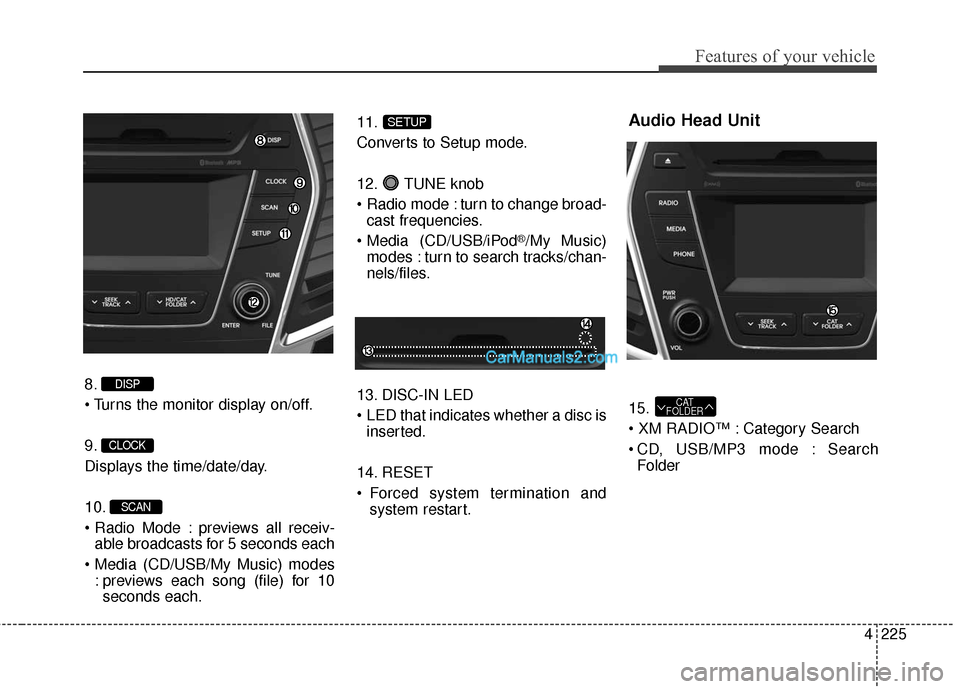
8.
9.
Displays the time/date/day.
10.
previews all receiv-able broadcasts for 5 seconds each
: previews each song (file) for 10seconds each. 11.
Converts to Setup mode.
12. TUNE knob
turn to change broad-
cast frequencies.
(CD/USB/iPod
®/My Music)
modes : turn to search tracks/chan-
nels/files.
13. DISC-IN LED
LED that indicates whether a disc is inserted.
14. RESET
Forced system termination and system restart.
Audio Head Unit
15.
Category Search
CD, USB/MP3 mode : SearchFolderCAT
FOLDER
SETUP
SCAN
CLOCK
DISP
Page 323 of 759
Features of your vehicle
226
4
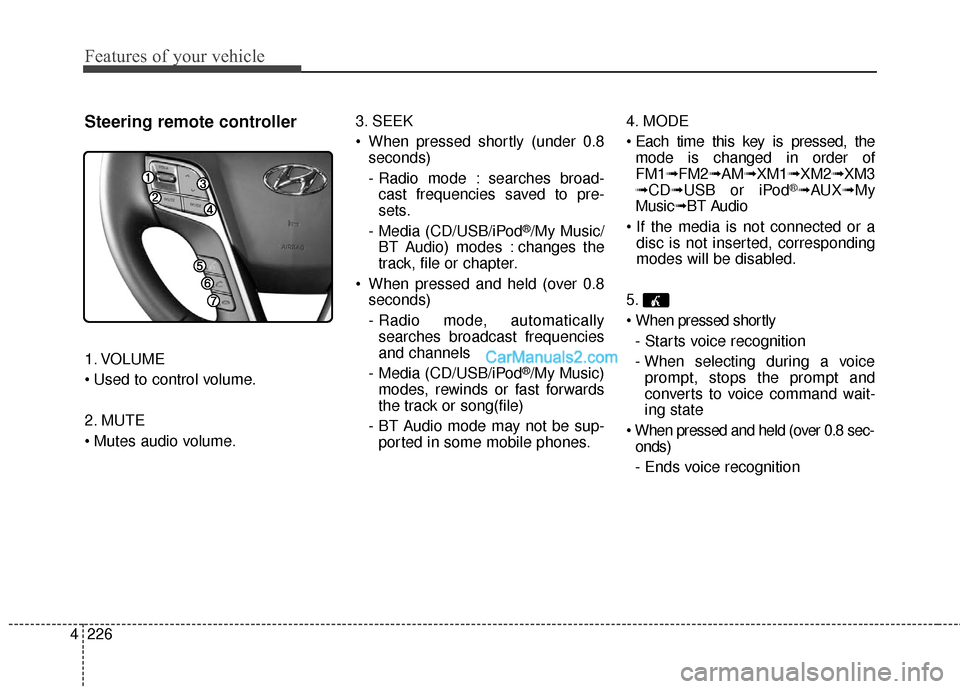
Steering remote controller
1. VOLUME
2. MUTE
3. SEEK
When pressed shortly (under 0.8
seconds)
- Radio mode : searches broad-cast frequencies saved to pre-
sets.
- Media (CD/USB/iPod
®/My Music/
BT Audio) modes : changes the
track, file or chapter.
When pressed and held (over 0.8 seconds)
- Radio mode, automaticallysearches broadcast frequencies
and channels
- Media (CD/USB/iPod
®/My Music)
modes, rewinds or fast forwards
the track or song(file)
- BT Audio mode may not be sup- ported in some mobile phones. 4. MODE
mode is changed in order of
FM1➟ FM2➟AM➟XM1➟ XM2➟XM3
➟ CD➟ USB or iPod
®➟AUX ➟My
Music➟ BT Audio
disc is not inserted, corresponding
modes will be disabled.
5.
- Starts voice recognition
- When selecting during a voice prompt, stops the prompt and
converts to voice command wait-
ing state
onds)
- Ends voice recognition