ECO Hyundai Santa Fe 2016 Owner's Manual
[x] Cancel search | Manufacturer: HYUNDAI, Model Year: 2016, Model line: Santa Fe, Model: Hyundai Santa Fe 2016Pages: 759, PDF Size: 29.36 MB
Page 325 of 759
Features of your vehicle
228
4
HD RadioTMTechnology
(for HD RADIOTMequipped model)
HD Radio Technology manufactured
under license from iBiquity Digital
Corporation. U.S. and Foreign
Patents. HD Radio™ and the HD, HD
Radio, and “Arc” logos are propri-
etary trademarks of iBiquity Digital
Corp.
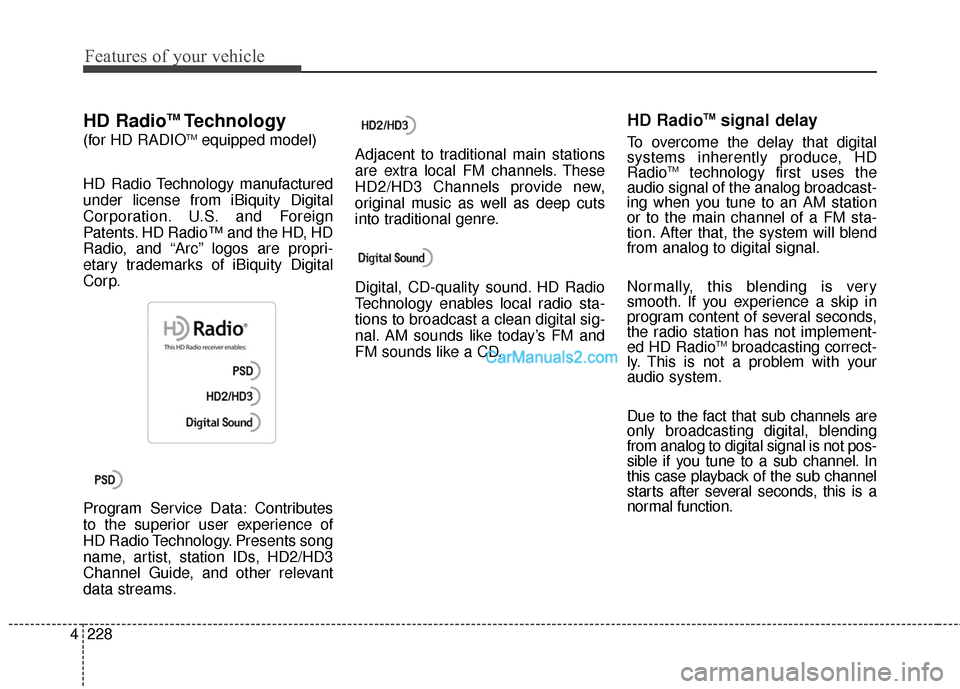
Program Service Data: Contributes
to the superior user experience of
HD Radio Technology. Presents song
name, artist, station IDs, HD2/HD3
Channel Guide, and other relevant
data streams. Adjacent to traditional main stations
are extra local FM channels. These
HD2/HD3 Channels provide new,
original music as well as deep cuts
into traditional genre.
Digital, CD-quality sound. HD Radio
Technology enables local radio sta-
tions to broadcast a clean digital sig-
nal. AM sounds like today’s FM and
FM sounds like a CD.
HD RadioTMsignal delay
To overcome the delay that digital
systems inherently produce, HD
Radio
TMtechnology first uses the
audio signal of the analog broadcast-
ing when you tune to an AM station
or to the main channel of a FM sta-
tion. After that, the system will blend
from analog to digital signal.
Normally, this blending is very
smooth. If you experience a skip in
program content of several seconds,
the radio station has not implement-
ed HD Radio
TMbroadcasting correct-
ly. This is not a problem with your
audio system.
Due to the fact that sub channels are
only broadcasting digital, blending
from analog to digital signal is not pos-
sible if you tune to a sub channel. In
this case playback of the sub channel
starts after several seconds, this is a
normal function.
Page 328 of 759
![Hyundai Santa Fe 2016 Owners Manual 4231
Features of your vehicle
Switching to Radio Mode
Pressing the key will change
the operating mode in order of FM1
➟FM2➟AM➟XM1➟XM2➟XM3
If [Mode Pop up] is turned on within [Display], the](/img/35/16331/w960_16331-327.png "Hyundai Santa Fe 2016 Owners Manual 4231
Features of your vehicle
Switching to Radio Mode
Pressing the key will change
the operating mode in order of FM1
➟FM2➟AM➟XM1➟XM2➟XM3
If [Mode Pop up] is turned on within [Display], the")
4231
Features of your vehicle
Switching to Radio Mode
Pressing the key will change
the operating mode in order of FM1
➟FM2➟AM➟XM1➟XM2➟XM3
If [Mode Pop up] is turned on within [Display], then pressing the
key will display the Radio
Pop-up Mode screen.
Turn the TUNE knob to move the
focus. Press the knob to select.
Searching Radio Frequencies
Using Seek
Press the key to play the
previous/next frequency.
Using TUNE
Turn the TUNE knob to select the
desired frequency.
FM : Increases/decreased by 200kHz
AM : Increases/decreased by 10kHz
Using Radio Mode
Selecting Presets/Saving Presets
Press the button to display
the broadcast information for the fre-
quency saved to each button.
Press the ~ buttons to play
the desired preset.
✽ ✽ NOTICE
While listening to a frequency you
want to save as a preset, press and
hold one of the ~ preset
buttons (over 0.8 seconds) to save
the current frequency to the selected
preset.
61
61
PresetSEEK
TRACK
RADIO
SETUP
RADIO
Page 329 of 759
![Hyundai Santa Fe 2016 Owners Manual Features of your vehicle
232
4
Auto Store
Press the button to automati-
cally save receivable frequencies to
Preset buttons.
✽ ✽
NOTICE
While Auto Store is operating, press-
ing the [Cancel] but](/img/35/16331/w960_16331-328.png "Hyundai Santa Fe 2016 Owners Manual Features of your vehicle
232
4
Auto Store
Press the button to automati-
cally save receivable frequencies to
Preset buttons.
✽ ✽
NOTICE
While Auto Store is operating, press-
ing the [Cancel] but")
Features of your vehicle
232
4
Auto Store
Press the button to automati-
cally save receivable frequencies to
Preset buttons.
✽ ✽
NOTICE
While Auto Store is operating, press-
ing the [Cancel] button again will
cancel Auto Store and restore the
previous frequency.
Scan
Press the key to preview fre-
quencies with superior reception for
5 seconds each.
Press and hold the key (over
0.8 seconds) to preview presets for 5
seconds each.
Once scan is complete, the previous
frequency will be restored.
While Scan is operating, pressing
the key will cancel the scan
operation.
Listening to HD Radio
Stations
HD Radio Technology is a digital
radio technology used by AM and
FM radio station to transmit audio
and data via a digital signal in con-
junction with their analog signals.
While listening to the radio, the HD
Radio icon will become displayed if
receiving an HD Radio broadcast.
Changing HD Radio stations
Press the button to change
HD Radio station.
Viewing Station Information
Press the button to view sta-
tion information.Info
SCAN
SCAN
SCAN
A.Store
Page 330 of 759
4233
Features of your vehicle
XM RADIO™MODE
Features of your vehicle
Satellite radio reception
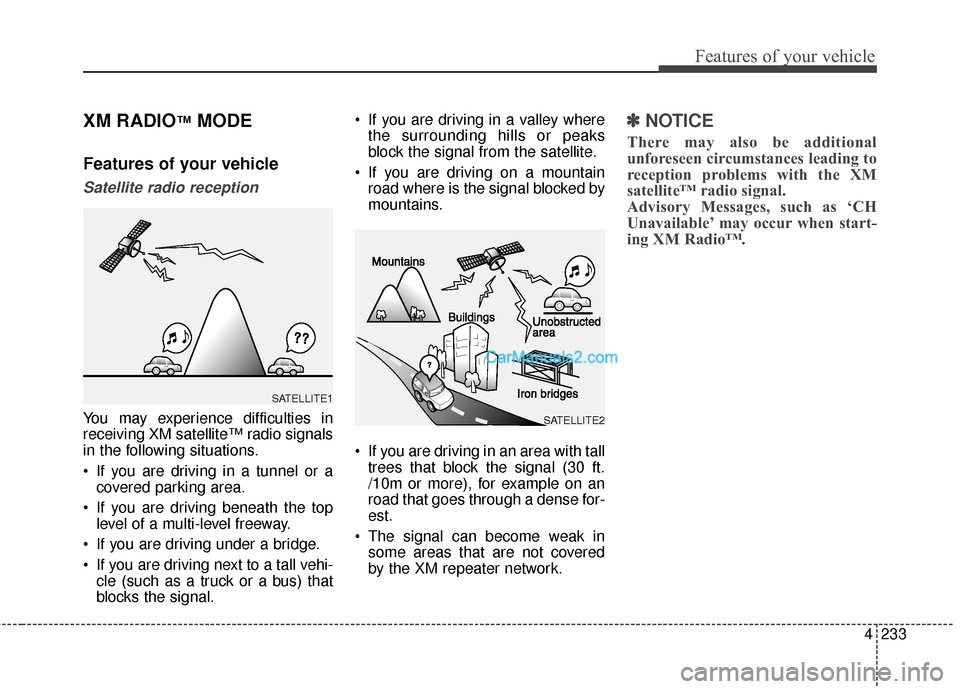
You may experience difficulties in
receiving XM satellite™ radio signals
in the following situations.
If you are driving in a tunnel or acovered parking area.
If you are driving beneath the top level of a multi-level freeway.
If you are driving under a bridge.
If you are driving next to a tall vehi- cle (such as a truck or a bus) that
blocks the signal. If you are driving in a valley where
the surrounding hills or peaks
block the signal from the satellite.
If you are driving on a mountain road where is the signal blocked by
mountains.
If you are driving in an area with tall trees that block the signal (30 ft.
/10m or more), for example on an
road that goes through a dense for-
est.
The signal can become weak in some areas that are not covered
by the XM repeater network.
✽ ✽ NOTICE
There may also be additional
unforeseen circumstances leading to
reception problems with the XM
satellite™ radio signal.
Advisory Messages, such as ‘CH
Unavailable’ may occur when start-
ing XM Radio™.
SATELLITE2
SATELLITE1
Page 332 of 759
4235
Features of your vehicle
Using SEEK
Press the key to play the
previous/next channel.
❈If the “Category” icon is displayed,
channels are changed within the
current category.
Using Tune
Turn the TUNE knob to select the
desired channel.
SCAN
Press the key to scan all
channels with superior reception for
10 seconds each.
Once scan is complete, the previous-
ly played channel will be restored.
During Scan, pressing the
key again will cancel the scan opera-
tion and restore the previously
played channel.
If the “Category” icon is displayed,
channels are changed within the cur-
rent category.
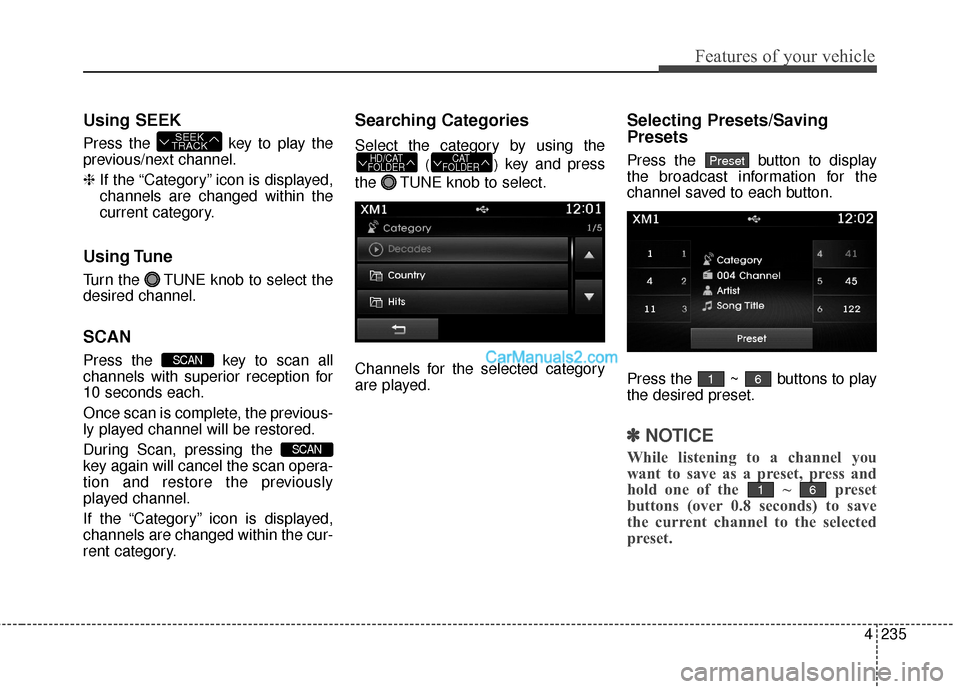
Searching Categories
Select the category by using the
()key and press
the TUNE knob to select.
Channels for the selected category
are played.
Selecting Presets/Saving
Presets
Press the button to display
the broadcast information for the
channel saved to each button.
Press the ~ buttons to play
the desired preset.
✽ ✽ NOTICE
While listening to a channel you
want to save as a preset, press and
hold one of the ~ preset
buttons (over 0.8 seconds) to save
the current channel to the selected
preset.
61
61
PresetCAT
FOLDERHD/CAT
FOLDER
SCAN
SCAN
SEEK
TRACK
Page 333 of 759
Features of your vehicle
236
4
✽
✽
NOTICE - USING CDs
• This device has been manufac-
tured to be compatible with soft-
ware bearing the following logo
marks.
• Do not clean discs with chemical solutions, such as record sprays,
antistatic sprays, antistatic liq-
uids, benzene, or thinners.
• After using a disc, put the disc back in its original case to prevent
disc scratches.
• Hold discs by their edges or with- in the center hole to prevent dam-
ages to disc surfaces.
• Do not introduce foreign sub- stances into the disc insert/eject slot.
Introducing foreign substances
could damage the device interior.
• Do not insert two discs simultane- ously.
• When using CD-R/CD-RW discs, differences in disc reading and
playing times may occur depend-
ing on the disc manufacturer, pro-
duction method and the recording
method as used by the user. (Continued)(Continued)
• Clean fingerprints and dust off
the disc surface (coated side) with
a soft cloth.
• The use of CD-R/CD-RW discs attached with labels may result in
disc slot jams or difficulties in disc
removal. Such discs may also
result in noise while playing.
• Some CD-R/CD-RW discs may not properly operate depending
on the disc manufacturer, produc-
tion method and the record
method as used by the user. If
problems persist, trying using a
different CD as continued use
may result in malfunctions.
• The performance of this product may differ depending on the CD-
RW Drive Software.
• Copy-protected CDs such as S- type CDs may not function in the
device. DATA discs cannot be
played. (However, such discs may
still operate but will do so abnor-
mally.) (Continued)(Continued)
• Do not use abnormally shaped
discs (8cm, heart-shaped, octa-
gon-shaped) as such discs could
lead to malfunctions.
• If the disc is straddled on the disc slot without removal for 10 sec-
onds, the disc will automatically
be re-inserted into the disc player.
• Only genuine audio CDs are sup- ported. Other discs may result in
recognition failure. (e.g. copy CD-
R, CDs with labels)
Page 336 of 759
4239
Features of your vehicle
Using Audio CD Mode
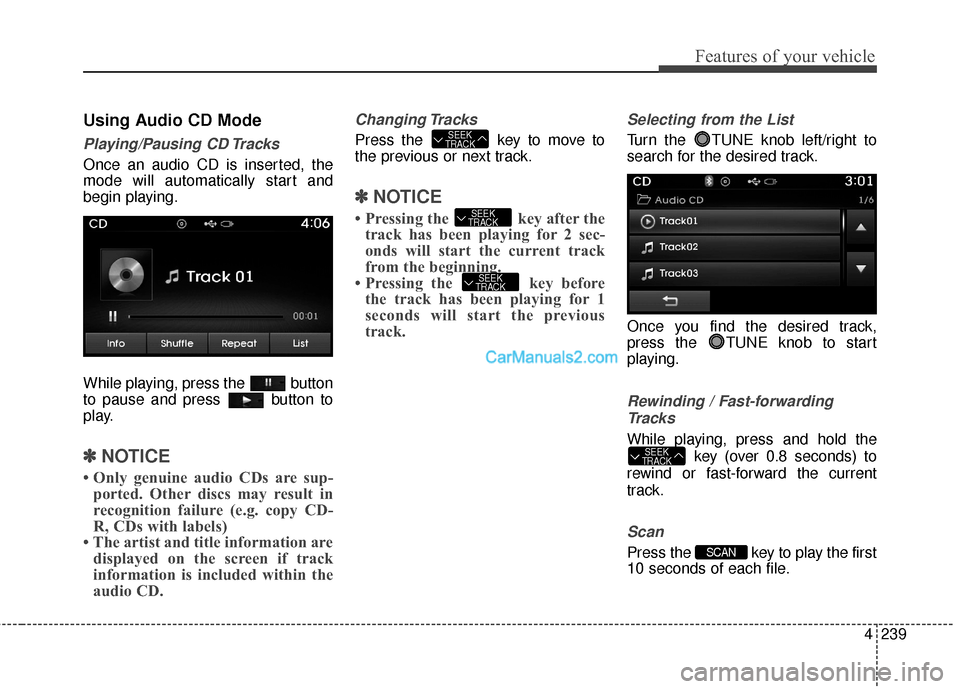
Playing/Pausing CD Tracks
Once an audio CD is inserted, the
mode will automatically start and
begin playing.
While playing, press the button
to pause and press button to
play.
✽ ✽NOTICE
• Only genuine audio CDs are sup-
ported. Other discs may result in
recognition failure (e.g. copy CD-
R, CDs with labels)
• The artist and title information are displayed on the screen if track
information is included within the
audio CD.
Changing Tracks
Press the key to move to
the previous or next track.
✽ ✽ NOTICE
• Pressing the key after the
track has been playing for 2 sec-
onds will start the current track
from the beginning.
• Pressing the key before the track has been playing for 1
seconds will start the previous
track.
Selecting from the List
Turn the TUNE knob left/right to
search for the desired track.
Once you find the desired track,
press the TUNE knob to start
playing.
Rewinding / Fast-forwarding
Tracks
While playing, press and hold the key (over 0.8 seconds) to
rewind or fast-forward the current
track.
Scan
Press the key to play the first
10 seconds of each file.SCAN
SEEK
TRACK
SEEK
TRACK
SEEK
TRACK
SEEK
TRACK
Page 339 of 759
Features of your vehicle
242
4
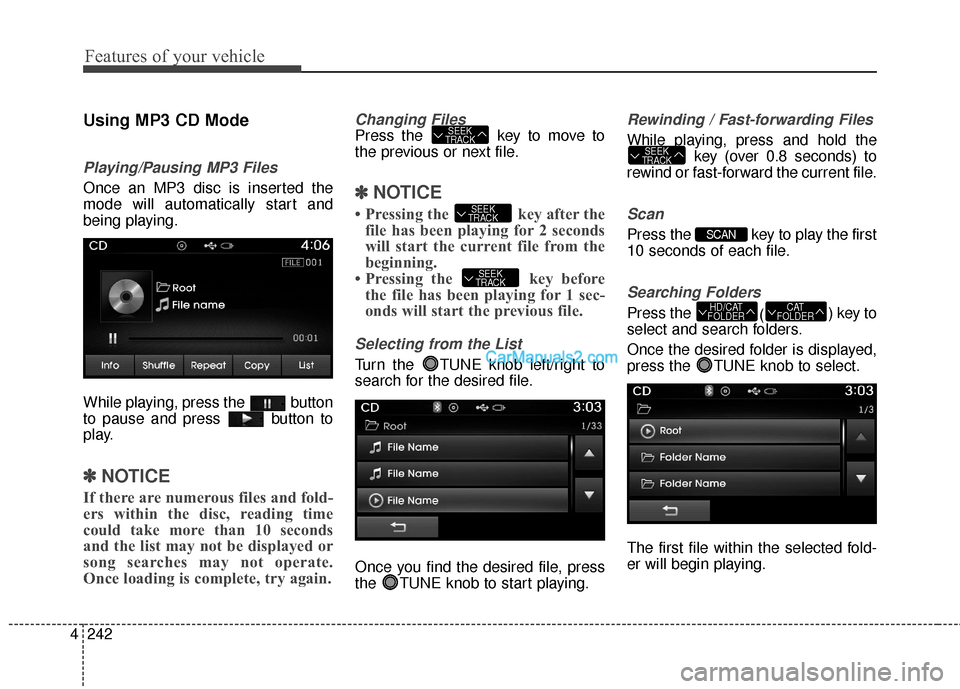
Using MP3 CD Mode
Playing/Pausing MP3 Files
Once an MP3 disc is inserted the
mode will automatically start and
being playing.
While playing, press the button
to pause and press button to
play.
✽ ✽
NOTICE
If there are numerous files and fold-
ers within the disc, reading time
could take more than 10 seconds
and the list may not be displayed or
song searches may not operate.
Once loading is complete, try again.
Changing Files
Press the key to move to
the previous or next file.
✽ ✽NOTICE
• Pressing the key after the
file has been playing for 2 seconds
will start the current file from the
beginning.
• Pressing the key before the file has been playing for 1 sec-
onds will start the previous file.
Selecting from the List
Turn the TUNE knob left/right to
search for the desired file.
Once you find the desired file, press
the TUNE knob to start playing.
Rewinding / Fast-forwarding Files
While playing, press and hold the
key (over 0.8 seconds) to
rewind or fast-forward the current file.
Scan
Press the key to play the first
10 seconds of each file.
Searching Folders
Press the () key to
select and search folders.
Once the desired folder is displayed,
press the TUNE knob to select.
The first file within the selected fold-
er will begin playing.CAT
FOLDERHD/CAT
FOLDER
SCAN
SEEK
TRACK
SEEK
TRACK
SEEK
TRACK
SEEK
TRACK
Page 340 of 759
4243
Features of your vehicle
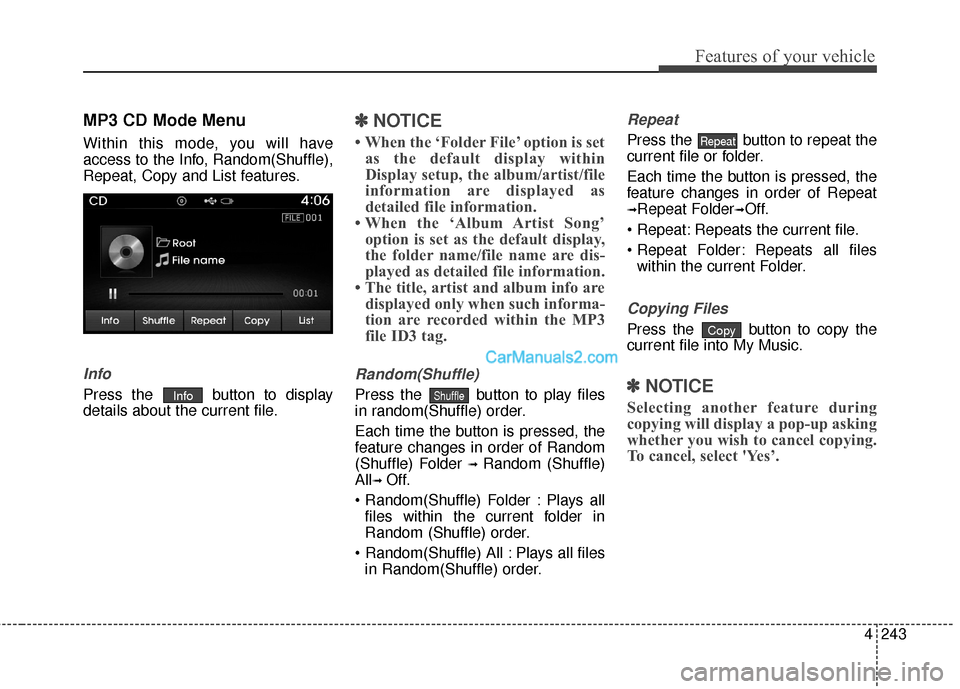
MP3 CD Mode Menu
Within this mode, you will have
access to the Info, Random(Shuffle),
Repeat, Copy and List features.
Info
Press the button to display
details about the current file.
✽ ✽NOTICE
• When the ‘Folder File’ option is set
as the default display within
Display setup, the album/artist/file
information are displayed as
detailed file information.
• When the ‘Album Artist Song’ option is set as the default display,
the folder name/file name are dis-
played as detailed file information.
• The title, artist and album info are displayed only when such informa-
tion are recorded within the MP3
file ID3 tag.
Random(Shuffle)
Press the button to play files
in random(Shuffle) order.
Each time the button is pressed, the
feature changes in order of Random
(Shuffle) Folder
➟ Random (Shuffle)
All
➟ Off.
Plays all files within the current folder in
Random (Shuffle) order.
Plays all files in Random(Shuffle) order.
Repeat
Press the button to repeat the
current file or folder.
Each time the button is pressed, the
feature changes in order of Repeat
➟Repeat Folder➟Off.
Repeats the current file.
Repeats all files within the current Folder.
Copying Files
Press the button to copy the
current file into My Music.
✽ ✽ NOTICE
Selecting another feature during
copying will display a pop-up asking
whether you wish to cancel copying.
To cancel, select 'Yes’.
Copy
Repeat
ShuffleInfo
Page 342 of 759
4245
Features of your vehicle
✽
✽NOTICE - USING THE
USB DEVICE
• Connect the USB device after
turning on the engine. The USB
device may become damaged if
it is already connected when the
ignition is turned on.The USB
device may not operate properly
if the car ignition is turned on or
off with the USB device connect-
ed.
• Heed caution to static electricity when connecting/disconnecting
USB devices.
• Encoded MP3 Players will not be recognized when connected
as an external device.
• When connecting an external USB device, the device may not
properly recognize the USB is in
some states.
• Only products formatted with byte/sectors under 64Kbyte will
be recognized.
• This device recognizes USB devices formatted in FAT
12/16/32 file formats. This
device does not recognize files in
NTFS file format. (Continued)(Continued)
• Some USB devices may not be supported due to compatibility
issues.
• Avoid contact between the USB connector with bodily parts or
foreign objects.
• Repeated connecting/discon- necting of USB devices within
short periods of time may result
in product malfunction.
• A strange noise may occur when disconnecting the USB.
• Make sure to connect/discon- nect external USB devices with
the audio power turned off.
• The amount of time required to recognize the USB device may
differ depending on the type,
size or file formats stored in the
USB. Such differences in time
are not indications of malfunc-
tions.
• The device only supports USB devices used to play music files.
• USB images and videos are not supported. (Continued)(Continued)
• Do not use the USB I/F to charge batteries or USB acces-
sories that generate heat. Such
acts may lead to worsened per-
formance or damage to the
device.
• The device may not recognize the USB device if separately
purchased USB hubs and exten-
sion cables are being used.
Connect the USB directly with
the multimedia terminal of the
vehicle.
• When using mass storage USB devices with separate logical
drives, only files saved to the
root drive can be played.
• Files may not properly operate if application programs are
installed to the USBs.
• The device may not operate nor- mally if MP3 Players, cellular
phones, digital cameras, or
other electronic devices (USB
devices not recognized as
portable disk drives) are con-
nected with the device.