ECO Hyundai Santa Fe 2016 Owner's Manual
[x] Cancel search | Manufacturer: HYUNDAI, Model Year: 2016, Model line: Santa Fe, Model: Hyundai Santa Fe 2016Pages: 759, PDF Size: 29.36 MB
Page 343 of 759
Features of your vehicle
246
4
(Continued)
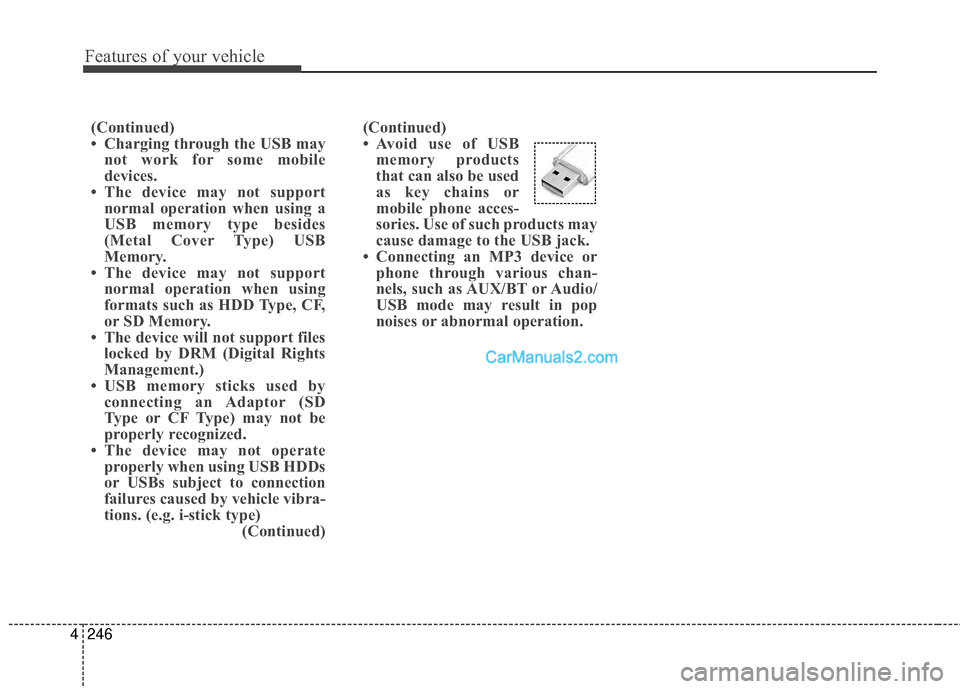
• Avoid use of USB
memory products
that can also be used
as key chains or
mobile phone acces-
sories. Use of such products may
cause damage to the USB jack.
• Connecting an MP3 device or phone through various chan-
nels, such as AUX/BT or Audio/
USB mode may result in pop
noises or abnormal operation.
(Continued)
• Charging through the USB may
not work for some mobile
devices.
• The device may not support normal operation when using a
USB memory type besides
(Metal Cover Type) USB
Memory.
• The device may not support normal operation when using
formats such as HDD Type, CF,
or SD Memory.
• The device will not support files locked by DRM (Digital Rights
Management.)
• USB memory sticks used by connecting an Adaptor (SD
Type or CF Type) may not be
properly recognized.
• The device may not operate properly when using USB HDDs
or USBs subject to connection
failures caused by vehicle vibra-
tions. (e.g. i-stick type) (Continued)
Page 345 of 759
Features of your vehicle
248
4
Using USB Mode
Playing/Pausing USB Files
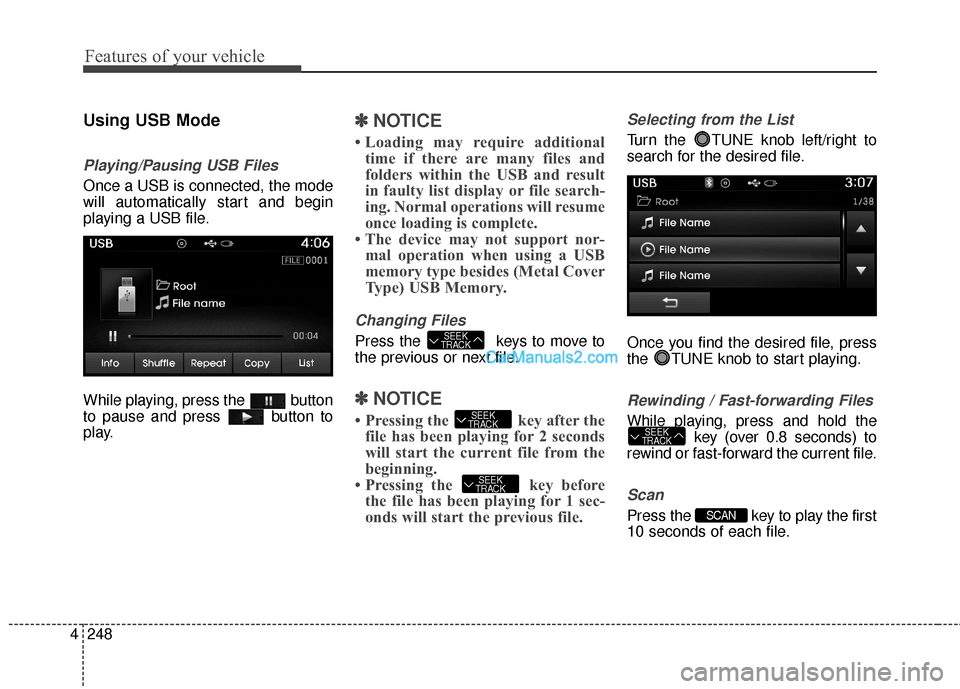
Once a USB is connected, the mode
will automatically start and begin
playing a USB file.
While playing, press the button
to pause and press button to
play.
✽ ✽
NOTICE
• Loading may require additional
time if there are many files and
folders within the USB and result
in faulty list display or file search-
ing. Normal operations will resume
once loading is complete.
• The device may not support nor- mal operation when using a USB
memory type besides (Metal Cover
Type) USB Memory.
Changing Files
Press the keys to move to
the previous or next file.
✽ ✽ NOTICE
• Pressing the key after the
file has been playing for 2 seconds
will start the current file from the
beginning.
• Pressing the key before the file has been playing for 1 sec-
onds will start the previous file.
Selecting from the List
Turn the TUNE knob left/right to
search for the desired file.
Once you find the desired file, press
the TUNE knob to start playing.
Rewinding / Fast-forwarding Files
While playing, press and hold the
key (over 0.8 seconds) to
rewind or fast-forward the current file.
Scan
Press the key to play the first
10 seconds of each file.SCAN
SEEK
TRACK
SEEK
TRACK
SEEK
TRACK
SEEK
TRACK
Page 346 of 759
4249
Features of your vehicle
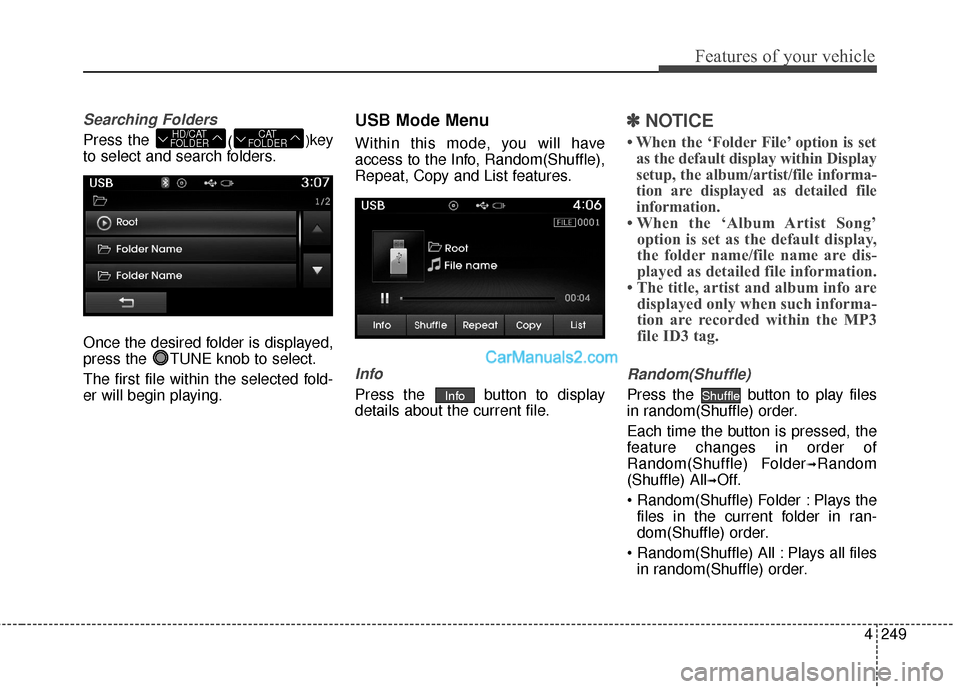
Searching Folders
Press the ()key
to select and search folders.
Once the desired folder is displayed,
press the TUNE knob to select.
The first file within the selected fold-
er will begin playing.
USB Mode Menu
Within this mode, you will have
access to the Info, Random(Shuffle),
Repeat, Copy and List features.
Info
Press the button to display
details about the current file.
✽ ✽ NOTICE
• When the ‘Folder File’ option is set
as the default display within Display
setup, the album/artist/file informa-
tion are displayed as detailed file
information.
• When the ‘Album Artist Song’ option is set as the default display,
the folder name/file name are dis-
played as detailed file information.
• The title, artist and album info are displayed only when such informa-
tion are recorded within the MP3
file ID3 tag.
Random(Shuffle)
Press the button to play files
in random(Shuffle) order.
Each time the button is pressed, the
feature changes in order of
Random(Shuffle) Folder
➟Random
(Shuffle) All
➟Off.
Plays the files in the current folder in ran-
dom(Shuffle) order.
Plays all files in random(Shuffle) order.
ShuffleInfo
CAT
FOLDERHD/CAT
FOLDER
Page 348 of 759
4251
Features of your vehicle
✽
✽NOTICE - USING THE
iPod®DEVICE
• iPod®is a registered trademark
of Apple Inc.
• In order to use the iPod
®while
operating the keys, you must use
a dedicated iPod
®cable. (the
cable that is supplied when pur-
chasing iPod
®/iPhone®prod-
ucts)
• If the iPod
®is connected to the
vehicle while it is playing, a high
pitch sound could occur for
approximately 1-2 seconds
immediately after connecting. If
possible, connect the iPod
®to
the vehicle with the iPod®
stopped/paused.
• During ACC ON state, connect- ing the iPod
®through the iPod®
cable will charge the iPod®
through the car audio system.
• When connecting with the iPod®
cable, make sure to fully insert
the jack to prevent communica-
tion interference. (Continued)(Continued)
• When the EQ features of an
external device, such as the
iPod
®, and the audio system are
both active, EQ effects could
overlap and cause sound deteri-
oration and distortion.
Whenever possible, turn off the
EQ feature within the external
device upon use by connecting
with the audio system.
• Noise may occur when an iPod
®
or AUX device is connected.
When such devices are not
being used, disconnect the
device for storage.
• When the iPod
®or AUX device
power is connected to the power
jack, playing the external device
may result in noise. In such
cases, disconnect the power con-
nection before use.
• Skipping or improper operation may occur depending on the
characteristics of your iPod
®
/iPhone®device. (Continued) (Continued)
• If your iPhone
®is connected to
both the Bluetooth®Wireless
Technology and USB, the sound
may not be properly played. In
your iPhone
®, select the Dock
connector or Bluetooth®
Wireless Technology to change
the sound output (source).
• iPod
®mode cannot be operated
when the iPod®cannot be recog-
nized due to versions that do not
support communication proto-
cols.
• For fifth generation iPod
®Nano
devices, the iPod®may not be
recognized when the battery
level is low. Please charge the
iPod
®for use.
• Search/play orders shown within the iPod
®device may differ with
the orders shown within the
audio system.
• If the iPod
®malfunctions due to
an iPod®device defect, reset the
iPod®and try again. (To learn
more, refer to your iPod®manu-
al) (Continued)
Page 349 of 759
Features of your vehicle
252
4
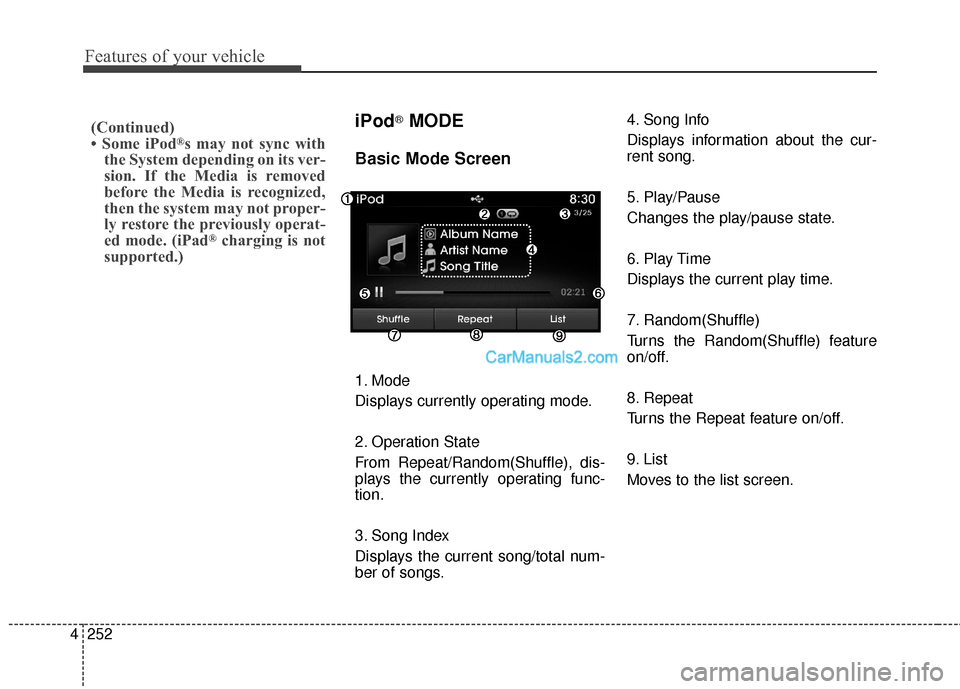
iPod®MODE
Basic Mode Screen
1. Mode
Displays currently operating mode.
2. Operation State
From Repeat/Random(Shuffle), dis-
plays the currently operating func-
tion.
3. Song Index
Displays the current song/total num-
ber of songs. 4. Song Info
Displays information about the cur-
rent song.
5. Play/Pause
Changes the play/pause state.
6. Play Time
Displays the current play time.
7. Random(Shuffle)
Turns the Random(Shuffle) feature
on/off.
8. Repeat
Turns the Repeat feature on/off.
9. List
Moves to the list screen.
(Continued)
• Some iPod®s may not sync with
the System depending on its ver-
sion. If the Media is removed
before the Media is recognized,
then the system may not proper-
ly restore the previously operat-
ed mode. (iPad
®charging is not
supported.)
Page 350 of 759
4253
Features of your vehicle
Using iPod®Mode
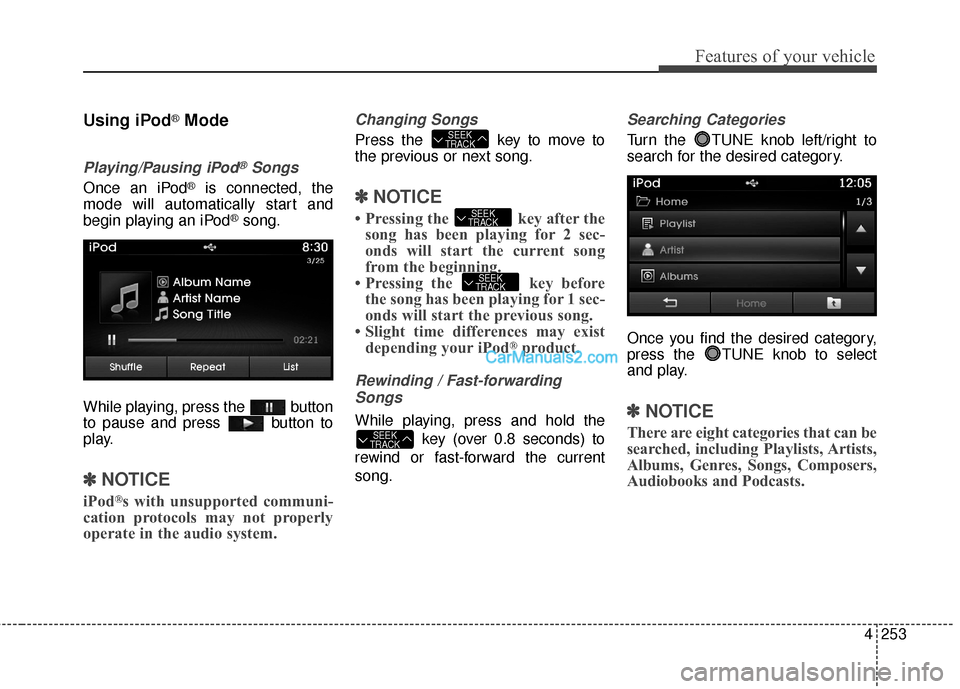
Playing/Pausing iPod®Songs
Once an iPod®is connected, the
mode will automatically start and
begin playing an iPod
®song.
While playing, press the button
to pause and press button to
play.
✽ ✽ NOTICE
iPod®s with unsupported communi-
cation protocols may not properly
operate in the audio system.
Changing Songs
Press the key to move to
the previous or next song.
✽ ✽ NOTICE
• Pressing the key after the
song has been playing for 2 sec-
onds will start the current song
from the beginning.
• Pressing the key before the song has been playing for 1 sec-
onds will start the previous song.
• Slight time differences may exist depending your iPod
®product.
Rewinding / Fast-forwarding
Songs
While playing, press and hold the
key (over 0.8 seconds) to
rewind or fast-forward the current
song.
Searching Categories
Turn the TUNE knob left/right to
search for the desired category.
Once you find the desired category,
press the TUNE knob to select
and play.
✽ ✽ NOTICE
There are eight categories that can be
searched, including Playlists, Artists,
Albums, Genres, Songs, Composers,
Audiobooks and Podcasts.SEEK
TRACK
SEEK
TRACK
SEEK
TRACK
SEEK
TRACK
Page 355 of 759
Features of your vehicle
258
4
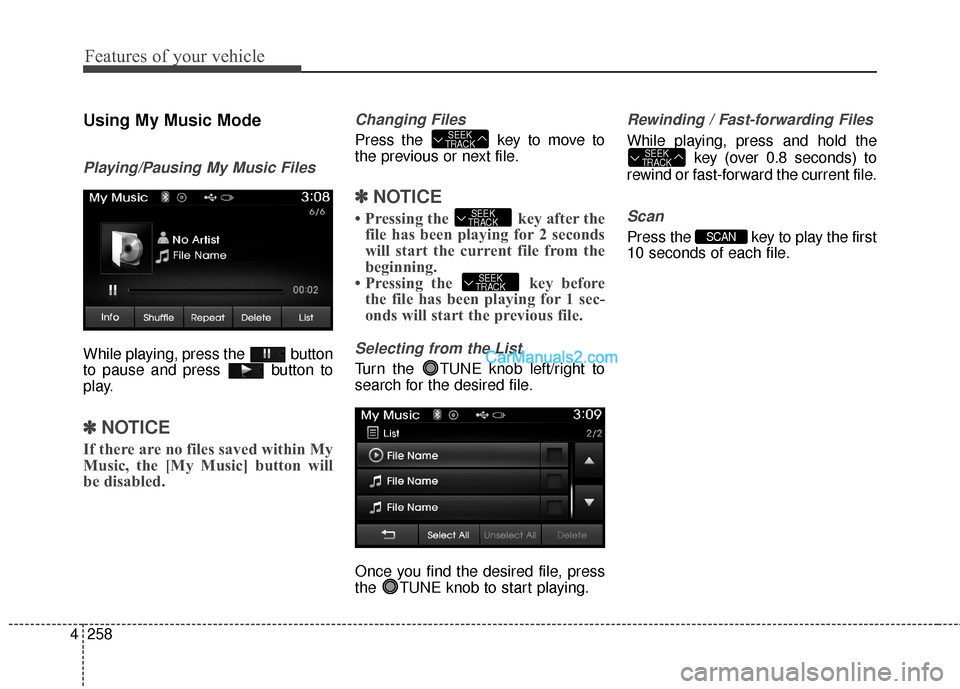
Using My Music Mode
Playing/Pausing My Music Files
While playing, press the button
to pause and press button to
play.
✽ ✽
NOTICE
If there are no files saved within My
Music, the [My Music] button will
be disabled.
Changing Files
Press the key to move to
the previous or next file.
✽ ✽NOTICE
• Pressing the key after the
file has been playing for 2 seconds
will start the current file from the
beginning.
• Pressing the key before the file has been playing for 1 sec-
onds will start the previous file.
Selecting from the List
Turn the TUNE knob left/right to
search for the desired file.
Once you find the desired file, press
the TUNE knob to start playing.
Rewinding / Fast-forwarding Files
While playing, press and hold the
key (over 0.8 seconds) to
rewind or fast-forward the current file.
Scan
Press the key to play the first
10 seconds of each file.SCAN
SEEK
TRACK
SEEK
TRACK
SEEK
TRACK
SEEK
TRACK
Page 356 of 759

4259
Features of your vehicle
My Music Mode Menu
Within this mode, you will have
access to the Info, Random(Shuffle),
Repeat, Delete and List features.
Info
Press the button to display
details about the current file.
✽ ✽NOTICE
The title, artist and album info are
displayed only when such informa-
tion is recorded within the MP3 file
ID3 tag.
Random
Press the button to play files
in random order. Press the button
again to turn the Random feature off.
Repeat
Press the button to repeat the
current song. Press the button again
to turn the repeat feature off.
Deleting Files
Press the button to delete the
current file.
List
Press the button to display the
file list screen.
Turn the TUNE knob left/right to
search for files. Once the desired file
is displayed, press the knob to select
and play.List
Delete
Repeat
Shuffle
Info
Page 363 of 759
Features of your vehicle
266
4
✽
✽
NOTICE
• Bluetooth®Wireless Technology
features supported within the vehi-
cle are as follows. Some features
may not be supported depending
on your Bluetooth
®Wireless
Technology device.
- Outgoing/Incoming Handsfree calls
- Operations during a call (Switch to Private, Switch to call waiting,
MIC on/off)
- Downloading Call History
- Downloading Mobile Contacts
- Bluetooth
®Wireless Technology
device auto connection
- Bluetooth Audio Streaming
• Up to five Bluetooth
®Wireless
Technology devices can be paired
to the Car Handsfree system.
• Only one Bluetooth
®Wireless
Technology device can be connect-
ed at a time.
• Other devices cannot be paired while a Bluetooth
®Wireless
Technology device is connected.
• Only Bluetooth
®Wireless
Technology Handsfree and
Bluetooth audio related features
are supported. • Bluetooth related operations are
possible only with devices that sup-
port Handsfree or audio features,
such as a Bluetooth
®Wireless
Technology mobile phone or a
Bluetooth audio device.
• If a connected Bluetooth
®Wireless
Technology device becomes discon-
nected due to being out of commu-
nication range, turning the device
OFF, or a Bluetooth
®Wireless
Technology communication error,
corresponding Bluetooth
®Wireless
Technology devices are automati-
cally searched and reconnected.
• If the system becomes unstable due to communication errors between
the car Handsfree and the
Bluetooth
®Wireless Technology
device, reset the device by turning
off and back on again. Upon reset-
ting Bluetooth
®Wireless
Technology device, the system will
be restored. • After pairing is complete, a con-
tacts download request is sent once
to the mobile phone. Some mobile
phones may require confirmation
upon receiving a download
request, ensure your mobile phone
accepts the connection. Refer to
your phones user’s manual for
additional information regarding
phone pairing and connections.
Page 372 of 759
4275
Features of your vehicle
✽
✽NOTICE BEFORE DOWN-
LOADING CONTACTS
• Only contacts within connected
phones can be downloaded. Also
check to see that your mobile
phone supports the download fea-
ture.
• To learn more about whether your mobile phone supports con-
tacts downloads, refer to your
mobile phone user’s manual.
• The contacts for only the connect- ed phone can be downloaded.
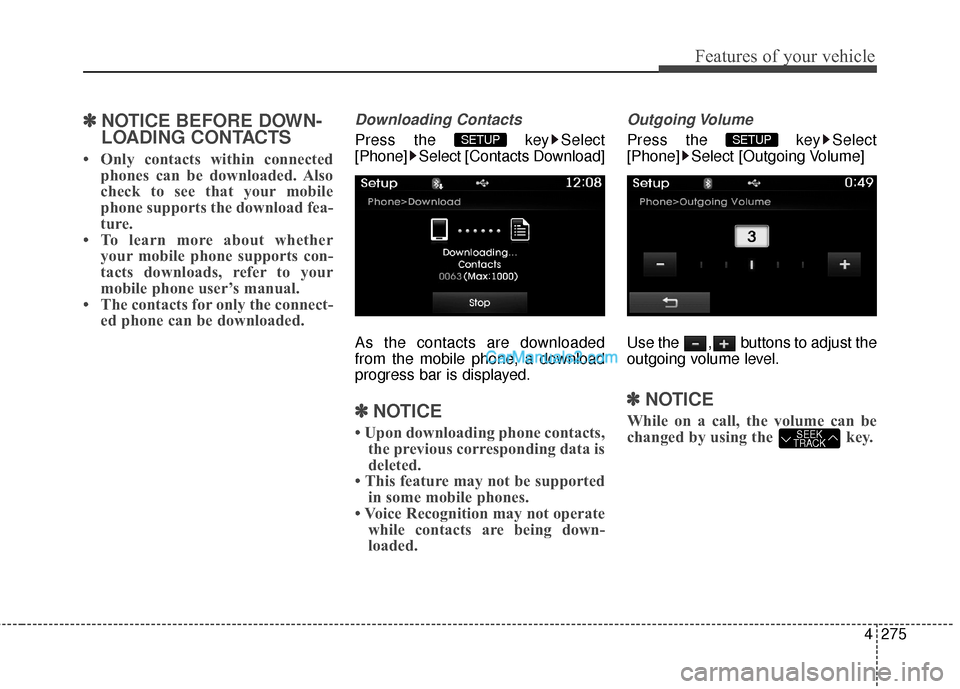
Downloading Contacts
Press the key Select
[Phone] Select [Contacts Download]
As the contacts are downloaded
from the mobile phone, a download
progress bar is displayed.
✽ ✽NOTICE
• Upon downloading phone contacts,
the previous corresponding data is
deleted.
• This feature may not be supported in some mobile phones.
• Voice Recognition may not operate while contacts are being down-
loaded.
Outgoing Volume
Press the key Select
[Phone] Select [Outgoing Volume]
Use the , buttons to adjust the
outgoing volume level.
✽ ✽ NOTICE
While on a call, the volume can be
changed by using the key.SEEK
TRACK
SETUP SETUP