ECO Hyundai Santa Fe 2016 Owner's Manual
[x] Cancel search | Manufacturer: HYUNDAI, Model Year: 2016, Model line: Santa Fe, Model: Hyundai Santa Fe 2016Pages: 759, PDF Size: 29.36 MB
Page 277 of 759
![Hyundai Santa Fe 2016 Owners Manual Features of your vehicle
180
4
Sound Settings
This menu allows you to set the ‘Bass,
Middle, Treble’ and the Sound Fader and
Balance.
Select [Sound Settings] Select
menu through
TUNE knobTu r n
T](/img/35/16331/w960_16331-276.png "Hyundai Santa Fe 2016 Owners Manual Features of your vehicle
180
4
Sound Settings
This menu allows you to set the ‘Bass,
Middle, Treble’ and the Sound Fader and
Balance.
Select [Sound Settings] Select
menu through
TUNE knobTu r n
T")
Features of your vehicle
180
4
Sound Settings
This menu allows you to set the ‘Bass,
Middle, Treble’ and the Sound Fader and
Balance.
Select [Sound Settings] Select
menu through
TUNE knobTu r n
TUNE knobleft/right to set
Bass, Middle, Treble : Selects the sound tone.
Fader, Balance : Moves the sound fader and balance.
Default : Restores default settings.
❈ Back : While adjusting values, re-
pressing the TUNE knob will
restore the parent menu.
Virtual Sound
The PoewrBass, PowerTreble, and
Surround can be set.
Select [Virtual Sound] Set menu
through
TUNEknob Set /
through
TUNEknob
This is a sound sys- tem feature that provides live bass.
This is a sound system feature that provides live tremble.
This is a sound system feature that provides surround
sound.
❈ May differ depending on the selected
audio.
Speed Dependent Volume Control
This feature is used to automatically
control the volume level according to
the speed of the vehicle.
Select [Speed Dependent Vol.] Set
[On/Off]
TUNEknob
Voice Recognition Volume
Adjusts voice recognition volume.
Select [Voice Recognition Vol.] Set
volume of
TUNEknob
Off
On
Page 278 of 759
4181
Features of your vehicle
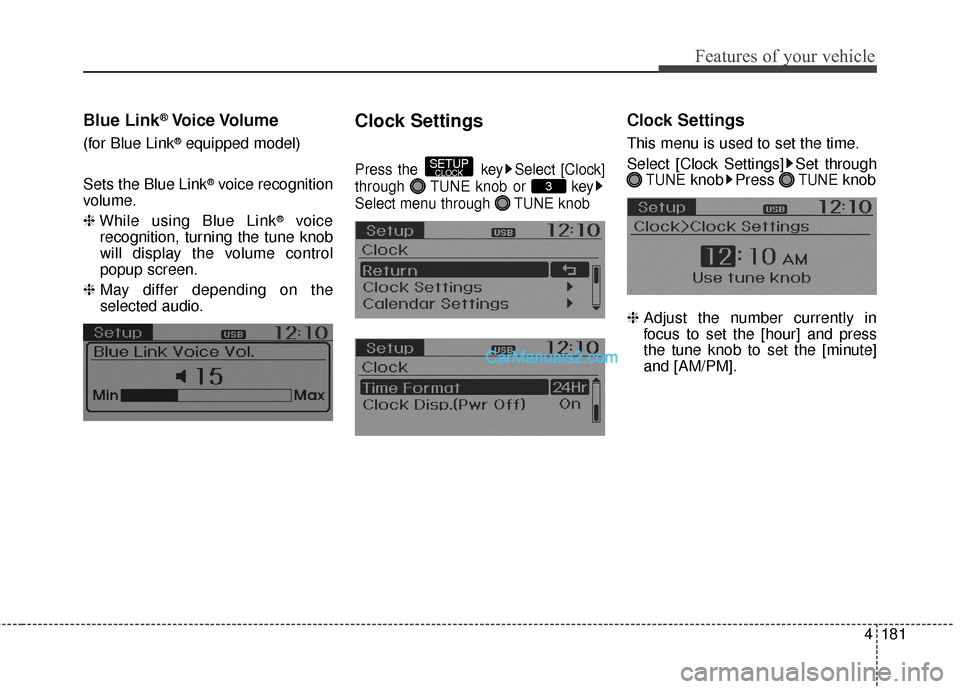
Blue Link®Voice Volume
(for Blue Link®equipped model)
Sets the Blue Link
®voice recognition
volume.
❈ While using Blue Link
®voice
recognition, turning the tune knob
will display the volume control
popup screen.
❈ May differ depending on the
selected audio.
Clock Settings
Press the key Select [Clock]
through TUNE knob or key
Select menu through TUNE knob
Clock Settings
This menu is used to set the time.
Select [Clock Settings] Set through
TUNEknob Press TUNEknob
❈ Adjust the number currently in
focus to set the [hour] and press
the tune knob to set the [minute]
and [AM/PM].3
SETUPCLOCK
Page 280 of 759
![Hyundai Santa Fe 2016 Owners Manual 4183
Features of your vehicle
SYSTEM SETTINGS
Press the key Select
[System] through tune knob or
key Select menu through TUNE
knob
Memory Information
Displays currently used memory and
total system](/img/35/16331/w960_16331-279.png "Hyundai Santa Fe 2016 Owners Manual 4183
Features of your vehicle
SYSTEM SETTINGS
Press the key Select
[System] through tune knob or
key Select menu through TUNE
knob
Memory Information
Displays currently used memory and
total system")
4183
Features of your vehicle
SYSTEM SETTINGS
Press the key Select
[System] through tune knob or
key Select menu through TUNE
knob
Memory Information
Displays currently used memory and
total system memory.
Select [Memory Information] OK
The currently used memory is dis-
played on the left side while the total
system memory is displayed on the
right side.
Prompt Feedback
This feature is used to change voice
command feedback between Normal
and Expert modes.
Select [Prompt Feedback] Set
through
TUNEknob
This mode is for beginner users and provides detailed
instructions during voice command
operation. This mode is for expert users
and omits some information during
voice command operation. (When
using Expert mode, guidance
instructions can be heard through
the [Help] or [Menu] commands.
Language
This menu is used to set the display
and voice recognition language.
Select [Language]
Set through TUNE knob
❈ The system will reboot after the
language is changed.
❈ Language support by region
- English, Francais, Espanol
5
SETUP
Page 281 of 759
Features of your vehicle
184
4
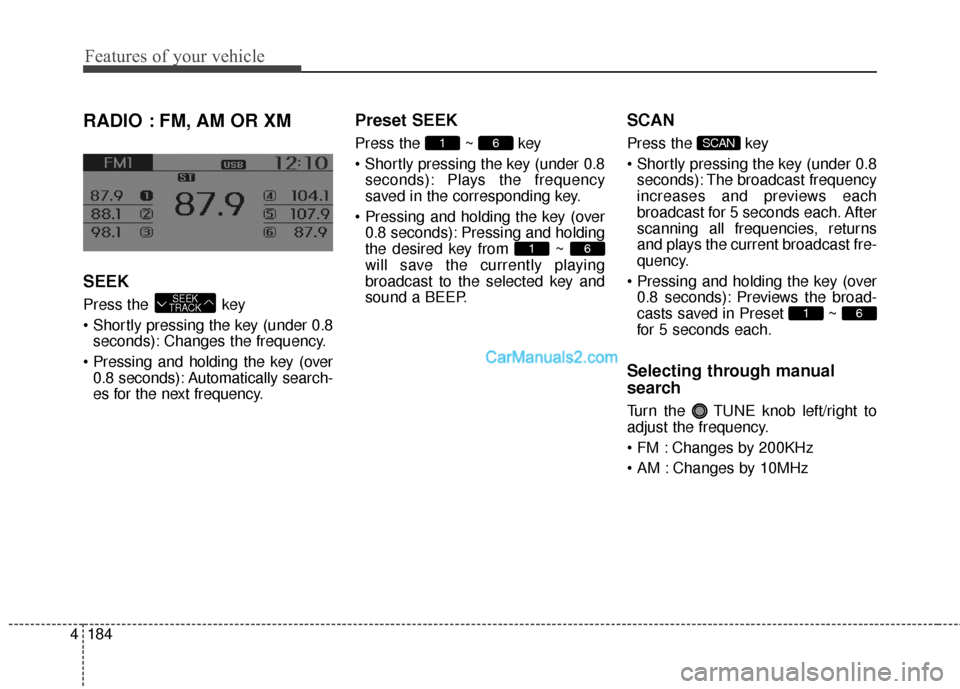
RADIO : FM, AM OR XM
SEEK
Press the key
seconds): Changes the frequency.
0.8 seconds): Automatically search-
es for the next frequency.
Preset SEEK
Press the ~ key
seconds): Plays the frequency
saved in the corresponding key.
0.8 seconds): Pressing and holding
the desired key from ~
will save the currently playing
broadcast to the selected key and
sound a BEEP.
SCAN
Press the key
seconds): The broadcast frequency
increases and previews each
broadcast for 5 seconds each. After
scanning all frequencies, returns
and plays the current broadcast fre-
quency.
0.8 seconds): Previews the broad-
casts saved in Preset ~
for 5 seconds each.
Selecting through manual
search
Turn the TUNE knob left/right to
adjust the frequency.
Changes by 200KHz
Changes by 10MHz
61
SCAN
61
61
SEEK
TRACK
Page 283 of 759
Features of your vehicle
186
4
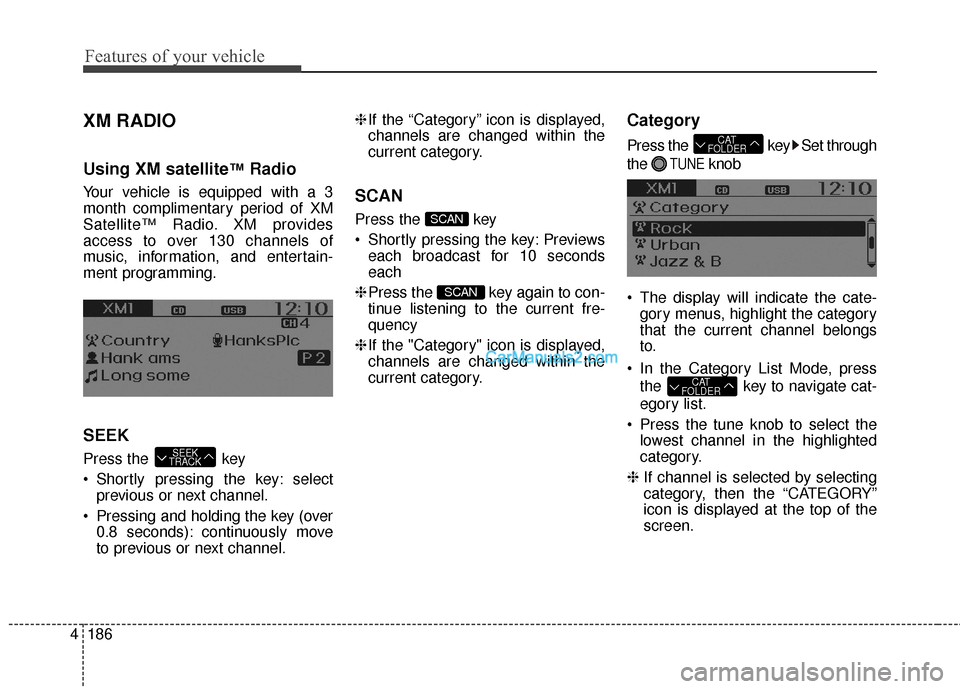
XM RADIO
Using XM satellite™Radio
Your vehicle is equipped with a 3
month complimentary period of XM
Satellite™ Radio. XM provides
access to over 130 channels of
music, information, and entertain-
ment programming.
SEEK
Press the key
Shortly pressing the key: select
previous or next channel.
Pressing and holding the key (over 0.8 seconds): continuously move
to previous or next channel. ❈
If the “Category” icon is displayed,
channels are changed within the
current category.
SCAN
Press the key
Shortly pressing the key: Previews each broadcast for 10 seconds
each
❈ Press the key again to con-
tinue listening to the current fre-
quency
❈ If the "Category" icon is displayed,
channels are changed within the
current category.
Category
Press the key Set through
the
TUNEknob
The display will indicate the cate- gory menus, highlight the category
that the current channel belongs
to.
In the Category List Mode, press the key to navigate cat-
egory list.
Press the tune knob to select the lowest channel in the highlighted
category.
❈ If channel is selected by selecting
category, then the “CATEGORY”
icon is displayed at the top of the
screen.
CAT
FOLDER
CAT
FOLDER
SCAN
SCAN
SEEK
TRACK
Page 284 of 759
4187
Features of your vehicle
Preset
Press the ~ key
Shortly pressing the key: Plays thefrequency saved in the correspon-
ding key.
Pressing and holding the key (over 0.8 seconds): Pressing and holding
the desired key from ~
will save the current broadcast to
the selected key and sound a
BEEP.
Tune
Rotate TUNE knob : Changesthe channel number or scrolls cate-
gory list.
Press TUNE knob : Selects the menu.
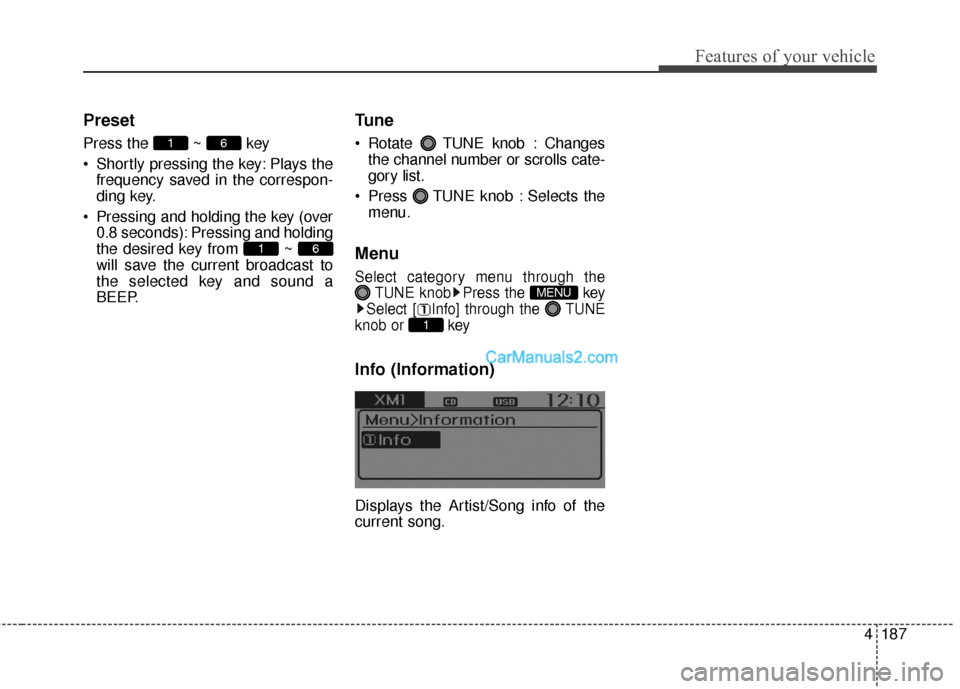
Menu
Select category menu through the TUNE knob Press the key
Select [ Info] through the TUNE
knob or key
Info (Information)
Displays the Artist/Song info of the
current song.
1
MENU
61
61
Page 286 of 759
4189
Features of your vehicle
MP3 CD, USB mode: FLD.RDM on
screen
Plays all files within the current fold-
er in random order.
iPod
®mode: ALB RDM on screen
Plays all files within albums of the
current category in random order.
MP3 CD, USB, iPod
®mode: ALL
RDM on screen
Plays all files in random order.
❈ Press the key again to turn
off repeat.
Changing Song/File
While song (file) is playing
key
Plays the
current song from the beginning.
❈ If the key is pressed
again within 3 second, the previ-
ous song is played.
0.8 seconds): Rewinds the song.
While song (file) is playing key
Plays the next song.
0.8 seconds): Fast forwards the
song.
Scan
While song (file) is playing
key
Scans all
songs from the next song for 10
seconds each.
❈ Press the key again to turn
off.
❈ The SCAN function is not support-
ed in iPod
®mode. Folder Search : MP3 CD, USB
Mode
While file is playing
(Folder Up) key
While file is playing
(Folder Down) key
❈
If a folder is selected by pressing
the TUNE knob, the first file
within the selected folder will be
played.
❈ In iPod
®mode, moves to the
Parent Folder.
Searching Songs (File)
TUNEknob : Searches
for songs (files)
TUNE knob : Plays selected song (file).
CAT
FOLDER
CAT
FOLDER
SCAN
SCAN
SEEK
TRACK
SEEK
TRACK
SEEK
TRACK
2RDM
Page 293 of 759
Features of your vehicle
196
4
PHONE
Before using the Bluetooth®Wireless
Technology phone features
Bluetooth®Wireless
Technology phone, you must first
pair and connect the
Bluetooth®
Wireless Technology mobile phone.
connected, it is not possible to
enter Phone mode. Once a phone
is paired or connected, the guid-
ance screen will be displayed.
tion(IGN/ACC ON), the
Bluetooth®
Wireless Technology phone will be
automatically connected. Even if
you are outside, the first
Bluetooth®
Wireless Technology phone will be
automatically connected once you
are in the vicinity of the vehicle. If
you do not want automatic
Bluetooth®Wireless Technology
phone connection, set the
Bluetooth®Wireless Technology
power to OFF.
PHONE
Making a call using the
Steering-wheel mount controls
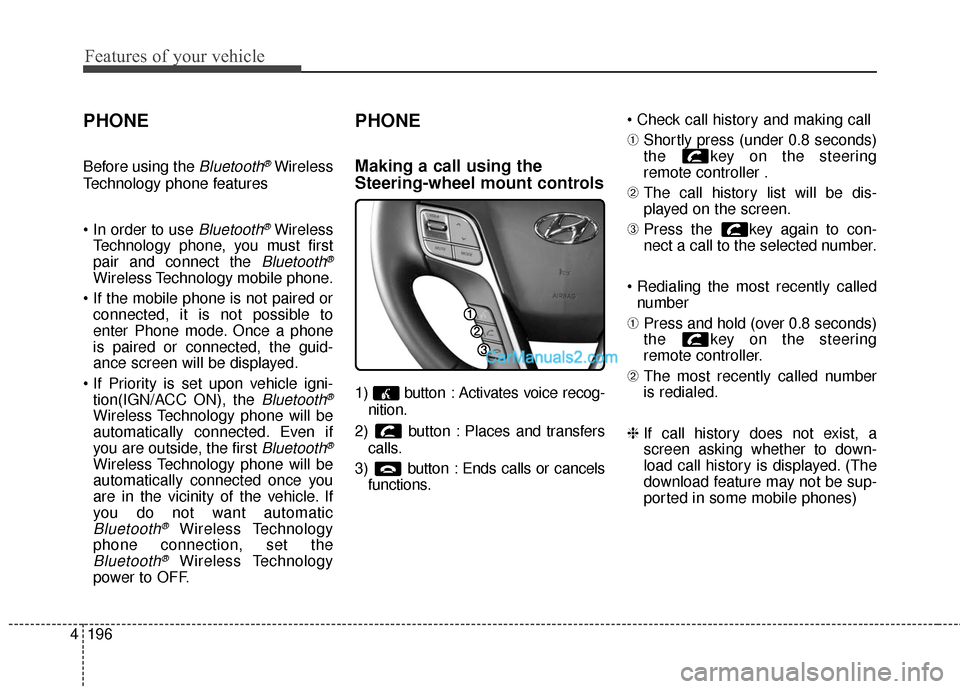
1) button : Activates voice recog-
nition.
2) button : Places and transfers calls.
3) button : Ends calls or cancels functions.
➀
Shortly press (under 0.8 seconds)
the key on the steering
remote controller .
\b The call history list will be dis-
played on the screen.
➂ Press the key again to con-
nect a call to the selected number.
number
➀ Press and hold (over 0.8 seconds)
the key on the steering
remote controller.
\b The most recently called number
is redialed.
❈ If call history does not exist, a
screen asking whether to down-
load call history is displayed. (The
download feature may not be sup-
ported in some mobile phones)
Page 297 of 759
Features of your vehicle
200
4
(Continued)
• Bluetooth related operations are
possible only with devices that
support Handsfree or audio fea-
tures, such as a Bluetooth
®
Wireless Technology mobile phone
or a Bluetooth audio device.
• If a connected Bluetooth
®Wireless
Technology device becomes dis-
connected due to being out of com-
munication range, turning the
device OFF, or a Bluetooth
®
Wireless Technology communica-
tion error, corresponding
Bluetooth
®Wireless Technology
devices are automatically searched
and reconnected.
• If the system becomes unstable due to communication errors
between the car Handsfree and the
Bluetooth
®Wireless Technology
device, reset the device by turning
off and back on again. Upon reset-
ting Bluetooth
®Wireless
Technology device, the system will
be restored. (Continued)(Continued)
• After pairing is complete, a con-
tacts download request is sent
once to the mobile phone. Some
mobile phones may require confir-
mation upon receiving a download
request, ensure your mobile phone
accepts the connection. Refer to
your phones user’s manual for
additional information regarding
phone pairing and connections.
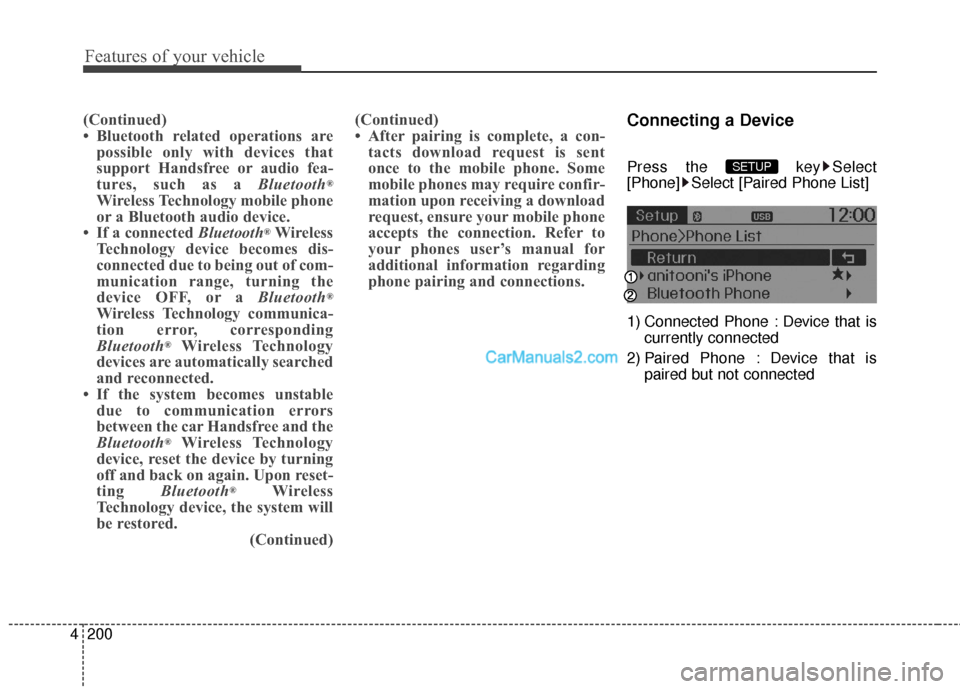
Connecting a Device
Press the key Select
[Phone] Select [Paired Phone List]
1) Connected Phone : Device that is
currently connected
2) Paired Phone : Device that is paired but not connectedSETUP
Page 305 of 759
Features of your vehicle
208
4
✽
✽
NOTICE BEFORE DOWN-
LOADING CONTACTS
• Only contacts within connected
phones can be downloaded. Also
check to see that your mobile
phone supports the download fea-
ture.
• To learn more about whether your mobile phone supports contacts
downloads, refer to your mobile
phone user’s manual.
• The contacts for only the connect- ed phone can be downloaded.
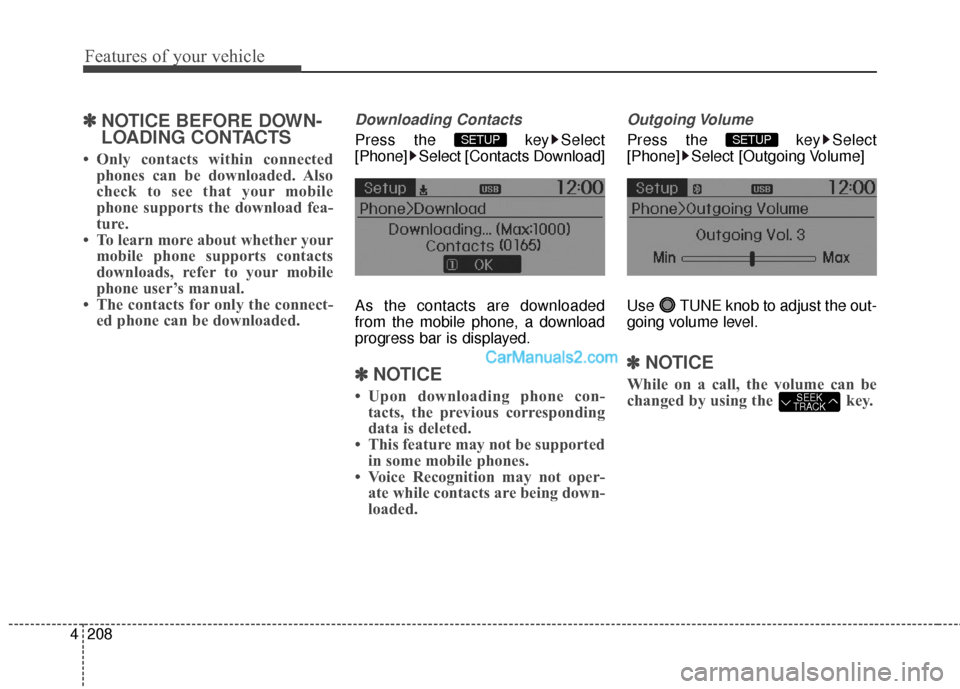
Downloading Contacts
Press the key Select
[Phone] Select [Contacts Download]
As the contacts are downloaded
from the mobile phone, a download
progress bar is displayed.
✽ ✽ NOTICE
• Upon downloading phone con-
tacts, the previous corresponding
data is deleted.
• This feature may not be supported in some mobile phones.
• Voice Recognition may not oper- ate while contacts are being down-
loaded.
Outgoing Volume
Press the key Select
[Phone] Select [Outgoing Volume]
Use TUNE knob to adjust the out-
going volume level.
✽ ✽ NOTICE
While on a call, the volume can be
changed by using the key.SEEK
TRACK
SETUP SETUP