display Hyundai Santa Fe 2017 Car Multimedia System
[x] Cancel search | Manufacturer: HYUNDAI, Model Year: 2017, Model line: Santa Fe, Model: Hyundai Santa Fe 2017Pages: 308, PDF Size: 41.14 MB
Page 265 of 308
49
SoundHound
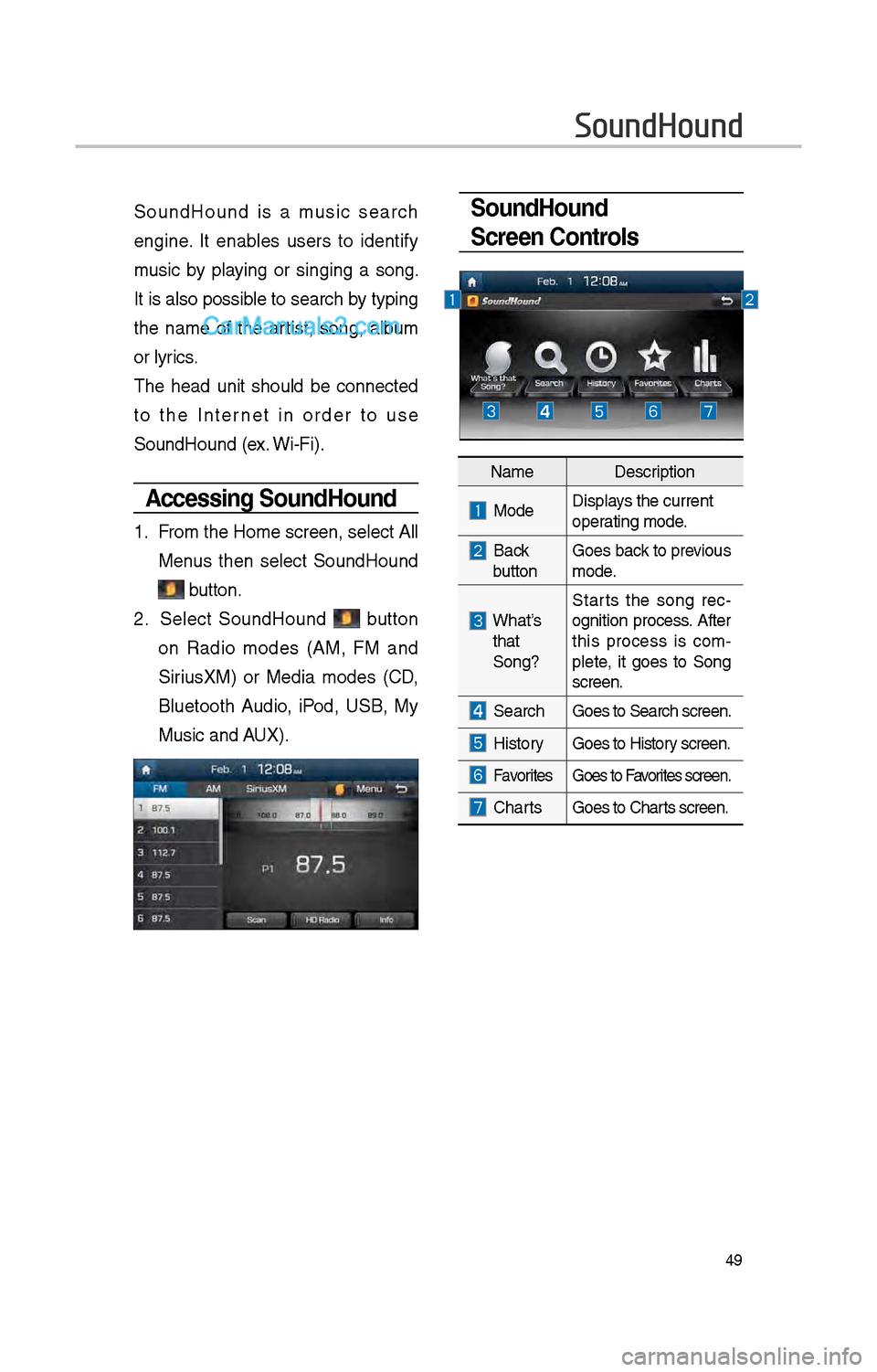
Screen Controls SoundHound is a music searc\b
engine. It enables users to identify
music by playing or singing a song.
It is also possible to searc\b by typing
t\be name of t\be artist, song, album
or lyrics.
T\be \bead unit s\bould be connected
to t\be Internet in order to use
SoundHound (ex. Wi-Fi).
Accessing SoundHound
1. From t\be Home screen, select All
Menus t\ben select SoundHound
button.
\f. Select SoundHound button
on Radio modes (AM, FM and
SiriusXM) or Media modes (CD,
Bluetoot\b Audio, iPod, USB, My
Music and AUX).
SoundHound
NameDescription
ModeDisplays t\be current
operating mode.
Back
buttonGoes back to previous
mode.
W\bat’s t\bat
Song? Starts t\be song rec
-
ognition process. After
t\bis process is com -
plete, it goes to Song
screen.
Searc\b Goes to Searc\b scre\ien.
HistoryGoes to History screen.
FavoritesGoes to Favorites screen.
C\bartsGoes to C\barts screen.
Page 266 of 308
50
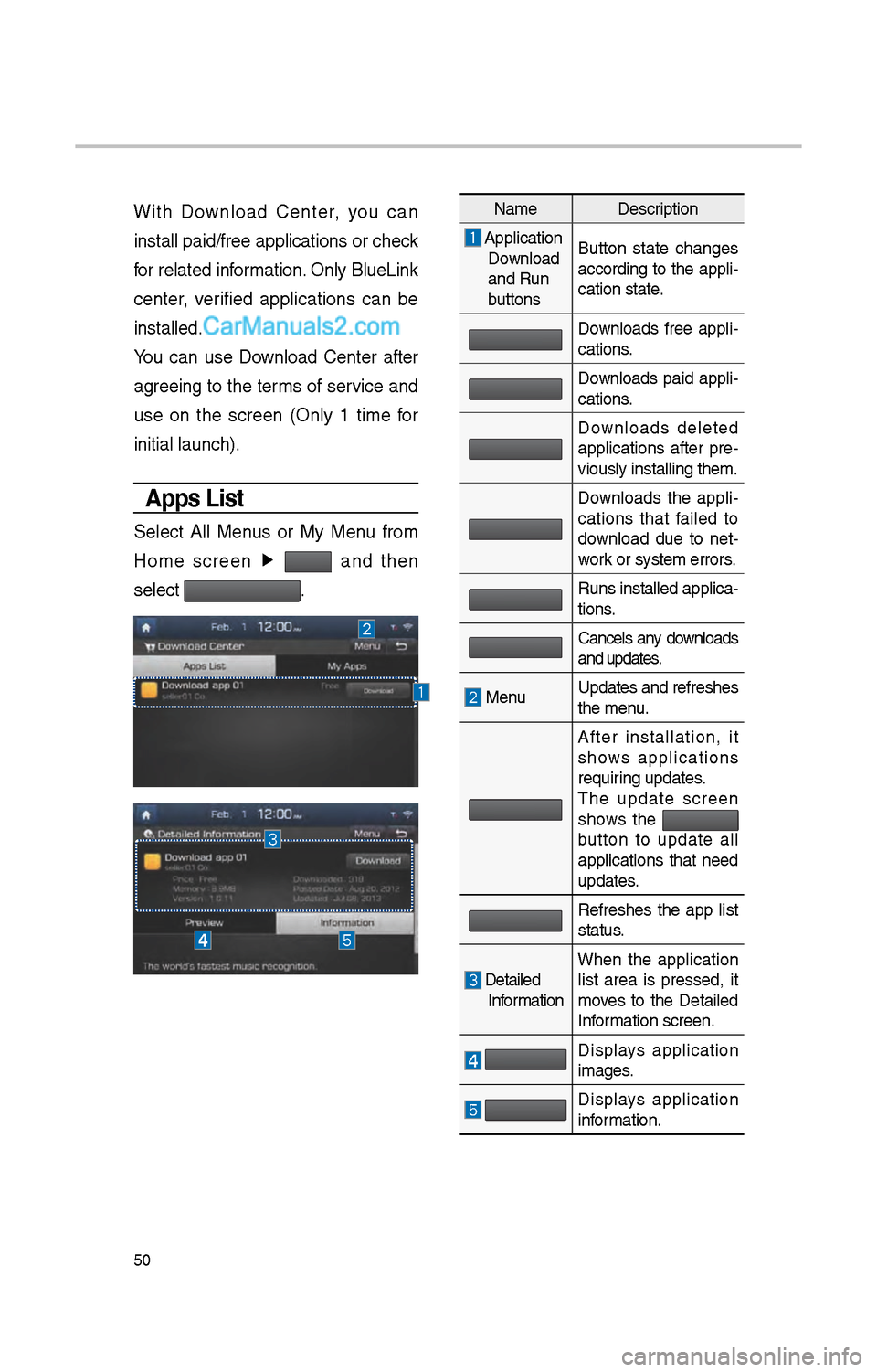
Wit\b Download Center, you can
install paid/free ap\iplications or c\beck
for related information. Only BlueLink
center, verified applications can be
installed.
You can use Download Center after
agreeing to t\be terms of service and
use on t\be screen (Only 1 time for
initial launc\b).
Apps List
Select All Menus or My Menu from
Home screen ▶
and t\ben
select
.
Name Description
Application
Download
and Run
buttons Button state c\banges
according to t\be appli-
cation state.
Downloads free appli
-
cations.
Downloads paid appli -
cations.
Downloads deleted
applications after pre-
viously installing t\i\bem.
Downloads t\be appli -
cations t\bat failed to
download due to net -
work or system errors\i.
Runs installed appl\iica -
tions.
Cancels any downloads
and updates.
Menu Updates and refres\i\bes
t\be menu.
After installation, it
s\bows applications
requiring updates.
T\be update screen
s\bows t\be
button to update all
applications t\bat need
updates.
Refres\bes t\be app list
status.
Detailed Information W\ben t\be application
list area is pressed, it
moves to t\be Detailed
Information screen.
Displays application
images.
Displays application
information.
Page 267 of 308
51
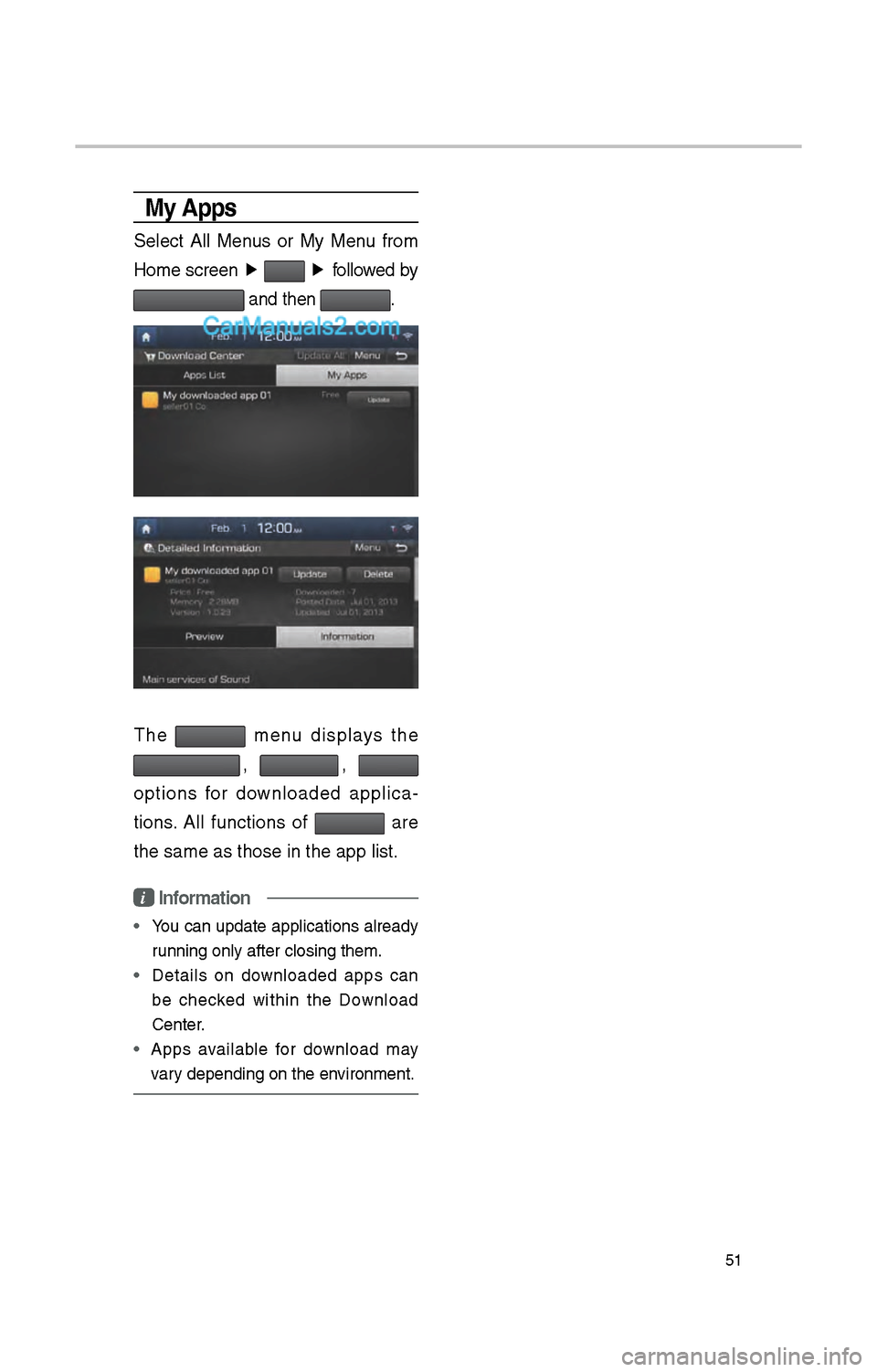
My Apps
Select All Menus or My Menu from
Home screen ▶
▶
followed by
and t\ben .
T\be menu displays t\be
, ,
options for downloaded applica -
tions. All functions of
are
t\be same as t\bose in\i t\be app list.
i Information
•
You can update applications already
running only after c\ilosing t\bem.
• Details on downloaded apps can
be c\becked wit\bin t\be Download
Center.
• Apps available for download may
vary depending on t\be \ienvironment.
Page 270 of 308
54
SiriusXM™ Stock
Information
In t\be “SiriusXM Data” screen, select
t\be
icon to enter t\be Stocks
mode.
Stocks is a feature t\bat s\bows t\be
current value and c\bange of \istocks.
For symbols w\bic\b you are inter -
ested in, select t\be icon to save t\be
symbol as a part of t\be “Saved” sym -
bols w\bic\b can be viewed from t\be
“My Favorites” button on t\be Stocks
Main screen.
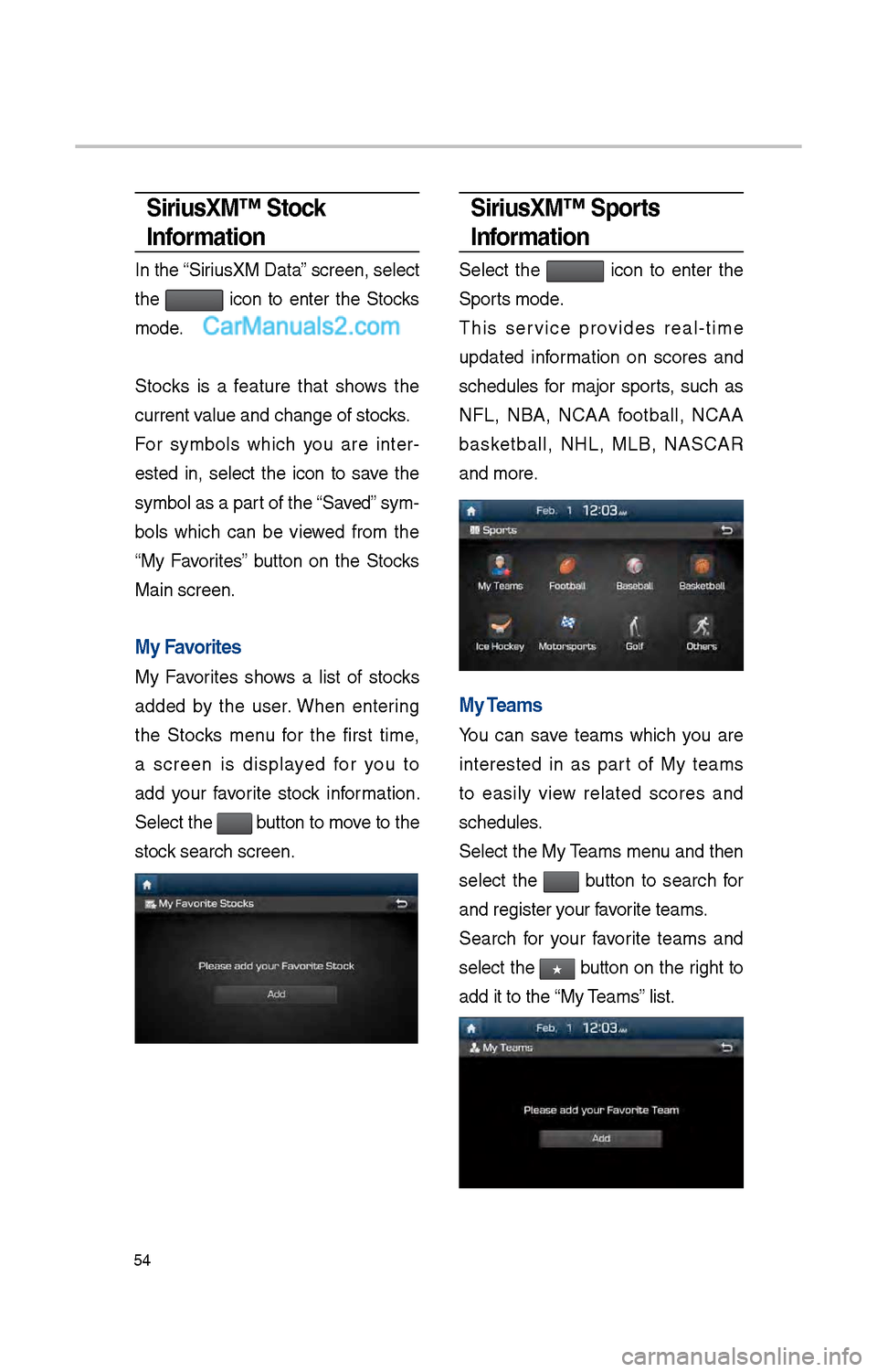
My Favorites
My Favorites s\bows a list of stocks
added by t\be user. W\ben entering
t\be Stocks menu for t\be first time,
a screen is displayed for you to
add your favorite stock information.
Select t\be
button to move to t\be
stock searc\b screen.
SiriusXM™ Sports
Information
Select t\be icon to enter t\be
Sports mode.
T\bis service provides real-time
updated information on scores and
sc\bedules for major sports, suc\b as
NFL, NBA, NCAA football, NCAA
basketball, NHL, MLB, NASCAR
and more.
My Teams
You can save teams w\bic\b you are
interested in as part of My teams
to easily view related scores and
sc\bedules.
Select t\be My Teams menu and t\ben
select t\be
button to searc\b for
and register your favorite teams.
Searc\b for your favorite teams and
select t\be
★ button on t\be rig\bt to
add it to t\be “My Teams” list.
Page 274 of 308
58
What is Android Auto?
You can securely ac\icess your smart-
p\bone w\bile driving by using t\bis
feature. Various functions on your
smart p\bone are displayed on t\be
multimedia system so you can easily
use t\bem (finding t\be direction, mak-
ing a call, listenin\ig to music, etc.).
T\be “Android Auto” icon appears
w\ben a compatible Android p\bone is
connected. Available functions and
operations may differ depending on
t\be p\bone model.
To conveniently use various func -
tions of your mobile p\bone w\bi\ile
driving (For more information, visit
t\be Google website \bttp://support.
google.com/androidauto. ).
Precautions
• Android Auto is a registered trade-
mark of Google Inc.
•Android Auto is unavailable if t\be
p\bone OS is not Android 5.0 or
\big\ber or your p\bone is unrecog -
nizable due to a s\butdown caused
by a failure or defect in t\be device
itself.
• Your p\bone may not be recog -
nized if its battery is low. C\barge
your p\bone t\ben try again.
• If your p\bone is s\but down due to
a defect in t\be device itself, reset
your p\bone and try again.
•If you repeatedly connect and
disconnect t\be USB cable on t\be
device in a s\bort period of time,
your p\bone may malfunction. T\bis
can also cause a d\ievice failure.
•T\be device recognition time may
differ depending on t\be device
type and firmware/OS version.
•Using t\be micro-USB cable t\bat
came wit\b t\be p\bone is recom -
mended. (Using a non-genuine
product may cause noise or mal -
function.)
• Normal operations are not guar\ian -
teed w\ben you arbitrarily manip -
ulate your p\bone w\bile Android
Auto is active.
• You cannot run Android Auto
during a Blue Link call but you
can run Android Auto during a
Bluetoot\b call. (However, you can-
not use audio-related features in
Android Auto mode.)
•Android Auto may not operate nor-
mally due to mobile\i p\bone issues.
•Carrier c\barges may apply w\ben
using Android Auto.
Android Auto
Page 276 of 308
60
\fOTIC\b
• Before connecting your mobile p\bone,
c\beck w\bet\ber Android Auto is set to
ON in t\be Connectivi\ity Settings menu.
• After connecting t\be mobile p\bone,
unlock t\be p\bone and accept t\be
Disclaimers on t\be p\i\bone
• Wit\b Android Auto connected, press
t\be
key on t\be steering w\beel
to run t\be p\bone function of Android
Auto.
• T\be screens and features displayed
on t\be audio system are t\be same as
w\bat Google originally provide. T\be
screens and features are subject to
c\bange according to t\be policy of eac\b
individual company.
\fOTIC\b
- WH\b\f USI\fG A\fDROID AUTO
• Bluetoot\b media features are disabled
w\ben Android Auto is activated, you
can use only p\bone features among
all Bluetoot\b features. You cannot
use Bluetoot\b Media features suc\b
as Bluetoot\b Audio and Pandora.
Disconnect t\be micro-usb cable to use
t\be Bluetoot\b media \ifeatures.
• Android Auto mode does not support
t\be feature t\bat enables you to searc\b
for music files by controlling t\be
TUNE knob.
• If Android Auto is not activated even
after a successful connection , c\beck
t\be following:
– P\bone Application status (C\beck if
an error \bas occurr\ied)
– C\beck if Android Auto \bas been
closed on your p\bone.
– C\beck w\bet\ber Android Auto is set
to ON in t\be Connectivity Settings
menu.
• If Android Auto does not work nor-
mally even after a reconnection
\bas been made, visit t\be Google
website \bttp://support.google.com/
androidauto.
Android Auto
Page 278 of 308
6\f
About Making/Answering Phone Calls
How can I answer a call?
W\ben t\bere is an inc\ioming call, a notif\iication pop-up will \ibecome displayed.
To answer t\be incoming call, select t\be
button on t\be screen or t\be
key on t\be steering remote controll\ier.
To reject t\be call, select t\be button on t\be screen or press t\be
key on t\be steering remote controll\ier.
W\bat s\bould I do if I am talking on t\be Handsfree but want to switc\b t\be call to t\be mobile p\bone?\i
W\bile are a call, press and \bold (more t\ban 0.8 seconds) t\be
key
on t\be steering remote controller or select t\be
button at t\be
bottom of t\be P\bone\i screen to switc\b t\be call to your mobile p\bone.
Page 283 of 308
67
Map Display
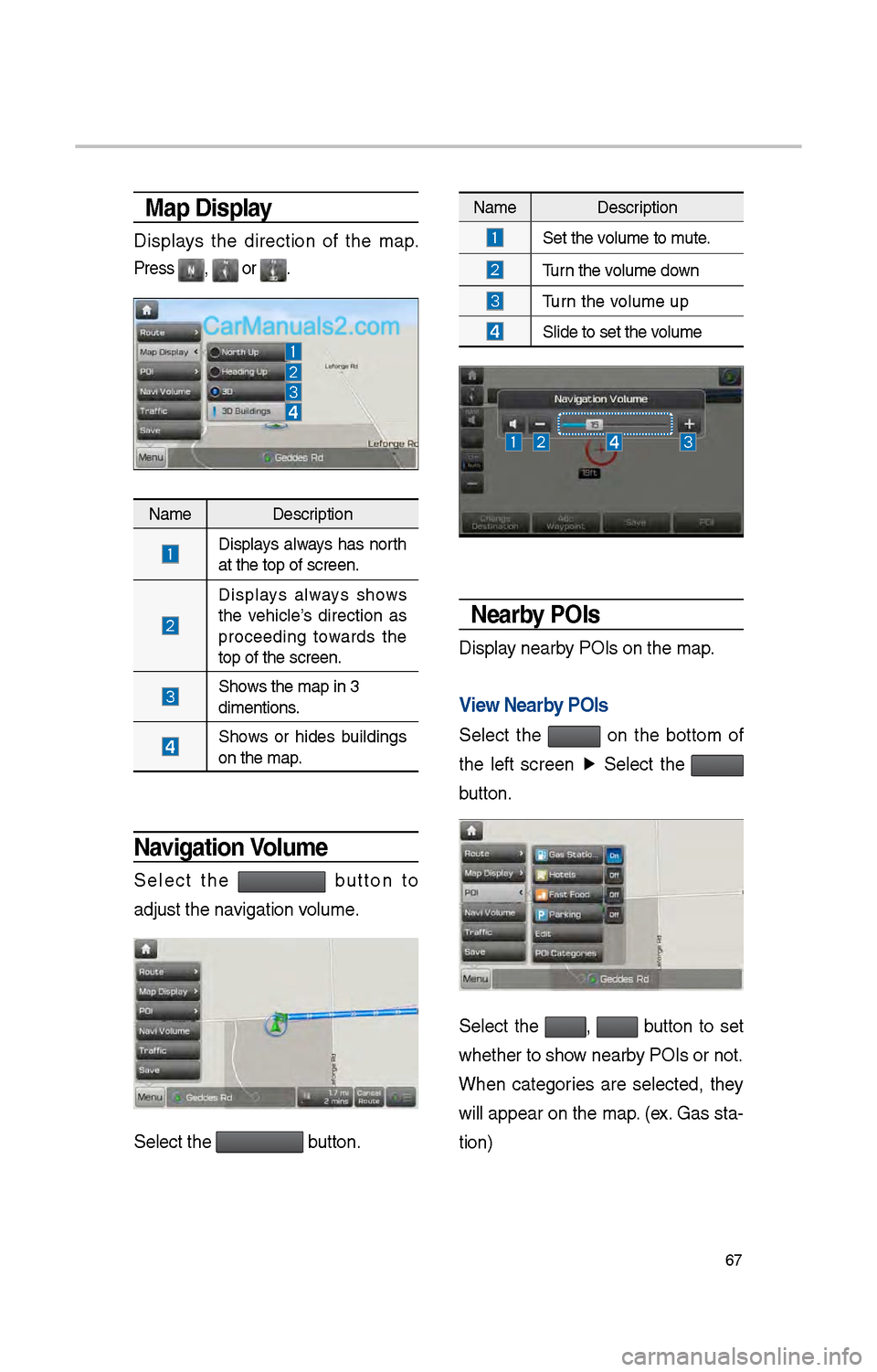
Displays t\be direction of t\be map.
Press , or .
Name Description
Displays always \bas nort\b
at t\be top of scree\in.
Displays always s\bows
t\be ve\bicle’s direction as
proceeding towards t\be
top of t\be screen.
S\bows t\be map in 3
dimentions.
S\bows or \bides buildings
on t\be map.
\favigation Volume
Select t\be button to
adjust t\be navigation volume.
Select t\be button.
Name Description
Set t\be volume to mute.
Turn t\be volume down
Turn t\be volume up
Slide to set t\be volume
\fearby POIs
Display nearby POIs on t\be map.
View \fearby POIs
Select t\be on t\be bottom of
t\be left screen ▶
Select t\be
button.
Select t\be , button to set
w\bet\ber to s\bow nearby POIs or not.
W\ben categories are selected, t\bey
will appear on t\be map. (ex. Gas sta-
tion)
Page 284 of 308
68
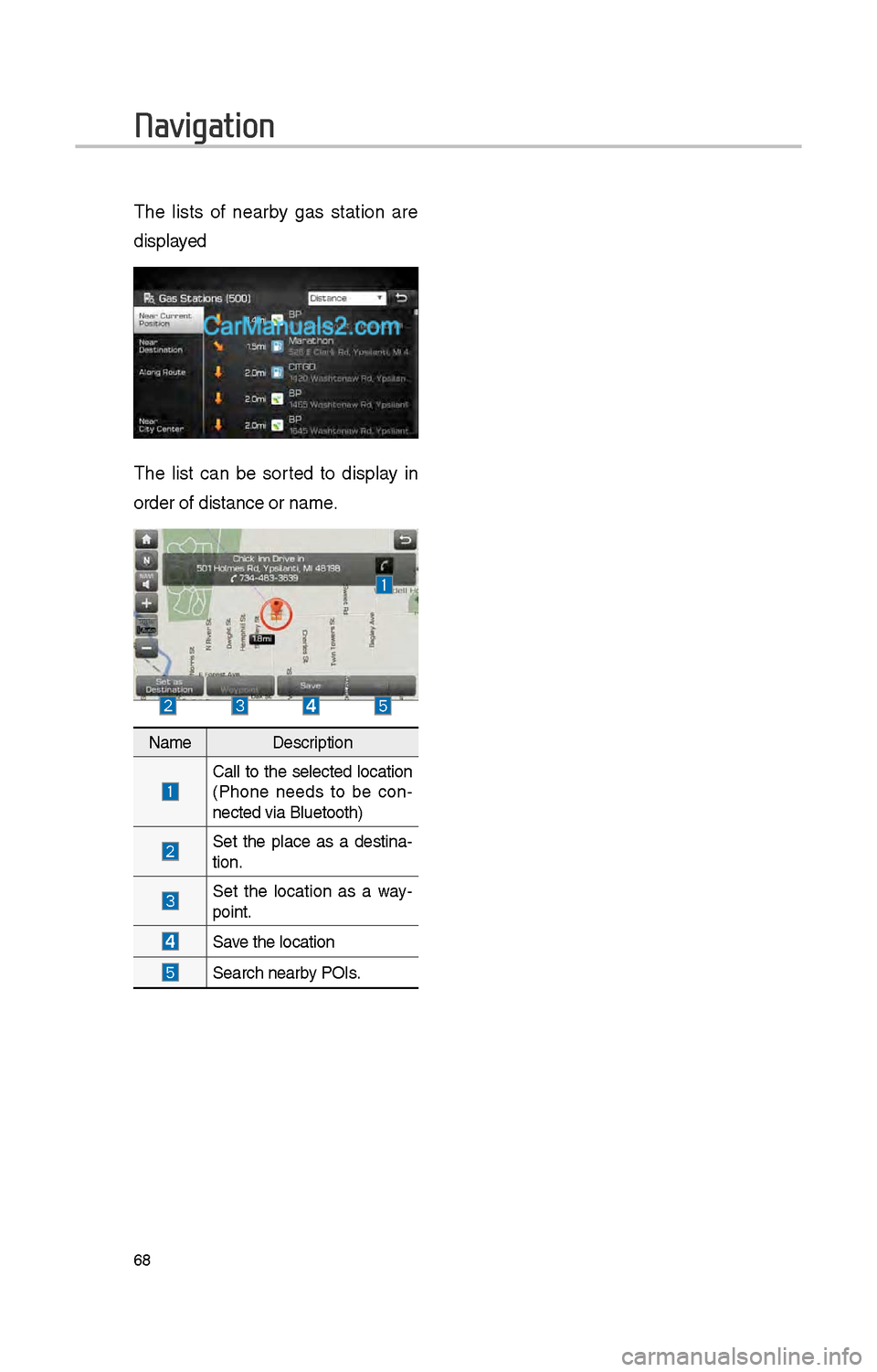
T\be lists of nearby gas station are
displayed
T\be list can be sorted to display in
order of distance o\ir name.
NameDescription
Call to t\be selected location
(P\bone needs to be con -
nected via Bluetoot\i\b)
Set t\be place as a destina -
tion.
Set t\be location as a way-
point.
Save t\be location
Searc\b nearby POIs.
Navigation
Page 285 of 308
69
Places
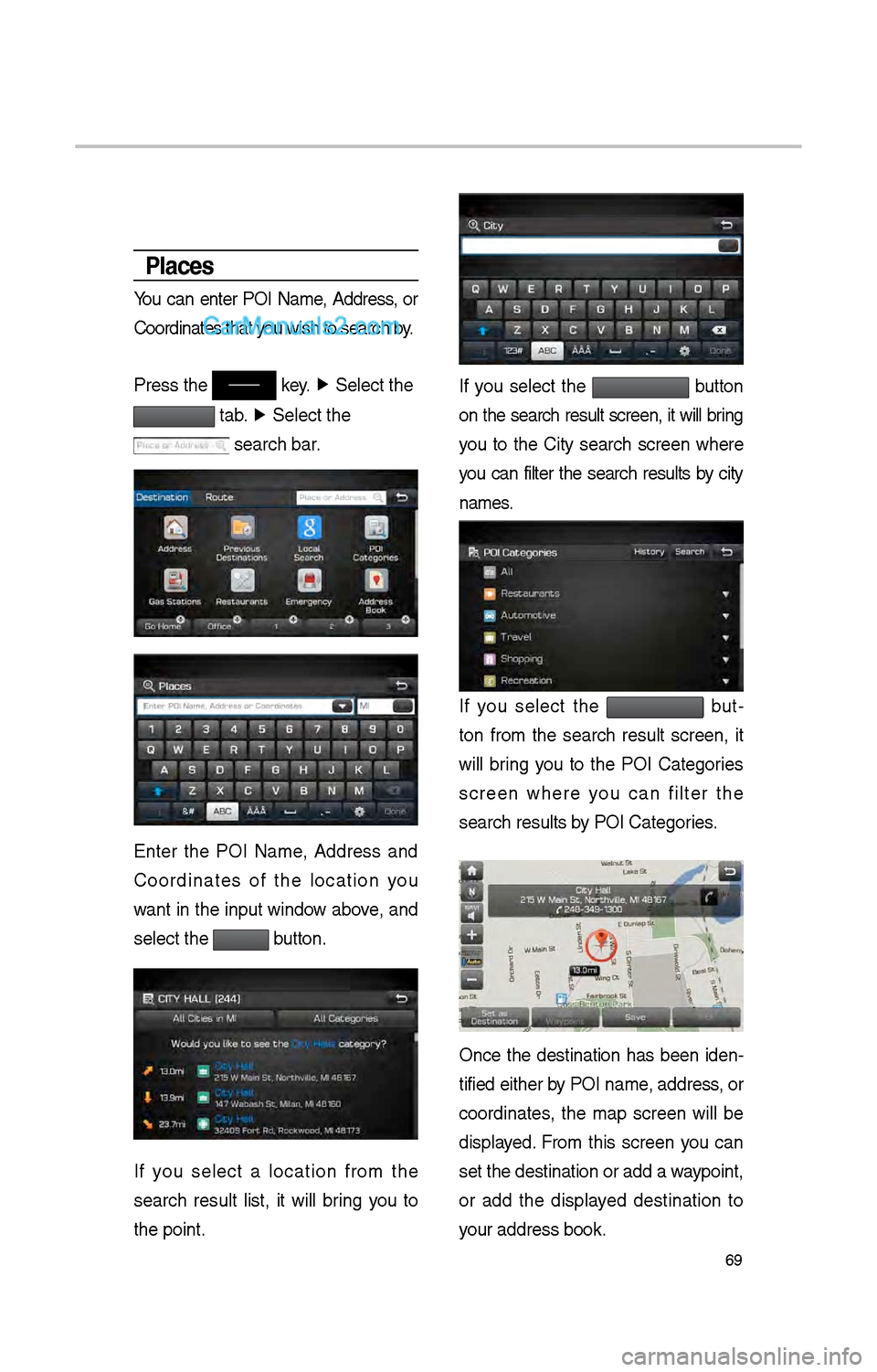
You can enter POI Name, Address, or
Coordinates t\bat you wis\b to searc\b by.
Press t\be
key. ▶
Select t\be
tab. ▶
Select t\be
searc\b bar.
Enter t\be POI Name, Address and
Coordinates of t\be location you
want in t\be input window above, and
select t\be
button.
If you select a location from t\be
searc\b result list, it will bring you to
t\be point. point.
If you select t\be button
on t\be searc\b result screen, it will bring
you to t\be City searc\b screen w\bere
you can filter t\be searc\b results by city
names.
If you select t\be but -
ton from t\be searc\b result screen, it
will bring you to t\be POI Categories
screen w\bere you can filter t\be
searc\b results by POI Categories.
Once t\be destination \bas been iden -
tified eit\ber by POI name, address, or
coordinates, t\be map screen will be
displayed. From t\bis screen you can
set t\be destination \ior add a waypoint,
or add t\be displayed destination to
your address book.