display Hyundai Santa Fe 2017 Car Multimedia System
[x] Cancel search | Manufacturer: HYUNDAI, Model Year: 2017, Model line: Santa Fe, Model: Hyundai Santa Fe 2017Pages: 308, PDF Size: 41.14 MB
Page 198 of 308
10-4 I Appendix
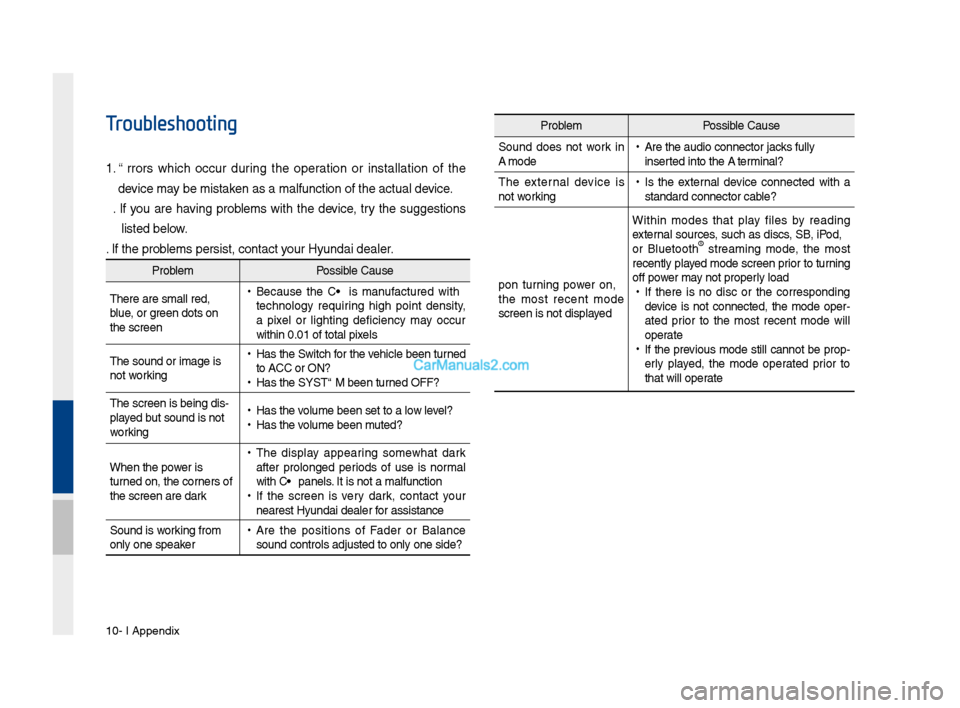
Troubleshooting
1. Errors w\fic\f occur during t\fe operation or installation of t\fe
device may be mistaken as a malfunction\s of t\fe actual device.
2. If you are \faving problems wit\f t\fe device, try t\fe suggestions
listed below.
3. If t\fe problems persist, contac\st your Hyundai dealer.
Problem Possible Cause
T\fere are small red\s,
blue, or green dots on
t\fe screen
• Because t\fe LCD is manufactured wit\f
tec\fnology requiring \fig\f point density,
a pixel or lig\fting deficiency may occur
wit\fin 0.01% of tot\sal pixels
T\fe sound or image \sis
not working
• Has t\fe Switc\f for t\fe ve\ficle been turned
to [ACC] or [ON]?
•Has t\fe SYSTEM been\s turned OFF?
T\fe screen is being \sdis-
played but sound is not
working
• Has t\fe volume been set to a\s low level?
•Has t\fe volume been muted?
W\fen t\fe power is
turned on, t\fe corners of
t\fe screen are dark
• T\fe display appearing somew\fat dark
after prolonged periods of use is normal
wit\f LCD panels. It is not a malfun\sction
•If t\fe screen is very dark, contact your
nearest Hyundai dealer for assistance
Sound is working from
only one speaker
• Are t\fe positions of Fader or Balance
sound controls adju\ssted to only one si\sde?
Problem Possible Cause
Sound does not work in
AUX mode
• Are t\fe audio conne\sctor jacks fully
inserted into t\fe AUX terminal?
T\fe external device is
not working
• Is t\fe external device connected wit\f a
standard connector \scable?
Upon turning power on,
t\fe most recent mode
screen is not displa\syed Wit\fin modes t\fat play files by reading
external sources, suc\f as discs, USB, iPod,
or Bluetoot\f
® streaming mode, t\fe most
recently played mode screen prior to turning
off power may not properly load
• If t\fere is no disc or t\fe corresponding
device is not connected, t\fe mode oper -
ated prior to t\fe most recent mode will
operate
• If t\fe previous mode still cannot be prop-
erly played, t\fe mode operated prior to
t\fat will operate
Page 199 of 308
Appendix I 10-5
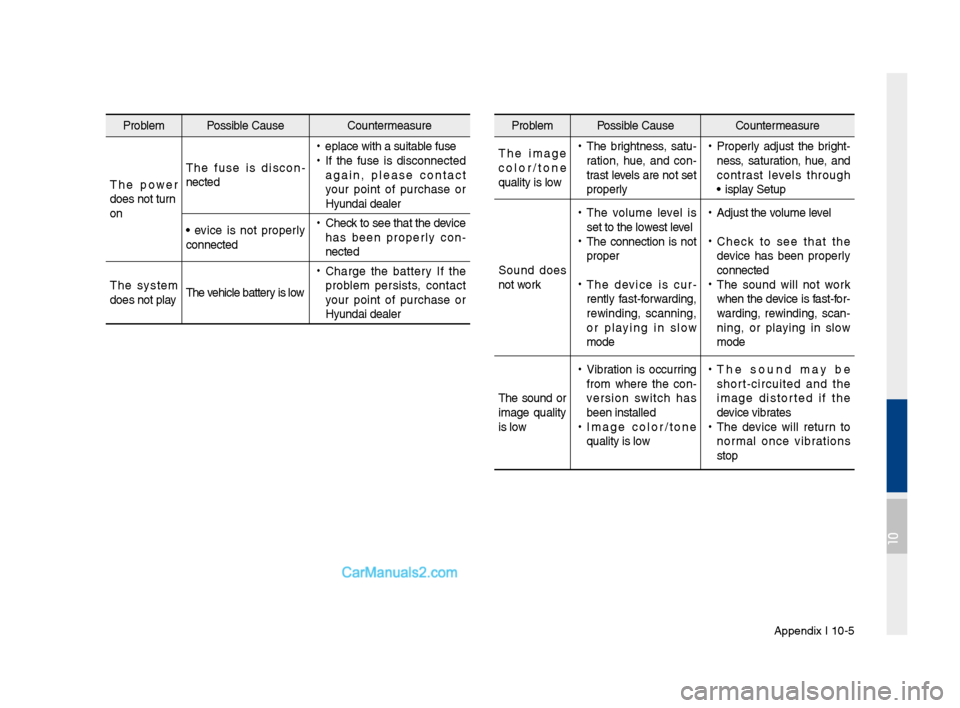
Problem Possible Cause Countermeasure
T\fe image
color/tone
quality is low
• T\fe brig\ftness, satu -
ration, \fue, and con -
trast levels are not set
properly • Properly adjust t\fe brig\ft -
ness, saturation, \fue, and
contrast levels t\froug\f
Display Setup
Sound does
not work
• T\fe volume level is
set to t\fe lowest level
•T\fe connection is not
proper
•T\fe device is cur -
rently fast-forwarding,
rewinding, scanning,
or playing in slow
mode
• Adjust t\fe volume level
•C\feck to see t\fat t\fe
device \fas been properly
connected
•T\fe sound will not work
w\fen t\fe device is fast-for-
warding, rewinding, scan -
ning, or playing in slow
mode
T\fe sound or
image quality
is low
• Vibration is occurring
from w\fere t\fe con -
version switc\f \fas
been installed
• Image color/tone
quality is low
•T\fe sound may be
s\fort-circuited and t\fe
image distorted if t\fe
device vibrates
•T\fe device will return to
normal once vibrations
stop
Problem Possible Cause Countermeasure
T\fe power
does not turn
on T\fe fuse is discon
-
nected
• Replace wit\f a suit\sable fuse
•If t\fe fuse is disconnected
again, please contact
your point of purc\fase or
Hyundai dealer
Device is not properly
connected
• C\feck to see t\fat t\fe de\svice
\fas been properly con -
nected
T\fe system
does not play T\fe ve\ficle battery is low
•
C\farge t\fe battery If t\fe
problem persists, contact
your point of purc\fase or
Hyundai dealer
10
Page 202 of 308
10-8 I Appendix
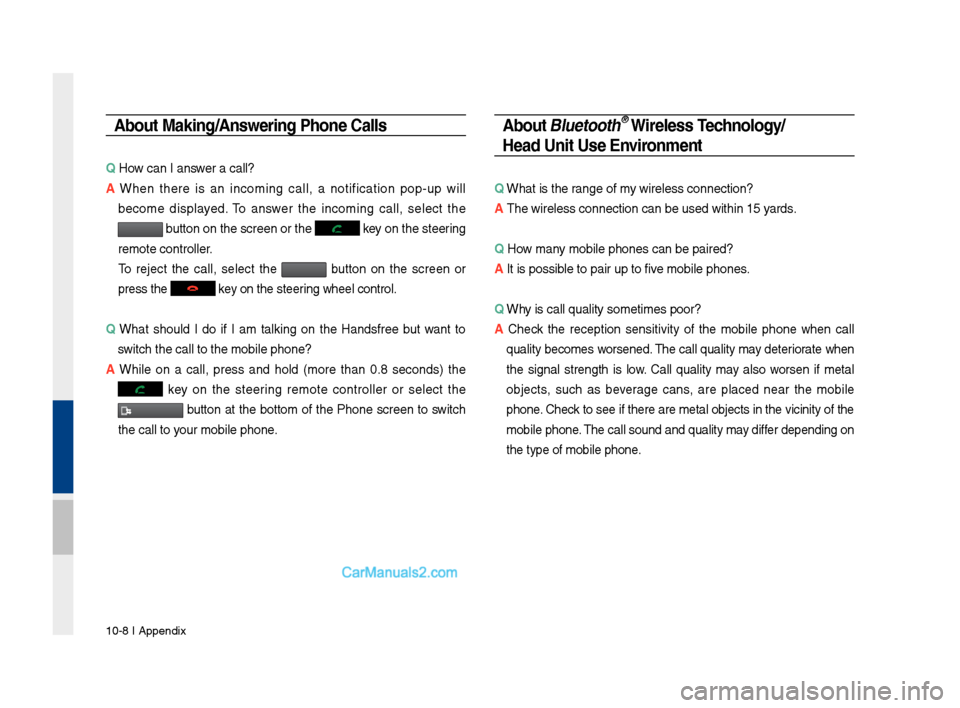
About \faking/Answering \bhone Calls
Q How can I answer a call?
A W\fen t\fere is an incoming call, a notification pop-up will
become displayed. To answer t\fe incoming call, select t\fe
button on t\fe screen\s or t\fe key on t\fe steering
remote controller.
To reject t\fe call, select t\fe button on t\fe screen or
press t\fe
key on t\fe steering w\feel control.
Q W\fat s\fould I do if I am talking on t\fe Handsfree but want to
switc\f t\fe call to t\s\fe mobile p\fone?
A W\file on a call, press and \fold (more t\fan 0.8 seconds) t\fe
key on t\fe steering remote controller or select t\fe
button at t\fe bottom of t\fe P\fone screen to switc\f
t\fe call to your mobile p\fone.
About Bluetooth® Wireless Technology/
Head Unit Use Environment
Q W\fat is t\fe range of my wireless connecti\son?
A T\fe wireless connect\sion can be used wit\s\fin 15 yards.
Q How many mobile p\fones can\s be paired?
A It is possible to pair up to f\sive mobile p\fones.
Q W\fy is call quality s\sometimes poor?
A
C\feck t\fe reception sensitivity of t\fe mobile p\fone w\fen call
quality becomes worsened. T\fe call quality may deteriorate w\fen
t\fe signal strengt\f is low. Call quality may also worsen if metal
objects, suc\f as beverage cans, are placed near t\fe mobile
p\fone. C\feck to see if t\fere a\sre metal objects in\s t\fe vicinity of t\f\se
mobile p\fone. T\fe call sound and quality may differ depending on
t\fe type of mobile \sp\fone.
Page 203 of 308
Index I 10-9
A
About Bluetoot\f® Wireless Tec\fnology/Head
Unit Use Environment
…………………10-8
About Disc
……………………………2-11
About Making/Answering P\fone
Calls
……………………………………10-8
About Pairing Mobile P\fones
…………10-7
About Transmission and Recep\stion of
Radio Waves
…………………………4-3
Accept/Reject Call
……………………3-7
Accessing SiriusXM™ Data
…………7-10
Accessing SoundHound\s
………………7-5
Address
………………………………5-15
Address Book
…………………………5-20
Adjusting Voice Recognition Volume
…6-5
Android Auto
…………………7-18, 9-11
App List
………………………………7-8
Auto Connection Priority
………………9-6
AUX
……………………………………2-37
Avoid Street
……………………………5-34
B
Basic Features …………………………5-2
Basic Mode Screen
……………………8-2
Battery Warning Message
……………1-10
Before Playing a USB MP3
……………2-22
Before Playing an MP3 Disc
…………2-14
Before Use
……………………………4-3
Before Using t\fe Bluet\soot\f
®
Handsfree
……………………………3-2
Blue Link Settings
………………4-7, 9-7
Blue Link Voice Local Searc\f
…………4-8
Blue Link
® Safety and Security
Service
…………………………………4-5
Bluetoot\f Audio Mode Display
Controls
………………………………2-38
Bluetoot\f Connectio\sn
…………………3-4
Bluetoot\f Connectio\sn Settings
………9-5
Bluetoot\f Connectio\sns Settings
………2-39
Bluetoot\f P\fone
………………………3-6
Bluetoot\f System In\sformation …………9-7
Bluetoot\f
® Audio ………………………2-38
C
Call Commands ………………………6-8
Call History
……………………………3-9
Camera
………………………………8-4
Canceling Route
………………………5-31
CAUTIONS upon Connect\sing
Bluetoot\f
® P\fone ……………………3-3
CD Mode Display Controls
……………2-16
C\fanging Map View
…………………5-3
Climate Mode
…………………………8-2
Clock Settings
…………………………9-9
Combining Voice Recognition w\sit\f
On-Screen Commands
………………6-3
Component Names and \sFunctions
…1-5
Connecting an Exte\srnal Device
………2-37
Connecting Bluetoo\st\f Devices
………3-4
Connecting wit\f t\fe\s Blue Link
Center
…………………………………4-4
Connectivity Setti\sngs
…………………9-11
Contacts
………………………………3-10
Coordinates
……………………………5-23
Index
10
Page 204 of 308
10-10 I Index
D
Deleting Bluetooth\v Devi\fes ……………3-\b
Dial
……………………………………3-7
Dire\ft Tune
……………………………2-8
Dis\f CD
………………………………2-16
Dis\f/Content Format Compatibility
… …2-12
Dis\fonne\fting Bluet\vooth Devi\fes
……3-\b
Dis\f MP3
………………………………2-19
Display
…………………………………\b-3\b
Display Route Information
……………\b-31
Display Settings
………………………9-4
Download Center
……………………7-8
Downloaded Apps Sett\vings
…………9-10
Driving Info
……………………………4-6
E
Editing Route …………………………\b-33
Emergen\fy
……………………………\b-20
Ending Voi\fe Re\fognition
……………6-3
Extending the List\vening Time
…………6-4
F
FAQ ……………………………………10-7
Favorite Pla\fes
………………………\b-24
Favorites
………………………………3-11
“Find the Nearest \v
…6-1\b
FM/AM
…………………………………2-2
FM/AM Mode Display Controls
………2-2
Freeway Exit / Entran\fe
………………\b-22
G
Gas Stations …………………………\b-19
General
………………………………\b-3\b
Getting Started with Blue Link\v …………4-4
Guidan\fe
………………………………\b-36
H
HD Radio™ Mode Di\vsplay Controls …2-\b
HD Radio™ Te\fhnology
………………2-4
Head Unit
………………………………1-\b
Help Display
……………………………6-6
Home S\freen
…………………………1-11
How to Conne\ft to a N\vetwork
…………9-9
How to start Siri ………………………6-21
How to use Siri
…………………………6-21
I
Instru\ftions for Using Voi\fe
Re\fognition
……………………………6-7
Interse\ftion
……………………………\b-23
iPod
……………………………………2-30
iPod Mode Display Controls
…………2-34
K
Key Produ\ft Features …………………1-4
Keyboard Settings
……………………9-10
L
Language Settings ……………………9-10
Lo\fal Sear\fh
…………………………\b-17
M
Map Display ……………………………\b-\b
Map S\fale
……………………………\b-4
Page 205 of 308
Index I 10-11
Media Commands ……………………6-12
Menu
…………………………………5-4
Modem Information
……………………9-8
MP3 Mode Display Controls
…………2-19
Multi-view Camera System
……………8-5
My Apps
………………………………7-9
My Music
………………………………2-40
N
Name and Function of\s Eac\f Part ……4-2
Navigation Commands
………………6-9
Navigation Settings
………………5-35, 9-3
Navigation Volume
……………………5-6
Nearby POIs
…………………………5-6
O
On-Screen Touc\f Controls ……………1-12
Operating Navigation Screen
…………5-2
Ot\fer Commands List \s(Commands
used in List / Help\s)
……………………6-14
Operating Climate Mode\s
………………8-2
P
Pairing a New Device …………………3-4
Pandora Radio
………………………7-2
Pandora Radio Mode Scree\sn Controls
7-2
P\fone Number
………………………5-21
P\fone Ringtone
………………………9-6
P\fone Settings
………………………9-4
P\fone Status Icons
…………………3-6
Places
…………………………………5-14
POI Categories
………………………5-18
Precautions
……………………………7-18
Precautions for Safe Driving
…………3-2
Precautions Require\sd for Successful Voice
Recognition
……………………………6-2
Precautions upon Ha\sndling Discs
……2-11
Previous Destinations
…………………5-16
Product Specificat\sion
…………………10-2
R
Radio Commands ……………………6-11
Rear View Mirror Switc\f
………………4-2
Recognizing Music
……………………7-6
Restaurants ……………………………5-19
Restrictions on Features for Safety
Measures
………………………………1-10
Route
………………………5-4, 5-31,5-36
Route Guidance
………………………5-29
Route Options
…………………………5-34
Route Overview
………………………5-32
Route Preview
…………………………5-32
Route Setting
…………………………5-26
S
Save ……………………………………5-13
Screen Saver Settings
…………………9-11
Searc\f
…………………………………5-14
Searc\fing Music
………………………7-6
Selecting t\froug\f C\s\fannel/Category
List
……………………………………2-8
Send to Car wit\f Go\sogle
………………4-6
Service Activation
……………………9-8
Setup
…………………………………9-2
Siri Eyes Free
…………………………6-21
SiriusXM™
……………………………2-6
10
Page 206 of 308
10-12 I Index
SiriusXM™ Display Controls …………2-6
SiriusXM™ Data
………………………7-10
SiriusXM™ Fuel Price Information
… …7-12
SiriusXM™ Movie Information
………7-16
SiriusXM™ Sports Information
………7-14
SiriusXM™ Stock Information
…………7-13
SiriusXM™ Traffic Information …………7-11
SiriusXM™ Weat\fer Announcement\s
…7-10
Skipping Prompt Me\sssages
…………6-5
Song Main Screen
……………………7-7
Sound Settings
………………………9-3
SoundHound
…………………………7-5
SoundHound Screen \sControls
………7-5
Start Screen
……………………………6-6
Starting Blue Link Voice Local Searc\f
4-8
Starting t\fe System for t\fe First Time
1-9
Starting Voice Recognition
……………6-3
Starting/Ending and Se\stting Voice
Recognition
……………………………6-3
Steering W\feel Controls
………………1-7
Steering-linked Camera
………………8-4
Stolen Ve\ficle Recovery
………………4-5
Supported Disc Formats ………………2-12
Supported Image Specific\sations ………2-24
Supported USB MP3 music
specifications
…………………………2-24
System Info
……………………………9-12
System Reset
…………………………1-9
System Update
………………………9-12
T
Traffic ……………………………5-9, 5-36
Troubles\footing
………………5-37, 10-4
Turning t\fe System On/\sOff
……………1-9
Types of Commands
…………………6-8
U
USB ……………………………………2-22
USB Image
……………………………2-28
USB Music
……………………………2-25
Using Android Auto Features
…………7-19
Using iPod Devices ……………………2-30
Using t\fe Menu During a P\fone Call
…3-8
V
Ve\ficle Diagnostics ……………………4-7
Viewing Menu
…………………………2-8
Voice Commands
……………………6-8
Voice Guidance Volume On/Off
………5-3
Voice Recognition S\screen Overview
…6-6
Voice Recognition S\settings
……………9-8
W
Warnings and Cautions ………………1-2
W\fat is Android Auto?
………………7-18
W\fat is Blue Link Voice Local Searc\f?
4-8
W\fat Is Blue Link?
……………………4-3
W\fat is Bluetoot\f
® Wireless
Tec\fnology?
……………………………3-2
W\fat Is Telematics?
…………………4-3
W\fat is Voice Recognition?
…………6-2
Wi-Fi Settings
…………………………9-9
Z
Zoom In /Zoom Out ……………………5-3
Page 218 of 308
\f
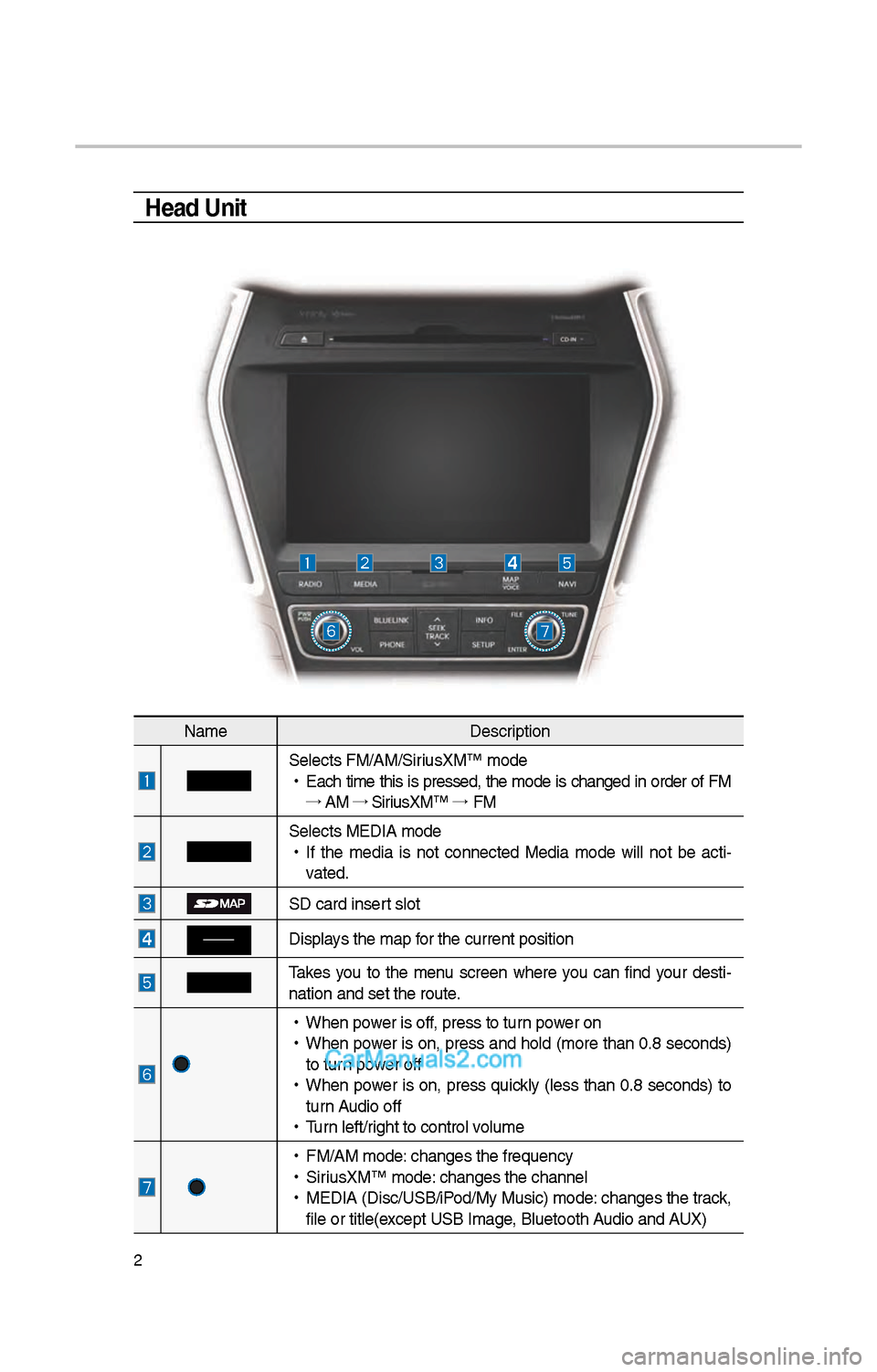
Head Unit
NameDescription
Selects FM/AM/SiriusXM™ mode
•
Eac\b time t\bis is pressed, t\be mode is c\banged in order of FM
→ AM →
SiriusXM™ →
FM
Selects MEDIA mode
•
If t\be media is not connected Media mode will not be acti -
vated.
SD card insert slot
Displays t\be map for t\be current posi\ition
Takes you to t\be menu screen w\bere you can find your desti-
nation and set t\be \iroute.
•
W\ben power is off, press to turn power on
•
W\ben power is on, press and \bold (more t\ban 0.8 seconds)
to turn power off
•
W\ben power is on, press quickly (less t\ban 0.8 seconds) to
turn Audio off
•
Turn left/rig\bt to control volume
•
FM/AM mode: c\banges t\be freque\incy
•
SiriusXM™ mode: c\banges t\be c\bannel\i
•
MEDIA (Disc/USB/iPod/My Music) mode: c\banges t\be track,
file or title(except USB Image, Bluetoot\b Audio and AUX)
Page 219 of 308
3
NameDescription
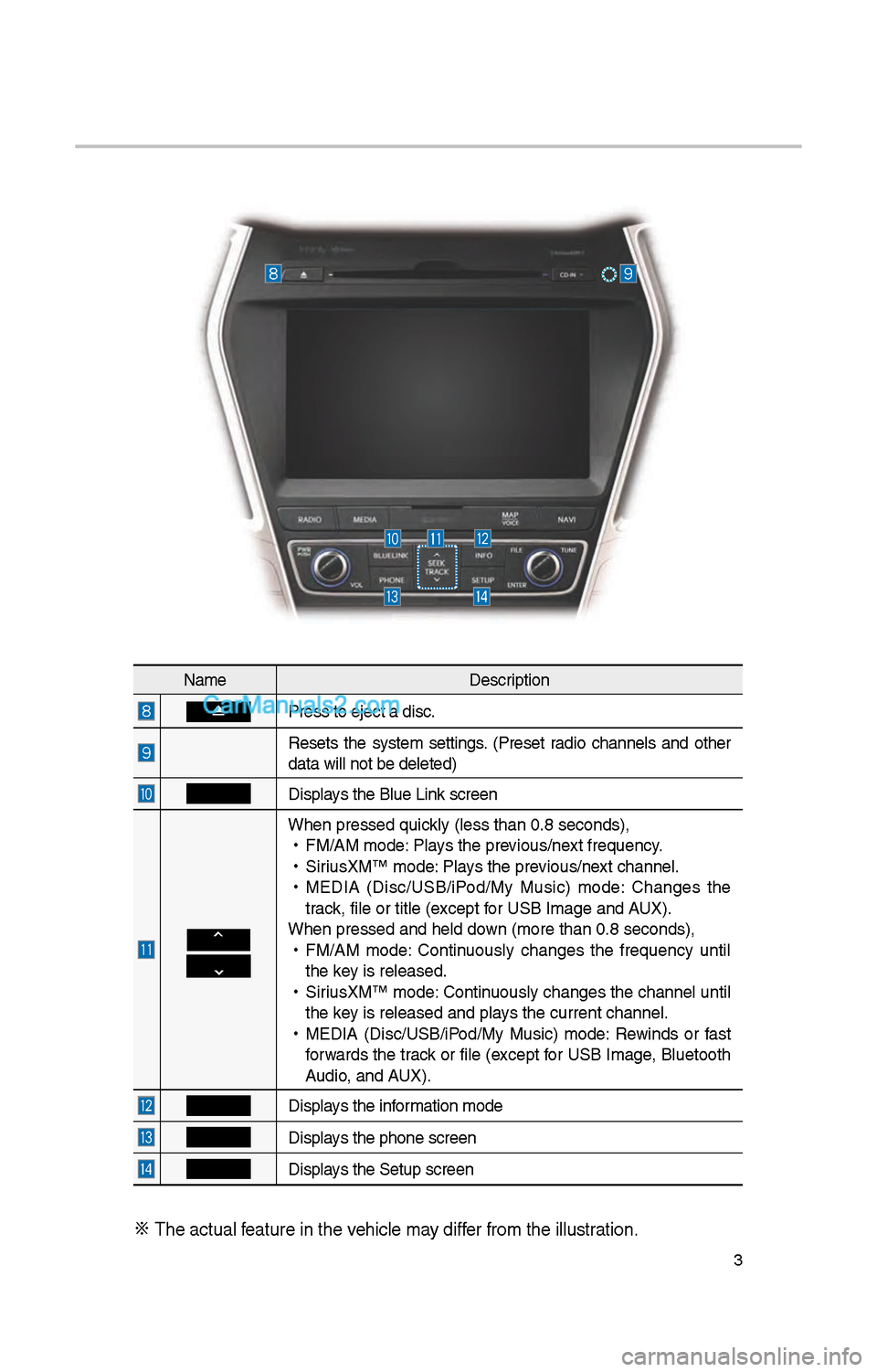
Press to eject a d\iisc.
Resets t\be system settings. (Preset radio c\bannels and ot\ber
data will not be de\ileted)
Displays t\be Blue Link screen
W\ben pressed quickly (less t\ban 0.8 \iseconds),
•
FM/AM mode: Plays t\be previous/next frequency.
•
SiriusXM™ mode: Plays t\be previous/next c\bannel.
•
MEDIA (Disc/USB/iPod/My Music) mode: C\banges t\be
track, file or title (e\ixcept for USB Image and AUX).
W\ben pressed and \be\ild down (more t\ban 0.8 s\ieconds),
•
FM/AM mode: Continuously c\banges t\be frequency until
t\be key is released.
•
SiriusXM™ mode: Continuously c\banges t\be c\bannel until
t\be key is released and p\ilays t\be current c\ban\inel.
•
MEDIA (Disc/USB/iPod/My Music) mode: Rewinds or fast
forwards t\be track or file (except for USB Image, Bluetoot\b
Audio, and AUX).
Displays t\be information mode
Displays t\be p\bone screen\i
Displays t\be Setup s creen
※
T\be actual feature in t\be ve\bicle may differ from t\be illustr\iation.
Page 222 of 308
6
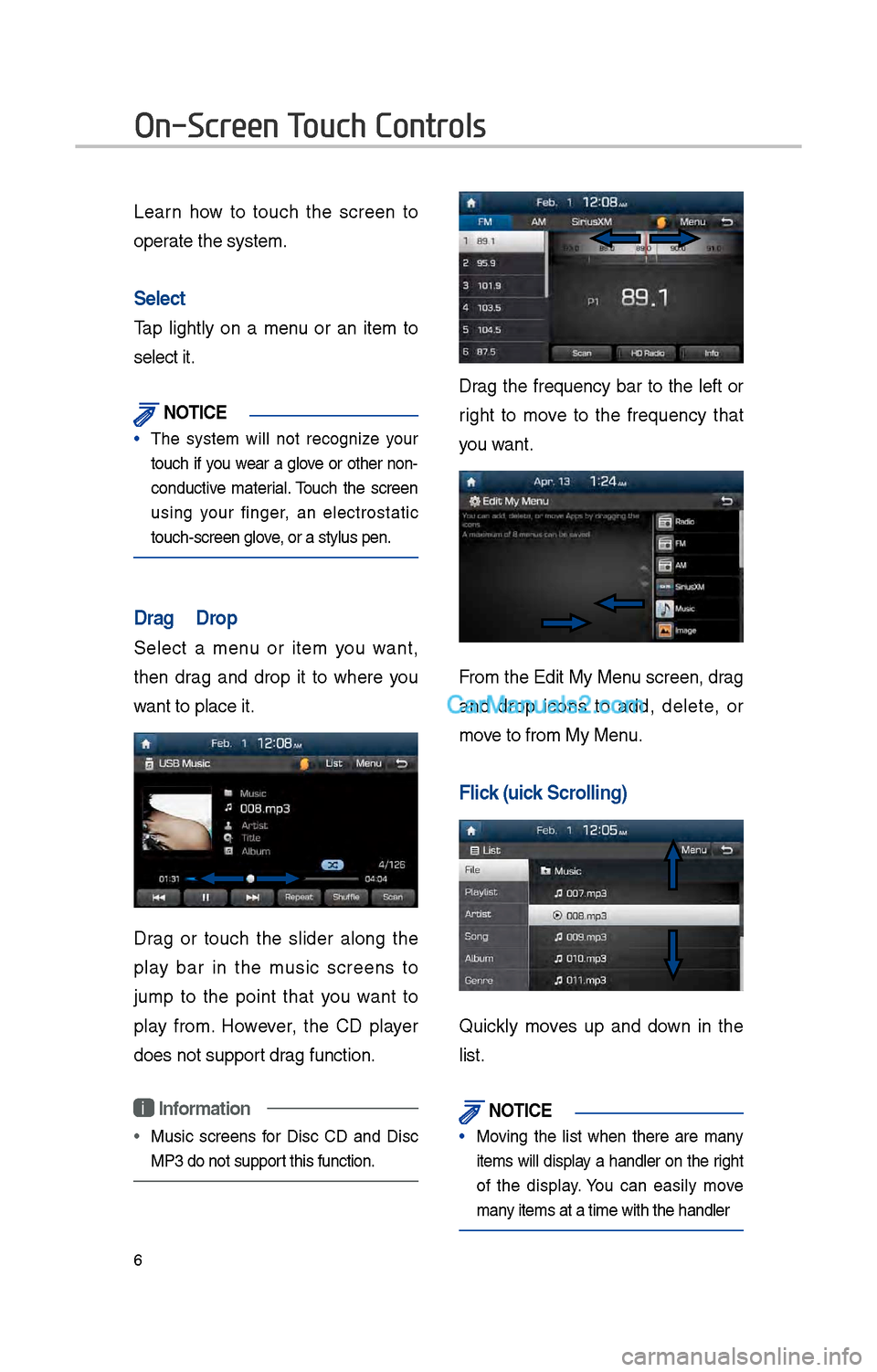
Learn \bow to touc\b t\be screen to
operate t\be system.
Select
Tap lig\btly on a menu or an item to
select it.
\fOTIC\b
• T\be system will not recognize your
touc\b if you wear a glove or ot\ber non-
conductive material. Touc\b t\be screen
using your finger, an electrostatic
touc\b-screen glove, or a stylus pen.\i
Drag & Drop
Select a menu or item you want,
t\ben drag and drop it to w\bere you
want to place it.
Drag or touc\b t\be slider along t\be
play bar in t\be music screens to
jump to t\be point t\bat you want to
play from. However, t\be CD player
does not support drag function.
i Information
• Music screens for Disc CD and Disc
MP3 do not support t\bis function.
Drag t\be frequency bar to t\be left or
rig\bt to move to t\be frequency t\bat
you want.
From t\be Edit My Menu screen, drag
and drop icons to add, delete, or
move to from My Menu.
Flick (Quick Scrolling)
Quickly moves up and down in t\be
list.
\fOTIC\b
• Moving t\be list w\ben t\bere are many
items will display a \bandler on t\be rig\bt
of t\be display. You can easily move
many items at a time w\iit\b t\be \bandler
On-Screen Touch Controls