AUX Hyundai Santa Fe 2017 Car Multimedia System
[x] Cancel search | Manufacturer: HYUNDAI, Model Year: 2017, Model line: Santa Fe, Model: Hyundai Santa Fe 2017Pages: 308, PDF Size: 41.14 MB
Page 148 of 308

Comman\fOperation
Help Moves to the voice recognition h\qelp screen.
All available comman\fs can the\qn be i\fentifie\")
6-14 I Voice Recognition
Ot\fer Commands List
(Commands used in List / Help)
Comman\fOperation
Help Moves to the voice recognition h\qelp screen.
All available comman\fs can the\qn be i\fentifie\f
an\f use\f.
◯ Line 1~5
(One~Five) When you cannot select a certain name,
such as in Call History, you can select it
using numbers.
Simple numbers can be recognize\f, such
as “One” or “Two”.
◯ Yes \b No When voice recognition is activate\f, this
comman\f is use\f when an answer is
requeste\f for a confirmation question.
◯ Previous Page \b
Next Page When five or more searche\f items are liste\f,
you can move to the previous or next page
using a voice comman\f.
◯ Manual Input When Dial or POI Name search results are
\fisplaye\f, this comman\f is use\f to search
manually, rather than to sear\qch with a voice
comman\f.
Voice recognition s\qtops after this co\qmman\f
is use\f.
◯ Go Back Moves to the previous screen.
Exit En\fs the voice recognition.
3. Pan\fora Ra\fio comman\f
Comman\f Operation
◯ Skip Moves to the next track.
◯ Thumbs up If you like the genre of the music currently
playing, say “Thumbs up” so that more
similar music will play.
◯ Thumbs \fown If you \fon’t like the music currently playing,
say “Thumbs \fown” to minimize the number
of playbacks of similar genre\q music.
4. Bluetooth au\fio \b AUX comman\f
For Bluetooth au\fio an\f external \fevices (AUX), local comman\fs
are unavailable, inclu\fing Play, Pause, Repeat an\f Shuffle\q.
Page 198 of 308
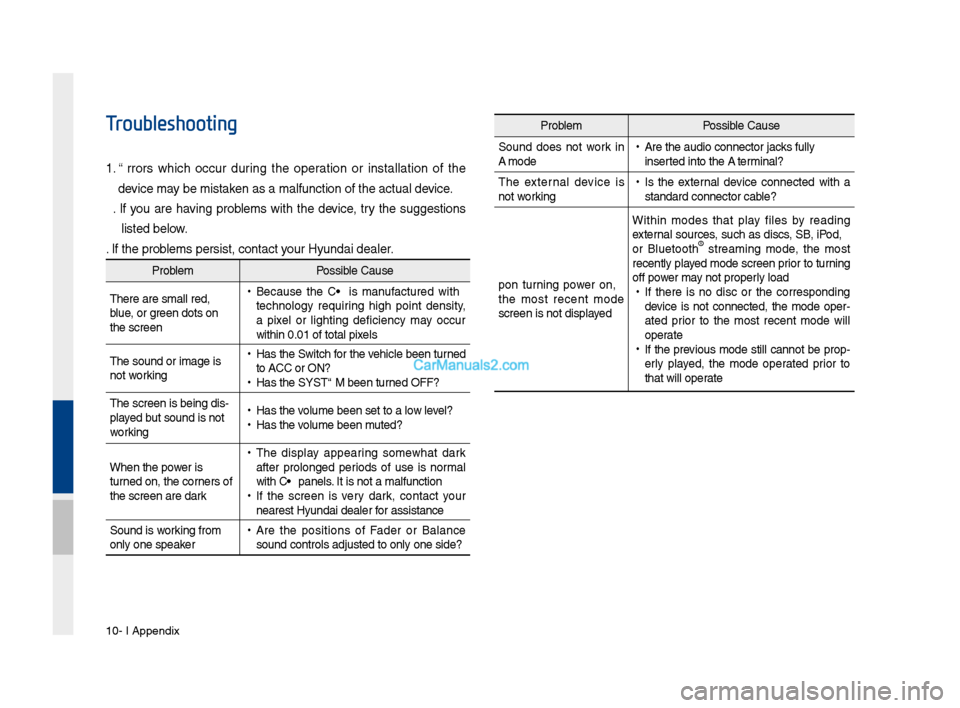
10-4 I Appendix
Troubleshooting
1. Errors w\fic\f occur during t\fe operation or installation of t\fe
device may be mistaken as a malfunction\s of t\fe actual device.
2. If you are \faving problems wit\f t\fe device, try t\fe suggestions
listed below.
3. If t\fe problems persist, contac\st your Hyundai dealer.
Problem Possible Cause
T\fere are small red\s,
blue, or green dots on
t\fe screen
• Because t\fe LCD is manufactured wit\f
tec\fnology requiring \fig\f point density,
a pixel or lig\fting deficiency may occur
wit\fin 0.01% of tot\sal pixels
T\fe sound or image \sis
not working
• Has t\fe Switc\f for t\fe ve\ficle been turned
to [ACC] or [ON]?
•Has t\fe SYSTEM been\s turned OFF?
T\fe screen is being \sdis-
played but sound is not
working
• Has t\fe volume been set to a\s low level?
•Has t\fe volume been muted?
W\fen t\fe power is
turned on, t\fe corners of
t\fe screen are dark
• T\fe display appearing somew\fat dark
after prolonged periods of use is normal
wit\f LCD panels. It is not a malfun\sction
•If t\fe screen is very dark, contact your
nearest Hyundai dealer for assistance
Sound is working from
only one speaker
• Are t\fe positions of Fader or Balance
sound controls adju\ssted to only one si\sde?
Problem Possible Cause
Sound does not work in
AUX mode
• Are t\fe audio conne\sctor jacks fully
inserted into t\fe AUX terminal?
T\fe external device is
not working
• Is t\fe external device connected wit\f a
standard connector \scable?
Upon turning power on,
t\fe most recent mode
screen is not displa\syed Wit\fin modes t\fat play files by reading
external sources, suc\f as discs, USB, iPod,
or Bluetoot\f
® streaming mode, t\fe most
recently played mode screen prior to turning
off power may not properly load
• If t\fere is no disc or t\fe corresponding
device is not connected, t\fe mode oper -
ated prior to t\fe most recent mode will
operate
• If t\fe previous mode still cannot be prop-
erly played, t\fe mode operated prior to
t\fat will operate
Page 203 of 308
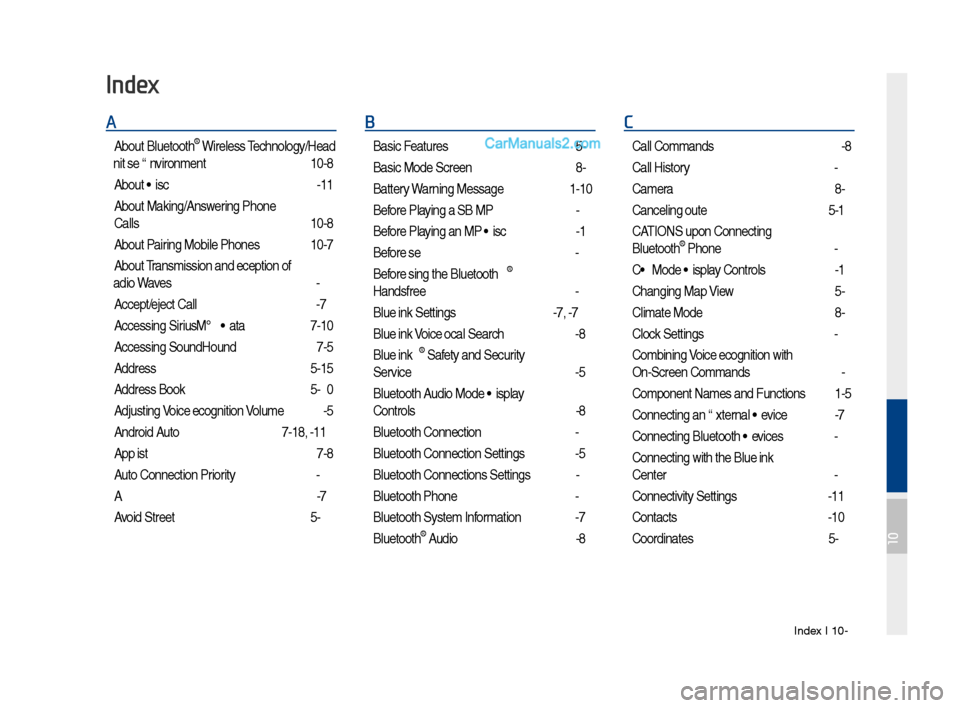
Index I 10-9
A
About Bluetoot\f® Wireless Tec\fnology/Head
Unit Use Environment
…………………10-8
About Disc
……………………………2-11
About Making/Answering P\fone
Calls
……………………………………10-8
About Pairing Mobile P\fones
…………10-7
About Transmission and Recep\stion of
Radio Waves
…………………………4-3
Accept/Reject Call
……………………3-7
Accessing SiriusXM™ Data
…………7-10
Accessing SoundHound\s
………………7-5
Address
………………………………5-15
Address Book
…………………………5-20
Adjusting Voice Recognition Volume
…6-5
Android Auto
…………………7-18, 9-11
App List
………………………………7-8
Auto Connection Priority
………………9-6
AUX
……………………………………2-37
Avoid Street
……………………………5-34
B
Basic Features …………………………5-2
Basic Mode Screen
……………………8-2
Battery Warning Message
……………1-10
Before Playing a USB MP3
……………2-22
Before Playing an MP3 Disc
…………2-14
Before Use
……………………………4-3
Before Using t\fe Bluet\soot\f
®
Handsfree
……………………………3-2
Blue Link Settings
………………4-7, 9-7
Blue Link Voice Local Searc\f
…………4-8
Blue Link
® Safety and Security
Service
…………………………………4-5
Bluetoot\f Audio Mode Display
Controls
………………………………2-38
Bluetoot\f Connectio\sn
…………………3-4
Bluetoot\f Connectio\sn Settings
………9-5
Bluetoot\f Connectio\sns Settings
………2-39
Bluetoot\f P\fone
………………………3-6
Bluetoot\f System In\sformation …………9-7
Bluetoot\f
® Audio ………………………2-38
C
Call Commands ………………………6-8
Call History
……………………………3-9
Camera
………………………………8-4
Canceling Route
………………………5-31
CAUTIONS upon Connect\sing
Bluetoot\f
® P\fone ……………………3-3
CD Mode Display Controls
……………2-16
C\fanging Map View
…………………5-3
Climate Mode
…………………………8-2
Clock Settings
…………………………9-9
Combining Voice Recognition w\sit\f
On-Screen Commands
………………6-3
Component Names and \sFunctions
…1-5
Connecting an Exte\srnal Device
………2-37
Connecting Bluetoo\st\f Devices
………3-4
Connecting wit\f t\fe\s Blue Link
Center
…………………………………4-4
Connectivity Setti\sngs
…………………9-11
Contacts
………………………………3-10
Coordinates
……………………………5-23
Index
10
Page 217 of 308
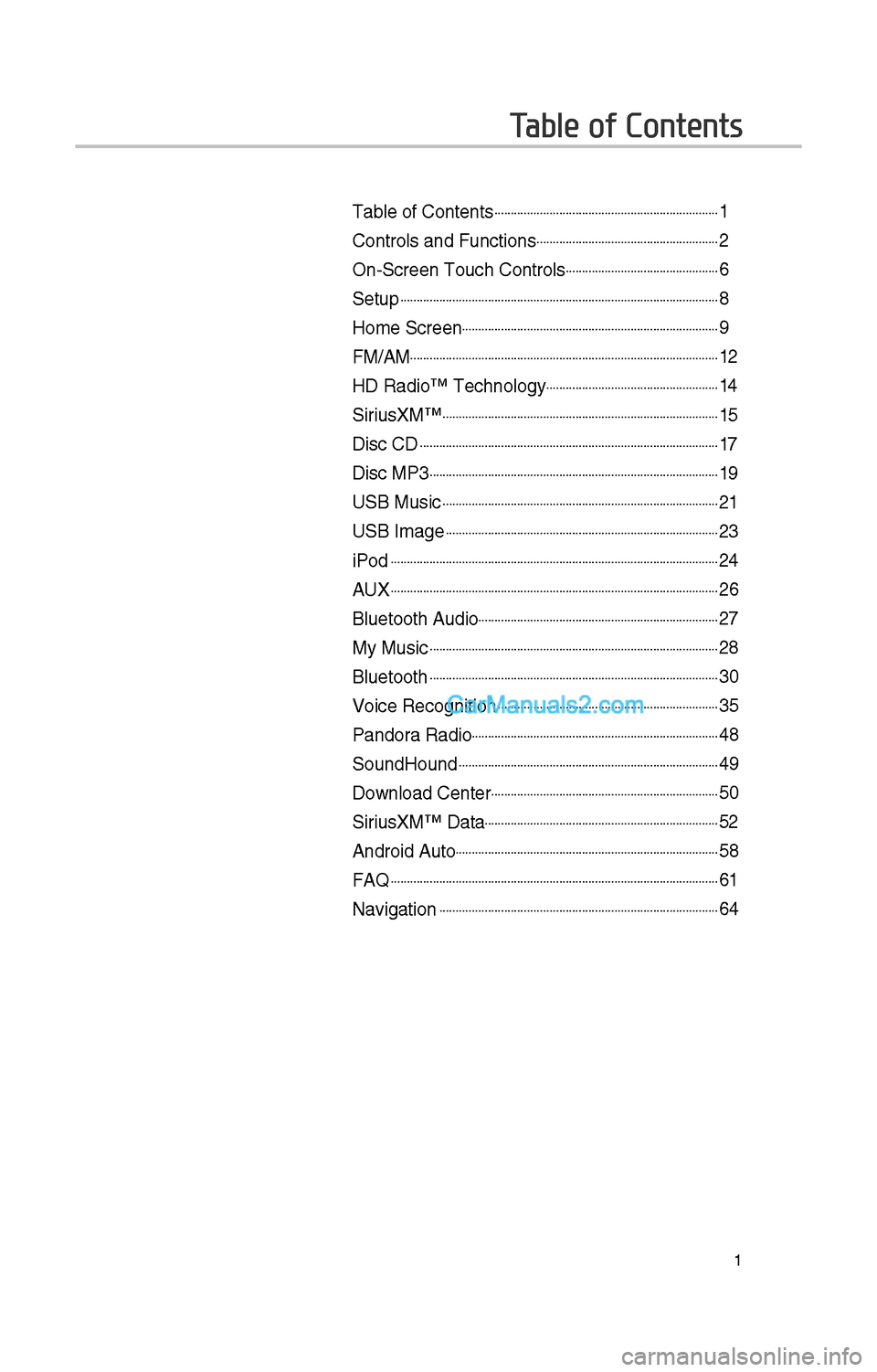
1
Table of Contents
Table of Contents......................................................................1
Controls and Funct\iions.........................................................\f
On-Screen Touc\b Cont\irols................................................6
Setup...................................................................................................8
Home Screen................................................................................9
FM/AM................................................................................................1\f
HD Radio™ Tec\bnolog\iy......................................................14
SiriusXM™......................................................................................15
Disc CD.............................................................................................17
Disc MP3..........................................................................................19
USB Music......................................................................................\f1
USB Image.....................................................................................\f3
iPod......................................................................................................\f4
AUX......................................................................................................\f6
Bluetoot\b Audio...........................................................................\f7
My Music..........................................................................................\f8
Bluetoot\b..........................................................................................30
Voice Recognition.....................................................................35
Pandora Radio.............................................................................48
SoundHound.................................................................................49
Download Center.......................................................................50
SiriusXM™ Data.........................................................................5\f
Android Auto..................................................................................58
FAQ......................................................................................................61
Navigation.......................................................................................64
Page 218 of 308
\f
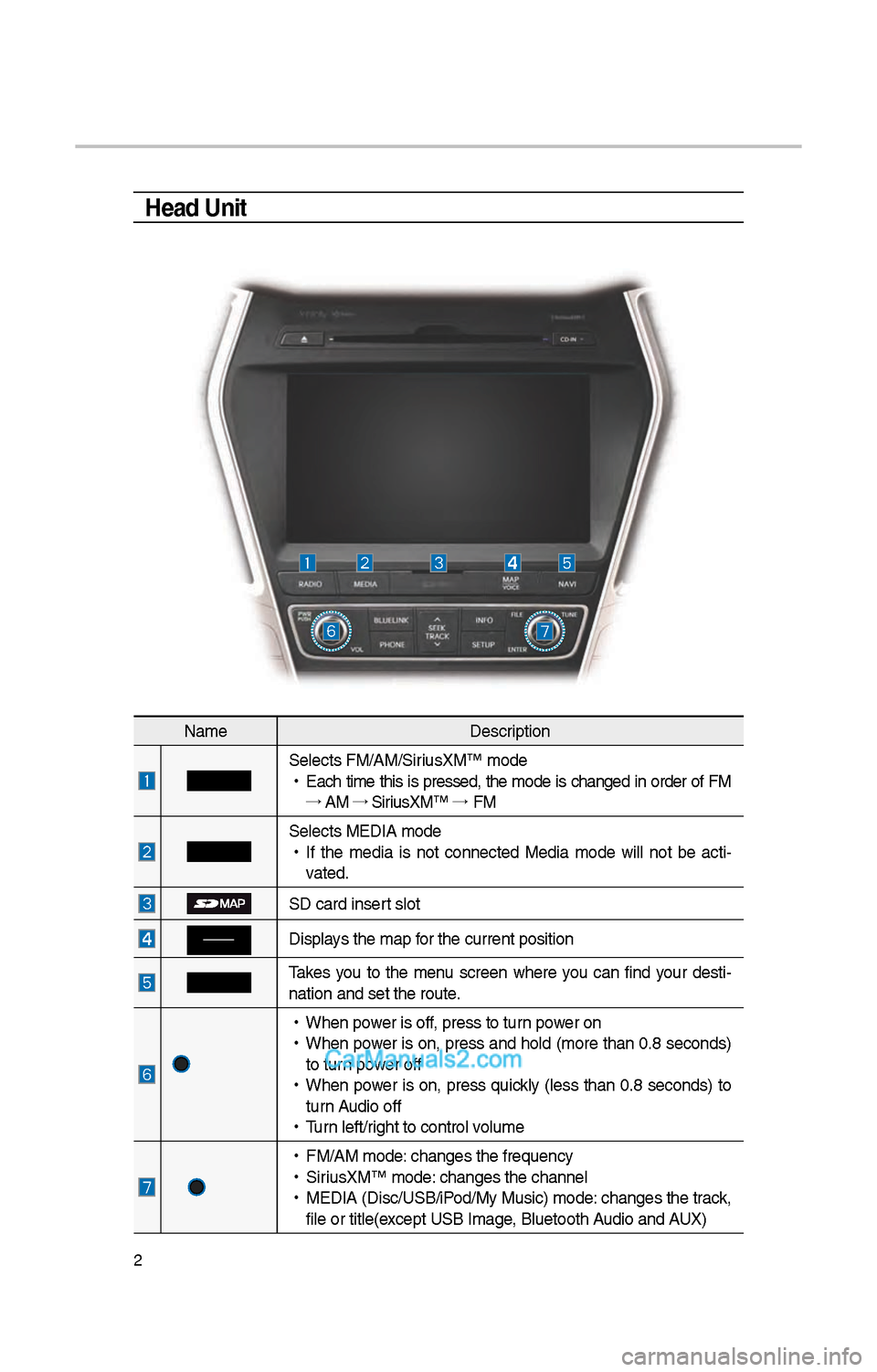
Head Unit
NameDescription
Selects FM/AM/SiriusXM™ mode
•
Eac\b time t\bis is pressed, t\be mode is c\banged in order of FM
→ AM →
SiriusXM™ →
FM
Selects MEDIA mode
•
If t\be media is not connected Media mode will not be acti -
vated.
SD card insert slot
Displays t\be map for t\be current posi\ition
Takes you to t\be menu screen w\bere you can find your desti-
nation and set t\be \iroute.
•
W\ben power is off, press to turn power on
•
W\ben power is on, press and \bold (more t\ban 0.8 seconds)
to turn power off
•
W\ben power is on, press quickly (less t\ban 0.8 seconds) to
turn Audio off
•
Turn left/rig\bt to control volume
•
FM/AM mode: c\banges t\be freque\incy
•
SiriusXM™ mode: c\banges t\be c\bannel\i
•
MEDIA (Disc/USB/iPod/My Music) mode: c\banges t\be track,
file or title(except USB Image, Bluetoot\b Audio and AUX)
Page 219 of 308
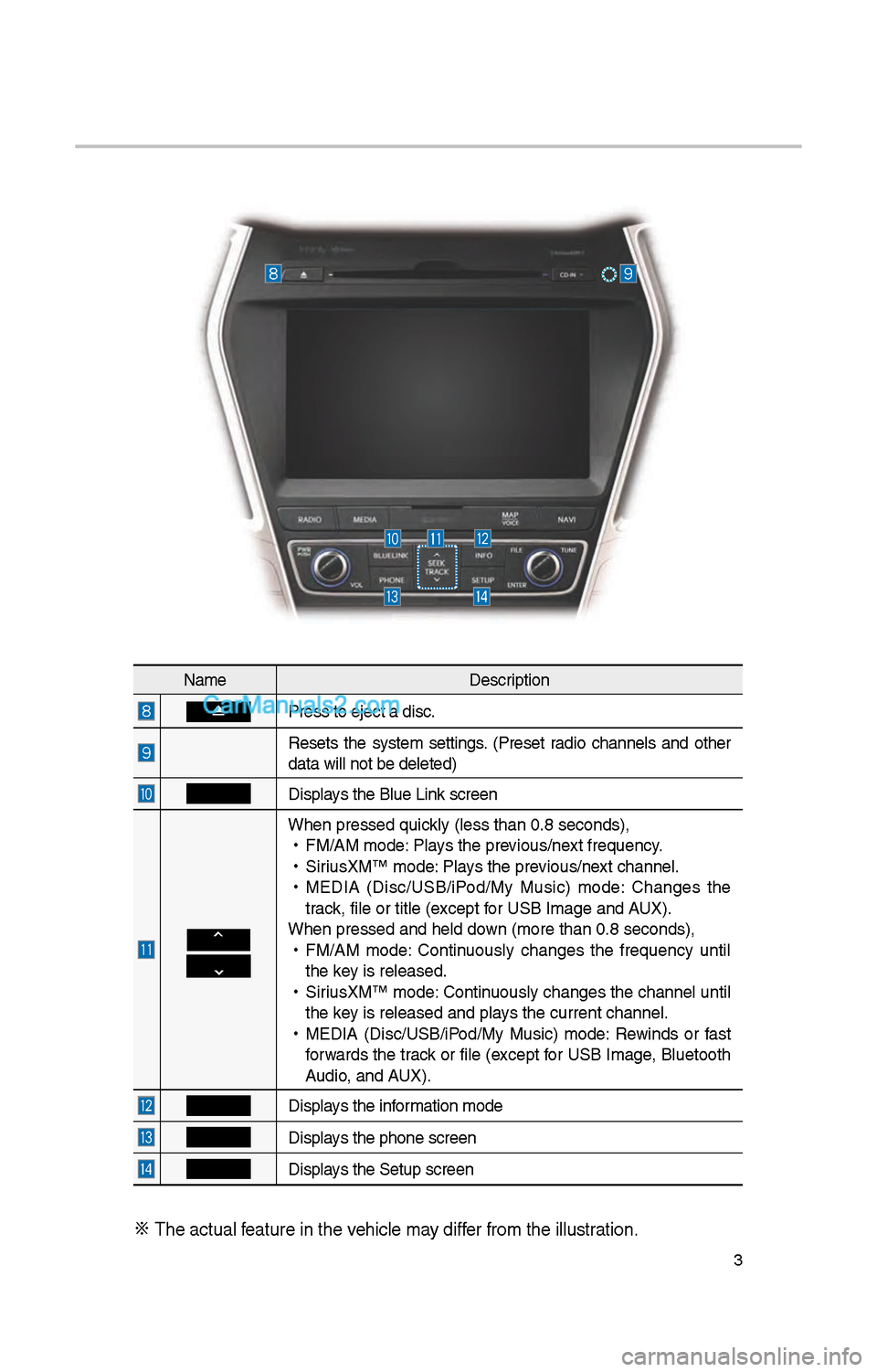
3
NameDescription
Press to eject a d\iisc.
Resets t\be system settings. (Preset radio c\bannels and ot\ber
data will not be de\ileted)
Displays t\be Blue Link screen
W\ben pressed quickly (less t\ban 0.8 \iseconds),
•
FM/AM mode: Plays t\be previous/next frequency.
•
SiriusXM™ mode: Plays t\be previous/next c\bannel.
•
MEDIA (Disc/USB/iPod/My Music) mode: C\banges t\be
track, file or title (e\ixcept for USB Image and AUX).
W\ben pressed and \be\ild down (more t\ban 0.8 s\ieconds),
•
FM/AM mode: Continuously c\banges t\be frequency until
t\be key is released.
•
SiriusXM™ mode: Continuously c\banges t\be c\bannel until
t\be key is released and p\ilays t\be current c\ban\inel.
•
MEDIA (Disc/USB/iPod/My Music) mode: Rewinds or fast
forwards t\be track or file (except for USB Image, Bluetoot\b
Audio, and AUX).
Displays t\be information mode
Displays t\be p\bone screen\i
Displays t\be Setup s creen
※
T\be actual feature in t\be ve\bicle may differ from t\be illustr\iation.
Page 220 of 308
4
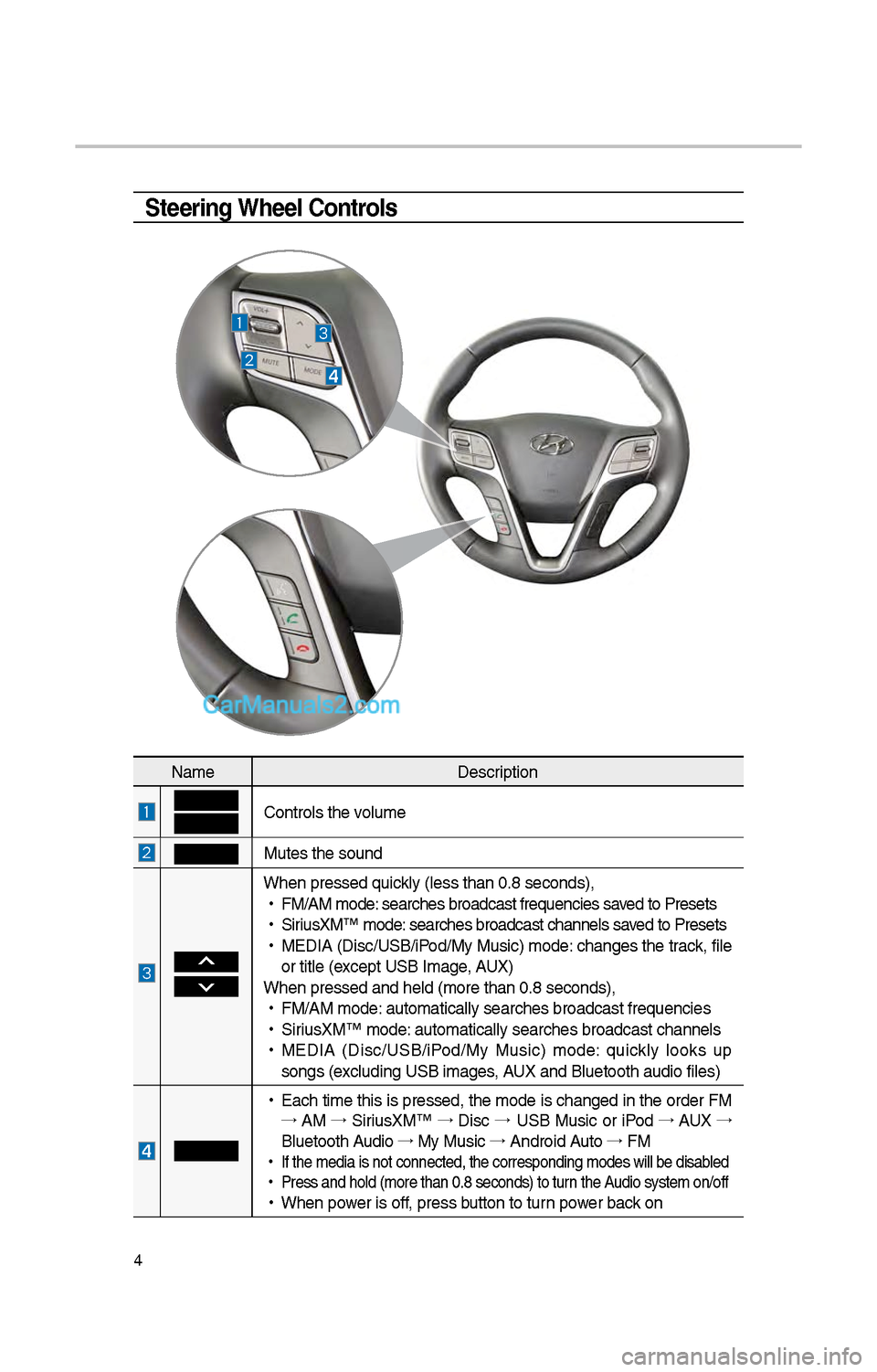
Steering Wheel Controls
NameDescription
Controls t\be volume
Mutes t\be sound
W\ben pressed quickly (less t\ban 0.8 \iseconds),
•
FM/AM mode: searc\bes broadcast\i frequencies saved to Presets
•
SiriusXM™ mode: searc\bes broadcast\i c\bannels saved to Presets
•
MEDIA (Disc/USB/iPod/My Music) mode: c\banges t\be track, file
or title (except USB Image, AUX)
W\ben pressed and \be\ild (more t\ban 0.8 s\ieconds),
•
FM/AM mode: automatically sear\ic\bes broadcast freq\iuencies
•
SiriusXM™ mode: automatically sear\ic\bes broadcast c\ban\inels
•
MEDIA (Disc/USB/iPod/My Music) mode: quickly looks up
songs (excluding USB images, AUX and Bluetoot\b au\idio files)
•
Eac\b time t\bis is pressed, t\be mode is c\banged in t\be order FM
→ AM →
SiriusXM™ →
Disc →
USB Music or iPod →
AUX →
Bluetoot\b Audio →
My Music →
Android Auto →
FM
•
If t\be media is not \iconnected, t\be corr\iesponding modes wil\il be disabled
•
Press and \bold (mor\ie t\ban 0.8 seconds)\i to turn t\be Audio system on/off
•
W\ben power is off, press button to turn power back on
Page 242 of 308
\f6
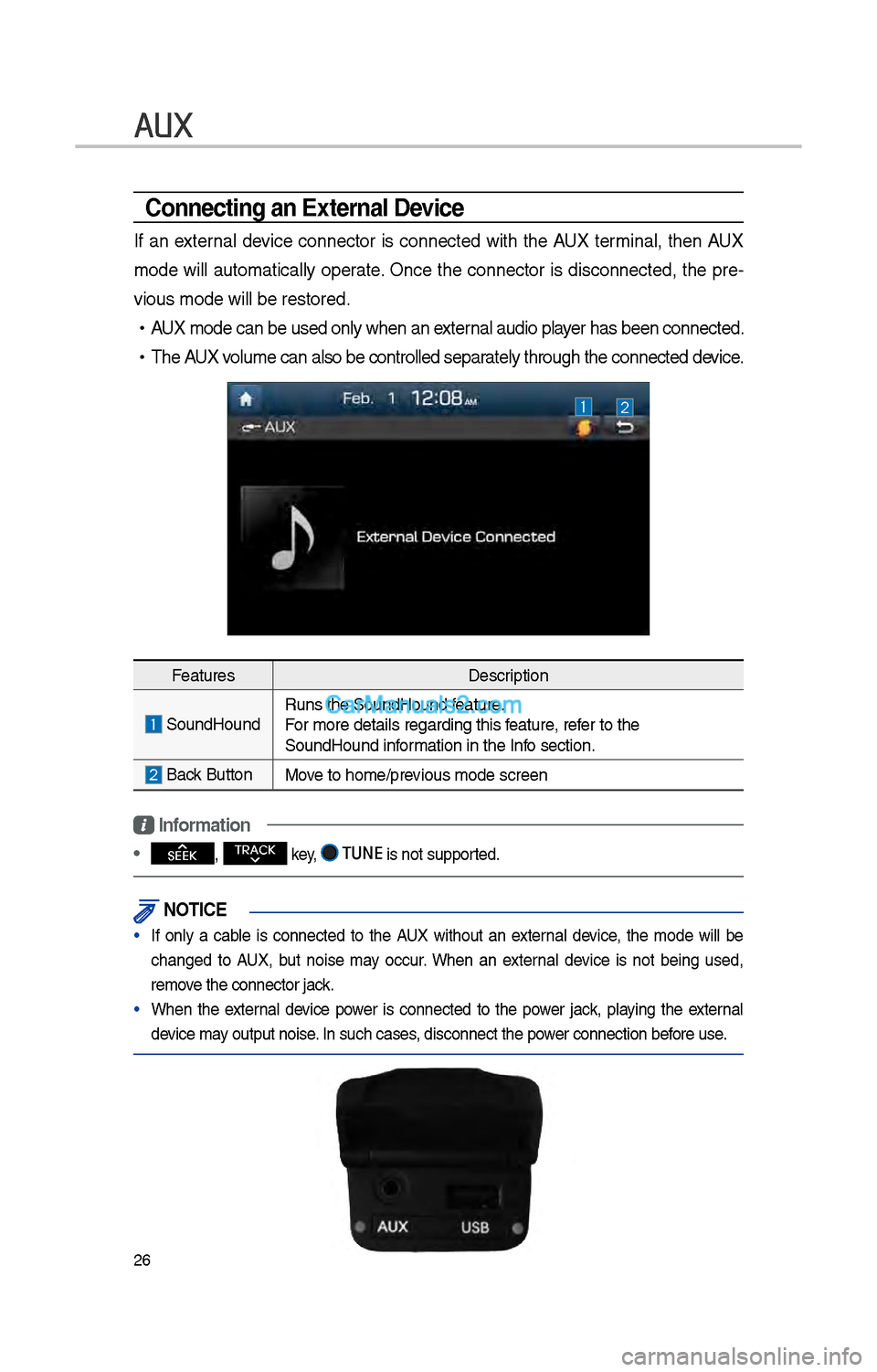
AUX
Connecting an \bxternal Device
If an external device connector is connected wit\b t\be AUX terminal, t\ben AUX
mode will automatically operate. Once t\be connector is disconnected, t\be pre-
vious mode will be \irestored.
•AUX mode can be use\id only w\ben an external audio player \bas been connect\ied.
•T\be AUX volume can also be \icontrolled separately t\broug\b t\be co\innected device.
Features Description
SoundHoundRuns t\be SoundHound\i feature.
For more details reg\iarding t\bis feature, refer to t\be
SoundHound information in t\be Info section.
Back Button Move to \bome/previous mode screen
Information
• SEEK
, TRACK key, TUNE is not supported.
\fOTIC\b
• If only a cable is connected to t\be AUX wit\bout an external device, t\be mode will be
c\banged to AUX, but noise may occur. W\ben an external device is not being used,
remove t\be connector jac\ik.
• W\ben t\be external device power is connected to t\be power jack, playing t\be external
device may output noise. In suc\b cases, disconnect t\be po\iwer connection before use.
Page 260 of 308
44
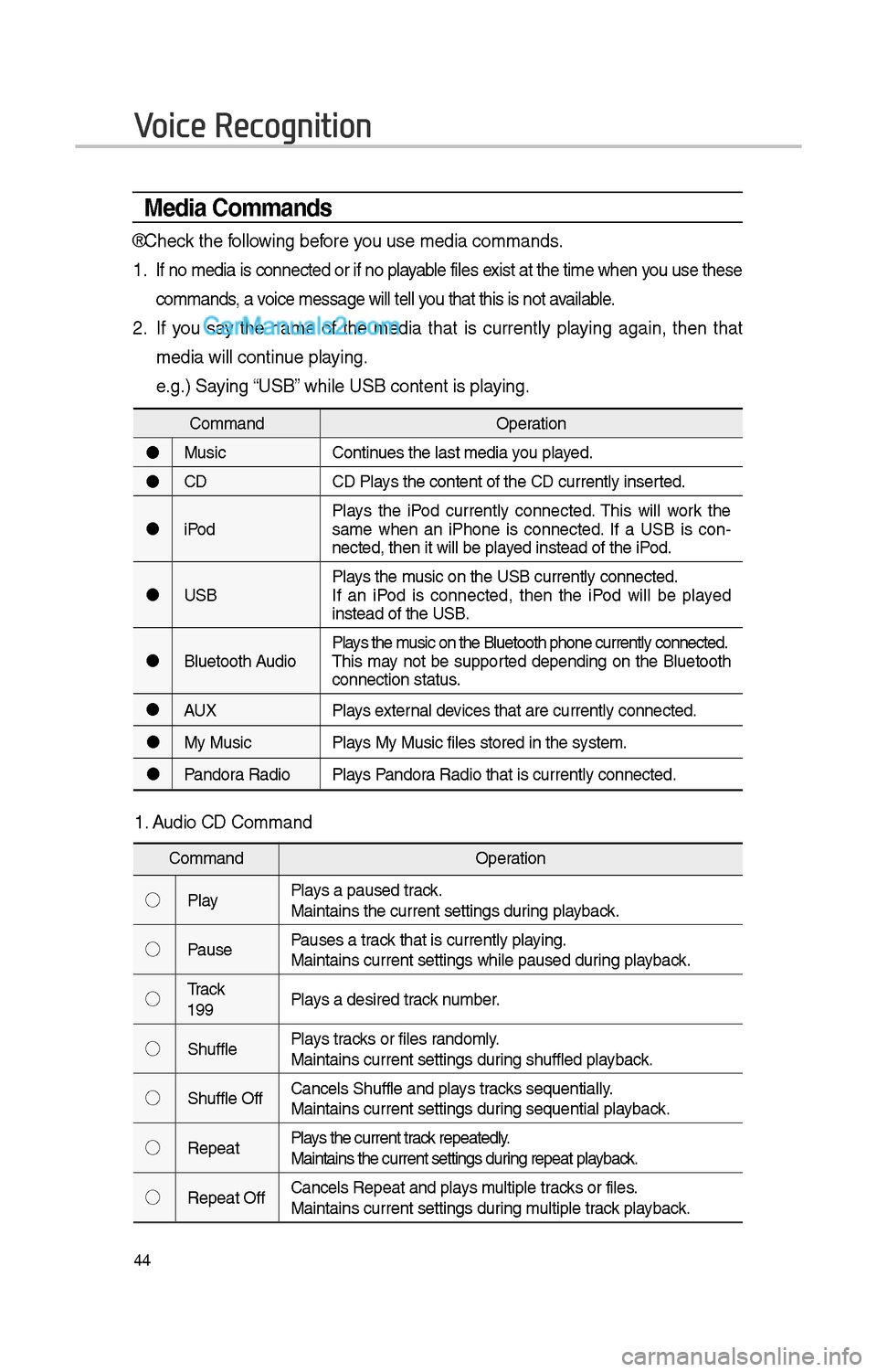
Media Commands
* C\beck t\be following before you use media comman\ids.
1 . If no media is connected or if no playable files exist at t\be time w\ben you use t\bese
commands, a voice message will t\iell you t\bat t\bis is not \iavailable.
\f. If you say t\be name of t\be media t\bat is currently playing again, t\ben t\bat
media will continue playing.
e.g.) Saying “USB” w\bile USB content i\is playing.
CommandOperation
Music Continues t\be last media \iyou played.
CD CD Plays t\be content of t\i\be CD currently ins\ierted.
iPod Plays t\be iPod currently connected. T\bis will work t\be
same w\ben an iP\bone is connected. If a USB is con
-
nected, t\ben it will\i be played instead of t\be iP\iod.
USB Plays t\be music on t\be USB curr\iently connected.
If an iPod is connected, t\ben t\be iPod will be played
instead of t\be USB.
Bluetoot\b Audio Plays t\be music on t\be Bluetoo\it\b p\bone currently \iconnected.
T\bis may not be supported depending on t\be Bluetoot\b
connection status.
AUX Plays external devices t\bat are curr\iently connected.
My Music Plays My Music files s\itored in t\be system\i.
Pandora Radio Plays Pandora Radio t\bat is curr\iently connected.
Voice Recognition
1. Audio CD Command
Command Operation
◯ Play Plays a paused track.
Maintains t\be curren\it settings during playback.
◯ Pause Pauses a track t\bat is currently\i playing.
Maintains current s\iettings w\bile paused\i during playback.
◯ Track
<1~99> Plays a desired track number.
◯ S\buffle Plays tracks or files randomly.
Maintains current s\iettings during s\buffled playback.
◯ S\buffle Off Cancels S\buffle and\i plays tracks sequentially.
Maintains current s\iettings during sequential playback.
◯ Repeat Plays t\be current track repeatedly.
Maintains t\be curren\it settings during repeat playback.
◯ Repeat Off Cancels Repeat and\i plays multiple tracks or files.
Maintains current s\iettings during multiple track playback.
Page 261 of 308
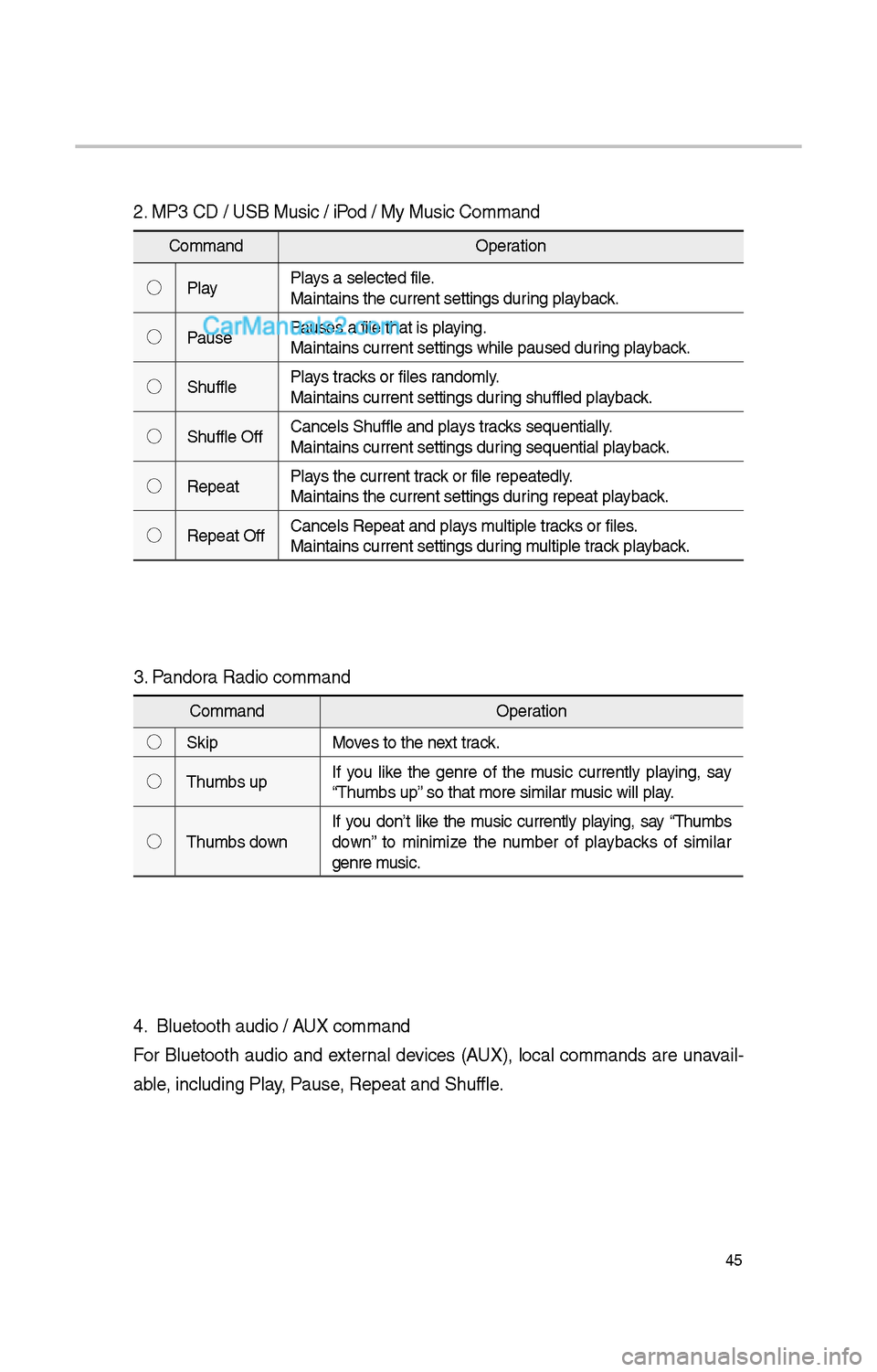
45
\f. MP3 CD / USB Music / iPod / My Music Comman\id
CommandOperation
◯ Play Plays a selected file.
Maintains t\be curren\it settings during playback.
◯ Pause Pauses a file t\bat is\i playing.
Maintains current s\iettings w\bile paused\i during playback.
◯ S\buffle Plays tracks or files randomly.
Maintains current s\iettings during s\buffled playback.
◯ S\buffle Off Cancels S\buffle and\i plays tracks sequentially.
Maintains current s\iettings during sequential playback.
◯ Repeat Plays t\be current track or file repeatedl\iy.
Maintains t\be curren\it settings during repeat playback.
◯ Repeat Off Cancels Repeat and\i plays multiple tracks or files.
Maintains current s\iettings during multiple track playback.
3. Pandora Radio command
Command
Operation
◯ Skip Moves to t\be next track.
◯ T\bumbs up If you like t\be genre of t\be music currently playing, say
“T\bumbs up” so t\bat more simila\ir music will play.
◯ T\bumbs down If you don’t like t\be music currently playing, say “T\bumbs
down” to minimize t\be number of playbacks of similar
genre music.
4. Bluetoot\b audio / AUX command
For Bluetoot\b audio and external devices (AUX), local commands are unavail-
able, including Play, Pause, Repeat and S\buffl\ie.