engine HYUNDAI SANTA FE HYBRID 2021 Owners Manual
[x] Cancel search | Manufacturer: HYUNDAI, Model Year: 2021, Model line: SANTA FE HYBRID, Model: HYUNDAI SANTA FE HYBRID 2021Pages: 598, PDF Size: 66.6 MB
Page 410 of 598
07
7-57
OTM070142N
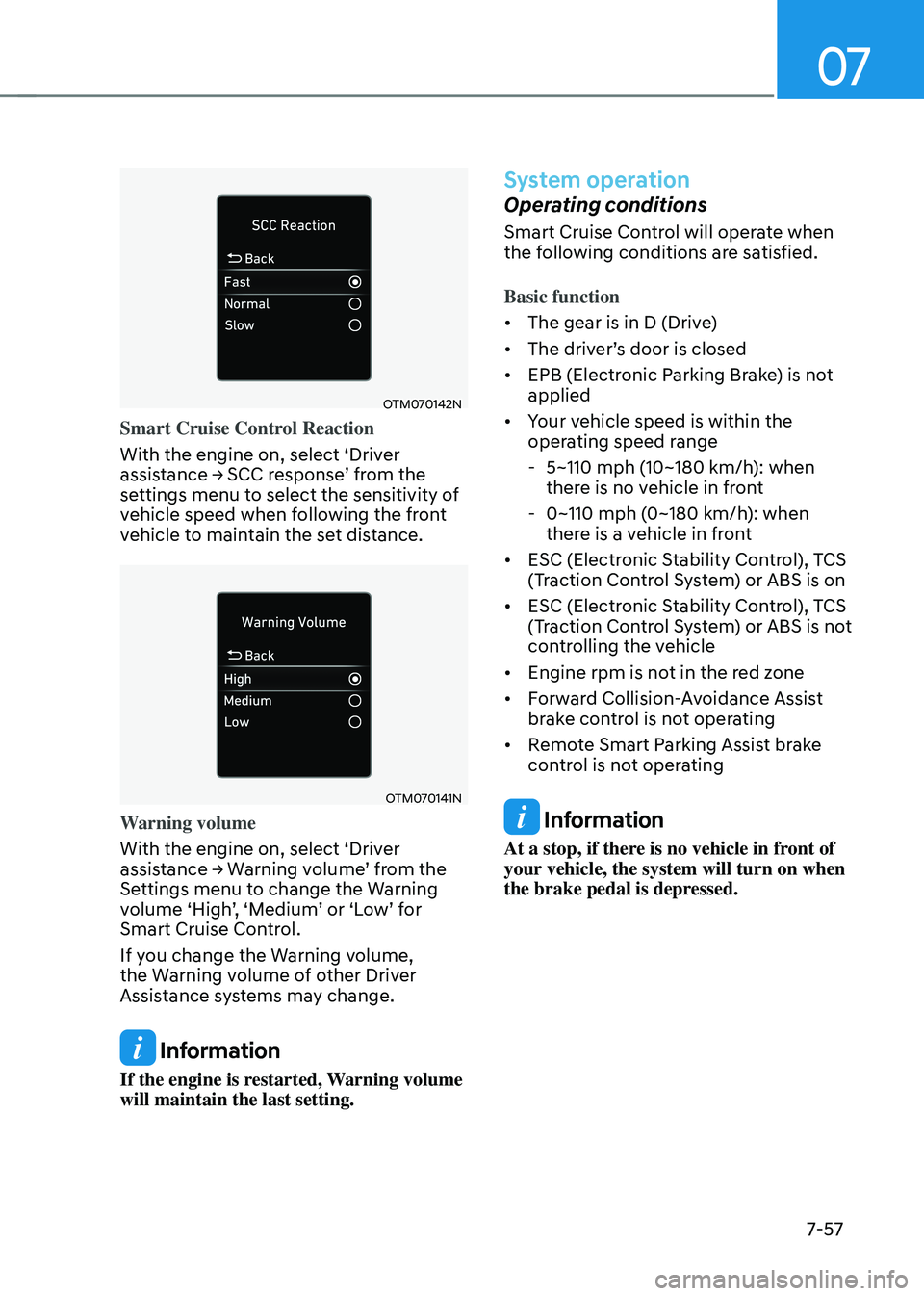
Smart Cruise Control Reaction
With the engine on, select ‘Driver
assistance → SCC response’ from the settings menu to select the sensitivity of
vehicle speed when following the front
vehicle to maintain the set distance.
OTM070141N
Warning volume
With the engine on, select ‘Driver
assistance → Warning volume’ from the Settings menu to change the Warning volume ‘High’, ‘Medium’ or ‘Low’ for Smart Cruise Control.
If you change the Warning volume,
the Warning volume of other Driver
Assistance systems may change.
Information
If the engine is restarted, Warning volume
will maintain the last setting.
System operation
Operating conditions
Smart Cruise Control will operate when
the following conditions are satisfied.
Basic function
• The gear is in D (Drive)
•
The driver’s door is closed
• EPB (Electronic Parking Brake) is not
applied
• Your vehicle speed is within the
operating speed range
-5~110 mph (10~180 km/h): when
there is no vehicle in front
-0~110 mph (0~180 km/h): when
there is a vehicle in front
• ESC (Electronic Stability Control), TCS
(Traction Control System) or ABS is on
• ESC (Electronic Stability Control), TCS
(Traction Control System) or ABS is not
controlling the vehicle
• Engine rpm is not in the red zone
• Forward Collision-Avoidance Assist
brake control is not operating
• Remote Smart Parking Assist brake
control is not operating
Information
At a stop, if there is no vehicle in front of
your vehicle, the system will turn on when
the brake pedal is depressed.
Page 417 of 598
Driver assistance system
7-64
System disabled
OTM070115N
When the front radar cover or sensor
is covered with snow, rain, or foreign
material, it can reduce the detecting
performance and temporarily limit or
disable Smart Cruise Control.
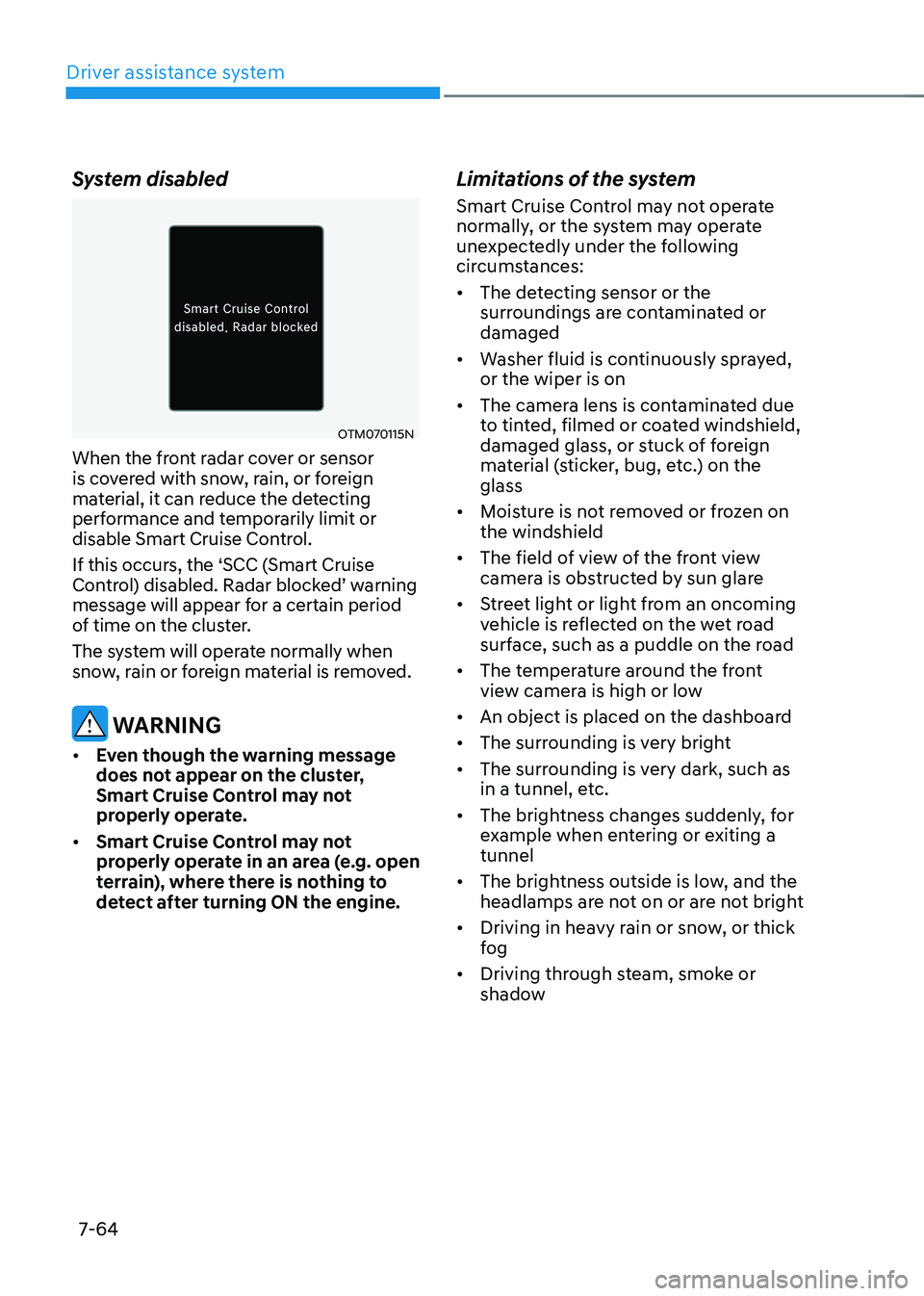
If this occurs, the ‘SCC (Smart Cruise
Control) disabled. Radar blocked’ warning message will appear for a certain period
of time on the cluster.
The system will operate normally when
snow, rain or foreign material is removed.
WARNING
• Even though the warning message
does not appear on the cluster,
Smart Cruise Control may not
properly operate.
• Smart Cruise Control may not
properly operate in an area (e.g. open
terrain), where there is nothing to
detect after turning ON the engine.
Limitations of the system
Smart Cruise Control may not operate
normally, or the system may operate
unexpectedly under the following
circumstances:
• The detecting sensor or the
surroundings are contaminated or
damaged
• Washer fluid is continuously sprayed,
or the wiper is on
• The camera lens is contaminated due
to tinted, filmed or coated windshield,
damaged glass, or stuck of foreign
material (sticker, bug, etc.) on the
glass
• Moisture is not removed or frozen on
the windshield
• The field of view of the front view
camera is obstructed by sun glare
• Street light or light from an oncoming
vehicle is reflected on the wet road
surface, such as a puddle on the road
• The temperature around the front
view camera is high or low
• An object is placed on the dashboard
• The surrounding is very bright
• The surrounding is very dark, such as
in a tunnel, etc.
• The brightness changes suddenly, for
example when entering or exiting a
tunnel
• The brightness outside is low, and the
headlamps are not on or are not bright
• Driving in heavy rain or snow, or thick
fog
• Driving through steam, smoke or
shadow
Page 423 of 598
Driver assistance system
7-7 0
Navigation-based Smart Cruise Control
will help automatically adjust vehicle
speed when driving on highways (or
motorways) by using road information
from the navigation system while Smart
Cruise Control is operating.
Information
• Navigation-based Smart Cruise Control
is available only on controlled access
road of certain highways.
ÃControlled access road indicates
roads with limited entrances and
exits that allow uninterrupted high
speed traffic flow. Only passenger
cars and motorcycles are allowed on
controlled access roads.
• Additional highways may be expanded
by future navigation updates.
Information
Navigation-based Smart Cruise Control
operates on main roads of highways (or
motorways), and does not operate on
interchanges or junctions.
Highway Curve Zone Auto Slowdown
If vehicle speed is high, Highway Curve
Zone Auto Slowdown function will
temporarily decelerate your vehicle
or limit acceleration to help you drive
safely on a curve based on the curve
information from the navigation.
Highway Set Speed Auto Change
Highway Set Speed Auto Change
function automatically changes Smart
Cruise Control set speed based on
the speed limit information from the
navigation.
System settings
Setting functions for the system
OTM070192N
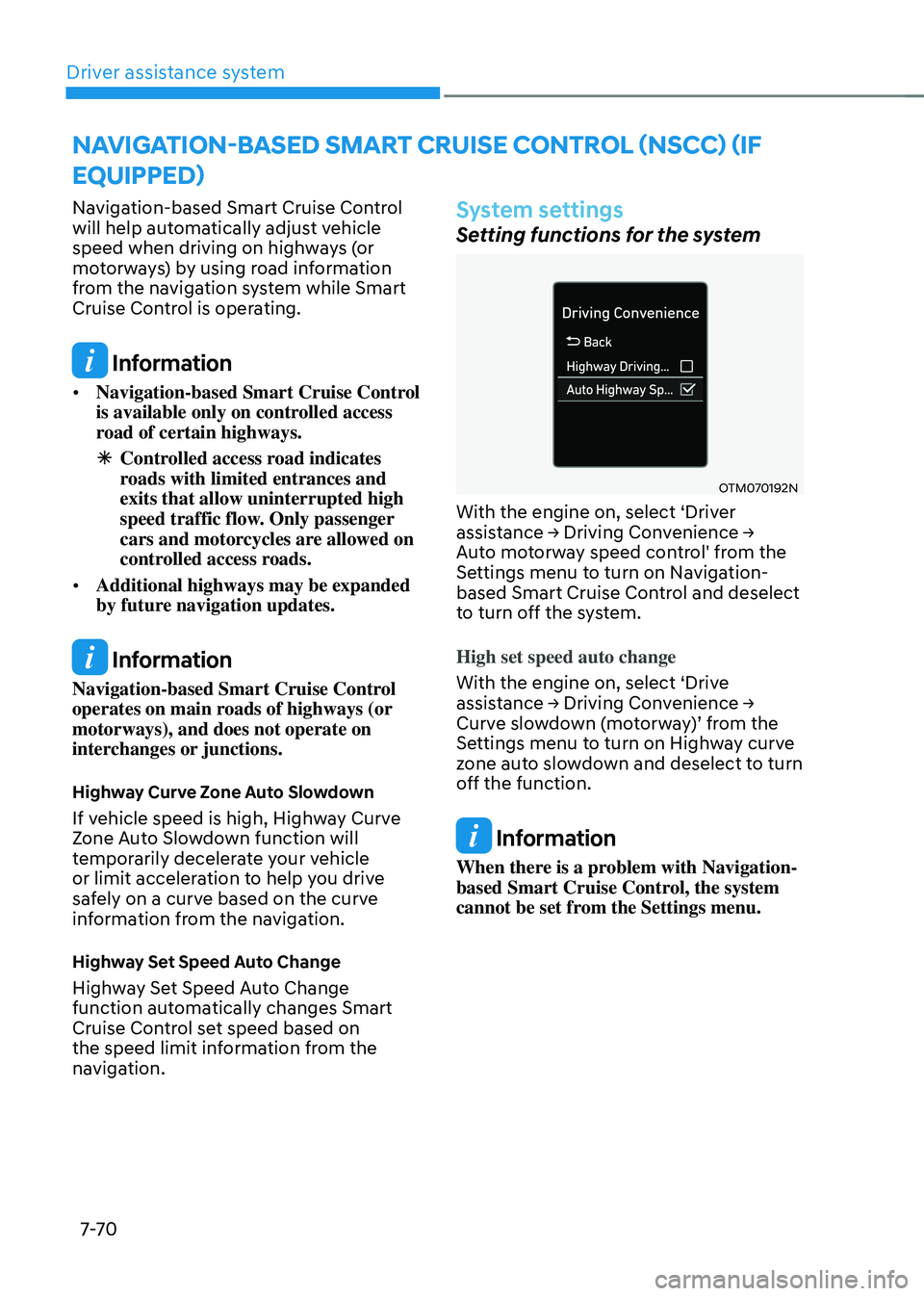
With the engine on, select ‘Driver assistance → Driving Convenience → Auto motorway speed control' from the
Settings menu to turn on Navigation-
based Smart Cruise Control and deselect
to turn off the system.
High set speed auto change
With the engine on, select ‘Drive
assistance → Driving Convenience → Curve slowdown (motorway)’ from the Settings menu to turn on Highway curve
zone auto slowdown and deselect to turn
off the function.
Information
When there is a problem with Navigation-
based Smart Cruise Control, the system
cannot be set from the Settings menu.
NAVIGATION-BASED SMART CRUISE CONTROL (NSCC) (IF
EQUIPPED)
Page 430 of 598
07
7-7 7
LANE FOLLOWING ASSIST (LFA) (IF EQUIPPED)
Lane Following Assist is designed to help
detect lane markings and/or vehicles on
the road, and assists the driver’s steering to help center the vehicle in the lane.
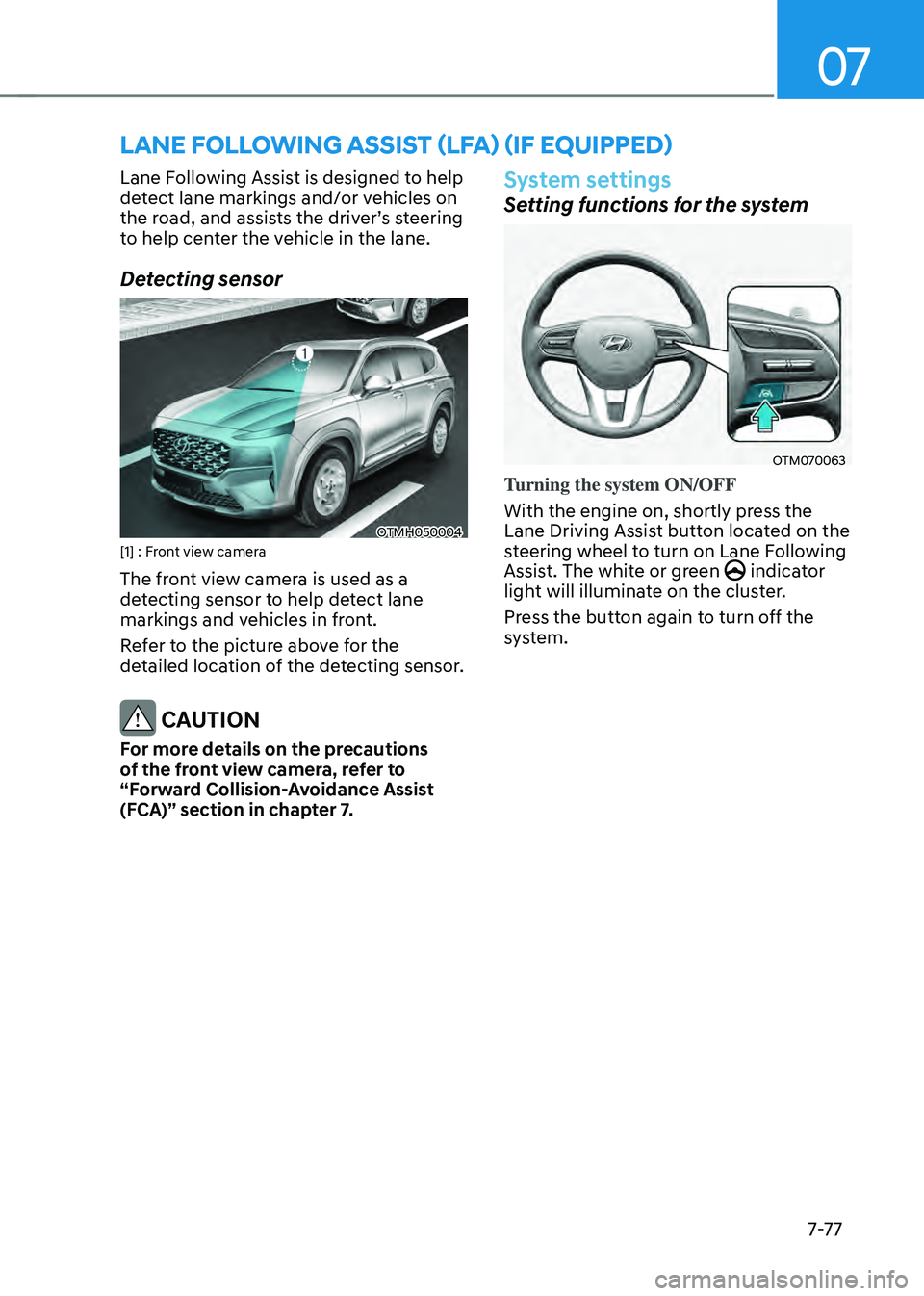
Detecting sensor
OTMH050004[1] : Front view camera
The front view camera is used as a
detecting sensor to help detect lane
markings and vehicles in front.
Refer to the picture above for the
detailed location of the detecting sensor.
CAUTION
For more details on the precautions
of the front view camera, refer to
“Forward Collision-Avoidance Assist
(FCA)” section in chapter 7.
System settings
Setting functions for the system
OTM070063
Turning the system ON/OFF
With the engine on, shortly press the
Lane Driving Assist button located on the
steering wheel to turn on Lane Following
Assist. The white or green
indicator light will illuminate on the cluster.
Press the button again to turn off the
system.
Page 431 of 598
Driver assistance system
7-7 8
OTM070141N
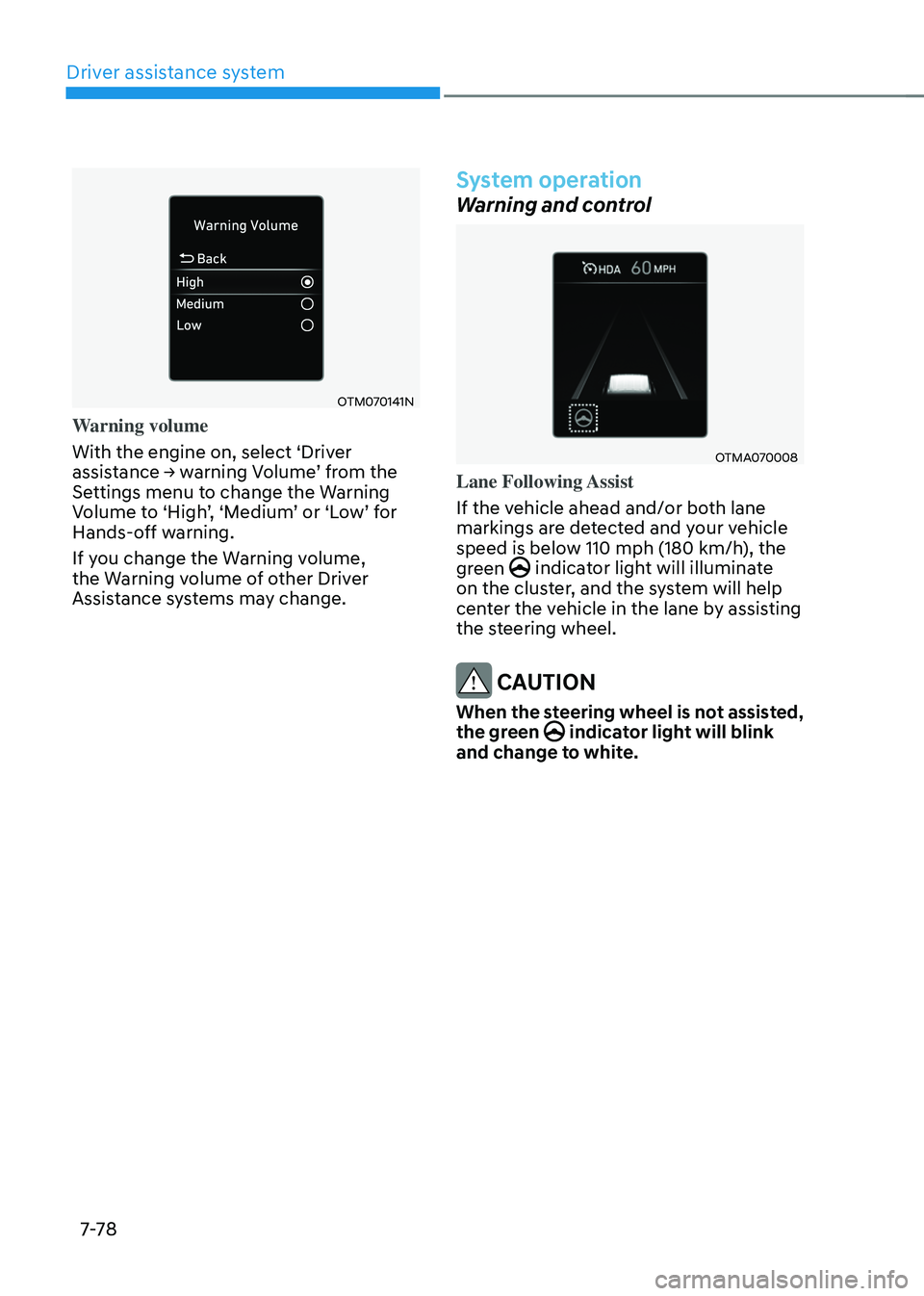
Warning volume
With the engine on, select ‘Driver
assistance → warning Volume’ from the Settings menu to change the Warning Volume to ‘High’, ‘Medium’ or ‘Low’ for Hands-off warning.
If you change the Warning volume,
the Warning volume of other Driver
Assistance systems may change.
System operation
Warning and control
OTMA070008
Lane Following Assist
If the vehicle ahead and/or both lane
markings are detected and your vehicle
speed is below 110 mph (180 km/h), the
green
indicator light will illuminate on the cluster, and the system will help
center the vehicle in the lane by assisting
the steering wheel.
CAUTION
When the steering wheel is not assisted,
the green indicator light will blink and change to white.
Page 435 of 598
Driver assistance system
7-82
System settings
Setting functions for the system
OTM070193N
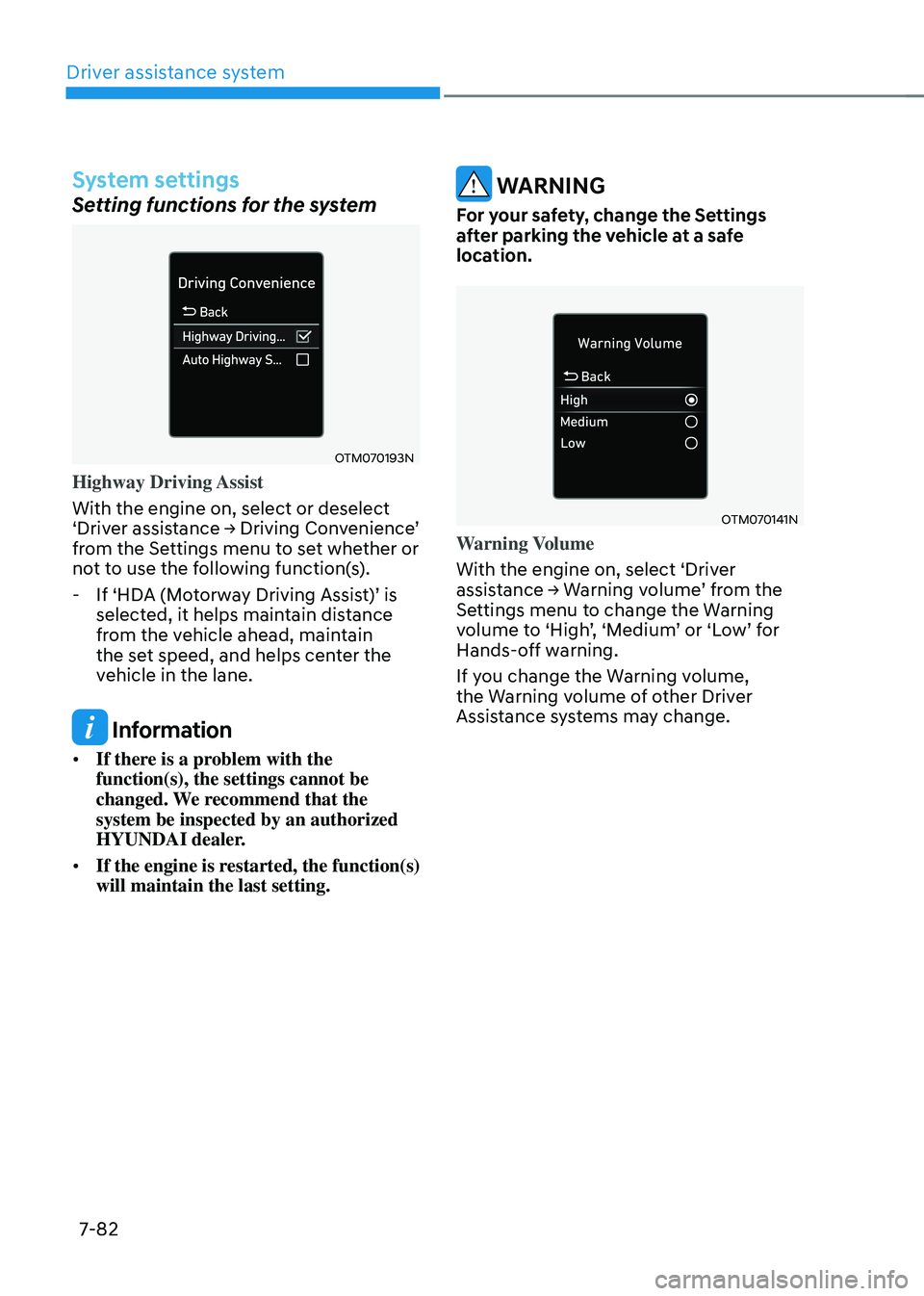
Highway Driving Assist
With the engine on, select or deselect
‘Driver assistance → Driving Convenience’ from the Settings menu to set whether or
not to use the following function(s).
-If ‘HDA (Motorway Driving Assist)’ is selected, it helps maintain distance
from the vehicle ahead, maintain
the set speed, and helps center the
vehicle in the lane.
Information
• If there is a problem with the
function(s), the settings cannot be
changed. We recommend that the
system be inspected by an authorized
HYUNDAI dealer.
• If the engine is restarted, the function(s)
will maintain the last setting.
WARNING
For your safety, change the Settings
after parking the vehicle at a safe
location.
OTM070141N
Warning Volume
With the engine on, select ‘Driver
assistance → Warning volume’ from the Settings menu to change the Warning volume to ‘High’, ‘Medium’ or ‘Low’ for Hands-off warning.
If you change the Warning volume,
the Warning volume of other Driver
Assistance systems may change.
Page 439 of 598
Driver assistance system
7-86
• Highway Driving Assist may
inadvertently operate or turn off
depending on road conditions
(navigation information) and
surroundings.
• Lane Following Assist function may
be temporarily disabled when the
front view camera cannot detect
lanes properly or the hands-off
warning is on.
• You may not hear the warning sound
of Highway Driving Assist if the
surrounding is noisy.
• If the vehicle is driven at high speed
above a certain speed at a curve,
your vehicle may drive to one side or
may depart from the driving lane.
• When you are towing a trailer or
another vehicle, we recommend that
Highway Driving Assist is turned off
due to safety reasons.
• The hands–off warning message
may appear early or late depending
on how the steering wheel is held or
road conditions. Always have your
hands on the steering wheel while
driving.
• For your safety, please read the
owner's manual before using the
Highway Driving Assist.
• Highway Driving Assist will not
operate when the engine is started,
or when the detecting sensors or
navigation is being initialized.Limitations of the system
Highway Driving Assist may not operate
normally, or may not operate under the
following circumstances:
• The map information and the
actual road is different because the
navigation is not updated
• The map information and the actual
road is different because of real-time
GPS data or map information error
• The infotainment system is overloaded
by simultaneously performing
functions such as route search, video
playback, voice recognition, etc.
• GPS signals are blocked in areas such
as a tunnel
• The driver goes off course or the
route to the destination is changed or
canceled by resetting the navigation
• The vehicle enters a service station or
rest area
• Android Auto or Car Play is operating
• The navigation cannot detect the
current vehicle position (ex: elevated
roads including overpass adjacent to
general roads or nearby roads exist in
a parallel way)
For more details on the limitations of
the front view camera, front radar, front
corner radar and rear corner radar, refer
to “Forward Collision-Avoidance Assist
(FCA)” section in chapter 7.
Page 442 of 598
07
7-89
System settings
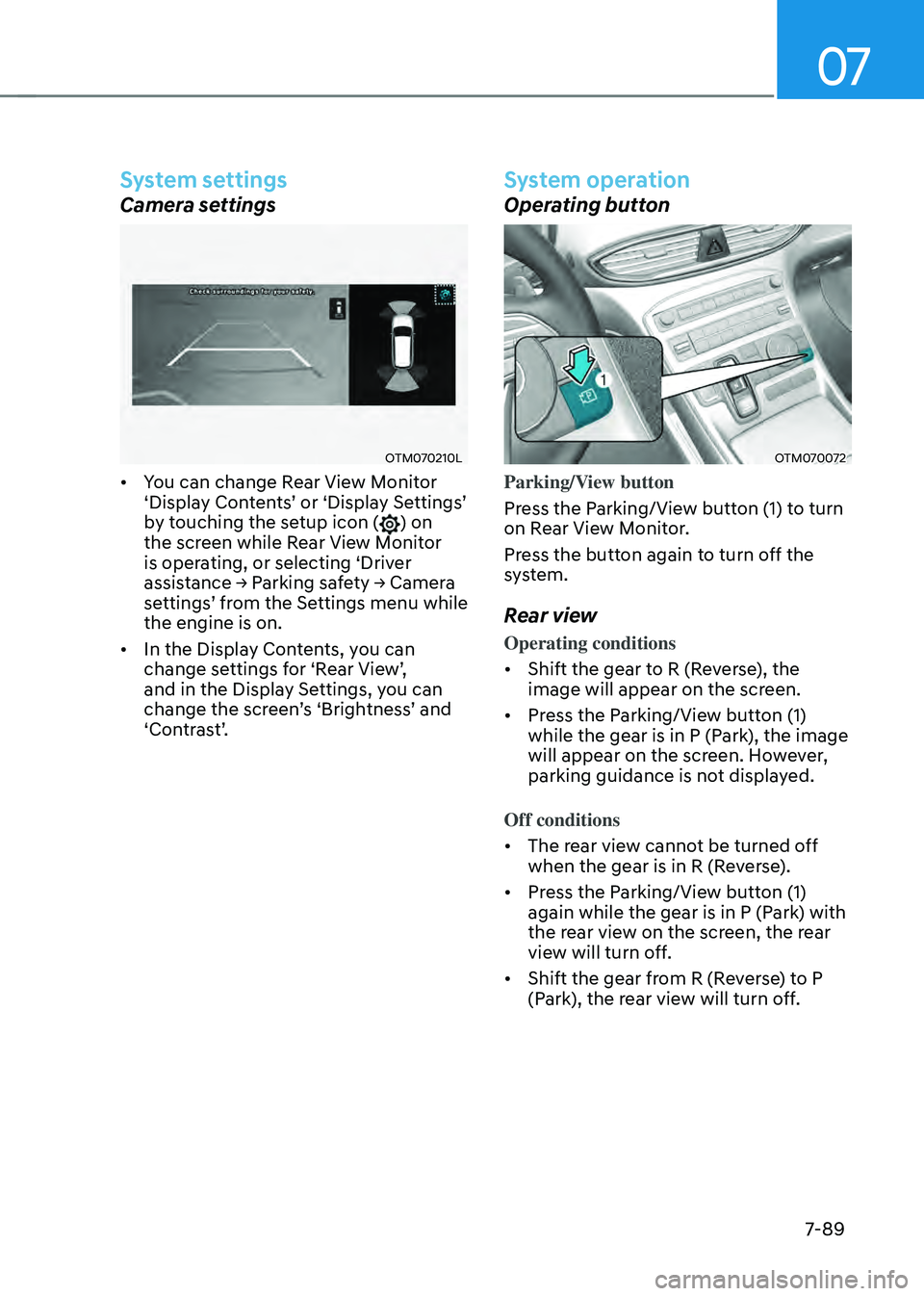
Camera settings
OTM070210L
• You can change Rear View Monitor ‘Display Contents’ or ‘Display Settings’ by touching the setup icon () on
the screen while Rear View Monitor
is operating, or selecting ‘Driver
assistance → Parking safety → Camera settings’ from the Settings menu while the engine is on.
• In the Display Contents, you can
change settings for ‘Rear View’, and in the Display Settings, you can change the screen’s ‘Brightness’ and ‘Contrast’.
System operation
Operating button
OTM070072
Parking/View button
Press the Parking/View button (1) to turn
on Rear View Monitor.
Press the button again to turn off the
system.
Rear view
Operating conditions
• Shift the gear to R (Reverse), the
image will appear on the screen.
• Press the Parking/View button (1)
while the gear is in P (Park), the image
will appear on the screen. However,
parking guidance is not displayed.
Off conditions
• The rear view cannot be turned off
when the gear is in R (Reverse).
• Press the Parking/View button (1)
again while the gear is in P (Park) with
the rear view on the screen, the rear
view will turn off.
• Shift the gear from R (Reverse) to P
(Park), the rear view will turn off.
Page 446 of 598
07
7-93
System settings
Camera settings
OTM070213L
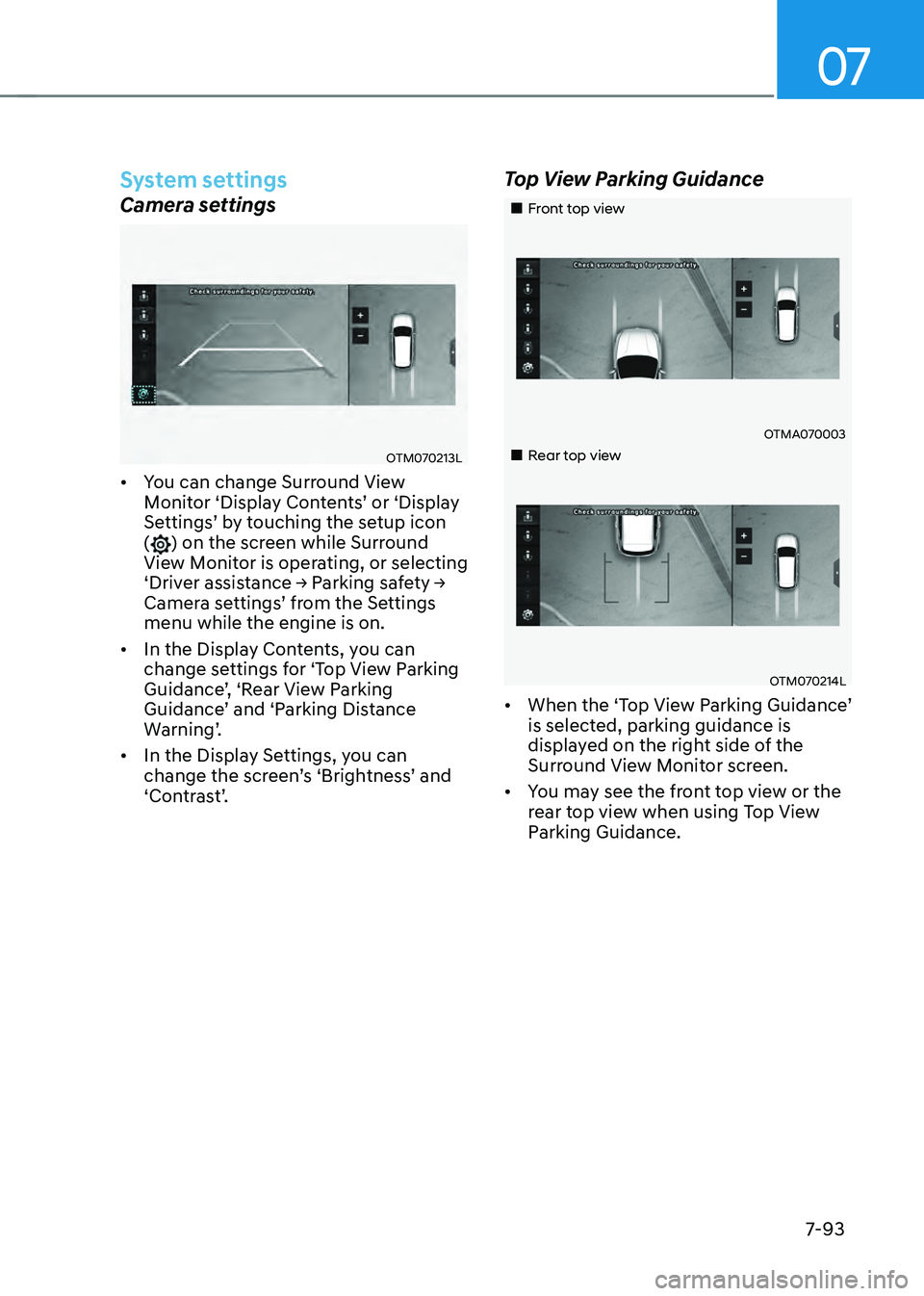
• You can change Surround View Monitor ‘Display Contents’ or ‘Display Settings’ by touching the setup icon () on the screen while Surround
View Monitor is operating, or selecting
‘Driver assistance → Parking safety → Camera settings’ from the Settings menu while the engine is on.
• In the Display Contents, you can
change settings for ‘Top View Parking
Guidance’, ‘Rear View Parking Guidance’ and ‘Parking Distance Warning’.
• In the Display Settings, you can
change the screen’s ‘Brightness’ and ‘Contrast’.
Top View Parking Guidance
„„Front top view
OTMA070003
„„Rear top view
OTM070214L
• When the ‘Top View Parking Guidance’ is selected, parking guidance is
displayed on the right side of the
Surround View Monitor screen.
• You may see the front top view or the
rear top view when using Top View
Parking Guidance.
Page 447 of 598
Driver assistance system
7-94
Rear View Parking Guidance
OTM070216L
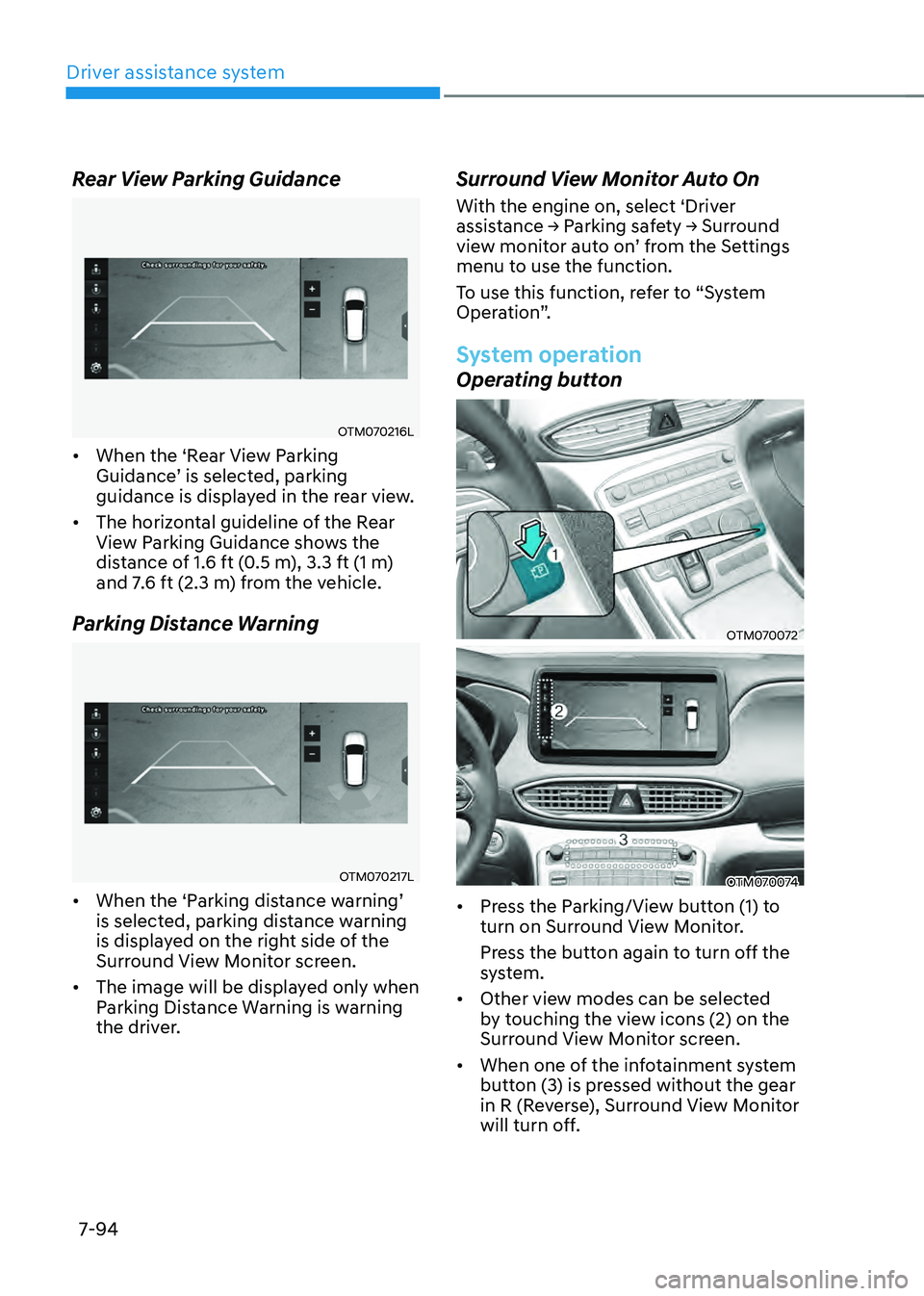
• When the ‘Rear View Parking Guidance’ is selected, parking guidance is displayed in the rear view.
• The horizontal guideline of the Rear
View Parking Guidance shows the
distance of 1.6 ft (0.5 m), 3.3 ft (1 m)
and 7.6 ft (2.3 m) from the vehicle.
Parking Distance Warning
OTM070217L
• When the ‘Parking distance warning’ is selected, parking distance warning
is displayed on the right side of the
Surround View Monitor screen.
• The image will be displayed only when
Parking Distance Warning is warning
the driver.
Surround View Monitor Auto On
With the engine on, select ‘Driver assistance → Parking safety → Surround view monitor auto on’ from the Settings menu to use the function.
To use this function, refer to “System
Operation”.
System operation
Operating button
OTM070072
OTM070074
• Press the Parking/View button (1) to
turn on Surround View Monitor.
Press the button again to turn off the
system.
• Other view modes can be selected
by touching the view icons (2) on the
Surround View Monitor screen.
• When one of the infotainment system
button (3) is pressed without the gear
in R (Reverse), Surround View Monitor
will turn off.