Led Hyundai Sonata 2015 Manual PDF
[x] Cancel search | Manufacturer: HYUNDAI, Model Year: 2015, Model line: Sonata, Model: Hyundai Sonata 2015Pages: 603, PDF Size: 14.7 MB
Page 300 of 603
4-47
Multimedia System
4
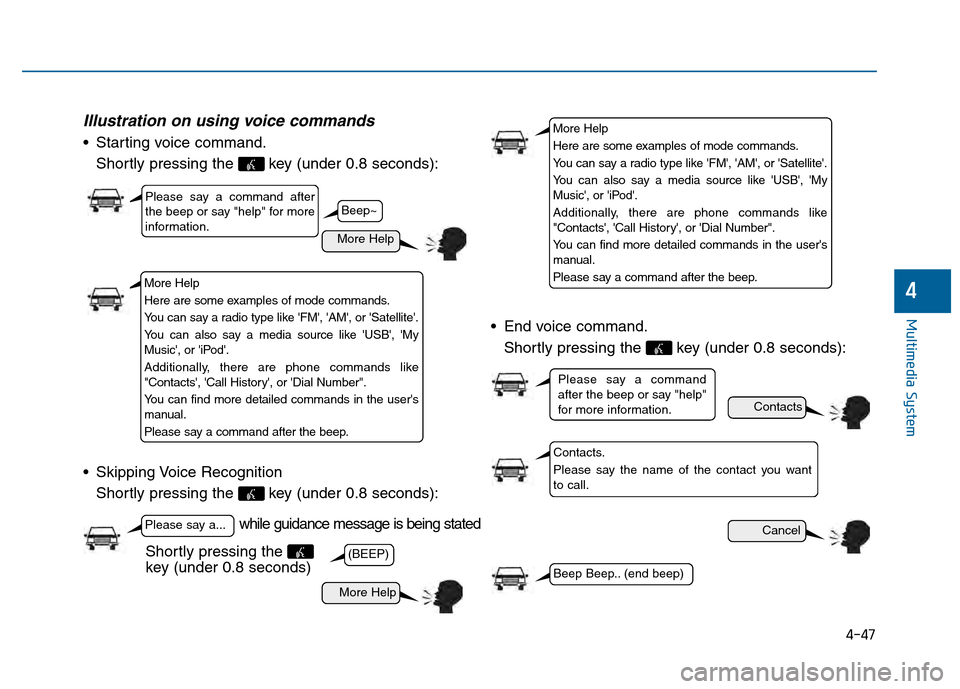
Illustration on using voice commands
Starting voice command.Shortly pressing the key (under 0.8 seconds):
Skipping Voice Recognition Shortly pressing the key (under 0.8 seconds): End voice command.
Shortly pressing the key (under 0.8 seconds):
while guidance message is being stated
More Help
Contacts
Cancel
More Help
Please say a command after
the beep or say "help" for more
information.
Please say a...
Contacts.
Please say the name of the contact you want
to call.
(BEEP)
Please say a command
after the beep or say "help"
for more information.
Beep Beep.. (end beep)
Shortly pressing the
key (under 0.8 seconds)
Beep~
More Help
Here are some examples of mode commands.
You can say a radio type like 'FM', 'AM', or 'Satellite'.
You can also say a media source like 'USB', 'My
Music', or 'iPod'.
Additionally, there are phone commands like
"Contacts', 'Call History', or 'Dial Number".
You can find more detailed commands in the user's
manual.
Please say a command after the beep.
More Help
Here are some examples of mode commands.
You can say a radio type like 'FM', 'AM', or 'Satellite'.
You can also say a media source like 'USB', 'My
Music', or 'iPod'.
Additionally, there are phone commands like
"Contacts', 'Call History', or 'Dial Number".
You can find more detailed commands in the user's
manual.
Please say a command after the beep.
Page 301 of 603
4-48
Multimedia System
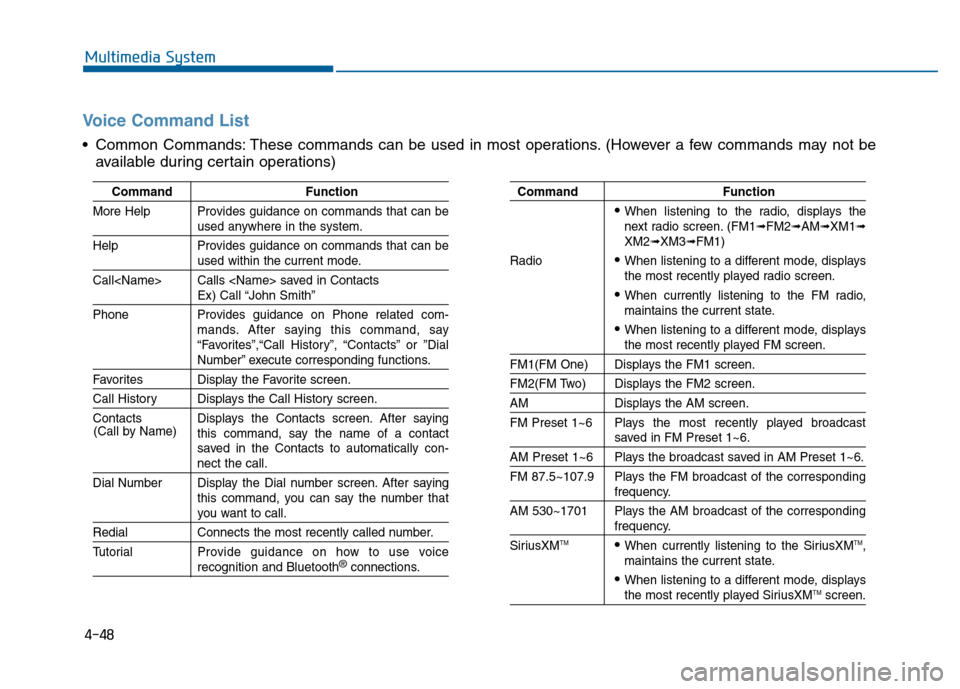
Voice Command List
Common Commands: These commands can be used in most operations. (However a few commands may not beavailable during certain operations)
Command Function
More Help Provides guidance on commands that can be
used anywhere in the system.
Help Provides guidance on commands that can be
used within the current mode.
Call
Ex) Call “John Smith”
Phone Provides guidance on Phone related com- mands. After saying this command, say
“Favorites”,“Call History”, “Contacts” or ”Dial
Number” execute corresponding functions.
Favorites Display the Favorite screen.
Call History Displays the Call History screen.
Contacts Displays the Contacts screen. After sayingthis command, say the name of a contact
saved in the Contacts to automatically con-
nect the call.
Dial Number Display the Dial number screen. After saying this command, you can say the number that
you want to call.
RedialConnects the most recently called number.
Tutorial Pro vide guidance on how to use voice
recognition and Bluetooth®connections.
Command Function
When listening to the radio, displays the
next radio screen. (FM1➟FM2➟AM➟XM1➟XM2➟XM3➟FM1)
Radio
When listening to a different mode, displays
the most recently played radio screen.
When currently listening to the FM radio,
maintains the current state.
When listening to a different mode, displaysthe most recently played FM screen.
FM1(FM One) Displays the FM1 screen.
FM2(FM Two) Displays the FM2 screen.
AM Displays the AM screen.
FM Preset 1~6 Plays the most recently played broadcast
saved in FM Preset 1~6.
AM Preset 1~6 Plays the broadcast saved in AM Preset 1~6.
FM 87.5~107.9 Plays the FM broadcast of the corresponding
frequency.
AM 530~1701 Plays the AM broadcast of the corresponding
frequency.
SiriusXMTMWhen currently listening to the SiriusXMTM,
maintains the current state.
When listening to a different mode, displaysthe most recently played SiriusXMTMscreen.
(Call by Name)
Page 307 of 603
4-54
Multimedia System
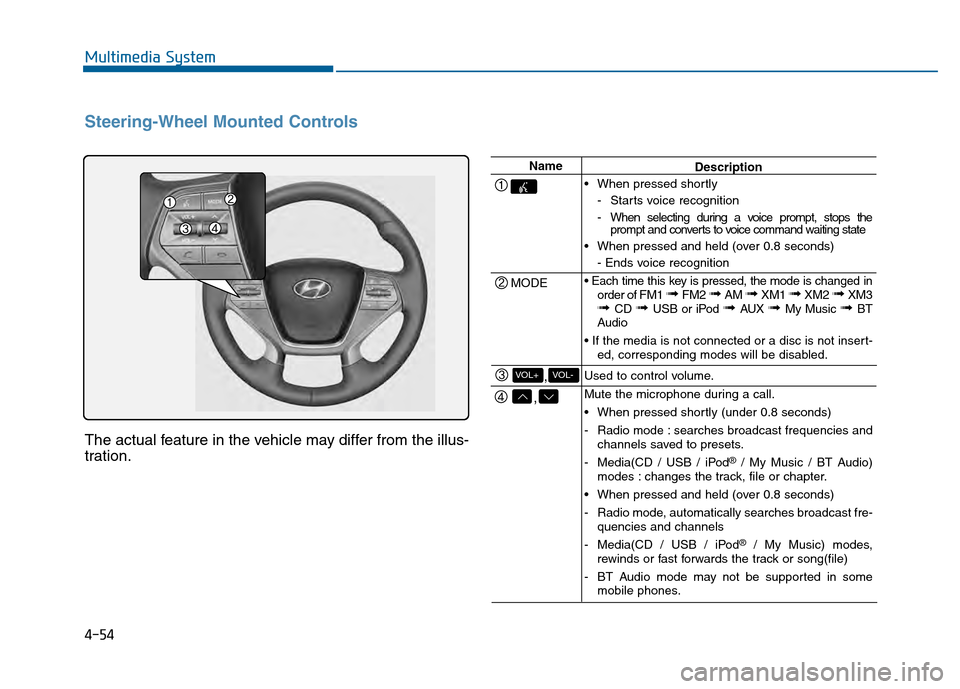
Steering-Wheel Mounted Controls
The actual feature in the vehicle may differ from the illus-
tration.
Name
MODE
,
,VOL-VOL+
Description
When pressed shortly - Starts voice recognition
- When selecting during a voice prompt, stops theprompt and converts to voice command waiting state
When pressed and held (over 0.8 seconds) - Ends voice recognition
order of FM1
➟ FM2 ➟ AM ➟ XM1 ➟ XM2 ➟ XM3➟ CD ➟ USB or iPod ➟ AUX ➟ My Music ➟ BT
Audio
ed, corresponding modes will be disabled.
Used to control volume.
Mute the microphone during a call.
When pressed shortly (under 0.8 seconds)
- Radio mode : searches broadcast frequencies and channels saved to presets.
- Media(CD / USB / iPod
®/ My Music / BT Audio)
modes : changes the track, file or chapter.
When pressed and held (over 0.8 seconds)
- Radio mode, automatically searches broadcast fre- quencies and channels
- Media(CD / USB / iPod
®/ My Music) modes,
rewinds or fast forwards the track or song(file)
- BT Audio mode may not be supported in some mobile phones.
Page 317 of 603
4-64
Multimedia System
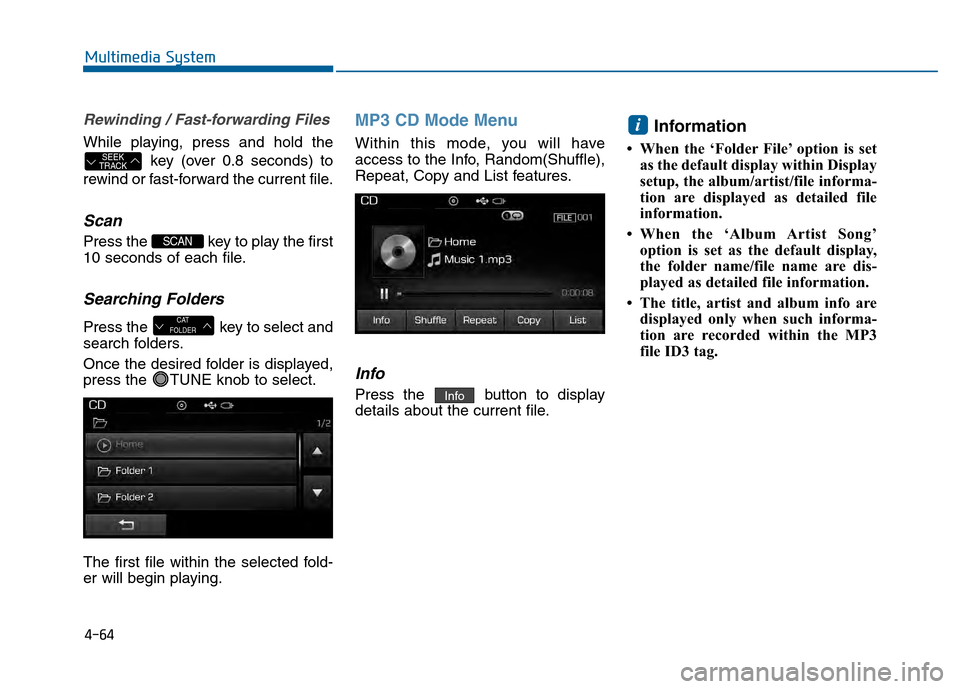
Rewinding / Fast-forwarding Files
While playing, press and hold thekey (over 0.8 seconds) to
rewind or fast-forward the current file.
Scan
Press the key to play the first
10 seconds of each file.
Searching Folders
Press the key to select and
search folders.
Once the desired folder is displayed,
press the TUNE knob to select.
The first file within the selected fold-
er will begin playing.
MP3 CD Mode Menu
Within this mode, you will have
access to the Info, Random(Shuffle),
Repeat, Copy and List features.
Info
Press the button to display
details about the current file.
Information
• When the ‘Folder File’ option is set as the default display within Display
setup, the album/artist/file informa-
tion are displayed as detailed file
information.
• When the ‘Album Artist Song’ option is set as the default display,
the folder name/file name are dis-
played as detailed file information.
• The title, artist and album info are displayed only when such informa-
tion are recorded within the MP3
file ID3 tag.
i
Info
CAT
FOLDER
SCAN
SEEK
TRACK
Page 320 of 603
4-67
Multimedia System
4
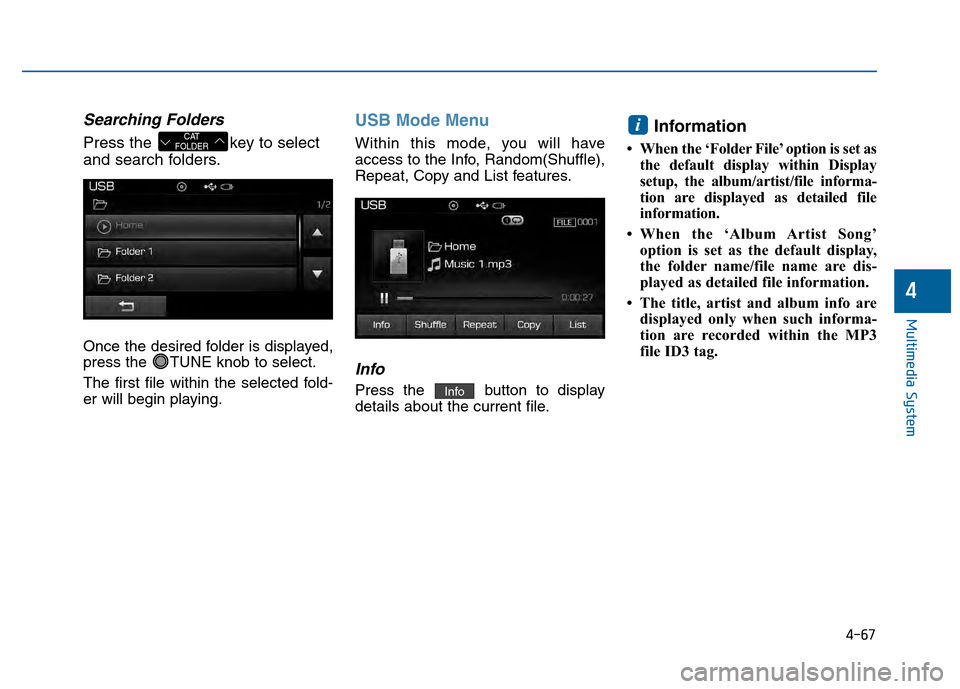
Searching Folders
Press the key to select
and search folders.
Once the desired folder is displayed,
press the TUNE knob to select.
The first file within the selected fold-
er will begin playing.
USB Mode Menu
Within this mode, you will have
access to the Info, Random(Shuffle),
Repeat, Copy and List features.
Info
Press the button to display
details about the current file.
Information
• When the ‘Folder File’ option is set asthe default display within Display
setup, the album/artist/file informa-
tion are displayed as detailed file
information.
• When the ‘Album Artist Song’ option is set as the default display,
the folder name/file name are dis-
played as detailed file information.
• The title, artist and album info are displayed only when such informa-
tion are recorded within the MP3
file ID3 tag.
i
Info
CAT
FOLDER
Page 325 of 603
4-72
Multimedia System
M
MY
Y
M
M U
US
SI
IC
C
M
M O
OD
DE
E
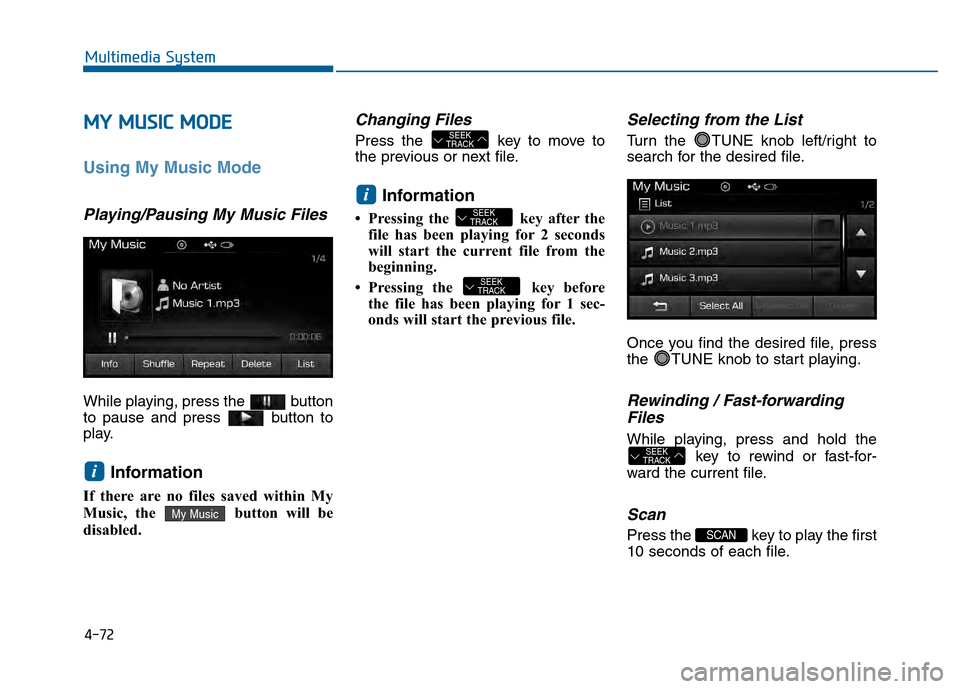
Using My Music Mode
Playing/Pausing My Music Files
While playing, press the button
to pause and press button to
play.
Information
If there are no files saved within My
Music, the button will be
disabled.
Changing Files
Press the key to move to
the previous or next file.
Information
• Pressing the key after the
file has been playing for 2 seconds
will start the current file from the
beginning.
• Pressing the key before the file has been playing for 1 sec-
onds will start the previous file.
Selecting from the List
Turn the TUNE knob left/right to
search for the desired file.
Once you find the desired file, press
the TUNE knob to start playing.
Rewinding / Fast-forwardingFiles
While playing, press and hold the
key to rewind or fast-for-
ward the current file.
Scan
Press the key to play the first
10 seconds of each file.SCAN
SEEK
TRACK
SEEK
TRACK
SEEK
TRACK
i
SEEK
TRACK
My Music
i
Page 327 of 603
4-74
Multimedia System
List Menu
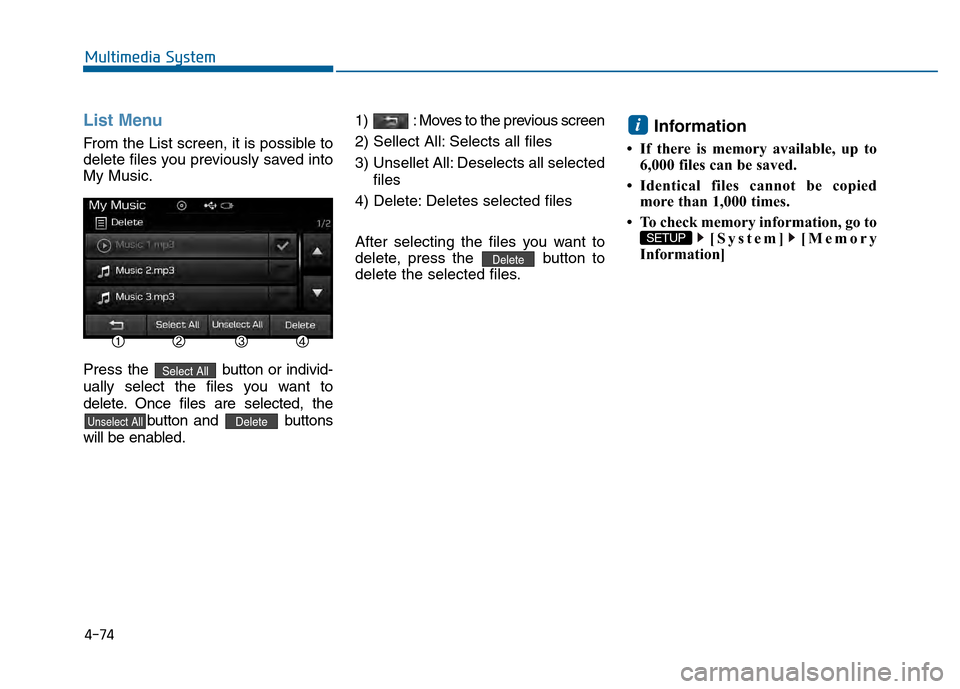
From the List screen, it is possible to
delete files you previously saved into
My Music.
Press the button or individ-
ually select the files you want to
delete. Once files are selected, the button and buttons
will be enabled. 1) : Moves to the previous screen
2) Sellect All: Selects all files
3) Unsellet All: Deselects all selected
files
4) Delete: Deletes selected files
After selecting the files you want to
delete, press the button to
delete the selected files.
Information
• If there is memory available, up to 6,000 files can be saved.
• Identical files cannot be copied more than 1,000 times.
• To check memory information, go to [System] [Memory
Information]
SETUP
i
Delete
DeleteUnselect All
Select All
Page 335 of 603
![Hyundai Sonata 2015 Manual PDF 4-82
Multimedia System
Deleting a Device
Press the key Select
[Phone] Select [Paired Phone List]
From the paired phone list, select the
device you want to delete and press
the button.
Information
â](/img/35/16796/w960_16796-334.png "Hyundai Sonata 2015 Manual PDF 4-82
Multimedia System
Deleting a Device
Press the key Select
[Phone] Select [Paired Phone List]
From the paired phone list, select the
device you want to delete and press
the button.
Information
â")
4-82
Multimedia System
Deleting a Device
Press the key Select
[Phone] Select [Paired Phone List]
From the paired phone list, select the
device you want to delete and press
the button.
Information
• When deleting the currently con-nected device, the device will auto-
matically be disconnected to pro-
ceed with the deleting process.
• If a paired Bluetooth
®Wireless
Technology device is deleted, the
device’s call history and contacts
data will also be deleted.
• To re-use a deleted device, you must pair the device again.
Phone Menu Screen
Phone Menus
With a Bluetooth®Wireless
Technology device connected, press
the key to display the Phone
menu screen.
(❈ the screen can be different by region.)
1) Favorite : Up to 20 frequently used
contacts saved for easy access
2) Dial Number : Displays the dial screen where numbers can be
dialed to make calls
3) Call History : Device the call histo- ry list screen
PHONE
i
Delete
SETUP
Page 337 of 603
![Hyundai Sonata 2015 Manual PDF 4-84
Multimedia System
Calling by Dialing a Number
Press the key Select [Dial
Number]
1) Dial Pad : Used to enter phonenumber
2) Call : If a number has been entered, calls the number If no
number h](/img/35/16796/w960_16796-336.png "Hyundai Sonata 2015 Manual PDF 4-84
Multimedia System
Calling by Dialing a Number
Press the key Select [Dial
Number]
1) Dial Pad : Used to enter phonenumber
2) Call : If a number has been entered, calls the number If no
number h")
4-84
Multimedia System
Calling by Dialing a Number
Press the key Select [Dial
Number]
1) Dial Pad : Used to enter phonenumber
2) Call : If a number has been entered, calls the number If no
number has been entered, switch
es to call history screen
3) End : Deletes the entered phone number
4) Delete : Deletes entered numbers one digit at a time
Answering Calls
Answering a Call
Answering a call with a Bluetooth®
Wireless Technology device connect-
ed will display the following screen.
1) Caller : Displays the other party’sname when the incoming caller is
saved within your contacts
2) Incoming Number : Displays the incoming number
3) Accept : Accept the incoming call
4) Reject : Reject the incoming call
Information
• When an incoming call pop-up is displayed, most Audio and SETUP
mode features are disabled. Only
the call volume will operate.
• The telephone number may not be properly displayed in some mobile
phones.
• When a call is answered with the mobile phone, the call mode will
automatically revert to Private
mode.
i
PHONE
Page 338 of 603
4-85
Multimedia System
4
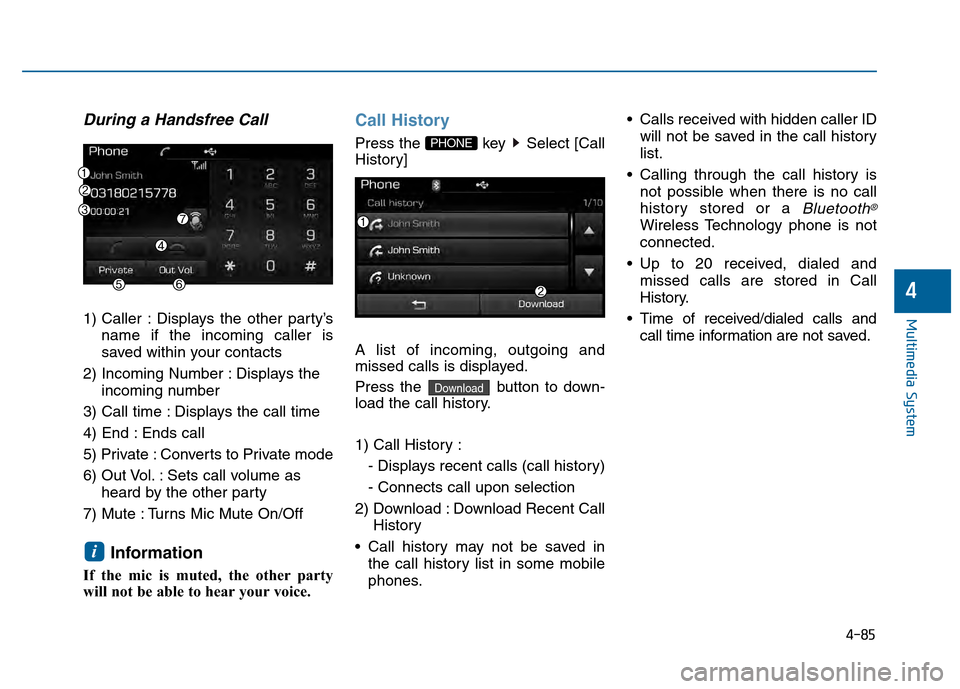
During a Handsfree Call
1) Caller : Displays the other party’sname if the incoming caller is
saved within your contacts
2) Incoming Number : Displays the incoming number
3) Call time : Displays the call time
4) End : Ends call
5) Private : Converts to Private mode
6) Out Vol. : Sets call volume as heard by the other party
7) Mute : Turns Mic Mute On/Off
Information
If the mic is muted, the other party
will not be able to hear your voice.
Call History
Press the key Select [Call
History]
A list of incoming, outgoing and
missed calls is displayed.
Press the button to down-
load the call history.
1) Call History : - Displays recent calls (call history)
- Connects call upon selection
2) Download : Download Recent Call History
Call history may not be saved in the call history list in some mobile
phones. Calls received with hidden caller ID
will not be saved in the call history
list.
Calling through the call history is not possible when there is no call
history stored or a
Bluetooth®
Wireless Technology phone is not
connected.
Up to 20 received, dialed and missed calls are stored in Call
History.
Time of received/dialed calls and call time information are not saved.
Download
PHONE
i