display HYUNDAI SONATA HYBRID 2019 Service Manual
[x] Cancel search | Manufacturer: HYUNDAI, Model Year: 2019, Model line: SONATA HYBRID, Model: HYUNDAI SONATA HYBRID 2019Pages: 546, PDF Size: 78.75 MB
Page 219 of 546
3-83
Convenient features of your vehicle
3
Information
Coasting guide is only a supplemental
system to assist with fuel-efficient
driving. Thus, the operating condi-
tions may be different in accordance
with traffic/road conditions (i.e. driv-
ing in a traffic jam, driving on a slope,
driving on a curve). Thus, take the
actual driving conditions into consid-
eration, such as distances from the
vehicles ahead/behind, while referring
to the coasting guide system as guid-
ance.
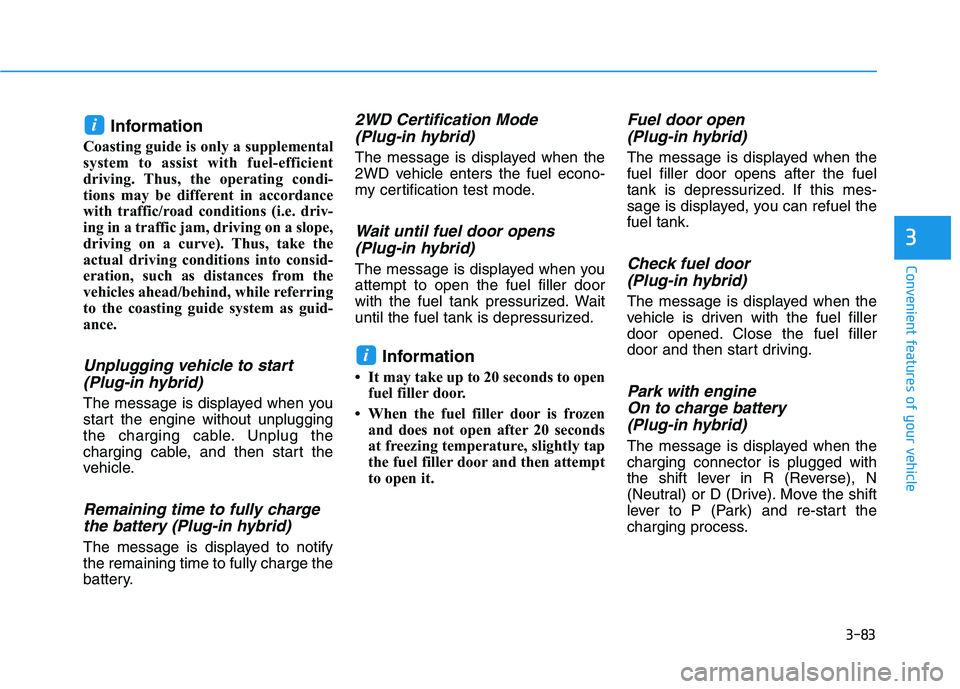
Unplugging vehicle to start (Plug-in hybrid)
The message is displayed when you
start the engine without unplugging
the charging cable. Unplug the
charging cable, and then start the
vehicle.
Remaining time to fully chargethe battery (Plug-in hybrid)
The message is displayed to notifythe remaining time to fully charge the
battery.
2WD Certification Mode (Plug-in hybrid)
The message is displayed when the
2WD vehicle enters the fuel econo-
my certification test mode.
Wait until fuel door opens (Plug-in hybrid)
The message is displayed when youattempt to open the fuel filler door
with the fuel tank pressurized. Wait
until the fuel tank is depressurized.
Information
It may take up to 20 seconds to open fuel filler door.
When the fuel filler door is frozen and does not open after 20 seconds
at freezing temperature, slightly tap
the fuel filler door and then attempt
to open it.
Fuel door open
(Plug-in hybrid)
The message is displayed when thefuel filler door opens after the fuel
tank is depressurized. If this mes-
sage is displayed, you can refuel thefuel tank.
Check fuel door(Plug-in hybrid)
The message is displayed when the
vehicle is driven with the fuel filler
door opened. Close the fuel filler
door and then start driving.
Park with engine
On to charge battery (Plug-in hybrid)
The message is displayed when thecharging connector is plugged with
the shift lever in R (Reverse), N
(Neutral) or D (Drive). Move the shift
lever to P (Park) and re-start the
charging process.
i
i
Page 220 of 546
3-84
Convenient features of your vehicle
EV/HEV/CHG modes (Plug-in hybrid)
A corresponding message is dis-
played when a mode is selected by
pressing the HEV button
Battery charged. Maintainingcurrent mode/Low battery.
Maintaining hybrid mode (Plug-in hybrid)
A corresponding message is dis-
played when the high-voltage
(hybrid) battery is fully charged or
nearly discharged.
Charging complete.Switching to Hybrid mode
(Plug-in hybrid)
The message is displayed when the
high-voltage (hybrid) battery is fullycharged, and when the mode is
changed to the HEV mode.
Low/High System Temp. Maintaining Hybrid mode
(Plug-in hybrid)
A corresponding message is dis-
played when the temperature of the
high-voltage (hybrid) battery is too
low or too high. This warning mes-
sage is to protect the battery and the
hybrid system.
Low/High System Temp. Switching to Hybrid mode
(Plug-in hybrid)
A corresponding message is dis-
played when the temperature of the
high-voltage (hybrid) battery is too
low or high. This warning message is
to protect the battery and the hybridsystem.
Switching to Hybrid mode tolubricate engine (Plug-in hybrid)
To prevent damage of the hybrid
lubrication system when the hybrid
system has not been started for a
long time.
- When the hybrid system is ON after 5 weeks of being turned off, the
hybrid system maintenance mode
will operate.
- When the hybrid system mainte- nance mode is operated, HEV
mode will be kept on after the
hybrid system is ON and the above
message will be displayed on the
cluster.
If you press the HEV switch to shift
EV mode during engine mainte-
nance mode, the above message will
appear due to priority of the hybrid
system maintenance mode.
Maintaining Hybrid mode to pro- tect engine (Plug-in hybrid)
The hybrid system will automatically
stop after sufficient heating. (If the
hybrid system is turned OFF without
sufficient heating, the hybrid system
maintenance mode will be operated
once more.
Page 221 of 546
3-85
Convenient features of your vehicle
LCD display control
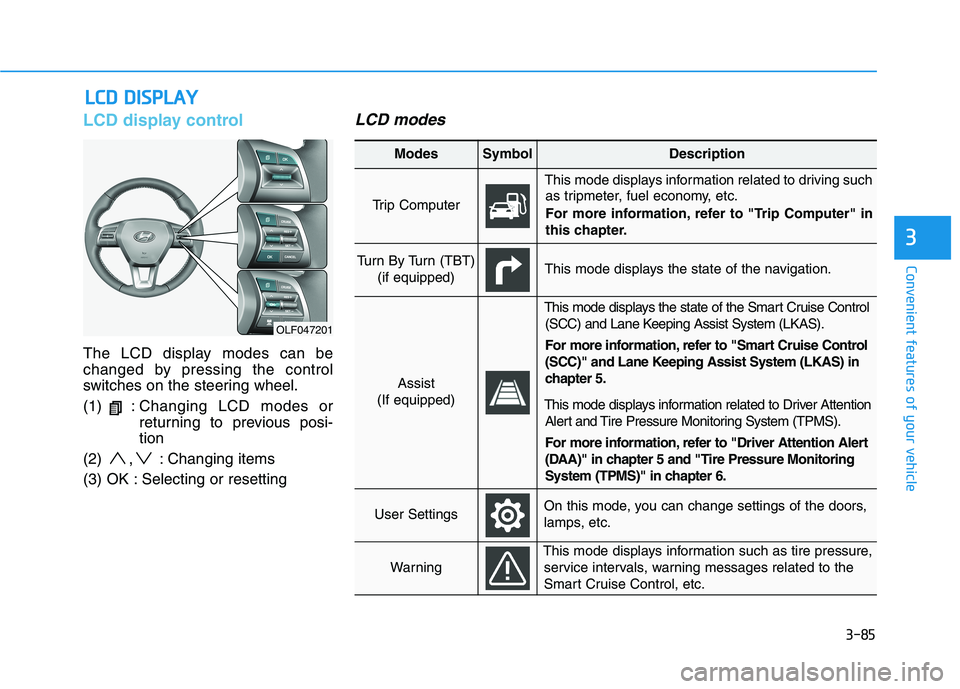
The LCD display modes can be
changed by pressing the control
switches on the steering wheel. (1) :Changing LCD modes or
returning to previous posi-tion
(2) , : Changing items
(3) OK : Selecting or resetting
LCD modes
LL CC DD DD IISS PP LLAA YY
3
OLF047201
Modes SymbolDescription
Trip Computer
This mode displays information related to driving such
as tripmeter, fuel economy, etc.
For more information, refer to "Trip Computer" in
this chapter.
Turn By Turn (TBT)
(if equipped)This mode displays the state of the navigation.
Assist
(If equipped)
This mode displays the state of the Smart Cruise Control (SCC) and Lane Keeping Assist System (LKAS).
For more information, refer to "Smart Cruise Control
(SCC)" and Lane Keeping Assist System (LKAS) in
chapter 5.
This mode displays information related to Driver Attention Alert and Tire Pressure Monitoring System (TPMS).
For more information, refer to "Driver Attention Alert
(DAA)" in chapter 5 and "Tire Pressure Monitoring
System (TPMS)" in chapter 6.
User SettingsOn this mode, you can change settings of the doors,
lamps, etc.
Warning
This mode displays information such as tire pressure,service intervals, warning messages related to the
Smart Cruise Control, etc.
Page 222 of 546
3-86
Convenient features of your vehicle
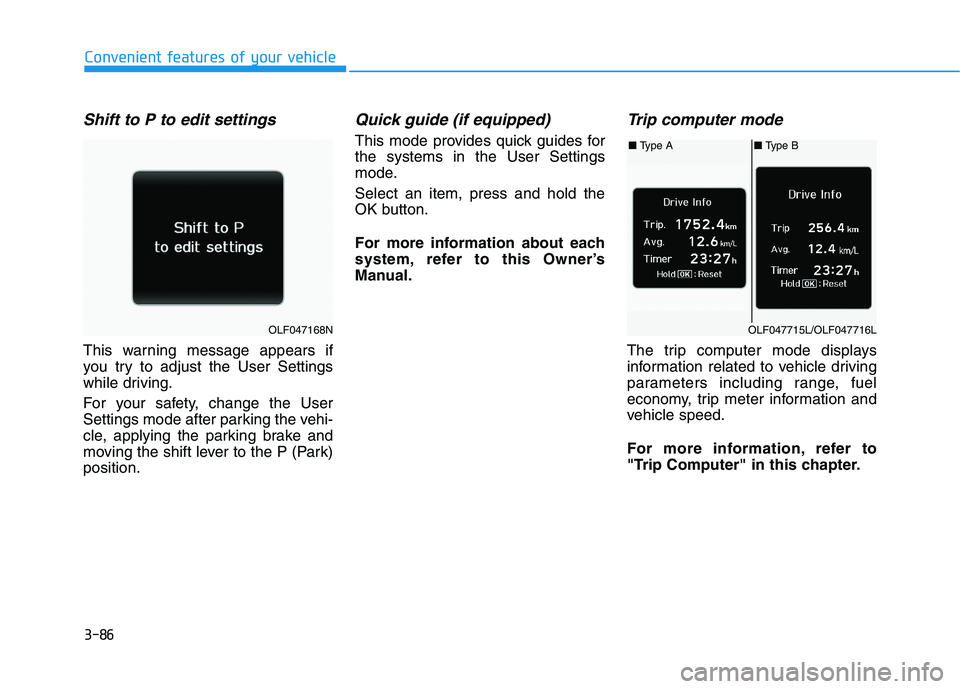
Shift to P to edit settings
This warning message appears if
you try to adjust the User Settings
while driving.
For your safety, change the User
Settings mode after parking the vehi-
cle, applying the parking brake and
moving the shift lever to the P (Park)position.
Quick guide (if equipped)
This mode provides quick guides forthe systems in the User Settings
mode. Select an item, press and hold the
OK button.
For more information about each
system, refer to this Owner’s
Manual.
Trip computer mode
The trip computer mode displays
information related to vehicle driving
parameters including range, fuel
economy, trip meter information and
vehicle speed.
For more information, refer to
"Trip Computer" in this chapter.
OLF047168N
■ Type A■ Type B
OLF047715L/OLF047716L
Page 223 of 546
3-87
Convenient features of your vehicle
3
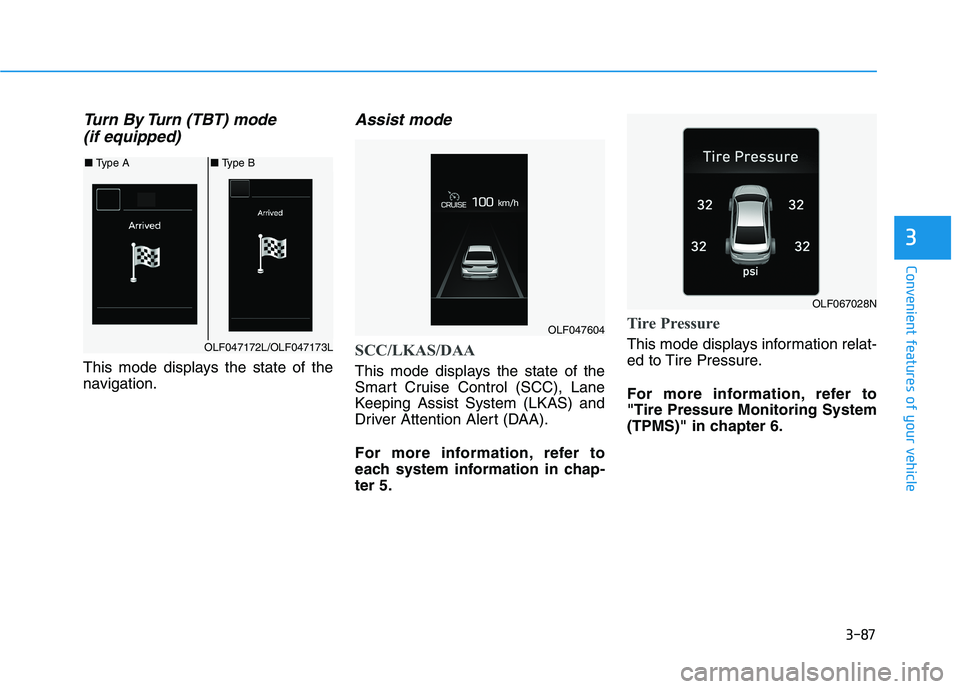
Turn By Turn (TBT) mode (if equipped)
This mode displays the state of the
navigation.
Assist mode
SCC/LKAS/DAA
This mode displays the state of the
Smart Cruise Control (SCC), Lane
Keeping Assist System (LKAS) and
Driver Attention Alert (DAA).
For more information, refer to
each system information in chap-ter 5.
Tire Pressure
This mode displays information relat-
ed to Tire Pressure.
For more information, refer to "Tire Pressure Monitoring System
(TPMS)" in chapter 6.
■ Type A■ Type B
OLF047172L/OLF047173L
OLF047604
OLF067028N
Page 224 of 546
3-88
Convenient features of your vehicle
Warning Message Mode
If one of followings occurs, warning
messages will be displayed on the
information mode for several sec-
onds.
- Malfunction of below systems
- Low washer fluid (if equipped)
(TPMS)
system (AEB)
User settings mode
In this mode, you can change the
setting of the instrument cluster,
doors, lamps, etc.
1. Driving Assist
2. Door
3. Lights
4. Sound
5. Convenience
6. Service interval
7. Other features
8. Reset
The information provided differs
according to the items applied to
your vehicle. 1. Driving Assist
LKAS (Lane Keeping Assist
System)
- Lane Departure Warning/Standard LKA/Active LKA
To adjust the sensitivity of the Lane
Keeping Assist System.
For more information, refer to the
"Lane Keeping Assist System" in
chapter 5.
DAA (Driver Attention Alert)
To adjust the sensitivity of the Driver
Attention Alert (DAA).
- Off/Normal/Early
For more information, refer to the
"Driver Attention Alert (DAA)" in
chapter 5.
Page 227 of 546
3-91
Convenient features of your vehicle
3
5. Convenience
Seat Easy Access
- Off: The seat easy access functionis deactivated.
- Normal/Extended: When you turn off the engine, the driver's seat will
automatically move rearward short
(Normal) or long (Extended) for
you to enter or exit the vehicle
more comfortably.
For more information, refer to
"Driver Position Memory System"
in this chapter. Wireless Charging System
To activate or deactivate the wireless charging system in the front seat.
For more information, refer to
"Wireless Charging System" in
this chapter.
Wiper/Lights Display
To activate or deactivate the Wiper/
Light mode.
When activated, the LCD display
shows the selected Wiper/Light
mode whenever you changed the
mode.
Gear Position Pop-up
To activate or deactivate the gear
position pop-up.
When activated, the gear position
will be displayed on the LCD display.6. Service Interval
Enabled service Interval
To activate or deactivate the service
interval function.
Adjust Interval
If the service interval menu is acti-
vated, you may adjust the time and
distance.
Information
To use the service interval menu, con-
sult an authorized HYUNDAI dealer.
i
Page 228 of 546
3-92
Convenient features of your vehicle
If the service interval is activated and the time and distance is adjusted,
messages are displayed in the fol-
lowing situations each time the vehi-
cle is turned on.
- Service in: Displayed to inform the driver theremaining mileage and days to
service.
- Service required
: Displayed when the mileage anddays to service has been reachedor passed.
Information
If any of the following conditions
occur, the mileage and number of days
to service may be incorrect.
- The battery cable is disconnected.
- The fuse switch is turned off.
- The battery is discharged. 7. Other Features
Battery Saver+
To activate or deactivate the Aux.
Battery Saver+ function.
When activated, the high voltage bat-
tery is used to keep the 12V batterycharged.
For more information, refer to the
"Hybrid System Overview" provid-
ed in the front of the owner's man-ual.
Fuel Economy Auto Reset
- Off: The average fuel economy will
not reset automatically whenever refueling.
- After Ignition: The average fuel economy will reset automatically
whenever it has passed 4 hours
after turning OFF the engine.
- After recharging: The average fuel economy will reset automaticallywhen refueling.
For more information, refer to
"Trip Computer" in this chapter. Fuel Economy Unit
To select the fuel economy unit. (km/L, L/100, MPG)
Temperature Unit
To select the temperature unit.
(°C,°F)
Tire Pressure Unit
To select the tire pressure unit.
(psi, kPa, bar)
8. Reset
You can reset the menus in the User
Settings Mode. All menus in the User
Settings Mode are initialized, except
language and service interval.
i
Page 229 of 546
3-93
Convenient features of your vehicle
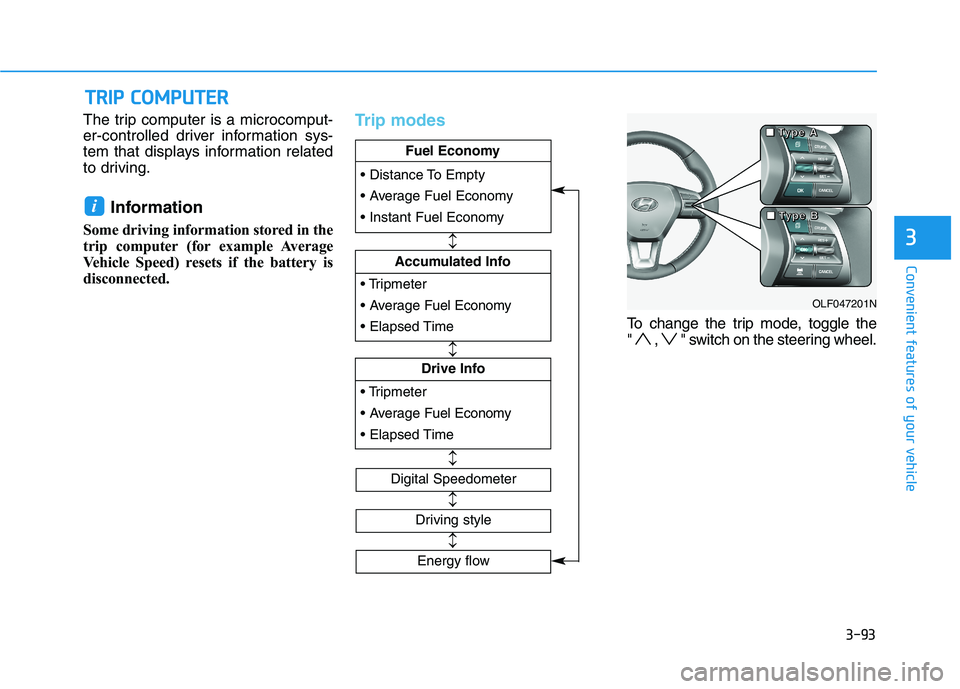
The trip computer is a microcomput-
er-controlled driver information sys-
tem that displays information related
to driving.Information
Some driving information stored in the
trip computer (for example Average
Vehicle Speed) resets if the battery is
disconnected.Trip modes
To change the trip mode, toggle the
" , " switch on the steering wheel.
i
TT RR IIPP CC OO MM PPUU TTEERR
3
Fuel Economy
Drive Info
Fuel Economy
Accumulated Info
Fuel Economy
Digital Speedometer
Driving style
OLF047201N
■
■■■TTTTyyyyppppeeee AAAA
■■■■TTTTyyyyppppeeee BBBB
Energy flow
Page 230 of 546
3-94
Convenient features of your vehicle
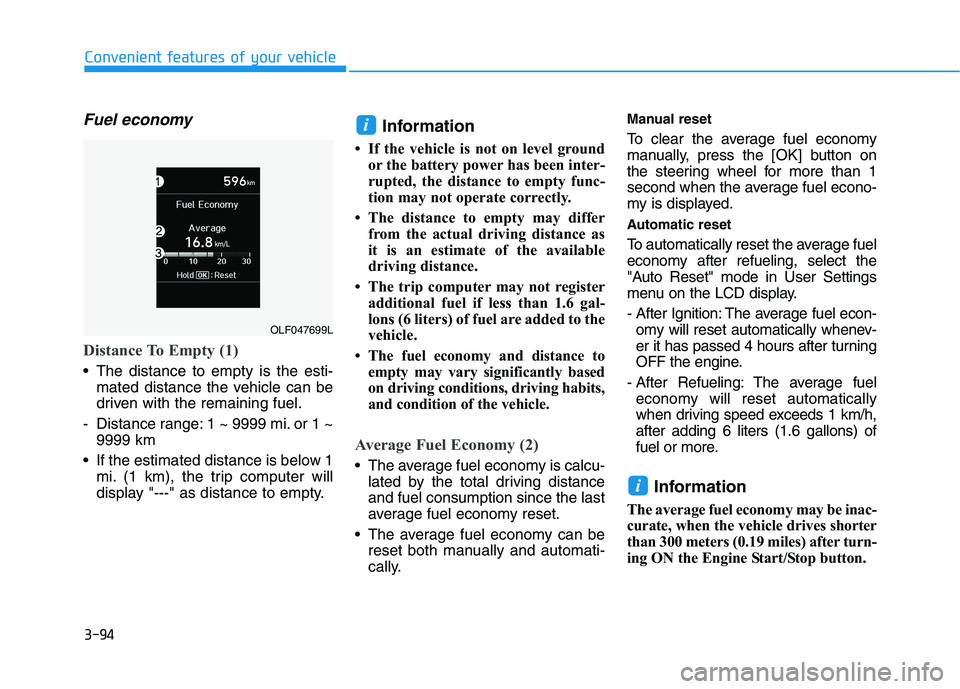
Fuel economy
Distance To Empty (1)
The distance to empty is the esti-mated distance the vehicle can be
driven with the remaining fuel.
- Distance range: 1 ~ 9999 mi. or 1 ~ 9999 km
If the estimated distance is below 1 mi. (1 km), the trip computer will
display "---" as distance to empty. Information
If the vehicle is not on level ground or the battery power has been inter-
rupted, the distance to empty func-
tion may not operate correctly.
The distance to empty may differ from the actual driving distance as
it is an estimate of the available
driving distance.
The trip computer may not register additional fuel if less than 1.6 gal-
lons (6 liters) of fuel are added to the
vehicle.
The fuel economy and distance to empty may vary significantly based
on driving conditions, driving habits,
and condition of the vehicle.
Average Fuel Economy (2)
The average fuel economy is calcu-lated by the total driving distance and fuel consumption since the last
average fuel economy reset.
The average fuel economy can be reset both manually and automati-
cally. Manual reset
To clear the average fuel economy
manually, press the
[OK] button on
the steering wheel for more than 1
second when the average fuel econo-
my is displayed.
Automatic reset
To automatically reset the average fuel
economy after refueling, select the
"Auto Reset" mode in User Settings
menu on the LCD display.
- After Ignition: The average fuel econ- omy will reset automatically whenev-
er it has passed 4 hours after turning
OFF the engine.
- After Refueling: The average fuel economy will reset automatically
when driving speed exceeds 1 km/h,after adding 6 liters (1.6 gallons) of
fuel or more.
Information
The average fuel economy may be inac-
curate, when the vehicle drives shorter
than 300 meters (0.19 miles) after turn-
ing ON the Engine Start/Stop button.
i
i
OLF047699L