Navigation JAGUAR XF 2009 1.G User Guide
[x] Cancel search | Manufacturer: JAGUAR, Model Year: 2009, Model line: XF, Model: JAGUAR XF 2009 1.GPages: 391, PDF Size: 19.32 MB
Page 73 of 391
73
Steering wheel
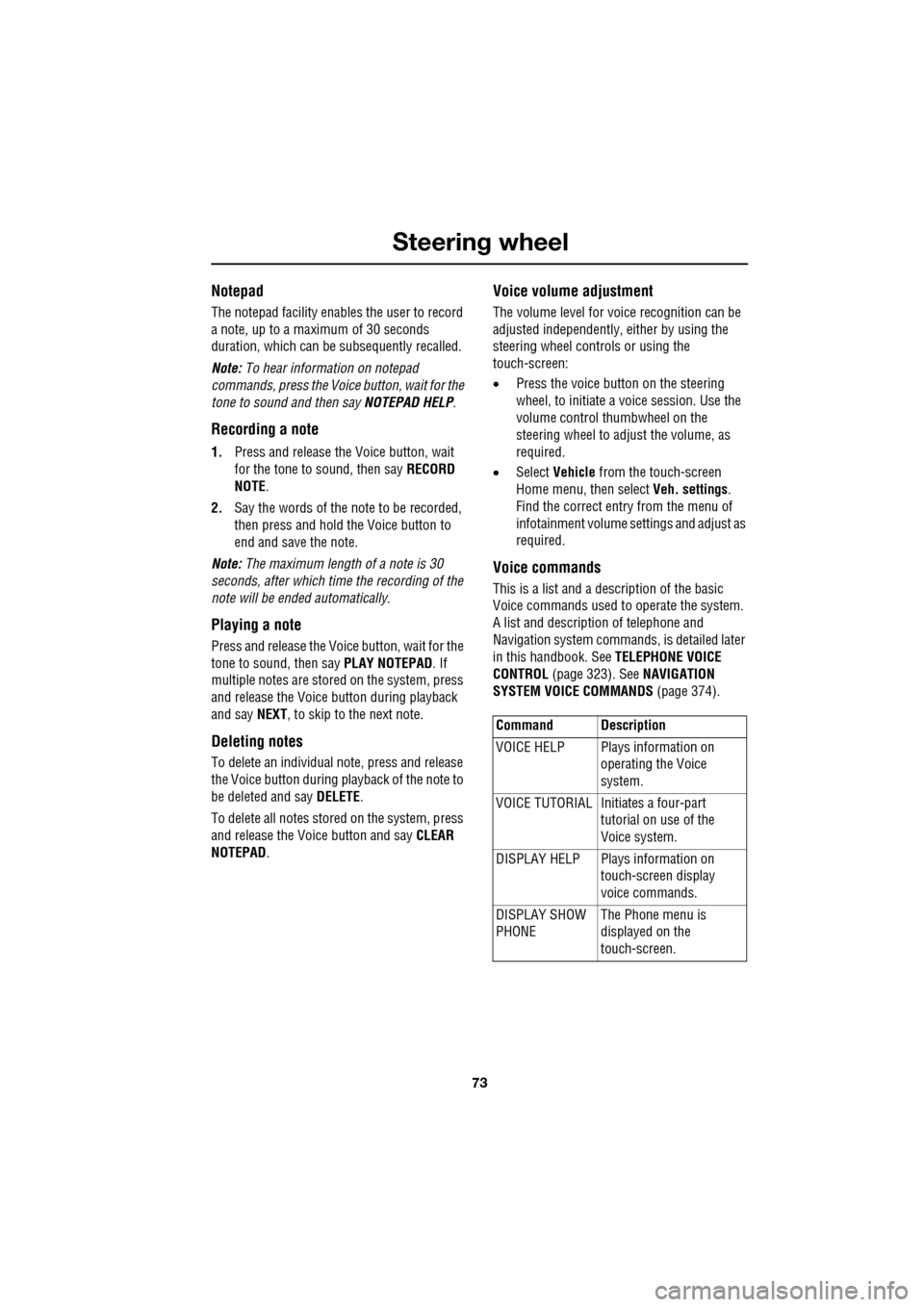
Notepad
The notepad facility enables the user to record
a note, up to a maximum of 30 seconds
duration, which can be subsequently recalled.
Note: To hear information on notepad
commands, press the Voice button, wait for the
tone to sound and then say NOTEPAD HELP.
Recording a note
1.Press and release the Voice button, wait
for the tone to sound, then say RECORD
NOTE .
2. Say the words of the note to be recorded,
then press and hold the Voice button to
end and save the note.
Note: The maximum length of a note is 30
seconds, after wh ich time the recording of the
note will be ended automatically.
Playing a note
Press and release the Voice button, wait for the
tone to sound, then say PLAY NOTEPAD. If
multiple notes are stored on the system, press
and release the Voice button during playback
and say NEXT, to skip to the next note.
Deleting notes
To delete an individual note, press and release
the Voice button during playback of the note to
be deleted and say DELETE.
To delete all notes stored on the system, press
and release the Voice button and say CLEAR
NOTEPAD .
Voice volume adjustment
The volume level for voice recognition can be
adjusted independently, either by using the
steering wheel controls or using the
touch-screen:
•Press the voice button on the steering
wheel, to initiate a voice session. Use the
volume control thumbwheel on the
steering wheel to adjust the volume, as
required.
• Select Vehicle from the touch-screen
Home menu, then select Veh. settings.
Find the correct entry from the menu of
infotainment volume settings and adjust as
required.
Voice commands
This is a list and a de scription of the basic
Voice commands used to operate the system.
A list and description of telephone and
Navigation system commands, is detailed later
in this handbook. See TELEPHONE VOICE
CONTROL (page 323). See NAVIGATION
SYSTEM VOICE COMMANDS (page 374).
Command Description
VOICE HELP Plays information on
operating the Voice
system.
VOICE TUTORIAL Initiates a four-part tutorial on use of the
Voice system.
DISPLAY HELP Plays information on touch-screen display
voice commands.
DISPLAY SHOW
PHONE The Phone menu is
displayed on the
touch-screen.
Page 74 of 391
Steering wheel
74
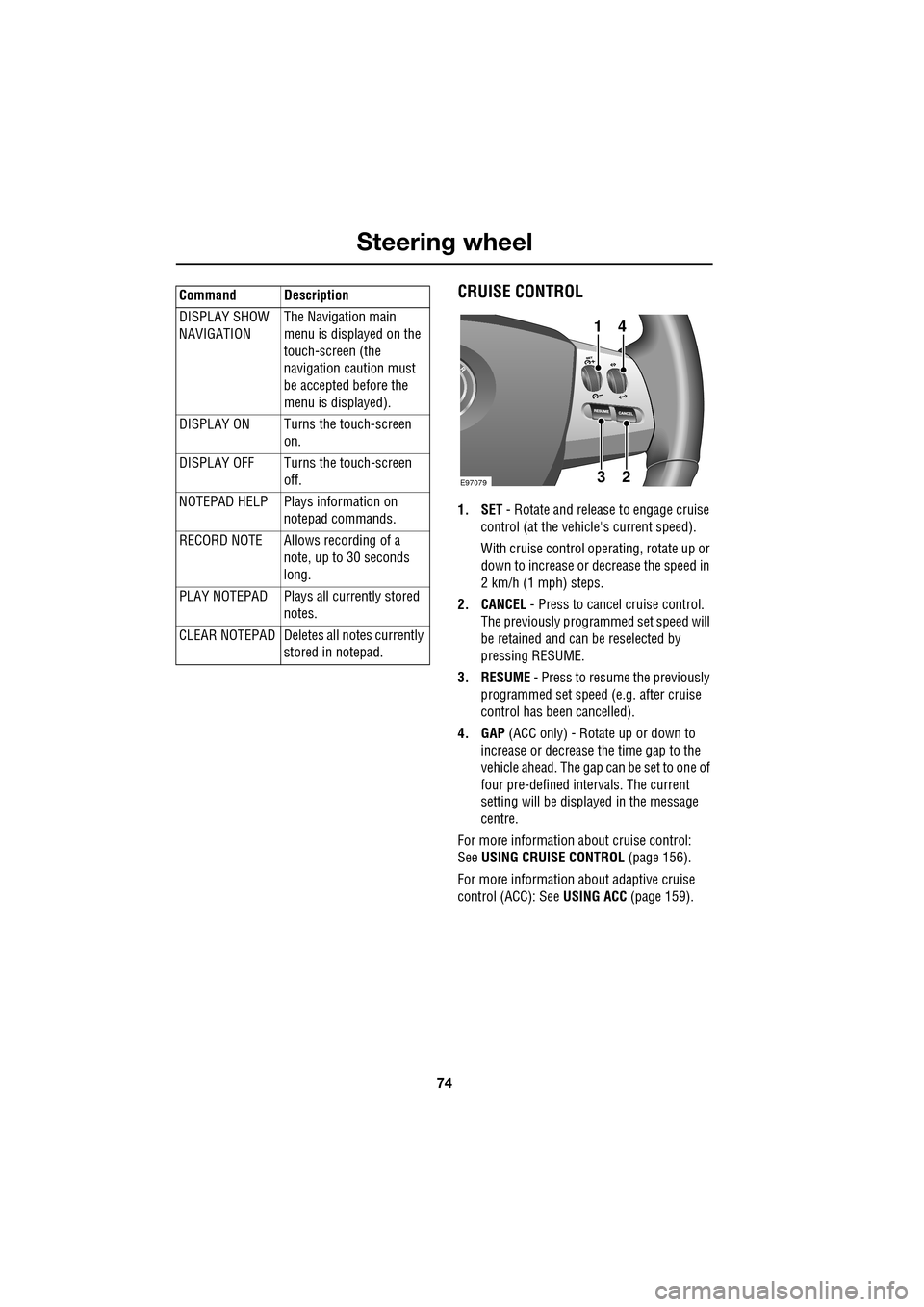
CRUISE CONTROL
1. SET - Rotate and releas e to engage cruise
control (at the vehicle's current speed).
With cruise control operating, rotate up or
down to increase or decrease the speed in
2 km/h (1 mph) steps.
2. CANCEL - Press to cancel cruise control.
The previously programmed set speed will
be retained and can be reselected by
pressing RESUME.
3. RESUME - Press to resume the previously
programmed set speed (e.g. after cruise
control has been cancelled).
4. GAP (ACC only) - Rotate up or down to
increase or decrease the time gap to the
vehicle ahead. The gap can be set to one of
four pre-defined inte rvals. The current
setting will be displayed in the message
centre.
For more information about cruise control:
See USING CRUISE CONTROL (page 156).
For more information about adaptive cruise
control (ACC): See USING ACC (page 159).
DISPLAY SHOW
NAVIGATION
The Navigation main
menu is displayed on the
touch-screen (the
navigation caution must
be accepted before the
menu is displayed).
DISPLAY ON Turns the touch-screen on.
DISPLAY OFF Turns the touch-screen off.
NOTEPAD HELP Play s information on
notepad commands.
RECORD NOTE Allows recording of a note, up to 30 seconds
long.
PLAY NOTEPAD Plays all currently stored notes.
CLEAR NOTEPAD Deletes all notes currently
stored in notepad.
Command Description
E9707923
41
Page 105 of 391
105
Information displays
GENERAL INFORMATION
The driver message centre display is situated
within the instrument panel between the
tachometer and speedometer gauges. The
message centre is active as soon as a door is
opened for access.
The primary function of the message centre is
to inform the driver of the following:
• Warning messages.
• Temporary alert messages.
• Information messages.
• Turn-by-turn navigation.
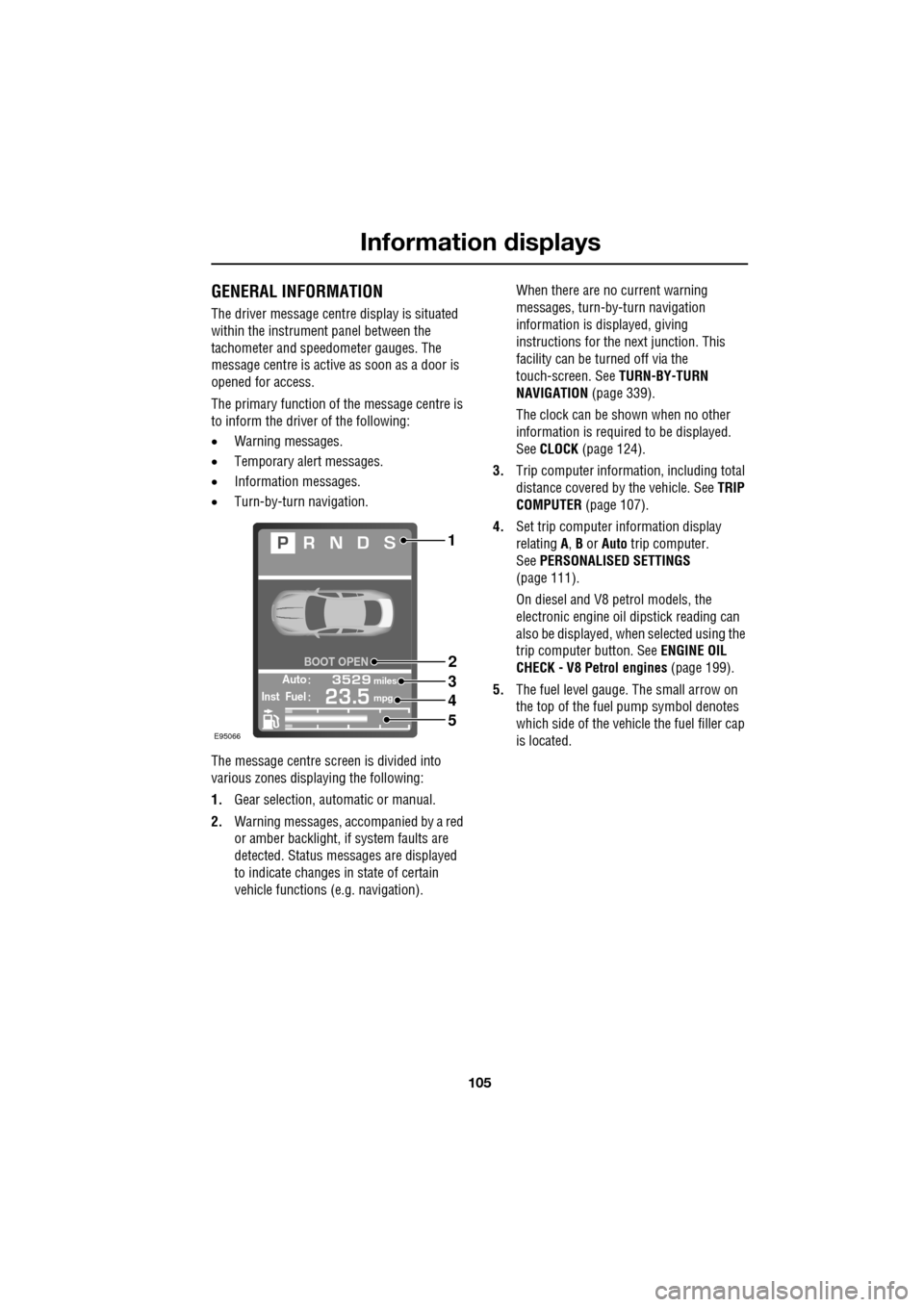
The message centre screen is divided into
various zones displaying the following:
1. Gear selection, automatic or manual.
2. Warning messages, accompanied by a red
or amber backlight, if system faults are
detected. Status messages are displayed
to indicate changes in state of certain
vehicle functions (e.g. navigation). When there are no current warning
messages, turn-by-turn navigation
information is displayed, giving
instructions for the next junction. This
facility can be turned off via the
touch-screen. See
TURN-BY-TURN
NAVIGATION (page 339).
The clock can be shown when no other
information is required to be displayed.
See CLOCK (page 124).
3. Trip computer information, including total
distance covered by the vehicle. See TRIP
COMPUTER (page 107).
4. Set trip computer information display
relating A, B or Auto trip computer.
See PERSONALISED SETTINGS
(page 111).
On diesel and V8 petrol models, the
electronic engine oil dipstick reading can
also be displayed, when selected using the
trip computer button. See ENGINE OIL
CHECK - V8 Petrol engines (page 199).
5. The fuel level gauge. The small arrow on
the top of the fuel pump symbol denotes
which side of the vehi cle the fuel filler cap
is located.
Automiles
Inst Fuelmpg
BOOT OPEN
E95066
1
2
3
4
5
Page 106 of 391
Information displays
106
WARNING AND INFORMATION
MESSAGES
Most displayed warning messages have an
associated warning indicator, which will
illuminate on to indicate the message priority.
Also from time to time information messages
will be displayed.
If more than one message is active, each is
displayed in turn for two seconds in order of
priority.
Messages take priority over the trip computer
data and will be displayed when the ignition is
on.
Note: The message centre information
messages and their meanings, are detailed
where necessary within the appropriate subject
sections.
Clearing messages from the display
It is possible to temporarily clear certain
warning or information messages from the
message centre.
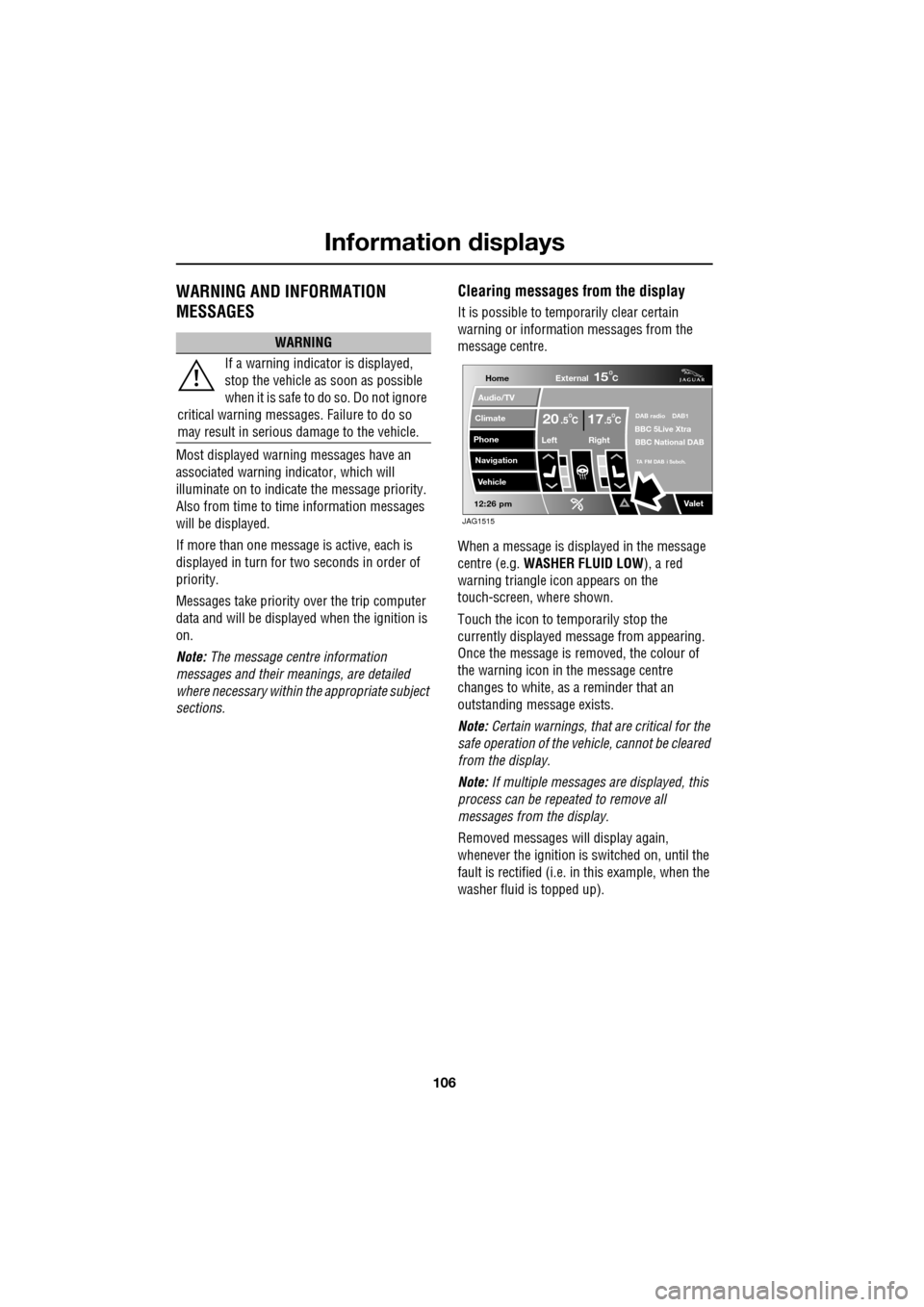
When a message is displayed in the message
centre (e.g. WASHER FLUID LOW ), a red
warning triangle icon appears on the
touch-screen, where shown.
Touch the icon to temporarily stop the
currently displayed message from appearing.
Once the message is removed, the colour of
the warning icon in the message centre
changes to white, as a reminder that an
outstanding message exists.
Note: Certain warnings, that are critical for the
safe operation of the vehi cle, cannot be cleared
from the display.
Note: If multiple messages are displayed, this
process can be repeated to remove all
messages from the display.
Removed messages will display again,
whenever the ignition is switched on, until the
fault is rectified (i.e. in this example, when the
washer fluid is topped up).
WARNING
If a warning indicato r is displayed,
stop the vehicle as soon as possible
when it is safe to do so. Do not ignore
critical warning messages. Failure to do so
may result in serious damage to the vehicle.
Home
Audio/TV
Climate
Phone
Navigation
Vehicle
Valet12:26 pm
External15C
Left Right
20 17CC.5 .5DAB radio DAB1BBC 5Live Xtra
BBC National DAB
TA FM DAB i Subch.
JAG1515
Page 109 of 391
109
Information displays
TOUCH-SCREEN
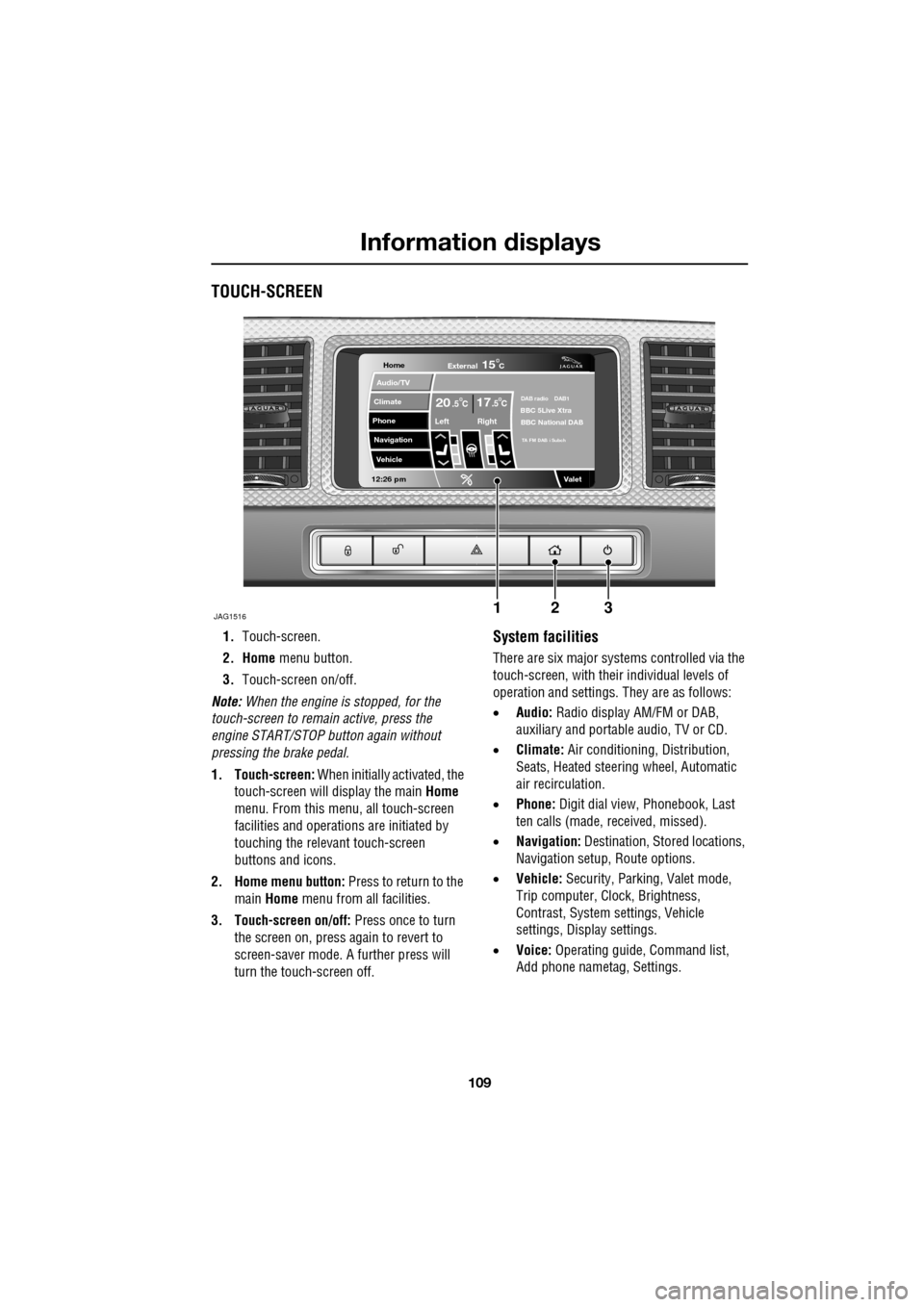
1.Touch-screen.
2. Home menu button.
3. Touch-screen on/off.
Note: When the engine is stopped, for the
touch-screen to remain active, press the
engine START/STOP button again without
pressing the brake pedal.
1. Touch-screen: When initially activated, the
touch-screen will display the main Home
menu. From this menu, all touch-screen
facilities and operati ons are initiated by
touching the relevant touch-screen
buttons and icons.
2. Home menu button: Press to return to the main Home menu from all facilities.
3. Touch-screen on/off: Press once to turn
the screen on, press again to revert to
screen-saver mode. A further press will
turn the touch-screen off.System facilities
There are six major systems controlled via the
touch-screen, with their individual levels of
operation and settings. They are as follows:
• Audio: Radio display AM/FM or DAB,
auxiliary and portable audio, TV or CD.
• Climate: Air conditioning, Distribution,
Seats, Heated steering wheel, Automatic
air recirculation.
• Phone: Digit dial view, Phonebook, Last
ten calls (made, received, missed).
• Navigation: Destination, St ored locations,
Navigation setup, Route options.
• Vehicle: Security, Parking, Valet mode,
Trip computer, Clock, Brightness,
Contrast, System settings, Vehicle
settings, Displa y settings.
• Voice: Operating guide, Command list,
Add phone nametag, Settings.
Home
Audio/TV
Climate
Phone
Navigation
Vehicle
Valet12:26 pm
JAG1516
External15C
Left Right
20 17CC.5 .5DAB radio DAB1BBC 5Live Xtra
BBC National DAB
TA FM DAB i Subch
123
Page 111 of 391
111
Information displays
Touch-screen care
Do not use any abrasive cleaners to clean your
touch-screen. For approved screen cleaners,
you should contact your Dealer/Authorised
Repairer.
The touch-screen inner bezel must be kept
clean to maintain optimum performance.
Finger marks and attracted dust should be
regularly removed usi ng a soft cloth and a
Jaguar approved cleaning agent.
Where possible, avoid exposing the
touch-screen to dire ct sunlight for long
periods.
PERSONALISED SETTINGS
General Information
The touch-screen provides touch-control of the
vehicle Audio, Climate, Phone, Navigation and
Vehicle systems, as fitted.
Note: When the engine is stopped, the
touch-screen reverts to the stand-by mode. To
activate the touch-screen press the engine
Start/Stop button again.
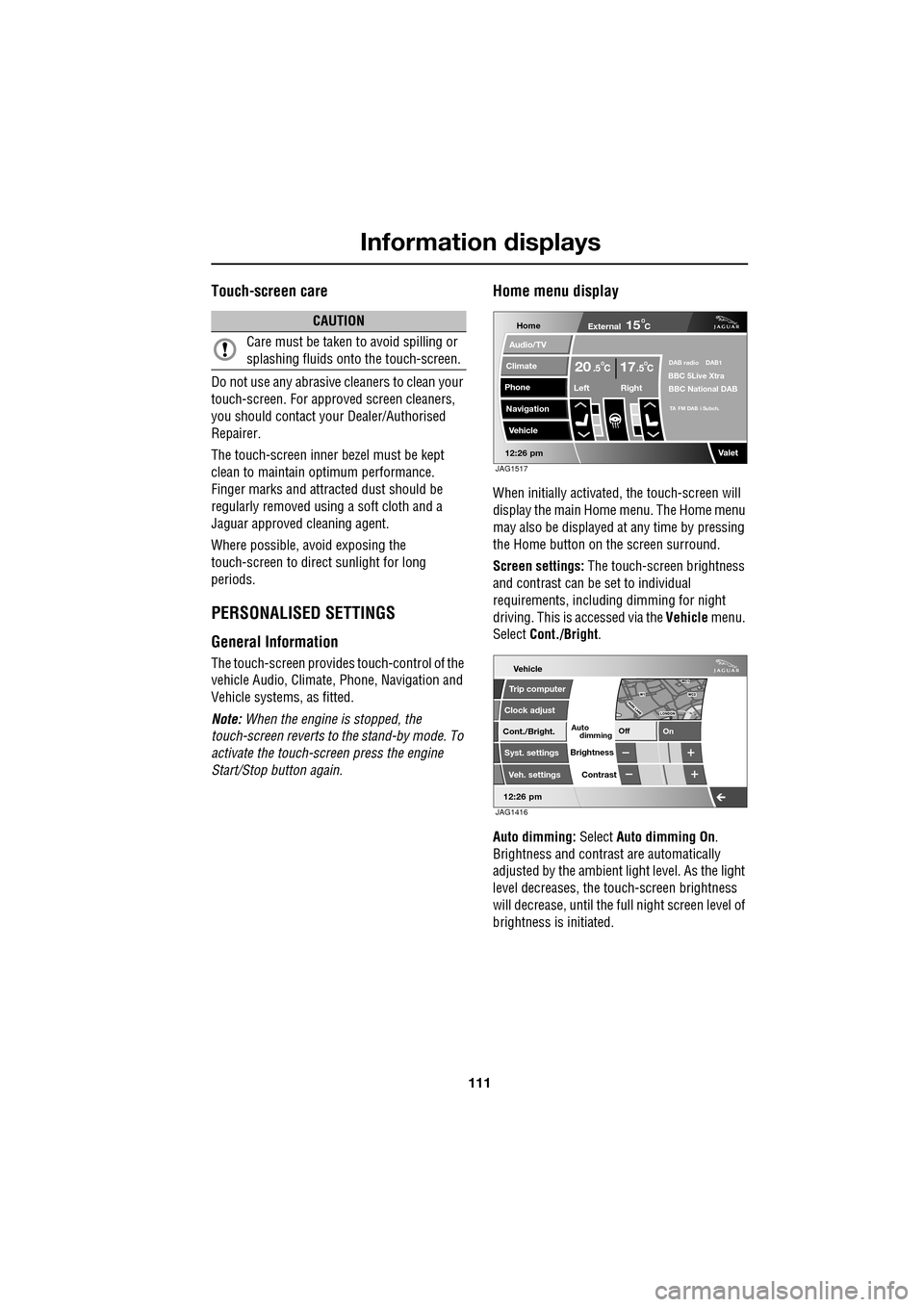
Home menu display
When initially activated, the touch-screen will
display the main Home menu. The Home menu
may also be displayed at any time by pressing
the Home button on the screen surround.
Screen settings: The touch-screen brightness
and contrast can be set to individual
requirements, including dimming for night
driving. This is accessed via the Vehicle menu.
Select Cont./Bright .
Auto dimming: Select Auto dimming On.
Brightness and contra st are automatically
adjusted by the ambient light level. As the light
level decreases, the t ouch-screen brightness
will decrease, until the fu ll night screen level of
brightness is initiated.
CAUTION
Care must be taken to avoid spilling or
splashing fluids onto the touch-screen.Home
Audio/TV
Climate
Phone
Navigation
Vehicle
Valet12:26 pm
External15C
Left Right
20 17CC.5 .5DAB radio DAB1BBC 5Live Xtra
BBC National DAB
TA FM DAB i Subch.
JAG1517
Vehicle
Off On
Auto
Trip computer
Clock adjust
Cont./Bright.
Syst. settings
Veh. settings Contrast
12:26 pm
dimming
Brightness
JAG1416
Page 112 of 391
Information displays
112
Further adjustment of the touch-screen
brightness can be achieved by using the + or -
buttons in the Cont./Bright. screen or by
adjustment of the inst rument panel dimmer
switch. See INSTRUMENT LIGHTING DIMMER
(page 123).
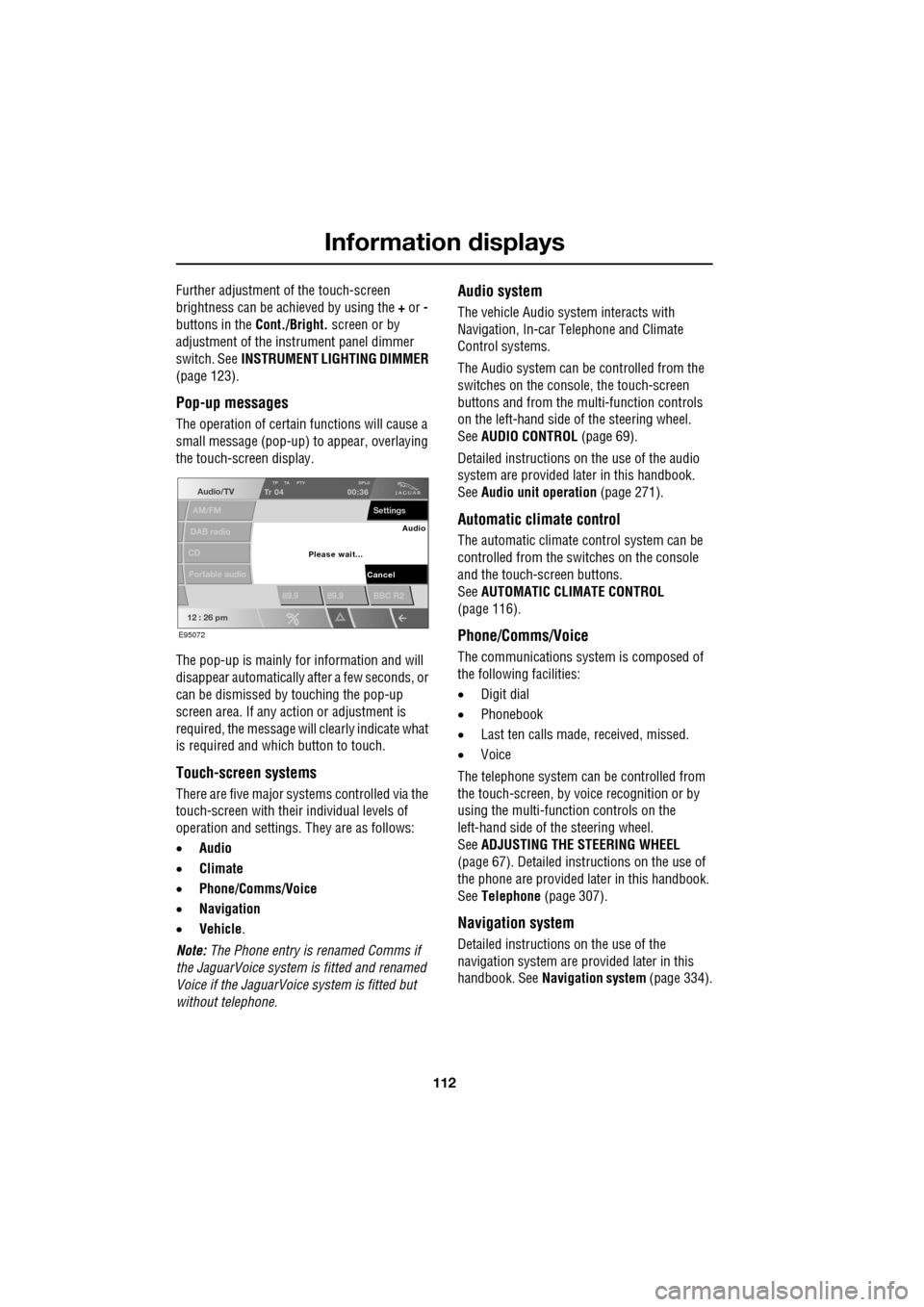
Pop-up messages
The operation of certain functions will cause a
small message (pop-up) to appear, overlaying
the touch-screen display.
The pop-up is mainly for information and will
disappear automatically after a few seconds, or
can be dismissed by touching the pop-up
screen area. If any action or adjustment is
required, the message will clearly indicate what
is required and which button to touch.
Touch-screen systems
There are five major systems controlled via the
touch-screen with thei r individual levels of
operation and settings . They are as follows:
• Audio
• Climate
• Phone/Comms/Voice
• Navigation
• Vehicle .
Note: The Phone entry is renamed Comms if
the JaguarVoice system is fitted and renamed
Voice if the JaguarVoice system is fitted but
without telephone.
Audio system
The vehicle Audio syst em interacts with
Navigation, In-car Telephone and Climate
Control systems.
The Audio system can be controlled from the
switches on the console, the touch-screen
buttons and from the multi-function controls
on the left-hand side of the steering wheel.
See AUDIO CONTROL (page 69).
Detailed instructions on the use of the audio
system are provided later in this handbook.
See Audio unit operation (page 271).
Automatic climate control
The automatic climate control system can be
controlled from the switches on the console
and the touch-screen buttons.
SeeAUTOMATIC CLIMATE CONTROL
(page 116).
Phone/Comms/Voice
The communications system is composed of
the following facilities:
• Digit dial
• Phonebook
• Last ten calls made, received, missed.
• Voice
The telephone system can be controlled from
the touch-screen, by voice recognition or by
using the multi-function controls on the
left-hand side of the steering wheel.
See ADJUSTING THE STEERING WHEEL
(page 67). Detailed instructions on the use of
the phone are provided later in this handbook.
See Telephone (page 307).
Navigation system
Detailed instructions on the use of the
navigation system are pr ovided later in this
handbook. See Navigation system (page 334).
Audio/TV
DAB radio
CD
AM/FM
12 : 26 pm
TP TA PTY DPLIITr 04
Portable audio
00:36
Settings
89.9 89.9 BBC R2
Cancel
Please wait... Audio
E95072
Page 113 of 391
113
Information displays
Vehicle system
The following system functions are set using
the touch-screen:
•Trip computer
• Clock adjust
• Brightness and contrast
• System settings
• Vehicle settings
Languages and distance units
The screen text and distance units are available
in various languages and either Imperial or
Metric units.
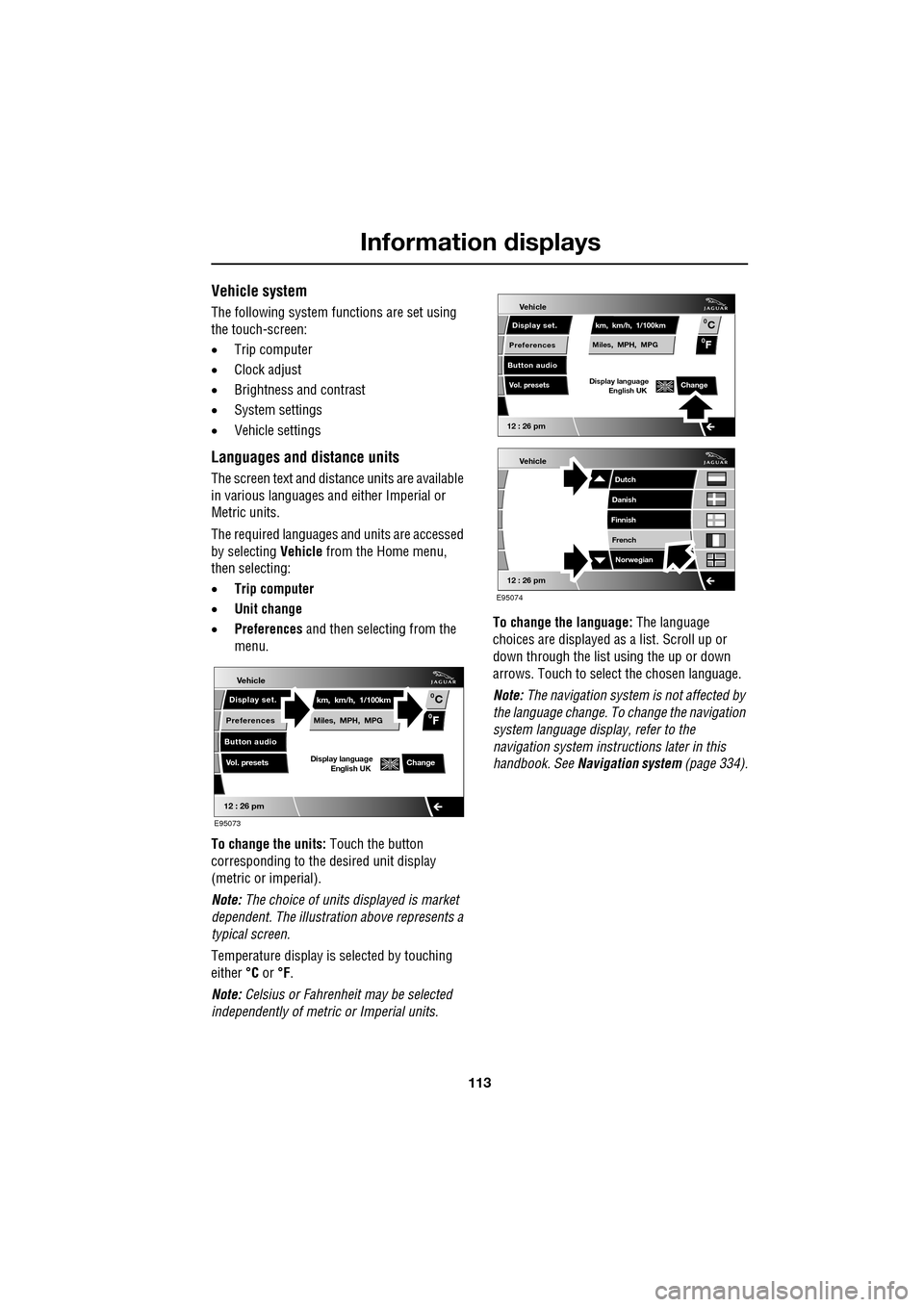
The required languages a nd units are accessed
by selecting Vehicle from the Home menu,
then selecting:
• Trip computer
• Unit change
• Preferences and then selecting from the
menu.
To change the units: Touch the button
corresponding to the desired unit display
(metric or imperial).
Note: The choice of units displayed is market
dependent. The illustrati on above represents a
typical screen.
Temperature display is selected by touching
either °C or °F.
Note: Celsius or Fahrenheit may be selected
independently of metric or Imperial units. To change the language:
The language
choices are displayed as a list. Scroll up or
down through the list using the up or down
arrows. Touch to select the chosen language.
Note: The navigation sy stem is not affected by
the language change. To change the navigation
system language display, refer to the
navigation system instru ctions later in this
handbook. See Navigation system (page 334).
Vehicle
12 : 26 pm
Display set.
Preferences
Button audio
Miles, MPH, MPG km, km/h, 1/100kmF
C
0
0
Display language English UKVol. presetsChange
E95073
Vehicle
12 : 26 pm
Display set.
Preferences
Button audio
Miles, MPH, MPG km, km/h, 1/100kmF
C
0
0
Display language English UKVol. presetsChange
Vehicle
12 : 26 pm
Dutch
Danish
Finnish
French Norwegian
E95074
Page 119 of 391

119
Climate control
Touch-screen operation
Certain functions of the climate control system
are adjusted using the Climate menu on the
touch-screen.
Select Climate from the Home menu.
The climate main menu is displayed, from
which the climate cont rol settings can be
adjusted.
Climate control display icons
The climate control display buttons and icons
are as follows:
Home
Audio/TV
Climate
Phone
Navigation
Vehicle
Valet12:26 pm
External15C
t Right
20 17CC.5 .5DAB radio DAB1BBC 5Live Xtra
BBC National DAB
TA FM DAB i Subch.
JAG1518
Settings
Temp. sync. External
12C
Auto
21 21C.5 C
Auto
A/C
OFF
.5
Climate
12 : 26 pm
Auto
E95094
Auto climate control
on.
Air distribution to
windscreen.
Air distribution to
face.
Air distribution to feet.
Synchronizes the
passenger's climate
control zone to the
driver's settings.
Blower speed control decrease and increase. Access to the Settings
control menu to set
the vent rotation
mode, to adjust
personal climate zone se ttings and also to
access the automatic air recirculation sensor
control setting.Auto
Temp. sync.
Settings
Page 124 of 391
Convenience features
124
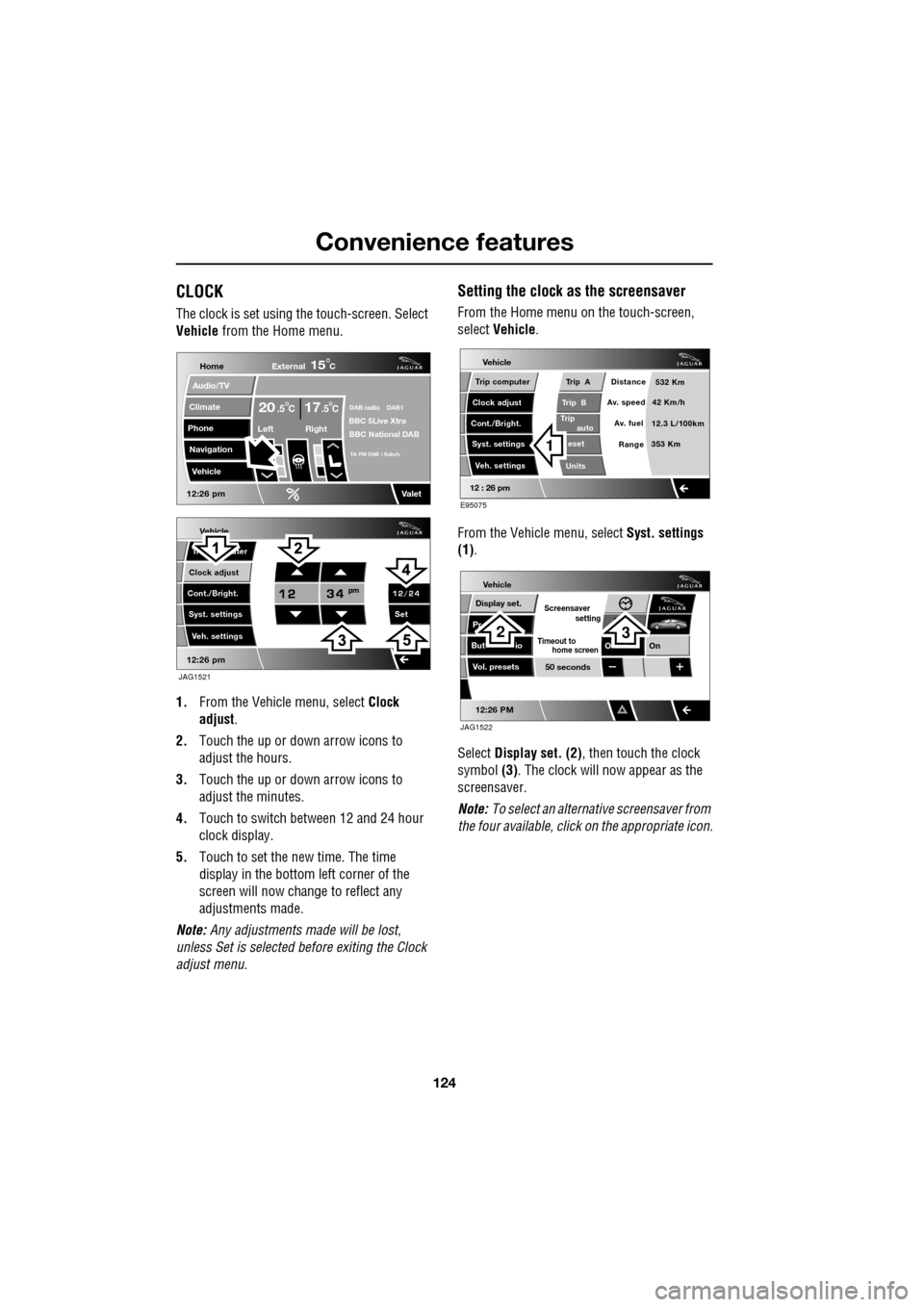
CLOCK
The clock is set using the touch-screen. Select
Vehicle from the Home menu.
1. From the Vehicl e menu, select Clock
adjust .
2. Touch the up or down arrow icons to
adjust the hours.
3. Touch the up or down arrow icons to
adjust the minutes.
4. Touch to switch between 12 and 24 hour
clock display.
5. Touch to set the new time. The time
display in the bottom left corner of the
screen will now change to reflect any
adjustments made.
Note: Any adjustments made will be lost,
unless Set is selected before exiting the Clock
adjust menu.
Setting the clock as the screensaver
From the Home menu on the touch-screen,
select Vehicle.
From the Vehicle menu, select Syst. settings
(1) .
Select Display set. (2) , then touch the clock
symbol (3). The clock will now appear as the
screensaver.
Note: To select an alternative screensaver from
the four available, click on the appropriate icon.
Vehicle
Clock adjust
Cont./Bright. Tr uter
Syst. settings Veh. settings Set
12:26 pm
JAG1521
Home
Audio/TV
Climate
Phone
Navigation
Vehicle
DAB radio DAB1BBC 5Live XtraBBC National DAB
TA FM DAB i Subch.
Va l e t12:26 pm
External15C
Left Right
20 17CC.5 .5
Vehicle
Trip B
Trip
auto eset
Units Distance
Av. speed
Av. fuel 532 Km
42 Km/h
12.3 L/100km
353 Km
RangeClock adjust
Cont./Bright. Trip computer
Syst. settings Veh. settings
Trip A
12 : 26 pm
E95075
1
Vehicle
Display set.
Pr
But io
Vol. presets
12:26 PM
50 seconds
OnO
Screensaver
Timeout to
setting
home screen
JAG1522
23