radio JAGUAR XF 2009 1.G User Guide
[x] Cancel search | Manufacturer: JAGUAR, Model Year: 2009, Model line: XF, Model: JAGUAR XF 2009 1.GPages: 391, PDF Size: 19.32 MB
Page 69 of 391
69
Steering wheel
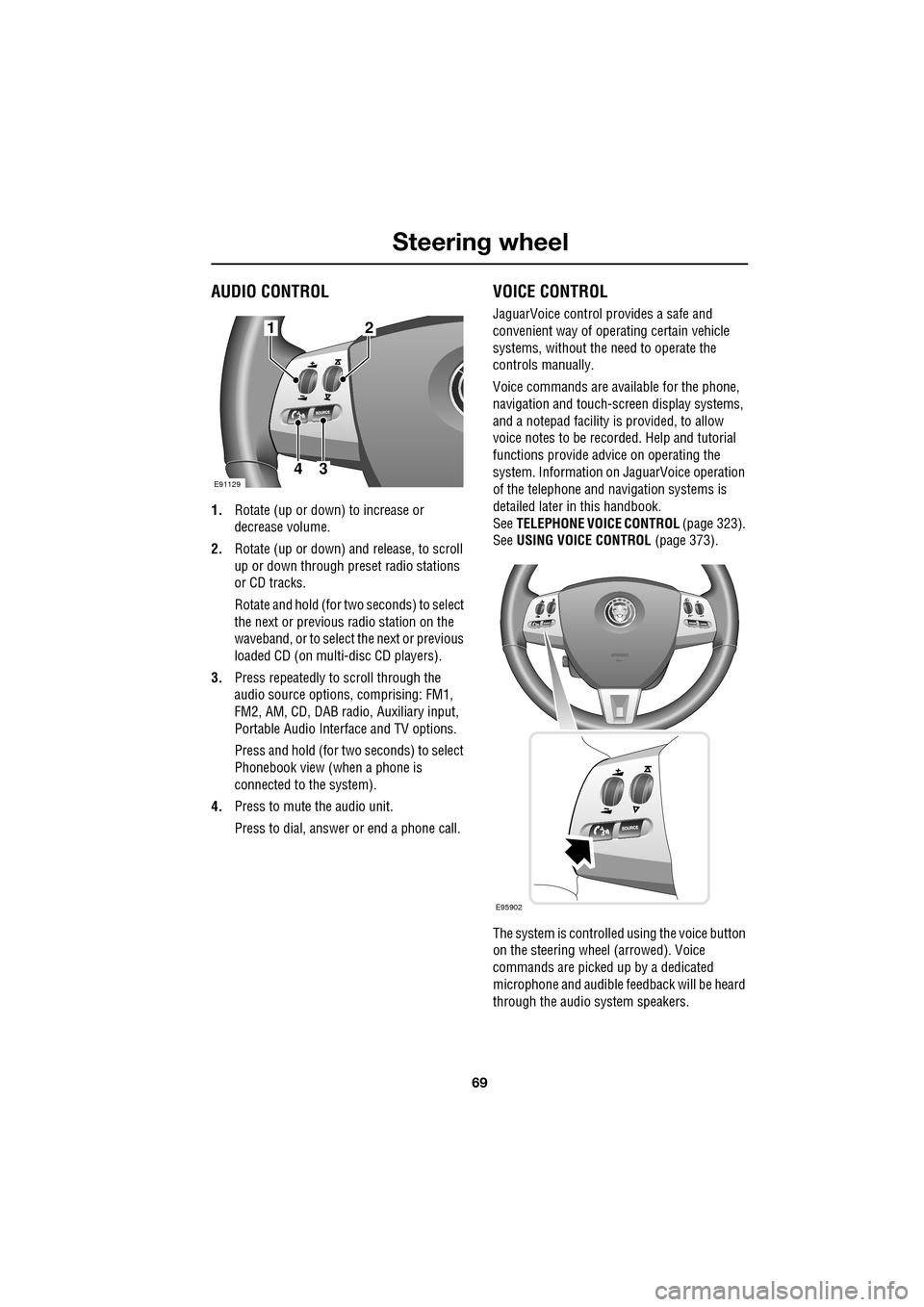
AUDIO CONTROL
1.Rotate (up or down) to increase or
decrease volume.
2. Rotate (up or down) a nd release, to scroll
up or down through preset radio stations
or CD tracks.
Rotate and hold (for two seconds) to select
the next or previous radio station on the
waveband, or to select the next or previous
loaded CD (on multi-disc CD players).
3. Press repeatedly to scroll through the
audio source options, comprising: FM1,
FM2, AM, CD, DAB radi o, Auxiliary input,
Portable Audio Interface and TV options.
Press and hold (for two seconds) to select
Phonebook view (when a phone is
connected to the system).
4. Press to mute the audio unit.
Press to dial, answer or end a phone call.
VOICE CONTROL
JaguarVoice control pr ovides a safe and
convenient way of operating certain vehicle
systems, without the need to operate the
controls manually.
Voice commands are av ailable for the phone,
navigation and touch-scre en display systems,
and a notepad facility is provided, to allow
voice notes to be recorded. Help and tutorial
functions provide advi ce on operating the
system. Information on JaguarVoice operation
of the telephone and navigation systems is
detailed later in this handbook.
See TELEPHONE VOICE CONTROL (page 323).
See USING VOICE CONTROL (page 373).
The system is controlle d using the voice button
on the steering wheel (arrowed). Voice
commands are picked up by a dedicated
microphone and audible fee dback will be heard
through the audio system speakers.12
43E91129
E95902
Page 106 of 391
Information displays
106
WARNING AND INFORMATION
MESSAGES
Most displayed warning messages have an
associated warning indicator, which will
illuminate on to indicate the message priority.
Also from time to time information messages
will be displayed.
If more than one message is active, each is
displayed in turn for two seconds in order of
priority.
Messages take priority over the trip computer
data and will be displayed when the ignition is
on.
Note: The message centre information
messages and their meanings, are detailed
where necessary within the appropriate subject
sections.
Clearing messages from the display
It is possible to temporarily clear certain
warning or information messages from the
message centre.
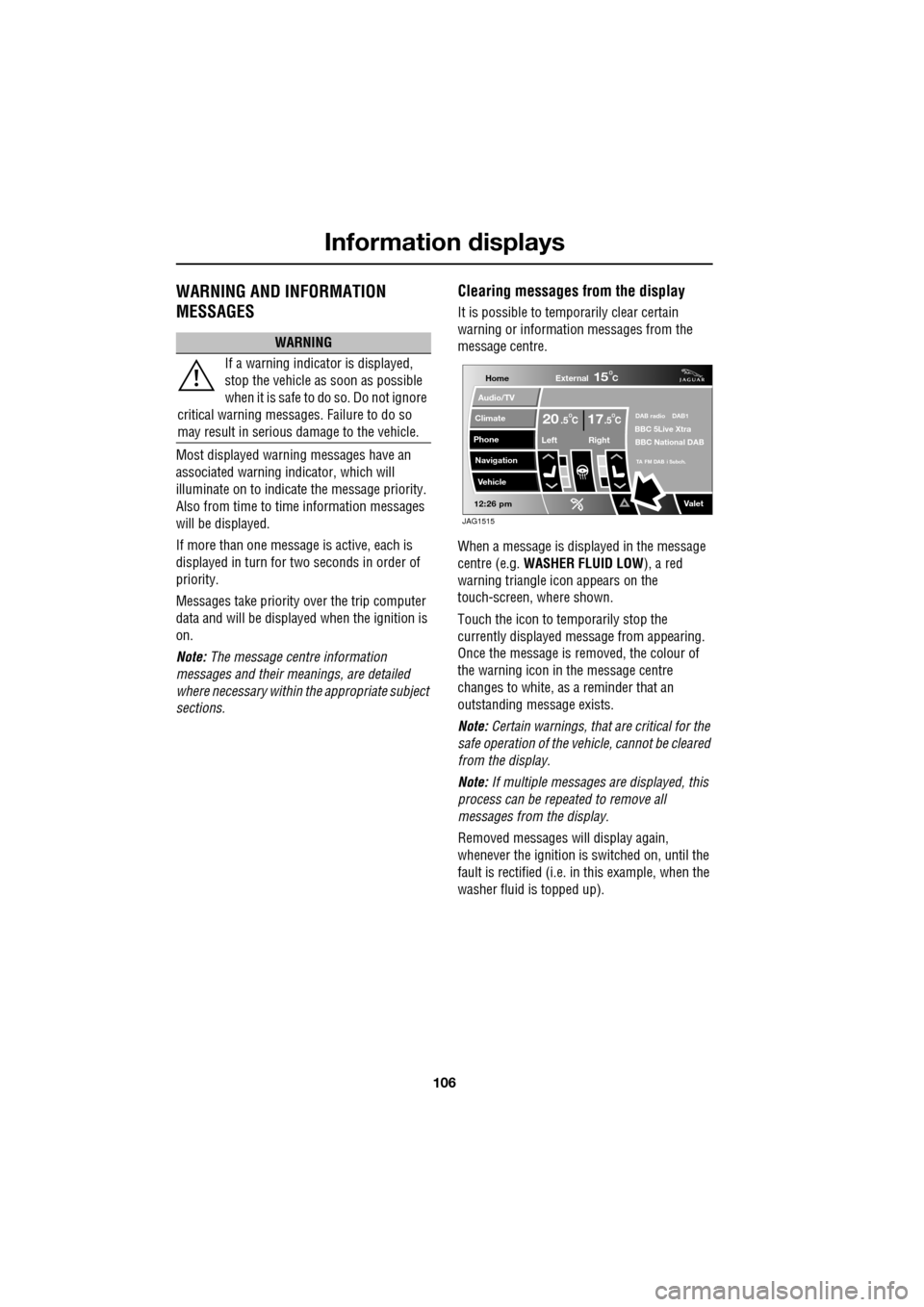
When a message is displayed in the message
centre (e.g. WASHER FLUID LOW ), a red
warning triangle icon appears on the
touch-screen, where shown.
Touch the icon to temporarily stop the
currently displayed message from appearing.
Once the message is removed, the colour of
the warning icon in the message centre
changes to white, as a reminder that an
outstanding message exists.
Note: Certain warnings, that are critical for the
safe operation of the vehi cle, cannot be cleared
from the display.
Note: If multiple messages are displayed, this
process can be repeated to remove all
messages from the display.
Removed messages will display again,
whenever the ignition is switched on, until the
fault is rectified (i.e. in this example, when the
washer fluid is topped up).
WARNING
If a warning indicato r is displayed,
stop the vehicle as soon as possible
when it is safe to do so. Do not ignore
critical warning messages. Failure to do so
may result in serious damage to the vehicle.
Home
Audio/TV
Climate
Phone
Navigation
Vehicle
Valet12:26 pm
External15C
Left Right
20 17CC.5 .5DAB radio DAB1BBC 5Live Xtra
BBC National DAB
TA FM DAB i Subch.
JAG1515
Page 109 of 391
109
Information displays
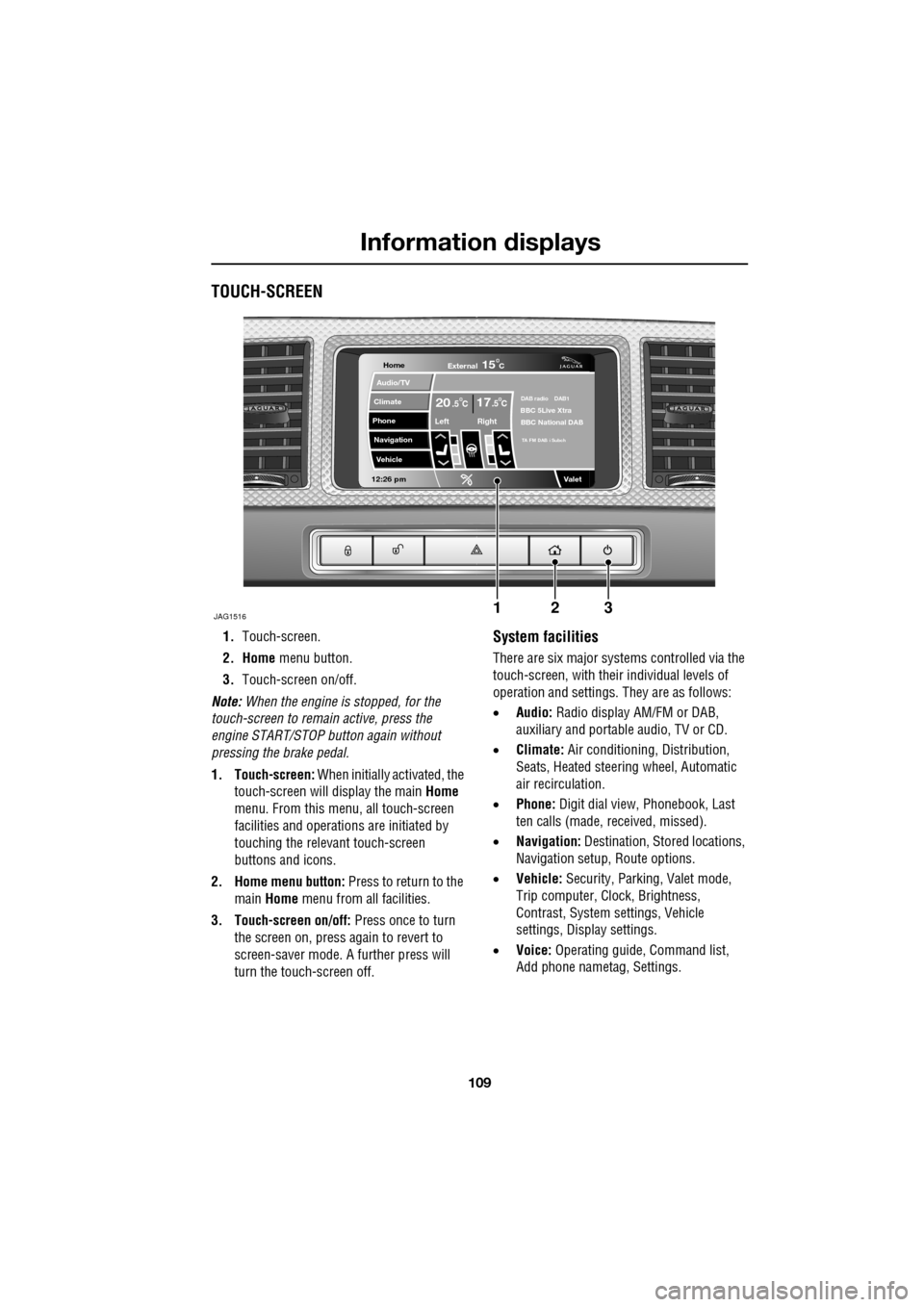
TOUCH-SCREEN
1.Touch-screen.
2. Home menu button.
3. Touch-screen on/off.
Note: When the engine is stopped, for the
touch-screen to remain active, press the
engine START/STOP button again without
pressing the brake pedal.
1. Touch-screen: When initially activated, the
touch-screen will display the main Home
menu. From this menu, all touch-screen
facilities and operati ons are initiated by
touching the relevant touch-screen
buttons and icons.
2. Home menu button: Press to return to the main Home menu from all facilities.
3. Touch-screen on/off: Press once to turn
the screen on, press again to revert to
screen-saver mode. A further press will
turn the touch-screen off.System facilities
There are six major systems controlled via the
touch-screen, with their individual levels of
operation and settings. They are as follows:
• Audio: Radio display AM/FM or DAB,
auxiliary and portable audio, TV or CD.
• Climate: Air conditioning, Distribution,
Seats, Heated steering wheel, Automatic
air recirculation.
• Phone: Digit dial view, Phonebook, Last
ten calls (made, received, missed).
• Navigation: Destination, St ored locations,
Navigation setup, Route options.
• Vehicle: Security, Parking, Valet mode,
Trip computer, Clock, Brightness,
Contrast, System settings, Vehicle
settings, Displa y settings.
• Voice: Operating guide, Command list,
Add phone nametag, Settings.
Home
Audio/TV
Climate
Phone
Navigation
Vehicle
Valet12:26 pm
JAG1516
External15C
Left Right
20 17CC.5 .5DAB radio DAB1BBC 5Live Xtra
BBC National DAB
TA FM DAB i Subch
123
Page 111 of 391
111
Information displays
Touch-screen care
Do not use any abrasive cleaners to clean your
touch-screen. For approved screen cleaners,
you should contact your Dealer/Authorised
Repairer.
The touch-screen inner bezel must be kept
clean to maintain optimum performance.
Finger marks and attracted dust should be
regularly removed usi ng a soft cloth and a
Jaguar approved cleaning agent.
Where possible, avoid exposing the
touch-screen to dire ct sunlight for long
periods.
PERSONALISED SETTINGS
General Information
The touch-screen provides touch-control of the
vehicle Audio, Climate, Phone, Navigation and
Vehicle systems, as fitted.
Note: When the engine is stopped, the
touch-screen reverts to the stand-by mode. To
activate the touch-screen press the engine
Start/Stop button again.
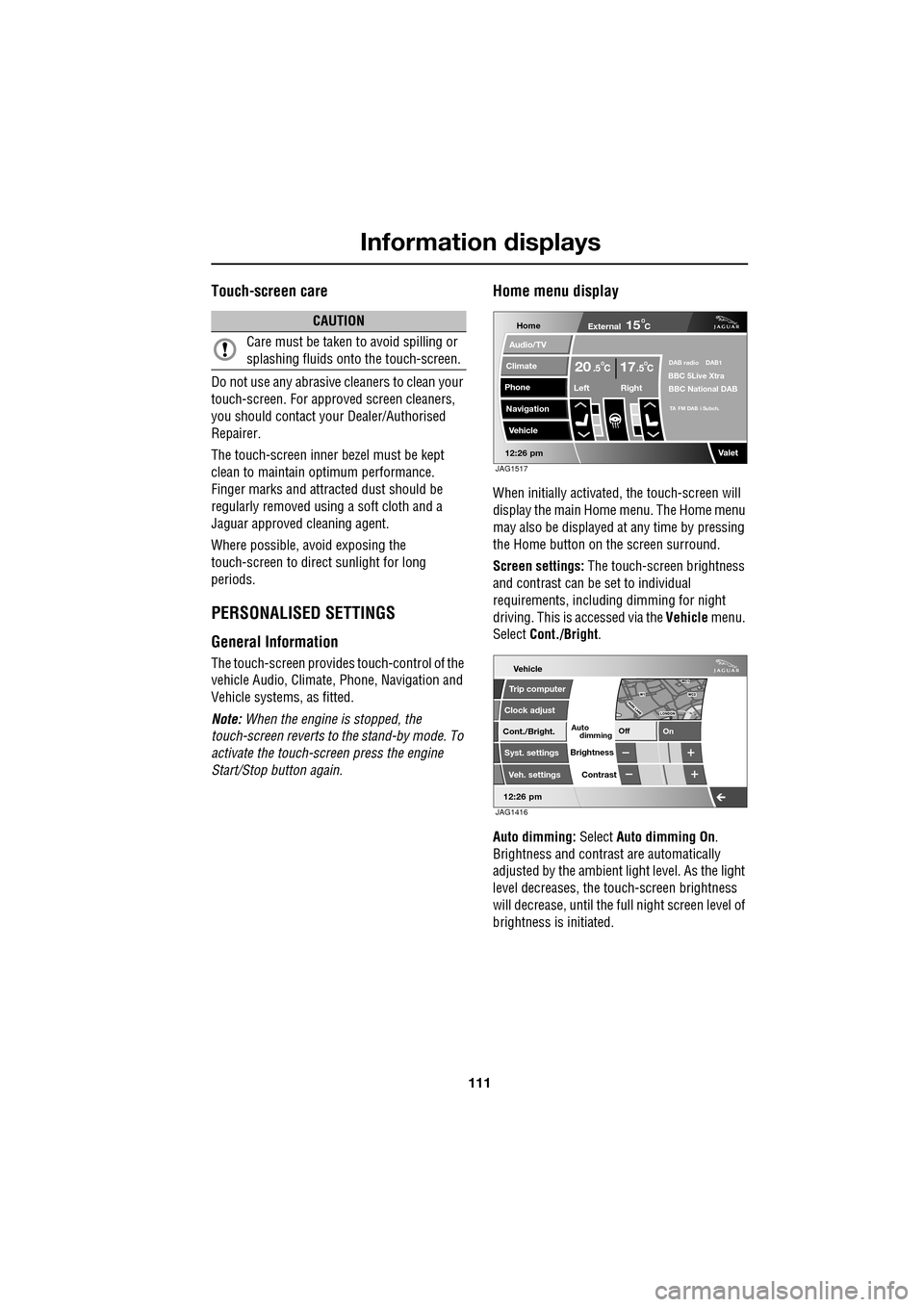
Home menu display
When initially activated, the touch-screen will
display the main Home menu. The Home menu
may also be displayed at any time by pressing
the Home button on the screen surround.
Screen settings: The touch-screen brightness
and contrast can be set to individual
requirements, including dimming for night
driving. This is accessed via the Vehicle menu.
Select Cont./Bright .
Auto dimming: Select Auto dimming On.
Brightness and contra st are automatically
adjusted by the ambient light level. As the light
level decreases, the t ouch-screen brightness
will decrease, until the fu ll night screen level of
brightness is initiated.
CAUTION
Care must be taken to avoid spilling or
splashing fluids onto the touch-screen.Home
Audio/TV
Climate
Phone
Navigation
Vehicle
Valet12:26 pm
External15C
Left Right
20 17CC.5 .5DAB radio DAB1BBC 5Live Xtra
BBC National DAB
TA FM DAB i Subch.
JAG1517
Vehicle
Off On
Auto
Trip computer
Clock adjust
Cont./Bright.
Syst. settings
Veh. settings Contrast
12:26 pm
dimming
Brightness
JAG1416
Page 112 of 391
Information displays
112
Further adjustment of the touch-screen
brightness can be achieved by using the + or -
buttons in the Cont./Bright. screen or by
adjustment of the inst rument panel dimmer
switch. See INSTRUMENT LIGHTING DIMMER
(page 123).
Pop-up messages
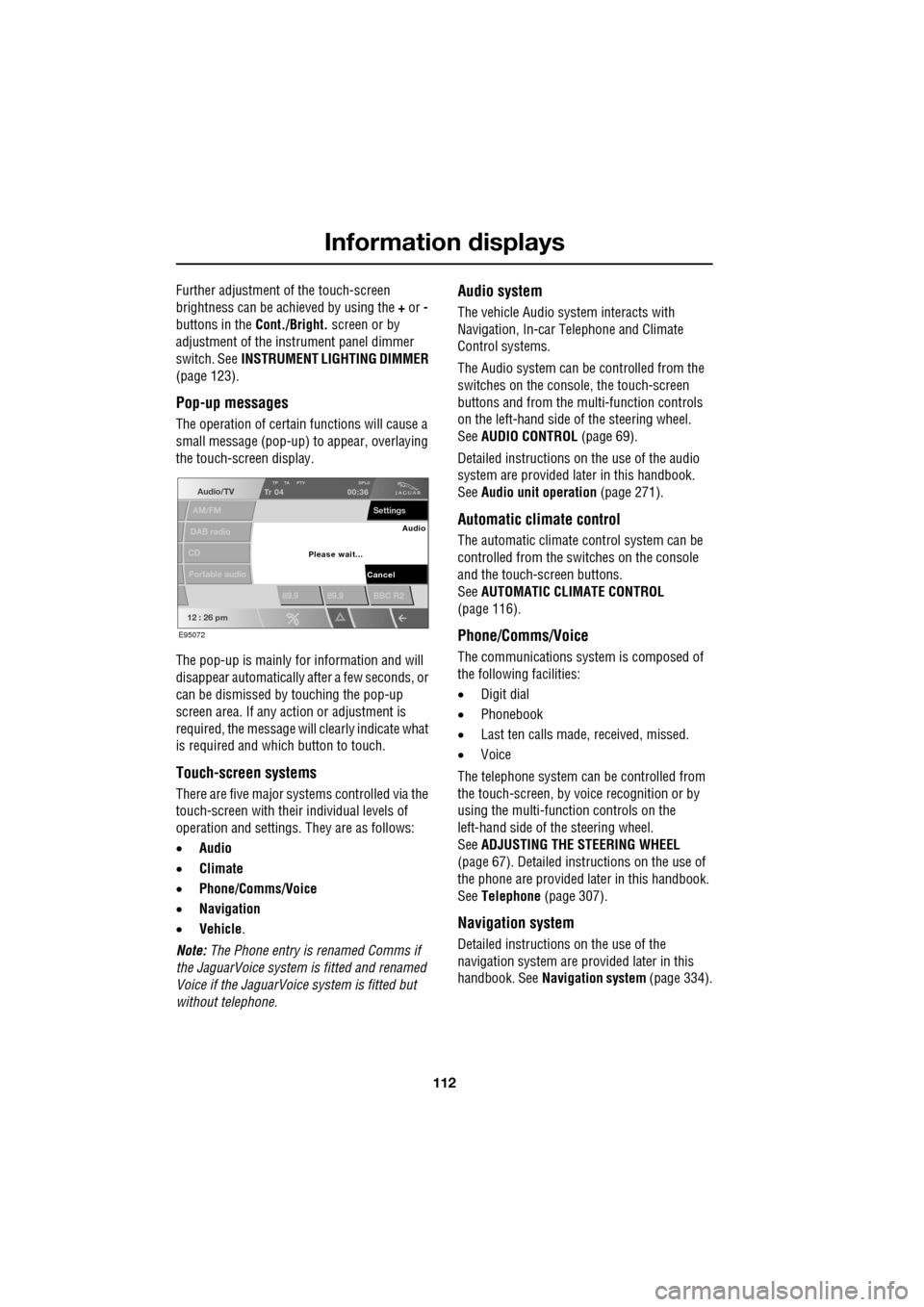
The operation of certain functions will cause a
small message (pop-up) to appear, overlaying
the touch-screen display.
The pop-up is mainly for information and will
disappear automatically after a few seconds, or
can be dismissed by touching the pop-up
screen area. If any action or adjustment is
required, the message will clearly indicate what
is required and which button to touch.
Touch-screen systems
There are five major systems controlled via the
touch-screen with thei r individual levels of
operation and settings . They are as follows:
• Audio
• Climate
• Phone/Comms/Voice
• Navigation
• Vehicle .
Note: The Phone entry is renamed Comms if
the JaguarVoice system is fitted and renamed
Voice if the JaguarVoice system is fitted but
without telephone.
Audio system
The vehicle Audio syst em interacts with
Navigation, In-car Telephone and Climate
Control systems.
The Audio system can be controlled from the
switches on the console, the touch-screen
buttons and from the multi-function controls
on the left-hand side of the steering wheel.
See AUDIO CONTROL (page 69).
Detailed instructions on the use of the audio
system are provided later in this handbook.
See Audio unit operation (page 271).
Automatic climate control
The automatic climate control system can be
controlled from the switches on the console
and the touch-screen buttons.
SeeAUTOMATIC CLIMATE CONTROL
(page 116).
Phone/Comms/Voice
The communications system is composed of
the following facilities:
• Digit dial
• Phonebook
• Last ten calls made, received, missed.
• Voice
The telephone system can be controlled from
the touch-screen, by voice recognition or by
using the multi-function controls on the
left-hand side of the steering wheel.
See ADJUSTING THE STEERING WHEEL
(page 67). Detailed instructions on the use of
the phone are provided later in this handbook.
See Telephone (page 307).
Navigation system
Detailed instructions on the use of the
navigation system are pr ovided later in this
handbook. See Navigation system (page 334).
Audio/TV
DAB radio
CD
AM/FM
12 : 26 pm
TP TA PTY DPLIITr 04
Portable audio
00:36
Settings
89.9 89.9 BBC R2
Cancel
Please wait... Audio
E95072
Page 119 of 391

119
Climate control
Touch-screen operation
Certain functions of the climate control system
are adjusted using the Climate menu on the
touch-screen.
Select Climate from the Home menu.
The climate main menu is displayed, from
which the climate cont rol settings can be
adjusted.
Climate control display icons
The climate control display buttons and icons
are as follows:
Home
Audio/TV
Climate
Phone
Navigation
Vehicle
Valet12:26 pm
External15C
t Right
20 17CC.5 .5DAB radio DAB1BBC 5Live Xtra
BBC National DAB
TA FM DAB i Subch.
JAG1518
Settings
Temp. sync. External
12C
Auto
21 21C.5 C
Auto
A/C
OFF
.5
Climate
12 : 26 pm
Auto
E95094
Auto climate control
on.
Air distribution to
windscreen.
Air distribution to
face.
Air distribution to feet.
Synchronizes the
passenger's climate
control zone to the
driver's settings.
Blower speed control decrease and increase. Access to the Settings
control menu to set
the vent rotation
mode, to adjust
personal climate zone se ttings and also to
access the automatic air recirculation sensor
control setting.Auto
Temp. sync.
Settings
Page 124 of 391
Convenience features
124
CLOCK
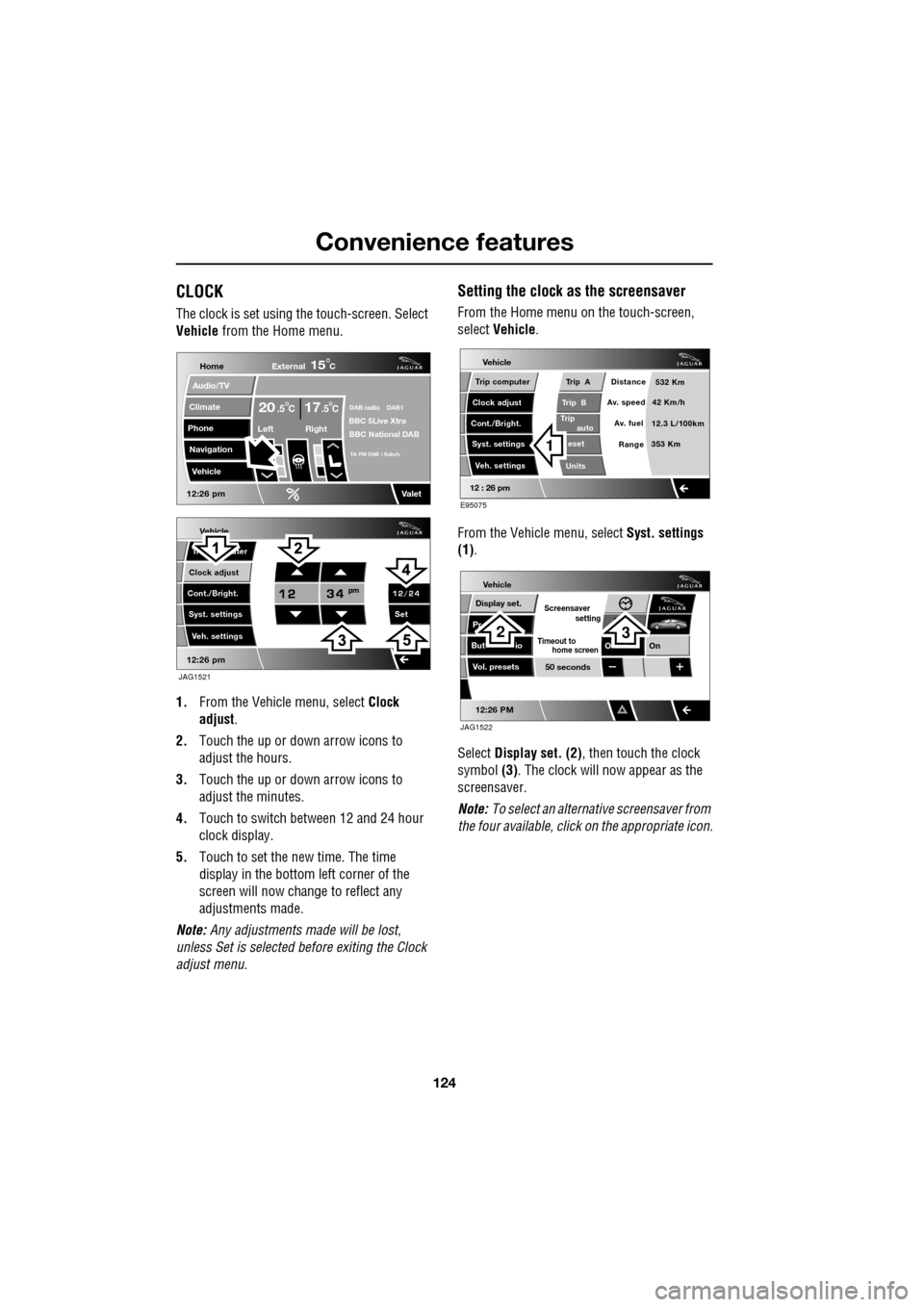
The clock is set using the touch-screen. Select
Vehicle from the Home menu.
1. From the Vehicl e menu, select Clock
adjust .
2. Touch the up or down arrow icons to
adjust the hours.
3. Touch the up or down arrow icons to
adjust the minutes.
4. Touch to switch between 12 and 24 hour
clock display.
5. Touch to set the new time. The time
display in the bottom left corner of the
screen will now change to reflect any
adjustments made.
Note: Any adjustments made will be lost,
unless Set is selected before exiting the Clock
adjust menu.
Setting the clock as the screensaver
From the Home menu on the touch-screen,
select Vehicle.
From the Vehicle menu, select Syst. settings
(1) .
Select Display set. (2) , then touch the clock
symbol (3). The clock will now appear as the
screensaver.
Note: To select an alternative screensaver from
the four available, click on the appropriate icon.
Vehicle
Clock adjust
Cont./Bright. Tr uter
Syst. settings Veh. settings Set
12:26 pm
JAG1521
Home
Audio/TV
Climate
Phone
Navigation
Vehicle
DAB radio DAB1BBC 5Live XtraBBC National DAB
TA FM DAB i Subch.
Va l e t12:26 pm
External15C
Left Right
20 17CC.5 .5
Vehicle
Trip B
Trip
auto eset
Units Distance
Av. speed
Av. fuel 532 Km
42 Km/h
12.3 L/100km
353 Km
RangeClock adjust
Cont./Bright. Trip computer
Syst. settings Veh. settings
Trip A
12 : 26 pm
E95075
1
Vehicle
Display set.
Pr
But io
Vol. presets
12:26 PM
50 seconds
OnO
Screensaver
Timeout to
setting
home screen
JAG1522
23
Page 128 of 391
Convenience features
128
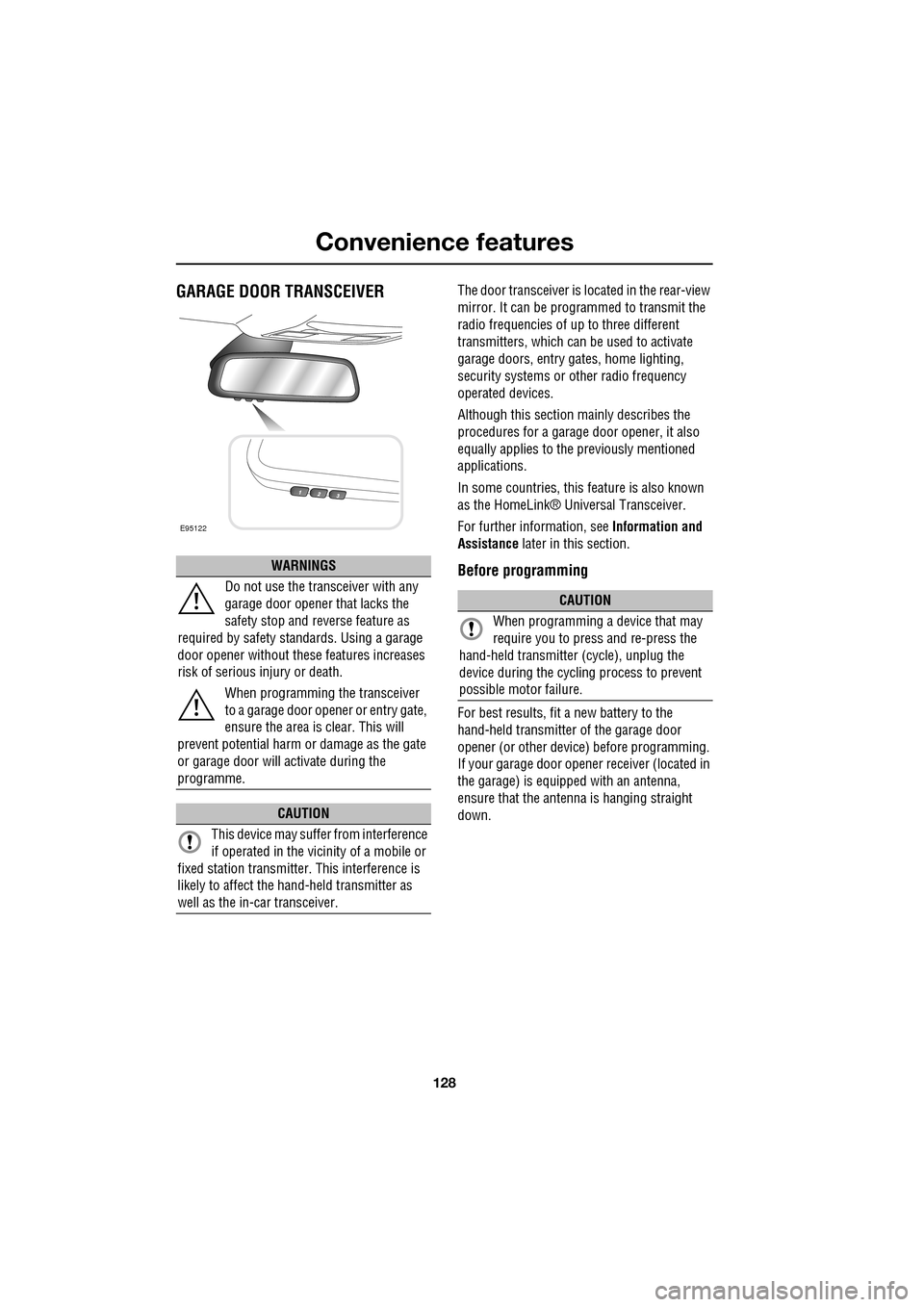
GARAGE DOOR TRANSCEIVERThe door transceiver is located in the rear-view
mirror. It can be programmed to transmit the
radio frequencies of up to three different
transmitters, which can be used to activate
garage doors, entry ga tes, home lighting,
security systems or other radio frequency
operated devices.
Although this section mainly describes the
procedures for a garage door opener, it also
equally applies to the previously mentioned
applications.
In some countries, this feature is also known
as the HomeLink® Universal Transceiver.
For further information, see Information and
Assistance later in this section.
Before programming
For best results, fit a new battery to the
hand-held transmitter of the garage door
opener (or other device ) before programming.
If your garage door opener receiver (located in
the garage) is equippe d with an antenna,
ensure that the antenna is hanging straight
down.
WARNINGS
Do not use the transceiver with any
garage door opener that lacks the
safety stop and reverse feature as
required by safety standards. Using a garage
door opener without these features increases
risk of serious injury or death.
When programming the transceiver
to a garage door opener or entry gate,
ensure the area is clear. This will
prevent potential harm or damage as the gate
or garage door will activate during the
programme.
CAUTION
This device may suffer from interference
if operated in the vici nity of a mobile or
fixed station transmitter. This interference is
likely to affect the hand-held transmitter as
well as the in-car transceiver.
E95122
CAUTION
When programming a device that may
require you to press and re-press the
hand-held transmitte r (cycle), unplug the
device during the cycling process to prevent
possible motor failure.
Page 130 of 391
Convenience features
130
Rolling code device equipment
programming
Note: The assistance of a second person, may
make the following steps quicker and easier.
Once the button has been pressed there are
only 30 seconds in which to complete Step 3.
1. At the garage door opener receiver (motor
head unit) in the garage, locate the learn or
smart button/switch.
•The name of the button or switch may
vary between manufacturers.
2. Press and release the learn or smart
button.
3. Return to the vehicle and firmly press and
hold the programmed garage door opener
button for two seconds and release.
4. Repeat the press, hol d, release sequence
three times to complete the programming
process.
The garage door opener in the rear-view mirror
should now activate the rolling code device.
Reprogramming a single garage door
opener button
To programme a device to a previously trained
button:
1. Press and hold the desired
pre-programmed garage door opener
button for at least 20 seconds, but no
longer than 30 seconds, until the indicator
lamp begins to flash.
2. Without releasing th e rear-view mirror
button, position the hand-held transmitter
approximately 50 to 150 mm (2 to 6
inches) away from the transceiver in the
rear-view mirror, keeping the indicator
lamp in view.
3. Carry out Step 3 of Programming .
Entry gate programming
The technology of some entry gates requires
you to press and re-press (cycle) the hand-held
transmitter button ever y two seconds during
programming.
Continue to press and hold the desired
rear-view mirror button while you cycle your
hand-held transmitter unt il the indicator lamp
flashes rapidly.
Information and assistance
For information on the range of available
compatible products or accessories, or for
assistance, you should contact your Dealer/
Authorised Repairer.
You can also contact the supplier’s helpline on
0 0800 0466 354 65. This toll-free number can
be called from anywhere within Europe. No
separate country code is required (the first zero
is not required when calling from within
Germany).
Contact can also be made via the internet. The
website address is www.eurohomelink.com.
The e-mail address is:
[email protected] .
Note: Keep the original transmitter for future
use or programming procedures if, for
example, you purchase a new vehicle.
Note: The manufacturer is not responsible for
any radio or TV interference caused by
unauthorised modifications to this equipment.
Such modifications could void the user’s
authority to operate the equipment.
CAUTION
It is recommended that when you sell or
dispose of the vehicle, the programmed
transceiver buttons be erased for security
purposes.
Page 235 of 391
235
Wheels and tyres
Note: Different types of tyre may affect the
performance of the TPM system. Always
replace tyres in accordance with
recommendations. See TYRE
SPECIFICATIONS - ARDUOUS TERRAIN
(page 239).
Your vehicle may be equipped with a TPM
System which monitors pressure in each tyre
(temporary use spare wheels are not fitted with
sensors and are conseque ntly not monitored).
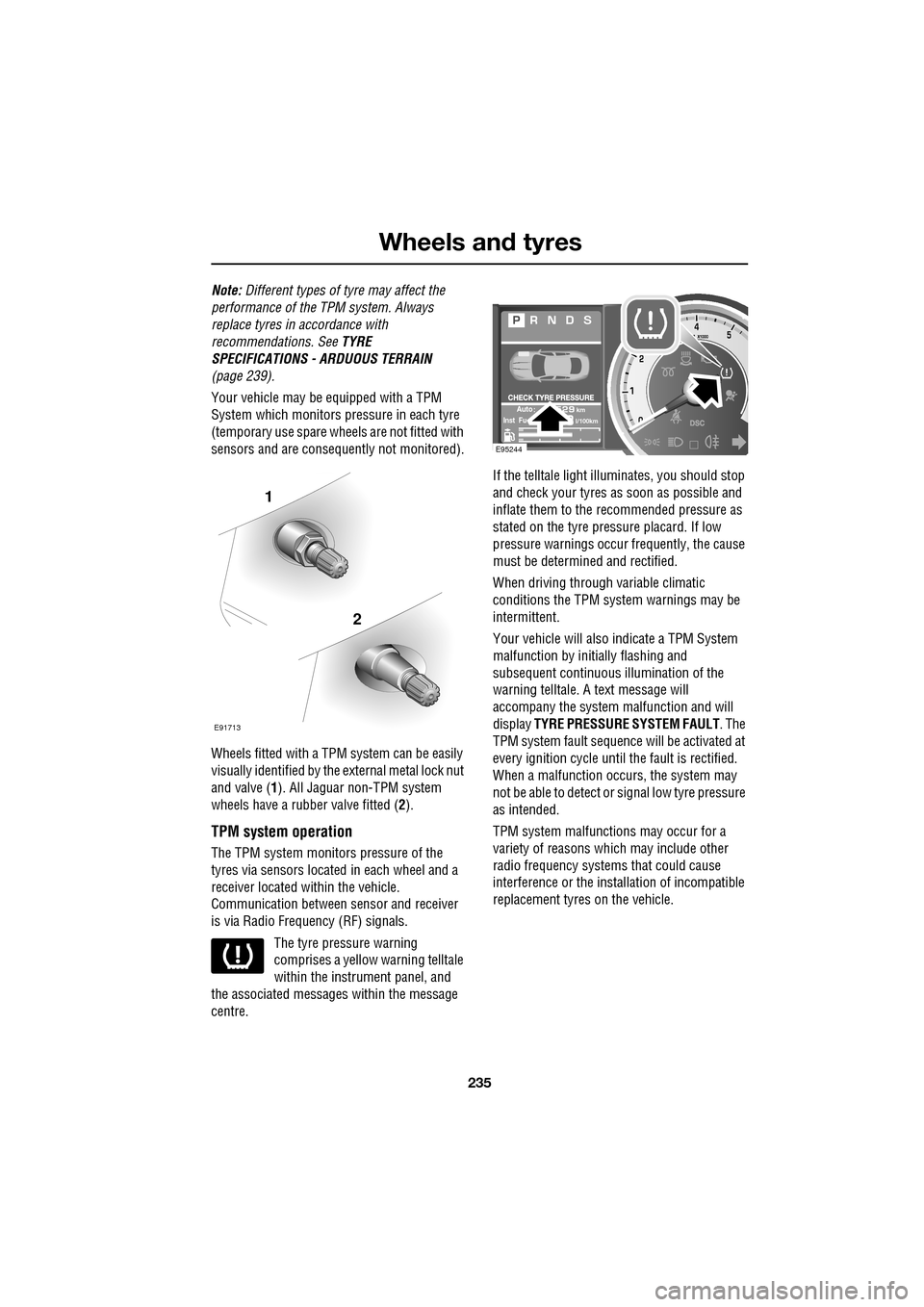
Wheels fitted with a TPM system can be easily
visually identified by the external metal lock nut
and valve ( 1). All Jaguar n on-TPM system
wheels have a rubber valve fitted (2).
TPM system operation
The TPM system monitors pressure of the
tyres via sensors located in each wheel and a
receiver located within the vehicle.
Communication between se nsor and receiver
is via Radio Frequency (RF) signals.
The tyre pressure warning
comprises a yellow warning telltale
within the instrument panel, and
the associated messages within the message
centre. If the telltale light illu
minates, you should stop
and check your tyres as soon as possible and
inflate them to the recommended pressure as
stated on the tyre pressure placard. If low
pressure warnings occur frequently, the cause
must be determined and rectified.
When driving through variable climatic
conditions the TPM syst em warnings may be
intermittent.
Your vehicle will also indicate a TPM System
malfunction by initially flashing and
subsequent continuous illumination of the
warning telltale. A text message will
accompany the system malfunction and will
display TYRE PRESSURE SYSTEM FAULT . The
TPM system fault sequence will be activated at
every ignition cycle until the fault is rectified.
When a malfunction occurs, the system may
not be able to de tect or signal low tyre pressure
as intended.
TPM system malfuncti ons may occur for a
variety of reasons which may include other
radio frequency systems that could cause
interference or the installation of incompatible
replacement tyres on the vehicle.
1
2
E91713
AutokmInst Ful/100km
E95244