Message centre JAGUAR XF 2009 1.G Repair Manual
[x] Cancel search | Manufacturer: JAGUAR, Model Year: 2009, Model line: XF, Model: JAGUAR XF 2009 1.GPages: 391, PDF Size: 19.32 MB
Page 255 of 391
255
Vehicle recovery
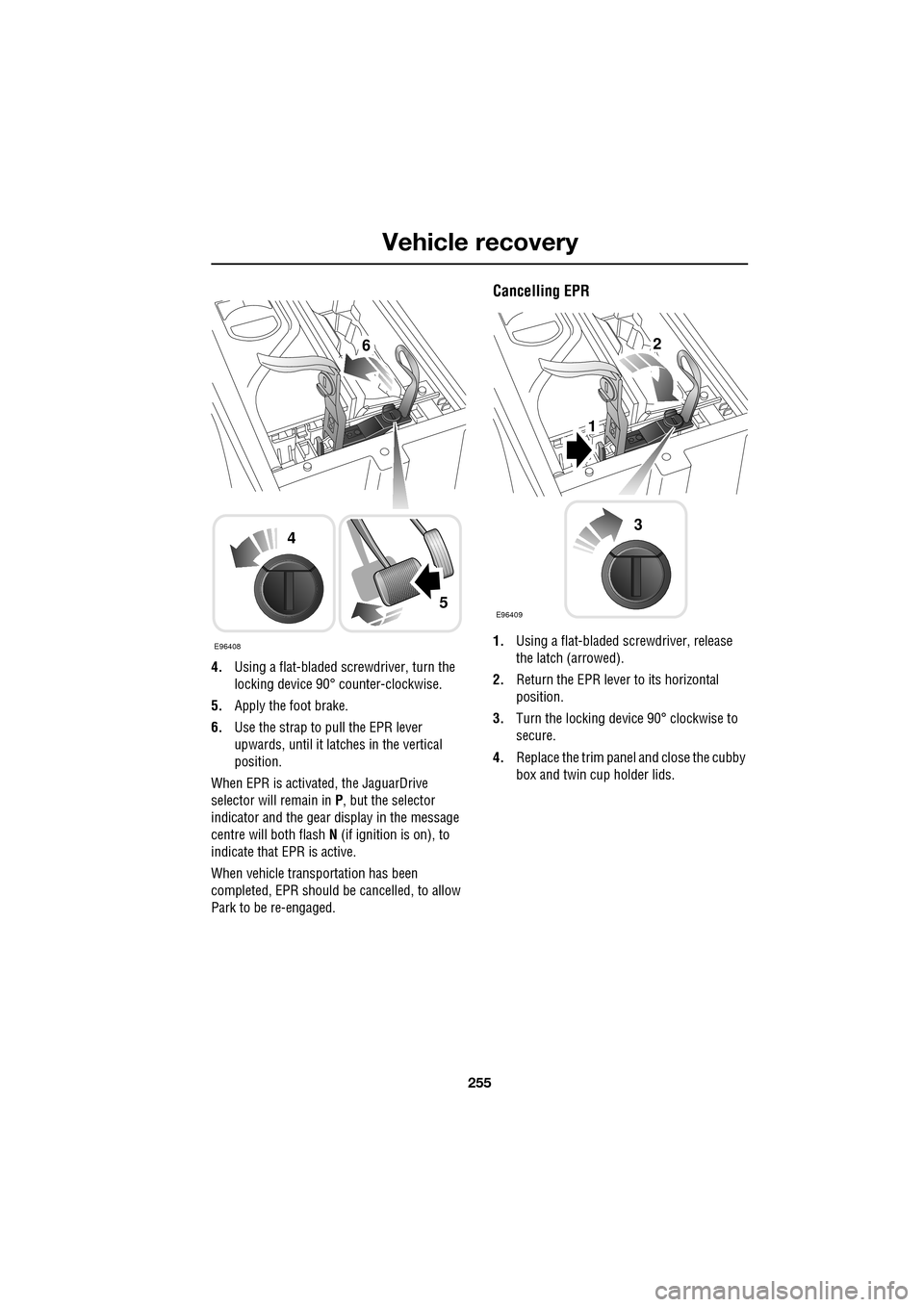
4.Using a flat-bladed screwdriver, turn the
locking device 90° counter-clockwise.
5. Apply the foot brake.
6. Use the strap to pull the EPR lever
upwards, until it latches in the vertical
position.
When EPR is activated, the JaguarDrive
selector will remain in P , but the selector
indicator and the gear display in the message
centre will both flash N (if ignition is on), to
indicate that EPR is active.
When vehicle transportation has been
completed, EPR should be cancelled, to allow
Park to be re-engaged.
Cancelling EPR
1. Using a flat-bladed sc rewdriver, release
the latch (arrowed).
2. Return the EPR lever to its horizontal
position.
3. Turn the locking device 90° clockwise to
secure.
4. Replace the trim pane l and close the cubby
box and twin cup holder lids.E96408
4
5
62
1
E96409
3
Page 318 of 391
Telephone
318
NAMES
Directory name search
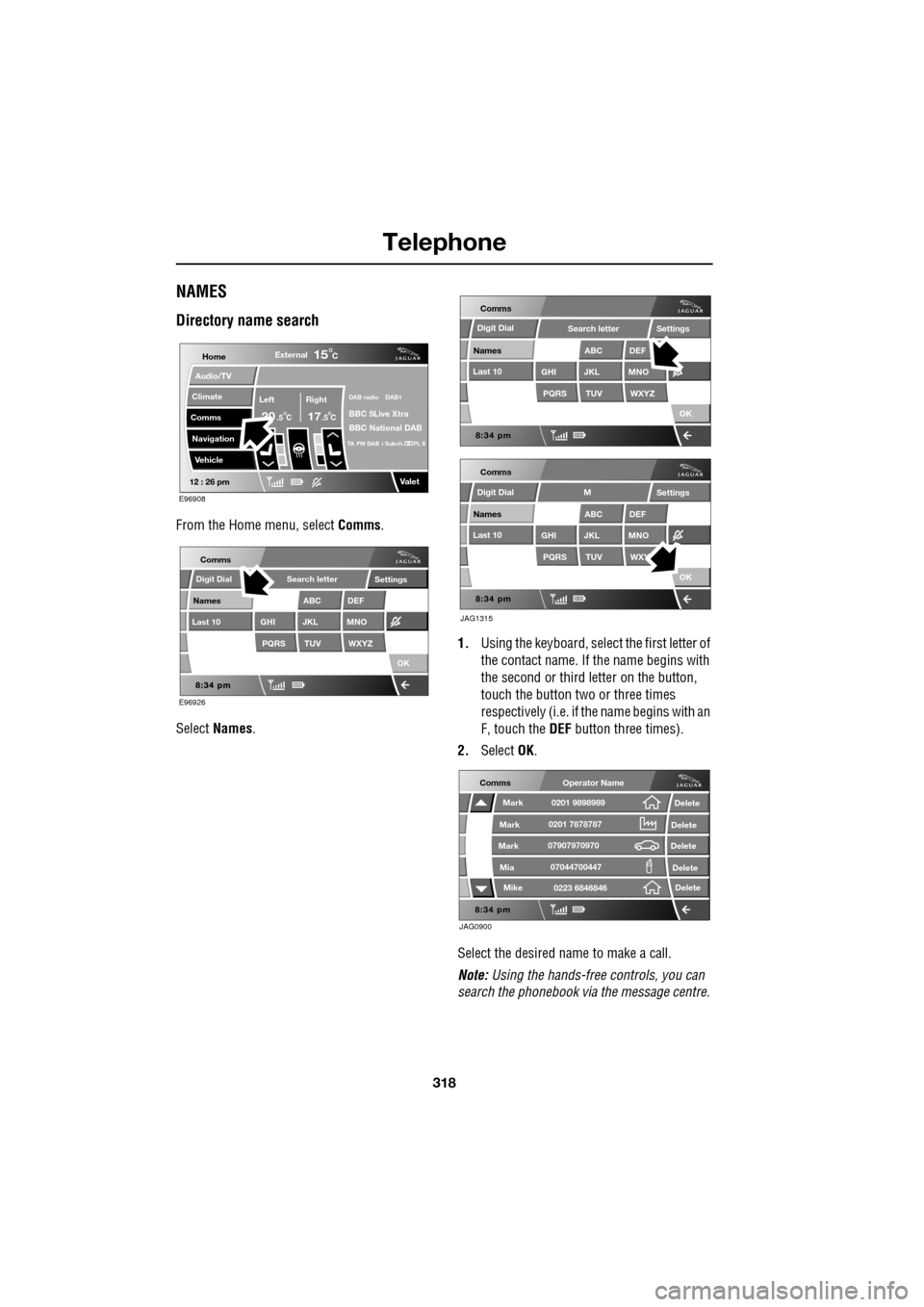
From the Home menu, select Comms.
Select Names . 1.
Using the keyboard, select the first letter of
the contact name. If th e name begins with
the second or third letter on the button,
touch the button two or three times
respectively (i.e. if th e name begins with an
F, touch the DEF button three times).
2. Select OK.
Select the desired name to make a call.
Note: Using the hands-free controls, you can
search the phonebook via the message centre.
Home
Audio/TV
Climate
Comms
Navigation
VehicleExternal
Left Right
20 17CC
15C
.5 .5
DAB radio DAB1
BBC 5Live Xtra
BBC National DAB
TA FM DAB i Subch. PL II
Valet12 : 26 pm
E96908
E96926
Comms
Digit Dial
Names
Last 10
Settings
PQRS
GHITUV
ABC
JKL
WXYZ
DEF
MNO
Search letter
OK
Comms
Comms
Names
Last 10
Settings
PQRS
GHITUV
ABC
JKL
WXYZ
DEF
MNO
Search letter
OK
Names
Last 10
Settings
PQRS
GHITUV
ABC
JKL
WXY
DEF
MNO
M
OK
JAG1315
Digit Dial
Digit Dial
JAG0900
Comms
Delete
Delete
Delete
Delete
Delete
Mark
Mark
Mark
Mike
Mia0201 9898989
0201 7878787
0223 6846846
07907970970
07044700447
Operator Name
Page 321 of 391
321
Telephone
HANDS-FREE CONTROLS
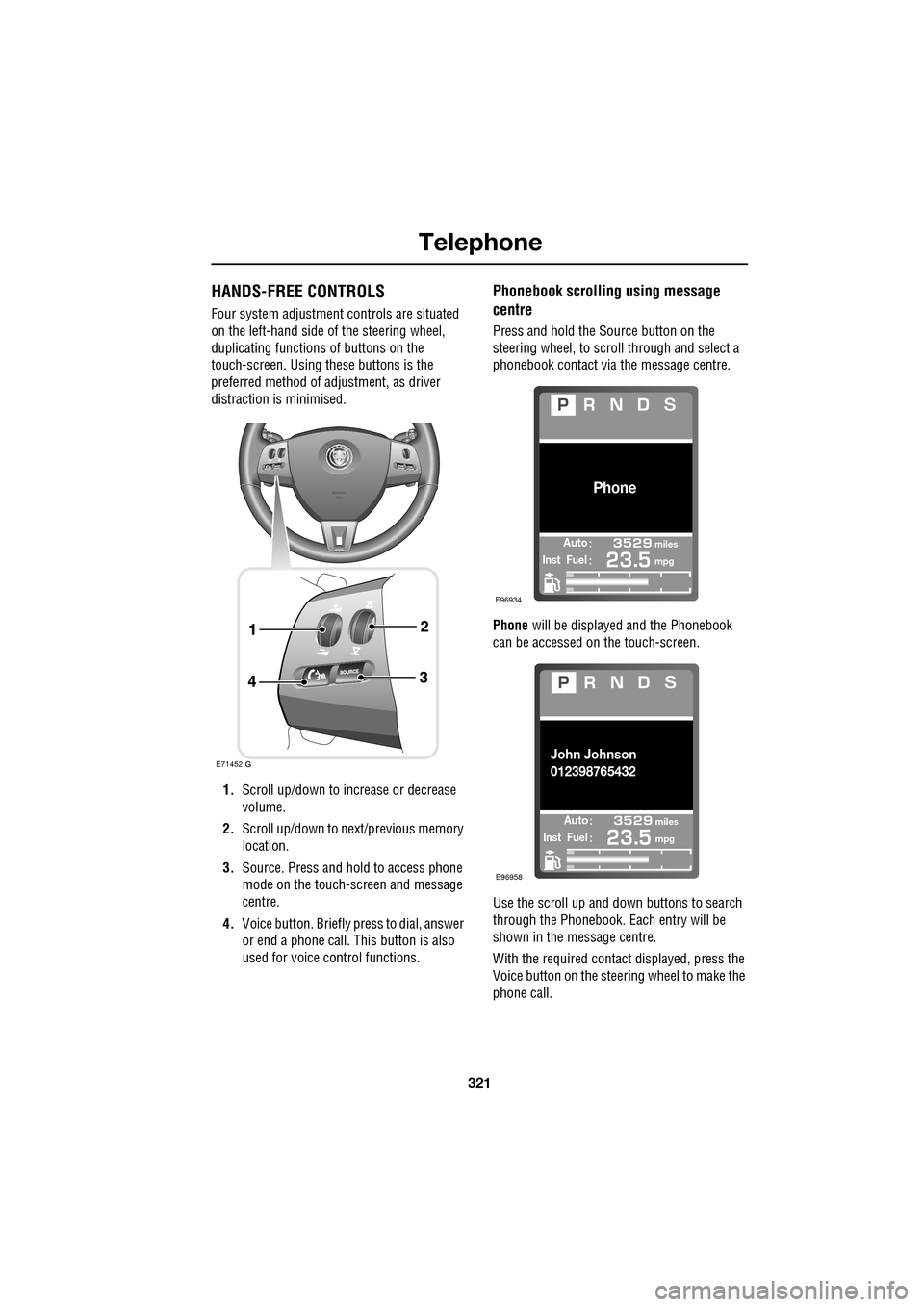
Four system adjustment controls are situated
on the left-hand side of the steering wheel,
duplicating functions of buttons on the
touch-screen. Using these buttons is the
preferred method of adjustment, as driver
distraction is minimised.
1. Scroll up/down to increase or decrease
volume.
2. Scroll up/down to ne xt/previous memory
location.
3. Source. Press and hold to access phone
mode on the touch-screen and message
centre.
4. Voice button. Briefly press to dial, answer
or end a phone call. This button is also
used for voice control functions.
Phonebook scrolling using message
centre
Press and hold the Source button on the
steering wheel, to scroll through and select a
phonebook contact via the message centre.
Phone will be displayed and the Phonebook
can be accessed on the touch-screen.
Use the scroll up and down buttons to search
through the Phonebook. Each entry will be
shown in the message centre.
With the required contact displayed, press the
Voice button on the steering wheel to make the
phone call.
E71452
Automiles
Inst Fuelmpg
Phone
E96934
Automiles
Inst Fuelmpg
John Johnson
012398765432
E96958
Page 323 of 391
323
Telephone
TELEPHONE VOICE CONTROL
Voice control allows many of the telephone
features to be activa ted by voice commands.
The system is controlled by the
switch on the left -hand side of the
steering wheel.
Note: The voice control dire ctory is separate
from your phone SIM card address or
phonebook. See VOICE CONTROL (page 69).
The voice control sy stem understands
predefined commands which need to be
spoken word for word. A list of all telephone
voice commands is below.
• PHONE HELP
• PHONE DIAL NUMBER
• PHONE REDIAL
• PHONE STORE NAME
• PHONE DIAL NAME
• PHONE ACCEPT CALLS
• PHONE REJECT CALLS
• PHONE DIAL LAST ANSWERED CALL
• PHONE DIAL LAST MISSED CALL
• PHONE DIAL VOICEMAIL
• PHONE PLAY DIRECTORY
• PHONE DELETE DIRECTORY
• PHONE DIAL HANDSET NAME
Most of the above commands are self
explanatory, those whic h are not, are explained
more fully in the following section.
Operating the system
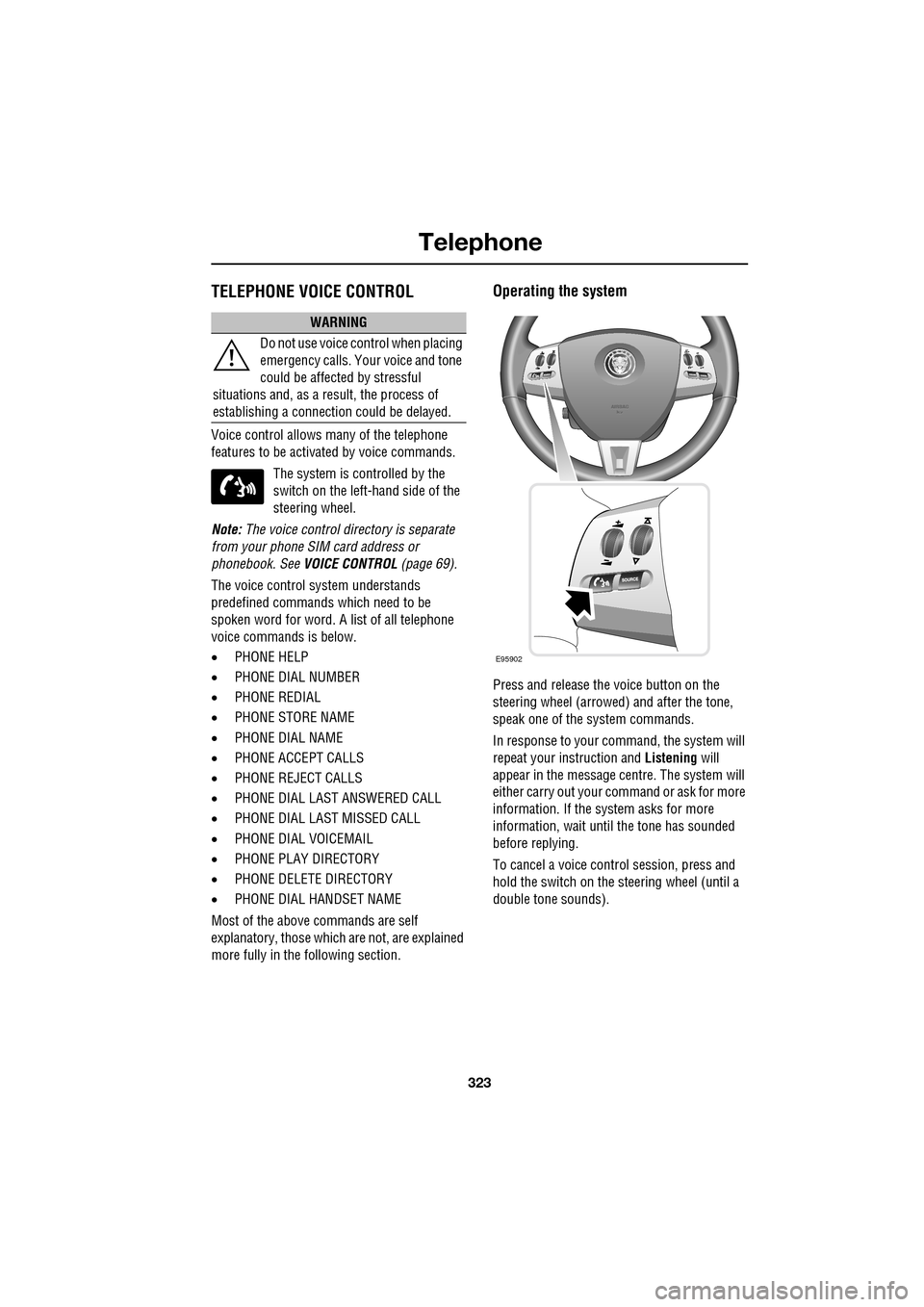
Press and release the voice button on the
steering wheel (arrowed) and after the tone,
speak one of the system commands.
In response to your command, the system will
repeat your instruction and Listening will
appear in the message centre. The system will
either carry out your command or ask for more
information. If the system asks for more
information, wait until the tone has sounded
before replying.
To cancel a voice control session, press and
hold the switch on the steering wheel (until a
double tone sounds).
WARNING
Do not use voice control when placing
emergency calls. Your voice and tone
could be affected by stressful
situations and, as a result, the process of
establishing a connecti on could be delayed.
E95902
Page 327 of 391
327
Telephone
Message centre messages
A number of responses by the telephone voice
system are reinforced by text messages
appearing in the mess age centre display.
These messages are in the following list.
• LISTENING
• VOICE NOT READY
• NOT AVAILABLE PHONE IN USE
• COMMAND NOT RECOGNISED
• NO SPEECH DETECTED
• STORING
• COMMAND CANCELLED
• SEARCHING
• HOLD BUTTON TO CANCEL
• DIRECTORY
Phonebook entries
You can also view the phonebook entries on
the message centre. See HANDS-FREE
CONTROLS (page 321).
Page 339 of 391
339
Navigation system
Saving user preferences to memory
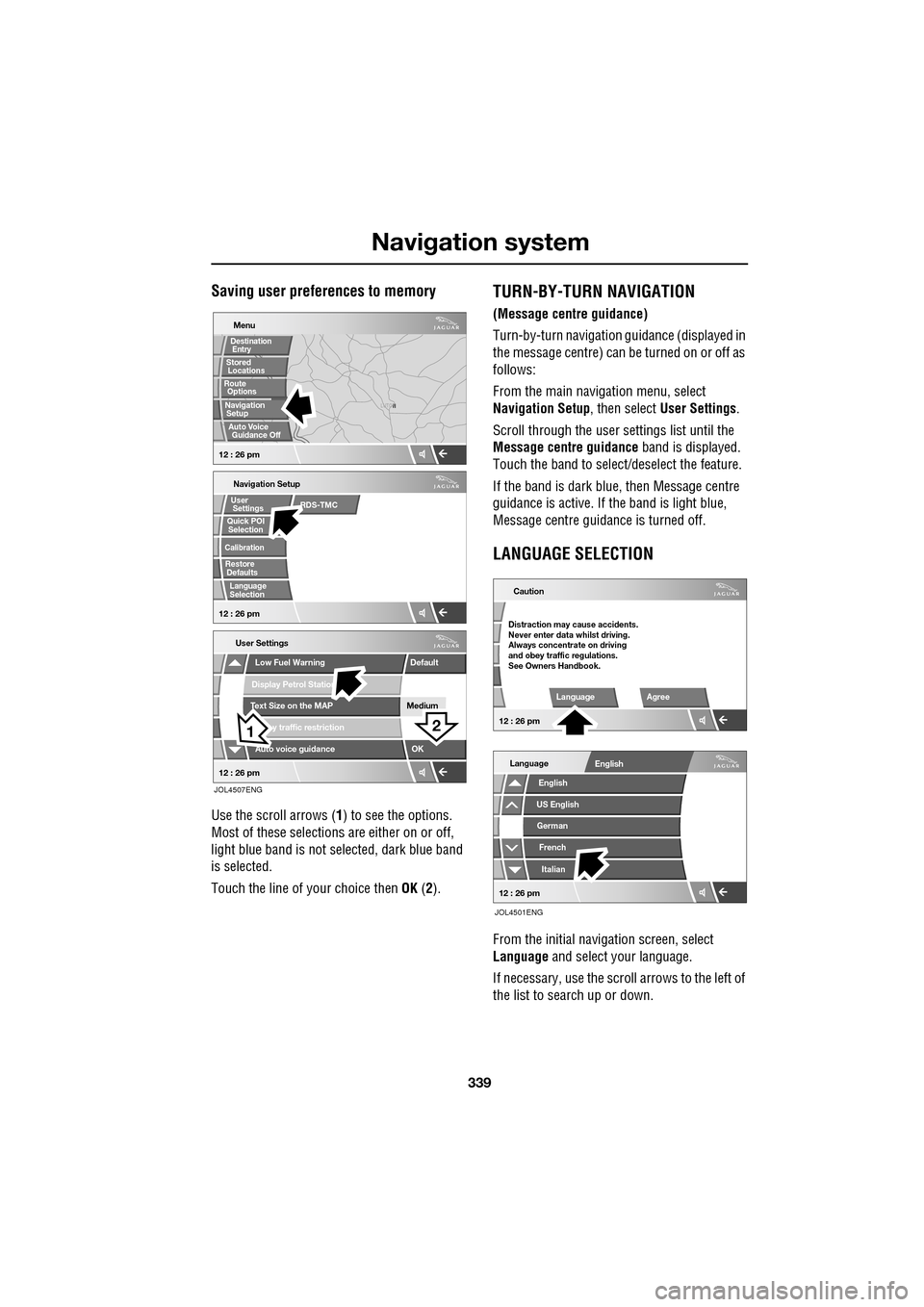
Use the scroll arrows (1) to see the options.
Most of these selections are either on or off,
light blue band is not selected, dark blue band
is selected.
Touch the line of your choice then OK (2).
TURN-BY-TURN NAVIGATION
(Message centre guidance)
Turn-by-turn navigation guidance (displayed in
the message centre) can be turned on or off as
follows:
From the main navi gation menu, select
Navigation Setup , then select User Settings .
Scroll through the user settings list until the
Message centre guidance band is displayed.
Touch the band to select/d eselect the feature.
If the band is dark blue, then Message centre
guidance is acti ve. If the band is light blue,
Message centre guidance is turned off.
LANGUAGE SELECTION
From the initial navigation screen, select
Language and select your language.
If necessary, use the scroll arrows to the left of
the list to search up or down.
N
LUTON
Menu
Navigation Setup
Low Fuel Warning
User Settings
Display Petrol Station
Text Size on the MAP
y traffic restriction
Auto voice guidance
Medium
OK
Default
Selection
Calibration
Restore
User
Settings
Defaults Quick POI
12 : 26 pm 12 : 26 pm
12 : 26 pm
21
Stored
Destination
Auto Voice
Entry
Guidance Off
Locations
Navigation SetupRoute Options
RDS-TMC
Language
Selection
JOL4507ENG
German
French
Italian
English
Caution
Language Agree
English
Language
US English
12 : 26 pm
12 : 26 pm
JOL4501ENG
Distraction may cause accidents.
Never enter data whilst driving.
Always concentrate on driving
and obey traffic regulations.
See Owners Handbook.
Page 365 of 391
365
Navigation system
CANCELLING POI ICON DISPLAY
If the display of POI icons is no longer required,
they can be turned off as follows:
•Touch the map screen to display the
additional buttons.
• Touch POI Off to cancel the display of POI
icons on the map.
JAGUAR DEALERSHIP LOCATIONS
Details of Jaguar Dealerships are held on the
Navigation System DVD as a points of interest
(POI) category. Certain Dealers may be located
in areas that are not fully mapped on the DVD.
If a route is set to one of these Dealers,
guidance may only be pos sible to the nearest
town centre; a warni ng message will be
displayed.
If Jaguar Dealerships (or certain other
categories, such as airports) are selected, they
will be displayed across all search areas.
ENTRY BY TOWN
If a town name is entered first, the points of
interest listed will be restricted to that town.
• From the Input POI Name screen, touch
Town .
• Enter the town name required.
• Touch List to display the list of possible
towns.
• Select the town required.
The Input POI screen is displayed again.
• Enter the POI name required.
ENTRY BY CATEGORY
If a POI category is selected first, the points of
interest listed will be restricted to that category.
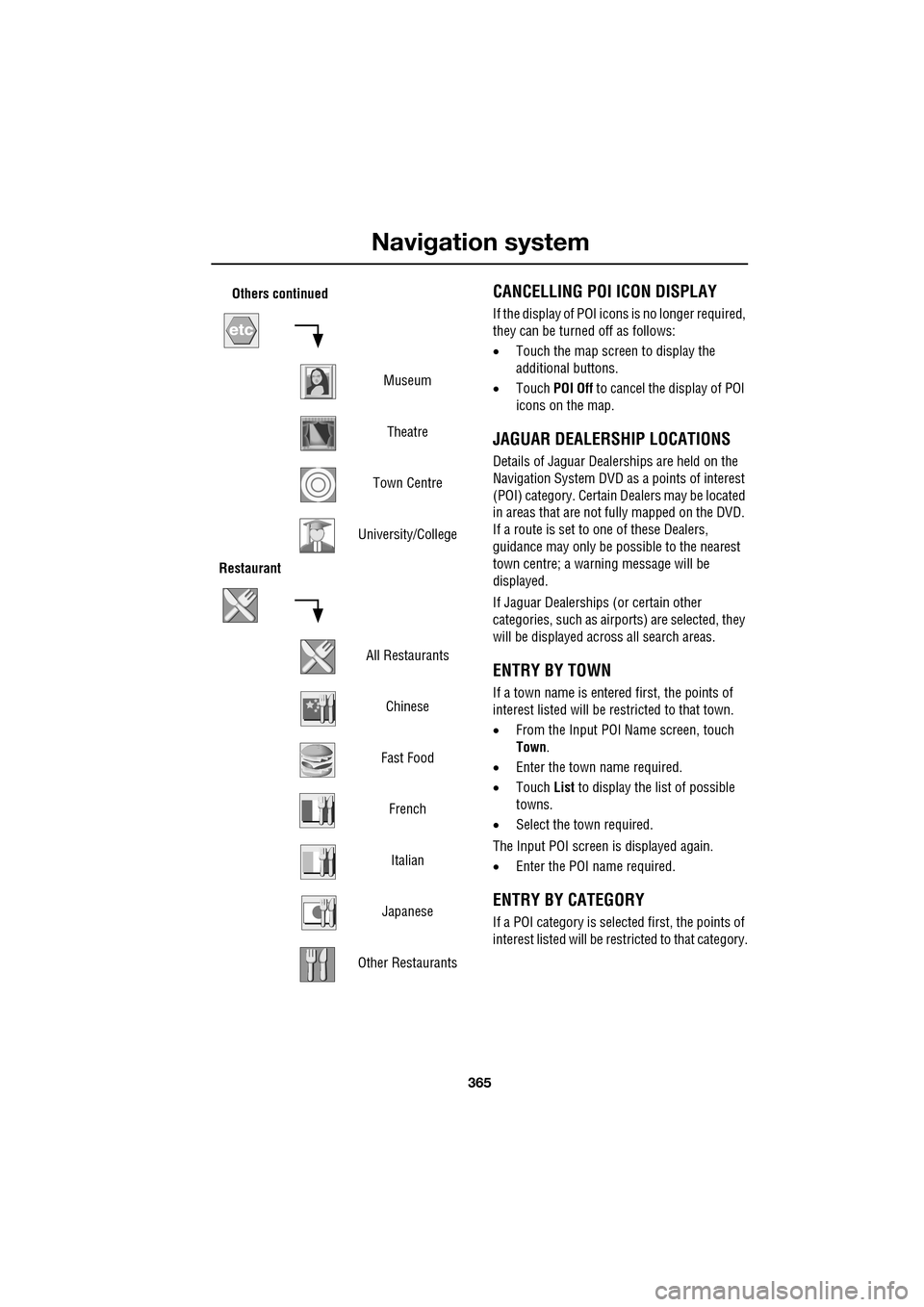
Others continued
MuseumTheatre
Town Centre
University/College
Restaurant
All RestaurantsChinese
Fast Food FrenchItalian
Japanese
Other Restaurants
Page 366 of 391
Navigation system
366
OTHER SELECTION METHODS
Town centres
The POI database holds town centre locations.
To select a town centre, proceed as follows:
•From the Input POI Na me screen, enter the
town name required in the Name text area
(do not select the Town button).
• Touch List to display the list of matches.
• For the town centre, select the entry
showing the town name only.
Note: In some cases, more than one town
centre location may be listed.
CATEGORIES AND SUB-CATEGORIES
The POI database is divided into a number of
categories. Each main category is further
divided into a number of sub-categories.
The first entry in the list of Restaurant
sub-categories, is ALL. This selects all of the
Restaurant sub-categories.
To narrow the search, touch the Town button.
This will display the alpha keyboard, to allow
the desired town na me to be entered.
Search area
When searching the database, only points of
interest in the current search area are included,
except for the sub-categories marked All
search areas in the POI category list.
List button
The List button becomes active, when the
characters entered reduce the possible entries
to a small enough number (the list is displayed
automatically when the number of entries
reduces to four or less).
You can also select List (when active) without
entering a POI name. All the relevant points of
interest will be displayed, e.g. in a selected
town or category.
All button
The All button returns to searching all
categories after sele cting one category.
POI ENTRY MESSAGES
While searching for point s of interest, you may
encounter one of the following messages:
1. There are no POIs in this Category.
2. No POIs Found in this Town.
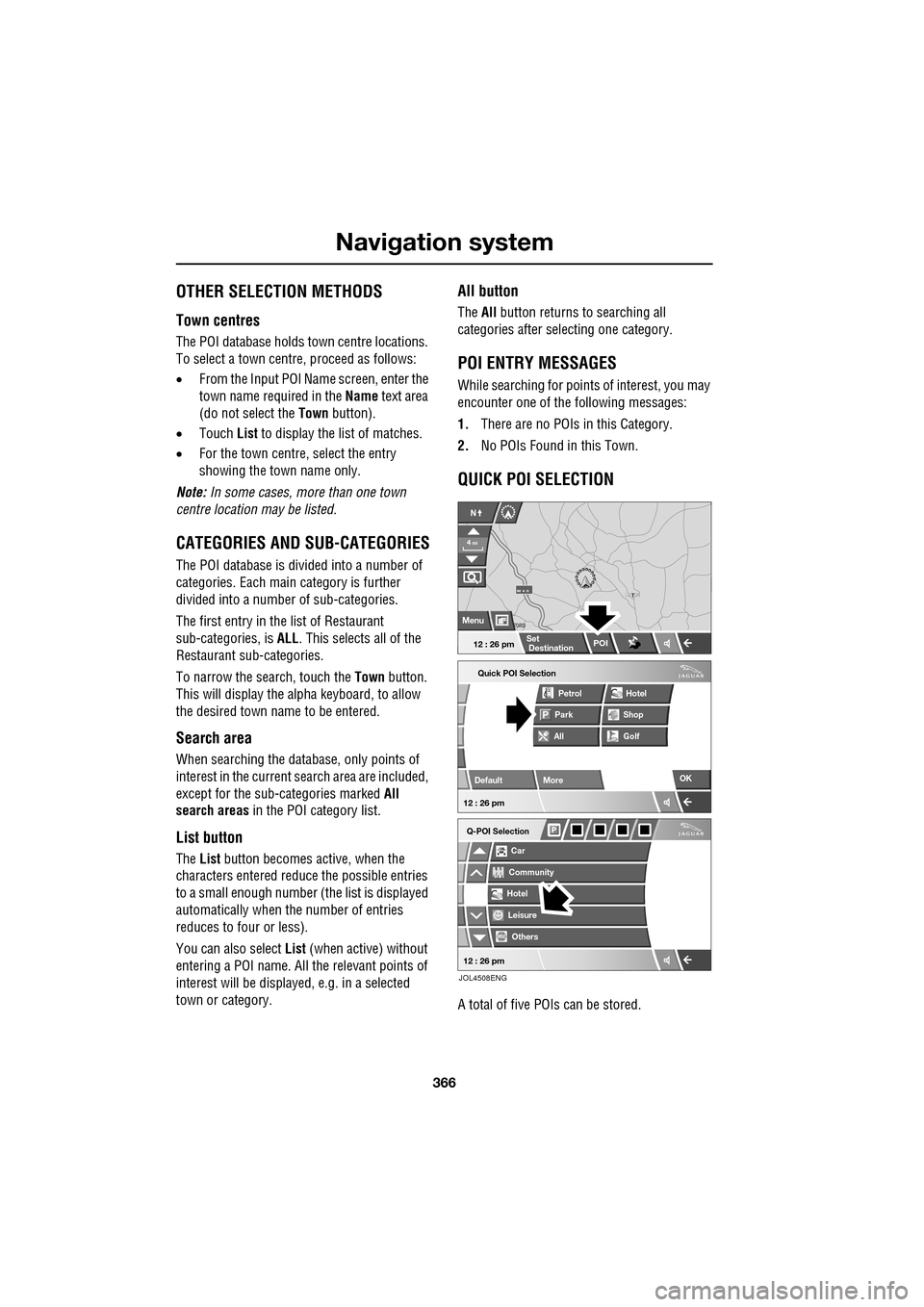
QUICK POI SELECTION
A total of five POIs can be stored.
Quick POI Selection
DefaultOK
AllPark Petrol
Golf ShopHotel
Car
Q-POI Selection
Community
Hotel
Leisure
Others
12 : 26 pm
12 : 26 pm
More
FORD
FORD T
LUTON
M 4 0
12 : 26 pm
4
N
Set
Destination
Menu
POI
mi
JOL4508ENG
Page 373 of 391
373
Navigation system
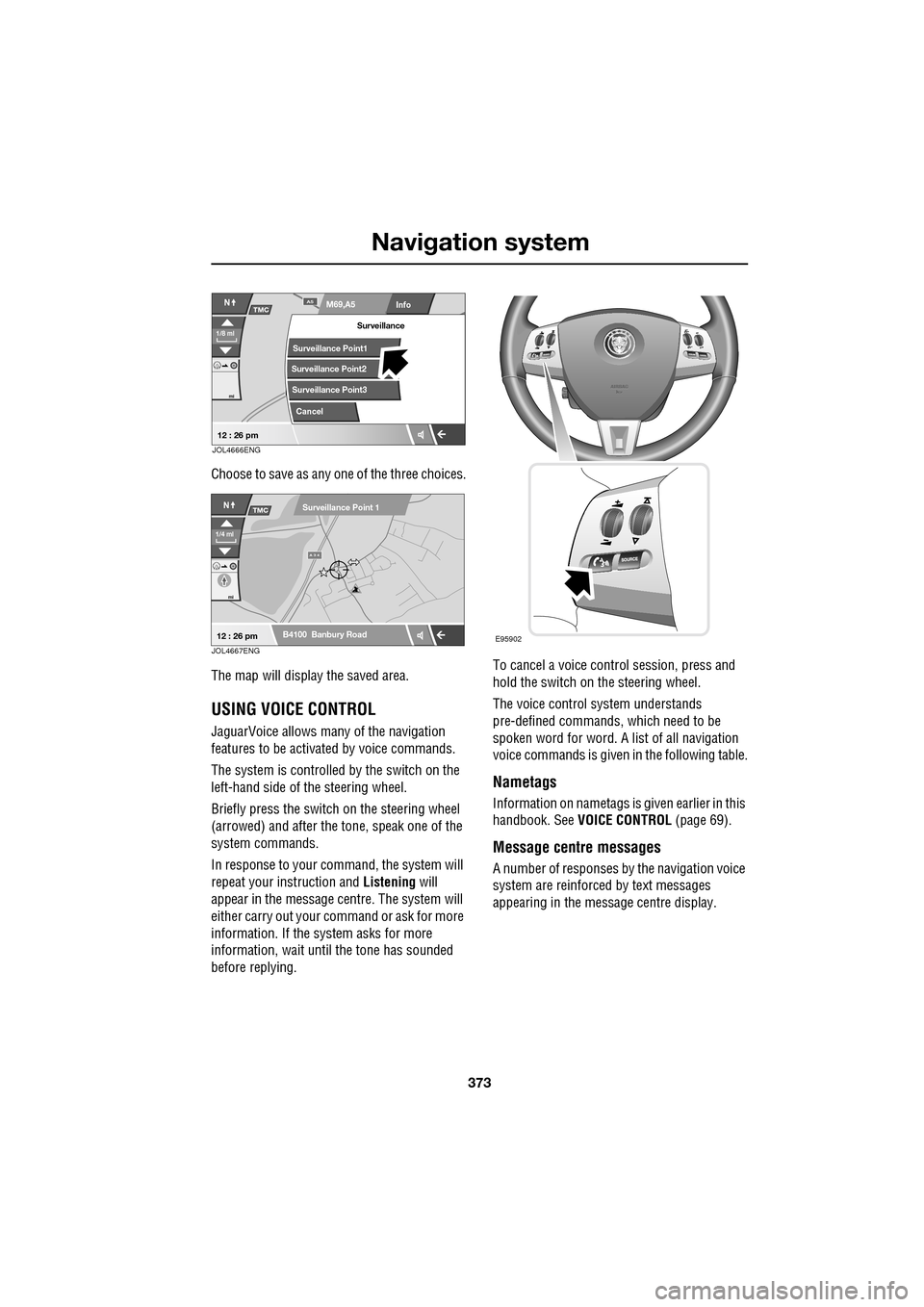
Choose to save as any one of the three choices.
The map will display the saved area.
USING VOICE CONTROL
JaguarVoice allows many of the navigation
features to be activa ted by voice commands.
The system is controlled by the switch on the
left-hand side of th e steering wheel.
Briefly press the switch on the steering wheel
(arrowed) and after the tone, speak one of the
system commands.
In response to your command, the system will
repeat your instruction and Listening will
appear in the message centre. The system will
either carry out your command or ask for more
information. If the system asks for more
information, wait until the tone has sounded
before replying. To cancel a voice control session, press and
hold the switch on the steering wheel.
The voice control system understands
pre-defined commands, which need to be
spoken word for word. A list of all navigation
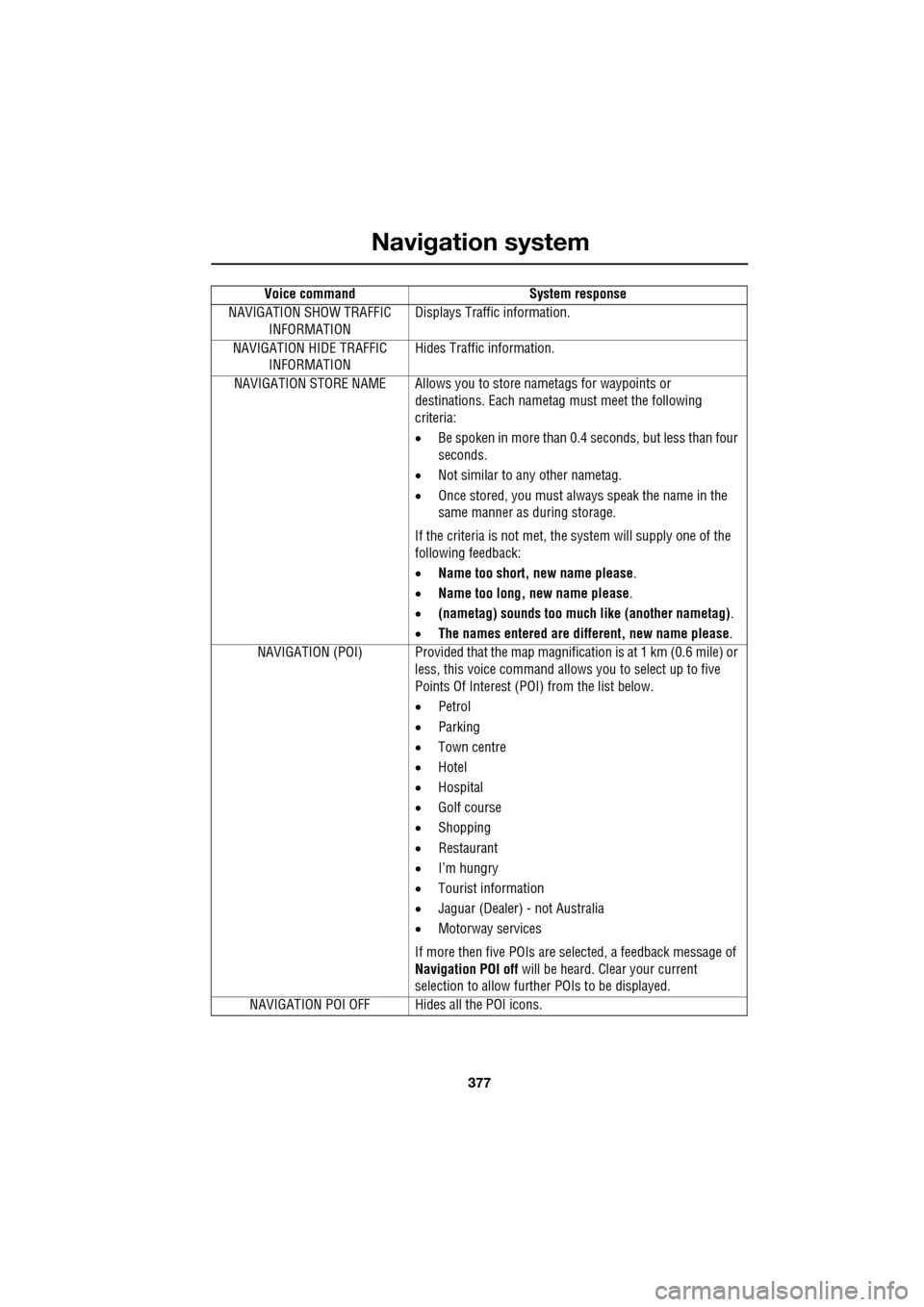
voice commands is given
in the following table.
Nametags
Information on nametags is given earlier in this
handbook. See VOICE CONTROL (page 69).
Message centre messages
A number of responses by the navigation voice
system are reinforced by text messages
appearing in the message centre display.
Info
N
1/8 ml
M69,A5A5
mi
TMC
Surveillance Point2
Surveillance Point3 Surveillance
Cancel
Surveillance Point1
12 : 26 pmJOL4666ENG
A 3 4
mi
NTMC
B4100 Banbury Road
Surveillance Point 1
1/4 ml
12 : 26 pmJOL4667ENGE95902
Page 377 of 391
377
Navigation system
NAVIGATION SHOW TRAFFIC INFORMATION Displays Traffic information.
NAVIGATION HIDE TRAFFIC INFORMATION Hides Traffic information.
NAVIGATION STORE NAME Allows you to store nametags for waypoints or
destinations. Each nametag must meet the following
criteria:
• Be spoken in more than 0.4 seconds, but less than four
seconds.
• Not similar to any other nametag.
• Once stored, you must always speak the name in the
same manner as during storage.
If the criteria is not met, the system will supply one of the
following feedback:
• Name too short, new name please .
• Name too long, new name please .
• (nametag) sounds too much like (another nametag) .
• The names entered are different, new name please.
NAVIGATION (POI) Provided that the map ma gnification is at 1 km (0.6 mile) or
less, this voice command allows you to select up to five
Points Of Interest (POI) from the list below.
• Petrol
• Parking
• Town centre
• Hotel
• Hospital
• Golf course
• Shopping
• Restaurant
• I’m hungry
• Tourist information
• Jaguar (Dealer) - not Australia
• Motorway services
If more then five POIs are selected, a feedback message of
Navigation POI off will be heard. Clear your current
selection to allow furthe r POIs to be displayed.
NAVIGATION POI OFF Hid es all the POI icons.
Voice command
System response