display JEEP CHEROKEE 2015 KL / 5.G Owners Manual
[x] Cancel search | Manufacturer: JEEP, Model Year: 2015, Model line: CHEROKEE, Model: JEEP CHEROKEE 2015 KL / 5.GPages: 772, PDF Size: 18.21 MB
Page 408 of 772
time with GPS” button on the touchscreen until a check-
mark appears next to the setting, showing that setting has
been selected. Press the back arrow button on the touch-
screen to return to the previous menu.
•Set Time Hours
This feature will allow you to adjust the hours. The “Sync
time with GPS” button on the touchscreen must be
unchecked. To make your selection, press the “+” or “–”
buttons on the touchscreen to adjust the hours up or
down. Press the back arrow button on the touchscreen to
return to the previous menu.
•Set Time Minutes
This feature will allow you to adjust the minutes. The
“Sync time with GPS” button on the touchscreen must be
unchecked. To make your selection, press the “+” or “–”
buttons on the touchscreen to adjust the minutes up or
down. Press the back arrow button on the touchscreen to
return to the previous menu.
•Time Format
This feature will allow you to select the time format
display setting. Press the “Time Format” button on the
touchscreen until a check-mark appears next to the
“12hrs” or “24hrs” setting, showing that setting has been
selected. Press the back arrow button on the touchscreen
to return to the previous menu.
•Show Time In Status Bar — If Equipped
This feature will allow you to turn on or shut off the
digital clock in the status bar. To change the Show Time
Status setting press the “Show Time in Status Bar” button
on the touchscreen until a check-mark appears next to
setting, indicating that the setting has been selected. Press
the back arrow button on the touchscreen to return to the
previous menu.
406 UNDERSTANDING YOUR INSTRUMENT PANEL
Page 410 of 772
•ParkSense®
The ParkSense® system will scan for objects behind the
vehicle when the transmission shift lever is in REVERSE
and the vehicle speed is less than 11 mph (18 km/h). It
will provide an alert (audible and/or visual) to indicate
the proximity to other objects. The system can be enabled
with Sound Only, or Sound and Display. To change the
ParkSense® status, press and release the “Sound” or
“Sound and Display” button. Then press the back arrow
button on the touchscreen. Refer to “ParkSense®” in
“Understanding The Features Of Your Vehicle” for sys-
tem function and operating information.
•Front ParkSense® Chime Volume
The Front ParkSense® Chime Volume settings can be
selected from the Driver Information Display (DID) or
Uconnect® System — if equipped. The chime volume
settings include LOW, MEDIUM, and HIGH. The factory
default volume setting is MEDIUM. To make your selec-
tion, press the “ParkSense® Front Chime Volume” button
on the touchscreen, until a check-mark appears next to
setting, indicating that the setting had been selected.
Press the back arrow button on the touchscreen to return
to the previous menu. ParkSense® will retain its last
known configuration state through ignition cycles.
•Rear ParkSense® Chime Volume
The Rear ParkSense® Chime Volume settings can be
selected from the DID or Uconnect® System — if
equipped. The chime volume settings include LOW,
MEDIUM, and HIGH. The factory default volume setting
is MEDIUM. To make your selection, press the
“ParkSense® Rear Chime Volume” button on the touch-
screen, until a check-mark appears next to setting, indi-
cating that the setting had been selected. Press the back
408 UNDERSTANDING YOUR INSTRUMENT PANEL
Page 412 of 772
•ParkView® Backup Camera Active Guidelines
Your vehicle may be equipped with the ParkView® Rear
Back Up Camera Active Guidelines that allows you to see
active guidelines over the ParkView Back up camera
display whenever the shift lever is put into REVERSE.
The image will be displayed on the radio touchscreen
display along with a caution note to “check entire sur-
roundings” across the top of the screen. After five sec-
onds, this note will disappear. To change the mode status,
press the “ParkView Backup Camera Active Guidelines”
button on the touchscreen, until a check-mark appears
next to setting, indicating that the setting had been
selected. Press the back arrow button on the touchscreen
to return to the previous menu.
•ParkView® Backup Camera Delay
When the vehicle is shifted out of REVERSE (with camera
delay turned OFF), the rear camera mode is exited and
the navigation or audio screen appears again. When the
vehicle is shifted out of REVERSE (with camera delay
turned ON), the rear view image with dynamic grid lines
will be displayed for up to 10 seconds after shifting out of
“REVERSE” unless the forward vehicle speed exceeds
8 mph (12 km/h), the transmission is shifted into
“PARK” or the ignition is switched to the OFF position.
To set the ParkView® Backup Camera Delay press the
“Controls” button on the touchscreen, the “settings”
button on the touchscreen, then the “Safety & Driving
Assistance” button on the touchscreen. Press the
“Parkview Backup camera Delay” button on the touch-
screen to turn the ParkView® Delay ON or OFF.
•Rain Sensing Auto Wipers
When this feature is selected, the system will automati-
cally activate the windshield wipers if it senses moisture
on the windshield. To make your selection, press the
“Rain Sensing” button on the touchscreen, until a check-
mark appears next to setting, indicating that the setting
410 UNDERSTANDING YOUR INSTRUMENT PANEL
Page 422 of 772
•Subscription Information
New vehicle purchasers or lessees will receive a free
limited time subscription to SiriusXM Satellite Radio
with your radio. Following the expiration of the free
services, it will be necessary to access the information on
the Subscription Information screen to re-subscribe.
Press the “Subscription Info” button on the touchscreen
to access the Subscription Information screen.
Write down the SIRIUS ID numbers for your receiver. To
reactivate your service, either call the number listed on
the screen or visit the provider online.
NOTE:SiriusXM Travel Link is a separate subscription
and is available for U.S. residents only.
Restore Settings
After pressing the “Restore Settings” button on the
touchscreen the following settings will be available:
•Restore Settings
When this feature is selected it will reset the Display,
Clock, Audio, and Radio Settings to their default settings.
To restore the settings to their default setting, press the
Restore Settings button. A pop-up will appear asking
#Are you sure you want to reset your settings to default?”
select “OK” to restore, or “Cancel” to exit. Once the
settings are restored, a pop up appears stating#settings
reset to default.#
420 UNDERSTANDING YOUR INSTRUMENT PANEL
Page 423 of 772
Clear Personal Data
After pressing the “Clear Personal Data Settings” button
on the touchscreen the following settings will be avail-
able:
•Clear Personal Data
When this feature is selected it will remove personal data
including Bluetooth® devices and presets. To remove
personal information, press the “Clear Personal Data”
button and a pop-up will appear asking#Are you sure
you want to clear all personal data?” select “OK” to
Clear, or “Cancel” to exit. Once the data has been cleared,
a pop up appears stating#Personal data cleared.”
System Information
After pressing the “System Information” button on the
touchscreen the following settings will be available:
•System Information
When System Information is selected, a System Informa-
tion screen will appear displaying the system software
version.
Uconnect® RADIOS — IF EQUIPPED
For detailed information about your Uconnect® radio,
refer to your Uconnect® Supplement Manual.
4
UNDERSTANDING YOUR INSTRUMENT PANEL 421
Page 428 of 772
CLIMATE CONTROLS
The air conditioning and heating system is designed to
make you comfortable in all types of weather. This
system can be operated through either the controls on the
instrument panel or through the Uconnect® system dis-
play.
When the Uconnect® system is in different modes (Ra-
dio, Player, Settings, More, etc.) the driver and passenger
temperature settings will be indicated at the top of the
display.
Manual Climate Controls Without Touchscreen —
If Equipped
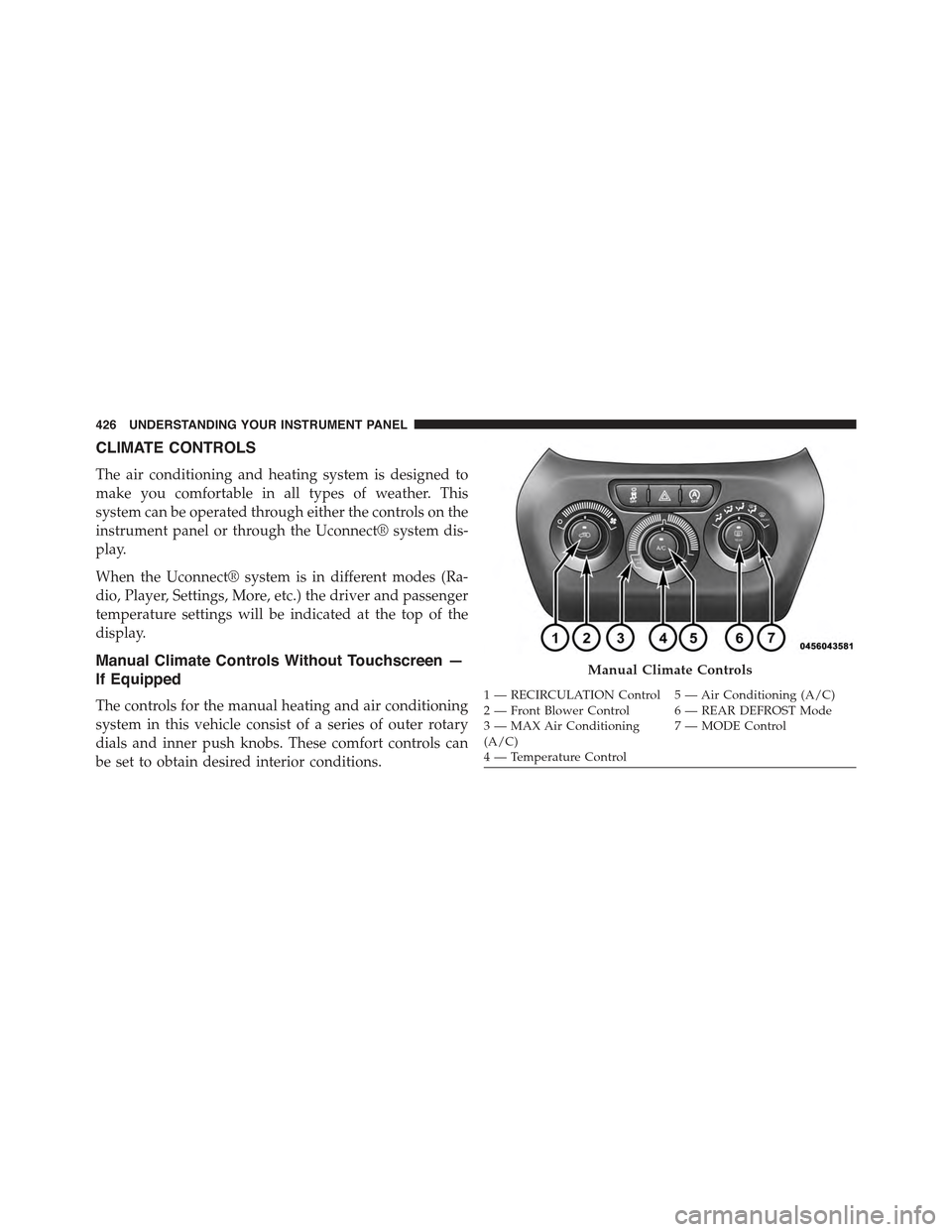
The controls for the manual heating and air conditioning
system in this vehicle consist of a series of outer rotary
dials and inner push knobs. These comfort controls can
be set to obtain desired interior conditions.
Manual Climate Controls
1—RECIRCULATIONControl 5—AirConditioning(A/C)2—FrontBlowerControl 6—REARDEFROSTMode3—MAXAirConditioning(A/C)7—MODEControl
4—TemperatureControl
426 UNDERSTANDING YOUR INSTRUMENT PANEL
Page 447 of 772
The windshield wiper de-icer operates automatically
once the following conditions are met:
•Activation By Front Defrost
The wiper de-icer activates automatically during a cold
weather manual start withfull defrost,theblower speed
is greater than five,and when theambient temperature
is below 40° F (4.4° C).
•Activation By Rear Defrost
The wiper de-icer activates automatically when the Rear
Defrost is operating and theambient temperature is
below 40° F (4.4° C).
•Activation By Remote Start Operation
When the Remote Start is activated and theoutside
ambient temperature is less than 40° F (4.4° C)the
windshield wiper de-icer is activated. Upon exiting Re-
mote Start, the climate control functions will resume their
previous operation except, if the de-icer is active, the
de-icer timer and operation will continue.
Automatic Temperature Control (ATC)
Automatic Operation
1. Push the AUTO button on the faceplate or press the
“AUTO” button on the touchscreen.
2. Next, adjust the temperature you would like the
system to maintain by adjusting the driver and pas-
senger temperature buttons on the faceplate or but-
tons on the touchscreen. Once the desired temperature
is displayed, the system will achieve and automati-
cally maintain that comfort level.
4
UNDERSTANDING YOUR INSTRUMENT PANEL 445
Page 448 of 772
3. When the system is set up for your comfort level, it is
not necessary to change the temperature. You will
experience the greatest efficiency by simply allowing
the system to function automatically.
NOTE:
•It is not necessary to move the temperature settings.
The system automatically adjusts the temperature,
mode, and blower speed to provide comfort as quickly
as possible.
•The temperature can be displayed in U.S. or Metric
units by selecting the Uconnect® customer-
programmable feature. Refer to the “Uconnect® Sys-
tem Settings” in this section of the manual.
To provide you with maximum comfort in the Automatic
mode, during cold start-ups the blower fan will remain
on low until the engine warms up. The blower will
increase in speed and transition into Auto mode.
Manual Operation Override
The system allows for manual selection of blower speed,
air distribution mode, A/C status and recirculation con-
trol.
The blower fan speed can be set to any fixed speed by
adjusting the blower control. The fan will now operate at
a fixed speed until additional speeds are selected. This
allows the front occupants to control the volume of air
circulated in the vehicle and cancel the Auto mode.
The operator can also select the direction of the airflow
by selecting one of the available mode settings. A/C
operation and Recirculation control can also be manually
selected in Manual operation.
NOTE:Each of these features operates independently
from each other. If any feature is controlled manually,
temperature control will continue to operate automati-
cally.
446 UNDERSTANDING YOUR INSTRUMENT PANEL
Page 452 of 772
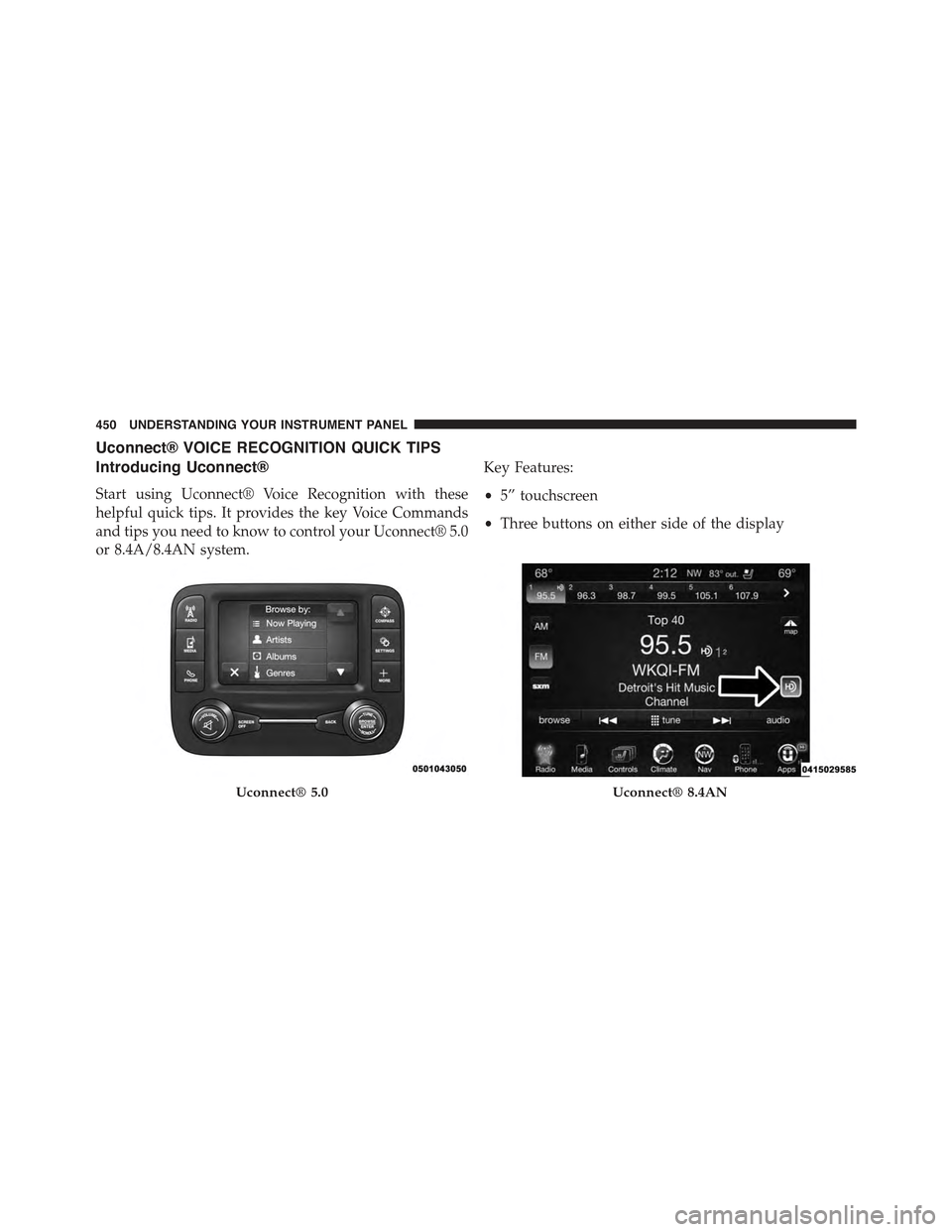
Uconnect® VOICE RECOGNITION QUICK TIPS
Introducing Uconnect®
Start using Uconnect® Voice Recognition with these
helpful quick tips. It provides the key Voice Commands
and tips you need to know to control your Uconnect® 5.0
or 8.4A/8.4AN system.
Key Features:
•5” touchscreen
•Three buttons on either side of the display
Uconnect® 5.0Uconnect® 8.4AN
450 UNDERSTANDING YOUR INSTRUMENT PANEL
Page 457 of 772
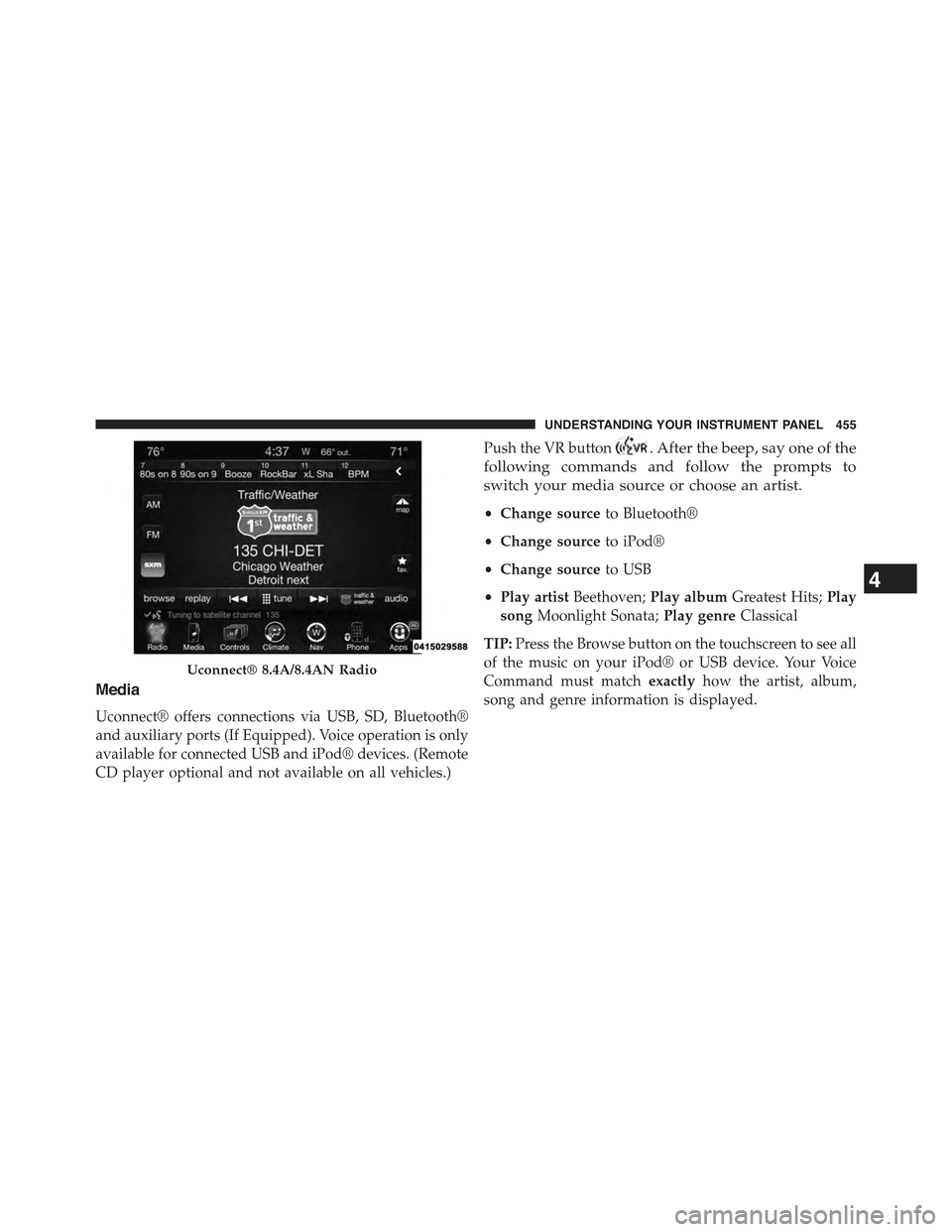
Media
Uconnect® offers connections via USB, SD, Bluetooth®
and auxiliary ports (If Equipped). Voice operation is only
available for connected USB and iPod® devices. (Remote
CD player optional and not available on all vehicles.)
Push the VR button. After the beep, say one of the
following commands and follow the prompts to
switch your media source or choose an artist.
•Change sourceto Bluetooth®
•Change sourceto iPod®
•Change sourceto USB
•Play artistBeethoven;Play albumGreatest Hits;Play
songMoonlight Sonata;Play genreClassical
TIP:Press the Browse button on the touchscreen to see all
of the music on your iPod® or USB device. Your Voice
Command must matchexactlyhow the artist, album,
song and genre information is displayed.
Uconnect® 8.4A/8.4AN Radio
4
UNDERSTANDING YOUR INSTRUMENT PANEL 455