ESP JEEP GRAND CHEROKEE 2013 Owner handbook (in English)
[x] Cancel search | Manufacturer: JEEP, Model Year: 2013, Model line: GRAND CHEROKEE, Model: JEEP GRAND CHEROKEE 2013Pages: 408, PDF Size: 3.21 MB
Page 85 of 408
When calling a number with your Uconnect®
Phone that normally requires you to enter in a
touch-tone sequence on your mobile phone
keypad, you can press the
button and say
the sequence you wish to enter followed by the
word “Send”. For example, if required to enter
your PIN followed with a hash, (3746#),you
can press the
button and say, “3746#
Send”. Saying a number, or sequence of num-
bers, followed by “Send”, is also to be used for
navigating through an automated customer ser-
vice center menu structure, and to leave a
number on a pager.
You can also send stored Uconnect® Phone-
book entries as tones for fast and easy access
to voice mail and pager entries. To use this
feature, dial the number you wish to call and
then press the
button and say “Send.” The
system will prompt you to enter the name or
number and say the name of the phonebook
entry you wish to send. The Uconnect® Phone
will then send the corresponding phone number
associated with the phonebook entry, as tones
over the phone. NOTE:
•
You may not hear all of the tones due to
mobile phone network configurations;
this is normal.
• Some paging and voice mail systems
have system time out settings that are too
short and may not allow the use of this
feature.
Barge In — Overriding Prompts
The “Voice Command” button can be used
when you wish to skip part of a prompt and
issue your voice command immediately. For
example, if a prompt is asking “Would you like to
pair a phone, clear a…,” you could press the
button and say, “Pair a Phone” to select
that option without having to listen to the rest of
the voice prompt.
Turning Confirmation Prompts On/Off
Turning confirmation prompts off will stop the
system from confirming your choices (e.g., the
Uconnect® Phone will not repeat a phone num-
ber before you dial it).
• Press the
button to begin. •
After the “Ready” prompt and the following
beep, say:
• “Setup Confirmations Prompts On”
• “Setup Confirmations Prompts Off”
Phone And Network Status Indicators
If available on the radio and/or on a premium
display such as the instrument panel cluster, and
supported by your mobile phone, the Uconnect®
Phone will provide notification to inform you of
your phone and network status when you are
attempting to make a phone call using Uconnect®
Phone. The status is given for network signal
strength, phone battery strength, etc.
Dialing Using The Mobile Phone Keypad
You can dial a phone number with your mobile
phone keypad and still use the Uconnect®
Phone (while dialing via the mobile phone key-
pad, the user must exercise caution and take
precautionary safety measures). By dialing a
number with your paired Bluetooth® mobile
phone, the audio will be played through your
vehicle’s audio system. The Uconnect® Phone
will work the same as if you dial the number
using Voice Command.
81
Page 94 of 408

Voice Commands
PrimaryAlternate (s)
zero
one
two
three
four
five
six
seven
eight
nine
asterisk (*) star
plus (+)
hash (#)
all all of them
Breakdown service
callPrimary Alternate (s)
cancel
confirmation
prompts confirmation
continue
delete
dial
download
Dutch Nederlands
edit
emergency
English
delete all erase all
Espanol
Francais
German Deutsch
help
homePrimary Alternate (s)
Italian Italiano
language
list names
list phones
main menu return to main menu
mobile
mute
mute off
new entry
no
other other
pair a phone
phone pairing pairing
phonebook phone book
previous
redial
select phone select
90
Page 100 of 408
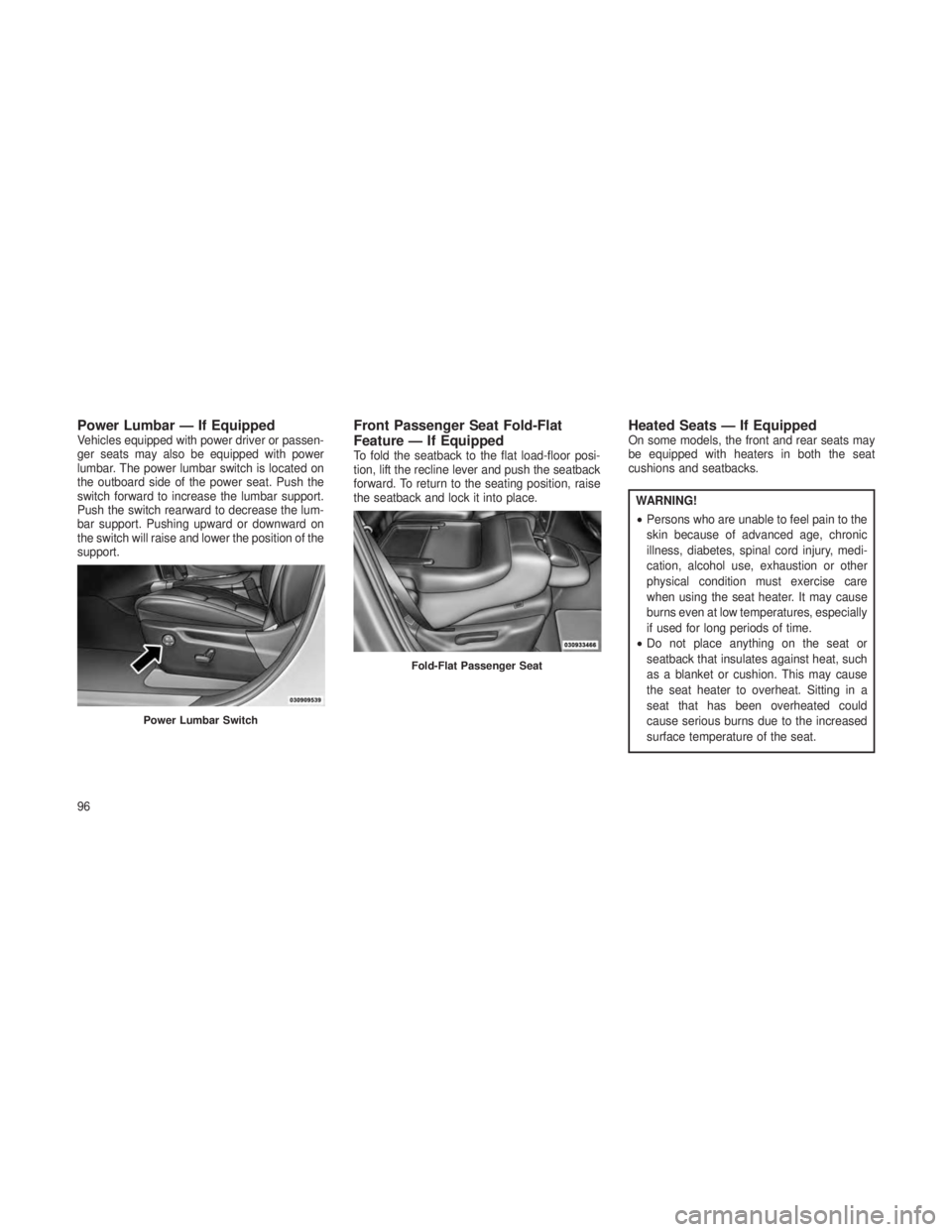
Power Lumbar — If EquippedVehicles equipped with power driver or passen-
ger seats may also be equipped with power
lumbar. The power lumbar switch is located on
the outboard side of the power seat. Push the
switch forward to increase the lumbar support.
Push the switch rearward to decrease the lum-
bar support. Pushing upward or downward on
the switch will raise and lower the position of the
support.Front Passenger Seat Fold-Flat
Feature — If Equipped
To fold the seatback to the flat load-floor posi-
tion, lift the recline lever and push the seatback
forward. To return to the seating position, raise
the seatback and lock it into place.
Heated Seats — If EquippedOn some models, the front and rear seats may
be equipped with heaters in both the seat
cushions and seatbacks.
WARNING!
•Persons who are unable to feel pain to the
skin because of advanced age, chronic
illness, diabetes, spinal cord injury, medi-
cation, alcohol use, exhaustion or other
physical condition must exercise care
when using the seat heater. It may cause
burns even at low temperatures, especially
if used for long periods of time.
• Do not place anything on the seat or
seatback that insulates against heat, such
as a blanket or cushion. This may cause
the seat heater to overheat. Sitting in a
seat that has been overheated could
cause serious burns due to the increased
surface temperature of the seat.
Power Lumbar Switch
Fold-Flat Passenger Seat
96
Page 118 of 408
WARNING!
Sudden loss of visibility through the wind-
shield could lead to a collision. You might not
see other vehicles or other obstacles. To
avoid sudden icing of the windshield during
freezing weather, warm the windshield with
the defroster before and during windshield
washer use.
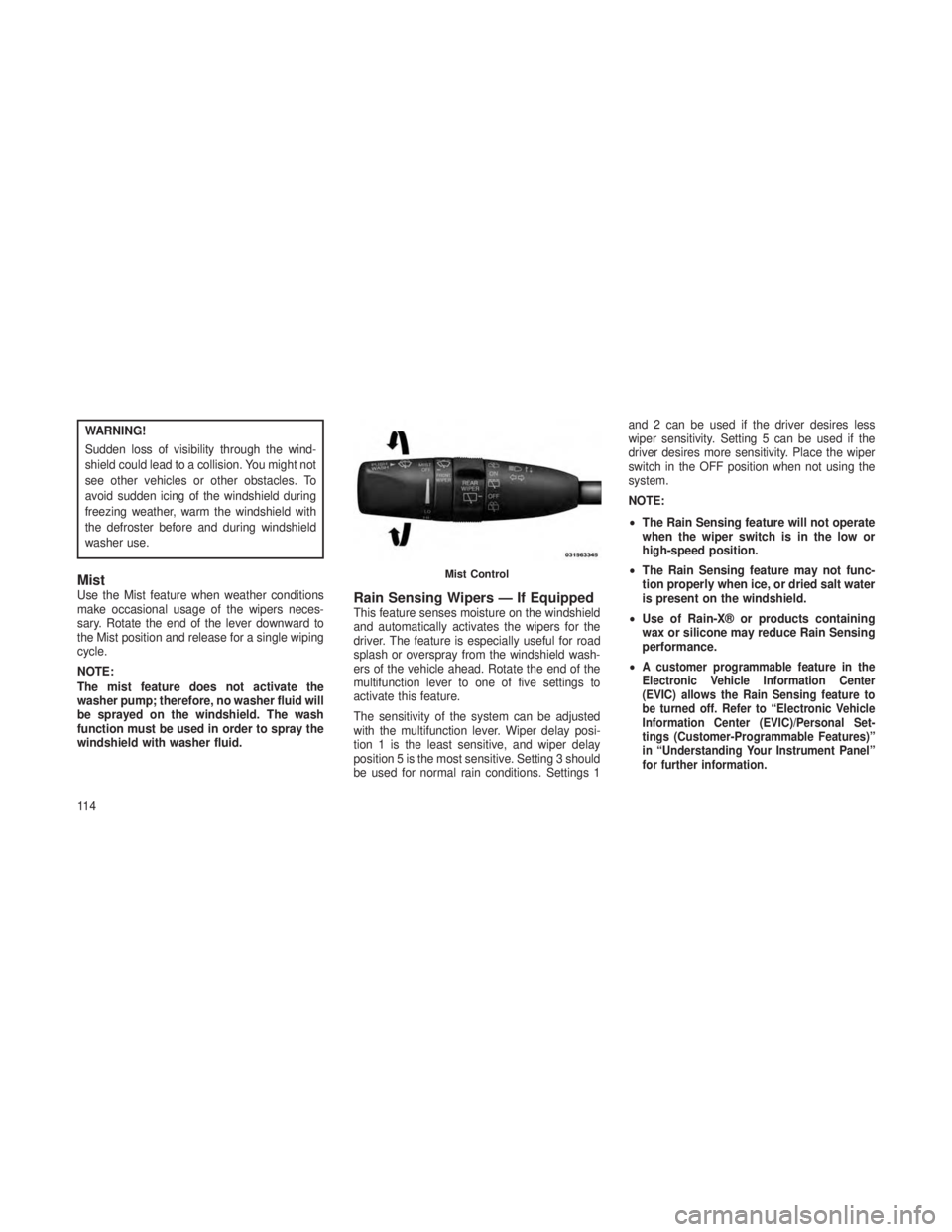
MistUse the Mist feature when weather conditions
make occasional usage of the wipers neces-
sary. Rotate the end of the lever downward to
the Mist position and release for a single wiping
cycle.
NOTE:
The mist feature does not activate the
washer pump; therefore, no washer fluid will
be sprayed on the windshield. The wash
function must be used in order to spray the
windshield with washer fluid.Rain Sensing Wipers — If EquippedThis feature senses moisture on the windshield
and automatically activates the wipers for the
driver. The feature is especially useful for road
splash or overspray from the windshield wash-
ers of the vehicle ahead. Rotate the end of the
multifunction lever to one of five settings to
activate this feature.
The sensitivity of the system can be adjusted
with the multifunction lever. Wiper delay posi-
tion 1 is the least sensitive, and wiper delay
position 5 is the most sensitive. Setting 3 should
be used for normal rain conditions. Settings 1and 2 can be used if the driver desires less
wiper sensitivity. Setting 5 can be used if the
driver desires more sensitivity. Place the wiper
switch in the OFF position when not using the
system.
NOTE:
•
The Rain Sensing feature will not operate
when the wiper switch is in the low or
high-speed position.
• The Rain Sensing feature may not func-
tion properly when ice, or dried salt water
is present on the windshield.
• Use of Rain-X® or products containing
wax or silicone may reduce Rain Sensing
performance.
•
A customer programmable feature in the
Electronic Vehicle Information Center
(EVIC) allows the Rain Sensing feature to
be turned off. Refer to “Electronic Vehicle
Information Center (EVIC)/Personal Set-
tings (Customer-Programmable Features)”
in “Understanding Your Instrument Panel”
for further information.
Mist Control
11 4
Page 121 of 408
Vehicles Equipped With Remote Start
On models that are equipped with remote start,
the heated steering wheel can be programmed
to come on during a remote start. Refer to
“Remote Starting System — If Equipped” in
“Things to Know Before Starting Your Vehicle”
for further information.
WARNING!
•Persons who are unable to feel pain to the
skin because of advanced age, chronic
illness, diabetes, spinal cord injury, medi-
cation, alcohol use, exhaustion, or other
physical conditions must exercise care
when using the steering wheel heater. It
may cause burns even at low tempera-
tures, especially if used for long periods.
• Do not place anything on the steering
wheel that insulates against heat, such as
a blanket or steering wheel covers of any
type and material. This may cause the
steering wheel heater to overheat.
ELECTRONIC SPEED
CONTROL — IF EQUIPPED
When engaged, the Electronic Speed Control
takes over accelerator operations at speeds
greater than 20 mph (32 km/h).
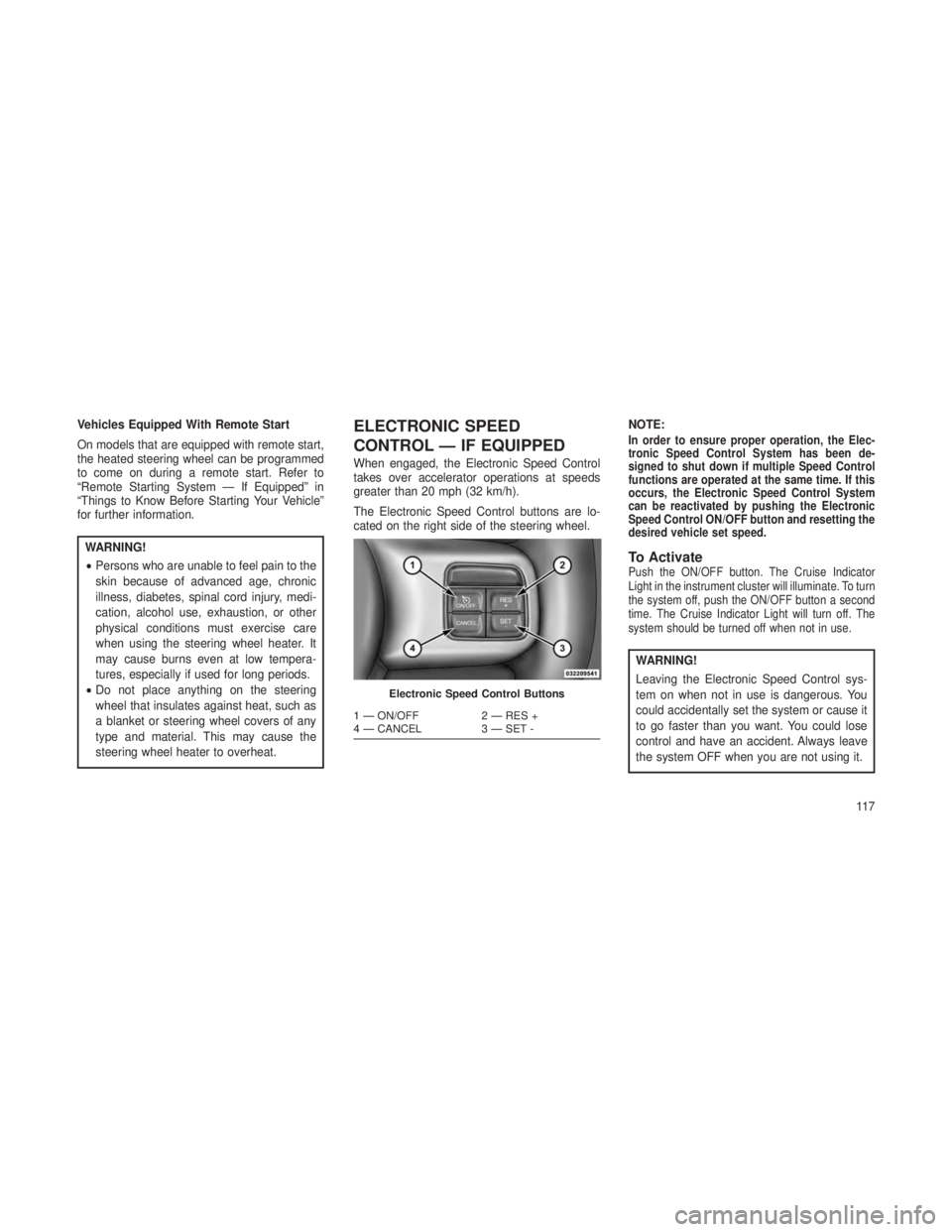
The Electronic Speed Control buttons are lo-
cated on the right side of the steering wheel. NOTE:
In order to ensure proper operation, the Elec-
tronic Speed Control System has been de-
signed to shut down if multiple Speed Control
functions are operated at the same time. If this
occurs, the Electronic Speed Control System
can be reactivated by pushing the Electronic
Speed Control ON/OFF button and resetting the
desired vehicle set speed.
To ActivatePush the ON/OFF button. The Cruise Indicator
Light in the instrument cluster will illuminate. To turn
the system off, push the ON/OFF button a second
time. The Cruise Indicator Light will turn off. The
system should be turned off when not in use.
WARNING!
Leaving the Electronic Speed Control sys-
tem on when not in use is dangerous. You
could accidentally set the system or cause it
to go faster than you want. You could lose
control and have an accident. Always leave
the system OFF when you are not using it.
Electronic Speed Control Buttons
1 — ON/OFF
2 — RES +
4 — CANCEL 3 — SET -
11 7
Page 123 of 408
ADAPTIVE CRUISE CONTROL
(ACC) — IF EQUIPPED
Adaptive Cruise Control (ACC) increases the
driving convenience provided by cruise control
while traveling on highways and major road-
ways. However, it is not a safety system and not
designed to prevent collisions.
ACC will allow you to keep cruise control en-
gaged in light to moderate traffic conditions
without the constant need to reset your cruise
control. ACC utilizes a radar sensor and a
forward facing camera designed to detect a
vehicle directly ahead of you.
NOTE:
•If the sensor does not detect a vehicle
ahead of you, ACC will maintain a fixed
set speed.
• If the ACC sensor detects a vehicle ahead,
ACC will apply limited braking or accel-
eration (not to exceed the original set
speed) automatically to maintain a preset
following distance, while matching the
speed of the vehicle ahead.
WARNING!
•Adaptive Cruise Control (ACC) is a conve-
nience system. It is not a substitute for
active driving involvement. It is always the
driver’s responsibility to be attentive of
road, traffic, and weather conditions, ve-
hicle speed, distance to the vehicle ahead;
and, most importantly, brake operation to
ensure safe operation of the vehicle under
all road conditions. Your complete atten-
tion is always required while driving to
maintain safe control of your vehicle. Fail-
ure to follow these warnings can result in a
collision and death or serious personal
injury.
• The ACC system:
• Does not react to pedestrians, on-
coming vehicles, and stationary ob-
jects (e.g., a stopped vehicle in a
traffic jam or a disabled vehicle).
(Continued)
WARNING!(Continued)
•Cannot take street, traffic, and
weather conditions into account, and
may be limited upon adverse sight
distance conditions.
• Does not always fully recognize com-
plex driving conditions, which can
result in wrong or missing distance
warnings.
• Can only apply a maximum of 40% of
the vehicle’s braking capability, and
will not bring the vehicle to a com-
plete stop.
11 9
Page 135 of 408
To Vary The Speed Setting
There are two ways to change the set speed:
•
Use the accelerator pedal to adjust the vehicle
to the desired speed and press the SET-
button.
•Tap the RES +or SET -button to increase or
decrease the set speed in 1 mph (1.6 km/h)
increments respectively. Hold the RES +or
SET -button for 5 mph (8 km/h) increments.
To Cancel
The system will disable normal Cruise Control
without erasing the memory if:
• You softly tap or depress the brake pedal.
• You press the CANCEL button.
• The Electronic Stability Control/Traction Con-
trol System (ESC/TCS) activates.
To Resume
Press the RES +button and then remove your
foot from the accelerator pedal. The EVIC will
display the last set speed. To Turn Off
The system will turn off and erase the set speed
in memory if:
•
You push the Normal Fixed Speed ON/OFF
button.
• You turn off the ignition.
• You engage Four-Wheel Drive Low.
Forward Collision Warning — If
Equipped
The Forward Collision Warning (FCW) system
provides the driver with audible and visual
warnings (within the EVIC) when it detects a
potential frontal collision. The warnings are in-
tended to provide the driver with enough time to
react and avoid the potential collision.
FCW monitors the information from the forward
looking sensor as well as the Electronic Brake
Controller (EBC), wheel speed sensors, i.e., to
calculate a probable rear-end collision. When the
system determines that a rear-end collision is
probable a warning message (both audible and
visual) will be displayed on the EVIC. When the
system determines a collision with the vehicle in front of you is no longer probable, the warning
message will be deactivated.
NOTE:
•
The minimum speed for FCW activation is
10 mph (16 km/h).
• When entering or driving in a curve, the
FCW alerts may be triggered on objects
other than vehicles such as guard rails or
sign posts based on the course predic-
tion. This is expected and is a part of
normal FCW activation and functionality.
FCW Message
131
Page 136 of 408
WARNING!
Forward Collision Warning (FCW) is not in-
tended to avoid a collision on its own, nor
can FCW detect every type of potential col-
lision. The driver has the responsibility to
avoid a collision by controlling the vehicle via
braking and steering. Failure to follow this
warning could lead to serious injury or death.
Changing FCW Status
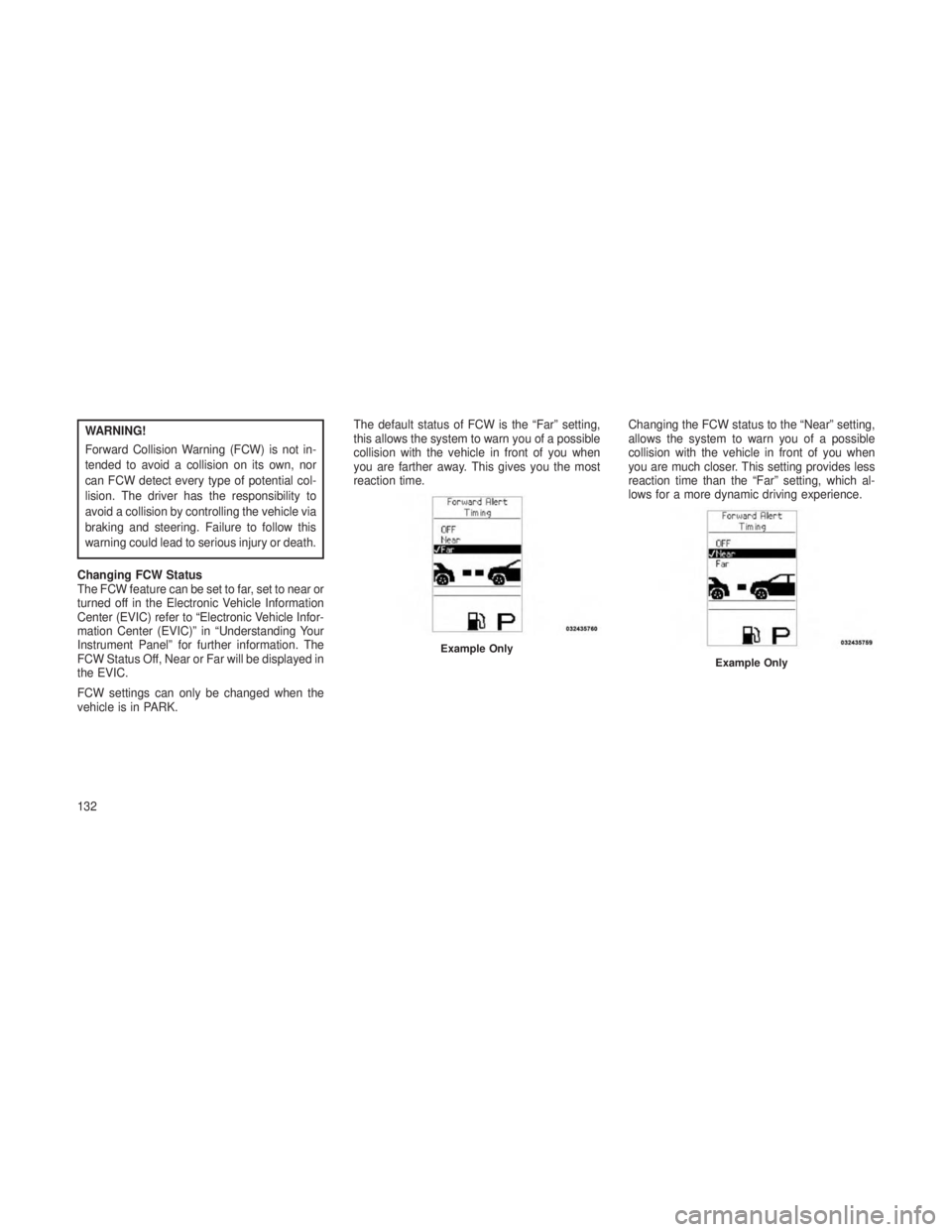
The FCW feature can be set to far, set to near or
turned off in the Electronic Vehicle Information
Center (EVIC) refer to “Electronic Vehicle Infor-
mation Center (EVIC)” in “Understanding Your
Instrument Panel” for further information. The
FCW Status Off, Near or Far will be displayed in
the EVIC.
FCW settings can only be changed when the
vehicle is in PARK. The default status of FCW is the “Far” setting,
this allows the system to warn you of a possible
collision with the vehicle in front of you when
you are farther away. This gives you the most
reaction time.
Changing the FCW status to the “Near” setting,
allows the system to warn you of a possible
collision with the vehicle in front of you when
you are much closer. This setting provides less
reaction time than the “Far” setting, which al-
lows for a more dynamic driving experience.
Example OnlyExample Only
132
Page 142 of 408
•ParkSense®, when on, will MUTE the ra-
dio when it is sounding a tone.
• Clean the ParkSense® sensors regularly,
taking care not to scratch or damage
them. The sensors must not be covered
with ice, snow, slush, mud, dirt or debris.
Failure to do so can result in the system
not working properly. The ParkSense®
system might not detect an obstacle be-
hind or in front of the fascia/bumper, or it
could provide a false indication that an
obstacle is behind or in front of the
fascia/bumper.
•
Objects such as bicycle carriers, trailer
hitches, etc., must not be placed within
12 in (30 cm) from the rear fascia/bumper
while driving the vehicle. Failure to do so
can result in the system misinterpreting a
close object as a sensor problem, causing
the “SERVICE PARK ASSIST SYSTEM”
message to be displayed in the instrument
cluster.
• On vehicles equipped with a tailgate,
ParkSense® should be disabled when the
tailgate is in the lowered or open position.
A lowered tailgate could provide a false
indication that an obstacle is behind the
vehicle.
CAUTION!
•ParkSense® is only a parking aid and it is
unable to recognize every obstacle, includ-
ing small obstacles. Parking curbs might
be temporarily detected or not detected at
all. Obstacles located above or below the
sensors will not be detected when they are
in close proximity.
• The vehicle must be driven slowly when
using ParkSense® in order to be able to
stop in time when an obstacle is detected.
When backing up, it is recommended that
the driver looks over his/her shoulder
when using ParkSense®.
WARNING!
•Drivers must be careful when backing up
even when using the ParkSense® Park
Assist system. Always check carefully be-
hind your vehicle, look behind you, and be
sure to check for pedestrians, animals,
other vehicles, obstructions, and blind
spots before backing up. You are respon-
sible for safety and must continue to pay
attention to your surroundings. Failure to
do so can result in serious injury or death.
• Before using the ParkSense® Park Assist
system, it is strongly recommended that
the ball mount and hitch ball assembly is
disconnected from the vehicle when the
vehicle is not used for towing. Failure to do
so can result in injury or damage to ve-
hicles or obstacles because the hitch ball
will be much closer to the obstacle than the
rear fascia when the warning display turns
on the single flashing arc and sounds the
continuous tone. Also, the sensors could
(Continued)
138
Page 144 of 408
WARNING!
Drivers must be careful when backing up
even when using the ParkView® Rear Back
Up Camera. Always check carefully behind
your vehicle, and be sure to check for pedes-
trians, animals, other vehicles, obstructions,
or blind spots before backing up. You are
responsible for the safety of your surround-
ings and must continue to pay attention while
backing up. Failure to do so can result in
serious injury or death.
CAUTION!
•To avoid vehicle damage, ParkView®
should only be used as a parking aid. The
ParkView® camera is unable to view every
obstacle or object in your drive path.
(Continued)
CAUTION!(Continued)
•To avoid vehicle damage, the vehicle must
be driven slowly when using ParkView® to
be able to stop in time when an obstacle is
seen. It is recommended that the driver
look frequently over his/her shoulder when
using ParkView®.
NOTE:
If snow, ice, mud, or any foreign substance
builds up on the camera lens, clean the lens,
rinse with water, and dry with a soft cloth. Do
not cover the lens.
Turning ParkView® On Or Off —
With Navigation/Multimedia Radio
1. Press the “menu” hard-key.
2. Select “system setup” soft-key.
3. Press the “camera setup” soft-key.
4. Enable or disable the rear camera feature by
selecting the “enable rear camera in reverse”
soft-key.
5. Press the “save” soft-key.
Turning ParkView® On Or Off —
Without Navigation/Multimedia Radio
1. Press the “menu” hard-key.
2. Select “system setup” soft-key.
3.
Enable or disable the rear camera feature by
selecting “enable rear camera in reverse” soft-key.
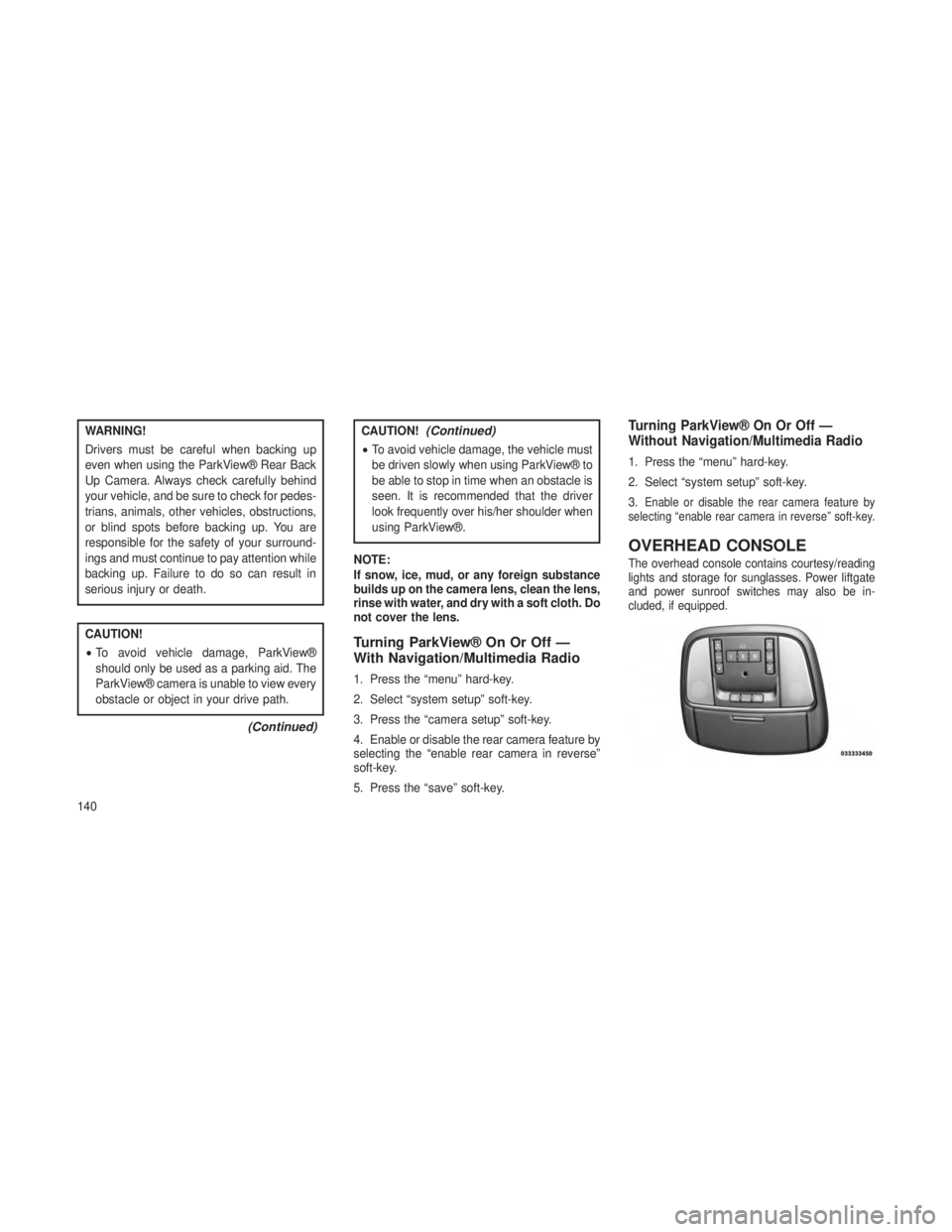
OVERHEAD CONSOLE
The overhead console contains courtesy/reading
lights and storage for sunglasses. Power liftgate
and power sunroof switches may also be in-
cluded, if equipped.
140