steering wheel JEEP RENEGADE 2023 Owner's Manual
[x] Cancel search | Manufacturer: JEEP, Model Year: 2023, Model line: RENEGADE, Model: JEEP RENEGADE 2023Pages: 364, PDF Size: 18.65 MB
Page 119 of 364
STARTING AND OPERATING 117
LANESENSE — IF EQUIPPED
LANESENSE OPERATION
The LaneSense system is operational at speeds
above 37 mph (60 km/h) and below 112 mph
(180 km
/h). The LaneSense system uses a
f or
wa
rd
looking camera to detect lane markings
and measure vehicle position within the lane
boundaries.
When both lane markings are detected and the
driver
unintentionally drifts out of the lane (no turn
signal applied), the LaneSense system provides a
haptic warning in the form of torque applied to the
steering wheel to prompt the driver to remain within
the lane boundaries. If the driver continues to
unintentionally drift out of the lane, the LaneSense
system provides a visual warning through the
instrument cluster display to prompt the driver to
remain within the lane boundaries.
The driver may manually override the haptic warning
by app l
ying torque to the steering wheel at any time.
When only a single lane marking is detected and
the dr
iver unintentionally drifts across the lane
marking (no turn signal applied), the LaneSense
system provides a visual warning through the
instrument cluster display to prompt the driver to
remain within the lane. When only a single lane
marking is detected, a haptic (torque) warning will
not be provided.
NOTE:
When operating conditions have been met, the
LaneSe n
se system will monitor if the driver’s
hands are on the steering wheel and provides an
audible warning to the driver when the driver’s
hands are not detected on the steering wheel. The
system will cancel if the driver does not return their
hands to the wheel.
TURNING LANESENSE ON OR OFF
The LaneSense button is located on the
center stack.
To turn the LaneSense system on, push the
La neSen
se button (LED turns off). A “Lane Sense
On” message is shown in the instrument cluster
display.
To turn the LaneSense system off, push the
LaneSen
se button once (LED turns on).
NOTE:
The LaneSense system will retain the last system
state
on or off from the last ignition cycle when the
ignition is changed to the ON/RUN position.
LANESENSE WARNING MESSAGE
The LaneSense system will indicate the current
lane drift condition through the instrument cluster
display.
Base Instrument Cluster Display — If Equipped
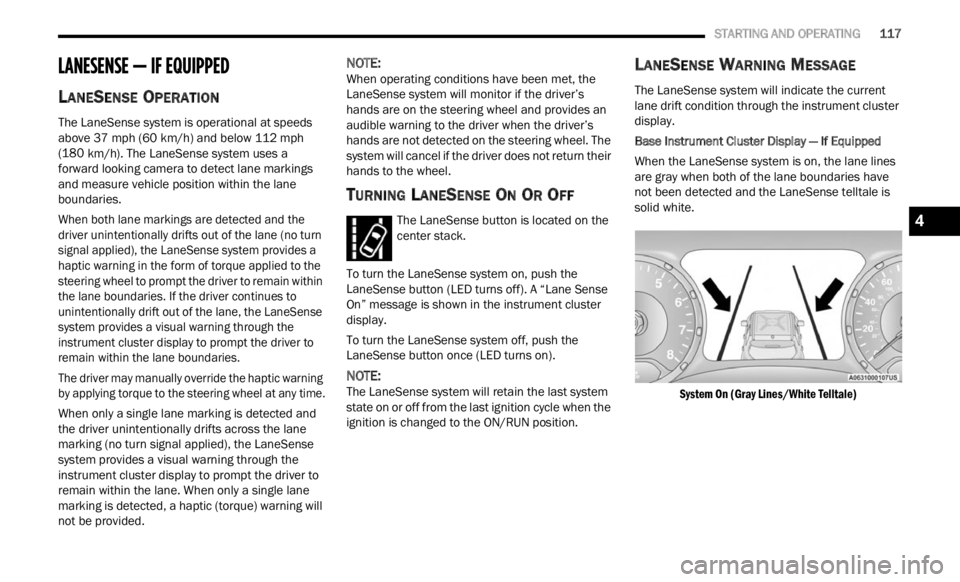
When the LaneSense system is on, the lane lines
a re gr
ay when both of the lane boundaries have
not been detected and the LaneSense telltale is
solid white.
System On (Gray Lines/White Telltale)
4
Page 120 of 364
118 STARTING AND OPERATING
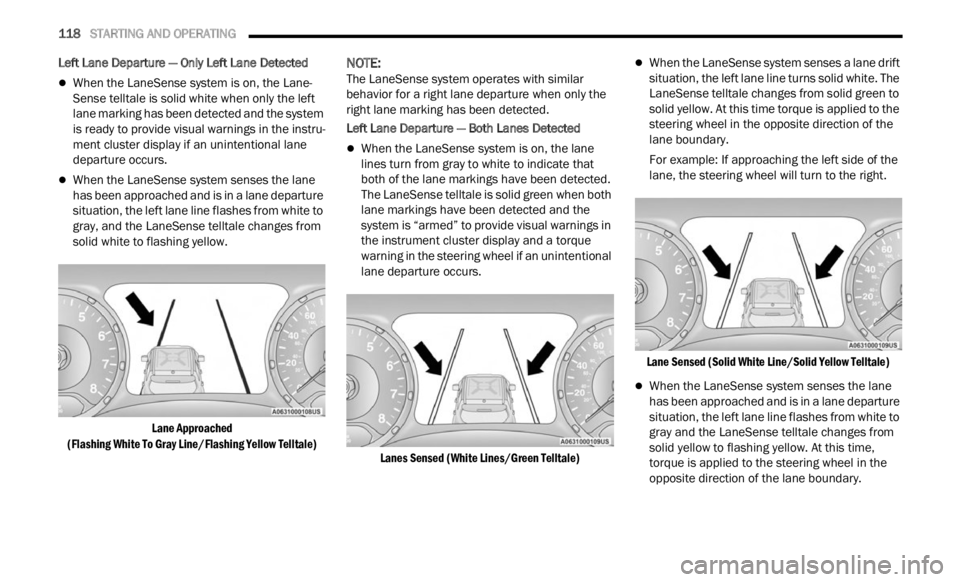
Left Lane Departure — Only Left Lane Detected
When the LaneSense system is on, the Lane-
Sense telltale is solid white when only the left
lane m
arking has been detected and the system
is ready to provide visual warnings in the instru -
ment cluster display if an unintentional lane
depar t
ure occurs.
When the LaneSense system senses the lane
has been approached and is in a lane departure
situation, the left lane line flashes from white to
gray, and the LaneSense telltale changes from
solid white to flashing yellow.
Lane Approached
(Flash
ing White To Gray Line/Flashing Yellow Telltale)
NOTE:
The LaneSense system operates with similar
behav i
or for a right lane departure when only the
right lane marking has been detected.
Left Lane Departure — Both Lanes Detected
When the LaneSense system is on, the lane
lines turn from gray to white to indicate that
both of the lane markings have been detected.
The LaneSense telltale is solid green when both
lane markings have been detected and the
system is “armed” to provide visual warnings in
the instrument cluster display and a torque
warning in the steering wheel if an unintentional
lane departure occurs.
Lanes Sensed (White Lines/Green Telltale)
When the LaneSense system senses a lane drift
situation, the left lane line turns solid white. The
LaneSense telltale changes from solid green to
solid yellow. At this time torque is applied to the
steering wheel in the opposite direction of the
lane boundary.
For example: If approaching the left side of the
lane,
the steering wheel will turn to the right.
Lane Sensed (Solid White Line/Solid Yellow Telltale)
When the LaneSense system senses the lane
has been approached and is in a lane departure
situation, the left lane line flashes from white to
gray and the LaneSense telltale changes from
solid yellow to flashing yellow. At this time,
torque is applied to the steering wheel in the
opposite direction of the lane boundary.
Page 121 of 364
STARTING AND OPERATING 119
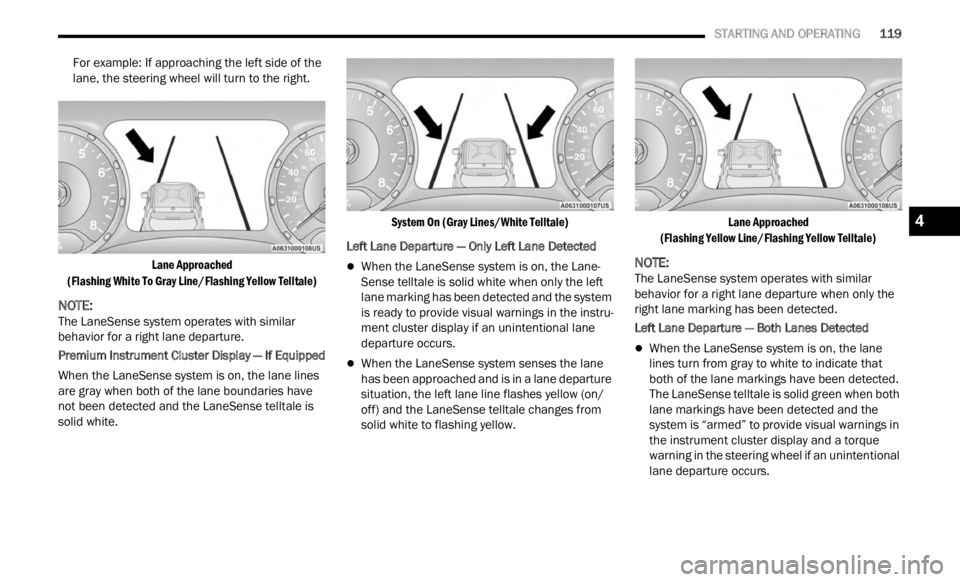
For example: If approaching the left side of the
lane, the steering wheel will turn to the right.
Lane Approached
(Flas h
ing White To Gray Line/Flashing Yellow Telltale)
NOTE:
The LaneSense system operates with similar
behav i
or for a right lane departure.
Premium Instrument Cluster Display — If Equipped
When the LaneSense system is on, the lane lines
are g r
ay when both of the lane boundaries have
not been detected and the LaneSense telltale is
solid white.
System On (Gray Lines/White Telltale)
Left Lane Departure — Only Left Lane Detected
When the LaneSense system is on, the Lane-
Sense telltale is solid white when only the left
lane m
arking has been detected and the system
is ready to provide visual warnings in the instru -
ment cluster display if an unintentional lane
depar t
ure occurs.
When the LaneSense system senses the lane
has been approached and is in a lane departure
situation, the left lane line flashes yellow (on/
off) and the LaneSense telltale changes from
solid white to flashing yellow.
Lane Approached
(Flas h
ing Yellow Line/Flashing Yellow Telltale)
NOTE:
The LaneSense system operates with similar
behav i
or for a right lane departure when only the
right lane marking has been detected.
Left Lane Departure — Both Lanes Detected
When the LaneSense system is on, the lane
lines turn from gray to white to indicate that
both of the lane markings have been detected.
The LaneSense telltale is solid green when both
lane markings have been detected and the
system is “armed” to provide visual warnings in
the instrument cluster display and a torque
warning in the steering wheel if an unintentional
lane departure occurs.
4
Page 122 of 364
120 STARTING AND OPERATING
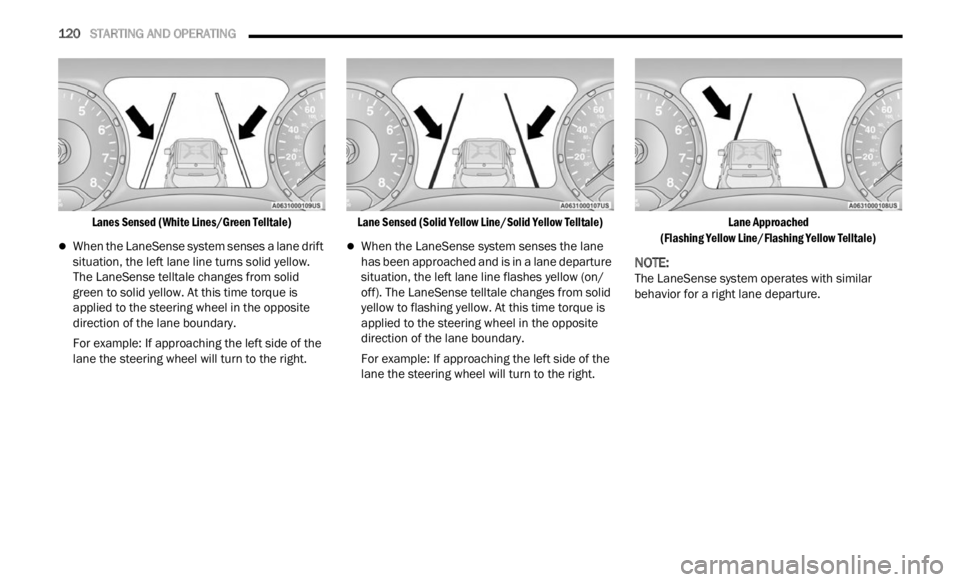
Lanes Sensed (White Lines/Green Telltale)
When the LaneSense system senses a lane drift
situation, the left lane line turns solid yellow.
The LaneSense telltale changes from solid
green to solid yellow. At this time torque is
applied to the steering wheel in the opposite
direction of the lane boundary.
For example: If approaching the left side of the
lane t
he steering wheel will turn to the right.
Lane Sensed (Solid Yellow Line/Solid Yellow Telltale)
When the LaneSense system senses the lane
has been approached and is in a lane departure
situation, the left lane line flashes yellow (on/
off). The LaneSense telltale changes from solid
yellow to flashing yellow. At this time torque is
applied to the steering wheel in the opposite
direction of the lane boundary.
For example: If approaching the left side of the
lane
t
he steering wheel will turn to the right.
Lane Approached
(Flas h
ing Yellow Line/Flashing Yellow Telltale)
NOTE:
The LaneSense system operates with similar
behav i
or for a right lane departure.
Page 123 of 364
STARTING AND OPERATING 121
CHANGING LANESENSE STATUS
The LaneSense system has settings to adjust the
intensity of the torque warning and the warning
zone sensitivity (early/late) that you can configure
through the Uconnect system
Ú page 133.
NOTE:
When enabled the system operates above
37 mph (60 km/h) and below 112 mph
(180 km
/h).
Use of the turn signal suppresses the warnings.
The system will not apply torque to the steering
wheel whenever a safety system engages
(Anti-Lock Brakes, Traction Control System,
Electronic Stability Control, Forward Collision
Warning, etc.).
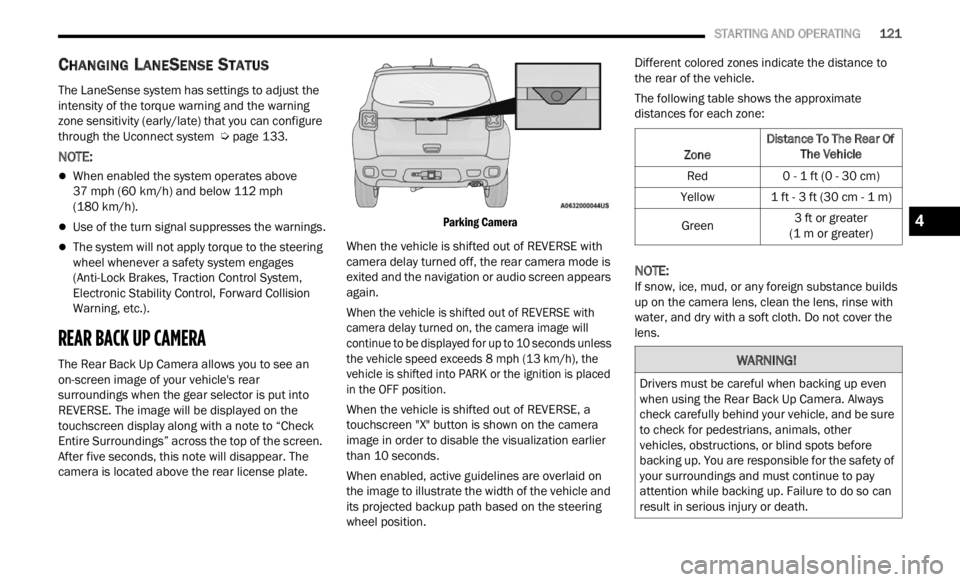
REAR BACK UP CAMERA
The Rear Back Up Camera allows you to see an
on-screen image of your vehicle's rear
surroundings when the gear selector is put into
REVERSE. The image will be displayed on the
touchscreen display along with a note to “Check
Entire Surroundings” across the top of the screen.
After five seconds, this note will disappear. The
camera is located above the rear license plate.
Parking Camera
When the vehicle is shifted out of REVERSE with
camer a
delay turned off, the rear camera mode is
exited and the navigation or audio screen appears
again.
When the vehicle is shifted out of REVERSE with
camera
delay turned on, the camera image will
continue to be displayed for up to 10 seconds unless
the vehicle speed exceeds 8 mph (13 km/h), the
vehic l
e is shifted into PARK or the ignition is placed
in the OFF position.
When the vehicle is shifted out of REVERSE, a
touchs c
reen "X" button is shown on the camera
image in order to disable the visualization earlier
than 10 seconds.
When enabled, active guidelines are overlaid on
the im
age to illustrate the width of the vehicle and
its projected backup path based on the steering
wheel position. Different colored zones indicate the distance to
the r
e
ar of the vehicle.
The following table shows the approximate
distan
ces for each zone:
NOTE:
If snow, ice, mud, or any foreign substance builds
up on t
he camera lens, clean the lens, rinse with
water, and dry with a soft cloth. Do not cover the
lens.
Zone Distance To The Rear Of
The Ve hicle
Red 0 - 1 ft (0 - 30 cm)
Yellow 1 ft - 3 ft (30 cm - 1 m)
Green 3
ft or greater
(1 m or
greater)
WARNING!
Drivers must be careful when backing up even
when using the Rear Back Up Camera. Always
check carefully behind your vehicle, and be sure
to check for pedestrians, animals, other
vehicles, obstructions, or blind spots before
backing up. You are responsible for the safety of
your surroundings and must continue to pay
attention while backing up. Failure to do so can
result in serious injury or death.
4
Page 129 of 364
STARTING AND OPERATING 127
(Continued)
(Continued)
Towing Requirements — Tires
Do not attempt to tow a trailer while using a
compact spare tire.
Proper tire inflation pressures are essential to
the safe and satisfactory operation of your
vehicle
Ú page 329.
Check the trailer tires for proper tire inflation
pressures before trailer usage.
Check for signs of tire wear or visible tire
damage before towing a trailer Ú page 329.
For the proper tire replacement procedures
Ú page 329. Replacing tires with a higher load
carrying capacity will not increase the vehicle's
G VWR a
nd GAWR limits.
Towing Requirements — Trailer Brakes
Do not interconnect the hydraulic brake system
or vacuum system of your vehicle with that of
the trailer. This could cause inadequate braking
and possible personal injury.
An electronically actuated trailer brake
controller is required when towing a trailer with
electronically actuated brakes. When towing a
trailer equipped with a hydraulic surge actuated
brake system, an electronic brake controller is
not required.
Trailer brakes are recommended for trailers
over 1,000 lb (453 kg) and required for trailers
in excess of 2,000 lb (907 kg).
When hauling cargo, or towing a trailer, do not
overload your vehicle or trailer. Overloading
can cause a loss of control, poor performance,
or damage to brakes, axle, engine, transmis -
sion, steering, suspension, chassis structure,
or tire
s.
Safety chains must always be used between
your vehicle and trailer. Always connect the
chains to the frame or hook retainers of the
vehicle hitch. Cross the chains under the
trailer tongue and allow enough slack for
turning corners.
Vehicles with trailers should not be parked on
a grade. When parking, apply the parking
brake on the tow vehicle. Put the tow vehicle
transmission in PARK. Always block or "chock"
the trailer wheels.
GCWR must not be exceeded.
Total weight must be distributed between the
tow vehicle and the trailer such that the
following four ratings are not exceeded:
GVWR
GTW
WARNING!
GAWR
Tongue weight rating for the trailer hitch
utilized.
CAUTION!
Do not tow a trailer at all during the first
500 miles (805 km) the new vehicle is driven.
The e n
gine, axle or other parts could be
damaged.
Then, during the first 500 miles (805 km) that
a trai
ler is towed, do not drive over 50 mph
( 8
0 k
m /
h) and do not make starts at full
thrott l
e. This helps the engine and other parts
of the vehicle wear in at the heavier loads.
WARNING!
WARNING!
Do not connect trailer brakes to your vehicle's
hydraulic brake lines. It can overload your
brake system and cause it to fail. You might
not have brakes when you need them and
could have a collision.
4
Page 134 of 364

132 STARTING AND OPERATING
After Driving Off-Road
Off-road operation puts more stress on your
vehicle than does most on-road driving. After going
off-road, it is always a good idea to check for
damage. That way you can get any problems taken
care of right away and have your vehicle ready
when you need it.
Completely inspect the underbody of your
vehicle. Check tires, body structure, steering,
suspension, and exhaust system for damage.
Inspect the radiator for mud and debris and
clean as required.
Check threaded fasteners for looseness, partic -
ularly on the chassis, drivetrain components,
steer i
ng, and suspension. Retighten them, if
required, and torque to the values specified in
the Service Manual.
Check for accumulations of plants or brush.
These things could be a fire hazard. They might
hide damage to fuel lines, brake hoses, axle
pinion seals, and propeller shafts.
After extended operation in mud, sand, water, or
similar dirty conditions, have the radiator, fan,
brake rotors, wheels, brake linings, and axle
yokes inspected and cleaned as soon as
possible.If you experience unusual vibration after driving
in mud, slush or similar conditions, check the
wheels for impacted material. Impacted mate -
rial can cause a wheel imbalance and freeing
the w h
eels of it will correct the situation.
WARNING!
Abrasive material in any part of the brakes may
cause excessive wear or unpredictable braking.
You might not have full braking power when you
need it to prevent a collision. If you have been
operating your vehicle in dirty conditions, get
your brakes checked and cleaned as necessary.
Page 141 of 364

MULTIMEDIA 139
Forward Collision Warning-Plus (FCW+) This setting will turn the Forward Collision Warning-Plus system on or off. The
“Off”
setting will deactivate the FCW+ system. The “Warning Only” setting will
provide only an audible chime when a collision is detected. The “Warning +
Active Braking” setting will provide an audible chime and apply brake
pressure when a collision is detected.
LaneSense Warning
This setting will change the distance at which the steering wheel will provide
lane d
eparture feedback. The available settings are “Early”, “Medium”, and
“Late”.
LaneSense Strength This setting will change the strength of the steering wheel feedback during a
lane d
eparture. The available settings are “Low”, “Medium”, and “High”.
Side Distance Warning This setting will adjust the warning for side distance. The available options are
“Off”
,
“Sound Only”, and “Sound & Display”.
Side Distance Warning Volume This setting will adjust the volume for side distance warning. The available
options
are “Low”, “Med”, and “High”.
Drowsy Driver Alert This setting will monitor the driver’s driving habits and warn you of any
c
hang
e
s, indicating that the driver may be drowsy. The available options are
“On” and “Off”.
ParkSense This setting will change the type of ParkSense alert when a close object is
detect
ed and provide both an audible chime and a visual display.
Front ParkSense Volume This setting will adjust the volume of the Front ParkSense system. The
avail
a
ble settings are “Low”, “Medium”, and “High”.
Setting Name Description
5
Page 143 of 364

MULTIMEDIA 141
Lights
When the Lights button is pressed on the touchscreen, the system displays the options related to the vehicle’s exterior and interior lights.
NOTE:
When the “Daytime Running Lights” feature is selected, the daytime running lights can be turned on or off. This feature is only allowed by law in the country of
the v e
hicle purchased.
NOTE:
Depending on the vehicle’s options, feature settings may vary.
Setting Name Description
Interior Ambient Lighting This setting will allow you to adjust the interior ambient lighting using “+” and
“-” op
t
ions.
Headlight Sensitivity This setting will allow you to set the sensitivity of the headlights dependent on
the a
m
ount of visible light. The greater the sensitivity set, the less the external
light variation required to turn on the lights (e.g. with a setting on level 3 at
sunset, the headlights turn on earlier than in levels 1 and 2). The available
levels are “Level 1: Minimum Sensitivity”, “Level 2: Medium Sensitivity”, and
“Level 3: Maximum Sensitivity”.
Headlight Off Delay This setting will allow you to set the amount of time it takes for the headlights
t
o shu
t
off after the vehicle is unlocked. The available settings are “0 sec”,
“30 sec”, “60 sec”, and “90 sec”.
Daytime Running Lights This setting will allow you to turn the Daytime Running Lights on or off.
Cornering Lights When this setting is selected, if the steering wheel rotation angle is large or
the tu
rn signal indicators are on, a light (incorporated in the fog light) will turn
on, on the relevant side to improve visibility at night.
Auto Dim High Beams This setting will allow you to turn the Auto Dim High Beams on or off.
Flash Lights with Lock This setting will allow you to turn the flashing of the lights when the Lock
button
is pushed on the key fob on or off.
5
Page 145 of 364

MULTIMEDIA 143
Seats & Comfort
Key Off Options/Engine Off Options
When the Seats & Comfort button is pressed on the touchscreen, the system displays the options related to the vehicle’s comfort systems when remote start
has been activated or the vehicle has been started.
NOTE:
Depending on the vehicle’s options, feature settings may vary.
Setting Name Description
Auto-On Driver Heated/Ventilated Seat & Steering Wheel With Vehicle Start This setting will activate the vehicle’s comfort system and heated seats (if
equip
p
ed) or heated steering wheel (if equipped) when the vehicle is remote
started or ignition is started. The “Off” setting will not activate the comfort
systems. The “Remote Start” setting will only activate the comfort systems
when using Remote Start. The “All Start” setting will activate the comfort
systems whenever the vehicle is started.
When the Key Off Options/Engine Off Options button is pressed on the touchscreen, the system displays the options related to vehicle shutoff. These settings
will only activate when the ignition is set to OFF.
NOTE:
Depending on the vehicle’s options, feature settings may vary.
Setting Name Description
Radio Off Delay This setting will keep the radio on for the selected amount of time after
vehic
l
e shut off. The available options are “0 sec” or “20 min”.
Radio Off With Door This setting will shut the radio off when the door is opened. The available
s
etti
n
gs are “On” and “Off”.
5