USB JEEP WAGONEER 2023 User Guide
[x] Cancel search | Manufacturer: JEEP, Model Year: 2023, Model line: WAGONEER, Model: JEEP WAGONEER 2023Pages: 396, PDF Size: 15.17 MB
Page 225 of 396
MULTIMEDIA223
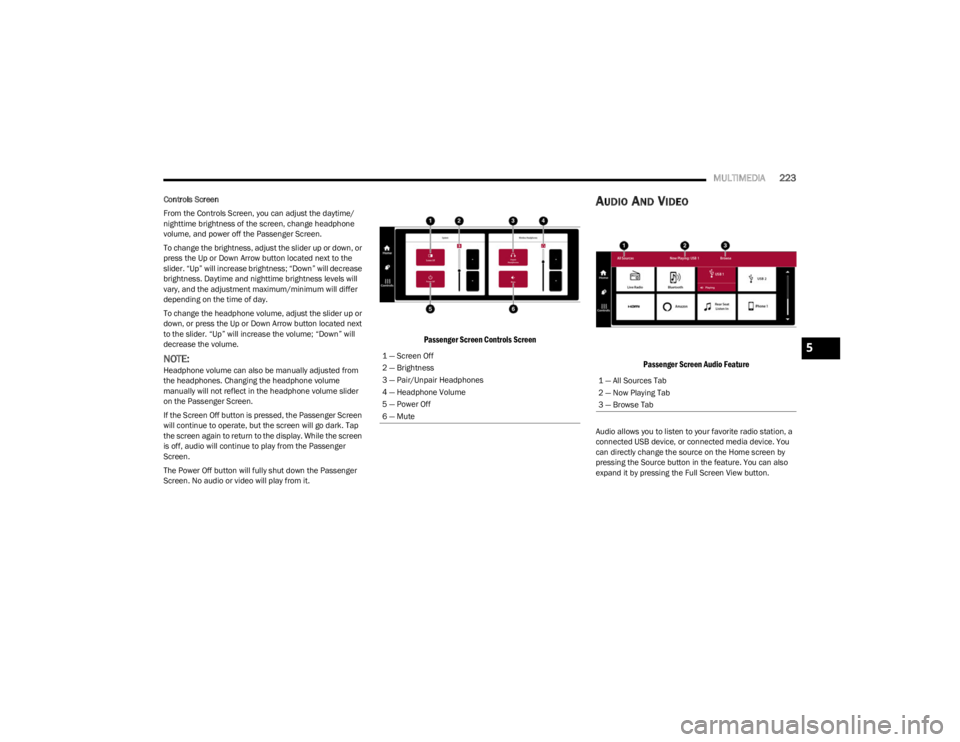
Controls Screen
From the Controls Screen, you can adjust the daytime/
nighttime brightness of the screen, change headphone
volume, and power off the Passenger Screen.
To change the brightness, adjust the slider up or down, or
press the Up or Down Arrow button located next to the
slider. “Up” will increase brightness; “Down” will decrease
brightness. Daytime and nighttime brightness levels will
vary, and the adjustment maximum/minimum will differ
depending on the time of day.
To change the headphone volume, adjust the slider up or
down, or press the Up or Down Arrow button located next
to the slider. “Up” will increase the volume; “Down” will
decrease the volume.
NOTE:Headphone volume can also be manually adjusted from
the headphones. Changing the headphone volume
manually will not reflect in the headphone volume slider
on the Passenger Screen.
If the Screen Off button is pressed, the Passenger Screen
will continue to operate, but the screen will go dark. Tap
the screen again to return to the display. While the screen
is off, audio will continue to play from the Passenger
Screen.
The Power Off button will fully shut down the Passenger
Screen. No audio or video will play from it.
Passenger Screen Controls Screen
AUDIO AND VIDEO
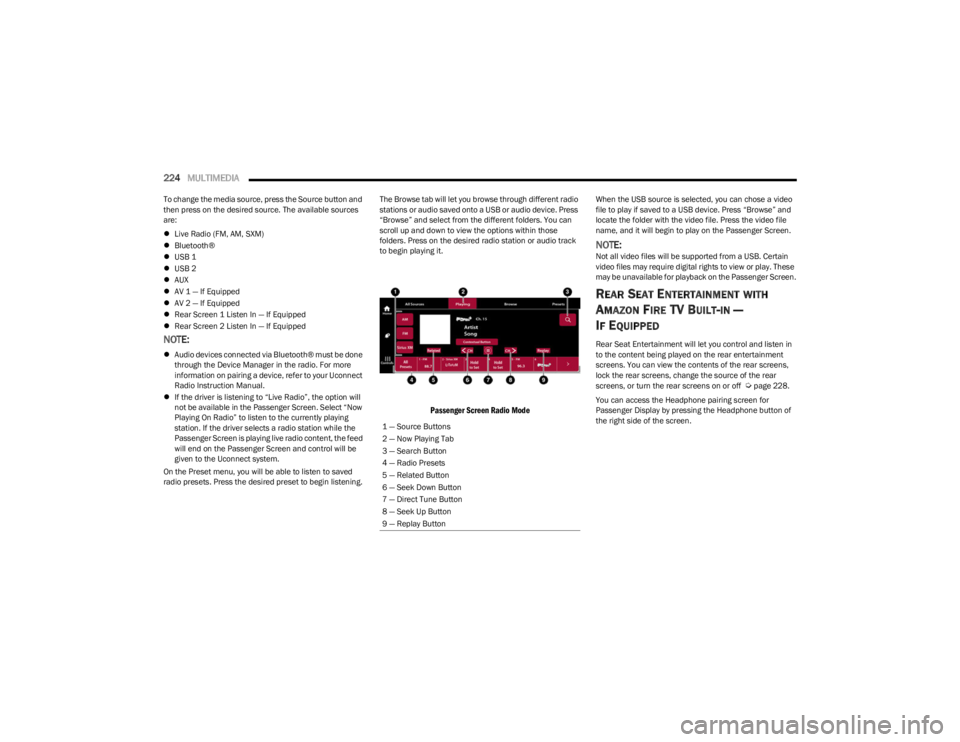
Passenger Screen Audio Feature
Audio allows you to listen to your favorite radio station, a
connected USB device, or connected media device. You
can directly change the source on the Home screen by
pressing the Source button in the feature. You can also
expand it by pressing the Full Screen View button.
1 — Screen Off
2 — Brightness
3 — Pair/Unpair Headphones
4 — Headphone Volume
5 — Power Off
6 — Mute
1 — All Sources Tab
2 — Now Playing Tab
3 — Browse Tab
5
23_WS_OM_EN_USC_t.book Page 223
Page 226 of 396
224MULTIMEDIA
To change the media source, press the Source button and
then press on the desired source. The available sources
are:
Live Radio (FM, AM, SXM)
Bluetooth®
USB 1
USB 2
AUX
AV 1 — If Equipped
AV 2 — If Equipped
Rear Screen 1 Listen In — If Equipped
Rear Screen 2 Listen In — If Equipped
NOTE:
Audio devices connected via Bluetooth® must be done
through the Device Manager in the radio. For more
information on pairing a device, refer to your Uconnect
Radio Instruction Manual.
If the driver is listening to “Live Radio”, the option will
not be available in the Passenger Screen. Select “Now
Playing On Radio” to listen to the currently playing
station. If the driver selects a radio station while the
Passenger Screen is playing live radio content, the feed
will end on the Passenger Screen and control will be
given to the Uconnect system.
On the Preset menu, you will be able to listen to saved
radio presets. Press the desired preset to begin listening. The Browse tab will let you browse through different radio
stations or audio saved onto a USB or audio device. Press
“Browse” and select from the different folders. You can
scroll up and down to view the options within those
folders. Press on the desired radio station or audio track
to begin playing it.
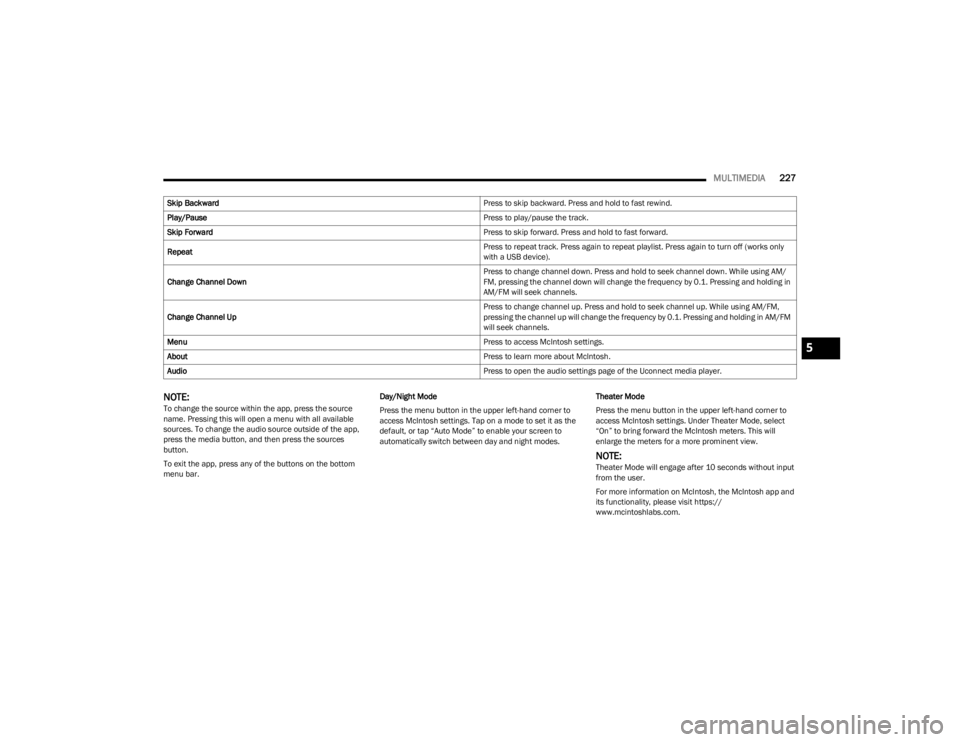
Passenger Screen Radio Mode
When the USB source is selected, you can chose a video
file to play if saved to a USB device. Press “Browse” and
locate the folder with the video file. Press the video file
name, and it will begin to play on the Passenger Screen.
NOTE:Not all video files will be supported from a USB. Certain
video files may require digital rights to view or play. These
may be unavailable for playback on the Passenger Screen.
REAR SEAT ENTERTAINMENT WITH
A
MAZON FIRE TV BUILT-IN —
I
F EQUIPPED
Rear Seat Entertainment will let you control and listen in
to the content being played on the rear entertainment
screens. You can view the contents of the rear screens,
lock the rear screens, change the source of the rear
screens, or turn the rear screens on or off
Úpage 228.
You can access the Headphone pairing screen for
Passenger Display by pressing the Headphone button of
the right side of the screen.
1 — Source Buttons
2 — Now Playing Tab
3 — Search Button
4 — Radio Presets
5 — Related Button
6 — Seek Down Button
7 — Direct Tune Button
8 — Seek Up Button
9 — Replay Button
23_WS_OM_EN_USC_t.book Page 224
Page 229 of 396
MULTIMEDIA227
NOTE:To change the source within the app, press the source
name. Pressing this will open a menu with all available
sources. To change the audio source outside of the app,
press the media button, and then press the sources
button.
To exit the app, press any of the buttons on the bottom
menu bar. Day/Night Mode
Press the menu button in the upper left-hand corner to
access McIntosh settings. Tap on a mode to set it as the
default, or tap “Auto Mode” to enable your screen to
automatically switch between day and night modes.
Theater Mode
Press the menu button in the upper left-hand corner to
access McIntosh settings. Under Theater Mode, select
“On” to bring forward the McIntosh meters. This will
enlarge the meters for a more prominent view.
NOTE:Theater Mode will engage after 10 seconds without input
from the user.
For more information on McIntosh, the McIntosh app and
its functionality, please visit https://
www.mcintoshlabs.com.
Skip Backward
Press to skip backward. Press and hold to fast rewind.
Play/Pause Press to play/pause the track.
Skip Forward Press to skip forward. Press and hold to fast forward.
Repeat Press to repeat track. Press again to repeat playlist. Press again to turn off (works only
with a USB device).
Change Channel Down Press to change channel down. Press and hold to seek channel down. While using AM/
FM, pressing the channel down will change the frequency by 0.1. Pressing and holding in
AM/FM will seek channels.
Change Channel Up Press to change channel up. Press and hold to seek channel up. While using AM/FM,
pressing the channel up will change the frequency by 0.1. Pressing and holding in AM/FM
will seek channels.
Menu Press to access McIntosh settings.
About Press to learn more about McIntosh.
Audio Press to open the audio settings page of the Uconnect media player.
5
23_WS_OM_EN_USC_t.book Page 227
Page 230 of 396
228MULTIMEDIA
REAR SEAT ENTERTAINMENT (RSE) WITH
AMAZON FIRE TV BUILT-IN — IF EQUIPPED
OVERVIEW
Rear Seat Entertainment with Fire TV built-in is designed
to give your family years of enjoyment.
Fire TV lets passengers enjoy a wide variety of content
from popular apps (subscriptions may be required).
Stream videos, play games, listen to music, get
information, and watch downloaded programs all while on
the road. Two Voice Remotes with Alexa are included with
the system. Press the Microphone button on the Voice
Remote with Alexa to easily find, launch, and control
content. Check sports scores, play music, control smart
home devices, or see your live camera feeds (compatible
smart home device required and sold separately). In
addition to streaming and downloaded content, changing
the input in Fire TV also enables you to:
Mirror what’s on your phone or tablet to Fire TV via
Miracast capable devices
Stream your favorite shows with Fire TV
Plug and play a variety of standard video games or
devices into the HDMI port
Listen to audio over wired or wireless headphones (not
included, customer will have to provide their own)
Plug and play a variety of devices into the front seat
Video USB port. USB ports located under the rear
screens are charge only.
Watch content individually on each rear display or
mirror across both displays to watch together
NOTE:The vehicle must be in an active and usable cellular range
and properly equipped with a Uconnect 5 NAV system and
Rear Seat Entertainment with Fire TV package. Streaming
requires a Wi-Fi connection and registered Amazon
account to run Fire TV in the vehicle. Streaming service
subscriptions are not included. Services and features are
subject to change or withdrawal at any time, may not be
available in all areas and languages, and may require
separate subscriptions.
Please review this Owner's Manual to become familiar
with RSE features and operation.
GETTING STARTED
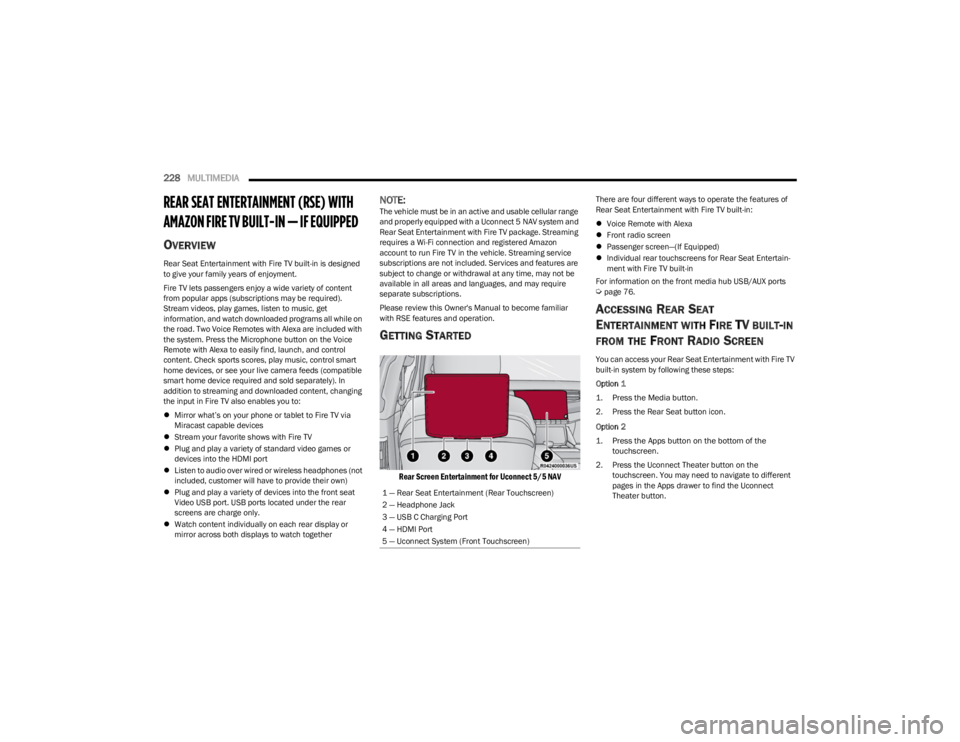
Rear Screen Entertainment for Uconnect 5/5 NAV
There are four different ways to operate the features of
Rear Seat Entertainment with Fire TV built-in:
Voice Remote with Alexa
Front radio screen
Passenger screen—(If Equipped)
Individual rear touchscreens for Rear Seat Entertain -
ment with Fire TV built-in
For information on the front media hub USB/AUX ports
Úpage 76.
ACCESSING REAR SEAT
E
NTERTAINMENT WITH FIRE TV BUILT-IN
FROM THE FRONT RADIO SCREEN
You can access your Rear Seat Entertainment with Fire TV
built-in system by following these steps:
Option 1
1. Press the Media button.
2. Press the Rear Seat button icon.
Option 2
1. Press the Apps button on the bottom of the
touchscreen.
2. Press the Uconnect Theater button on the touchscreen. You may need to navigate to different
pages in the Apps drawer to find the Uconnect
Theater button.
1 — Rear Seat Entertainment (Rear Touchscreen)
2 — Headphone Jack
3 — USB C Charging Port
4 — HDMI Port
5 — Uconnect System (Front Touchscreen)
23_WS_OM_EN_USC_t.book Page 228
Page 232 of 396
230MULTIMEDIA
ALEXA VOICE CONTROL
A feature with Rear Seat Entertainment with Fire TV
built-in that enhances your experience is Alexa. It is simple
to get started using this feature. Push the Microphone
button at the top of the Voice Remote with Alexa to
activate Alexa and get started.
LISTEN VIA VEHICLE SPEAKERS
A feature within Rear Seat Entertainment with Fire TV
built-in is the front radio Listen feature. On the front radio
Home screen for Fire TV, select the Listen button in the top
right corner on either card for Screen 1 or 2. This will allow
you to have either rear screen play audio through all the
speakers in the vehicle.
QUICK MENU
Accessing the quick menu will give you more options for
Fire TV.
To access the quick menu, tap the screen and it will
appear. The quick menu is also accessible by pushing the
Gear/Settings button on the Voice Remote with Alexa.
Some options of the quick menu are:
Power — This will power the screen off.
On-Screen Remote — This will bring up the on-screen
remote to use with the system.
Back — This will let you go back a page.
Home — This will take you to the Home screen.
Gear/Settings — This will let you access certain settings
in the system. For more setting options, select
“Settings” within the on-screen Gear/Settings menu.
Vehicle — This will bring up the Vehicle menu. From
here you can adjust rear climate controls and the Are
We There Yet? app.
PARENTAL CONTROLS (USING THE REAR
S
CREENS)
If parental controls were not set during the first time start
up of the system, they can be set by following these steps:
1. Push the Gear/Settings button on the Voice Remote
with Alexa or tap the screen to access Settings in the
“quick menu”.
2. Select the Gear/Settings icon on the screen.
3. Select “Settings” on the screen.
4. While in Settings, select “Preferences”.
5. Select “Parental Controls”; from here you can turn Parental Controls on or off and set up a PIN for the
controls using the Voice Remote with Alexa.
VOICE REMOTE WITH ALEXA PAIRING
(U
SING THE REAR SCREENS)
If the Voice Remote with Alexa needs to be paired again or
a new remote is being paired, follow these procedures:
1. Install batteries into the remote.
2. Tap the screen and Select the Gear/Settings icon on
the screen.
3. Select “Settings” on the screen. 4. In Settings, select “Controllers & Bluetooth®
Devices”.
5. From this menu, select “Add New Remote”.
6. Follow the on-screen steps for Voice Remote with Alexa pairing.
A long press on the Home button can also re-pair a Voice
Remote with Alexa that has become disconnected.
NOTE:Your vehicle is included with two Voice Remotes with
Alexa. A Voice Remote with Alexa can be paired to each
rear screen. It will function with the rear screen it was
paired with. The pairing steps will need to be done for each
rear screen.
MEDIA SOURCES INPUT (USING THE
F
RONT RADIO AND REAR SCREENS)
Front Radio Screen
Users can select inputs for each rear screen from the front
radio touchscreen by selecting the Rear Seat tab and
choosing the desired content by selecting “Launch
Source” on the Screen 1 or Screen 2 tab.
Inputs available within Launch Source under “Inputs” are
“Fire TV”, “HDMI”, and “USB”.
Rear Screens
To select inputs on the rear screen, scroll down on the Fire
TV Home screen and select your desired input under
“Input”.
Inputs can also be selected from the Brand tab in the top
menu. While in this tab, scroll down to “Inputs” for
selection options.
23_WS_OM_EN_USC_t.book Page 230
Page 234 of 396
232MULTIMEDIA
REAR SEAT ENTERTAINMENT WITH FIRE
TV B
UILT-IN STREAMING (USING THE
F
RONT RADIO AND REAR SCREENS)
Access Using Launch Source
To access Rear Seat Entertainment with Fire TV built-in
from the front radio, press the Media tab located on the
bottom menu bar. Then select the Rear Seat option
located on the top menu bar. Select “Launch Source”, and
then under “Inputs” select “Fire TV Home”.
Access Using Browse Media
Selecting “Browse Media” on the front radio screen will
give access to different media within Rear Seat
Entertainment with Fire TV built-in.
These options will be in the top menu of “Browse Media”
and include:
Fire TV — Selecting “Fire TV” will show streaming
options for categories and to select apps. This option
will be selectable on the left slider menu in “Browse
Media”. While in “Browse Media” under Fire TV, it will
display recent activity under “Recent”. This will display
recent videos viewed from Fire TV and recent down -
loads as well.
USB Video — Under “USB Videos”, videos will appear
that are options with a USB device connected to Rear
Seat Entertainment with Fire TV built-in.
USB Music — Under “USB Music”, music will appear
that are options with a USB device connected to Rear
Seat Entertainment with Fire TV built-in. Access Using the Voice Remote with Alexa and Rear
Screens
Rear passengers will be able to access some options for
streaming by pressing the “Prime Video”, “App 1”, or “App
2” button on the Voice Remote with Alexa. Selecting one
of those buttons on the Voice Remote with Alexa will take
you to the home page for that respective streaming
service. Turning on either of the rear screens will launch
Fire TV. By default, the rear screens will always launch in
Fire TV. More streaming options can be selected on the
Fire TV home page.
Fire TV
Fire TV is your source for online streaming with Rear Seat
Entertainment with Fire TV built-in.
NOTE:A data source needs to be connected to the system for
streaming to be accessible. This can be set up when Fire
TV is turned on for the first time on the rear screens. Some
options can be an in-vehicle 4G Wi-Fi hot spot, capable
Wi-Fi hot spot from a mobile device, or Wi-Fi from an
outside source like a home or a garage.
To access Fire TV on the front screen, select “Launch
Source” on the front radio, Rear Seat screen and then
“Fire TV Home” under “Inputs”.
Viewing from the front radio screen or passenger screen
mirrors or controls the Fire TV experience from one of the
rear Fire TV displays.
The menu bar for Fire TV will have the options for “Home”,
“Find”, “Library”, “Brand”, and “Live”.
Below the menu bar will be streaming options linked to
your Prime account like “Prime Video”. The front radio screen offers some options:
Power — This will turn Fire TV on or off.
Screen 1 and Screen 2 Toggle — This toggles between
the Rear Screens (for use with front radio screen only).
Collapse — While viewing on the front radio screen, this
will collapse the screen to dashboard view.
Source Drawer — This will open the “Source Drawer”
and the source logo will be displayed on the icon.
Browse Media — This will open the “Browse Media”
pop-up.
Back — This will let you go back the previous page.
Fire TV Home — This will take you back to the Fire TV
home page.
Menu — This will open the Fire TV menu.
Remote icon — This will display the on-screen remote.NOTE:Front radio screen mirroring and watching can only be
done when the vehicle is in PARK. The vehicle must be in
an active and usable cellular range and properly equipped
with a Uconnect 5 NAV system and Rear Seat Enter -
tainment with Fire TV package. For streaming, a Wi-Fi
connection and registered Amazon account are required
to run Fire TV in the vehicle. Streaming service subscrip -
tions are not included. Services and features are subject
to change or withdrawal at any time, may not be available
in all areas and languages, and may require separate
subscriptions.
23_WS_OM_EN_USC_t.book Page 232
Page 235 of 396
MULTIMEDIA233
FIRE TV APPS/GAMES
(U
SING THE REAR SCREENS)
Apps and games can be accessed using Rear Seat
Entertainment with Fire TV built-in.
To access Apps on the rear screen, turn on the system and
select “Find” in the top menu. On the Find page, select
“Appstore”. Within the Appstore® you can purchase apps
and games. From here you can also select from all the
apps and games that have been purchased.
ARE WE THERE YET?
When a navigation route has been set from the Uconnect
system, the second-row passengers can use “Are We
There Yet?” for an animated screen showing distance and
time remaining on navigation routes, as well as the
estimated time of arrival with pop-up notifications.
Some screen information includes:
Decrease Timing Between Notifications Button
Notifications ON/OFF Button
Increase Timing Between Notifications Button
Arrival Time
Time Remaining Until Destination Is Reached
Distance Remaining
To access “Are We There Yet?” from the rear screens,
follow these steps:
1. Tap one of the rear screens and select the Vehicle icon or push the Vehicle button on the Voice Remote
with Alexa.
2. Select “Are We There Yet?” near the bottom of the menu on the first page of options.
USING THE VIDEO USB PORT
Plug in a USB drive or mass storage device and play your
favorite music or movies.
NOTE:To view USB media on the rear screens, insert a USB drive
into the port. The USB drive port is located under the radio
controls in the instrument panel.
On the rear screen you can browse the content of the USB
device by going to the USB source in the inputs. Use the
search feature to find your media faster.
PLAY VIDEO GAMES
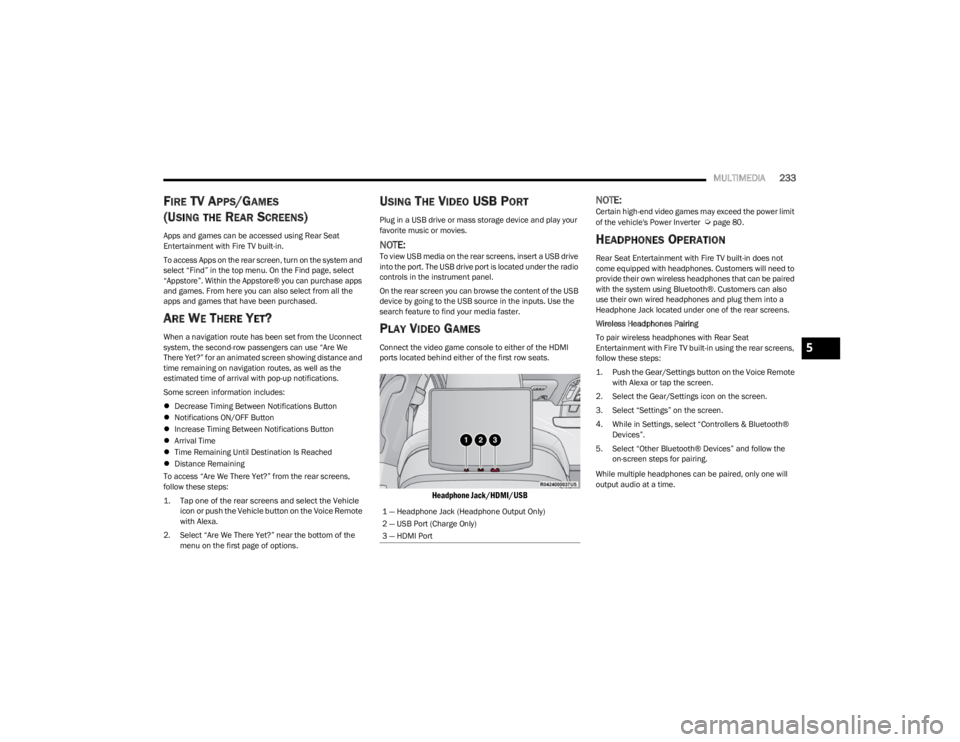
Connect the video game console to either of the HDMI
ports located behind either of the first row seats.
Headphone Jack/HDMI/USB
NOTE:Certain high-end video games may exceed the power limit
of the vehicle's Power Inverter Úpage 80.
HEADPHONES OPERATION
Rear Seat Entertainment with Fire TV built-in does not
come equipped with headphones. Customers will need to
provide their own wireless headphones that can be paired
with the system using Bluetooth®. Customers can also
use their own wired headphones and plug them into a
Headphone Jack located under one of the rear screens.
Wireless Headphones Pairing
To pair wireless headphones with Rear Seat
Entertainment with Fire TV built-in using the rear screens,
follow these steps:
1. Push the Gear/Settings button on the Voice Remote with Alexa or tap the screen.
2. Select the Gear/Settings icon on the screen.
3. Select “Settings” on the screen.
4. While in Settings, select “Controllers & Bluetooth® Devices”.
5. Select “Other Bluetooth® Devices” and follow the on-screen steps for pairing.
While multiple headphones can be paired, only one will
output audio at a time.
1 — Headphone Jack (Headphone Output Only)
2 — USB Port (Charge Only)
3 — HDMI Port
5
23_WS_OM_EN_USC_t.book Page 233
Page 341 of 396
SERVICING AND MAINTENANCE339
F13 –10 Amp RedAssy Mirror Inside Rearview / Sunroof Single - Dual Pane / Port UC1
Dual USB RR / Interior Monitoring Camera
F14 –10 Amp RedRefrigerator Box / In Vehicle Safe *
F15A ––Spare
F15B ––Spare
F16 –10 Amp RedMOD ORC
F17 ––Spare
F18 ––Spare
F19 ––Spare
F20 –10 Amp RedOverhead Console Assy (OHC) W/Sunshade / Intrusion Module
F21 30 Amp Pink –Trailer Tow Electric Brake - Aftermarket
F22 ––Spare
F23 ––Spare
F24 ––Spare
F25 ––Spare
F26 ––Spare
F27 ––Spare
F28 ––Spare
F29 ––Spare
F30 ––Spare
F31 ––Spare
Cavity Cartridge Fuse Micro Fuse Description
* If Equipped
8
23_WS_OM_EN_USC_t.book Page 339
Page 343 of 396
SERVICING AND MAINTENANCE341
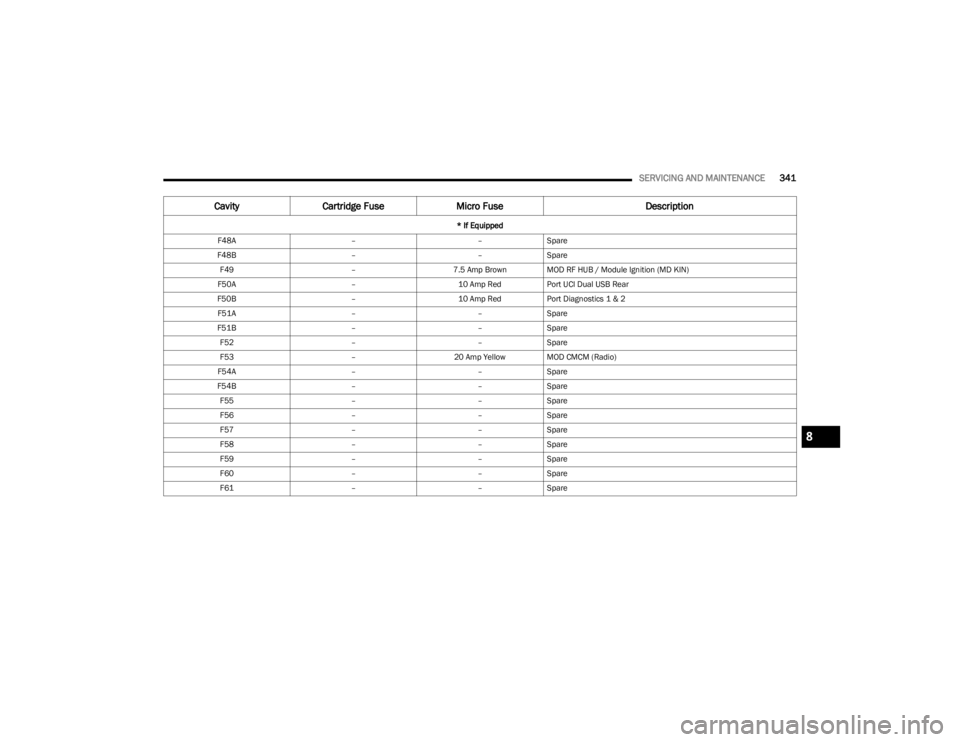
F48A ––Spare
F48B ––Spare
F49 –7.5 Amp Brown MOD RF HUB / Module Ignition (MD KIN)
F50A –10 Amp RedPort UCI Dual USB Rear
F50B –10 Amp RedPort Diagnostics 1 & 2
F51A ––Spare
F51B ––Spare
F52 ––Spare
F53 –20 Amp Yellow MOD CMCM (Radio)
F54A ––Spare
F54B ––Spare
F55 ––Spare
F56 ––Spare
F57 ––Spare
F58 ––Spare
F59 ––Spare
F60 ––Spare
F61 ––Spare
Cavity Cartridge Fuse Micro Fuse Description
* If Equipped
8
23_WS_OM_EN_USC_t.book Page 341
Page 344 of 396
342SERVICING AND MAINTENANCE
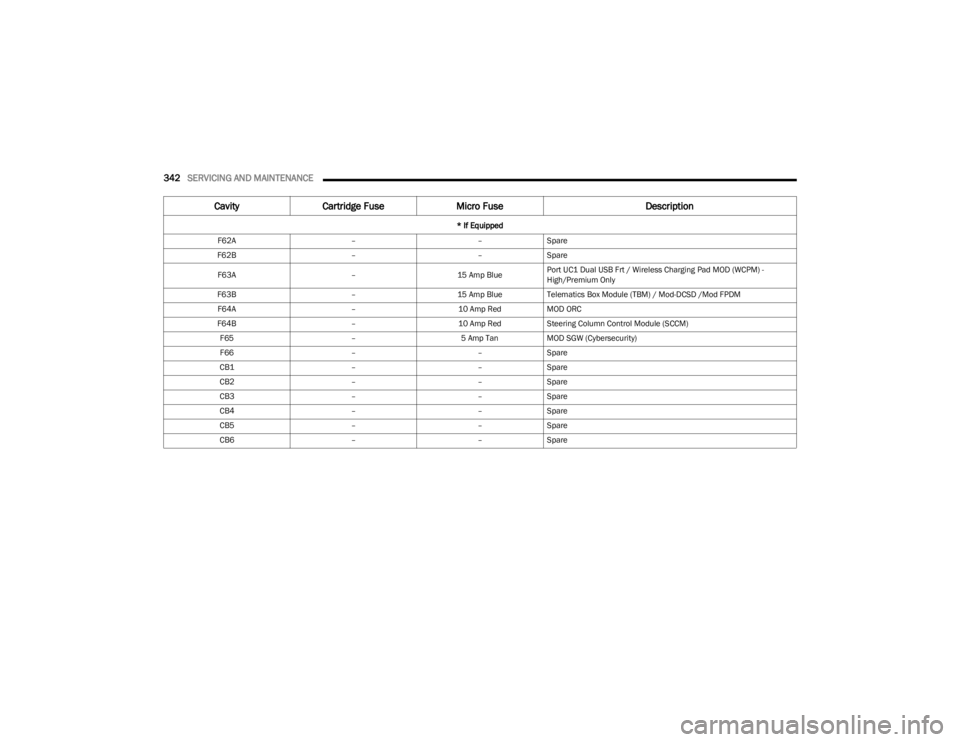
F62A ––Spare
F62B ––Spare
F63A –15 Amp BluePort UC1 Dual USB Frt / Wireless Charging Pad MOD (WCPM) -
High/Premium Only
F63B –15 Amp BlueTelematics Box Module (TBM) / Mod-DCSD /Mod FPDM
F64A –10 Amp RedMOD ORC
F64B –10 Amp RedSteering Column Control Module (SCCM)
F65 –5 Amp TanMOD SGW (Cybersecurity)
F66 ––Spare
CB1 ––Spare
CB2 ––Spare
CB3 ––Spare
CB4 ––Spare
CB5 ––Spare
CB6 ––Spare
Cavity Cartridge Fuse Micro Fuse Description
* If Equipped
23_WS_OM_EN_USC_t.book Page 342