display KIA CARENS RHD 2017 Workshop Manual
[x] Cancel search | Manufacturer: KIA, Model Year: 2017, Model line: CARENS RHD, Model: KIA CARENS RHD 2017Pages: 723, PDF Size: 40.8 MB
Page 331 of 723
Audio system
48
5
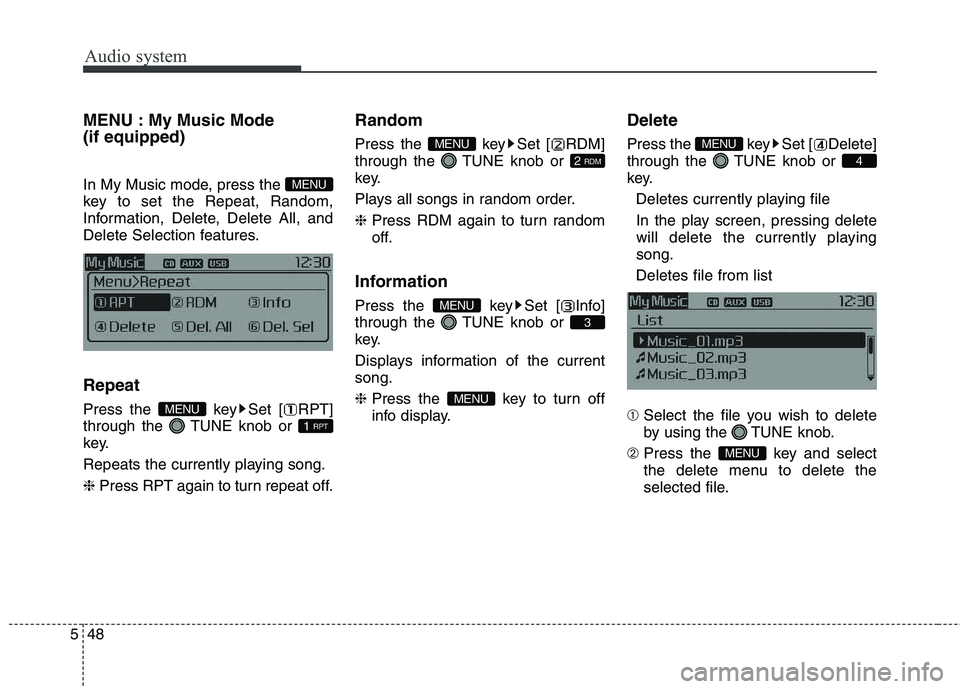
MENU : My Music Mode (if equipped)
In My Music mode, press the
key to set the Repeat, Random,
Information, Delete, Delete All, and
Delete Selection features. Repeat
Press the key Set [ RPT]
through the TUNE knob or
key.
Repeats the currently playing song.❈ Press RPT again to turn repeat off. Random
Press the key Set [ RDM]
through the TUNE knob or
key.
Plays all songs in random order.❈
Press RDM again to turn random
off.
Information
Press the key Set [ Info]
through the TUNE knob or
key.
Displays information of the current song. ❈ Press the key to turn off
info display. Delete
Press the key Set [ Delete]
through the TUNE knob or
key.
Deletes currently playing file
In the play screen, pressing delete
will delete the currently playingsong.
Deletes file from list
➀ Select the file you wish to delete
by using the TUNE knob.
➁ Press the key and select
the delete menu to delete the
selected file.
MENU
4
MENU
MENU
3
MENU
2 RDM
MENU
1 RPT
MENU
MENU
Page 334 of 723
551
Audio system
PHONE (if equipped)
Before using the
Bluetooth®Wireless
Technology
phone features
Bluetooth®Wireless
Technology
phone, you must first
pair and connect the
Bluetooth®
Wireless Technologymobile phone.
connected, it is not possible to
enter Phone mode. Once a phoneis paired or connected, the guid-
ance screen will be displayed.
tion (IGN/ACC ON), the
Bluetooth®
Wireless Technologyphone will be
automatically connected. Even if
you are outside, the
Bluetooth®
Wireless Technologyphone will be
automatically connected once you
are in the vicinity of the vehicle. If you
do not want automatic
Bluetooth®
Wireless Technologyphone connec-
tion, set the
Bluetooth®Wireless
Technology
power to OFF. Making a call using the
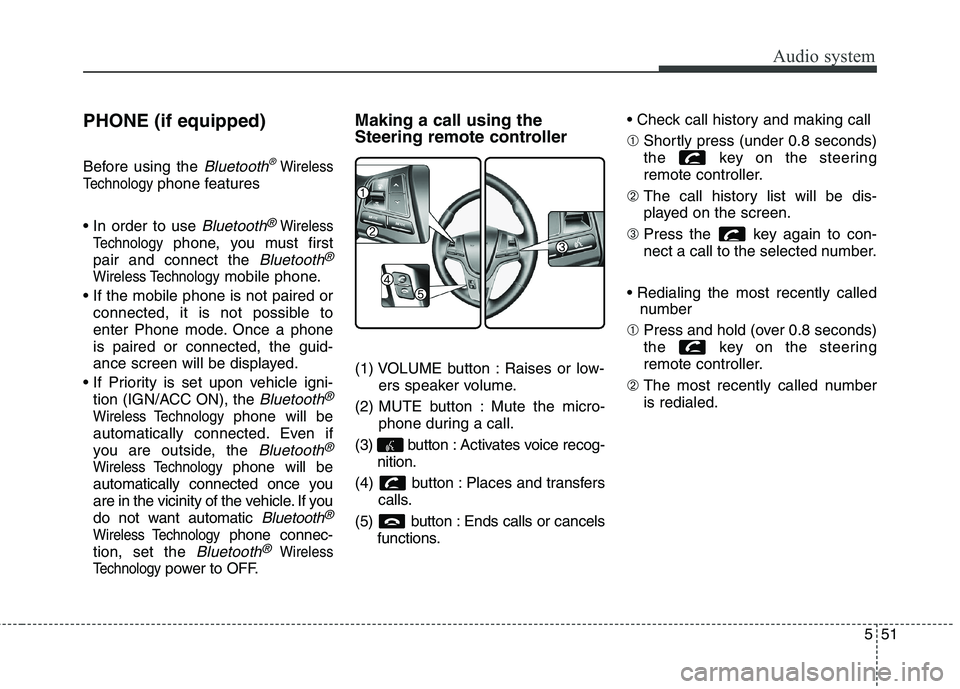
Steering remote controller
(1) VOLUME button : Raises or low-
ers speaker volume.
(2) MUTE button : Mute the micro- phone during a call.
(3) button : Activates voice recog- nition.
(4) button : Places and transfers calls.
(5) button : Ends calls or cancels functions. ➀
Shortly press (under 0.8 seconds)
the key on the steering
remote controller.
➁ The call history list will be dis-
played on the screen.
➂ Press the key again to con-
nect a call to the selected number.
number
➀ Press and hold (over 0.8 seconds)
the key on the steering
remote controller.
➁ The most recently called numberis redialed.
Page 335 of 723
![KIA CARENS RHD 2017 Workshop Manual Audio system
52
5
Phone MENU (for RDS model)
Press the key to display three
menus (Call History, Phone Book,Phone Setup).
Call history
Press the key Set [
History] through the TUNE knob
or key](/img/2/57939/w960_57939-334.png "KIA CARENS RHD 2017 Workshop Manual Audio system
52
5
Phone MENU (for RDS model)
Press the key to display three
menus (Call History, Phone Book,Phone Setup).
Call history
Press the key Set [
History] through the TUNE knob
or key")
Audio system
52
5
Phone MENU (for RDS model)
Press the key to display three
menus (Call History, Phone Book,Phone Setup).
Call history
Press the key Set [
History] through the TUNE knob
or key.
The call history is displayed and can
be used to select a number and
make a call.
If call history does not exist, a screen
asking whether to download call his-
tory is displayed. (The download fea-
ture may not be supported in somemobile phones) Phone Book
Press the key Set [ P.
Book] through the TUNE knob or
key.
The phone book is displayed and
can be used to select a number and
make a call. ❈ If more than one number is saved to one contact, then a screen
showing the mobile phone num-
ber, Home and office number is
displayed. Select the desired num-
ber to make the call.
❈ If phone book do not exist, a
screen asking whether to down-
load phone book is displayed.
(The download feature may not be
supported in some mobilephones) Phone Setup
Press the key Set [ Setup]
through the TUNE knob or
key. The
Bluetooth®Wireless Technology
mobile phone setup screen is dis-
played. For more information, refer to“Phone Setup”.
3
PHONE
2 RDM
PHONE
1 RPT
PHONE
PHONE
Page 336 of 723
![KIA CARENS RHD 2017 Workshop Manual 553
Audio system
Phone MENU
Press the key to display three
menus (Call History, Contacts,Phone Setup).
Call history
Press the key Set [
History] through the TUNE knob
or key.
The call history](/img/2/57939/w960_57939-335.png "KIA CARENS RHD 2017 Workshop Manual 553
Audio system
Phone MENU
Press the key to display three
menus (Call History, Contacts,Phone Setup).
Call history
Press the key Set [
History] through the TUNE knob
or key.
The call history")
553
Audio system
Phone MENU
Press the key to display three
menus (Call History, Contacts,Phone Setup).
Call history
Press the key Set [
History] through the TUNE knob
or key.
The call history is displayed and can
be used to select a number and
make a call.
If call history does not exist, a screen
asking whether to download call his-
tory is displayed. (The download fea-
ture may not be supported in somemobile phones)Contacts
Press the key Set [ Contacts
] through the TUNE knob
or key.
The Contacts are displayed and can
be used to select a number and
make a call. ❈ If more than one number is saved to
one contact, then a screen showing
the mobile phone number, Home and
office number is displayed. Select the
desired number to make the call.
❈ If Contacts do not exist, a screen ask-
ing whether to download Contacts is
displayed. (The download feature may
not be supported in some mobilephones) Phone Setup
Press the key Set [
Setup] through the TUNE knob or
key.
The
Bluetooth®Wireless Technology
mobile phone setup screen is dis-
played. For more information, refer to“Phone Setup”.
3
PHONE
2 RDM
PHONE
1 RPT
PHONE
PHONE
Page 337 of 723
Audio system
54
5
✽✽
NOTICE - USING THE
Bluetooth®Wireless Technology
MOBILE PHONE
Do not use a mobile phone or per- form Bluetooth®
Wireless
Technology settings (e.g. pairing a
phone) whilst driving.
Some Bluetooth®
Wireless
Technology -enabled phones may
not be recognized by the system or
fully compatible with the system.
Before using Bluetooth®
Wireless
Technology related features of the
audio system, refer your phone’s
User’s Manual for phone-side
Bluetooth ®
Wireless Technology
operations.
The phone must be paired to the audio system to use Bluetooth®
Wireless Technology related fea-
tures.
You will not be able to use the hands-free feature when your
phone (in the car) is outside of the
mobile service area (e.g. in a tun-
nel, in a underground, in a moun-
tainous area, etc.). (Continued)(Continued)
If the mobile phone signal is poor
or the vehicles interior noise is too
loud, it may be difficult to hear the
other person’s voice during a call.
Do not place the phone near or inside metallic objects, otherwise
communications with Bluetooth®
Wireless Technology system or
mobile service stations can be dis-
turbed.
Whilst a phone is connected through Bluetooth®
Wireless
Technology your phone may dis-
charge quicker than usual for
additional Bluetooth®
Wireless
Technology-related operations.
Some mobile phones or other devices may cause interference
noise or malfunction to audio sys-
tem. In this case, store the device
in a different location may resolve
the condition.
Phone contact names should be saved in English or they may not
be displayed correctly. (Continued)(Continued)
If Priority is set upon vehicle igni-
tion(IGN/ACC ON), the
Bluetooth ®
Wireless Technology
phone will be automatically con-
nected.
Even if you are outside, the
Bluetooth ®
Wireless Technology
phone will be automatically con-
nected once you are in the vicinity
of the vehicle.
If you do not want automatic
Bluetooth ®
Wireless Technology
connection, turn the Bluetooth®
Wireless Technology feature off.
The hands-free call volume and quality may differ depending on
the mobile phone type.
Bluetooth ®
Wireless Technology
features can be used only when the
mobile phone has been paired and
connected with the device. For
more information on pairing and
connecting Bluetooth®
Wireless
Technology enabled mobile
phones, refer to the “Phone Setup”
section. (Continued)
Page 338 of 723
555
Audio system
(Continued)
When a Bluetooth®
Wireless
Technology mobile phone is con-
nected, a ( ) icon will appear at
the top of the screen. If a ( ) icon
is not displayed, this indicates thata Bluetooth ®
Wireless Technology
enabled device has not been con-
nected. You must connect the
device before use. For more infor-
mation on Bluetooth®
Wireless
Technology mobile phones, refer
to the “Phone Setup” section.
Pairing and connecting a Bluetooth ®
Wireless Technology
enabled mobile phone will work
only when the Bluetooth®
Wireless
Technology option within your
mobile phone has been turned on.
(Methods of turning on the
Bluetooth ®
Wireless Technology
enabled feature may differ
depending on the mobile phone.) (Continued)(Continued)
In some mobile phones, starting
the ignition whilst talking through
Bluetooth ®
Wireless Technology
enabled handsfree call will result
in the call becoming disconnected.
(Switch the call back to your
mobile phone when starting the
ignition.)
Some features may not be sup- ported in some Bluetooth®
Wireless Technology mobile phone
and devices.
Bluetooth ®
Wireless Technology
enabled operation may be unsta-
ble depending on the communica-
tion state.
Placing the audio system within an electromagnetic environment may
result in noise interference.
Page 342 of 723
559
Audio system
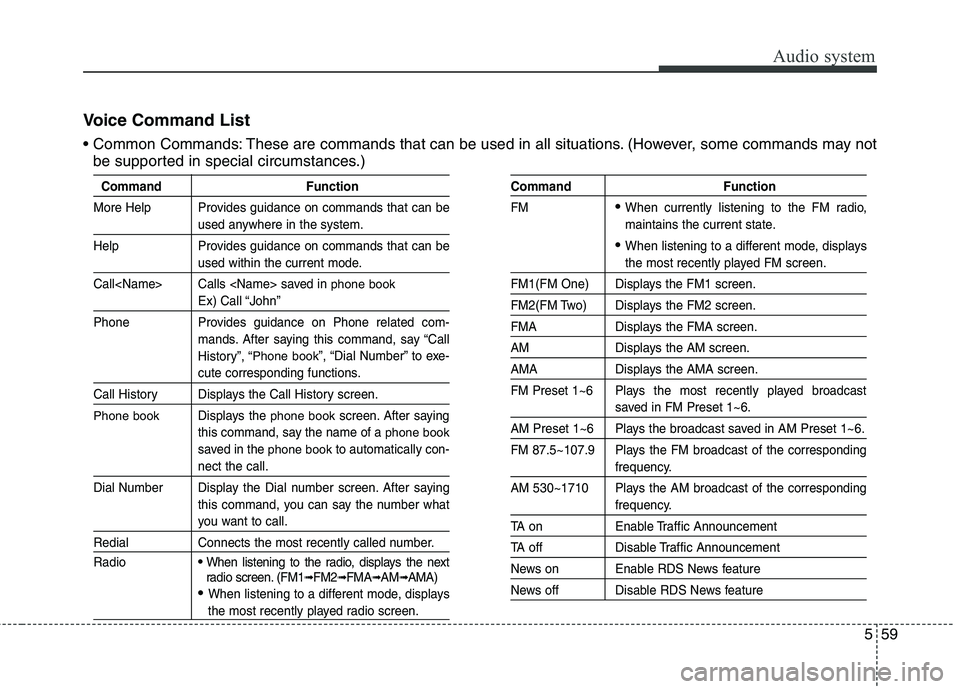
Voice Command List
These are commands that can be used in all situations. (However, some commands may notbe supported in special circumstances.)
Command Function
More Help Provides guidance on commands that can be
used anywhere in the system.
Help Provides guidance on commands that can be
used within the current mode.
Call
phone book
Ex) Call “John”
Phone Provides guidance on Phone related com- mands. After saying this command, say “Call
History”, “
Phone book”, “Dial Number” to exe-
cute corresponding functions.
Call History Displays the Call History screen.
Phone bookDisplays the phone bookscreen. After saying
this command, say the name of a
phone book
saved in the phone bookto automatically con-
nect the call.
Dial Number Display the Dial number screen. After saying this command, you can say the number what
you want to call.
Redial Connects the most recently called number. Radio
When listening to the radio, displays the next
radio screen. (FM1➟FM2 ➟FMA ➟AM ➟AMA)
When listening to a different mode, displays
the most recently played radio screen.
Command Function FM
When currently listening to the FM radio,
maintains the current state.
When listening to a different mode, displays
the most recently played FM screen.
FM1(FM One) Displays the FM1 screen.
FM2(FM Two) Displays the FM2 screen.
FMA Displays the FMA screen.
AM Displays the AM screen.
AMA Displays the AMA screen.
FM Preset 1~6 Plays the most recently played broadcast
saved in FM Preset 1~6.
AM Preset 1~6 Plays the broadcast saved in AM Preset 1~6.
FM 87.5~107.9 Plays the FM broadcast of the corresponding
frequency.
AM 530~1710 Plays the AM broadcast of the corresponding
frequency.
TA on Enable Traffic Announcement
TA off Disable Traffic Announcement
News on Enable RDS News feature
News off Disable RDS News feature
Page 344 of 723
561
Audio system
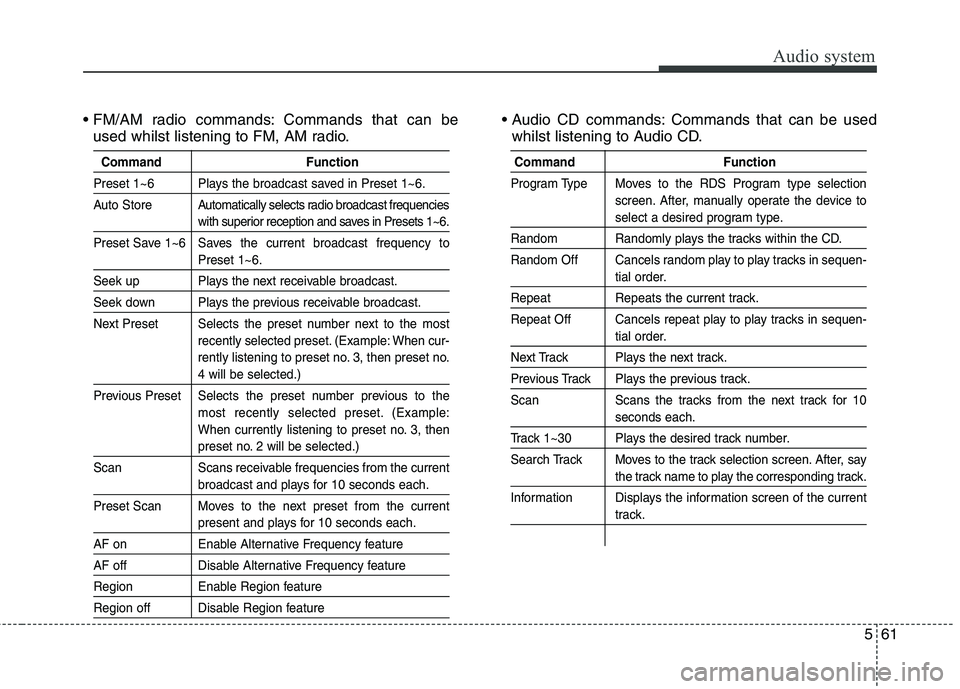
Commands that can beused whilst listening to FM, AM radio. Commands that can be used
whilst listening to Audio CD.
Command Function
Preset 1~6 Plays the broadcast saved in Preset 1~6.
Auto Store A utomatically selects radio broadcast frequencies
with superior reception and saves in Presets 1~6.
Preset Save 1~6 Saves the current broadcast frequency to
Preset 1~6.
Seek up Plays the next receivable broadcast.
Seek down Plays the previous receivable broadcast.
Next Preset Selects the preset number next to the most recently selected preset. (Example: When cur-
rently listening to preset no. 3, then preset no.
4 will be selected.)
Previous Preset Selects the preset number previous to the most recently selected preset. (Example:
When currently listening to preset no. 3, then
preset no. 2 will be selected.)
Scan Scans receivable frequencies from the current
broadcast and plays for 10 seconds each.
Preset Scan Moves to the next preset from the current
present and plays for 10 seconds each.
AF on Enable Alternative Frequency feature
AF off Disable Alternative Frequency feature
Region Enable Region feature
Region off Disable Region feature
Command Function
Program Type Moves to the RDS Program type selection screen. After, manually operate the device to
select a desired program type.
Random Randomly plays the tracks within the CD.
Random Off Cancels random play to play tracks in sequen-
tial order.
Repeat Repeats the current track.
Repeat Off Cancels repeat play to play tracks in sequen-
tial order.
Next Track Plays the next track.
Previous Track Plays the previous track.
Scan Scans the tracks from the next track for 10
seconds each.
Track 1~30 Plays the desired track number.
Search Track Moves to the track selection screen. After, say
the track name to play the corresponding track.
Information Displays the information screen of the current
track.
Page 345 of 723
Audio system
62
5
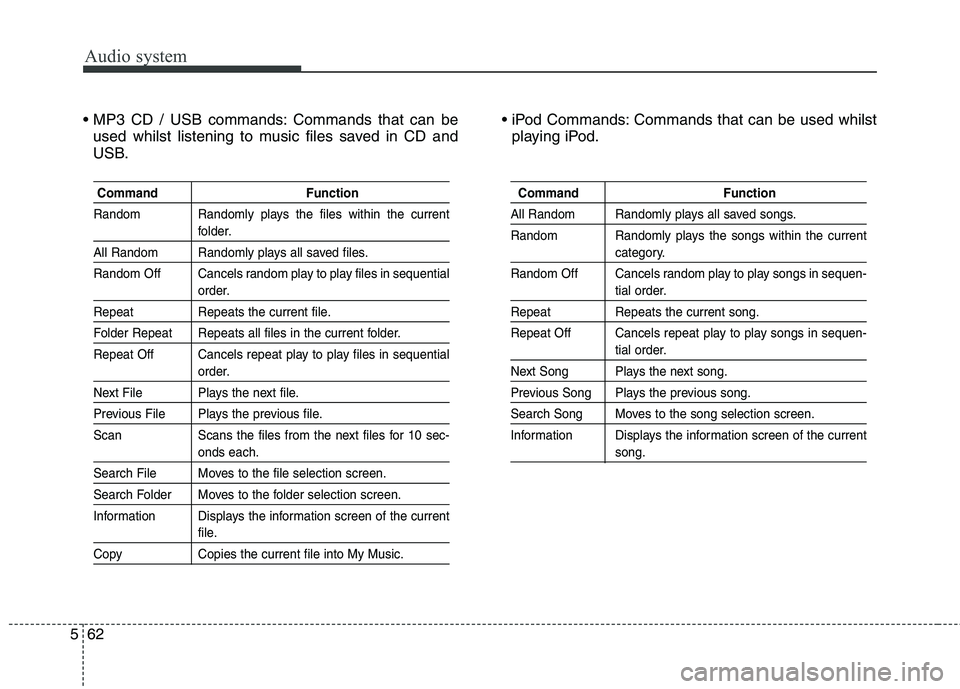
Commands that can be
used whilst listening to music files saved in CD and
USB. Commands that can be used whilst
playing iPod.
Command Function
Random Randomly plays the files within the current
folder.
All Random Randomly plays all saved files.
Random Off Cancels random play to play files in sequential
order.
Repeat Repeats the current file.
Folder Repeat Repeats all files in the current folder.
Repeat Off Cancels repeat play to play files in sequential
order.
Next File Plays the next file.
Previous File Plays the previous file.
Scan Scans the files from the next files for 10 sec-
onds each.
Search File Moves to the file selection screen.
Search Folder Moves to the folder selection screen.
Information Displays the information screen of the current
file.
Copy Copies the current file into My Music.
Command Function
All Random Randomly plays all saved songs.
Random Randomly plays the songs within the current
category.
Random Off Cancels random play to play songs in sequen-
tial order.
Repeat Repeats the current song.
Repeat Off Cancels repeat play to play songs in sequen-
tial order.
Next Song Plays the next song.
Previous Song Plays the previous song.
Search Song Moves to the song selection screen.
Information Displays the information screen of the current
song.
Page 346 of 723
563
Audio system
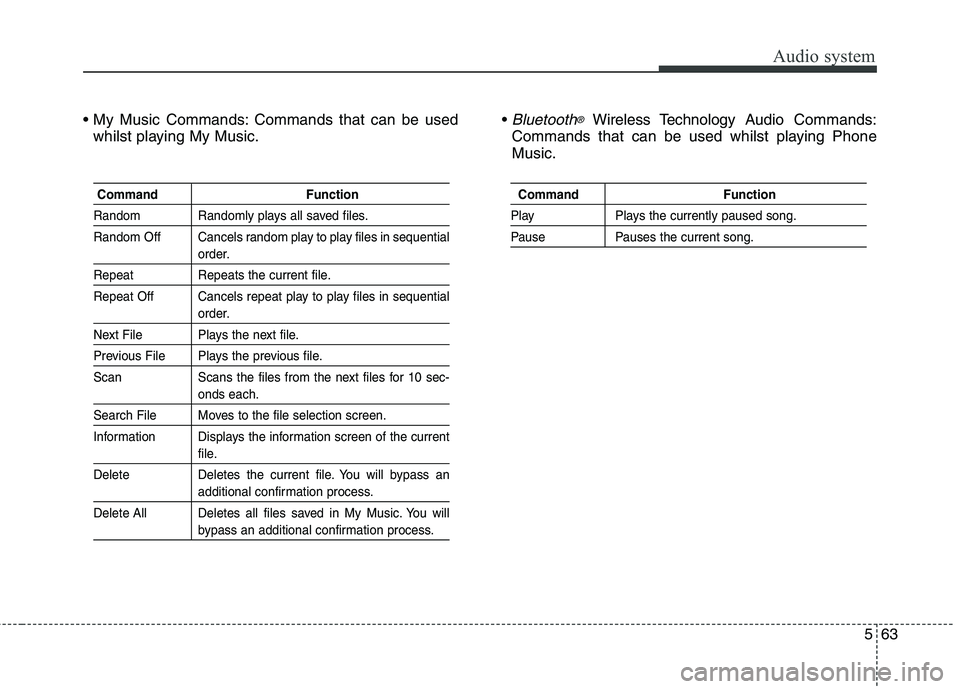
Commands that can be usedwhilst playing My Music. Bluetooth®Wireless Technology A
udio Commands:
Commands that can be used whilst playing Phone Music.
Command Function
Random Randomly plays all saved files.
Random Off Cancels random play to play files in sequential
order.
Repeat Repeats the current file.
Repeat Off Cancels repeat play to play files in sequential
order.
Next File Plays the next file.
Previous File Plays the previous file.
Scan Scans the files from the next files for 10 sec-
onds each.
Search File Moves to the file selection screen.
Information Displays the information screen of the current
file.
Delete Deletes the current file. You will bypass an
additional confirmation process.
Delete All Deletes all files saved in My Music. You will
bypass an additional confirmation process.
Command Function
Play Plays the currently paused song.
Pause Pauses the current song.