display KIA CARENS RHD 2017 Repair Manual
[x] Cancel search | Manufacturer: KIA, Model Year: 2017, Model line: CARENS RHD, Model: KIA CARENS RHD 2017Pages: 723, PDF Size: 40.8 MB
Page 348 of 723
565
Audio system
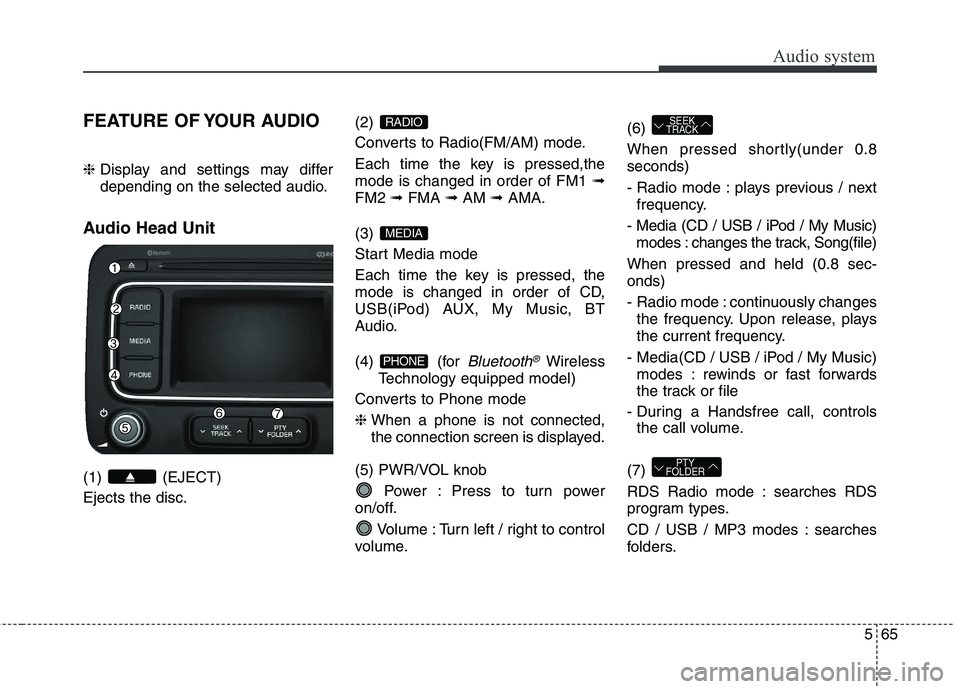
FEATURE OF YOUR AUDIO ❈ Display and settings may differ
depending on the selected audio.
Audio Head Unit (1) (EJECT) Ejects the disc. (2)
Converts to Radio(FM/AM) mode.
Each time the key is pressed,the mode is changed in order of FM1
➟
FM2 ➟FMA ➟AM ➟AMA.
(3)
Start Media mode
Each time the key is pressed, the
mode is changed in order of CD,
USB(iPod) AUX, My Music, BT
Audio.
(4) (for
Bluetooth®Wireless
Technology equipped model)
Converts to Phone mode ❈ When a phone is not connected,
the connection screen is displayed.
(5) PWR/VOL knob Power : Press to turn power
on/off.
Volume : Turn left / right to control
volume. (6)
When pressed shortly(under 0.8 seconds)
- Radio mode : plays previous / next
frequency.
- Media (CD / USB / iPod / My Music) modes : changes the track, Song(file)
When pressed and held (0.8 sec- onds)
- Radio mode : continuously changes the frequency. Upon release, plays
the current frequency.
- Media(CD / USB / iPod / My Music) modes : rewinds or fast forwards
the track or file
- During a Handsfree call, controls the call volume.
(7)
RDS Radio mode : searches RDS
program types.
CD / USB / MP3 modes : searches
folders.
PTY
FOLDER
SEEK
TRACK
PHONE
MEDIA
RADIO
Page 349 of 723
Audio system
66
5
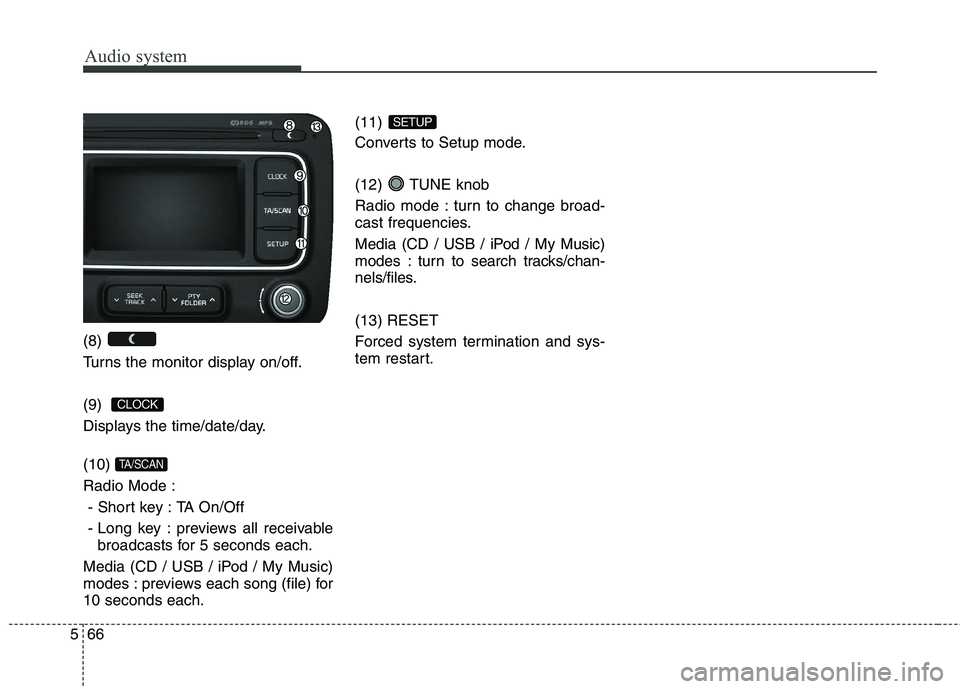
(8)
Turns the monitor display on/off. (9)
Displays the time/date/day. (10) Radio Mode :
- Short key : TA On/Off
- Long key : previews all receivable broadcasts for 5 seconds each.
Media (CD / USB / iPod / My Music)
modes : previews each song (file) for10 seconds each. (11)
Converts to Setup mode.
(12) TUNE knob
Radio mode : turn to change broad-
cast frequencies.
Media (CD / USB / iPod / My Music)
modes : turn to search tracks/chan-
nels/files. (13) RESET
Forced system termination and sys-
tem restart.
SETUP
TA/SCAN
CLOCK
Page 351 of 723
Audio system
68
5
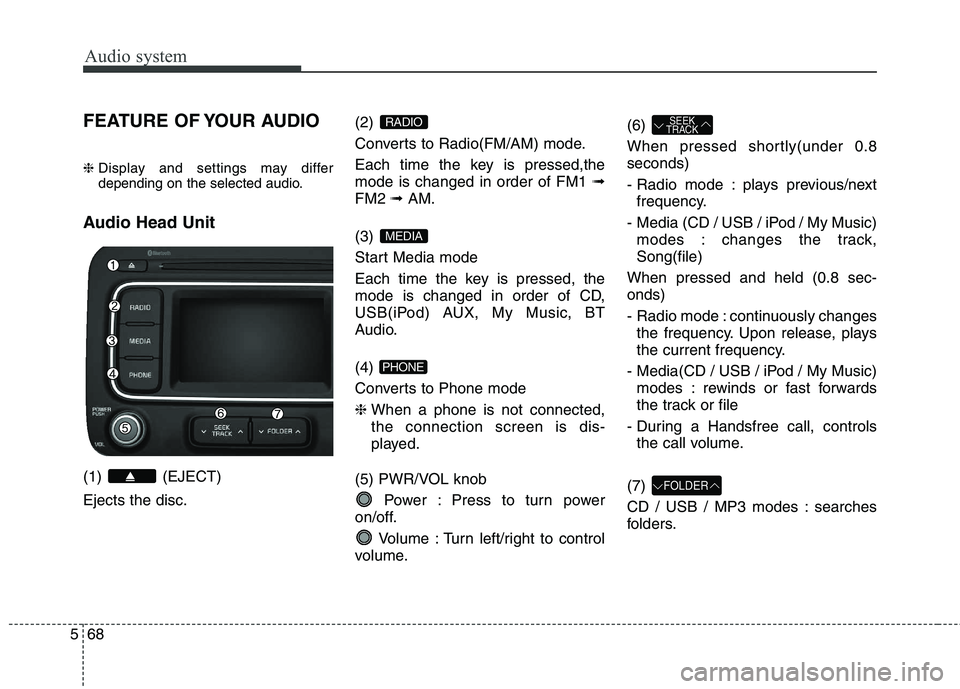
FEATURE OF YOUR AUDIO ❈ Display and settings may differ
depending on the selected audio.
Audio Head Unit (1) (EJECT) Ejects the disc. (2)
Converts to Radio(FM/AM) mode.
Each time the key is pressed,the mode is changed in order of FM1
➟
FM2 ➟ AM.
(3)
Start Media mode
Each time the key is pressed, the
mode is changed in order of CD,
USB(iPod) AUX, My Music, BT
Audio. (4)
Converts to Phone mode❈ When a phone is not connected, the connection screen is dis-
played.
(5) PWR/VOL knob Power : Press to turn power
on/off.
Volume : Turn left/right to control
volume. (6)
When pressed shortly(under 0.8 seconds)
- Radio mode : plays previous/next
frequency.
- Media (CD / USB / iPod / My Music) modes : changes the track, Song(file)
When pressed and held (0.8 sec-onds)
- Radio mode : continuously changes the frequency. Upon release, plays
the current frequency.
- Media(CD / USB / iPod / My Music) modes : rewinds or fast forwards
the track or file
- During a Handsfree call, controls the call volume.
(7)
CD / USB / MP3 modes : searches
folders.
FOLDER
SEEK
TRACK
PHONE
MEDIA
RADIO
Page 352 of 723
569
Audio system
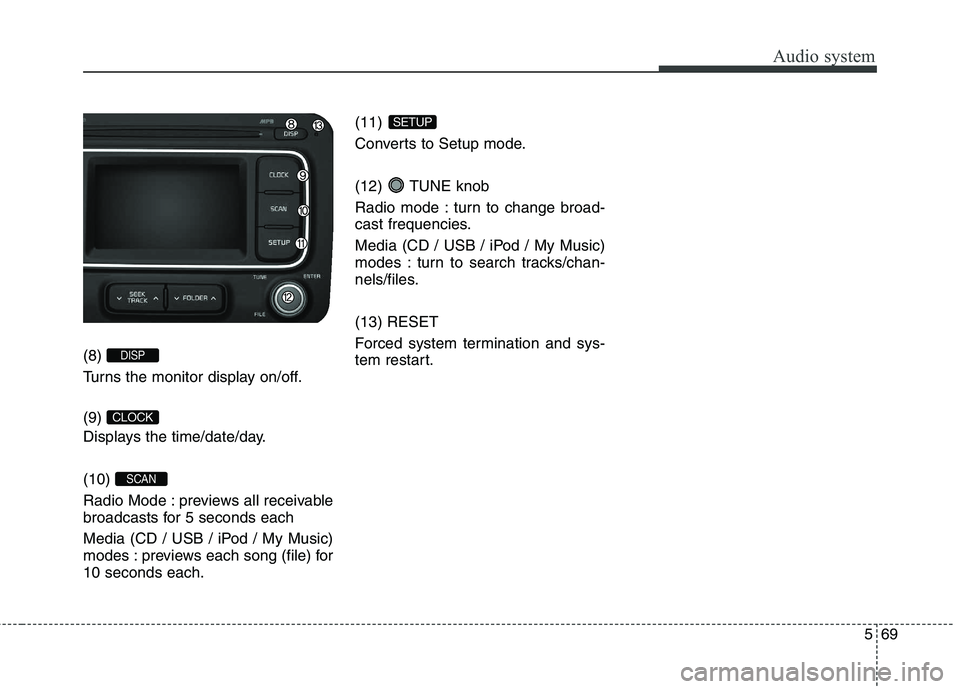
(8)
Turns the monitor display on/off. (9)
Displays the time/date/day. (10)
Radio Mode : previews all receivable
broadcasts for 5 seconds each
Media (CD / USB / iPod / My Music)
modes : previews each song (file) for10 seconds each.(11)
Converts to Setup mode.
(12) TUNE knob
Radio mode : turn to change broad-
cast frequencies.
Media (CD / USB / iPod / My Music)
modes : turn to search tracks/chan-
nels/files. (13) RESET
Forced system termination and sys-
tem restart.
SETUP
SCAN
CLOCK
DISP
Page 354 of 723
571
Audio system
(6)
When pressed shortly (under 0.8 sec- onds)
- When pressed in the phone screen,displays call history screen
- When pressed in the dial screen, makes a call
- When pressed in the incoming call screen, answers the call
- When pressed during call waiting, switches to waiting call (Call
Waiting)
When pressed and held (over 0.8 seconds)
- When pressed in the
Bluetooth®
Wireless Technology Handsfree wait
mode, redials the last call
- When pressed during a
Bluetooth®
Wireless Technology Handsfree call,
switches call back to mobile phone
(Private)
- When pressed whilst calling on the mobile phone, switches call back to
Bluetooth®Wireless Technology
Handsfree (Operates only when
Bluetooth®Wireless Technology
Handsfree is connected) (7) Ends phone call
Page 355 of 723
Audio system
72
5
RADIO MODE
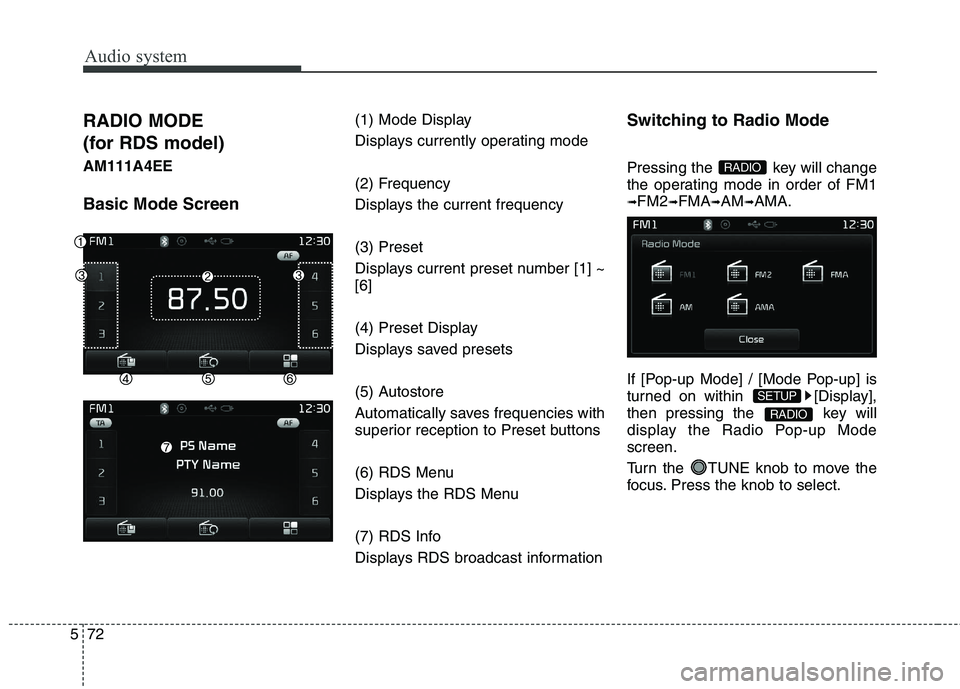
(for RDS model)AM111A4EE Basic Mode Screen (1) Mode Display
Displays currently operating mode
(2) Frequency
Displays the current frequency (3) Preset
Displays current preset number [1] ~ [6]
(4) Preset Display
Displays saved presets
(5) Autostore
Automatically saves frequencies with
superior reception to Preset buttons
(6) RDS Menu
Displays the RDS Menu
(7) RDS Info
Displays RDS broadcast informationSwitching to Radio Mode
Pressing the key will change
the operating mode in order of FM1➟
FM2 ➟FMA ➟AM ➟AMA.
If [Pop-up Mode] / [Mode Pop-up] is
turned on within [Display],
then pressing the key will
display the Radio Pop-up Modescreen.
Turn the TUNE knob to move the
focus. Press the knob to select.
RADIO
SETUP
RADIO
Page 356 of 723
573
Audio system
Searching Radio Frequencies
Using Seek
Press the key to play the
previous/next frequency.
Using TUNE
Turn the TUNE knob to select the
desired frequency.
FM : Increases/decreased by 50kHz
AM : Increases/decreased by 9kHzUsing Radio Mode
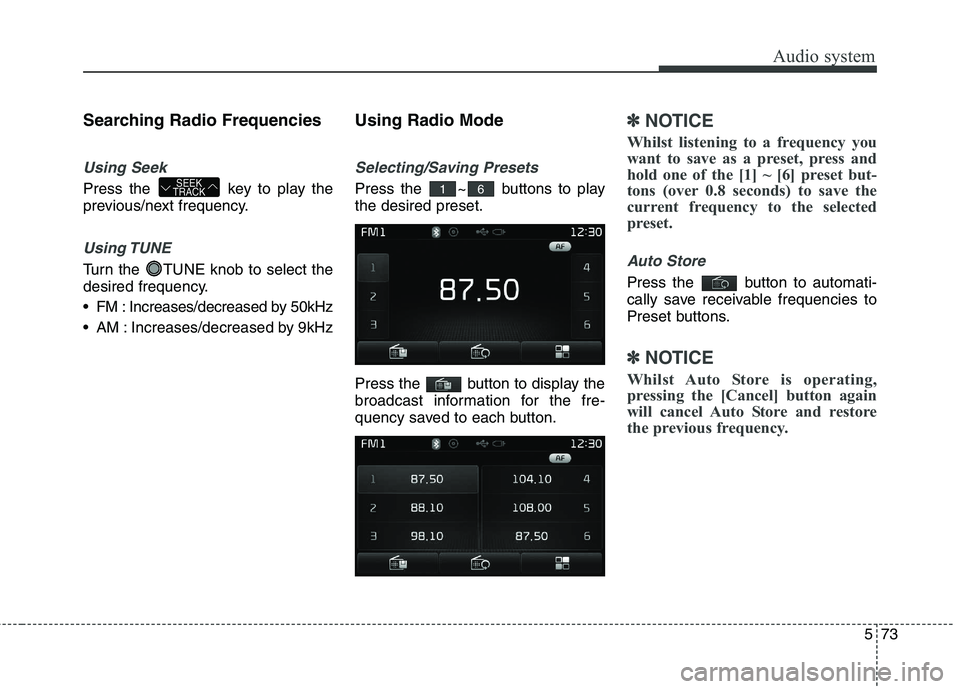
Selecting/Saving Presets
Press the ~ buttons to play the desired preset.
Press the button to display the
broadcast information for the fre-
quency saved to each button.
✽✽
NOTICE
Whilst listening to a frequency you
want to save as a preset, press and
hold one of the [1] ~ [6] preset but-
tons (over 0.8 seconds) to save the
current frequency to the selected
preset.
Auto Store
Press the button to automati-
cally save receivable frequencies to
Preset buttons.
✽✽ NOTICE
Whilst Auto Store is operating,
pressing the [Cancel] button again
will cancel Auto Store and restore
the previous frequency.
61SEEK
TRACK
Page 359 of 723
Audio system
76
5
RADIO MODE
AM111A4GG, AM111A4GN
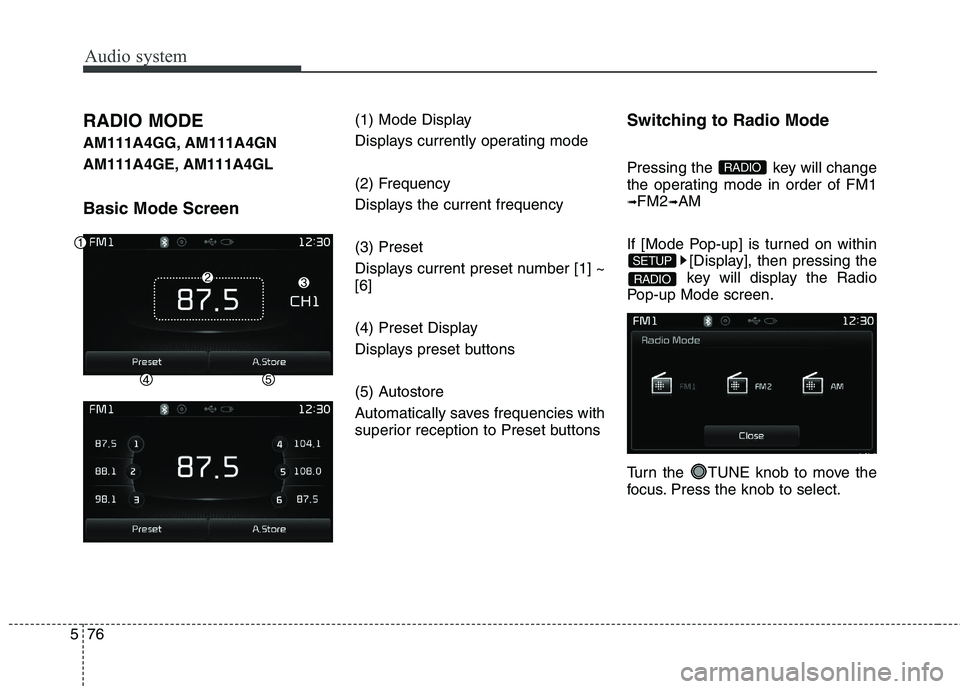
AM111A4GE, AM111A4GL Basic Mode Screen (1) Mode Display
Displays currently operating mode
(2) Frequency
Displays the current frequency (3) Preset
Displays current preset number [1] ~ [6]
(4) Preset Display
Displays preset buttons
(5) Autostore
Automatically saves frequencies with
superior reception to Preset buttonsSwitching to Radio Mode
Pressing the key will change
the operating mode in order of FM1➟
FM2 ➟AM
If [Mode Pop-up] is turned on within [Display], then pressing the
key will display the Radio
Pop-up Mode screen.
Turn the TUNE knob to move the
focus. Press the knob to select.
RADIO
SETUP
RADIO
Page 360 of 723
577
Audio system
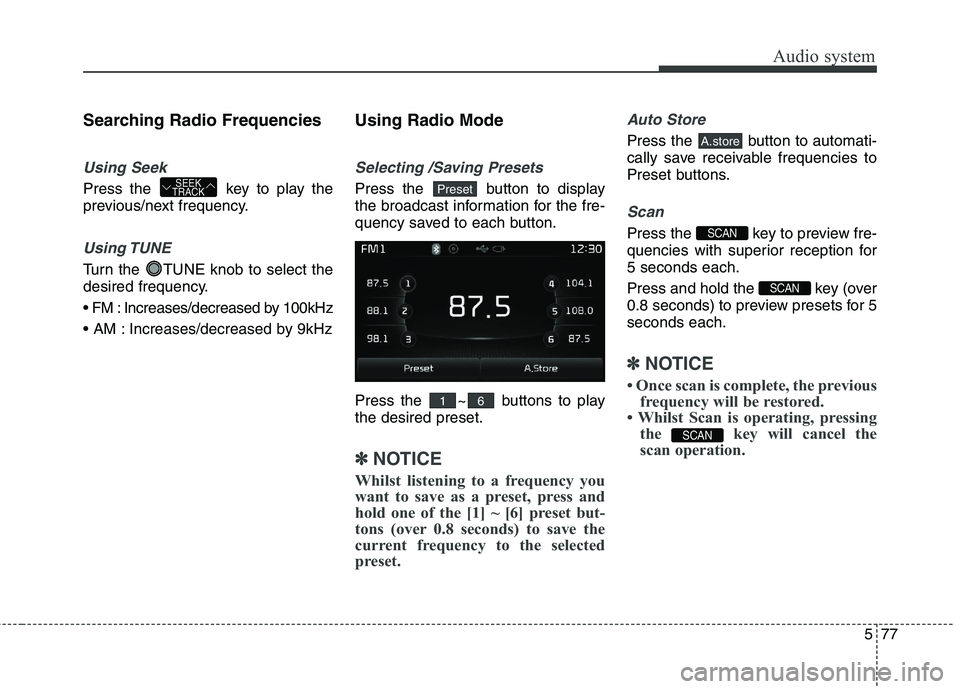
Searching Radio Frequencies
Using Seek
Press the key to play the
previous/next frequency.
Using TUNE
Turn the TUNE knob to select the
desired frequency.
Increases/decreased by 100kHz
Increases/decreased by 9kHzUsing Radio Mode
Selecting /Saving Presets
Press the button to display
the broadcast information for the fre-
quency saved to each button.
Press the ~ buttons to play the desired preset.
✽✽
NOTICE
Whilst listening to a frequency you
want to save as a preset, press and
hold one of the [1] ~ [6] preset but-
tons (over 0.8 seconds) to save the
current frequency to the selected
preset.
Auto Store
Press the button to automati-
cally save receivable frequencies to
Preset buttons.
Scan
Press the key to preview fre-
quencies with superior reception for5 seconds each.
Press and hold the key (over
0.8 seconds) to preview presets for 5seconds each.
✽✽ NOTICE
Once scan is complete, the previous frequency will be restored.
Whilst Scan is operating, pressing the key will cancel the
scan operation.
SCAN
SCAN
SCAN
A.store
61
PresetSEEK
TRACK
Page 361 of 723
Audio system
78
5
MEDIA MODE
AM111A4GG, AM111A4GN
AM111A4GE, AM111A4GL AM111A4EE
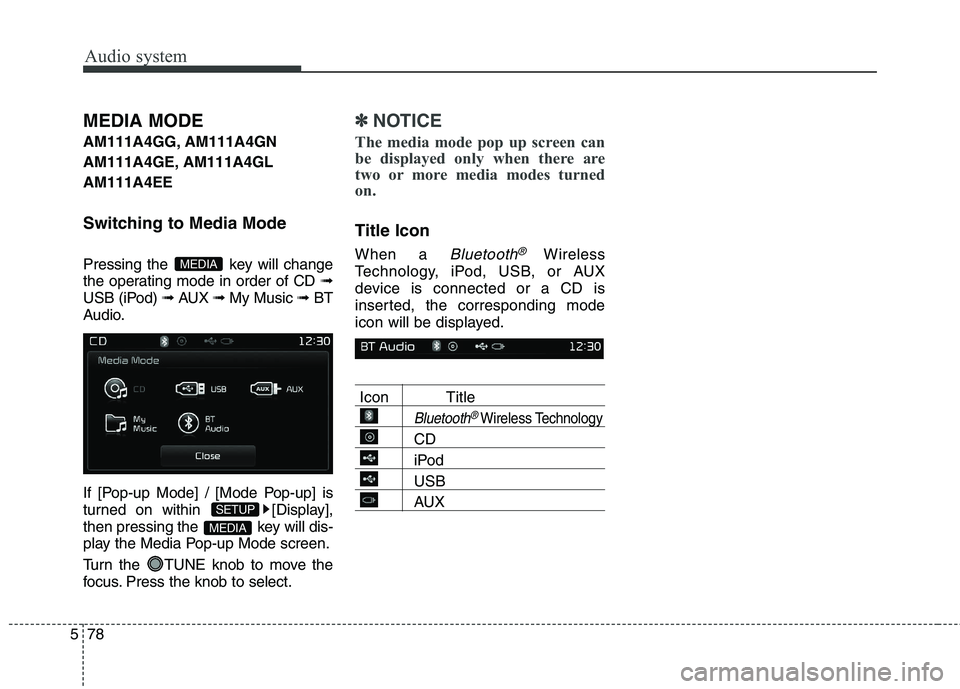
Switching to Media Mode
Pressing the key will change
the operating mode in order of CD ➟
USB (iPod) ➟ AUX ➟ My Music ➟BT
Audio.
If [Pop-up Mode] / [Mode Pop-up] is
turned on within [Display],
then pressing the key will dis-
play the Media Pop-up Mode screen.
Turn the TUNE knob to move the
focus. Press the knob to select.✽✽ NOTICE
The media mode pop up screen can
be displayed only when there are
two or more media modes turned
on.
Title Icon When a
Bluetooth®Wireless
Technology, iPod, USB, or AUX
device is connected or a CD is
inserted, the corresponding mode
icon will be displayed.
Icon Title
Bluetooth®Wireless Technology
CD
iPod
USB
AUX
MEDIA
SETUP
MEDIA