ECO mode KIA CEED 2015 Owners Manual
[x] Cancel search | Manufacturer: KIA, Model Year: 2015, Model line: CEED, Model: KIA CEED 2015Pages: 1210, PDF Size: 35.92 MB
Page 858 of 1210
4 173
Features of your vehicle
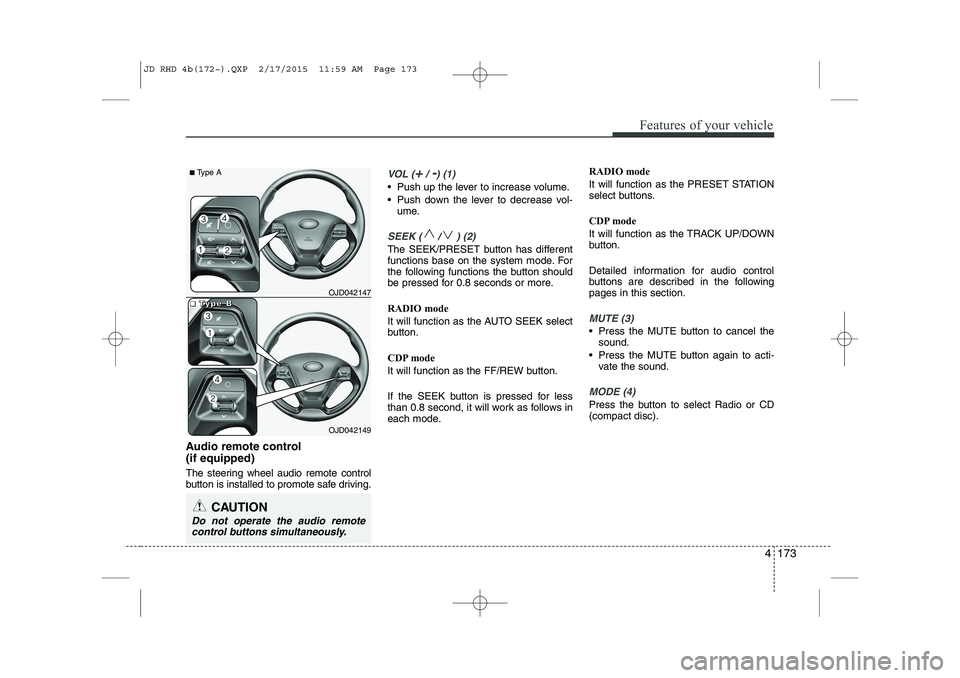
Audio remote control (if equipped)
The steering wheel audio remote control
button is installed to promote safe driving.
VOL (+/ -) (1)
• Push up the lever to increase volume.
Push down the lever to decrease vol-ume.
SEEK ( / ) (2)
The SEEK/PRESET button has different
functions base on the system mode. For
the following functions the button should
be pressed for 0.8 seconds or more.
RADIO mode
It will function as the AUTO SEEK select
button.
CDP mode
It will function as the FF/REW button.
If the SEEK button is pressed for less
than 0.8 second, it will work as follows in
each mode. RADIO mode
It will function as the PRESET STATION
select buttons.
CDP mode
It will function as the TRACK UP/DOWN
button.
Detailed information for audio control
buttons are described in the followingpages in this section.
MUTE (3)
Press the MUTE button to cancel the
sound.
Press the MUTE button again to acti- vate the sound.
MODE (4)
Press the button to select Radio or CD (compact disc).
CAUTION
Do not operate the audio remote
control buttons simultaneously.
OJD042149
■■■■TTTTyyyyppppeeee BBBBOJD042147
■
Type A
JD RHD 4b(172~).QXP 2/17/2015 11:59 AM Page 173
Page 864 of 1210
4 179
Features of your vehicle
USING YOUR USB DEVICE
To use an external USB device,make sure the device is not connect-
ed when starting up the vehicle.
Connect the device after starting up.
If you start the engine when the USB device is connected, it may damage
the USB device. (USB flashdrives
are very sensitive to electric shock.)
If the engine is started up or turned off whilst the external USB device is
connected, the external USB device
may not work.
It may not play inauthentic MP3 or WMA files.
1) It can only play MP3 files with the compression rate between
8Kbps~320Kbps.
2) It can only play WMA music files with the compression rate
between 8Kbps~320Kbps.
Take precautions for static electricity when connecting or disconnecting the
external USB device.
An encrypted MP3 PLAYER is not recognizable. Depending on the condition of the
external USB device, the connected
external USB device can be unrec-
ognizable.
When the formatted byte/sector set- ting of External USB device is noteither 512BYTE or 2048BYTE, then
the device will not be recognized.
Use only a USB device formatted to FAT 12/16/32.
USB devices without USB I/F authentica-
tion may not be recognizable.
Make sure the USB connection termi- nal does not come in contact with the
human body or other objects.
If you repeatedly connect or discon- nect the USB device in a short peri-
od of time, it may break the device.
You may hear a strange noise when connecting or disconnecting a USB
device.
If you disconnect the external USB device during playback in USB mode,
the external USB device can be dam-
aged or may malfunction. Therefore,
disconnect the external USB device
when the audio is turned off or in
another mode. (e.g, Radio, CD)
Depending on the type and capacity ofthe external USB device or the type of
the files stored in the device, there is a
difference in the time taken for recogni-
tion of the device.
Do not use the USB device for purposes other than playing music files.
Playing videos through the USB is not supported.
Use of USB accessories such as rechargers or heaters using USB I/F
may lower performance or cause
trouble.
If you use devices such as a USB hub purchased separately, the vehi-
cle’s audio system may not recog-
nize the USB device. In that case,
connect the USB device directly to
the multimedia terminal of the vehi-
cle.
If the USB device is divided by logi- cal drives, only the music files on the
highest-priority drive are recognized
by car audio.
Devices such as MP3 Player/ Mobile phone/Digital camera can be unrec-
ognizable by standard USB I/F can
be unrecognizable.
(Continued)
JD RHD 4b(172~).QXP 2/17/2015 11:59 AM Page 179
Page 867 of 1210
Features of your vehicle
182
4
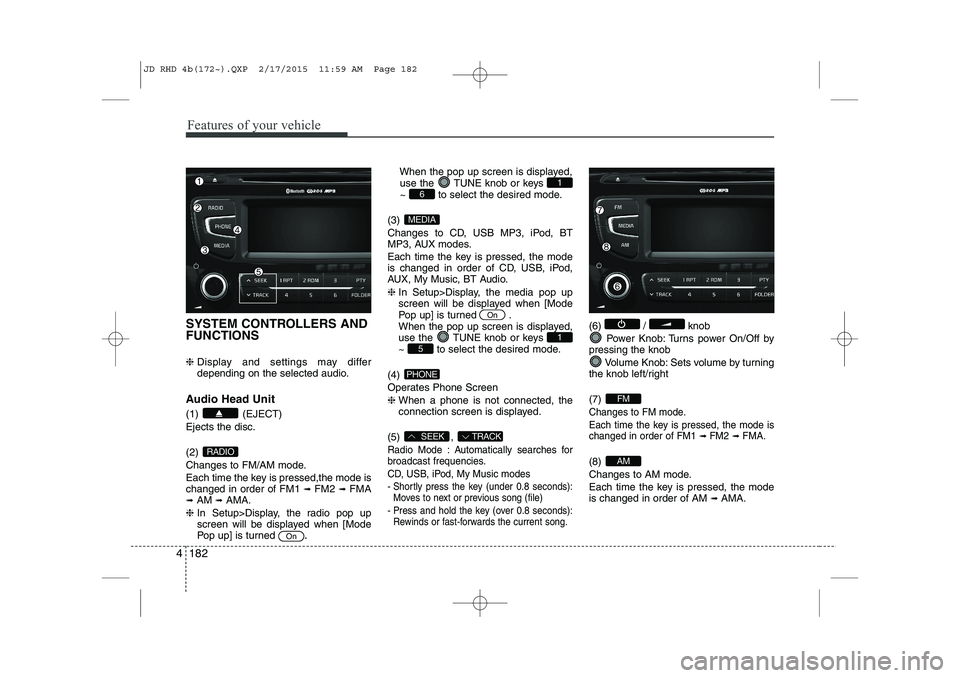
SYSTEM CONTROLLERS AND FUNCTIONS ❈ Display and settings may differ
depending on the selected audio.
Audio Head Unit (1) (EJECT) Ejects the disc. (2)
Changes to FM/AM mode.
Each time the key is pressed,the mode is changed in order of FM1 ➟
FM2 ➟FMA
➟ AM ➟AMA.
❈ In Setup>Display, the radio pop up
screen will be displayed when [Mode
Pop up] is turned .When the pop up screen is displayed,
use the TUNE knob or keys
~ to select the desired mode.
(3)
Changes to CD, USB MP3, iPod, BT
MP3, AUX modes.
Each time the key is pressed, the mode
is changed in order of CD, USB, iPod,
AUX, My Music, BT Audio. ❈ In Setup>Display, the media pop up
screen will be displayed when [Mode
Pop up] is turned .
When the pop up screen is displayed,
use the TUNE knob or keys
~ to select the desired mode.
(4)
Operates Phone Screen❈ When a phone is not connected, the
connection screen is displayed.
(5) ,
Radio Mode : Automatically searches for
broadcast frequencies.
CD, USB, iPod, My Music modes
- Shortly press the key (under 0.8 seconds): Moves to next or previous song (file)
- Press and hold the key (over 0.8 seconds): Rewinds or fast-forwards the current song.
(6) / knob
Power Knob: Turns power On/Off by
pressing the knob
Volume Knob: Sets volume by turning
the knob left/right (7)
Changes to FM mode.
Each time the key is pressed, the mode is changed in order of FM1
➟ FM2➟ FMA.
(8)
Changes to AM mode.
Each time the key is pressed, the mode is changed in order of AM ➟
AMA.AM
FM
TRACKSEEK
PHONE
51
On
MEDIA
61
On
RADIO
JD RHD 4b(172~).QXP 2/17/2015 11:59 AM Page 182
Page 868 of 1210
4 183
Features of your vehicle
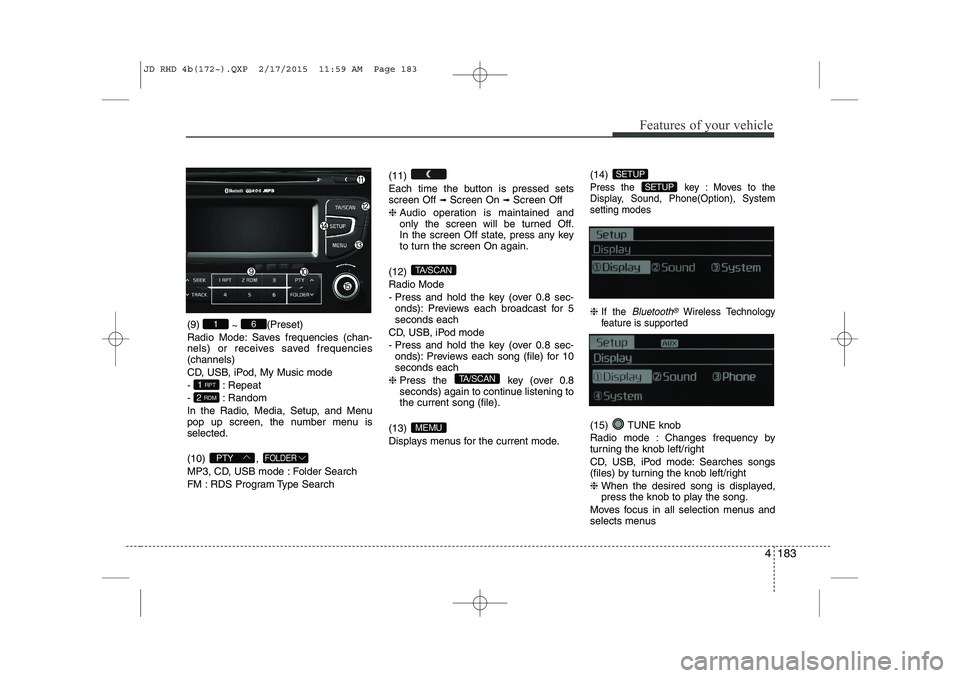
(9) ~ (Preset)
Radio Mode: Saves frequencies (chan-
nels) or receives saved frequencies(channels)
CD, USB, iPod, My Music mode
- : Repeat
- : Random
In the Radio, Media, Setup, and Menu
pop up screen, the number menu isselected. (10) ,
MP3, CD, USB mode : Folder Search
FM : RDS Program Type Search (11)
Each time the button is pressed sets screen Off
➟
Screen On ➟Screen Off
❈ Audio operation is maintained and
only the screen will be turned Off.
In the screen Off state, press any key
to turn the screen On again.
(12) Radio Mode
- Press and hold the key (over 0.8 sec- onds): Previews each broadcast for 5 seconds each
CD, USB, iPod mode
- Press and hold the key (over 0.8 sec- onds): Previews each song (file) for 10 seconds each
❈ Press the key (over 0.8
seconds) again to continue listening tothe current song (file).
(13)
Displays menus for the current mode. (14)
Press the key : Moves to the
Display, Sound, Phone(Option), Systemsetting modes
❈
If the Bluetooth®Wireless Technology
feature is supported
(15) TUNE knob
Radio mode : Changes frequency by
turning the knob left/right
CD, USB, iPod mode: Searches songs
(files) by turning the knob left/right ❈ When the desired song is displayed,
press the knob to play the song.
Moves focus in all selection menus and
selects menus
SETUP
SETUP
MEMU
TA/SCAN
TA/SCAN
FOLDERPTY
2 RDM
1 RPT
61
JD RHD 4b(172~).QXP 2/17/2015 11:59 AM Page 183
Page 877 of 1210
![KIA CEED 2015 Owners Manual Features of your vehicle
192
4
RADIO Changing RADIO mode Press the
(, )key
to change the mode in order
: FM1➟FM2 ➟ FMA ➟AM ➟AMA
: FM1
➟FM2 ➟FMA
: AM
➟AMA
[Mode Pop up] On state : Di](/img/2/57940/w960_57940-876.png "KIA CEED 2015 Owners Manual Features of your vehicle
192
4
RADIO Changing RADIO mode Press the
(, )key
to change the mode in order
: FM1➟FM2 ➟ FMA ➟AM ➟AMA
: FM1
➟FM2 ➟FMA
: AM
➟AMA
[Mode Pop up] On state : Di")
Features of your vehicle
192
4
RADIO Changing RADIO mode Press the
(, )key
to change the mode in order
: FM1➟FM2 ➟ FMA ➟AM ➟AMA
: FM1
➟FM2 ➟FMA
: AM
➟AMA
[Mode Pop up] On state : Displays the
change radio mode pop up screen.
Whilst the pop up screen is displayed, you
can change the radio modethrough the
tune knob or ~ keys.
Adjust Volume
Turn the VOL knob left/right to adjust
the volume. SEEK
Press the ( , )key
,
Shortly pressing the key (under 0.8 seconds): Changes the frequency.
Pressing and holding the key (over 0.8 seconds): Automatically searches for
the next frequency.
Preset SEEK
Press the ( , ) key
~
Shortly pressing the key (under 0.8 seconds): Plays the frequency saved in
the corresponding key.
Pressing and holding the key (over 0.8 seconds): Pressing and holding thedesired key from ~ will
save the currently playing broadcast to
the selected key and sound a BEEP. SCAN
Press the ( , ) key
Pressing and holding the key (over 0.8
seconds): The broadcast frequency
increases and previews each broadcast
for 5 seconds each. After scanning all
frequencies, returns and plays the cur-
rent broadcast frequency.
Selecting through manual search
Turn the TUNE knob left/right to adjust
the frequency. - FM : Changes by 50KHz
- AM : Changes by 9khz
TA/SCAN
AMFMRADIO
61
61
AMFMRADIO
TRACKSEEK
AMFMRADIO
51
AM
FM
RADIO
AMFMRADIO
JD RHD 4b(172~).QXP 2/17/2015 11:59 AM Page 192
Page 878 of 1210
4 193
Features of your vehicle
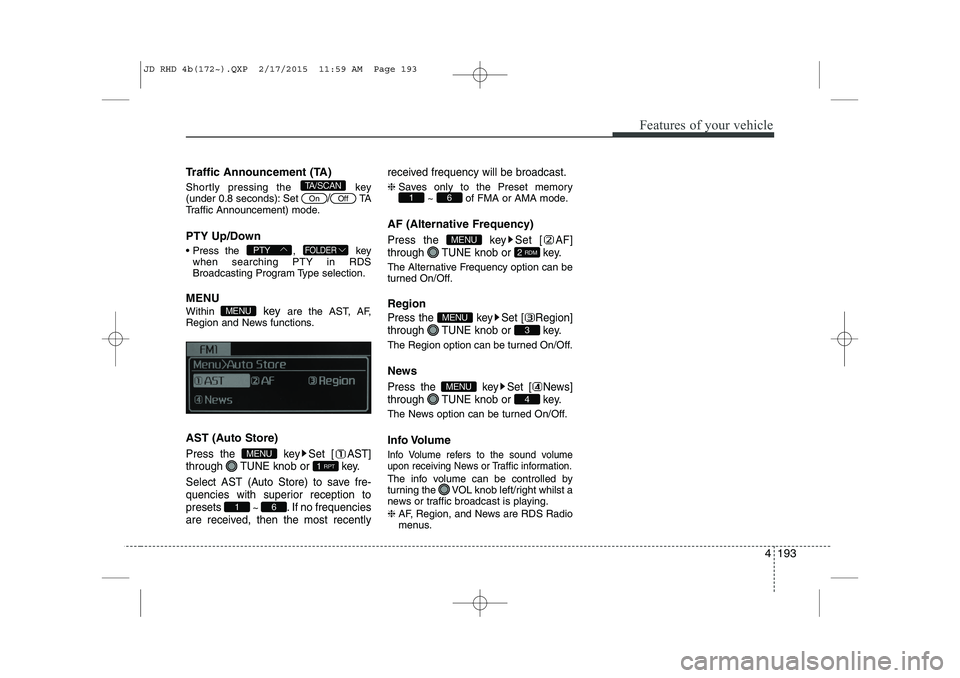
Traffic Announcement (TA)
Shortly pressing the key
(under 0.8 seconds): Set
/TA
Traffic Announcement) mode.
PTY Up/Down
Press the , key when searching PTY in RDS
Broadcasting Program Type selection.
MENU Within key are the AST, AF,
Region and News functions.
AST (Auto Store)
Press the key Set [ AST]
through TUNE knob or key.
Select AST (Auto Store) to save fre-
quencies with superior reception topresets
~ . If no frequencies
are received, then the most recently received frequency will be broadcast.
❈
Saves only to the Preset memory
~ of FMA or AMA mode.
AF (Alternative Frequency)
Press the key Set [ AF]
through TUNE knob or key.
The Alternative Frequency option can be
turned On/Off. Region
Press the key Set [ Region]
through TUNE knob or key.
The Region option can be turned On/Off.
News
Press the key Set [ News]
through TUNE knob or key.
The News option can be turned On/Off.
Info Volume
Info Volume refers to the sound volume
upon receiving News or Traffic information.
The info volume can be controlled by
turning the VOL knob left/right whilst a
news or traffic broadcast is playing. ❈ AF, Region, and News are RDS Radio
menus.
4
MENU
3
MENU
2 RDM
MENU
61
61
1 RPT
MENU
MENU
FOLDERPTY
OffOn
TA/SCAN
JD RHD 4b(172~).QXP 2/17/2015 11:59 AM Page 193
Page 879 of 1210
Features of your vehicle
194
4
BASIC METHOD OF USE :
Audio CD / MP3 CD / USB /
iPod / My Music
Press the key to change the mode in order of CD ➟USB(iPod) ➟AUX
➟ My Music ➟BT Audio.
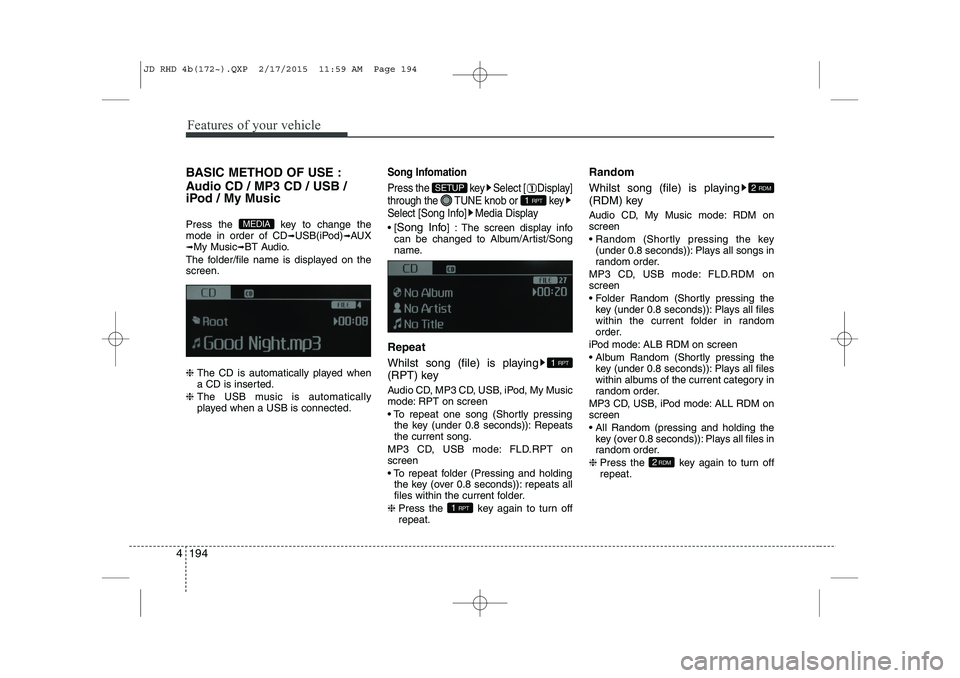
The folder/file name is displayed on thescreen. ❈ The CD is automatically played when
a CD is inserted.
❈ The USB music is automatically
played when a USB is connected.Song Infomation
Press the key Select [ Display]
through the TUNE knob or key
Select [Song Info] Media Display
[Song Info ] : The screen display info
can be changed to Album/Artist/Song
name.
Repeat
Whilst song (file) is playing
(RPT) key
Audio CD, MP3 CD, USB, iPod, My Music
mode: RPT on screen
To repeat one song (Shortly pressing the key (under 0.8 seconds)): Repeats the current song.
MP3 CD, USB mode: FLD.RPT onscreen
To repeat folder (Pressing and holding the key (over 0.8 seconds)): repeats all
files within the current folder.
❈ Press the key again to turn offrepeat. Random
Whilst song (file) is playing
(RDM) key
Audio CD, My Music mode: RDM on screen
Random (Shortly pressing the key
(under 0.8 seconds)): Plays all songs in
random order.
MP3 CD, USB mode: FLD.RDM onscreen
Folder Random (Shortly pressing the key (under 0.8 seconds)): Plays all files
within the current folder in random
order.
iPod mode: ALB RDM on screen
Album Random (Shortly pressing the key (under 0.8 seconds)): Plays all files
within albums of the current category in
random order.
MP3 CD, USB, iPod mode: ALL RDM onscreen
All Random (pressing and holding the key (over 0.8 seconds)): Plays all files in
random order.
❈ Press the key again to turn offrepeat.
2RDM
2 RDM
1 RPT
1 RPT
1 RPT
SETUP
MEDIA
JD RHD 4b(172~).QXP 2/17/2015 11:59 AM Page 194
Page 880 of 1210
Changing Song/File
Whilst song (file) is playing key
Shortly pressing the key (under 0.8seconds): Plays the current song from the beginning.
❈ If the key is pressed again
within 1 second, the previous song is
played.
Pressing and holding the key (over 0.8 seconds): Rewinds the song.
Whilst song (file) is playing key
Shortly pressing the key (under 0.8seconds): Plays the next song.
Pressing and holding the key (over 0.8 seconds): Fast forwards the song. Scan
Whilst song (file) is playingkey
Pressing and holding the key (over 0.8
seconds) : Scans all songs for 10 sec-
onds starting from the next song.
❈ Press the key again to turn
off.
❈ The SCAN function is not supported in
iPod mode.
Folder Search : MP3 CD, USB Mode
Whilst file is playing (Folder
Up) key
Searches the next folder.
Whilst file is playing (Folder
Down) key
Searches the parent folder. ❈ If a folder is selected by pressing the
TUNE knob, the first file within the
selected folder will be played.
❈ In iPod mode, moves to the Parent
Folder. Searching Songs (File)
Turning
TUNEknob : Searches for
songs (files)
Pressing TUNE knob : Plays select- ed song (file).
FOLDER
PTY
TA/SCAN
TA/SCAN
SEEK
TRACK
TRACK
4 195
Features of your vehicle
JD RHD 4b(172~).QXP 2/17/2015 11:59 AM Page 195
Page 886 of 1210
Bluetooth®Wireless Technology
AUDIO
Before using
Bluetooth®Wireless
Technology
audio features
Bluetooth®Wireless Technology audio
may not be supported depending on
the compatibility of your
Bluetooth®
Wireless Technologymobile phone.
In order to use
Bluetooth®Wireless
Technologyaudio, you must first pair and
connect the Bluetooth®Wireless
Technologymobile phone.
Bluetooth®Wireless Technologyaudio
can be used only when the [Audio
Streaming] of Phone is turned .
❈ Setting
Bluetooth®Wireless TechnologyAudio Streaming : Press the
key Select [Phone] through the tune
knob or key Select [Audio
Streaming] through the TUNE
knob Set
/
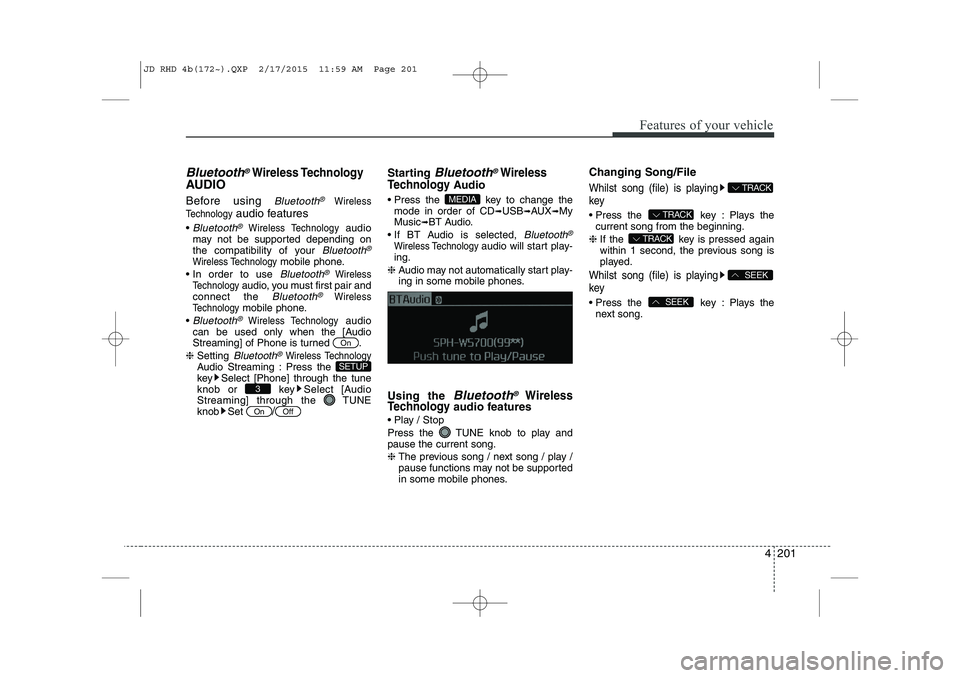
Starting Bluetooth®Wireless
Technology
Audio
Press the key to change the mode in order of CD ➟USB ➟AUX ➟My
Music ➟BT Audio.
If BT Audio is selected,
Bluetooth®
Wireless Technology audio will start play-
ing.
❈ Audio may not automatically start play-
ing in some mobile phones.
Using the
Bluetooth®Wireless
Technologyaudio features
Play / Stop
Press the TUNE knob to play and pause the current song. ❈ The previous song / next song / play /
pause functions may not be supported
in some mobile phones. Changing Song/File
Whilst song (file) is playing key
Press the key : Plays the
current song from the beginning.
❈ If the key is pressed again
within 1 second, the previous song is
played.
Whilst song (file) is playing key
Press the key : Plays the
next song.SEEK
SEEK
TRACK
TRACK
TRACK
MEDIA
OffOn
3
SETUP
On
4 201
Features of your vehicle
JD RHD 4b(172~).QXP 2/17/2015 11:59 AM Page 201
Page 887 of 1210
Features of your vehicle
202
4
PHONE (if equipped)
Before using the
Bluetooth®Wireless
Technology
phone features
In order to use
Bluetooth®Wireless
Technologyphone, you must first pair
and connect the Bluetooth®Wireless
Technologymobile phone.
If the mobile phone is not paired or con- nected, it is not possible to enter Phone
mode. Once a phone is paired or con-nected, the guidance screen will be dis-
played.
If Priority is set upon vehicle ignition (IGN/ACC ON), the
Bluetooth®Wireless
Technologyphone will be automatically
connected. Even if you are outside, the
Bluetooth®Wireless Technologyphone
will be automatically connected once
you are in the vicinity of the vehicle. If
you do not want automatic
Bluetooth®
Wireless Technologyphone connection,
set the Bluetooth®Wireless Technologyto OFF. Making a call using the Steering
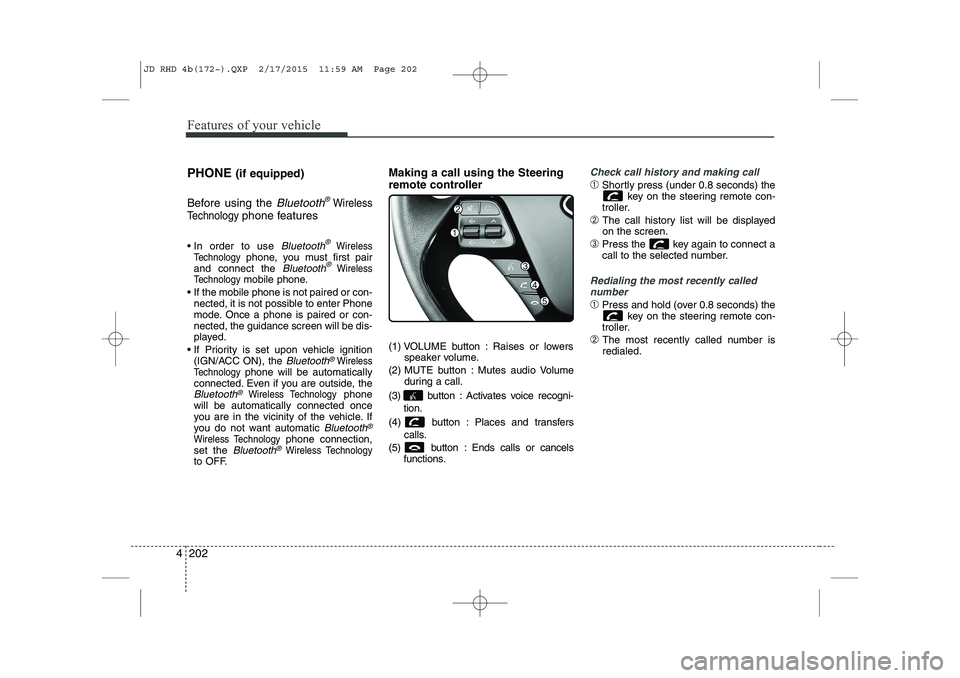
remote controller
(1) VOLUME button : Raises or lowers
speaker volume.
(2) MUTE button : Mutes audio Volume during a call.
(3) button : Activates voice recogni- tion.
(4) button : Places and transfers calls.
(5) button : Ends calls or cancels functions.
Check call history and making call
➀Shortly press (under 0.8 seconds) the
key on the steering remote con-
troller.
➁ The call history list will be displayed on the screen.
➂ Press the key again to connect a
call to the selected number.
Redialing the most recently called
number
➀ Press and hold (over 0.8 seconds) the
key on the steering remote con-
troller.
➁ The most recently called number is redialed.
JD RHD 4b(172~).QXP 2/17/2015 11:59 AM Page 202