turn KIA FORTE 2023 Navigation System Quick Reference Guide
[x] Cancel search | Manufacturer: KIA, Model Year: 2023, Model line: FORTE, Model: KIA FORTE 2023Pages: 324, PDF Size: 10.59 MB
Page 227 of 324
9-39
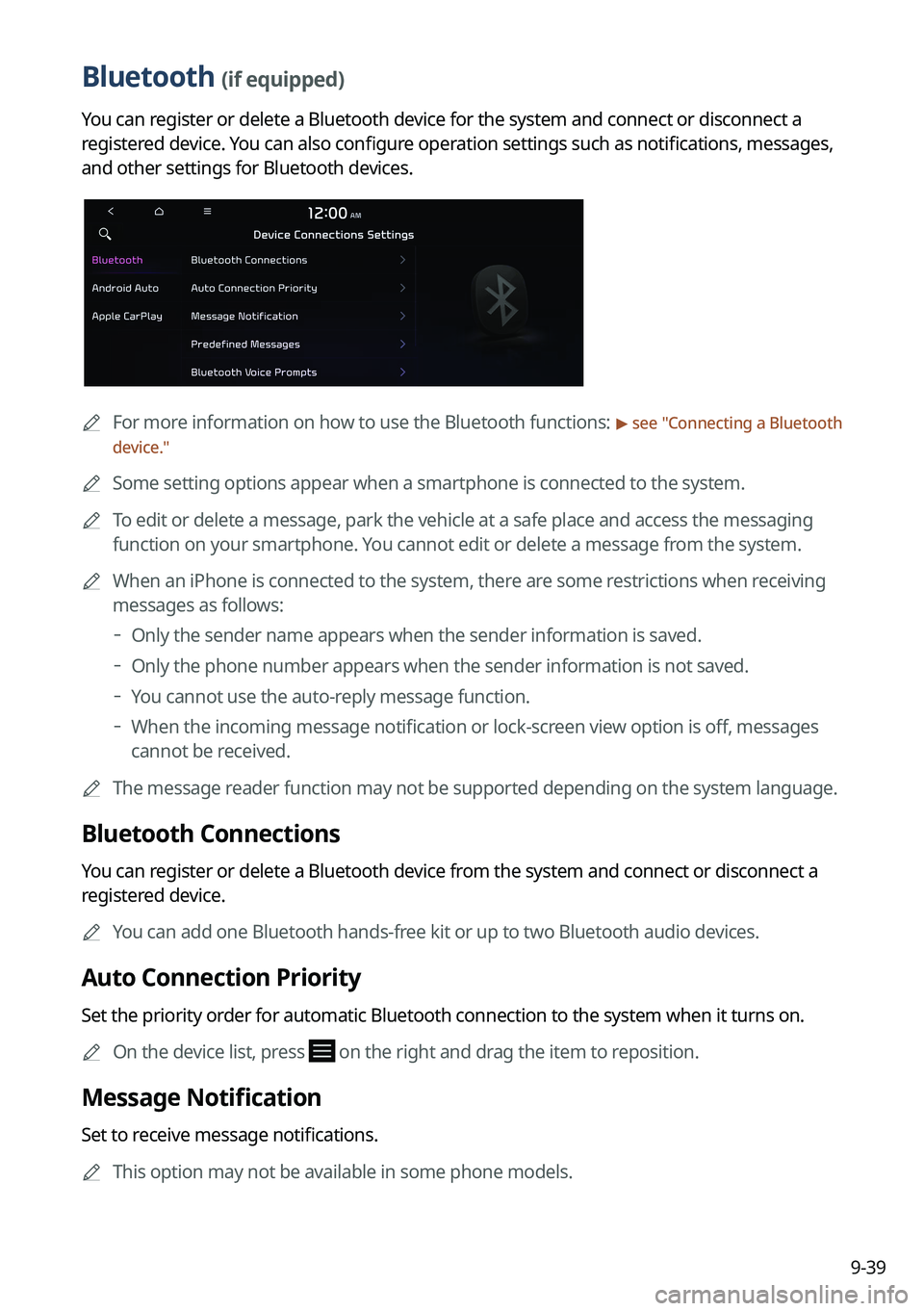
Bluetooth (if equipped)
You can register or delete a Bluetooth device for the system and connect or disconnect a
registered device. You can also configure operation settings such as notifications, messages,
and other settings for Bluetooth devices.
A
For more information on how to use the Bluetooth functions: > see "Connecting a Bluetooth
device."
A
Some setting options appear when a smartphone is connected to the system.
A
To edit or delete a message, park the vehicle at a safe place and access the messaging
function on your smartphone. You cannot edit or delete a message from the system.
A
When an iPhone is connected to the system, there are some restrictions when receiving
messages as follows:
Only the sender name appears when the sender information is saved.
Only the phone number appears when the sender information is not saved.
You cannot use the auto-reply message function.
When the incoming message notification or lock-screen view option is off, messages
cannot be received.
A
The message reader function may not be supported depending on the system language.
Bluetooth Connections
You can register or delete a Bluetooth device from the system and connect or disconnect a
registered device.
A
You can add one Bluetooth hands-free kit or up to two Bluetooth audio devices.
Auto Connection Priority
Set the priority order for automatic Bluetooth connection to the system when it turns on.
A
On the device list, press
on the right and drag the item to reposition.
Message Notification
Set to receive message notifications.
A
This option may not be available in some phone models.
Page 229 of 324
9-41
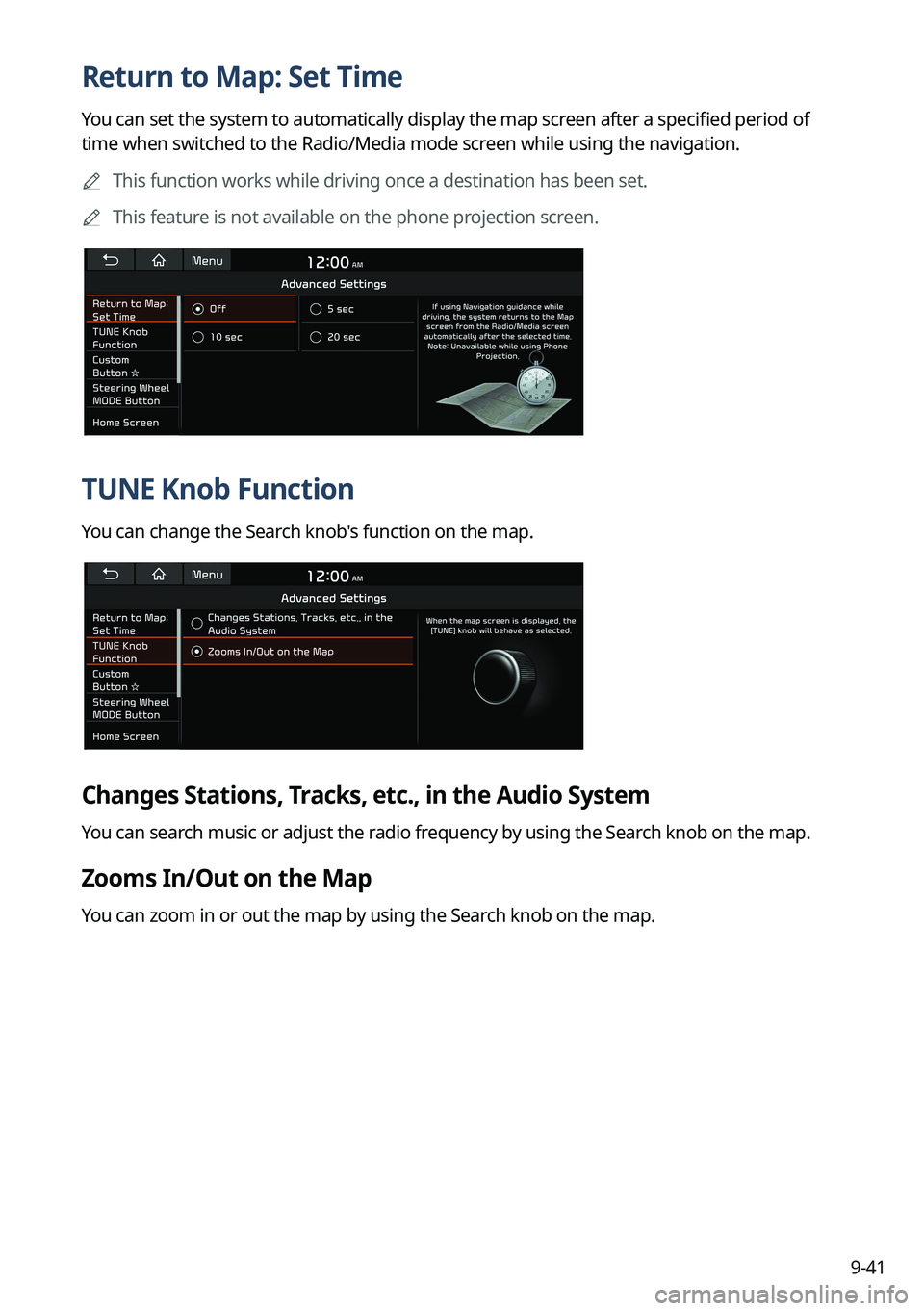
Return to Map: Set Time
You can set the system to automatically display the map screen after a specified period of
time when switched to the Radio/Media mode screen while using the navigation.
A
This function works while driving once a destination has been set.
A
This feature is not available on the phone projection screen.
TUNE Knob Function
You can change the Search knob's function on the map.
Changes Stations, Tracks, etc., in the Audio System
You can search music or adjust the radio frequency by using the Search knob on the map.
Zooms In/Out on the Map
You can zoom in or out the map by using the Search knob on the map.
Page 238 of 324
9-50
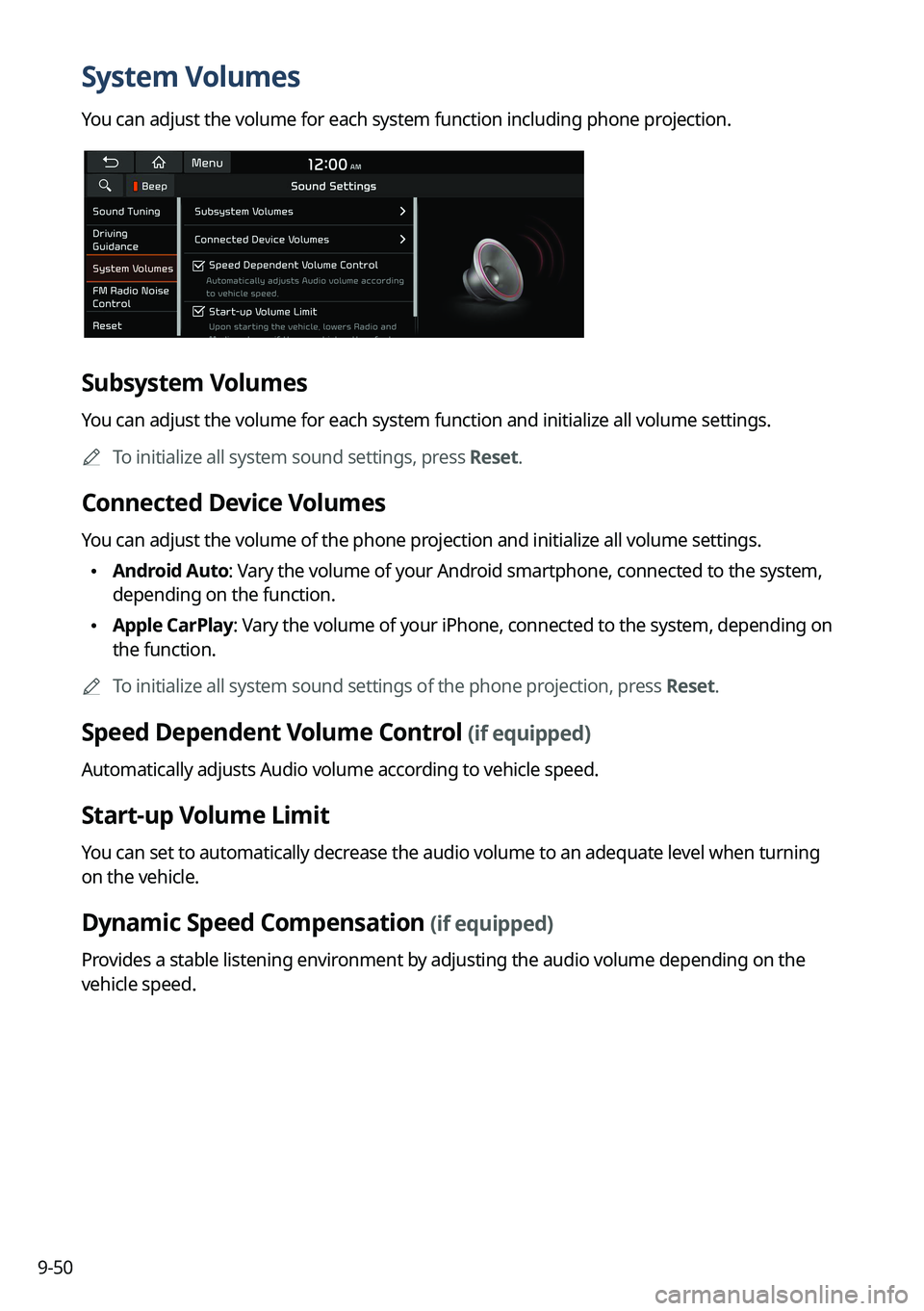
System Volumes
You can adjust the volume for each system function including phone projection.
Subsystem Volumes
You can adjust the volume for each system function and initialize all volume settings.
A
To initialize all system sound settings, press Reset.
Connected Device Volumes
You can adjust the volume of the phone projection and initialize all volume settings.
•Android Auto: Vary the volume of your Android smartphone, connected to the system,
depending on the function.
•Apple CarPlay: Vary the volume of your iPhone, connected to the system, depending on
the function.
A
To initialize all system sound settings of the phone projection, press Reset.
Speed Dependent Volume Control (if equipped)
Automatically adjusts Audio volume according to vehicle speed.
Start-up Volume Limit
You can set to automatically decrease the audio volume to an adequate level when turning
on the vehicle.
Dynamic Speed Compensation (if equipped)
Provides a stable listening environment by adjusting the audio volume depending on the
vehicle speed.
Page 239 of 324
9-51
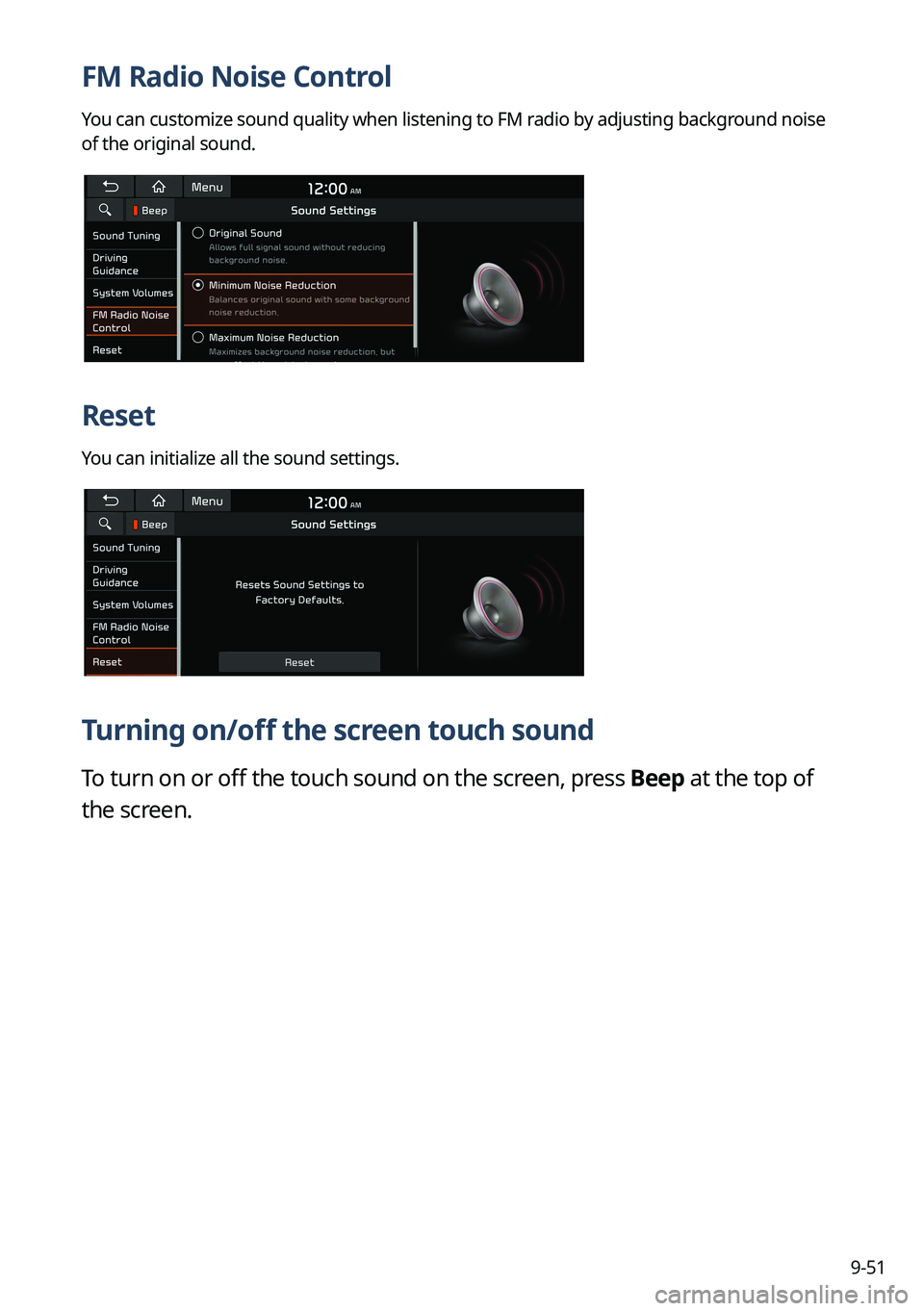
FM Radio Noise Control
You can customize sound quality when listening to FM radio by adjusting background noise
of the original sound.
Reset
You can initialize all the sound settings.
Turning on/off the screen touch sound
To turn on or off the touch sound on the screen, press Beep at the top of
the screen.
Page 240 of 324

9-52
Configuring the sound settings (Type2)
You can change the sound settings such as speaker volume and sound effects.
A
Available settings may differ depending on the vehicle model and specifications.
A
Some functions may not be available depending on the infotainment system and
amplifier specifications on the vehicle.
1 On the All Menus screen, press Setup >
Sound.
The sound settings screen appears.
2 Configure the settings required:
A
Press >
Search for Settings or press and enter a keyword to search for a
setting item. You can also search for a setting item by voice.
Premium Sound (if equipped)
You can change the system sound settings and apply various sound effects.
A
Available sound effects may differ depending on the specifications of the amplifier.
Speed Dependent Volume Control
Automatically adjusts Audio volume according to vehicle speed.
Start-up Volume Limit
You can set to automatically decrease the audio volume to an adequate level when turning
on the vehicle.
Live Dynamic (if equipped)
Provides natural and vivid sound like real performance.
Page 243 of 324
9-55
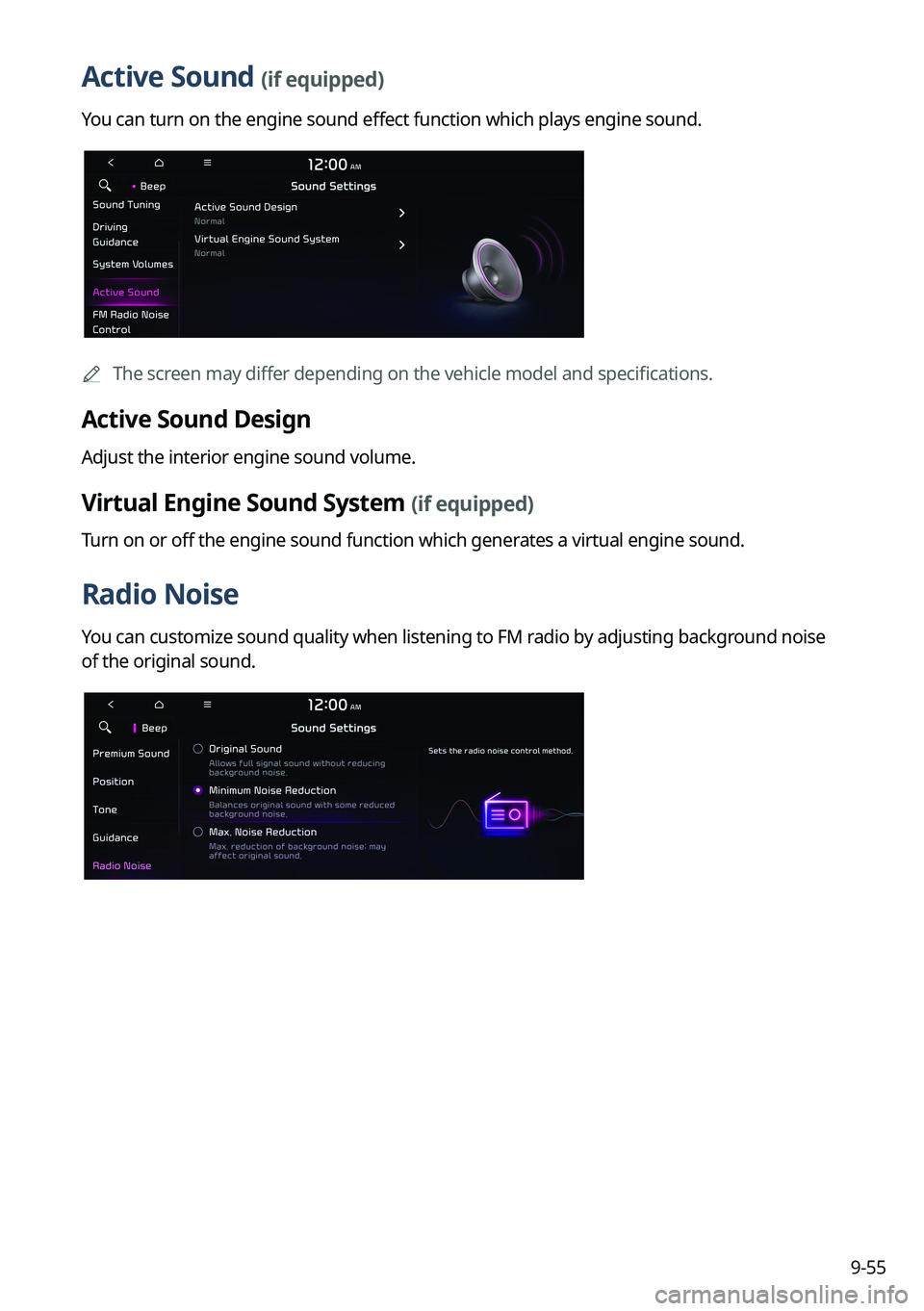
Active Sound (if equipped)
You can turn on the engine sound effect function which plays engine sound.
A
The screen may differ depending on the vehicle model and specifications.
Active Sound Design
Adjust the interior engine sound volume.
Virtual Engine Sound System (if equipped)
Turn on or off the engine sound function which generates a virtual engine sound.
Radio Noise
You can customize sound quality when listening to FM radio by adjusting background noise
of the original sound.
Page 245 of 324
9-57
Turning on/off the screen touch sound
To turn on or off the touch sound on the screen, press Beep at the top of
the screen.
Configuring the voice recognition settings
(Type1)
You can change the settings for voice recognition.
1 On the All Menus screen, press Setup >
Voice Recognition.
The voice recognition settings screen appears.
2 Configure the settings required:
A
Press Menu >
Search for Settings or press and enter a keyword to search for a
setting item. You can also search for a setting item by voice.
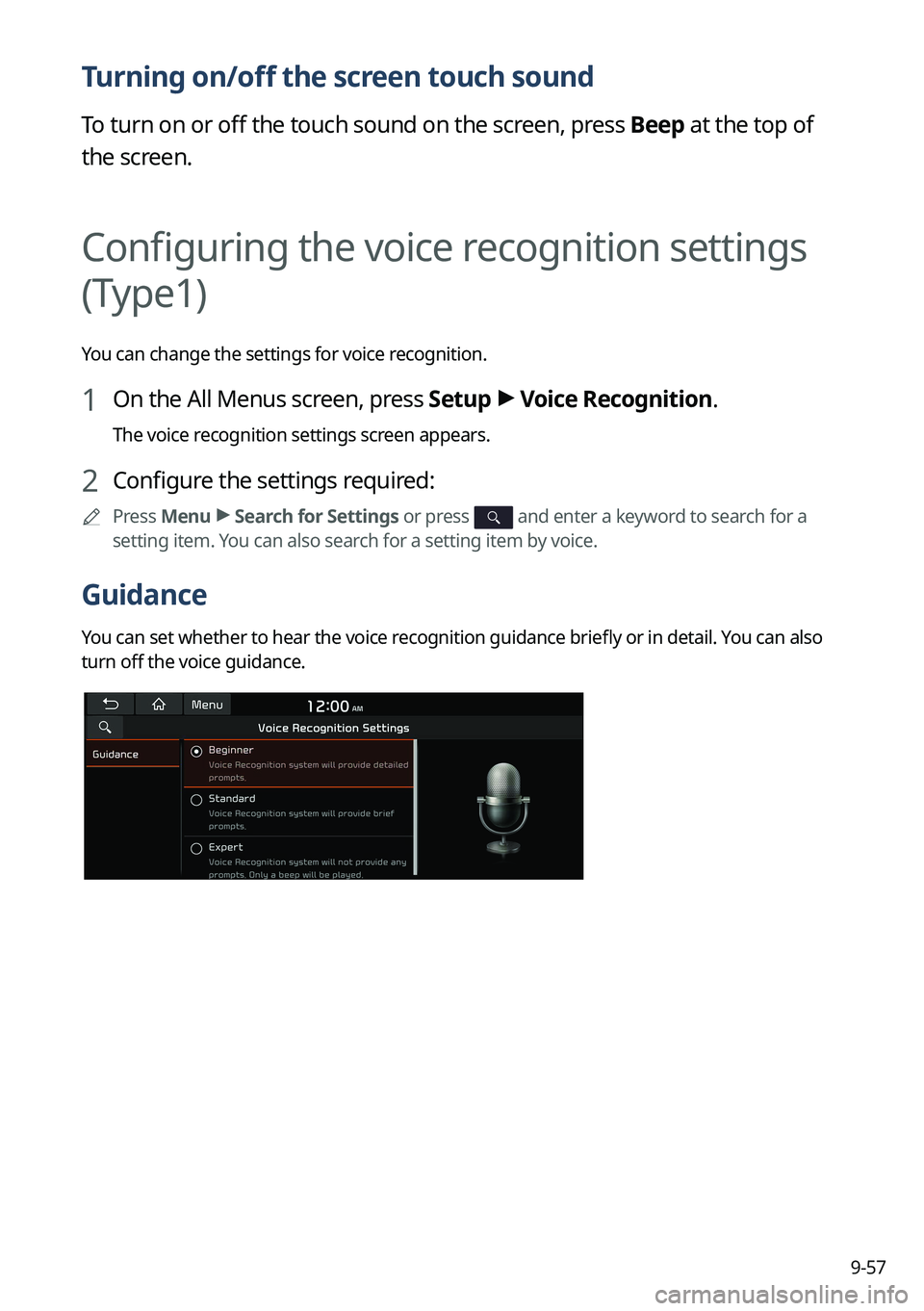
Guidance
You can set whether to hear the voice recognition guidance briefly or in detail. You can also
turn off the voice guidance.
Page 246 of 324

9-58
Configuring the voice recognition settings
(Type2)
You can change the settings for voice recognition.
1 On the All Menus screen, press Setup >
Voice Recognition.
The voice recognition settings screen appears.
2 Configure the settings required:
A
Press >
Search for Settings or press and enter a keyword to search for a
setting item. You can also search for a setting item by voice.
Voice Recognition Guidance
You can set whether to hear the voice recognition guidance briefly or in detail. You can also
turn off the voice guidance.
A
The screen may differ depending on the vehicle model and specifications.
Rear Voice Recognition (if equipped)
Turn on the rear-seat speech recognition function.
AThe screen may differ depending on the vehicle model and specifications.
A
If the rear-seat speech recognition lock is on, it is not possible to use speech recognition
from the rear seats.
Page 248 of 324

9-60
Display Traffic: Displays nearby traffic information on the map.
3D Buildings: Displays major buildings on the map in three dimensions.
Auto-scale: Automatically changes the scale of the map.
•
POI Display: You can specify the icon type to display nearby places on the map.
A
Press
on the right side of Gas/LPG Station to select display options for fuel prices.
Gas and LPG stations on the Map screen will also show their fuel prices if they are lower
than the set price.
Select Display Fuel Price Info on Map to view recommended fuel prices based on the
prices offered in the area.
Fuel prices on the map may differ from actual ones.
Information
You can specify the information to display on the navigation map screen while driving.
•
Route Guide Line: Change the route guide line color depending on the traffic conditions.
To display the route guide line with a fixed color, uncheck Show Traffic Colors and select
a color.
•Vehicle Symbol: You can specify the icon type to display your current location on the
map.
•Units: You can set the distance unit of the navigation map to Kilometers (km) or Miles
(mi) (if equipped).
•Show Vehicle Speed: Displays the vehicle speed on the map.
•Detailed Guidance View: You can set to display detailed information on the Map screen,
such as moving directions and lane change.
•Speed Limits: Sets whether or not to display the speed limits on the screen.
Map Auto-scale Settings
You can set the scales for each vehicle speed zone.
A
For example, when "700 ft" is selected for the "21–40 mi/h" zone and "0.25 mi" for the
"41–60 mi/h" zone, the map scale on the navigation screen becomes 700 ft when vehicle
speed is 40 mi/h and 0.25 mi when vehicle speed is 41 mi/h.
Return to Map: Set Time
You can set the system to automatically display the map screen after a specified period of
time when switched to the Radio/Media mode screen while using the navigation.
A
This function works while driving once a destination has been set.
A
This feature is not available on the phone projection screen.
Page 250 of 324

9-62
ÝWarning
Be sure to check the road conditions while driving, because the camera information may get
changed occasionally after a map update to the latest version. Relying solely on the driving
assist system may cause violation of traffic rules and regulations, resulting in an accident.
Camera Alert Distance
You can set when to receive alerts against and voice descriptions about traffic enforcement
cameras.
•Camera Alerts with Navigation Muted: You can set traffic enforcement camera alerts
or warning sounds for safe driving when the navigation is muted.
None: No guidance is provided when the navigation is muted.
Use Beeps Only: Guidance is provided only with warning sound.
Use Voice Prompts with Beeps: Guidance is provided with warning sound and voice.
•
Camera Alert Distance Depending on the Vehicle Speed: The time when to get alerts
for traffic enforcement cameras is automatically set depending on the driving speed.
When the Camera Alert Distance Depending on the Vehicle Speed
function is off, the
time when to get guidance on traffic enforcement cameras on Local Roads and Highway
can be selected.
Others
You can configure navigation options, e.g., turning on or off fuel prices, exporting or
importing places from and to Address Book.
A The screen may differ depending on the vehicle model and specifications.