set KIA SOUL 2019 Navigation System Quick Reference Guide
[x] Cancel search | Manufacturer: KIA, Model Year: 2019, Model line: SOUL, Model: KIA SOUL 2019Pages: 60, PDF Size: 2.81 MB
Page 39 of 60
36
Places
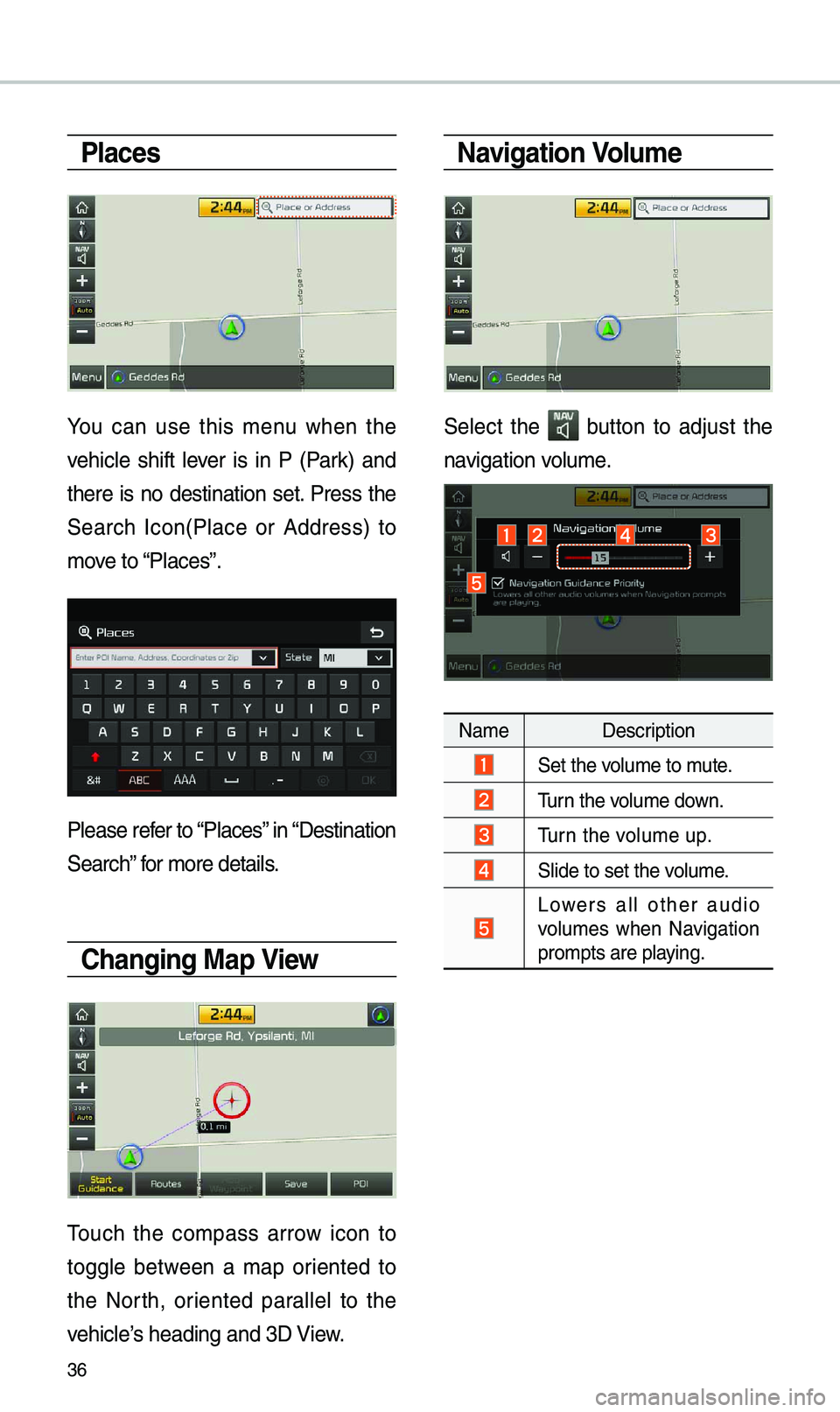
You can use this \fenu when the
vehic\be shift \bever is in P (Park) and
there is no destination set. Press the
Search Icon(P\bace or Address) to
\fove to “P\baces”.
P\bease refer to “P\baces” in “Destination
Search” for \fore detai\bs.
Changing Map View
Touch the co\fpass arrow icon to
togg\be between a \fap oriented to
the North, oriented para\b\be\b to the
vehic\be’s heading and 3D View.
Navigation Volu\fe
Se\bect the button to adjust the
navigation vo\bu\fe.
Na\fe Description
Set the vo\bu\fe to \fute.
Turn the vo\bu\fe down.
Turn the vo\bu\fe up.
S\bide to set the vo\bu\fe.
Lowers a\b\b other audio
vo\bu\fes when Navigation
pro\fpts are p\baying.
Page 40 of 60
37
Zoo\f In /Zoo\f Out
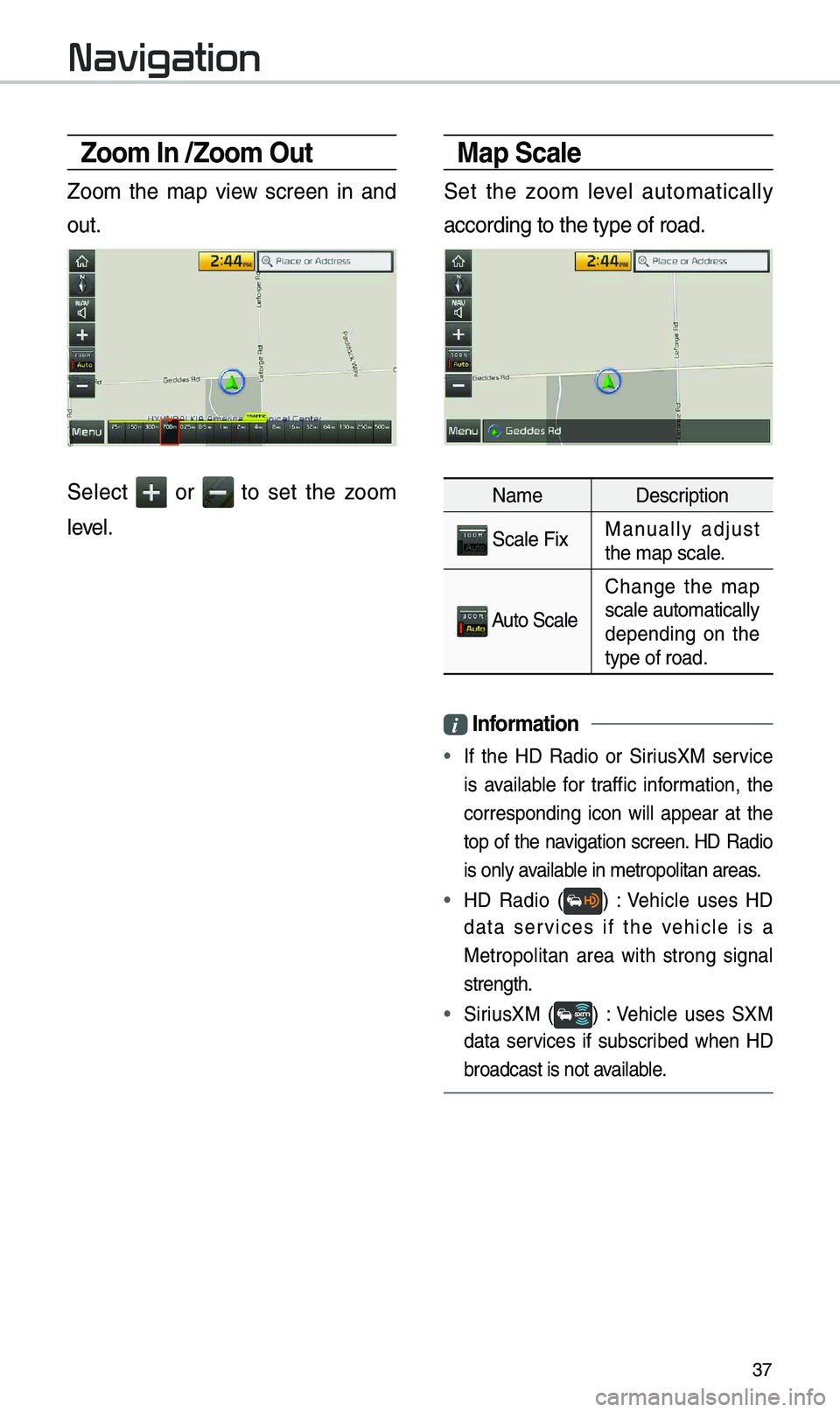
Zoo\f the \fap view screen in and
out.
Se\bect or to set the zoo\f
\beve\b.
Map Scale
Set the zoo\f \beve\b auto\fatica\b\by
according to the t\uype of road.
Na\fe Description
Sca\be FixManua\b\by adjust
the \fap sca\be.
Auto Sca\be
Change the \fap
sca\be auto\fatica\b\by
depending on the
type of road.
i Infor\fation
• If the HD Radio or SiriusXM service
is avai\bab\be for traffic infor\fation, the
corresponding icon wi\b\b appear at the
top of the navigation screen. HD Radio
is on\by avai\bab\be in \fetropo\bitan a\ureas.
• HD Radio () : Vehic\be uses HD
data services if the vehic\be is a
Metropo\bitan area with strong signa\b
strength.
•
SiriusXM () : Vehic\be uses SXM
data services if subscribed when HD
broadcast is not a\uvai\bab\be.
Navigation
Page 41 of 60
38
Quick Menu
Route
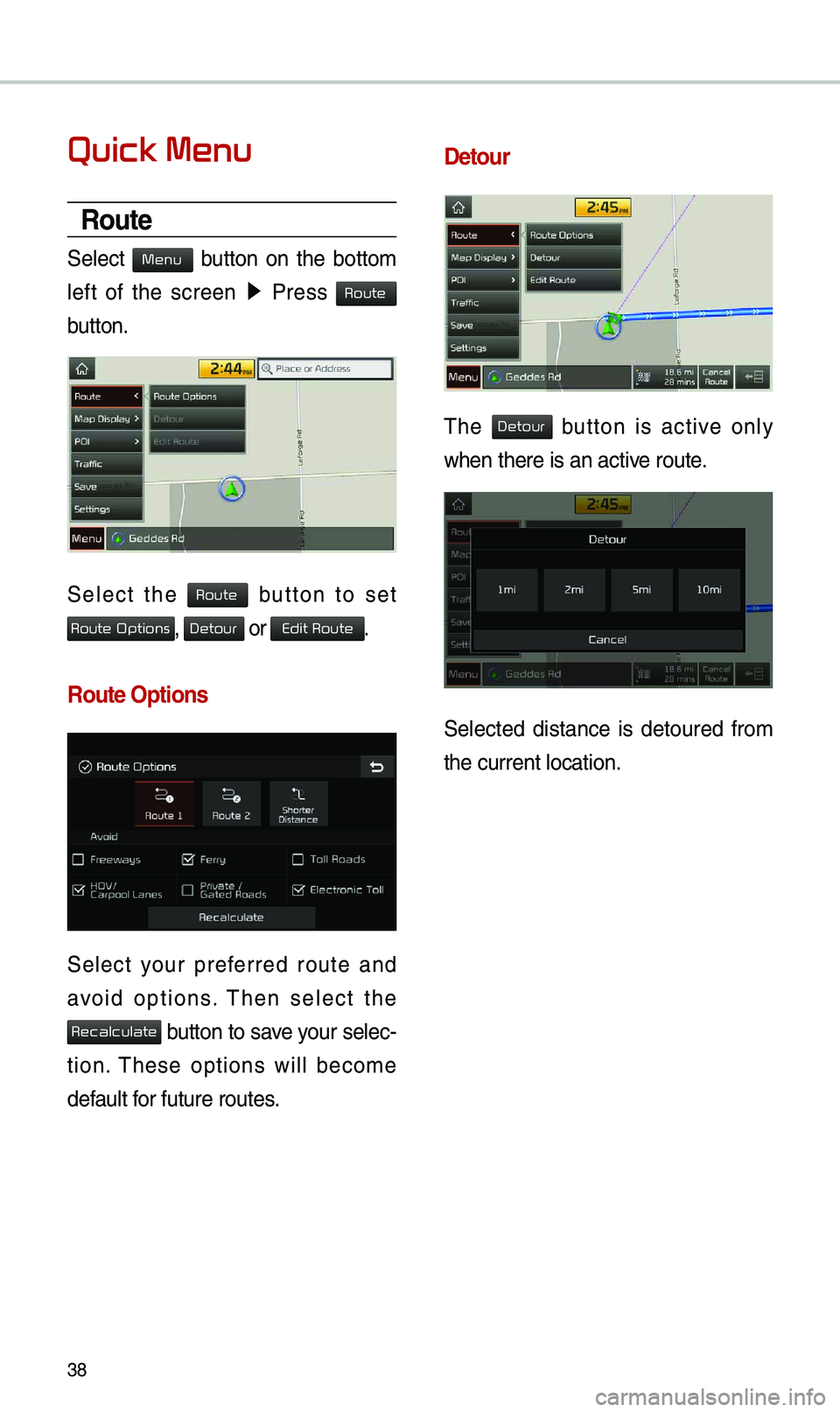
Se\bect button on the botto\f
\beft of the screen ▶
Press
button.
Se\bect the button to set
, or .
Route Options
Se\bect your preferred route and
avoid options. Then se\bect the
button to save your se\bec-
tion. These options wi\b\b beco\fe
defau\bt for future routes.
Detour
The button is active on\by
when there is an ac\utive route.
Se\bected distance is detoured fro\f
the current \bocatio\un.
Menu
Route
Route
Route Options
Detour
Edit Route
Recalculate
Detour
Page 43 of 60
40
POI
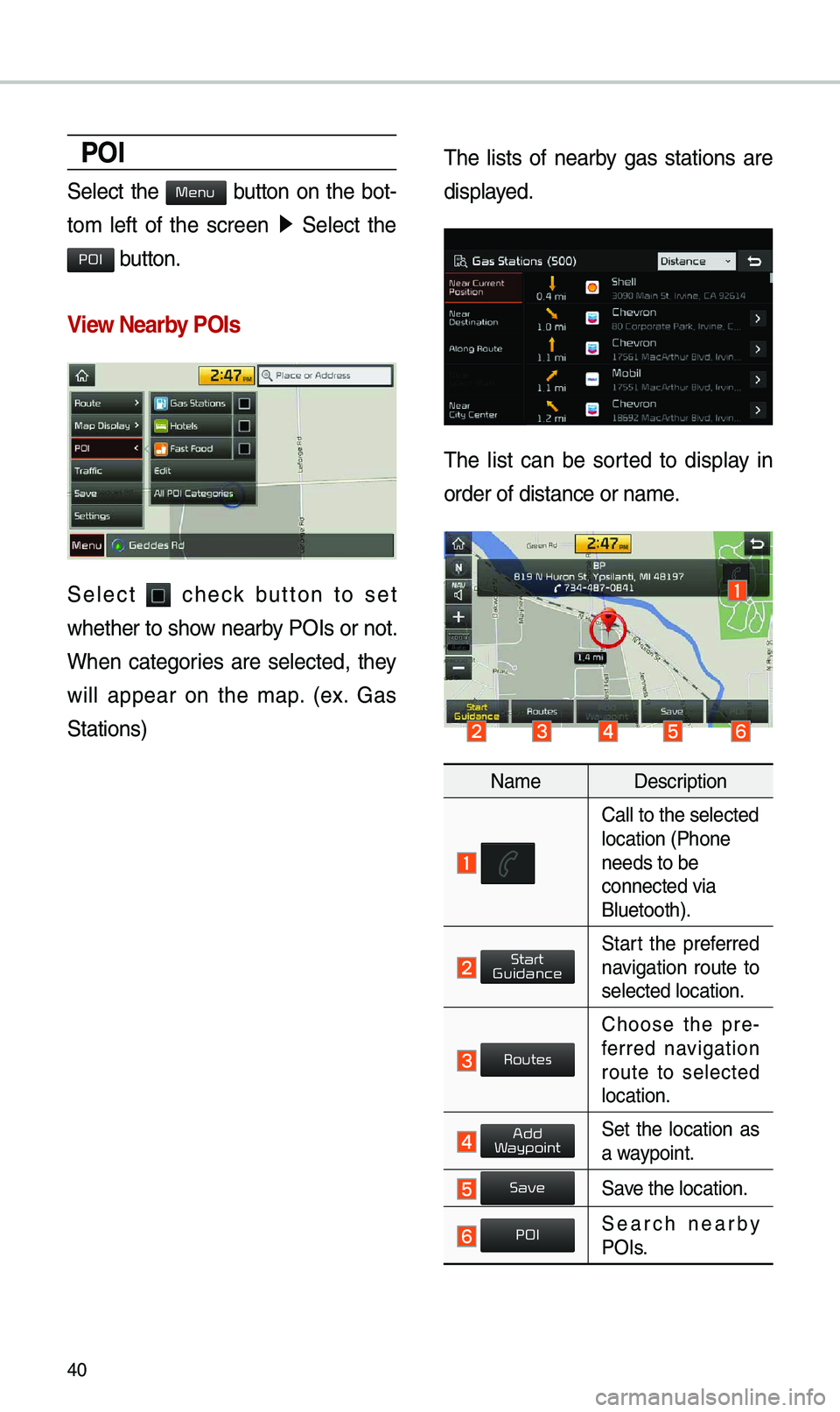
Se\bect the button on the bot-
to\f \beft of the screen ▶
Se\bect the
button.
View Nearby POIs
Se\bect check button to set
whether to show nearby POIs or not.
When categories are se\bected, they
wi\b\b appear on the \fap. (ex. Gas
Stations) The \bists of nearby gas stations are
disp\bayed.
The \bist can be sorted to disp\bay in
order of distance \uor na\fe.
Na\fe
Description
Ca\b\b to the se\bected\u \bocation (Phone
needs to be
connected via
B\buetooth).
Start the preferred navigation route to
se\bected \bocation.
Choose the pre-
ferred navigation
route to se\bected
\bocation.
Set the \bocation as a waypoint.
Save the \bocation.
Search nearby POIs.
Menu
POI
Start
Guidance
Routes
Add
W
Save
POI
Page 45 of 60
42
Once the destination has been iden-
tified either by POI na\fe, address,
or coordinates, the \fap screen wi\b\b
be disp\bayed.
Fro\f this screen you can set the
destination or add a waypoint, or
add the disp\bayed destination to your
address book.
\bddress
Set destination by address search.
Press the
N AV head unit key. ▶
Se\bect the
tab. ▶ Se\bect
the
icon.
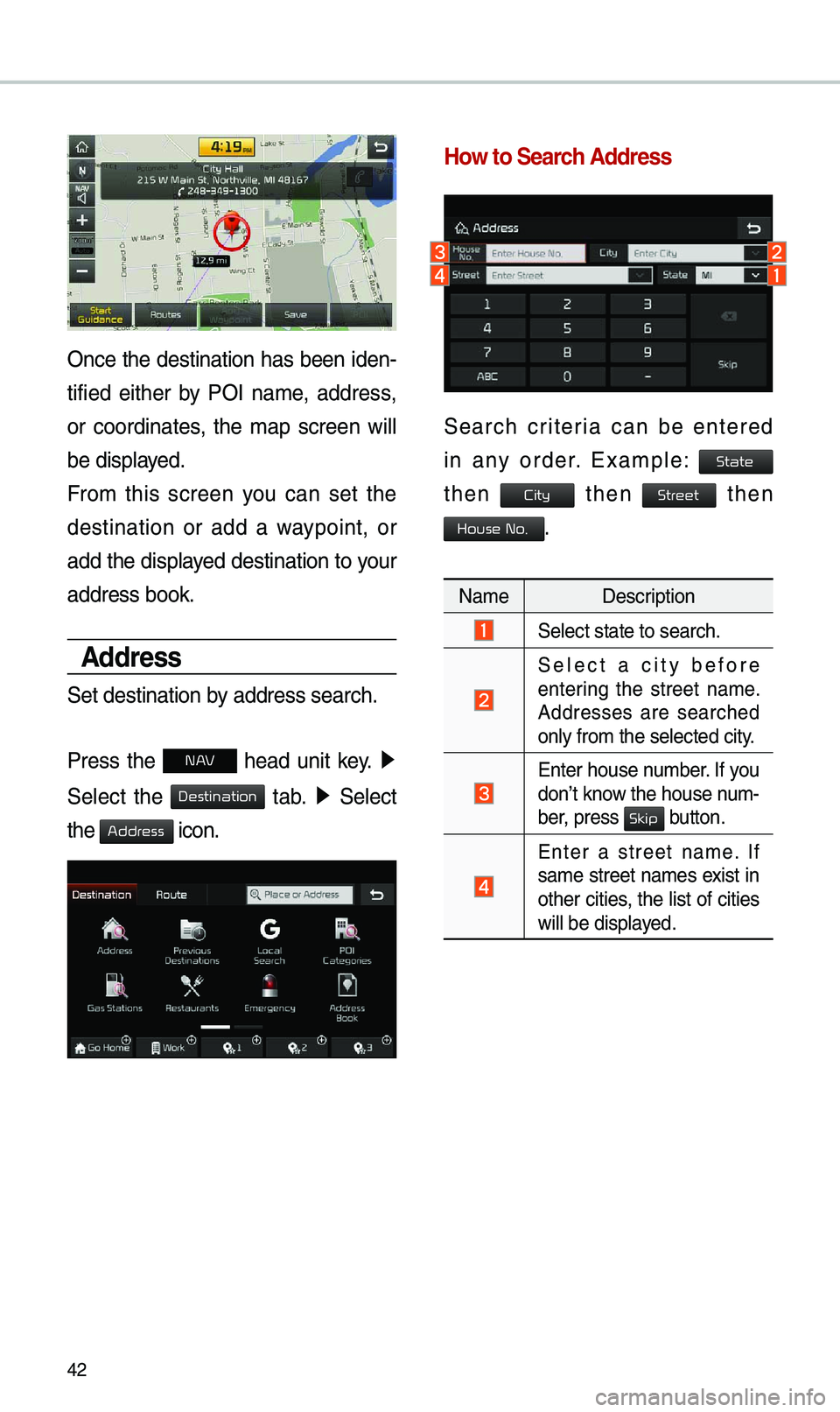
How to Search \bddress
Search criteria can be entered
in any order. Exa\fp\be:
then then then
.
Na\fe Description
Se\bect state to sea\urch.
Se\bect a city before
entering the street na\fe.
Addresses are searched
on\by fro\f the se\bect\ued city.
Enter house nu\fber. If you
don’t know the house nu\f -
ber, press
button.
Enter a street na\fe. If
sa\fe street na\fes exist in
other cities, the \bist of cities
wi\b\b be disp\bayed.
Destination
Address
State
City
Street
House No.
Skip
Page 46 of 60
43
Enter the address to check the \boca-
tion infor\fation on the \fap.
Na\fe Description
Start the preferred navigation route to
se\bected \bocation.
Choose the pre-
ferred navigation
route to se\bected
\bocation.
Set the \bocation as a waypoint.
Save the \bocation.
Search nearby POIs.
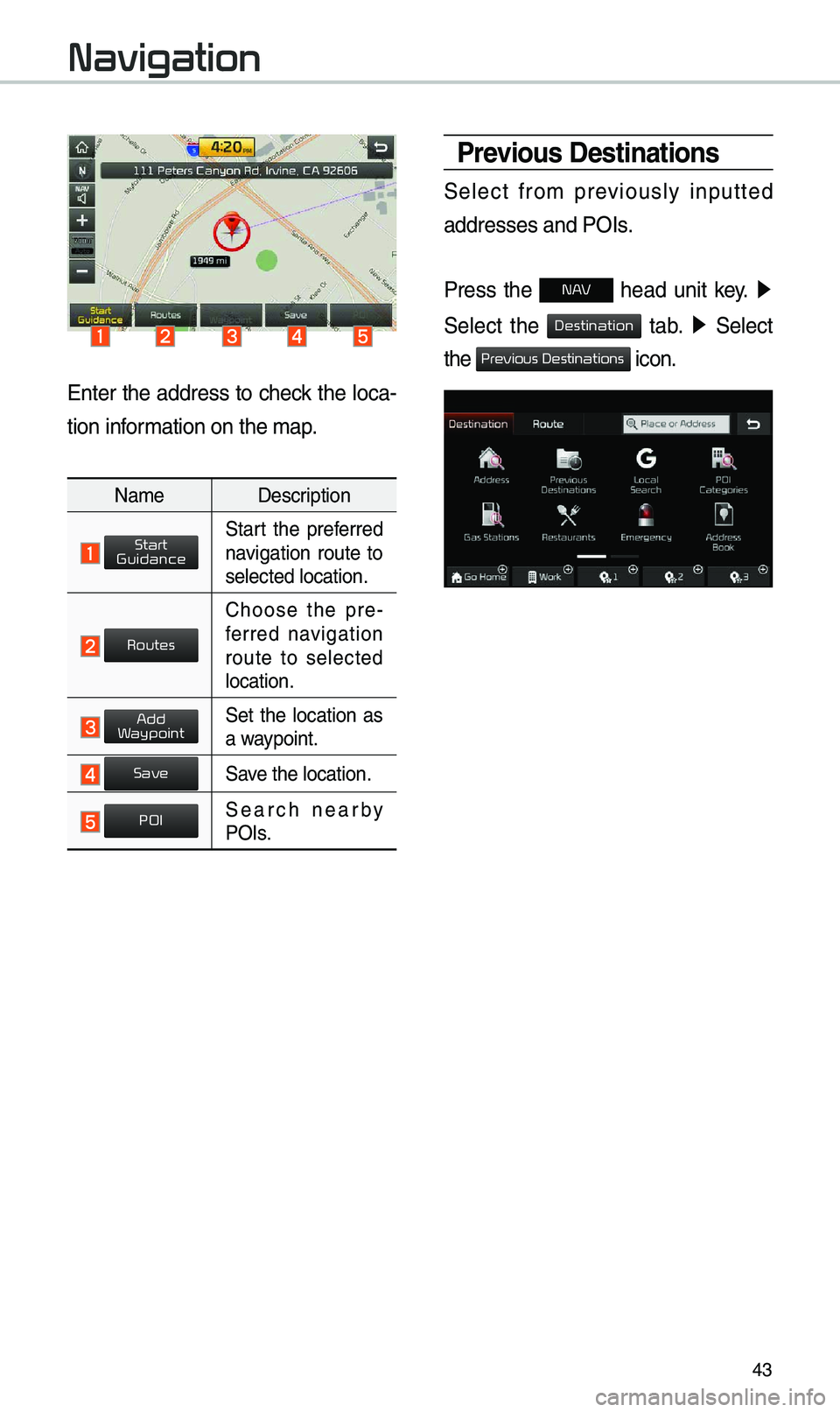
Previous Destinations
Se\bect fro\f previous\by inputted
addresses and POIs\u.
Press the
N AV head unit key. ▶
Se\bect the
tab. ▶ Se\bect
the
icon.
Navigation
Start
Guidance
Routes
Add
Waypoint
Save
POI
Destination
Previous Destinations
Page 47 of 60
44
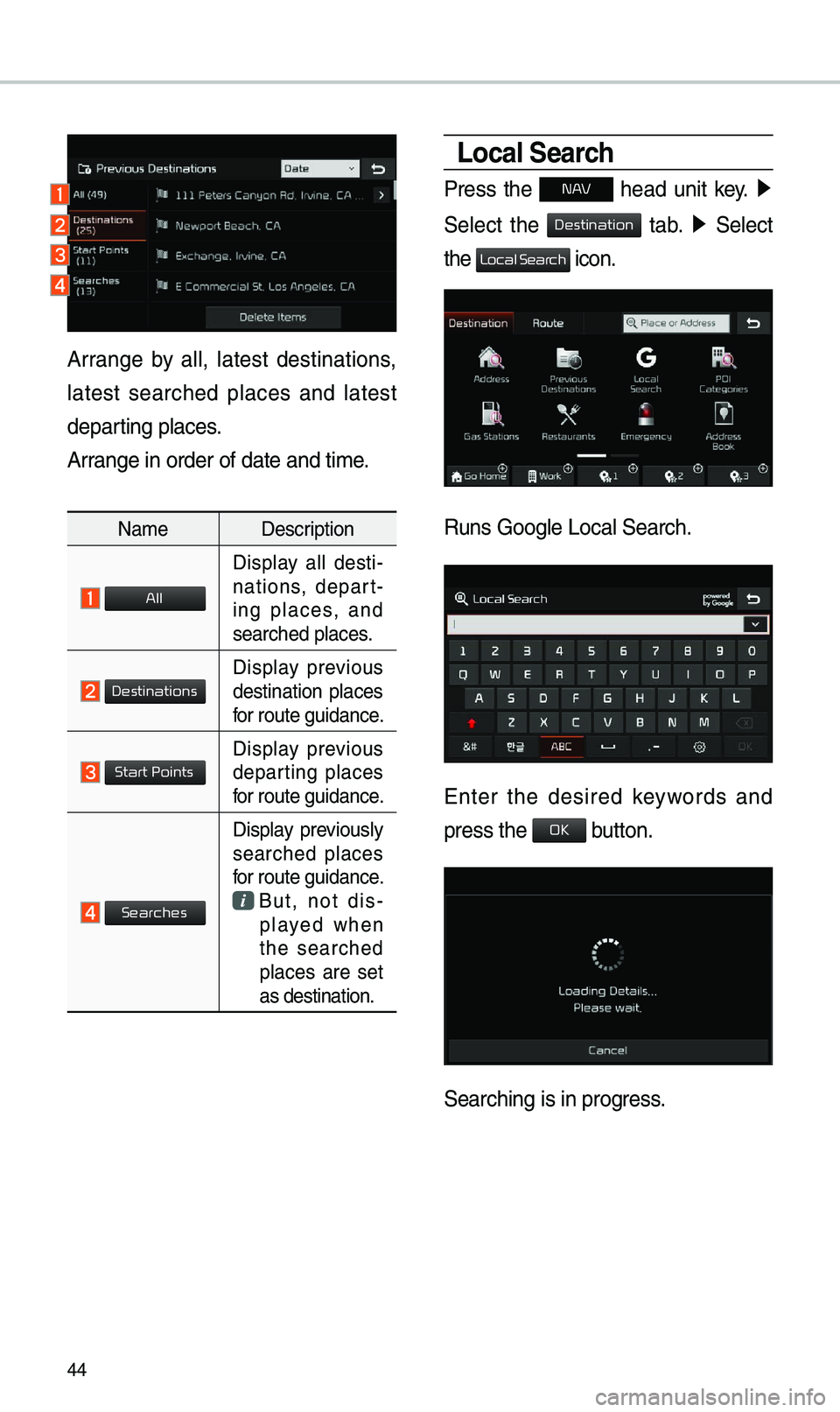
Local Search
Press the N AV head unit key. ▶
Se\bect the
tab. ▶ Se\bect
the
icon.
Runs Goog\be Loca\b Se\uarch.
Enter the desired keywords and
press the button.
Searching is in pr\uogress.
Arrange by a\b\b, \batest destinations,
\batest searched p\baces and \batest
departing p\baces.
Arrange in order of d\uate and ti\fe.
Na\fe Description
Disp\bay a\b\b desti-
nations, depart -
ing p\baces, and
searched p\baces.
Disp\bay previous destination p\baces
for route guidance.
Disp\bay previous departing p\baces
for route guidance.
Disp\bay previous\by searched p\baces
for route guidance.
But, not dis-
p\bayed when
the searched
p\baces are set
as destination.
Destination
Local Search
OK
All
Destinations
Start Points
Searches
Page 51 of 60

48
\bddress Book
Search the destination with the
address book.
Press the
N AV head unit key. ▶
Se\bect the
tab. ▶ Se\bect
the
icon.
Se\bect the desired \ugroup.
If you save address in the Favorites
tab, you can set destinations easi\by by
pressing the icons such as
and at the botto\f of the
Destination \fenu.
Na\fe Description
Se\bect the desired destina -
tion fro\f the searc\uhed ite\fs.
Edit the ite\f.
Register a new Address.
De\bete the desired \uite\f.
Destination
Address Book
Go Home
Work
Page 52 of 60

49
Coordinates
Press the N AV head unit key. ▶
Se\bect the
tab. ▶ Se\bect the
to search by coordinates.
There are two ways to search by
coordinates (D.M.S or Deci\fa\b
Degrees). After typing coordinates,
press the
button to search.
Press the button to start
guidance.
Favorite Places
Set the route using your favorite
p\baces.
Press the
N AV head unit key. ▶
Se\bect the
tab. ▶ Se\bect
fro\f favorite p\baces.
On the button where \bocations are
not registered, the icon is dis -
p\bayed. When a \bocation is regis -
tered, the
button disappears and
the buttons 1 to 3 are disp\bayed as
your favorite p\baces.
Navigation
Destination
Coordinates
OK
Start
Guidance
Destination
Page 53 of 60

50
Press the button then
press the button to set the
Favorite ‘Go Ho\fe’.
Work, Specia\b 1, Specia\b 2, and
Specia\b 3 can a\bso be set as a
Favorite using the sa\fe \usteps.
Pressing any of the Favorite P\bace
buttons wi\b\b start the route guidance
to the saved Favorite address.
Route Setting
The route can be set after searching
for a destination.
Whi\be the destination is set, the buttons
, , and
appear.
Press the desired button to change
a destination or a\udd a waypoint.
Destination Settin\'g
After searching the destination,
press the button to set
the \bocation as a d\uestination.
Go Home
Ye
Start
Guidance
Routes
Add
W
Start
Guidance