ad blue KIA SPORTAGE 2020 Quick Reference Guide
[x] Cancel search | Manufacturer: KIA, Model Year: 2020, Model line: SPORTAGE, Model: KIA SPORTAGE 2020Pages: 50, PDF Size: 2.73 MB
Page 31 of 50
29
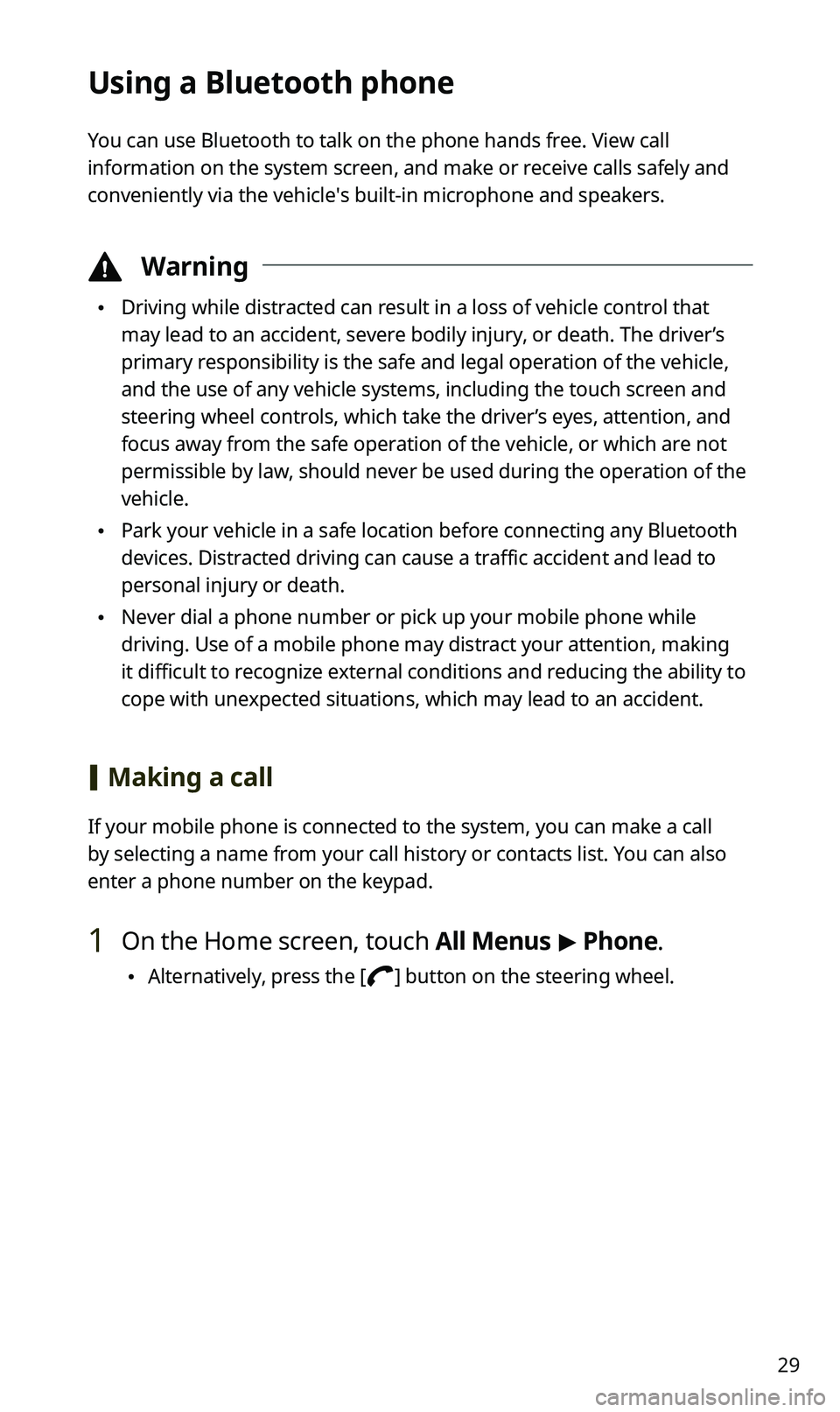
Using a Bluetooth phone
You can use Bluetooth to talk on the phone hands free. View call
information on the system screen, and make or receive calls safely and
conveniently via the vehicle′s built-in microphone and speakers.
ÜWarning
•Driving while distracted can result in a loss of vehicle control that
may lead to an accident, severe bodily injury, or death. The driver’s
primary responsibility is the safe and legal operation of the vehicle,
and the use of any vehicle systems, including the touch screen and
steering wheel controls, which take the driver’s eyes, attention, and
focus away from the safe operation of the vehicle, or which are not
permissible by law, should never be used during the operation of the
vehicle.
•Park your vehicle in a safe location before connecting any Bluetooth
devices. Distracted driving can cause a traffic accident and lead to
personal injury or death.
•Never dial a phone number or pick up your mobile phone while
driving. Use of a mobile phone may distract your attention, making
it difficult to recognize external conditions and reducing the ability to
cope with unexpected situations, which may lead to an accident.
[Making a call
If your mobile phone is connected to the system, you can make a call
by selecting a name from your call history or contacts list. You can also
enter a phone number on the keypad.
1 On the Home screen, touch All Menus > Phone.
•Alternatively, press the [] button on the steering wheel.
Page 33 of 50
![KIA SPORTAGE 2020 Quick Reference Guide 31
[Answering calls
When a call comes in, a notification pop-up window of the incoming call
appears on the system screen.
To answer the call, touch Accept.
•Alternatively, press the [] button on](/img/2/54564/w960_54564-32.png "KIA SPORTAGE 2020 Quick Reference Guide 31
[Answering calls
When a call comes in, a notification pop-up window of the incoming call
appears on the system screen.
To answer the call, touch Accept.
•Alternatively, press the [] button on")
31
[Answering calls
When a call comes in, a notification pop-up window of the incoming call
appears on the system screen.
To answer the call, touch Accept.
•Alternatively, press the [] button on the steering wheel.
To reject the call, touch Reject.
•Alternatively, press the [] button on the steering wheel.
ÛNote
•Depending on the mobile phone type, call rejection may not be
supported.
•Once your mobile phone is connected to the system, the call sound
may be output through the vehicle′s speakers even after you exit
the vehicle if the phone is within the connection range. To end the
connection, disconnect the device from the system or deactivate
Bluetooth on the device.
Page 35 of 50
33
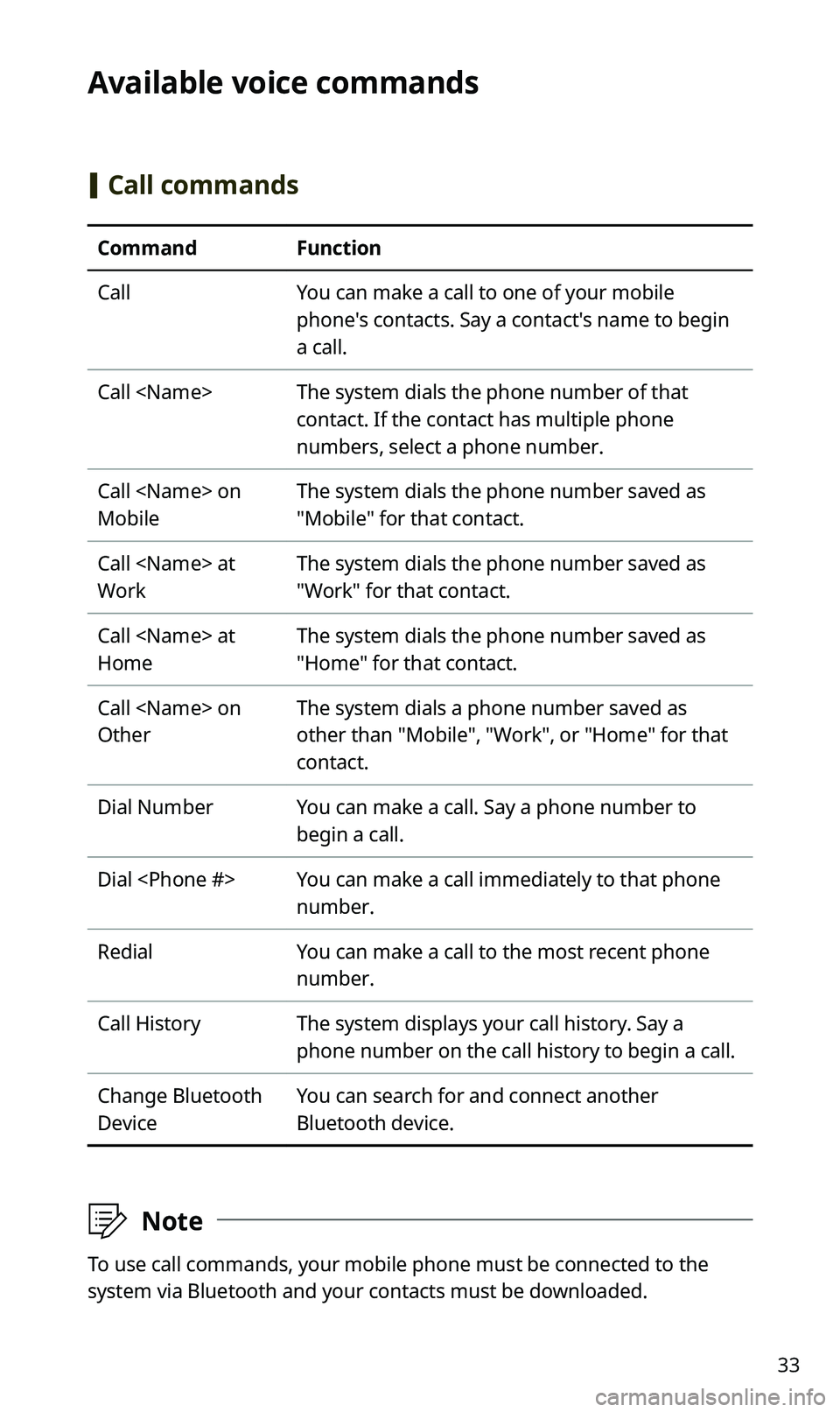
Available voice commands
[Call commands
CommandFunction
CallYou can make a call to one of your mobile
phone's contacts. Say a contact's name to begin
a call.
Call
contact. If the contact has multiple phone
numbers, select a phone number.
Call
Mobile
The system dials the phone number saved as
"Mobile" for that contact.
Call
Work
The system dials the phone number saved as
"Work" for that contact.
Call
Home
The system dials the phone number saved as
"Home" for that contact.
Call
Other
The system dials a phone number saved as
other than "Mobile", "Work", or "Home" for that
contact.
Dial NumberYou can make a call. Say a phone number to
begin a call.
Dial
number.
RedialYou can make a call to the most recent phone
number.
Call HistoryThe system displays your call history. Say a
phone number on the call history to begin a call.
Change Bluetooth
Device
You can search for and connect another
Bluetooth device.
ÛNote
To use call commands, your mobile phone must be connected to the
system via Bluetooth and your contacts must be downloaded.
Page 36 of 50
34
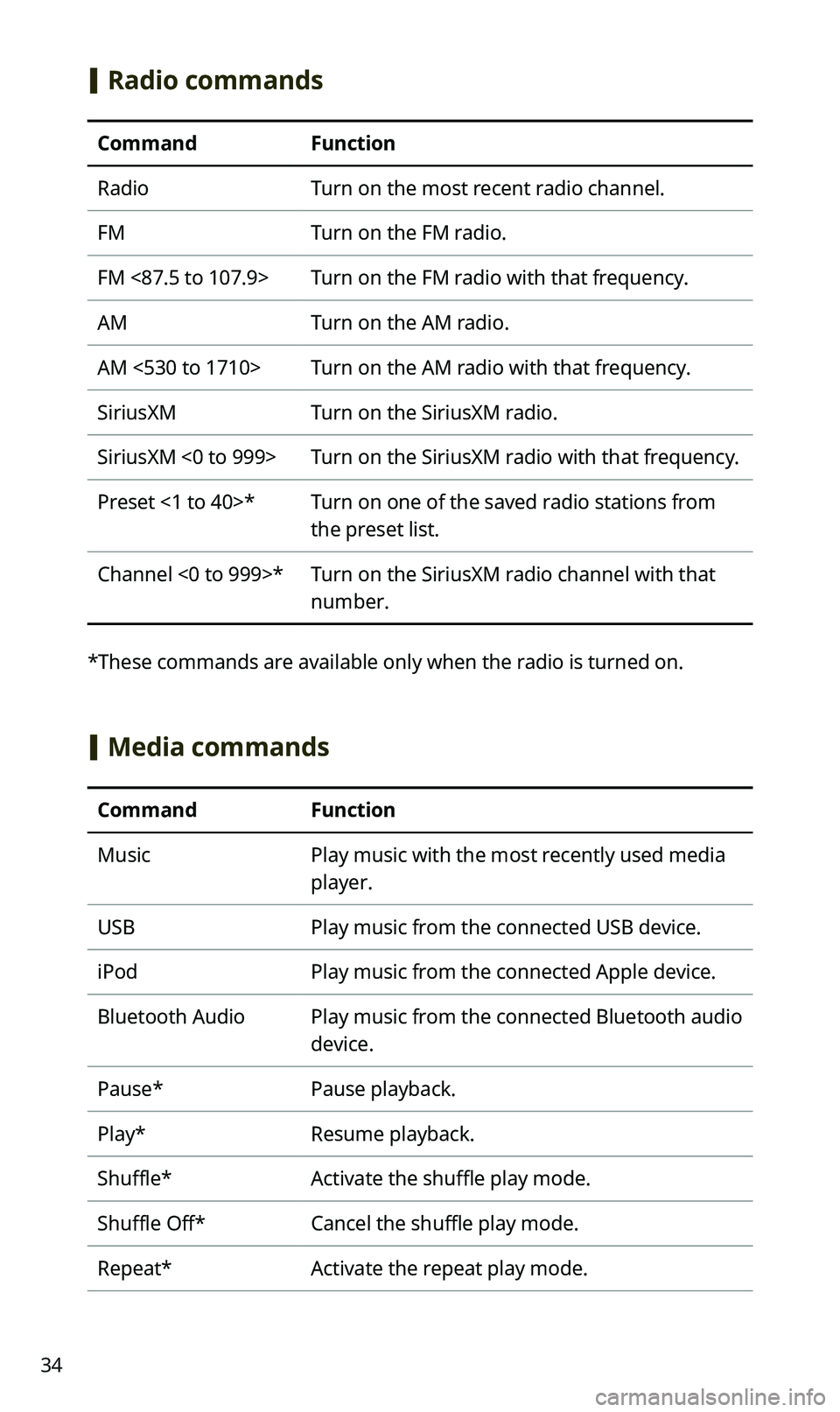
[Radio commands
CommandFunction
RadioTurn on the most recent radio channel.
FMTurn on the FM radio.
FM <87.5 to 107.9>Turn on the FM radio with that frequency.
AMTurn on the AM radio.
AM <530 to 1710>Turn on the AM radio with that frequency.
SiriusXMTurn on the SiriusXM radio.
SiriusXM <0 to 999>Turn on the SiriusXM radio with that frequency.
Preset <1 to 40>*Turn on one of the saved radio stations from
the preset list.
Channel <0 to 999>*Turn on the SiriusXM radio channel with that
number.
* These commands are available only when the radio is turned on.
[Media commands
CommandFunction
MusicPlay music with the most recently used media
player.
USBPlay music from the connected USB device.
iPodPlay music from the connected Apple device.
Bluetooth AudioPlay music from the connected Bluetooth audio
device.
Pause*Pause playback.
Play*Resume playback.
Shuffle*Activate the shuffle play mode.
Shuffle Off*Cancel the shuffle play mode.
Repeat*Activate the repeat play mode.
Page 37 of 50
35
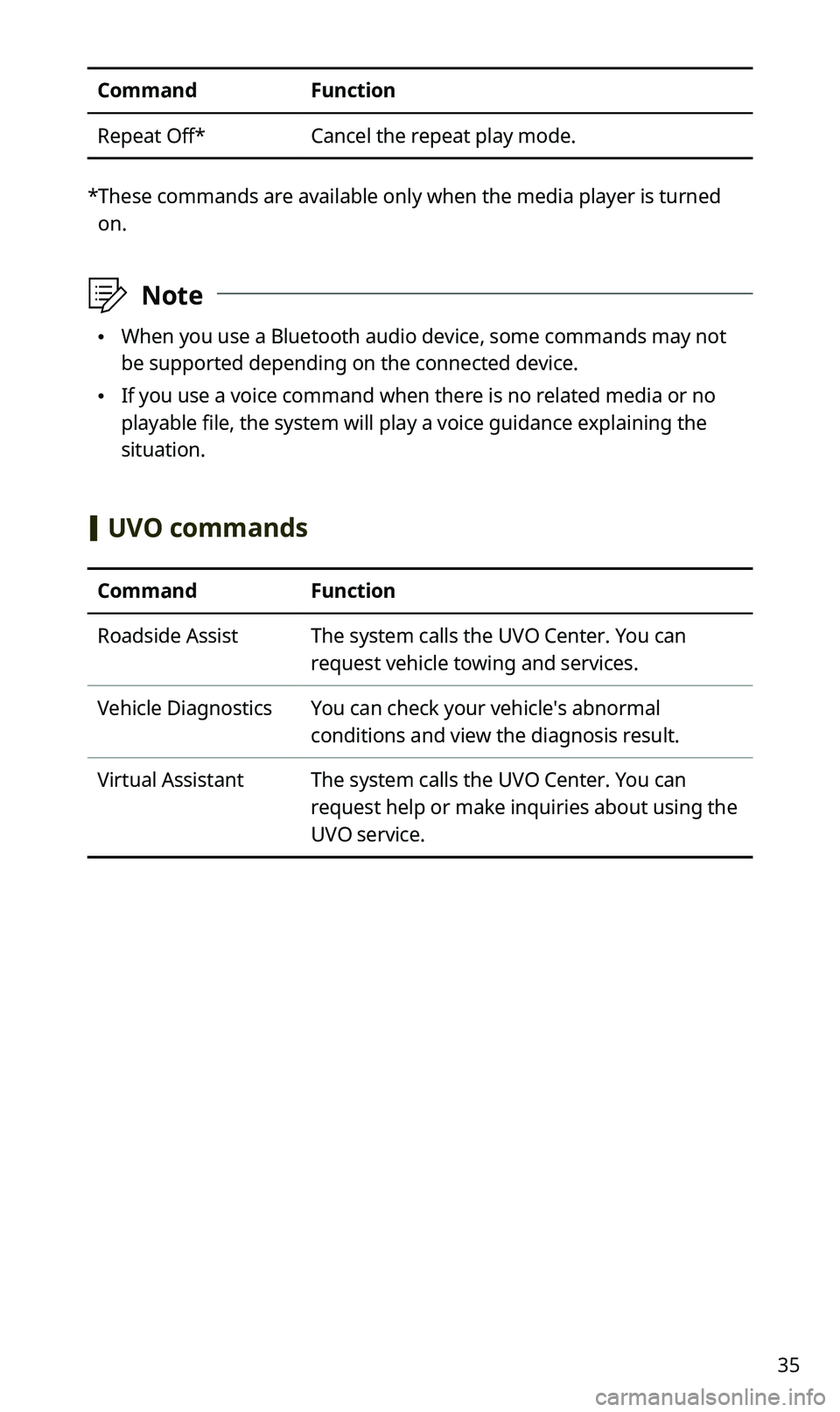
CommandFunction
Repeat Off*Cancel the repeat play mode.
* These commands are available only when the media player is turned
on.
ÛNote
•When you use a Bluetooth audio device, some commands may not
be supported depending on the connected device.
•If you use a voice command when there is no related media or no
playable file, the system will play a voice guidance explaining the
situation.
[UVO commands
CommandFunction
Roadside AssistThe system calls the UVO Center. You can
request vehicle towing and services.
Vehicle DiagnosticsYou can check your vehicle′s abnormal
conditions and view the diagnosis result.
Virtual AssistantThe system calls the UVO Center. You can
request help or make inquiries about using the
UVO service.
Page 39 of 50
37
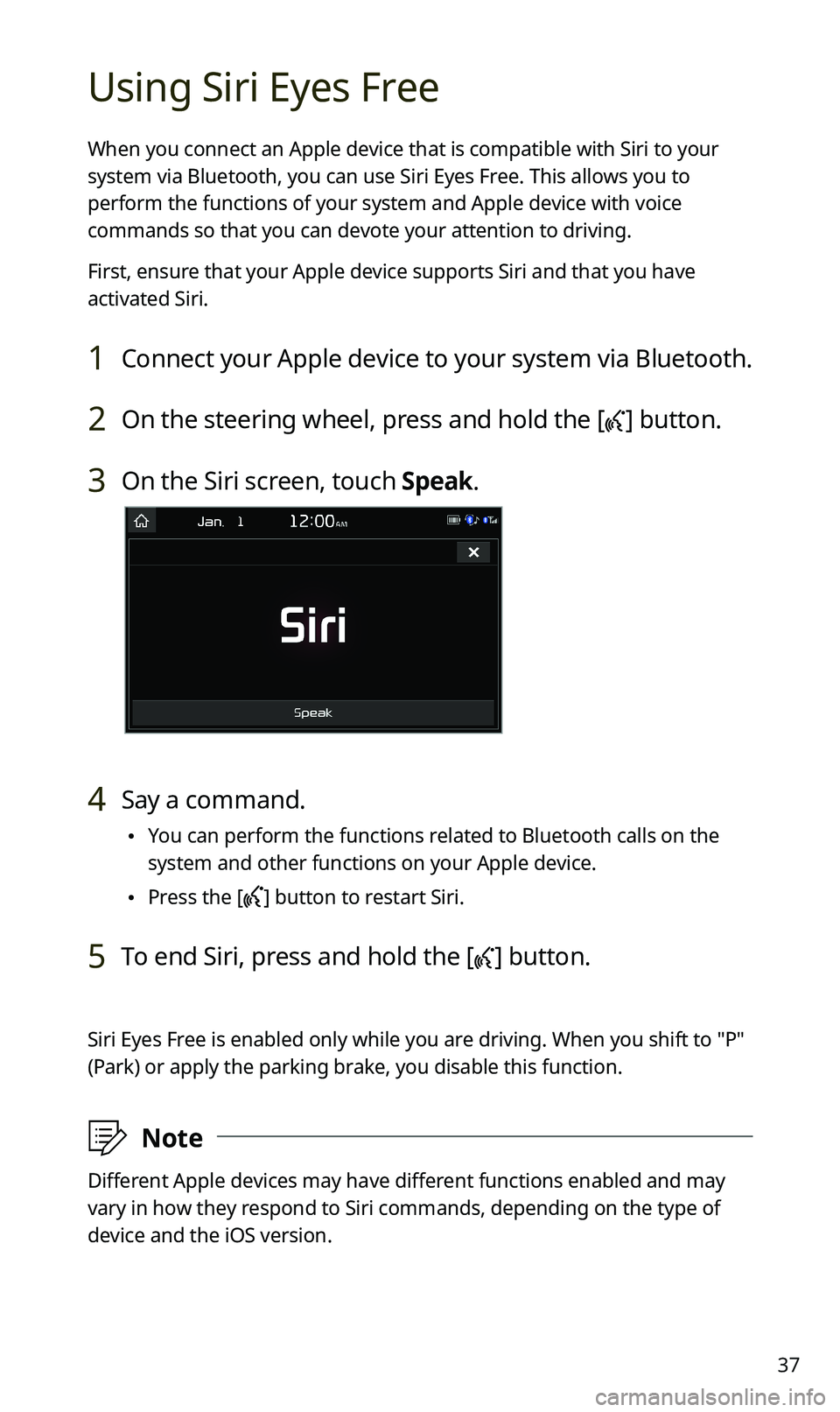
Using Siri Eyes Free
When you connect an Apple device that is compatible with Siri to your
system via Bluetooth, you can use Siri Eyes Free. This allows you to
perform the functions of your system and Apple device with voice
commands so that you can devote your attention to driving.
First, ensure that your Apple device supports Siri and that you have
activated Siri.
1 Connect your Apple device to your system via Bluetooth.
2 On the steering wheel, press and hold the [] button.
3 On the Siri screen, touch Speak.
4 Say a command.
•You can perform the functions related to Bluetooth calls on the
system and other functions on your Apple device.
•Press the [] button to restart Siri.
5 To end Siri, press and hold the [] button.
Siri Eyes Free is enabled only while you are driving. When you shift to ″P″
(Park) or apply the parking brake, you disable this function.
ÛNote
Different Apple devices may have different functions enabled and may
vary in how they respond to Siri commands, depending on the type of
device and the iOS version.
Page 40 of 50
38
FAQ
Bluetooth
QWhat kinds of functions can I use with Bluetooth?
AYou can connect your mobile phone to make or answer calls
hands free. You can also connect audio devices, such as MP3
players and mobile phones, to listen to music in your vehicle.
QWhat is the difference between pairing a device and connecting
a device?
APairing occurs through authenticating the system and a mobile
device. Devices paired with the system can be connected and
disconnected until they are deleted from the system. Bluetooth
Handsfree features, such as making or answering calls or
accessing contacts, are supported only in mobile phones
connected with the system.
QHow do I pair a Bluetooth device with the system?
AOn the Home screen, touch All Menus > Setup > Bluetooth >
Bluetooth Connection > Add New. From the Bluetooth device
you want to connect, search for and pair with your system.
When you enter or confirm a Bluetooth passkey displayed on the
system screen, the device is registered to the system's Bluetooth
device list and connected to the system automatically.
Page 41 of 50
39
QWhat is a passkey?
AA passkey is the password used to authenticate the connection
between the system and the mobile device. The passkey needs to
be entered only once when you pair a mobile phone for the first
time.
The initial passkey is "0000." You can change it by touching
All Menus > Setup > Bluetooth > Bluetooth System Info >
Passkey.
QI changed my mobile phone that was registered to the system via
Bluetooth. How can I register my new mobile phone?
AYou can register additional devices to your system by following
the instructions to pair a device. Up to five devices can be added
to your system's Bluetooth device list. To delete a registered
device, on the Bluetooth device list, touch Delete Devices, select
the devices to delete, and touch Delete.
QHow do I answer a call?
AWhen a call comes in and a notification pop-up window appears,
press the [] button on the steering wheel or touch Accept on
the screen.
To reject the call, press the [] button on the steering wheel or
touch Reject on the screen.
Page 42 of 50
![KIA SPORTAGE 2020 Quick Reference Guide 40
QWhat should I do if I want to switch the call to my mobile phone
while on a call via the system?
APress and hold the [] button on the steering wheel or touch
Use Private on the screen to switch](/img/2/54564/w960_54564-41.png "KIA SPORTAGE 2020 Quick Reference Guide 40
QWhat should I do if I want to switch the call to my mobile phone
while on a call via the system?
APress and hold the [] button on the steering wheel or touch
Use Private on the screen to switch")
40
QWhat should I do if I want to switch the call to my mobile phone
while on a call via the system?
APress and hold the [] button on the steering wheel or touch
Use Private on the screen to switch the call to your mobile
phone.
QHow do I access the contacts in my mobile phone from the
system?
AWhen connecting your mobile phone to your system, permit
the system to access the contacts saved in the mobile phone.
The contacts will be downloaded to the system. To open the
downloaded contacts list, press the [] button on the steering
wheel and touch on the phone screen. You can search for a
contact to make a call or add it to favorites.
QWhat is the range of my wireless connection?
AA wireless connection can be used within about 10 m (about
33 ft). The maximum Bluetooth range may be affected by
the usage environment, such as the vehicle type, the system
platform, or the connected mobile phone.
QHow many mobile devices can be paired?
AUp to five devices can be paired with your system.