wheel KIA SPORTAGE 2020 Quick Reference Guide
[x] Cancel search | Manufacturer: KIA, Model Year: 2020, Model line: SPORTAGE, Model: KIA SPORTAGE 2020Pages: 50, PDF Size: 2.73 MB
Page 30 of 50
![KIA SPORTAGE 2020 Quick Reference Guide 28
Using a Bluetooth audio device
You can listen to music stored in the connected Bluetooth audio device
via your vehicle′s speakers.
On the control panel, press the [MEDIA] button.
•If you have](/img/2/54564/w960_54564-29.png "KIA SPORTAGE 2020 Quick Reference Guide 28
Using a Bluetooth audio device
You can listen to music stored in the connected Bluetooth audio device
via your vehicle′s speakers.
On the control panel, press the [MEDIA] button.
•If you have")
28
Using a Bluetooth audio device
You can listen to music stored in the connected Bluetooth audio device
via your vehicle′s speakers.
On the control panel, press the [MEDIA] button.
•If you have multiple media storage devices, press the [MEDIA] button
again and touch Bluetooth Audio from the media selection window.
bac
ef
ghijk
d
a Search for and connect another Bluetooth device.
b Display the options list.
•Change Device: Search for and connect another Bluetooth device.
•Sound Settings: Customize the system sound settings.
c Return to the previous level.
d Information about the song currently playing
e Repeat play mode
f Shuffle play mode
g Restart the current playback. Touch twice to play the previous file.
You can also press the [ SEEK] button on the control panel or use
the [/] lever on the steering wheel.
h Pause or resume playback.
i Play the next file. You can also press the [TRACK ] button on the
control panel or use the [/] lever on the steering wheel.
j Change the repeat play mode.
k Activate or deactivate the shuffle play mode.
Page 31 of 50
29
Using a Bluetooth phone
You can use Bluetooth to talk on the phone hands free. View call
information on the system screen, and make or receive calls safely and
conveniently via the vehicle′s built-in microphone and speakers.
ÜWarning
•Driving while distracted can result in a loss of vehicle control that
may lead to an accident, severe bodily injury, or death. The driver’s
primary responsibility is the safe and legal operation of the vehicle,
and the use of any vehicle systems, including the touch screen and
steering wheel controls, which take the driver’s eyes, attention, and
focus away from the safe operation of the vehicle, or which are not
permissible by law, should never be used during the operation of the
vehicle.
•Park your vehicle in a safe location before connecting any Bluetooth
devices. Distracted driving can cause a traffic accident and lead to
personal injury or death.
•Never dial a phone number or pick up your mobile phone while
driving. Use of a mobile phone may distract your attention, making
it difficult to recognize external conditions and reducing the ability to
cope with unexpected situations, which may lead to an accident.
[Making a call
If your mobile phone is connected to the system, you can make a call
by selecting a name from your call history or contacts list. You can also
enter a phone number on the keypad.
1 On the Home screen, touch All Menus > Phone.
•Alternatively, press the [] button on the steering wheel.
Page 32 of 50
30
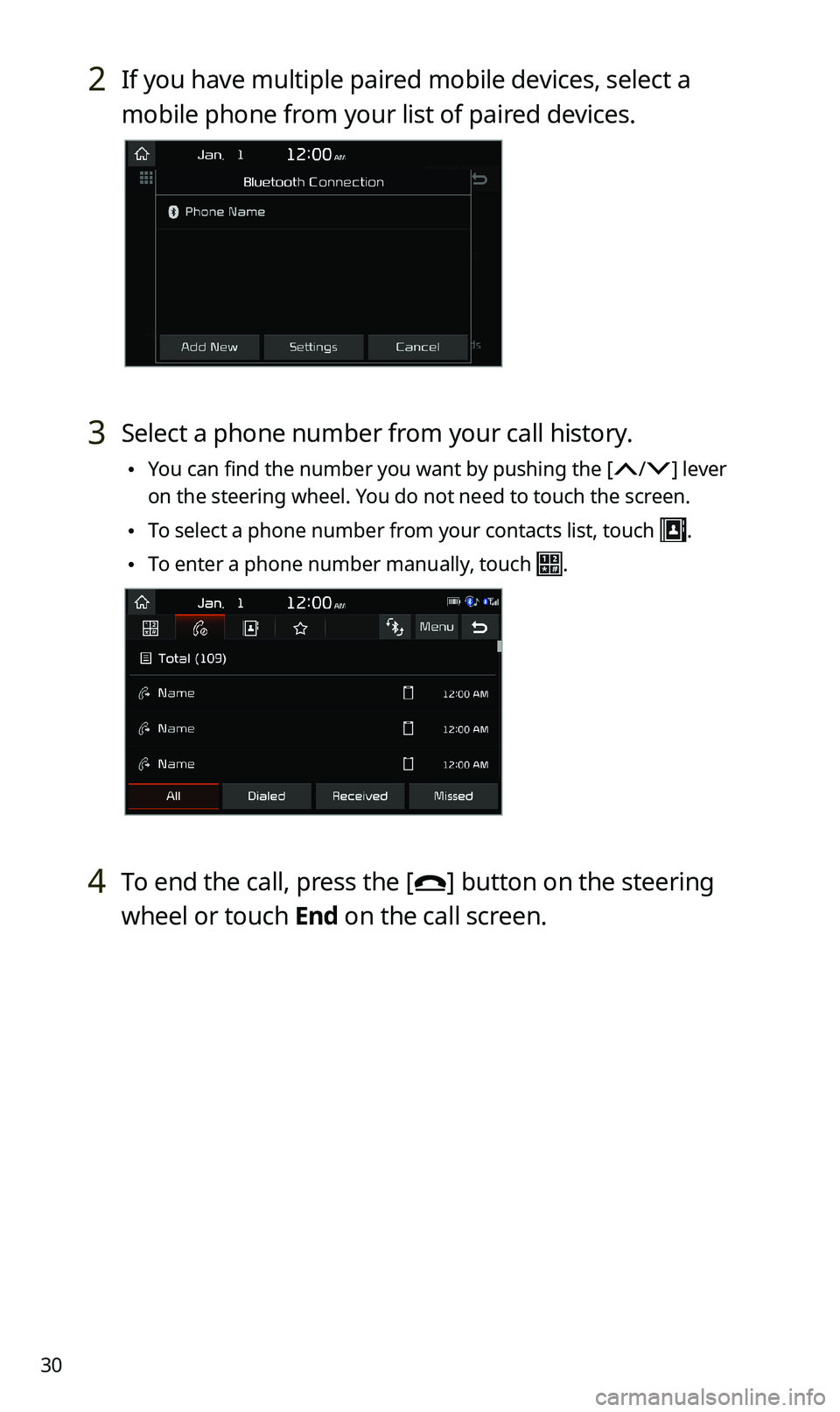
2 If you have multiple paired mobile devices, select a
mobile phone from your list of paired devices.
3 Select a phone number from your call history.
•You can find the number you want by pushing the [/] lever
on the steering wheel. You do not need to touch the screen.
•To select a phone number from your contacts list, touch .
•To enter a phone number manually, touch .
4 To end the call, press the [] button on the steering
wheel or touch End on the call screen.
Page 33 of 50
![KIA SPORTAGE 2020 Quick Reference Guide 31
[Answering calls
When a call comes in, a notification pop-up window of the incoming call
appears on the system screen.
To answer the call, touch Accept.
•Alternatively, press the [] button on](/img/2/54564/w960_54564-32.png "KIA SPORTAGE 2020 Quick Reference Guide 31
[Answering calls
When a call comes in, a notification pop-up window of the incoming call
appears on the system screen.
To answer the call, touch Accept.
•Alternatively, press the [] button on")
31
[Answering calls
When a call comes in, a notification pop-up window of the incoming call
appears on the system screen.
To answer the call, touch Accept.
•Alternatively, press the [] button on the steering wheel.
To reject the call, touch Reject.
•Alternatively, press the [] button on the steering wheel.
ÛNote
•Depending on the mobile phone type, call rejection may not be
supported.
•Once your mobile phone is connected to the system, the call sound
may be output through the vehicle′s speakers even after you exit
the vehicle if the phone is within the connection range. To end the
connection, disconnect the device from the system or deactivate
Bluetooth on the device.
Page 34 of 50
32
Starting voice recognition
With voice recognition, you can use your system′s functions without
controlling the screen or buttons. This can help you maintain focus while
driving and avoid any dangerous situations.
Use voice recognition to perform functions safely and conveniently.
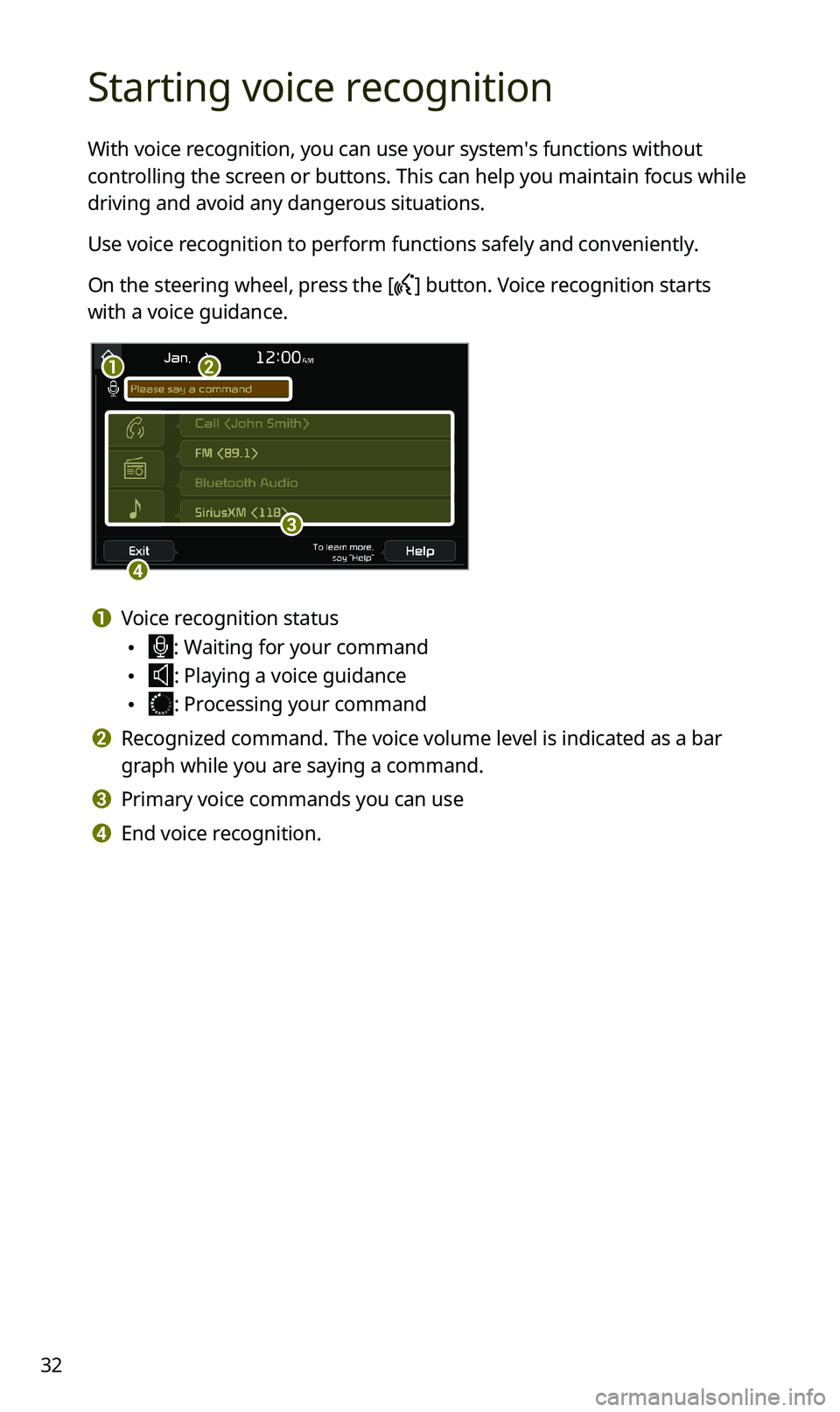
On the steering wheel, press the [] button. Voice recognition starts
with a voice guidance.
b
c
d
a
a Voice recognition status
•: Waiting for your command
•: Playing a voice guidance
•: Processing your command
b Recognized command. The voice volume level is indicated as a bar
graph while you are saying a command.
c Primary voice commands you can use
d End voice recognition.
Page 39 of 50
37
Using Siri Eyes Free
When you connect an Apple device that is compatible with Siri to your
system via Bluetooth, you can use Siri Eyes Free. This allows you to
perform the functions of your system and Apple device with voice
commands so that you can devote your attention to driving.
First, ensure that your Apple device supports Siri and that you have
activated Siri.
1 Connect your Apple device to your system via Bluetooth.
2 On the steering wheel, press and hold the [] button.
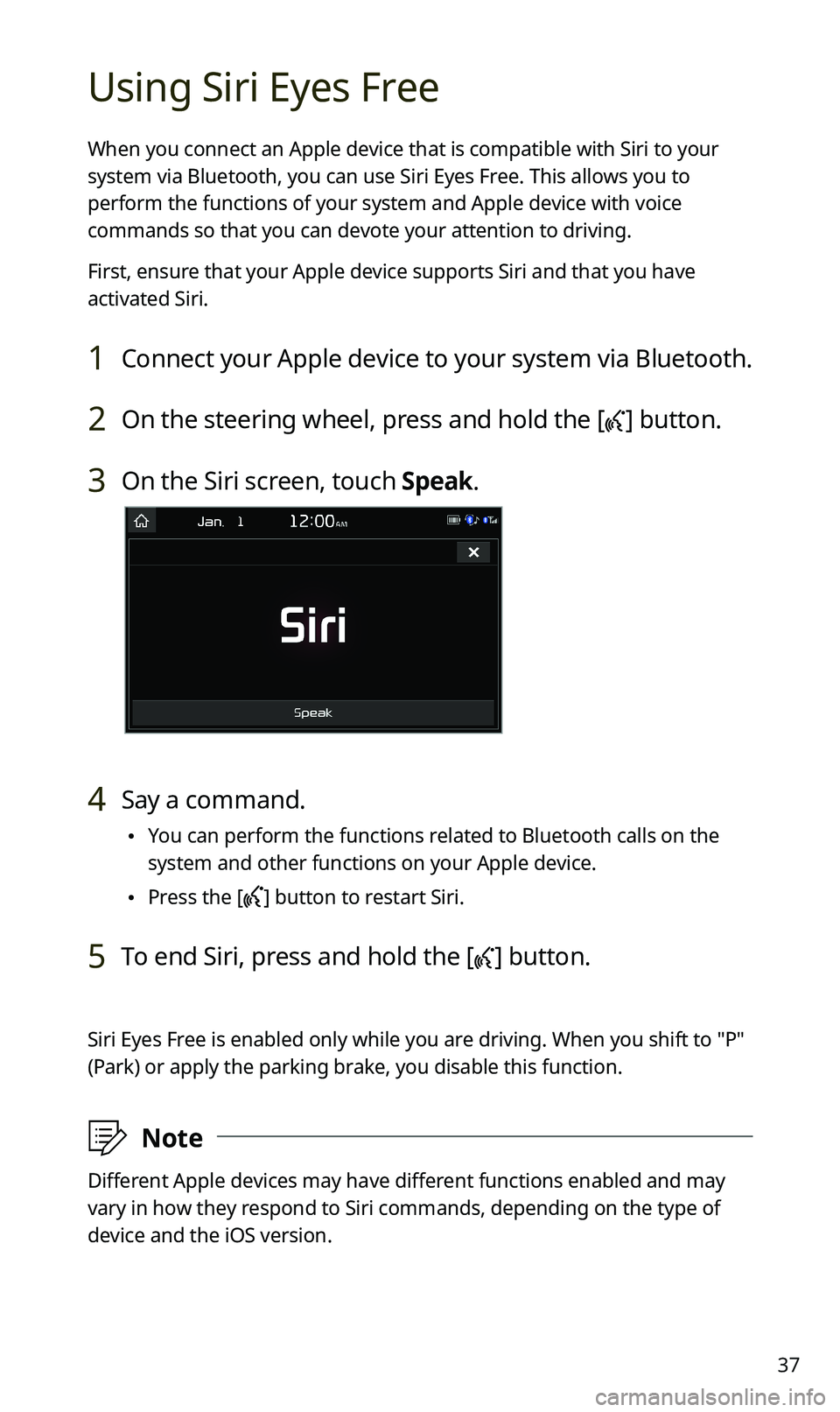
3 On the Siri screen, touch Speak.
4 Say a command.
•You can perform the functions related to Bluetooth calls on the
system and other functions on your Apple device.
•Press the [] button to restart Siri.
5 To end Siri, press and hold the [] button.
Siri Eyes Free is enabled only while you are driving. When you shift to ″P″
(Park) or apply the parking brake, you disable this function.
ÛNote
Different Apple devices may have different functions enabled and may
vary in how they respond to Siri commands, depending on the type of
device and the iOS version.
Page 41 of 50
39
QWhat is a passkey?
AA passkey is the password used to authenticate the connection
between the system and the mobile device. The passkey needs to
be entered only once when you pair a mobile phone for the first
time.
The initial passkey is "0000." You can change it by touching
All Menus > Setup > Bluetooth > Bluetooth System Info >
Passkey.
QI changed my mobile phone that was registered to the system via
Bluetooth. How can I register my new mobile phone?
AYou can register additional devices to your system by following
the instructions to pair a device. Up to five devices can be added
to your system's Bluetooth device list. To delete a registered
device, on the Bluetooth device list, touch Delete Devices, select
the devices to delete, and touch Delete.
QHow do I answer a call?
AWhen a call comes in and a notification pop-up window appears,
press the [] button on the steering wheel or touch Accept on
the screen.
To reject the call, press the [] button on the steering wheel or
touch Reject on the screen.
Page 42 of 50
![KIA SPORTAGE 2020 Quick Reference Guide 40
QWhat should I do if I want to switch the call to my mobile phone
while on a call via the system?
APress and hold the [] button on the steering wheel or touch
Use Private on the screen to switch](/img/2/54564/w960_54564-41.png "KIA SPORTAGE 2020 Quick Reference Guide 40
QWhat should I do if I want to switch the call to my mobile phone
while on a call via the system?
APress and hold the [] button on the steering wheel or touch
Use Private on the screen to switch")
40
QWhat should I do if I want to switch the call to my mobile phone
while on a call via the system?
APress and hold the [] button on the steering wheel or touch
Use Private on the screen to switch the call to your mobile
phone.
QHow do I access the contacts in my mobile phone from the
system?
AWhen connecting your mobile phone to your system, permit
the system to access the contacts saved in the mobile phone.
The contacts will be downloaded to the system. To open the
downloaded contacts list, press the [] button on the steering
wheel and touch on the phone screen. You can search for a
contact to make a call or add it to favorites.
QWhat is the range of my wireless connection?
AA wireless connection can be used within about 10 m (about
33 ft). The maximum Bluetooth range may be affected by
the usage environment, such as the vehicle type, the system
platform, or the connected mobile phone.
QHow many mobile devices can be paired?
AUp to five devices can be paired with your system.
Page 43 of 50
41
QWhy is call quality sometimes poor?
ACheck your mobile phone′s reception sensitivity when call quality
deteriorates. The call quality may deteriorate when the signal
strength is low.
Call quality may also become poor if metal objects, such as
beverage cans, are placed near the mobile phone. Check to see if
any metal objects are near the mobile phone.
The call sound and quality may differ depending on the type of
mobile phone.
AV function
QWhat kinds of AV functions does my system have?
AYour system provides you with the radio and media player
(USB, iPod, etc.). For more information, see the corresponding
chapters.
QI want to move to the previous or next song without touching the
screen while driving. How do I do this?
APush the [/] lever on the steering wheel to move to the
previous or next song.