phone KIA SPORTAGE 2020 Quick Reference Guide
[x] Cancel search | Manufacturer: KIA, Model Year: 2020, Model line: SPORTAGE, Model: KIA SPORTAGE 2020Pages: 50, PDF Size: 2.73 MB
Page 5 of 50
3
Contents
Component names and functions 4
Turning the system on or off 7
Getting to know the Home screen 9
Using phone projection 12
Using the radio 17
Using the media player 21
Using Bluetooth 25
Starting voice recognition 32
Using Siri Eyes Free 37
FAQ 38
Page 7 of 50
5
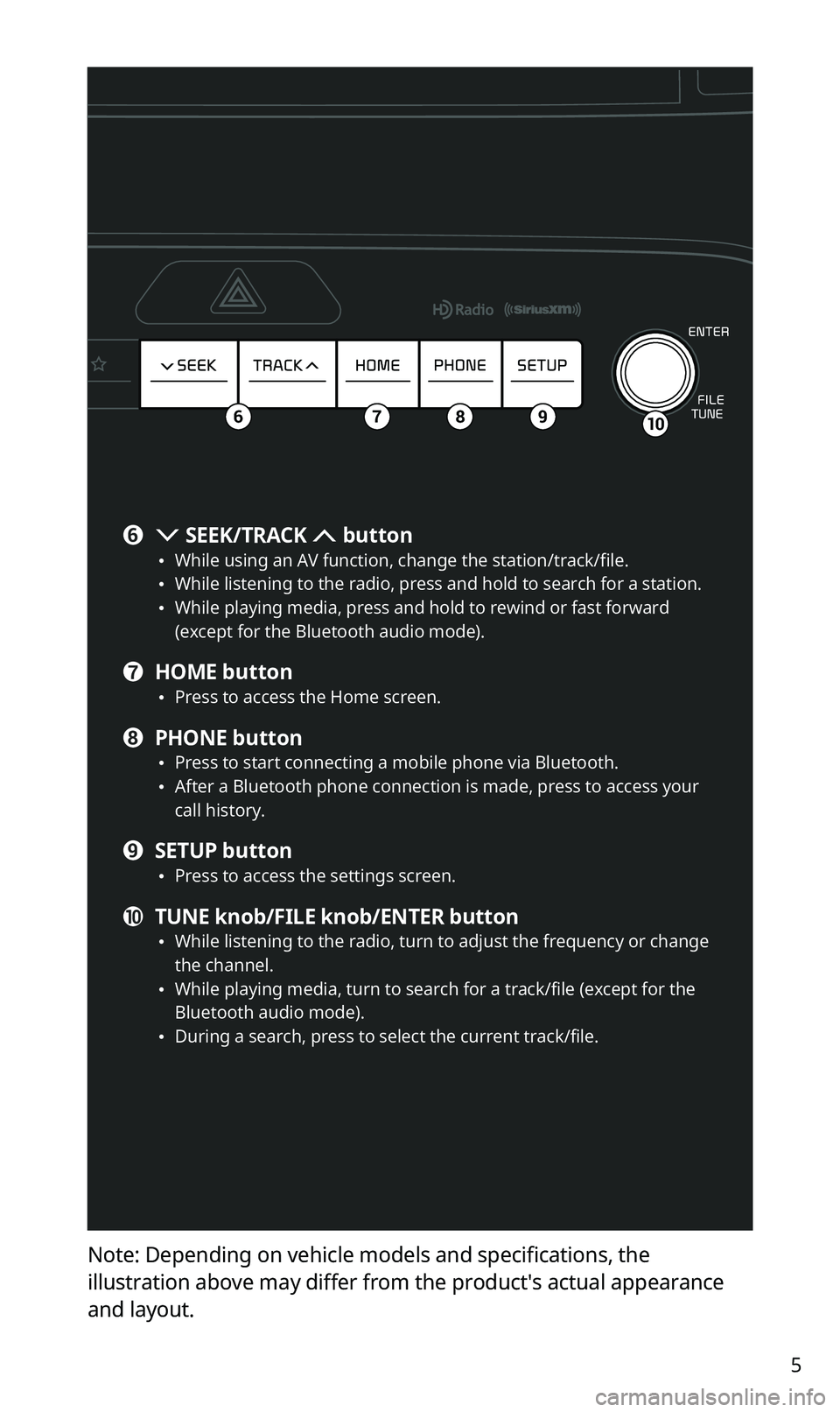
Note: Depending on vehicle models and specifications, the
illustration above may differ from the product′s actual appearance
and layout.
106789
f SEEK/TRACK button •While using an AV function, change the station/track/file. •While listening to the radio, press and hold to search for a station. •While playing media, press and hold to rewind or fast forward (except for the Bluetooth audio mode).
g HOME button •Press to access the Home screen.
h PHONE button •Press to start connecting a mobile phone via Bluetooth. •After a Bluetooth phone connection is made, press to access your
call history.
i SETUP button •Press to access the settings screen.
j TUNE knob/FILE knob/ENTER button •While listening to the radio, turn to adjust the frequency or change the channel. •While playing media, turn to search for a track/file (except for the Bluetooth audio mode). •During a search, press to select the current track/file.
Page 8 of 50
6
Steering wheel remote control
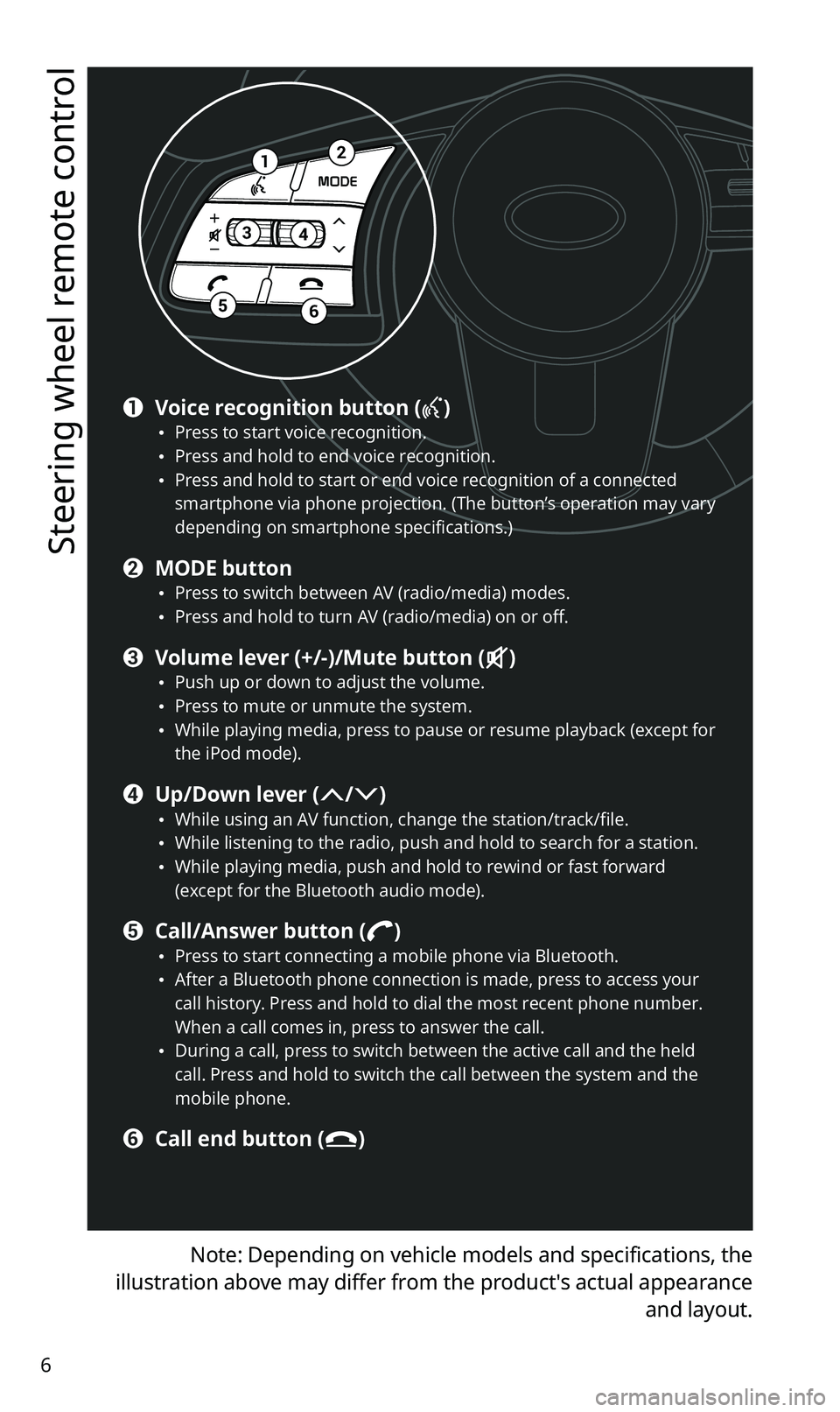
Note: Depending on vehicle models and specifications, the
illustration above may differ from the product′s actual appearance
and layout.
12
34
56
a Voice recognition button () •Press to start voice recognition. •Press and hold to end voice recognition. •Press and hold to start or end voice recognition of a connected smartphone via phone projection. (The button’s operation may vary depending on smartphone specifications.)
b MODE button •Press to switch between AV (radio/media) modes. •Press and hold to turn AV (radio/media) on or off.
c Volume lever (+/-)/Mute button () •Push up or down to adjust the volume. •Press to mute or unmute the system. •While playing media, press to pause or resume playback (except for the iPod mode).
d Up/Down lever (/) •While using an AV function, change the station/track/file. •While listening to the radio, push and hold to search for a station. •While playing media, push and hold to rewind or fast forward (except for the Bluetooth audio mode).
e Call/Answer button () •Press to start connecting a mobile phone via Bluetooth. •After a Bluetooth phone connection is made, press to access your call history. Press and hold to dial the most recent phone number. When a call comes in, press to answer the call. •During a call, press to switch between the active call and the held call. Press and hold to switch the call between the system and the mobile phone.
f Call end button ()
Page 12 of 50
10
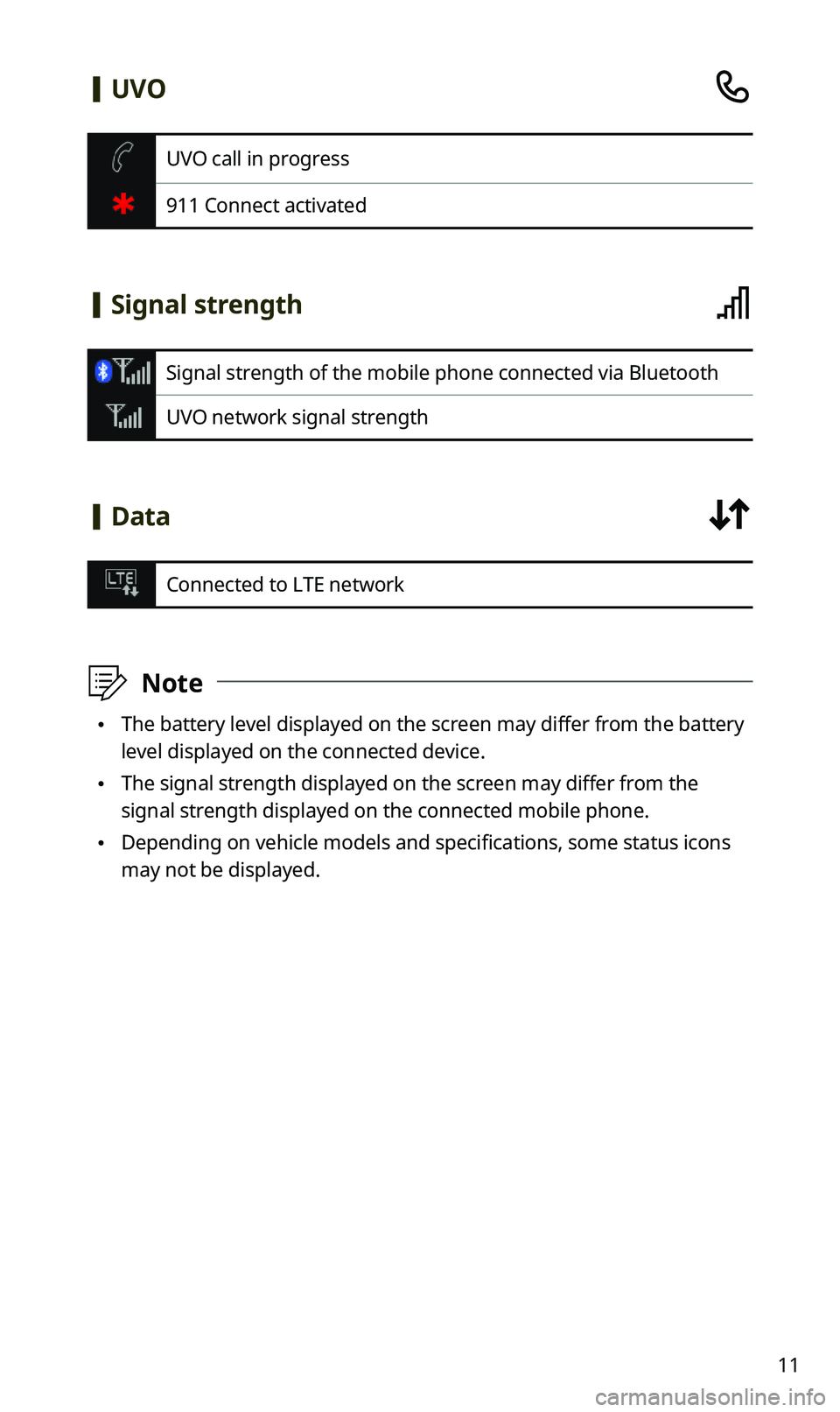
System status icons
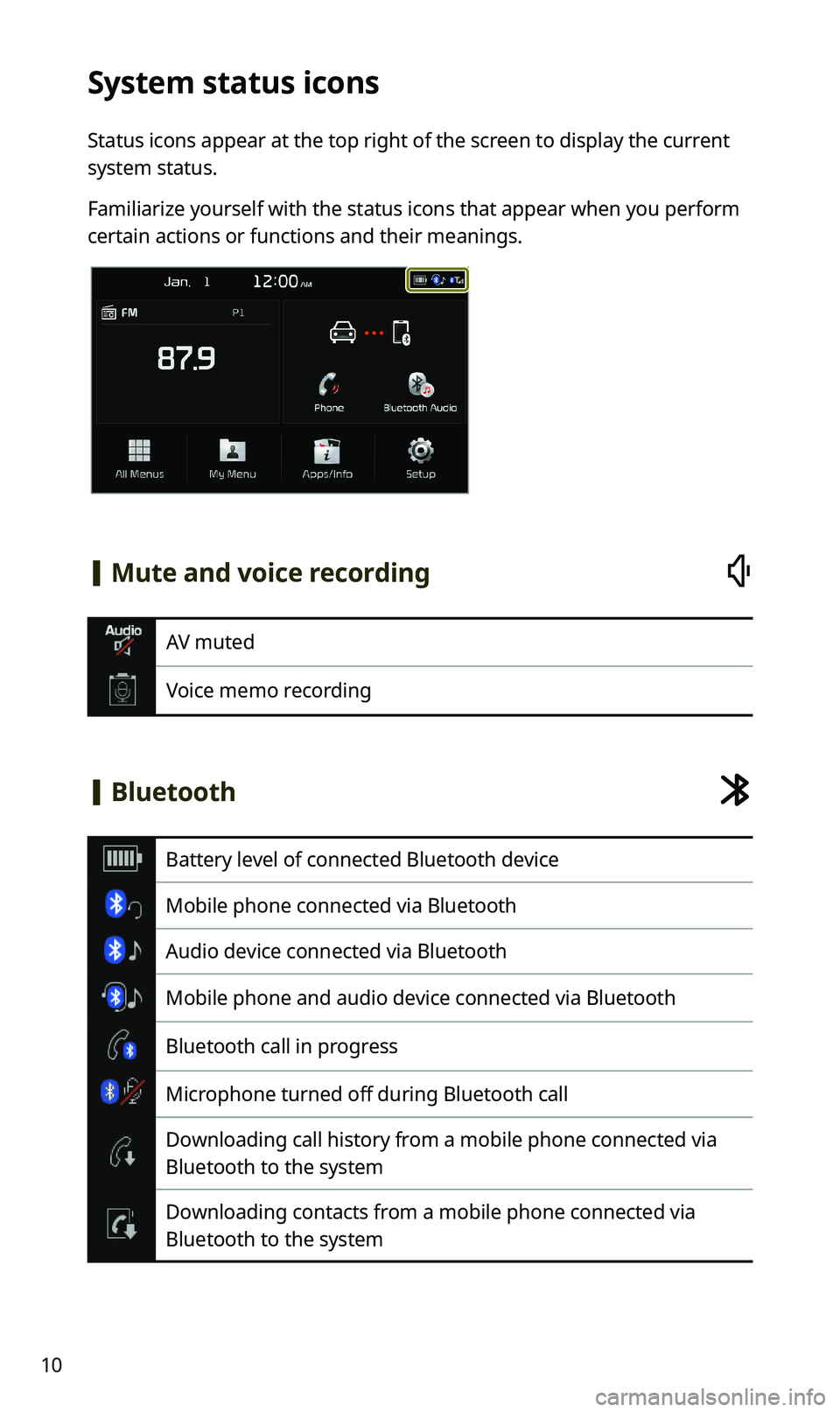
Status icons appear at the top right of the screen to display the current
system status.
Familiarize yourself with the status icons that appear when you perform
certain actions or functions and their meanings.
[Mute and voice recording
AV muted
Voice memo recording
[Bluetooth
Battery level of connected Bluetooth device
Mobile phone connected via Bluetooth
Audio device connected via Bluetooth
Mobile phone and audio device connected via Bluetooth
Bluetooth call in progress
Microphone turned off during Bluetooth call
Downloading call history from a mobile phone connected via
Bluetooth to the system
Downloading contacts from a mobile phone connected via
Bluetooth to the system
Page 13 of 50
11
[UVO
UVO call in progress
911 Connect activated
[Signal strength
Signal strength of the mobile phone connected via Bluetooth
UVO network signal strength
[Data
Connected to LTE network
ÛNote
•The battery level displayed on the screen may differ from the battery
level displayed on the connected device.
•The signal strength displayed on the screen may differ from the
signal strength displayed on the connected mobile phone.
•Depending on vehicle models and specifications, some status icons
may not be displayed.
Page 14 of 50
12
Using phone projection
Phone projection enables you to connect your Android smartphone or
iPhone to your system and use their functions via the system. You can
perform and control your smartphone applications by using the larger
screen and enhance your use of the system.
ÜWarning
•Driving while distracted can result in a loss of vehicle control that
may lead to an accident, severe bodily injury, or death. The driver’s
primary responsibility is the safe and legal operation of the vehicle,
and the use of any vehicle systems, including the touch screen and
steering wheel controls, which take the driver’s eyes, attention, and
focus away from the safe operation of the vehicle, or which are not
permissible by law, should never be used during the operation of the
vehicle.
•Do not adjust or set up any phone settings while driving. You may
lose your steering control which could cause an accident and severe
bodily injuries.
ÝCaution
•Use only applications that are compatible with phone projection.
Using incompatible applications may cause problems for your system
or smartphone.
•Only compatible applications will be displayed on the phone
projection screen. You can also check compatible applications by
visiting the following websites:
-Apple CarPlay: https://www.apple.com/ios/carplay
-Android Auto: https://www.android.com/auto
Page 15 of 50
13
Connecting your iPhone via Apple CarPlay
Before using Apple CarPlay, be sure to check the following:
Apple CarPlay support on your iPhone
Visit the Apple homepage (https://www.apple.com/ios/carplay) and
check the iPhone models that support Apple CarPlay.
Apple CarPlay activated or updated on your iPhone
On your iPhone, ensure that Apple CarPlay is activated. If your iPhone
does not have the function, update the iPhone′s operating system to
the latest version.
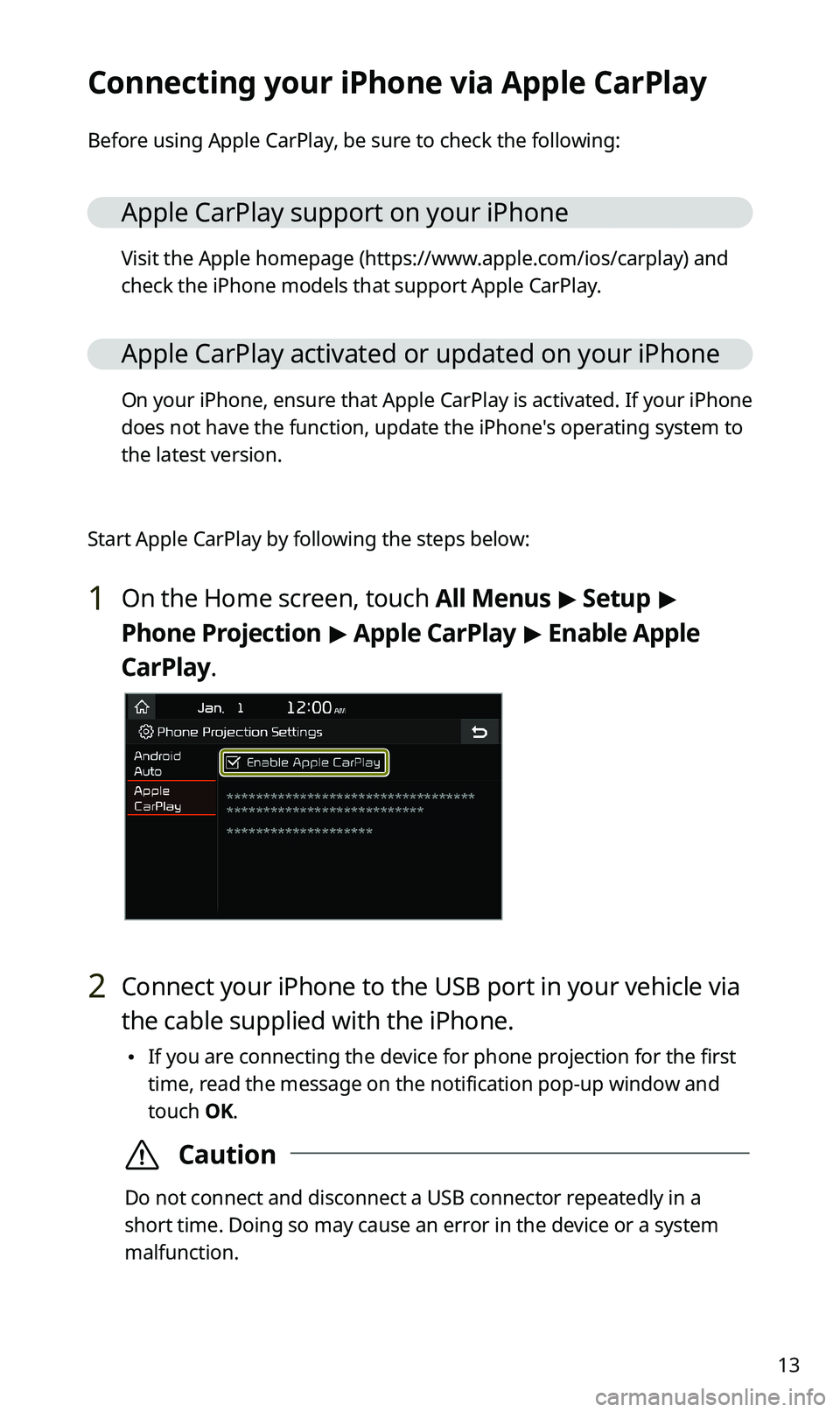
Start Apple CarPlay by following the steps below:
1 On the Home screen, touch All Menus > Setup >
Phone Projection > Apple CarPlay > Enable Apple
CarPlay.
2 Connect your iPhone to the USB port in your vehicle via
the cable supplied with the iPhone.
•If you are connecting the device for phone projection for the first
time, read the message on the notification pop-up window and
touch OK.
ÝCaution
Do not connect and disconnect a USB connector repeatedly in a
short time. Doing so may cause an error in the device or a system
malfunction.
Page 16 of 50
14
3 If your iPhone is locked, unlock it and agree to use
phone projection.
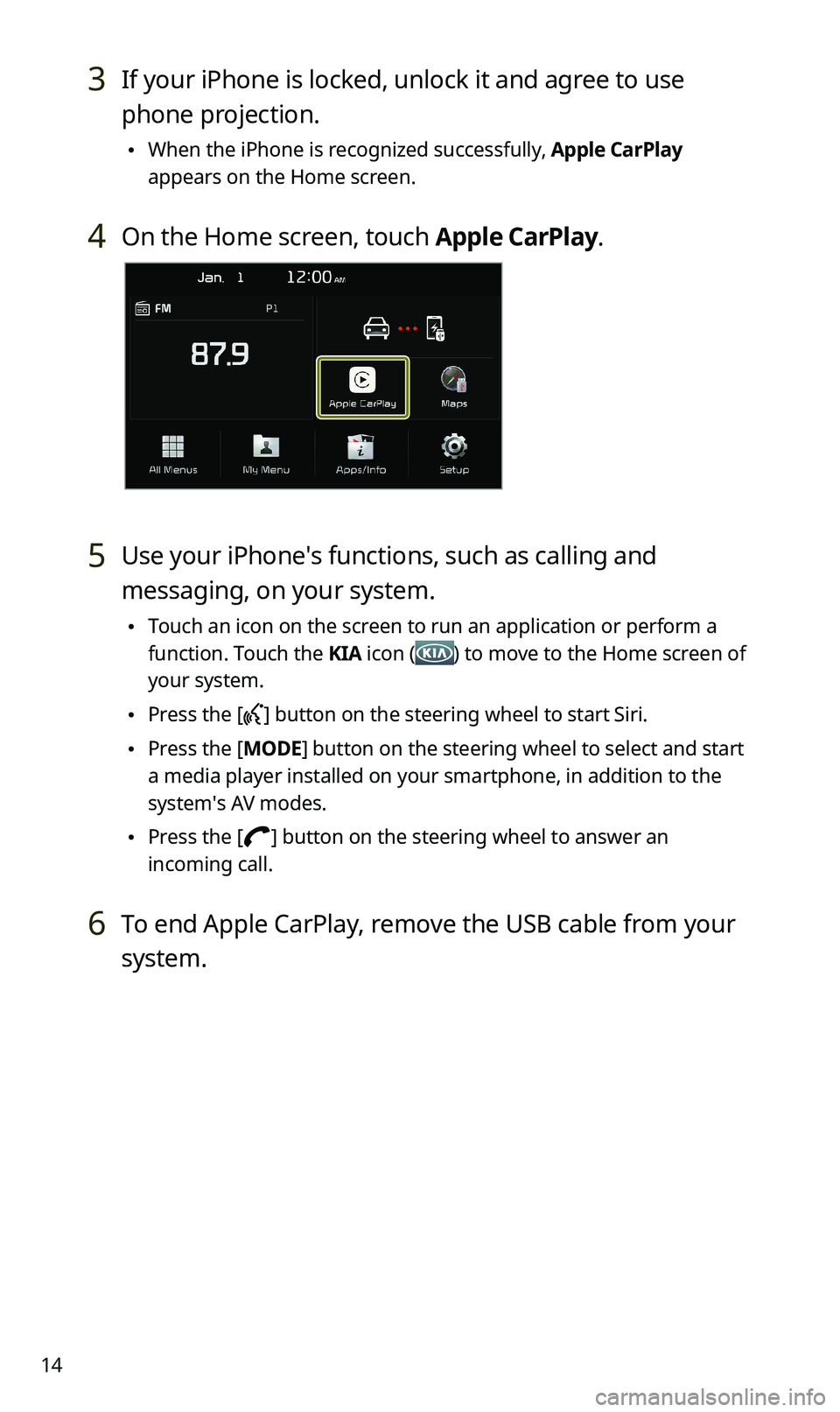
•When the iPhone is recognized successfully, Apple CarPlay
appears on the Home screen.
4 On the Home screen, touch Apple CarPlay.
5 Use your iPhone′s functions, such as calling and
messaging, on your system.
•Touch an icon on the screen to run an application or perform a
function. Touch the KIA icon () to move to the Home screen of
your system.
•Press the [] button on the steering wheel to start Siri.
•Press the [MODE] button on the steering wheel to select and start
a media player installed on your smartphone, in addition to the
system′s AV modes.
•Press the [] button on the steering wheel to answer an
incoming call.
6 To end Apple CarPlay, remove the USB cable from your
system.
Page 17 of 50
15
Connecting your Android smartphone via
Android Auto
Before using Android Auto, be sure to check the following:
Android Auto support on your smartphone
Visit the Google homepage (https://www.android.com/auto) and
check the regions, device types, and models that support Android
Auto.
Android Auto installed on your smartphone
Download and install the Android Auto application from Google
Play. If you are in a region where Android Auto is not supported, you
cannot install the application.
Start Android Auto by following the steps below:
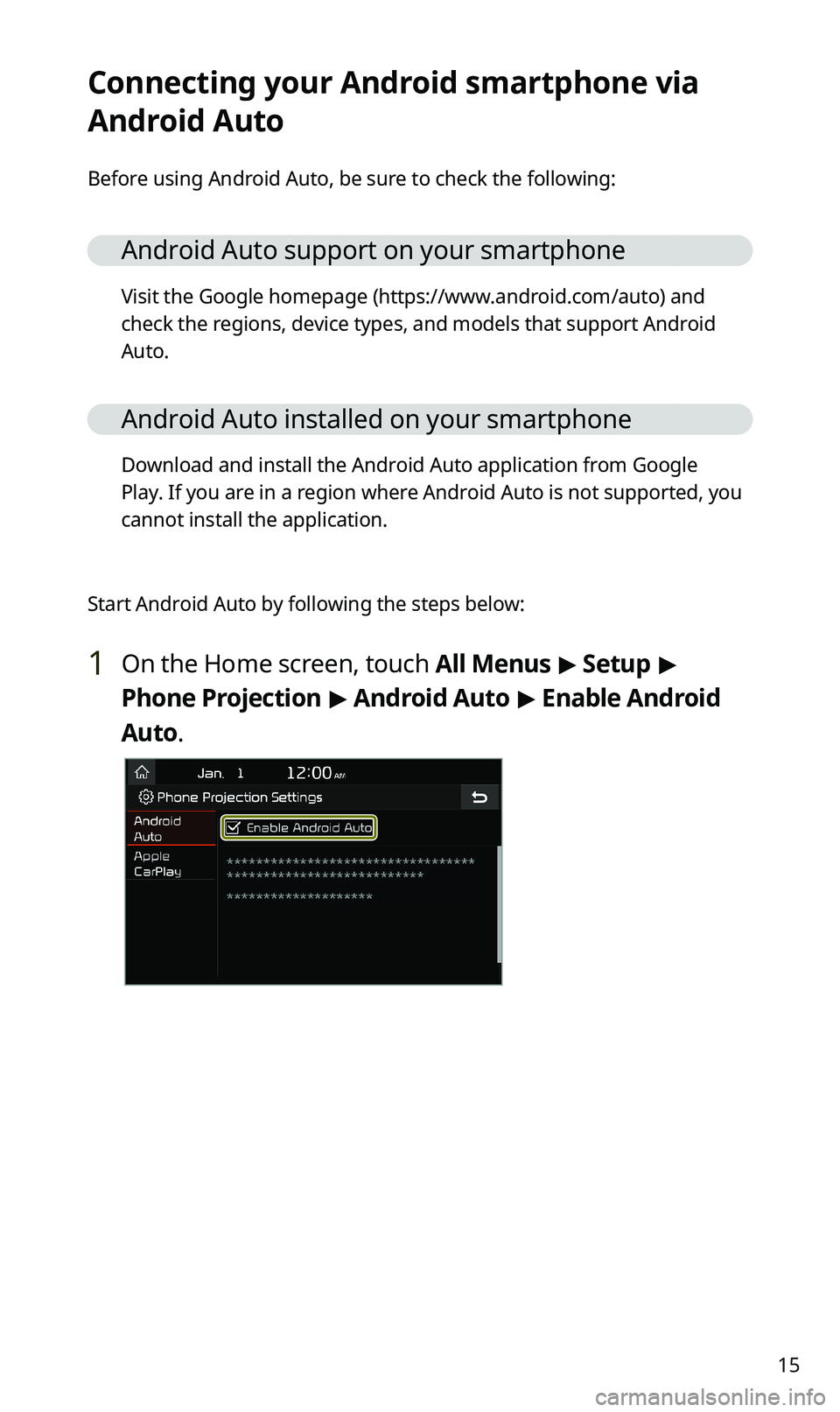
1 On the Home screen, touch All Menus > Setup >
Phone Projection > Android Auto > Enable Android
Auto.
Page 18 of 50
16
2 Connect your smartphone to the USB port in your
vehicle via the cable supplied with the smartphone.
•If you are connecting the device for phone projection for the first
time, read the message on the notification pop-up window and
touch OK.
ÝCaution
Do not connect and disconnect a USB connector repeatedly in a
short time. Doing so may cause an error in the device or a system
malfunction.
3 If your smartphone is locked, unlock it and agree to use
phone projection.
•When the smartphone is recognized successfully, Android Auto
appears on the Home screen.
4 On the Home screen, touch Android Auto.
5 Use your smartphone′s functions, such as calling and
messaging, on your system.
•Touch an icon on the screen to run an application or perform a
function.
•Press the [] button on the steering wheel to start Google voice
recognition.
•Press the [MODE] button on the steering wheel to select and start
a media player installed on your smartphone, in addition to the
system′s AV modes.
•Press the [] button on the steering wheel to start using
Bluetooth call functions.
6 To end Android Auto, remove the USB cable from your
system.