audio LAND ROVER FRELANDER 2 2006 Repair Manual
[x] Cancel search | Manufacturer: LAND ROVER, Model Year: 2006, Model line: FRELANDER 2, Model: LAND ROVER FRELANDER 2 2006Pages: 3229, PDF Size: 78.5 MB
Page 2977 of 3229

257
Telephone
R
5. The audio unit will now display a Bluetooth
access code numbe r which must be
entered into your telephone.
6. A message on the audio unit display will
confirm the system is connecting with
your telephone. When it is successfully
connected, the telephone will be paired
and connected with the vehicle and can
now be used with the vehicle telephone
system.
7. If the pairing fails, a message will appear
on the audio unit di splay; press the ENTER
button to retry or press the EXIT button
and restart the process.
8. The last connected telephone will be
available for use when the system and
telephone are switched on again.
9. If you wish to pair additional telephones,
repeat the process.
Adding or changing a telephone
1. Select the te lephone main menu. See
TELEPHONE SETUP (page 258).
2. Select Bluetooth , then select the option to
change a telephone .
3. Add new phone will appear at the top of
the list. Repeat the procedure for pairing a
telephone to the system.
If the maximum number of telephones are
already paired to the system, a message will be
displayed and you are given the option to
remove one. This must be carried out before a
new telephone can be paired.
Removing a telephone from the system
1.Select the te lephone main menu. See
TELEPHONE SETUP (page 258).
2. Select Bluetooth , then select the option to
remove a telephone . 3.
Select a telephone by rotating the ENTER
button, highlight the telephone to be
removed then press the ENTER button. A
confirmation message to remove a
telephone will appear on the audio unit
display, press the ENTER button.
4. The remove telephone screen will be
displayed, and if no further telephones are
to be removed, press the EXIT button.
Loss of Bluetooth link
If the link between the telephone and the
vehicle is lost, you have the choice to
reconnect or to exit fr om the telephone system.
To reconnect press the ENTER button. There
will be a short delay whilst the connection is
established and then y our telephone name will
be shown in the display.
Alternatively, press the EXIT button if you do
not wish to reconne ct your telephone.
Page 2978 of 3229
Telephone
258
L
TELEPHONE SETUP
Telephone main menu
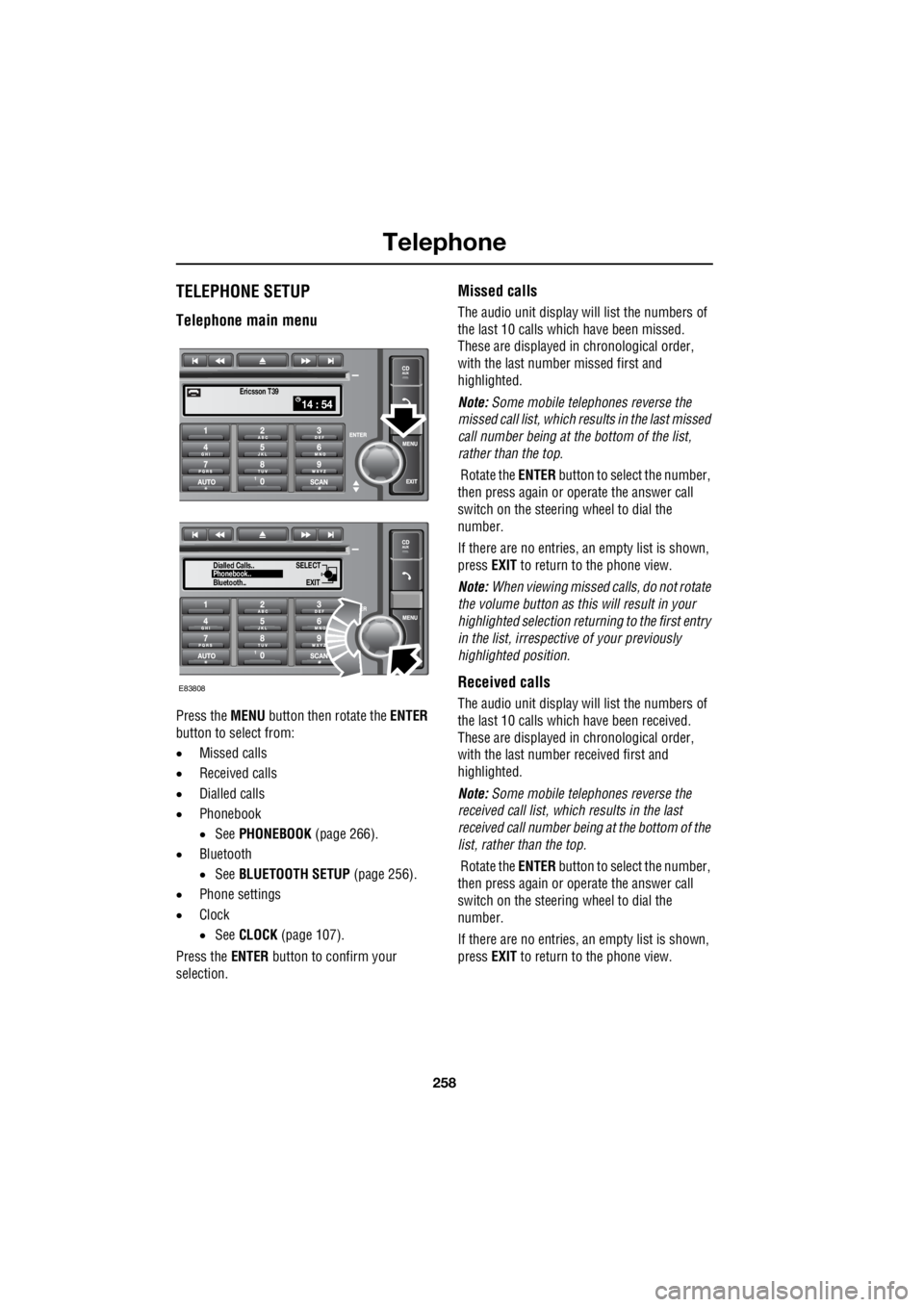
Press the MENU button then rotate the ENTER
button to select from:
• Missed calls
• Received calls
• Dialled calls
• Phonebook
• See PHONEBOOK (page 266).
• Bluetooth
• See BLUETOOTH SETUP (page 256).
• Phone settings
• Clock
• See CLOCK (page 107).
Press the ENTER button to confirm your
selection.
Missed calls
The audio unit display wi ll list the numbers of
the last 10 calls which have been missed.
These are displayed in chronological order,
with the last number missed first and
highlighted.
Note: Some mobile telephones reverse the
missed call list, which results in the last missed
call number being at the bottom of the list,
rather than the top.
Rotate the ENTER button to select the number,
then press again or operate the answer call
switch on the steering wheel to dial the
number.
If there are no entries, an empty list is shown,
press EXIT to return to the phone view.
Note: When viewing missed calls, do not rotate
the volume button as this will result in your
highlighted select ion returning to the first entry
in the list, irrespective of your previously
highlighted position.
Received calls
The audio unit display wi ll list the numbers of
the last 10 calls which have been received.
These are displayed in chronological order,
with the last number received first and
highlighted.
Note: Some mobile telephones reverse the
received call list, which results in the last
received call number be ing at the bottom of the
list, rather than the top.
Rotate the ENTER button to select the number,
then press again or operate the answer call
switch on the steering wheel to dial the
number.
If there are no entries, an empty list is shown,
press EXIT to return to the phone view.
14 : 54Ericsson T39
SELECT
EXITPhonebook..
Dialled Calls..
Bluetooth..
E83808
Page 2979 of 3229
259
Telephone
R
Note: When viewing received calls, do not
rotate the volume button as this will result in
your highlighted selection returning to the first
entry in the list, irrespective of your previously
highlighted position.
Dialled calls
The audio unit display will list the numbers of
the last 10 calls which ha ve been dialled. These
are displayed in chronological order, with the
last number dialled fi rst and highlighted.
Note: Some mobile telephones reverse the
dialled call list, which re sults in the last dialled
call number being at the bottom of the list,
rather than the top.
The dialled calls list can also be accessed by
pressing the ENTER button, when telephone
mode is selected.
Rotate the ENTER button to select the number.
Then to dial the number, press ENTER again, or
operate the answer call switch on the steering
wheel.
If there are no entries, an empty list is shown,
press EXIT to return to the phone view.
Note: When viewing dialled calls, do not press
the volume button as this will take you back to
the radio or CD.
Phone settings
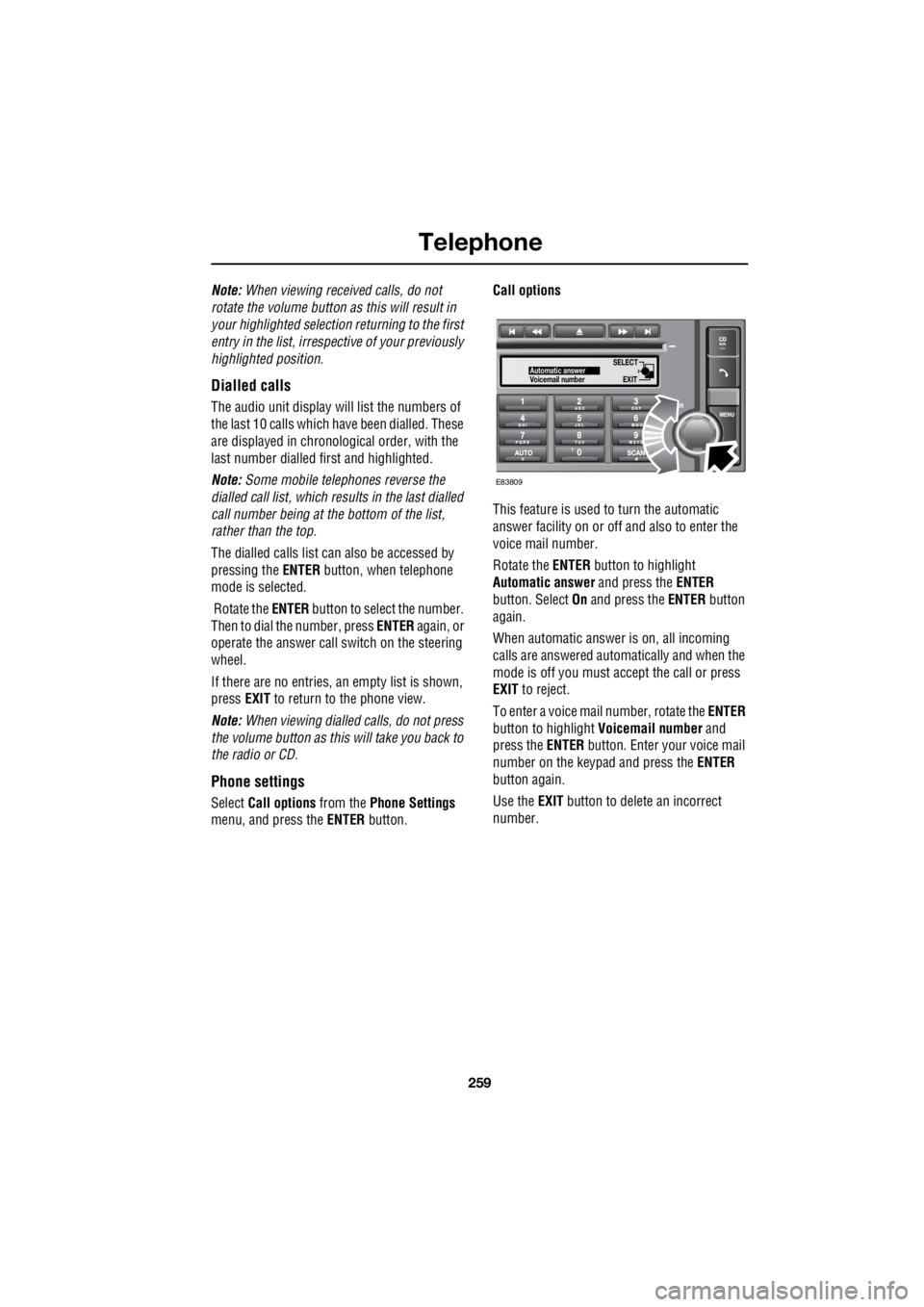
Select Call options from the Phone Settings
menu, and press the ENTER button. Call options
This feature is used to turn the automatic
answer facility on or off and also to enter the
voice mail number.
Rotate the ENTER button to highlight
Automatic answer and press the ENTER
button. Select On and press the ENTER button
again.
When automatic answer is on, all incoming
calls are answered automatically and when the
mode is off you must ac cept the call or press
EXIT to reject.
To enter a voice mail number, rotate the ENTER
button to highlight Voicemail number and
press the ENTER button. Enter your voice mail
number on the keypad and press the ENTER
button again.
Use the EXIT button to delete an incorrect
number.
SELECT
EXITAutomatic answer
Voicemail number
E83809
Page 2981 of 3229
261
Telephone
R
Another brief press of the ENTER button will
store the tone. If you press the EXIT button the
tone will not be stored and the ring tone menu
will remain visible. Press the EXIT button again
to return to the main menu or to the function
previously selected.
Note: Not all mobile telephones support
Mobile ring tone , in this case it will not be
possible to select and store the Mobile ring
tone setting in the vehicle system.
Autocopy phonebook
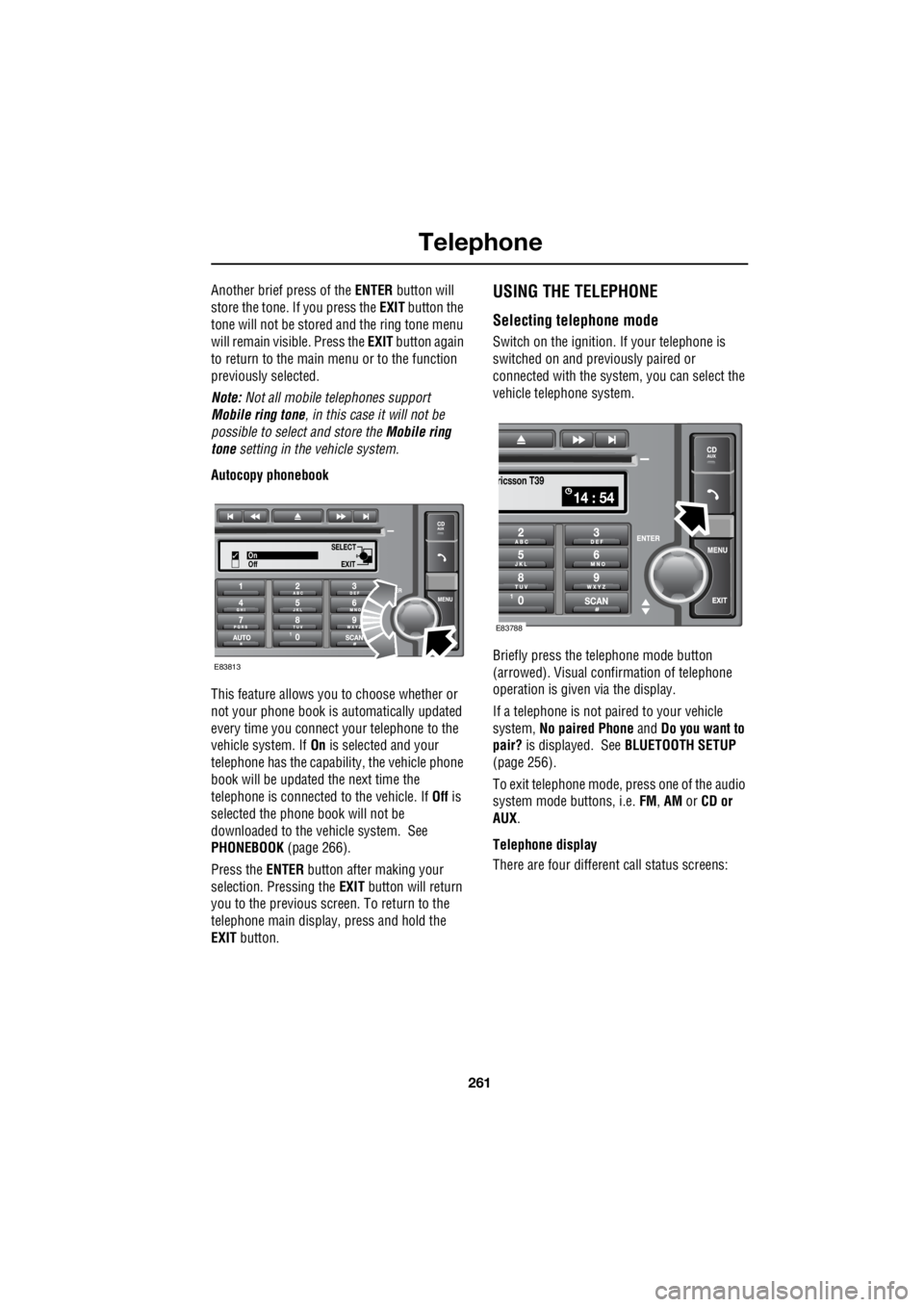
This feature allows you to choose whether or
not your phone book is automatically updated
every time you connect your telephone to the
vehicle system. If On is selected and your
telephone has the capabili ty, the vehicle phone
book will be updated the next time the
telephone is connected to the vehicle. If Off is
selected the phone book will not be
downloaded to the vehicle system. See
PHONEBOOK (page 266).
Press the ENTER button after making your
selection. Pressing the EXIT button will return
you to the previous screen. To return to the
telephone main display, press and hold the
EXIT button.USING THE TELEPHONE
Selecting telephone mode
Switch on the ignition. If your telephone is
switched on and previously paired or
connected with the system, you can select the
vehicle telephone system.
Briefly press the te lephone mode button
(arrowed). Visual conf irmation of telephone
operation is given via the display.
If a telephone is not paired to your vehicle
system, No paired Phone and Do you want to
pair? is displayed. See BLUETOOTH SETUP
(page 256).
To exit telephone mode, press one of the audio
system mode buttons, i.e. FM, AM or CD or
AUX .
Telephone display
There are four different call status screens:
SELECT
EXITOn
Off
E83813
14 : 54
ricsson T39
E83788
Page 2983 of 3229
263
Telephone
R
Note: To cancel a call at any time, press the
EXIT button or operate the end call button on
the steering wheel.
Correcting or deleting numbers
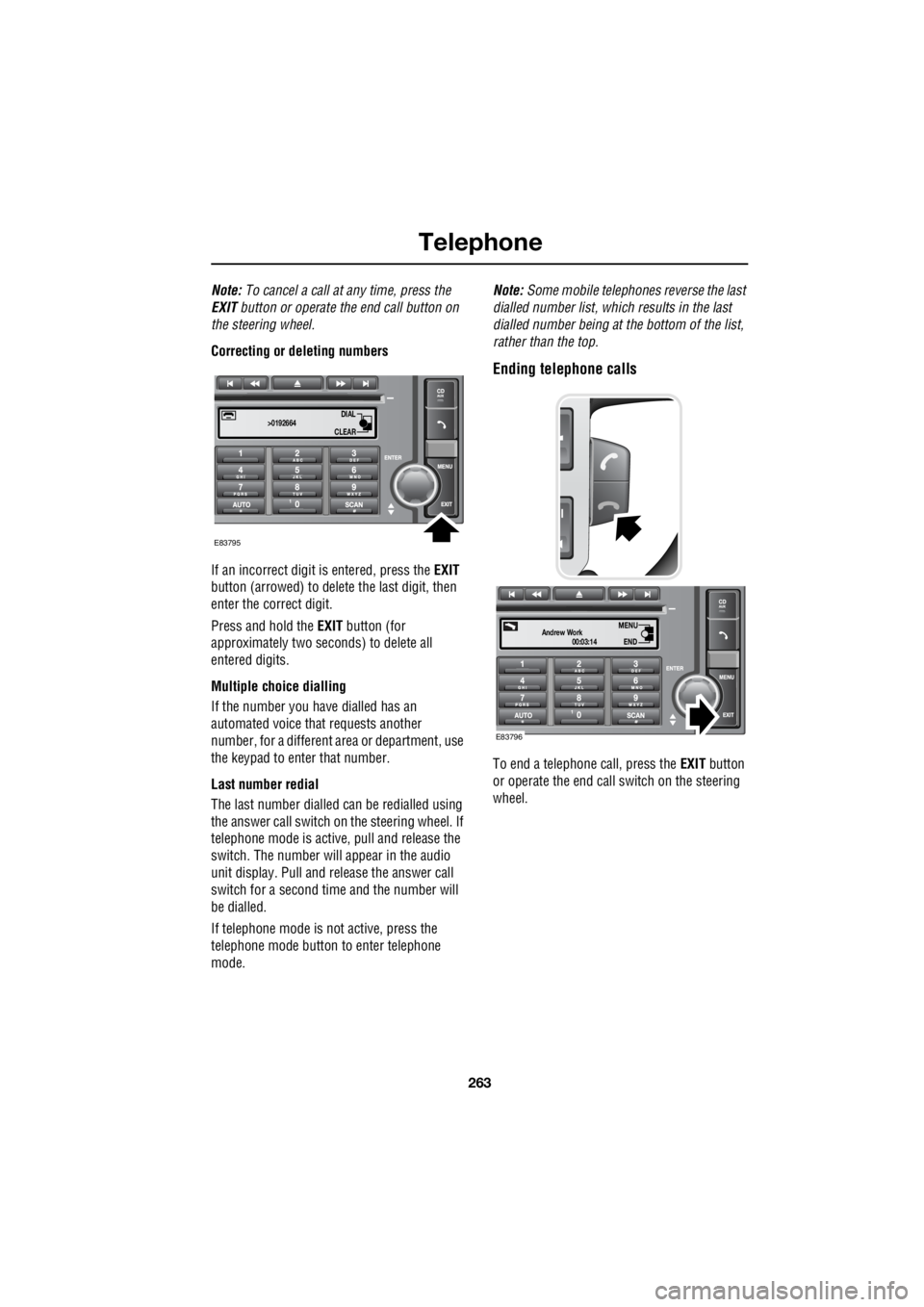
If an incorrect digit is entered, press the EXIT
button (arrowed) to delete the last digit, then
enter the correct digit.
Press and hold the EXIT button (for
approximately two sec onds) to delete all
entered digits.
Multiple choice dialling
If the number you have dialled has an
automated voice that requests another
number, for a different area or department, use
the keypad to enter that number.
Last number redial
The last number dialled can be redialled using
the answer call switch on the steering wheel. If
telephone mode is active , pull and release the
switch. The number will appear in the audio
unit display. Pull and release the answer call
switch for a second time and the number will
be dialled.
If telephone mode is not active, press the
telephone mode button to enter telephone
mode. Note:
Some mobile telephone s reverse the last
dialled number list, whic h results in the last
dialled number being at the bottom of the list,
rather than the top.
Ending telephone calls
To end a telephone call, press the EXIT button
or operate the end call switch on the steering
wheel.
DIAL
CLEAR
>0192664
E83795
00:03:14
Andrew WorkEND
MENU
E83796
Page 2984 of 3229
Telephone
264
L
Receiving telephone calls
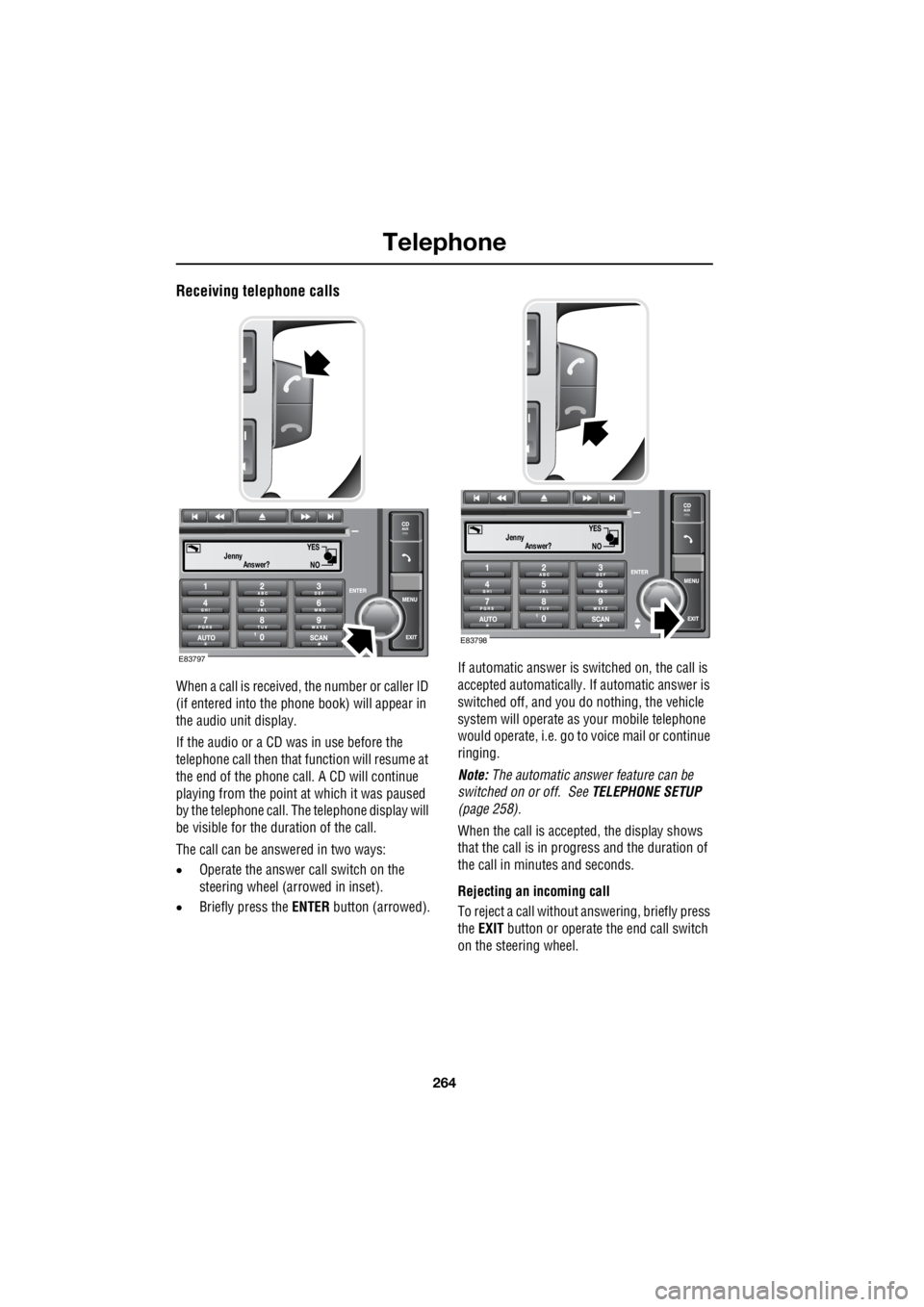
When a call is received, the number or caller ID
(if entered into the phone book) will appear in
the audio unit display.
If the audio or a CD was in use before the
telephone call then that function will resume at
the end of the phone call. A CD will continue
playing from the point at which it was paused
by the telephone call. Th e telephone display will
be visible for the duration of the call.
The call can be answered in two ways:
• Operate the answer call switch on the
steering wheel (arrowed in inset).
• Briefly press the ENTER button (arrowed). If automatic answer is switched on, the call is
accepted automatically. If automatic answer is
switched off, and you do nothing, the vehicle
system will operate as your mobile telephone
would operate, i.e. go to voice mail or continue
ringing.
Note: The automatic answer feature can be
switched on or off. See TELEPHONE SETUP
(page 258).
When the call is accepted, the display shows
that the call is in progress and the duration of
the call in minutes and seconds.
Rejecting an incoming call
To reject a call without an swering, briefly press
the EXIT button or operate the end call switch
on the steering wheel.
YES
NO
JennyAnswer?
E83797
YES
NO
JennyAnswer?
E83798
Page 2986 of 3229
Telephone
266
L
Voice mail
Voice mail may be set up by your service
provider and can be used by the vehicle
system.
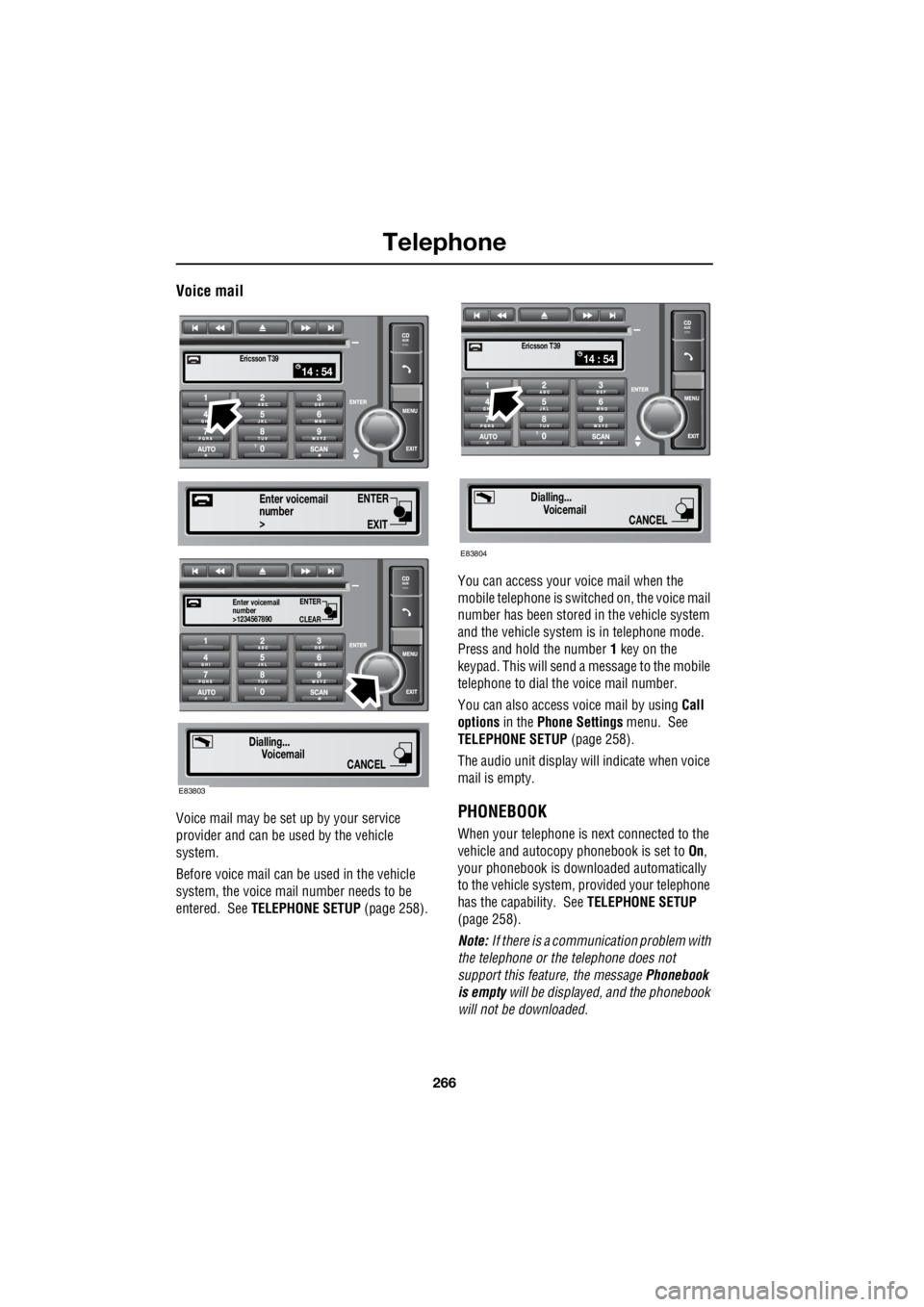
Before voice mail can be used in the vehicle
system, the voice mail number needs to be
entered. See TELEPHONE SETUP (page 258). You can access your voice mail when the
mobile telephone is swit ched on, the voice mail
number has been stored in the vehicle system
and the vehicle system is in telephone mode.
Press and hold the number 1 key on the
keypad. This will send a message to the mobile
telephone to dial the voice mail number.
You can also access voice mail by using Call
options in the Phone Settings menu. See
TELEPHONE SETUP (page 258).
The audio unit display wi ll indicate when voice
mail is empty.PHONEBOOK
When your telephone is next connected to the
vehicle and autocopy phonebook is set to On,
your phonebook is downloaded automatically
to the vehicle system, provided your telephone
has the capability. See TELEPHONE SETUP
(page 258).
Note: If there is a communication problem with
the telephone or the telephone does not
support this feature, the message Phonebook
is empty will be displayed, and the phonebook
will not be downloaded.
14 : 54Ericsson T39
ENTER
EXIT
number>
Enter voicemail
ENTER
CLEAR
number>1234567890
Enter voicemail
Dialling...
Voicemail
CANCEL
E83803
14 : 54Ericsson T39
Dialling...Voicemail
CANCEL
E83804
Page 2988 of 3229
Telephone
268
L
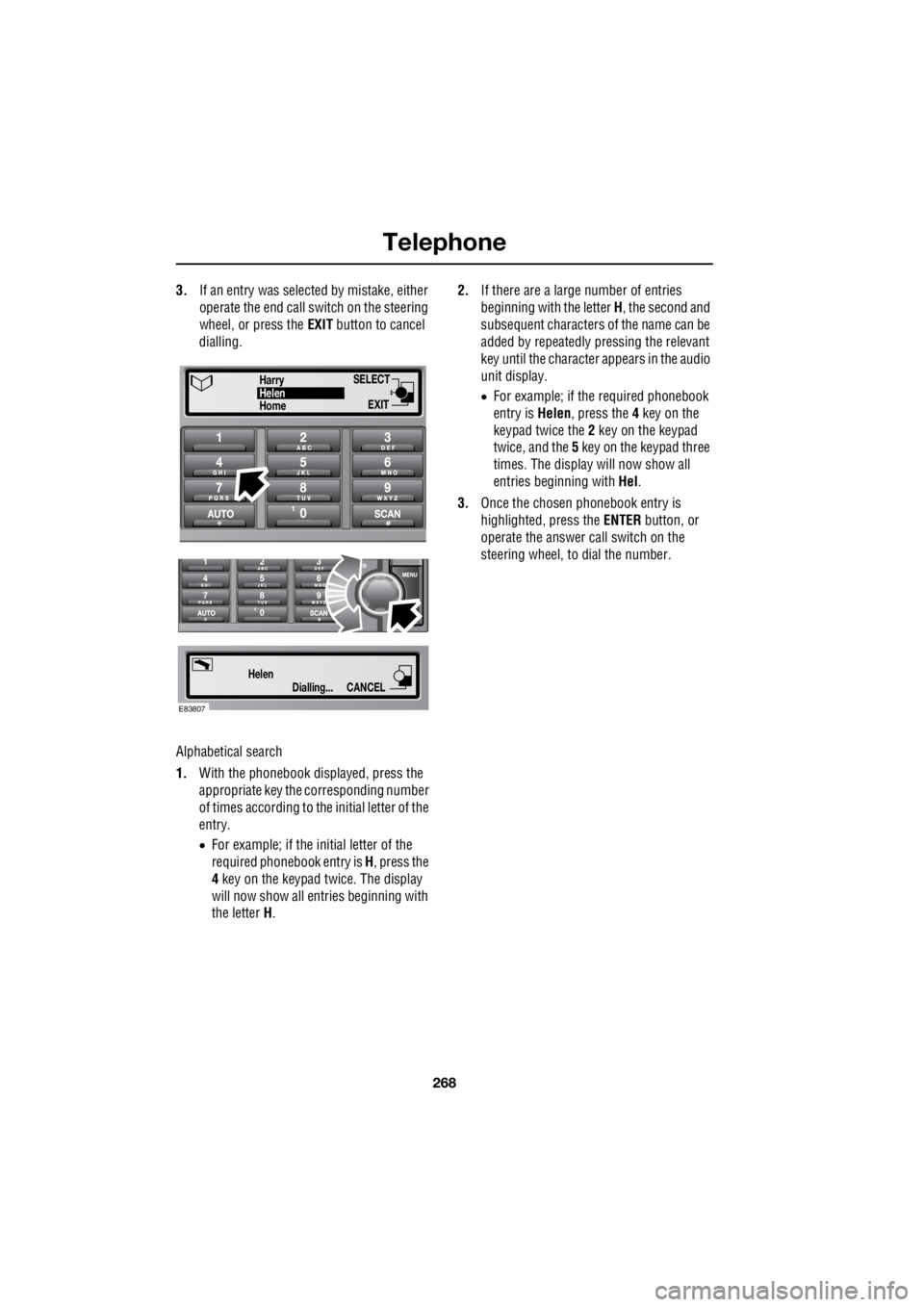
3. If an entry was selected by mistake, either
operate the end call switch on the steering
wheel, or press the EXIT button to cancel
dialling.
Alphabetical search
1. With the phonebook displayed, press the
appropriate key the corresponding number
of times according to th e initial letter of the
entry.
• For example; if the initial letter of the
required phonebook entry is H, press the
4 key on the keypad twice. The display
will now show all entries beginning with
the letter H. 2.
If there are a large number of entries
beginning with the letter H, the second and
subsequent characters of the name can be
added by repeatedly pressing the relevant
key until the character appears in the audio
unit display.
• For example; if the required phonebook
entry is Helen, press the 4 key on the
keypad twice the 2 key on the keypad
twice, and the 5 key on the keypad three
times. The display will now show all
entries beginning with Hel.
3. Once the chosen phonebook entry is
highlighted, press the ENTER button, or
operate the answer call switch on the
steering wheel, to dial the number.
Dialling...
HelenCANCEL
SELECT
EXITHomeHelen
Harry
E83807
Page 2989 of 3229
269
Telephone
R
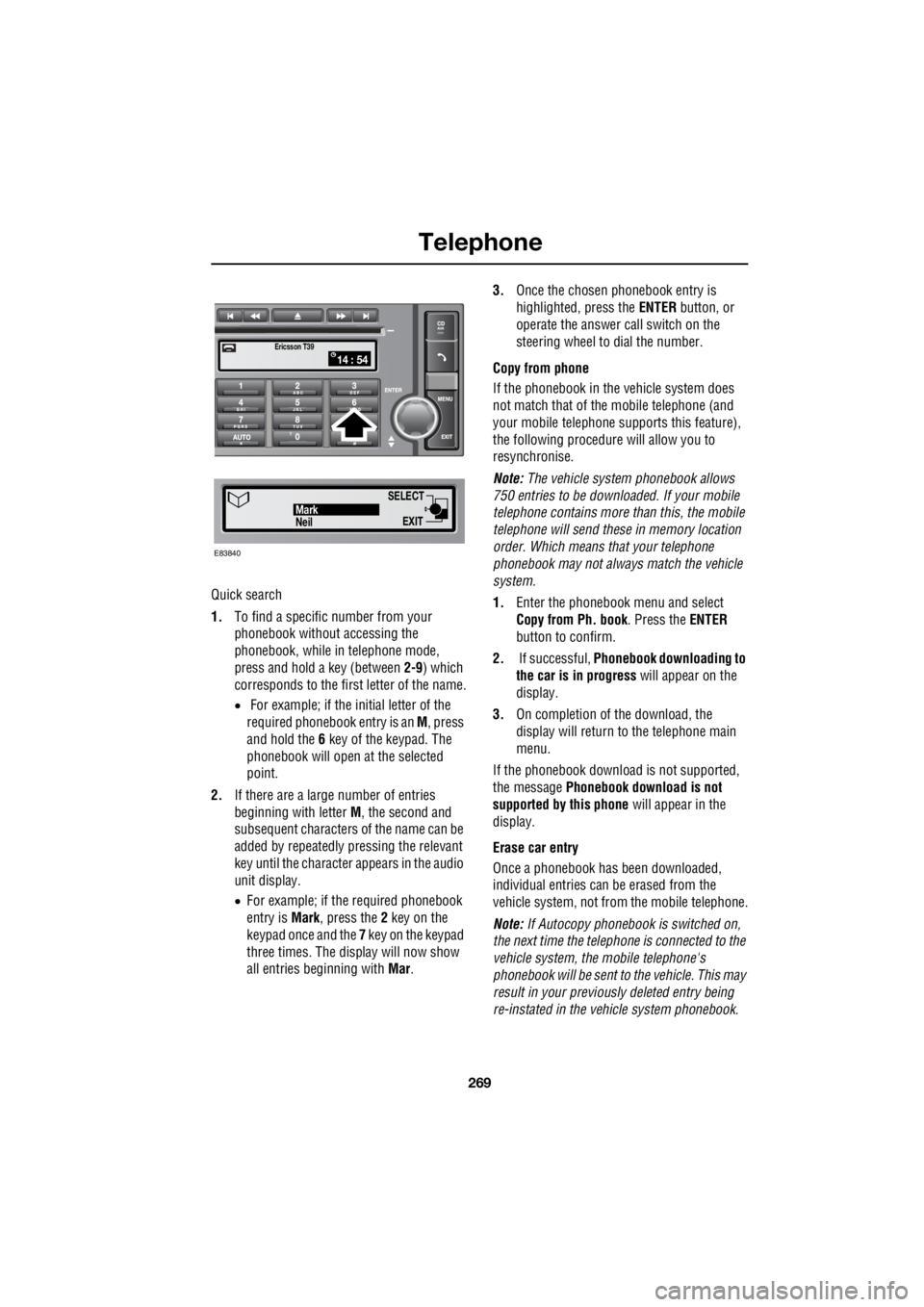
Quick search
1. To find a specific number from your
phonebook without accessing the
phonebook, while in telephone mode,
press and hold a key (between 2-9) which
corresponds to the first letter of the name.
• For example; if the initial letter of the
required phonebook entry is an M, press
and hold the 6 key of the keypad. The
phonebook will open at the selected
point.
2. If there are a large number of entries
beginning with letter M, the second and
subsequent characters of the name can be
added by repeatedly pressing the relevant
key until the character appears in the audio
unit display.
• For example; if the required phonebook
entry is Mark, press the 2 key on the
keypad once and the 7 key on the keypad
three times. The display will now show
all entries beginning with Mar. 3.
Once the chosen phonebook entry is
highlighted, press the ENTER button, or
operate the answer call switch on the
steering wheel to dial the number.
Copy from phone
If the phonebook in th e vehicle system does
not match that of th e mobile telephone (and
your mobile telephone s upports this feature),
the following procedure will allow you to
resynchronise.
Note: The vehicle system phonebook allows
750 entries to be downloa ded. If your mobile
telephone contains more than this, the mobile
telephone will send these in memory location
order. Which means that your telephone
phonebook may not always match the vehicle
system.
1. Enter the phonebook menu and select
Copy from Ph. book . Press the ENTER
button to confirm.
2. If successful, Phonebook downloading to
the car is in progress will appear on the
display.
3. On completion of the download, the
display will return to the telephone main
menu.
If the phonebook download is not supported,
the message Phonebook download is not
supported by this phone will appear in the
display.
Erase car entry
Once a phonebook has been downloaded,
individual entries can be erased from the
vehicle system, not from the mobile telephone.
Note: If Autocopy phonebook is switched on,
the next time the telephone is connected to the
vehicle system , the mobile telephone's
phonebook will be sent to the vehicle. This may
result in your previous ly deleted entry being
re-instated in the vehicle system phonebook.
14 : 54Ericsson T39
SELECT
EXITNeilMark
E83840
Page 2990 of 3229
Telephone
270
L
1. Enter the phonebook menu and select
Erase car entry .
2. Press the ENTER button to confirm.
3. Rotate the ENTER button to select the
entry you wish to erase and press the
ENTER button.
4. A confirmation messag e will appear on the
display. Press the ENTER button to erase
the entry or press the EXIT button to retain
the entry and return to the menu.
Erase car Ph. book
Once a phonebook has been downloaded, it
can be erased from the vehicle system, not
from the mobile telephone.
Note: If Autocopy phonebook is switched on,
the next time the telephone is connected to the
vehicle system, the mobile telephone's
phonebook will be sent to the vehicle. This may
result in your previously deleted phonebook
being re-instated in the vehicle system.
1. Enter the phonebook menu and select
Erase car Ph. book . Press the ENTER
button.
2. A confirmation messag e will appear on the
display. Press the ENTER button to erase
the phonebook or press the EXIT button to
retain the phonebook and return to the
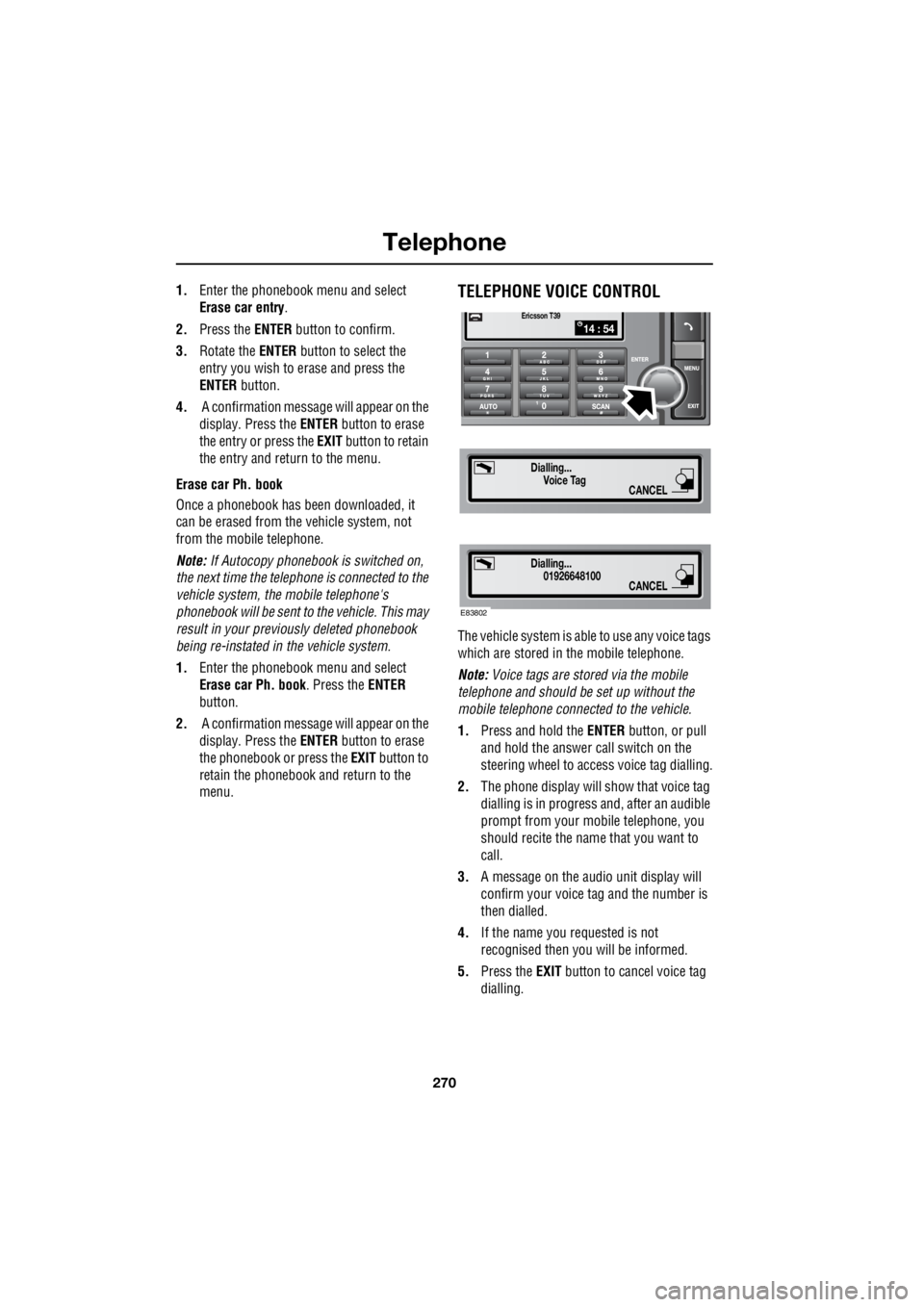
menu.TELEPHONE VOICE CONTROL
The vehicle system is able to use any voice tags
which are stored in the mobile telephone.
Note: Voice tags are stored via the mobile
telephone and should be set up without the
mobile telephone connect ed to the vehicle.
1. Press and hold the ENTER button, or pull
and hold the answer call switch on the
steering wheel to access voice tag dialling.
2. The phone display will show that voice tag
dialling is in progress and, after an audible
prompt from your mobile telephone, you
should recite the name that you want to
call.
3. A message on the audio unit display will
confirm your voice ta g and the number is
then dialled.
4. If the name you requested is not
recognised then you will be informed.
5. Press the EXIT button to cancel voice tag
dialling.
14 : 54Ericsson T39
Dialling... Voice Tag
CANCEL
Dialling...01926648100
CANCEL
E83802