audio LAND ROVER FRELANDER 2 2006 Repair Manual
[x] Cancel search | Manufacturer: LAND ROVER, Model Year: 2006, Model line: FRELANDER 2, Model: LAND ROVER FRELANDER 2 2006Pages: 3229, PDF Size: 78.5 MB
Page 2966 of 3229
Compact disc player
246
L
EJECTING COMPACT DISCS
It is only possible to eject a single disc, if it is
currently selected or playing.
To eject a disc, press and release the eject
button. A confirmation message will be shown
on the information display. After a short pause,
the disc will be presente d. The disc should then
be removed.
Note: If the disc is not removed from the slot
within fifteen seconds, it will be drawn back
into the player.
EJECTING MULTIPLE COMPACT
DISCS
All the discs loaded in the player can be ejected
in sequence. To eject all of the discs, press and
hold the eject button. A confirmation message
will be shown on the information display. After
a short pause, the first disc will be presented.
The disc should then be removed.
The discs will be ejected one at a time with a
short pause in between each.
To stop the process, press any CD number
button ( 1 to 6).
COMPACT DISC SELECTION
To select one of the loaded discs, briefly press
the disc number required ( 1 to 6). If the
position selected does not contain a disc, there
will be a pause and a message will appear on
the information display.
Once a disc has been inserted, there will be a
pause while the player reads the disc
information. Playback will then begin at the
start of track one.
COMPACT DISC PLAYBACK
To start compact disc pl ayback, briefly press
the CD mode button, followed by the disc
number required. If no di sc number is selected,
playback will begin at one of two places:
• If the discs have not been removed since
their last use, playback will begin from the
point at which it wa s stopped previously.
• If the discs have not been used since they
were inserted, playback will begin at the
start of the first loaded disc.
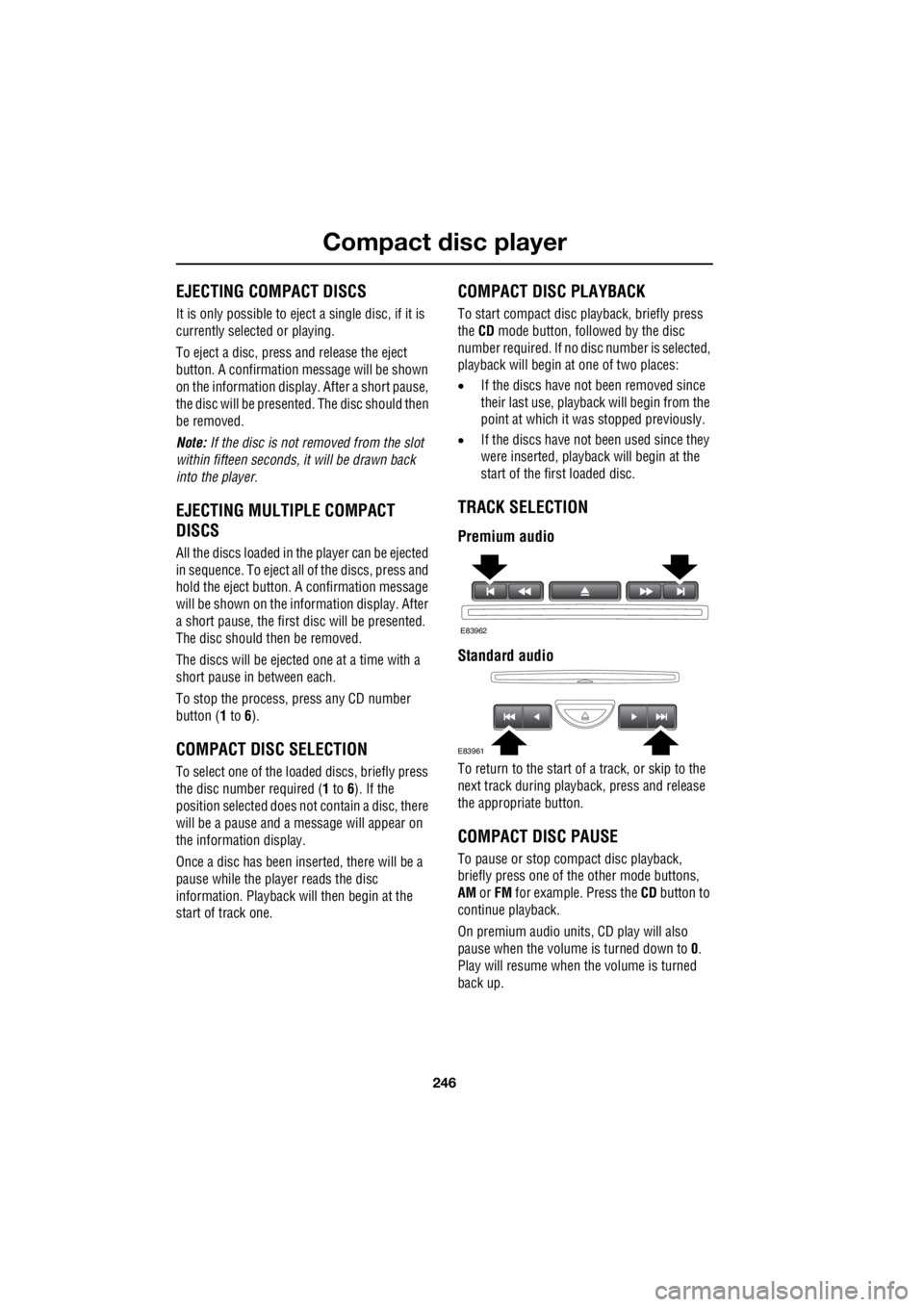
TRACK SELECTION
Premium audio
Standard audio
To return to the start of a track, or skip to the
next track during playba ck, press and release
the appropriate button.
COMPACT DISC PAUSE
To pause or stop compact disc playback,
briefly press one of th e other mode buttons,
AM or FM for example. Press the CD button to
continue playback.
On premium audio units, CD play will also
pause when the volume is turned down to 0.
Play will resume when the volume is turned
back up.
E83962
E83961
Page 2967 of 3229
247
Compact disc player
R
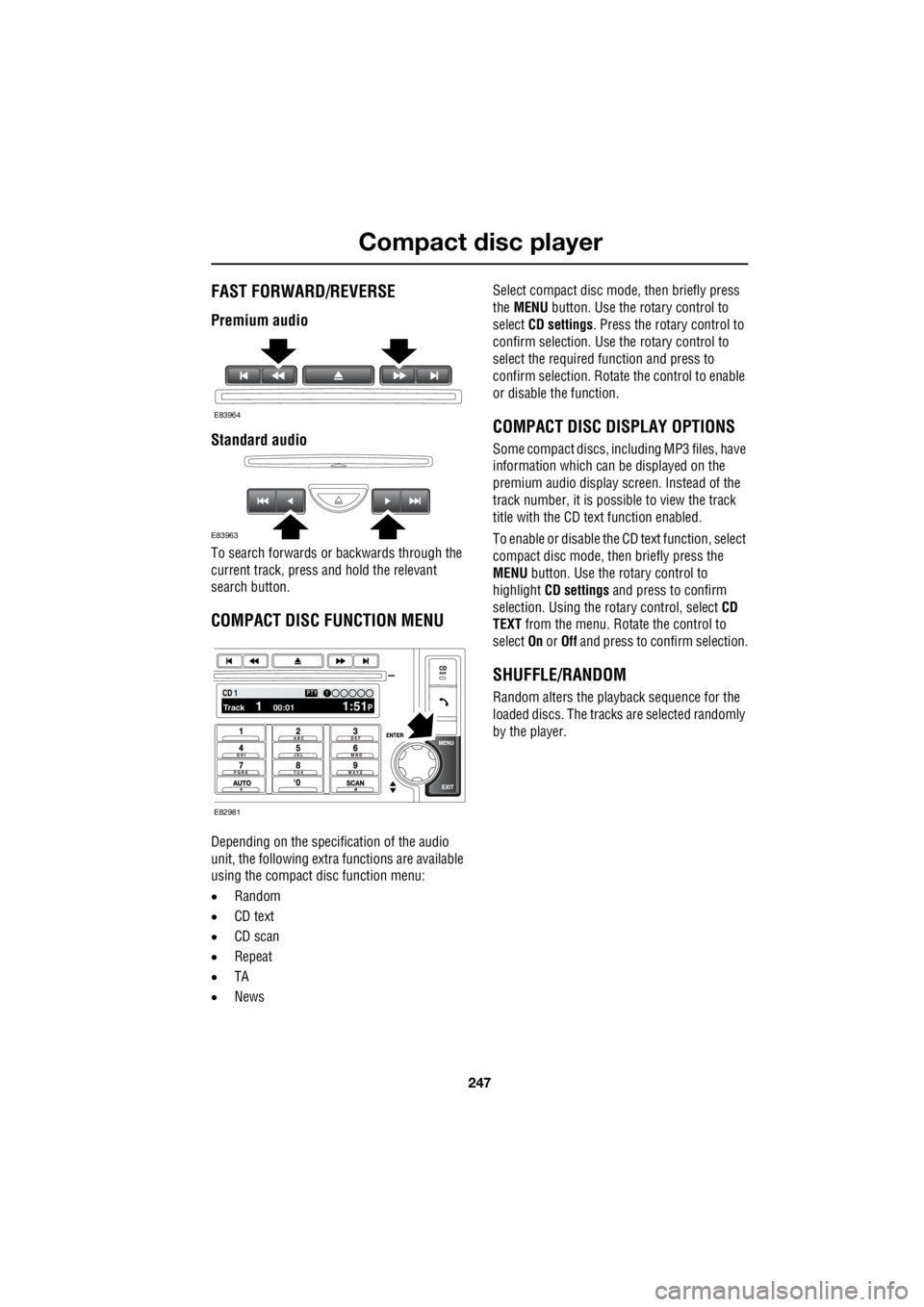
FAST FORWARD/REVERSE
Premium audio
Standard audio
To search forwards or backwards through the
current track, press and hold the relevant
search button.
COMPACT DISC FUNCTION MENU
Depending on the specific ation of the audio
unit, the following extra functions are available
using the compact disc function menu:
• Random
• CD text
• CD scan
• Repeat
• TA
• News Select compact disc mode, then briefly press
the MENU button. Use the rotary control to
select CD settings . Press the rotary control to
confirm selection. Use the rotary control to
select the required function and press to
confirm selection. Rotate the control to enable
or disable the function.
COMPACT DISC DISPLAY OPTIONS
Some compact discs, in cluding MP3 files, have
information which can be displayed on the
premium audio display screen. Instead of the
track number, it is possi ble to view the track
title with the CD text function enabled.
To enable or disable the CD text function, select
compact disc mode, then briefly press the
MENU button. Use the rotary control to
highlight CD settings and press to confirm
selection. Using the ro tary control, select CD
TEXT from the menu. Rotate the control to
select On or Off and press to confirm selection.
SHUFFLE/RANDOM
Random alters the play back sequence for the
loaded discs. The trac ks are selected randomly
by the player.
E83964
E83963
100.71 12 3 4 6CD 1Track 1 00:01 1:51P
PTY1
E82981
Page 2968 of 3229
Compact disc player
248
L
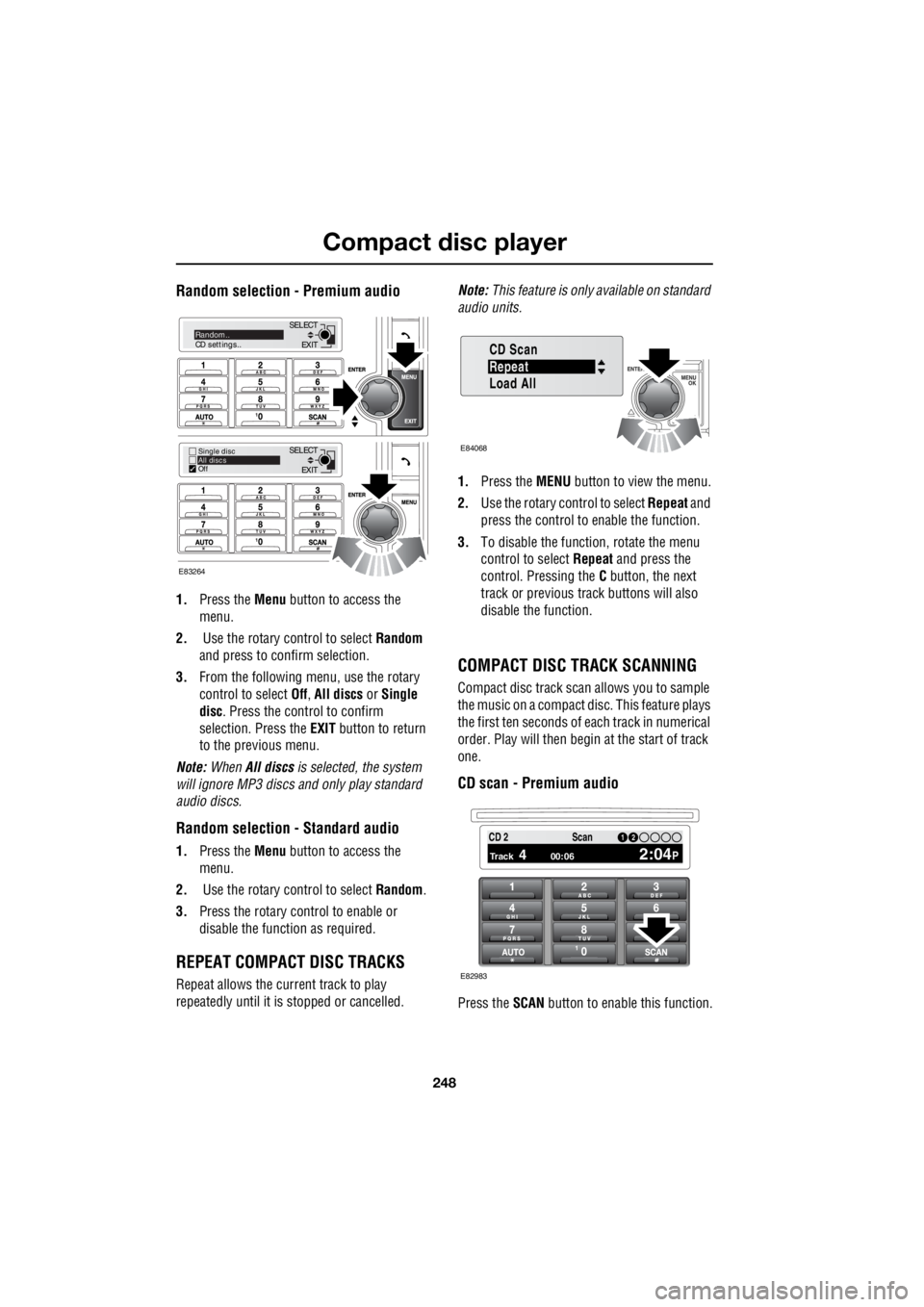
Random selection - Premium audio
1. Press the Menu button to access the
menu.
2. Use the rotary control to select Random
and press to confirm selection.
3. From the following menu, use the rotary
control to select Off, All discs or Single
disc . Press the control to confirm
selection. Press the EXIT button to return
to the previous menu.
Note: When All discs is selected, the system
will ignore MP3 discs and only play standard
audio discs.
Random selection - Standard audio
1. Press the Menu button to access the
menu.
2. Use the rotary control to select Random.
3. Press the rotary control to enable or
disable the function as required.
REPEAT COMPACT DISC TRACKS
Repeat allows the current track to play
repeatedly until it is stopped or cancelled. Note:
This feature is only available on standard
audio units.
1. Press the MENU button to view the menu.
2. Use the rotary control to select Repeat and
press the control to enable the function.
3. To disable the function, rotate the menu
control to select Repeat and press the
control. Pressing the C button, the next
track or previous track buttons will also
disable the function.
COMPACT DISC TRACK SCANNING
Compact disc track scan allows you to sample
the music on a compact disc. This feature plays
the first ten seconds of each track in numerical
order. Play will then begin at the start of track
one.
CD scan - Premium audio
Press the SCAN button to enable this function.
EXIT
SELECT
EXIT
SELECTRandom..
CD settings..
Single disc
All discs
Off
E83264
Repeat
CD Scan
Load All
E84068
PTY1 12 3 4 6CD 2
Track 4 00:06 2:04P
12Scan
E82983
Page 2969 of 3229
249
Compact disc player
R
To disable the function, and to continue the
currently playing track, press the SCAN or EXIT
button again.
Note: While in CD scan mode, pressing the
previous track button w ill resume normal play
at the current track. Pressing the next track
button will move to the next track and resume
normal play.
CD Scan - Standard audio
1. Press the MENU button to access the
functions menu.
2. Use the rotary control to select CD Scan.
3. Press the rotary control to enable or
disable the function.
Note: While in CD scan mode, pressing the
previous track button w ill resume normal play
at the current track. Pressing the next track
button will move to the next track and resume
normal play.
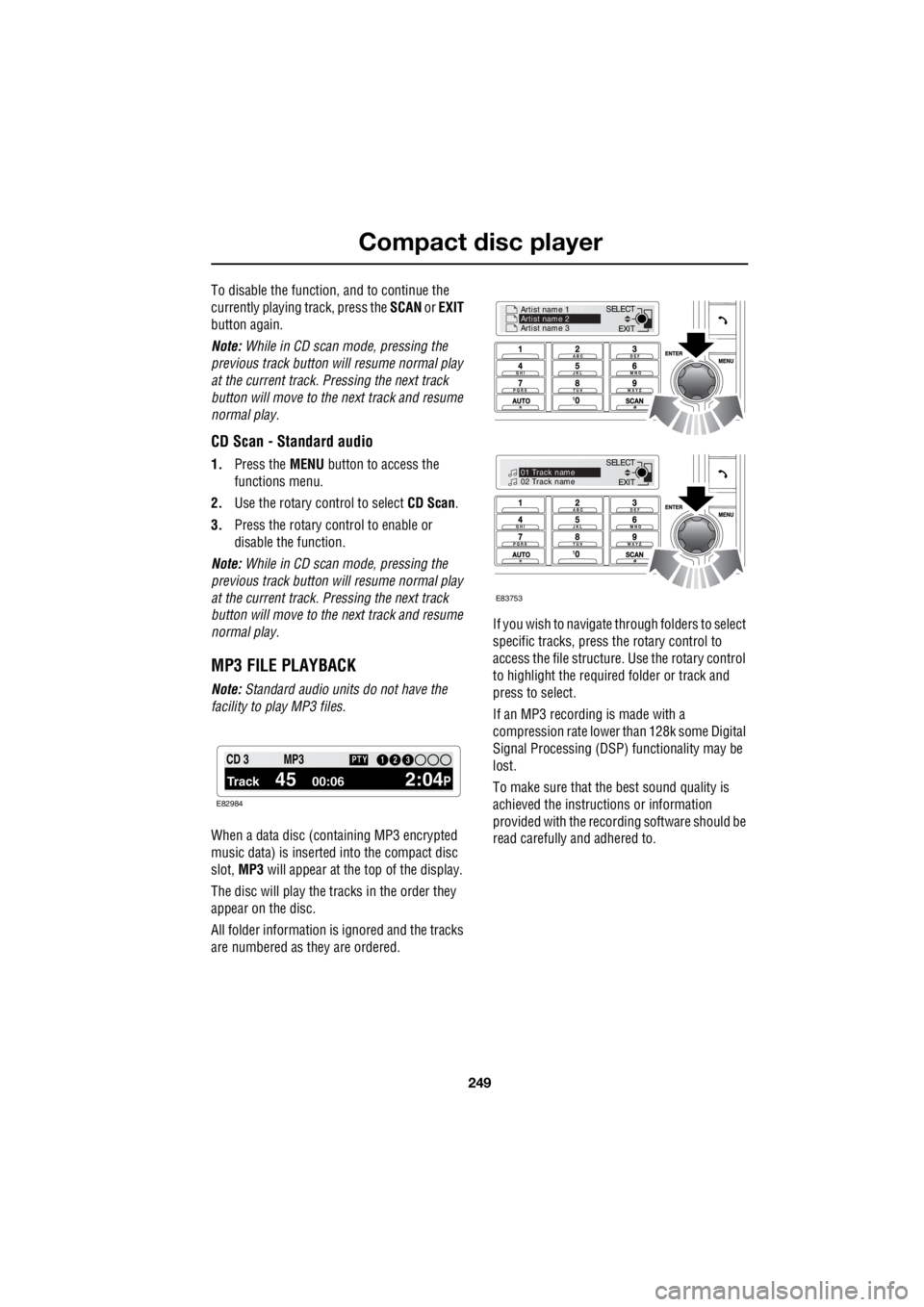
MP3 FILE PLAYBACK
Note: Standard audio units do not have the
facility to play MP3 files.
When a data disc (containing MP3 encrypted
music data) is inserted into the compact disc
slot, MP3 will appear at the top of the display.
The disc will play the tracks in the order they
appear on the disc.
All folder information is ignored and the tracks
are numbered as they are ordered. If you wish to navigate through folders to select
specific tracks, press the rotary control to
access the file structure. Use the rotary control
to highlight the required folder or track and
press to select.
If an MP3 recording is made with a
compression rate lower than 128k some Digital
Signal Processing (DSP) functionality may be
lost.
To make sure that the best sound quality is
achieved the instructions or information
provided with the recording software should be
read carefully and adhered to.
1 12 3 4 6CD 3
Track 45 00:06 2:04P
PTY13 2MP3
E82984
EXIT
SELECT
Artist name 1
PTY..
Artist name 2
Artist name 3
EXIT
SELECT
PTY..
01 Track name
02 Track name
E83753
Page 2970 of 3229
Auxiliary input (AUX IN) socket
250
L
Auxiliary input (AUX IN) socketAUXILIARY INPUT (AUX IN) SOCKET
AUX (Auxiliary Input) mode allows extra
equipment to be connect ed to the vehicle's
audio system. Items such as a personal stereo,
MP3 player, hand-held n avigation unit etc., can
be plugged in to the vehicle's audio system.
Note: The volume levels and sound quality
available from devices connected to the
auxiliary inputs may vary widely. If the
connected audio device is equipped with a line
out socket as well as a headphone socket, the
line out socket should be used. The auxiliary connector is
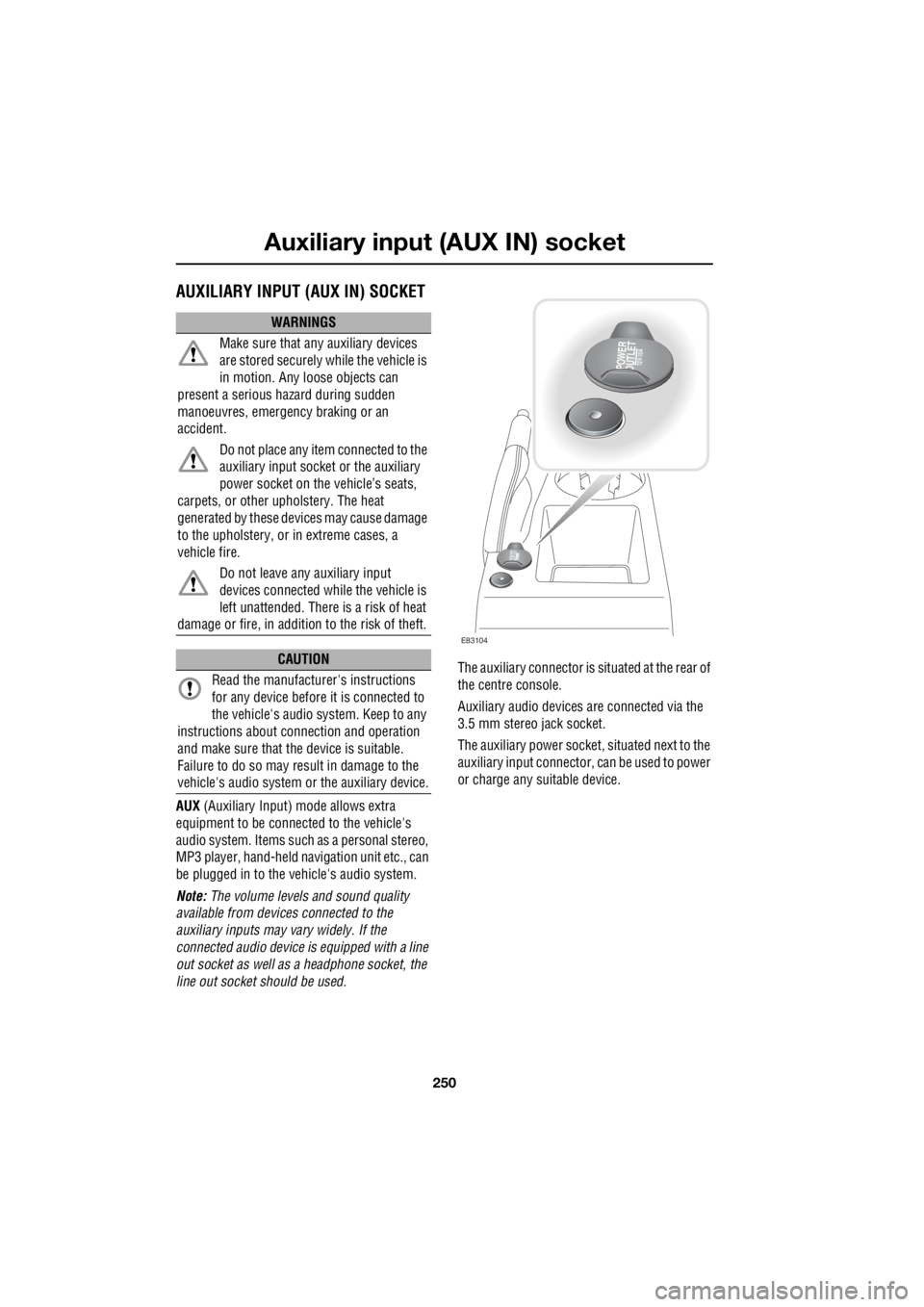
situated at the rear of
the centre console.
Auxiliary audio devices are connected via the
3.5 mm stereo jack socket.
The auxiliary power socket , situated next to the
auxiliary input connector, can be used to power
or charge any suitable device.
WARNINGS
Make sure that any auxiliary devices
are stored securely while the vehicle is
in motion. Any loose objects can
present a serious hazard during sudden
manoeuvres, emergency braking or an
accident.
Do not place any item connected to the
auxiliary input socket or the auxiliary
power socket on the vehicle’s seats,
carpets, or other upholstery. The heat
generated by these devi ces may cause damage
to the upholstery, or in extreme cases, a
vehicle fire.
Do not leave any auxiliary input
devices connected while the vehicle is
left unattended. There is a risk of heat
damage or fire, in additi on to the risk of theft.
CAUTION
Read the manufacturer's instructions
for any device before it is connected to
the vehicle's audio system. Keep to any
instructions about c onnection and operation
and make sure that the device is suitable.
Failure to do so may result in damage to the
vehicle's audio system or the auxiliary device.
POWER
OUTLET12V-10A
POWER
OUTLET12 V -1
0 A
E83104
Page 2971 of 3229
251
Auxiliary input (AUX IN) socket
R
Auxiliary mode
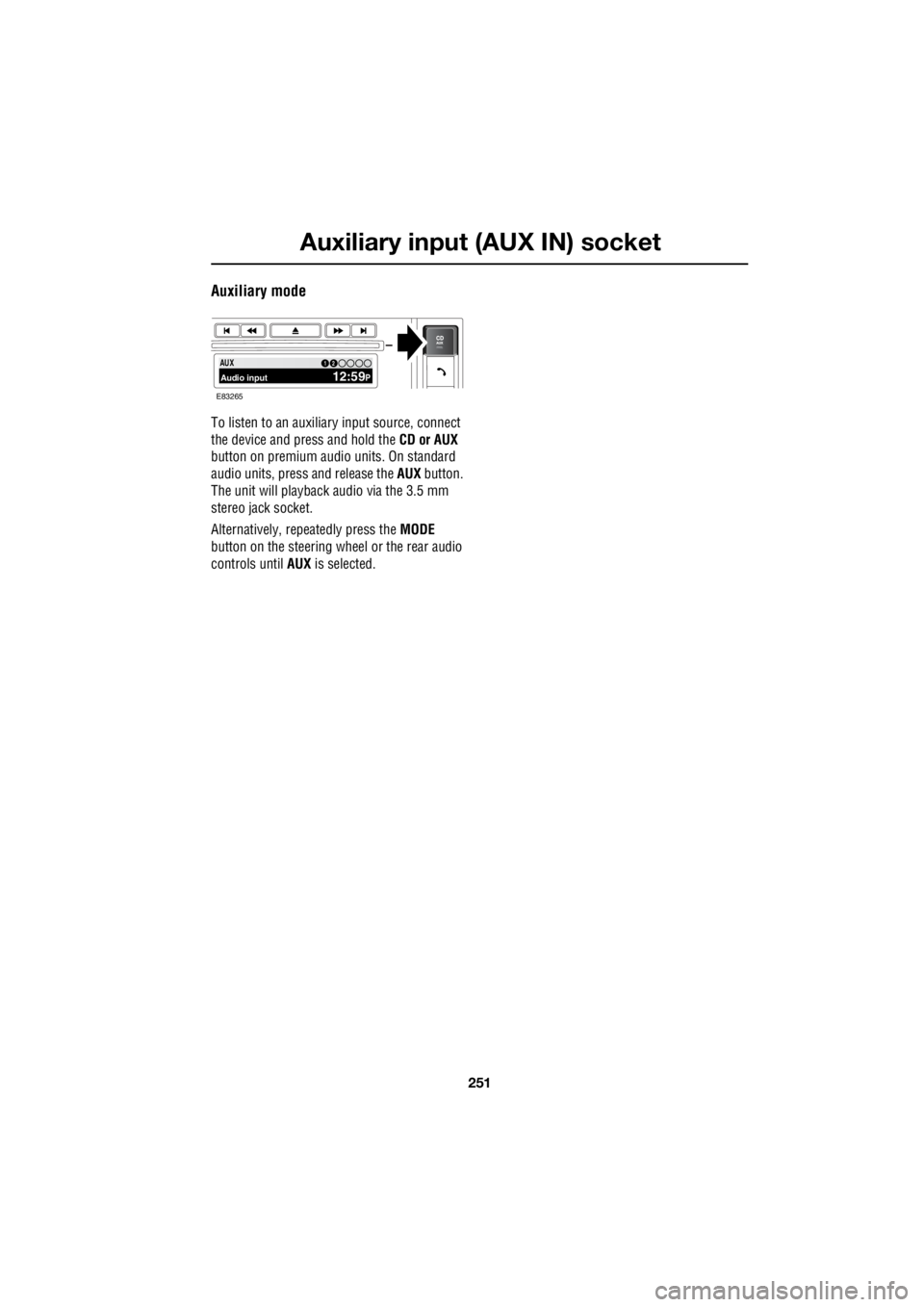
To listen to an auxiliary input source, connect
the device and press and hold the CD or AUX
button on premium audio units. On standard
audio units, pres s and release the AUX button.
The unit will playback audio via the 3.5 mm
stereo jack socket.
Alternatively, repeatedly press the MODE
button on the steering wheel or the rear audio
controls until AUX is selected.
PTY100.7112 3 4 6AUX Audio input 12:59P12
E83265
Page 2972 of 3229
Rear passenger controls
252
L
Rear passenger controlsREAR SEAT CONTROLS
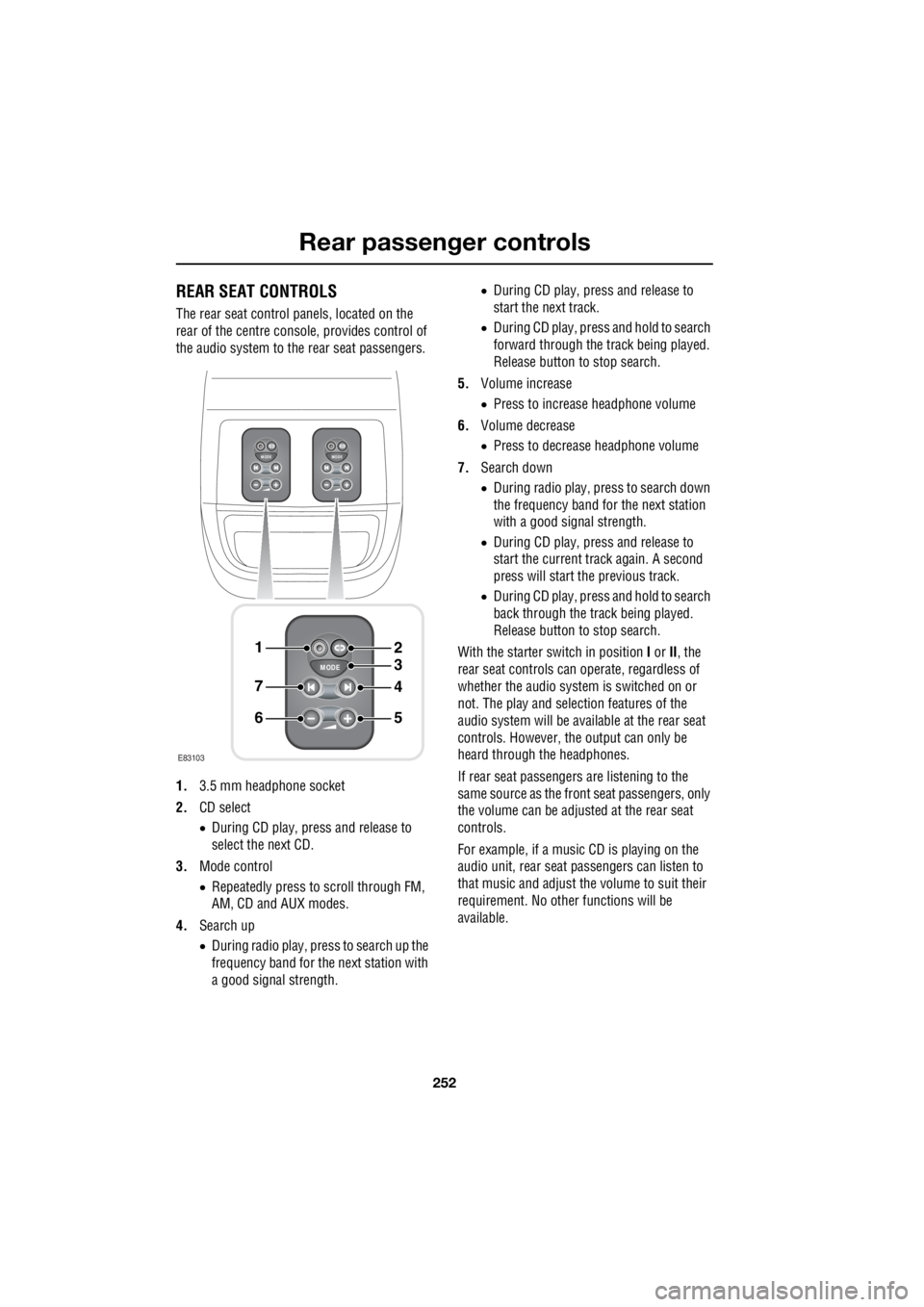
The rear seat control panels, located on the
rear of the centre consol e, provides control of
the audio system to the rear seat passengers.
1. 3.5 mm headphone socket
2. CD select
• During CD play, press and release to
select the next CD.
3. Mode control
• Repeatedly press to scroll through FM,
AM, CD and AUX modes.
4. Search up
• During radio play, press to search up the
frequency band for the next station with
a good signal strength. •
During CD play, press and release to
start the next track.
• During CD play, press and hold to search
forward through the track being played.
Release button to stop search.
5. Volume increase
• Press to increase headphone volume
6. Volume decrease
• Press to decrease headphone volume
7. Search down
• During radio play, press to search down
the frequency band for the next station
with a good signal strength.
• During CD play, press and release to
start the current track again. A second
press will start the previous track.
• During CD play, press and hold to search
back through the track being played.
Release button to stop search.
With the starter switch in position I or II, the
rear seat controls can operate, regardless of
whether the audio system is switched on or
not. The play and selection features of the
audio system will be available at the rear seat
controls. However, the output can only be
heard through the headphones.
If rear seat passengers are listening to the
same source as the front seat passengers, only
the volume can be adjusted at the rear seat
controls.
For example, if a music CD is playing on the
audio unit, rear seat pa ssengers can listen to
that music and adjust the volume to suit their
requirement. No other functions will be
available.
MODE
+
MODE
+
MODE
+
1
7
6
4
3
2
5
E83103
Page 2973 of 3229

253
Rear passenger controls
R
If however, the audio unit is switched to
another source, e.g. radi o, all CD related rear
seat controls become operable. If the audio
source is subsequently switched back to CD,
the rear seat controls will again be limited to
volume control only.
The same logic applie s to radio functions.
Adjustments can be made to other functions of
the audio system.
For example, if a music CD is selected on the
audio unit, radio can be selected and controlled
using the rear seat cont rols. All radio related
rear seat controls become operable.
HEADPHONES
Note: Only headphones compatible with a 3.5
mm jack plug socket can be used. To obtain
optimum sound quality, use headphones with
an impedance of 32 ohms.
Note: When the headphones are not
connected, the rear se at controls remain
operational. It is still possible to select CD,
while the radio is playi ng on the audio unit. CD
play will remain opera tional until the mode
control is pressed again.
Note: The mode in use when the starter key is
removed will resume if the starter switch is
turned on again (position I or II) within two
minutes. If the starter switch is turned off for
longer than two minutes AUX mode will be
selected when the starter switch is next turned
on. For example, if a CD is playing when the key
is removed, play will restart when the starter
switch is next turned to position I, or the engine
is started, whether th e headphones are in use
or not.
Note: Adjusting the volume on the audio unit,
does not alter the headphone volume. The
volume of each controller can be adjusted
independently.
Page 2974 of 3229
Telephone
254
L
TelephoneGENERAL INFORMATION
Note: The vehicle tele phone system is
designed to function with a wide variety of
Bluetooth telephones. As these telephones
have a wide range of audio and echo
performance characteristics, it may take a few
seconds for the vehicl e telephone system to
adapt and deliver optimum audio performance.
It may be necessary to reduce the in-vehicle
volume slightly to fully optimise audio
performance and reduce echo. Note:
The vehicle's Bluetooth telephone
system can be used with an appropriate
Bluetooth-equipped mobile telephone.
Note: Please refer to your Land Rover
Dealer/Authorised Repairer for a list of
compatible telephones.
Telephone networks
The Telephone netw ork standard allows you to
use your telephone in many countries.
However, telephone reception may be poor or
unavailable in remote re gions. This may be due
to the inadequate power of the transmitter,
which results in a weak signal or incomplete
coverage.
WARNINGS
Using the telephone ne ar the car: do not
telephone inside a garage or near an
open car bonnet. The air may contain fuel
vapours and the tele phone could produce
sparks and start a fire.
Unusual ambient conditions: Switch off
the telephone in areas where high
explosives are being used. High frequency
remote controls could be interfered with and
cause an explosion. Switch off your telephone
in areas with a high explosion risk. This
includes filling stations, fuel storage areas or
chemical factories, as well as places where the
air contains fuel vapour, chemicals or metal
dust. The telephone might possibly produce
sparks and cause a fire or explosion.
Medical equipment: The functioning of
cardiac pacemakers or hearing aids
may be impaired when the phone is in use.
Check with a doctor or manufacturer whether
any such devices you or your passengers are
using are sufficiently protected against
high-frequency energy.
Always stow your mobile phone
securely. In an accident loose items can
cause injury.
Page 2976 of 3229
Telephone
256
L
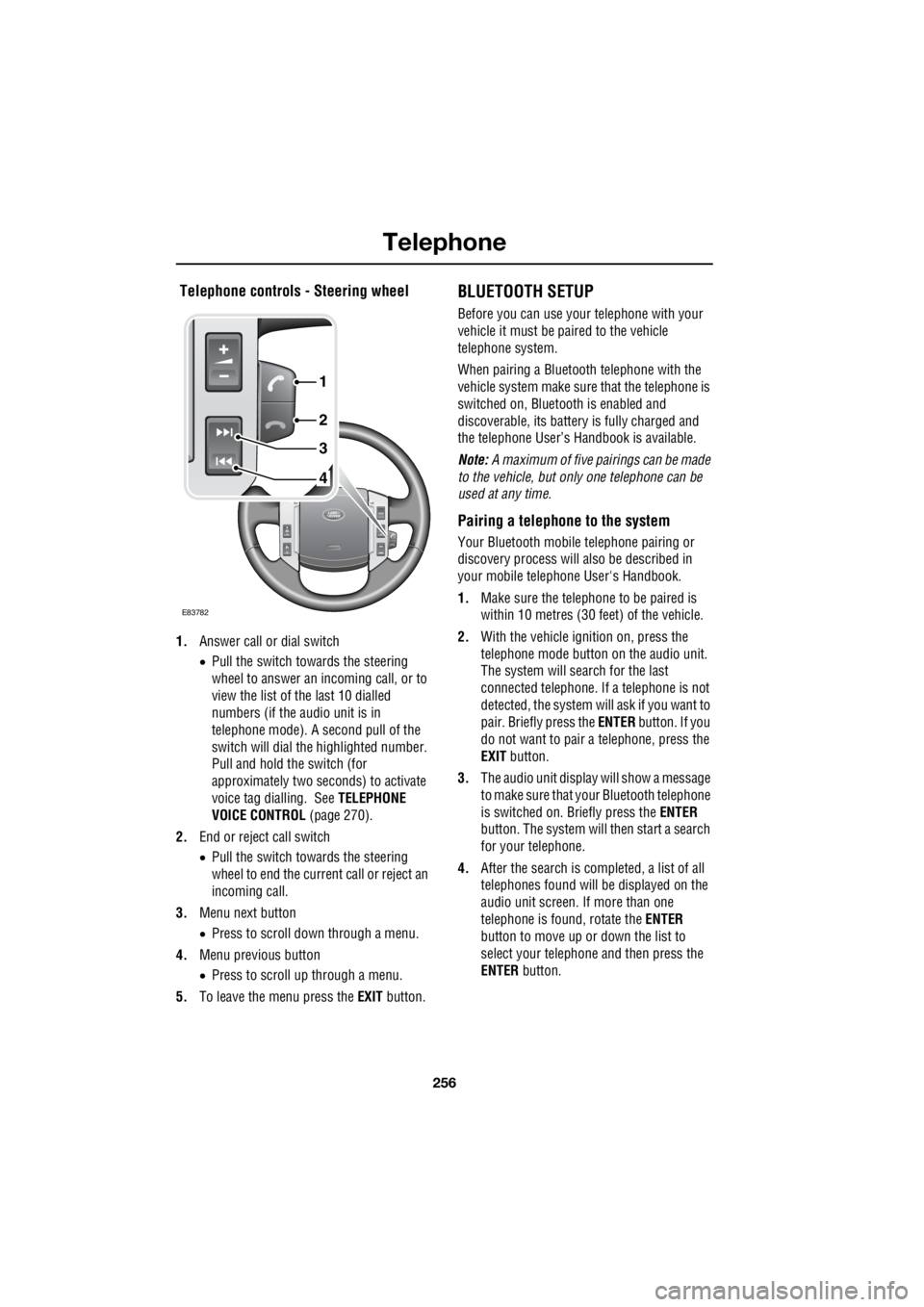
Telephone controls - Steering wheel
1. Answer call or dial switch
• Pull the switch towards the steering
wheel to answer an incoming call, or to
view the list of the last 10 dialled
numbers (if the audio unit is in
telephone mode). A second pull of the
switch will dial th e highlighted number.
Pull and hold the switch (for
approximately two seconds) to activate
voice tag dialling. See TELEPHONE
VOICE CONTROL (page 270).
2. End or reject call switch
• Pull the switch towards the steering
wheel to end the current call or reject an
incoming call.
3. Menu next button
• Press to scroll down through a menu.
4. Menu previous button
• Press to scroll up through a menu.
5. To leave the menu press the EXIT button.
BLUETOOTH SETUP
Before you can use your telephone with your
vehicle it must be paired to the vehicle
telephone system.
When pairing a Bluet ooth telephone with the
vehicle system ma ke sure that the telephone is
switched on, Bluetooth is enabled and
discoverable, its battery is fully charged and
the telephone User’s Handbook is available.
Note: A maximum of five pairings can be made
to the vehicle, but only one telephone can be
used at any time.
Pairing a telephone to the system
Your Bluetooth mobile telephone pairing or
discovery process will al so be described in
your mobile telephone User's Handbook.
1. Make sure the telephone to be paired is
within 10 metres (30 feet) of the vehicle.
2. With the vehicle ignition on, press the
telephone mode button on the audio unit.
The system will search for the last
connected tele phone. If a telephone is not
detected, the system w ill ask if you want to
pair. Briefly press the ENTER button. If you
do not want to pair a telephone, press the
EXIT button.
3. The audio unit display will show a message
to make sure that yo ur Bluetooth telephone
is switched on. Briefly press the ENTER
button. The system will then start a search
for your telephone.
4. After the search is completed, a list of all
telephones found will be displayed on the
audio unit screen. If more than one
telephone is found, rotate the ENTER
button to move up or down the list to
select your telephone and then press the
ENTER button.
4
3
2
1
E83782