settings Lexus GS300h 2016 Navigation manual
[x] Cancel search | Manufacturer: LEXUS, Model Year: 2016, Model line: GS300h, Model: Lexus GS300h 2016Pages: 383, PDF Size: 46.51 MB
Page 151 of 383
151
5. SETUP
GS_Navi+MM_OM30F13E_(EE)
15.09.01 14:54
NAVIGATION SYSTEM
3
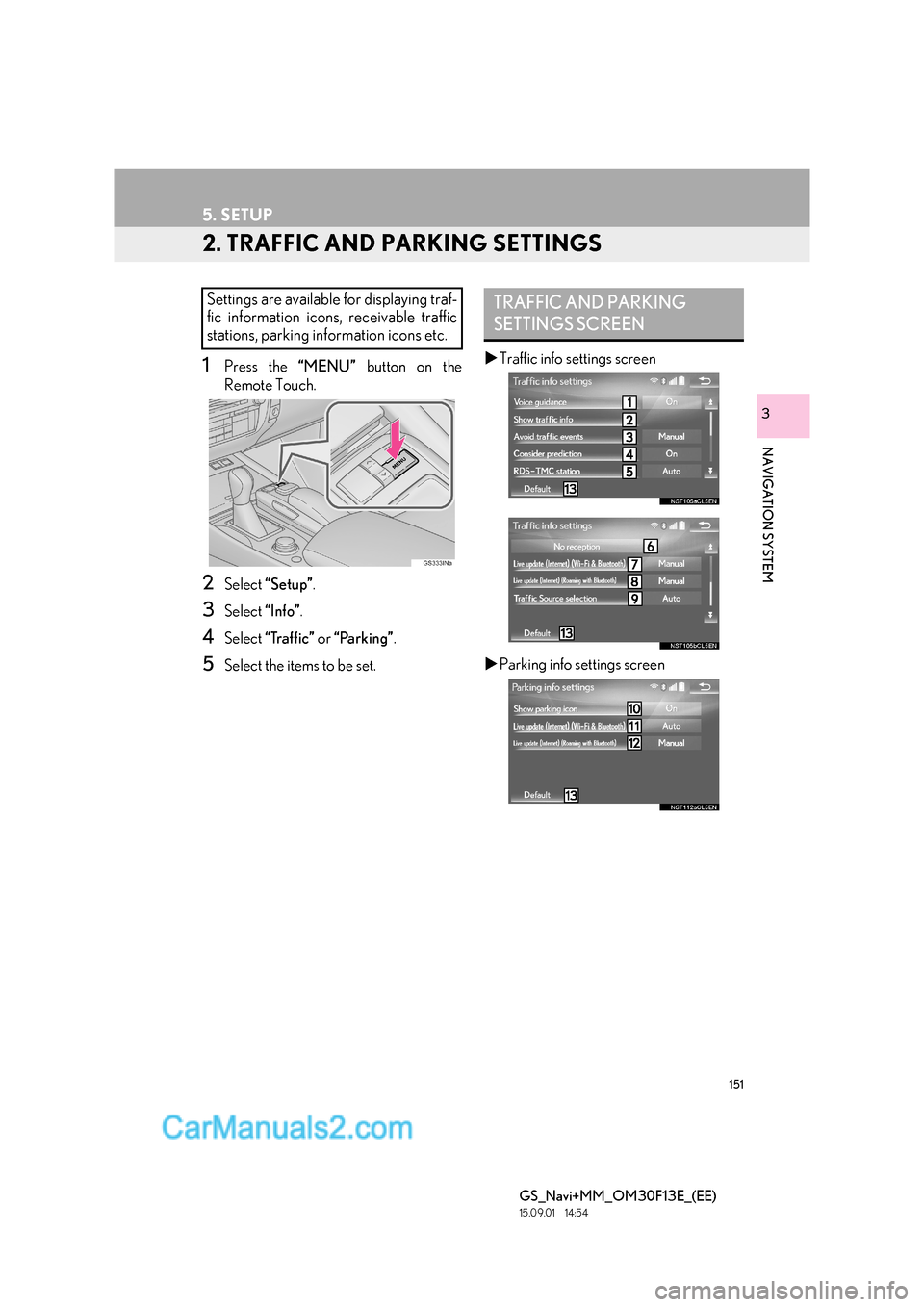
2. TRAFFIC AND PARKING SETTINGS
1Press the “MENU” button on the
Remote Touch.
2Select “Setup” .
3Select “Info”.
4Select “Traffic” or “Parking” .
5Select the items to be set. X
Traffic info settings screen
X Parking info settings screen
Settings are available for displaying traf-
fic information icons, receivable traffic
stations, parking information icons etc.TRAFFIC AND PARKING
SETTINGS SCREEN
Page 153 of 383

153
5. SETUP
GS_Navi+MM_OM30F13E_(EE)
15.09.01 14:54
NAVIGATION SYSTEM
3
1Display the “Traffic info settings” screen.
(→ P.151)
2Select “Show traffic info” .
3Select the desired icons to be displayed
on the map screen.
“All on” : Select to select all icons in the traffic
information.
“All off” : Select to cancel all the selections.
1Display the “Traffic info settings” screen.
(→ P.151)
2Select “Avoid traffic events” .
3Select the desired item.
SHOW TRAFFIC INFO
zFor more details on traffic information
icons: →P.1 0 0
AVOID TRAFFIC EVENTS
No.Function
Select to automatically change
routes when traffic information of the
guidance route has been received.
Select to select manually whether or
not to change routes when traffic in-
formation of the guidance route has
been received. In this mode, a screen
will appear to ask if you wish to re-
route. ( →P.154)
Select to not reroute when traffic in-
formation for the guidance route has
been received.
Page 154 of 383

154
5. SETUP
GS_Navi+MM_OM30F13E_(EE)
15.09.01 14:54
■CHANGING THE ROUTE MANU-
ALLY
1Select the desired item.1Display the “Traffic info settings” screen.
(→ P.151)
2Select “RDS-TMC station” .
3Select “Manual” .
zA list of traffic stations and the country in
which it can be received is displayed.
4Select the desired traffic station.
“Search” : Select to search for traffic station
again.
When the navigation system calculates
a new route, the following screen will be
displayed.
No.Function
Select to start route guidance using
the new route.
Select to confirm the new route and
current route on the map screen.
“New route” or “Old route” can be
selected.
Select to continue the current route
guidance.
RDS-TMC STATION
If “Manual” is selected, traffic stations
must be searched for before being
memorized.
Page 155 of 383

155
5. SETUP
GS_Navi+MM_OM30F13E_(EE)
15.09.01 14:54
NAVIGATION SYSTEM
3
1Display the “Traffic info settings” screen.
(→ P.151)
2Select “Live update (Internet) (Wi-Fi*1
& Bluetooth*2)”.
3Select the desired item.
*
1: Wi-Fi is a registered mark of the Wi-Fi Alliance®.
*
2:The Bluetooth® word mark and logos
are registered trademarks owned by
Bluetooth SIG, Inc.
SETTING TPEG TRAFFIC
INFORMATION UPDATE
FREQUENCY
TPEG traffic information can be re-
ceived via Wi-Fi
® or a Bluetooth® de-
vice. This information can be set to
update automatically or manually.
No.Function
Select to update automatically more
frequently.
Select to update automatically less
frequently.
Select to update manually.
( → P.156)
Select to cancel TPEG traffic infor-
mation reception via Wi-Fi® or a
Bluetooth® device.
Page 156 of 383

156
5. SETUP
GS_Navi+MM_OM30F13E_(EE)
15.09.01 14:54
■UPDATING THE INFORMATION
MANUALLY
1Select the manual update button.
2Select the desired item.
1Display the “Traffic info settings” screen.
(→ P.151)
2Select “Live update (Internet) (Roam-
ing with Bluetooth*)” .
*: The Bluetooth
® word mark and logos are
registered trademarks owned by
Bluetooth SIG, Inc.
Traffic and parking lot information can
be updated on the map screen.
No.Function
Select to update the traffic informa-
tion.
Select to update the parking lot in-
formation.
Select to update the traffic and park-
ing lot information.
ENABLING TPEG TRAFFIC
INFORMATION ROAMING
The roaming function of TPEG traffic in-
formation received via a Bluetooth
® de-
vice can be enabled for roaming
situations (when outside the geographi-
cal coverage area of your mobile net-
work provider). This information can be
set to update automatically or manually.
Page 157 of 383

157
5. SETUP
GS_Navi+MM_OM30F13E_(EE)
15.09.01 14:54
NAVIGATION SYSTEM
3
3Select the desired item.
1Display the “Traffic info settings” screen.
(→ P.151)
2Select “Traffic Source selection” .
3Select the desired item.
No.Function
Select to update automatically more
frequently.
Select to update automatically less
frequently.
Select to update manually.
(→ P.156)
Select to cancel TPEG traffic infor-
mation reception via a Bluetooth®
device.
SELECTING TRAFFIC
INFORMATION SOURCE
Traffic information source can be set to
receive automatically, or to receive
RDS-TMC traffic information only.
No.Function
Select to automatically select a traf-
fic information source. When both
RDS-TMC and TPEG are available,
TPEG traffic information will be se-
lected automatically.
Select to receive only RDS-TMC
traffic information.
Page 158 of 383

158
5. SETUP
GS_Navi+MM_OM30F13E_(EE)
15.09.01 14:54
1Display the “Parking info settings”
screen. (→P.151)
2Select “Live update (Internet) (Wi-Fi*1
& Bluetooth*2)”.
3Select the desired item. *
1: Wi-Fi is a registered mark of the Wi-Fi
Alliance®.
*
2:The Bluetooth® word mark and logos
are registered trademarks owned by
Bluetooth SIG, Inc.
SETTING PARKING LOT
INFORMATION UPDATE
FREQUENCY
Parking lot information can be received
via Wi-Fi
® or a Bluetooth® device. This
information can be set to update auto-
matically or manually.
No.Function
Select to update automatically.
Select to update manually.
( → P.156)
Select to cancel parking lot informa-
tion reception via Wi-Fi® or a
Bluetooth® device.
Page 159 of 383
159
5. SETUP
GS_Navi+MM_OM30F13E_(EE)
15.09.01 14:54
NAVIGATION SYSTEM
3
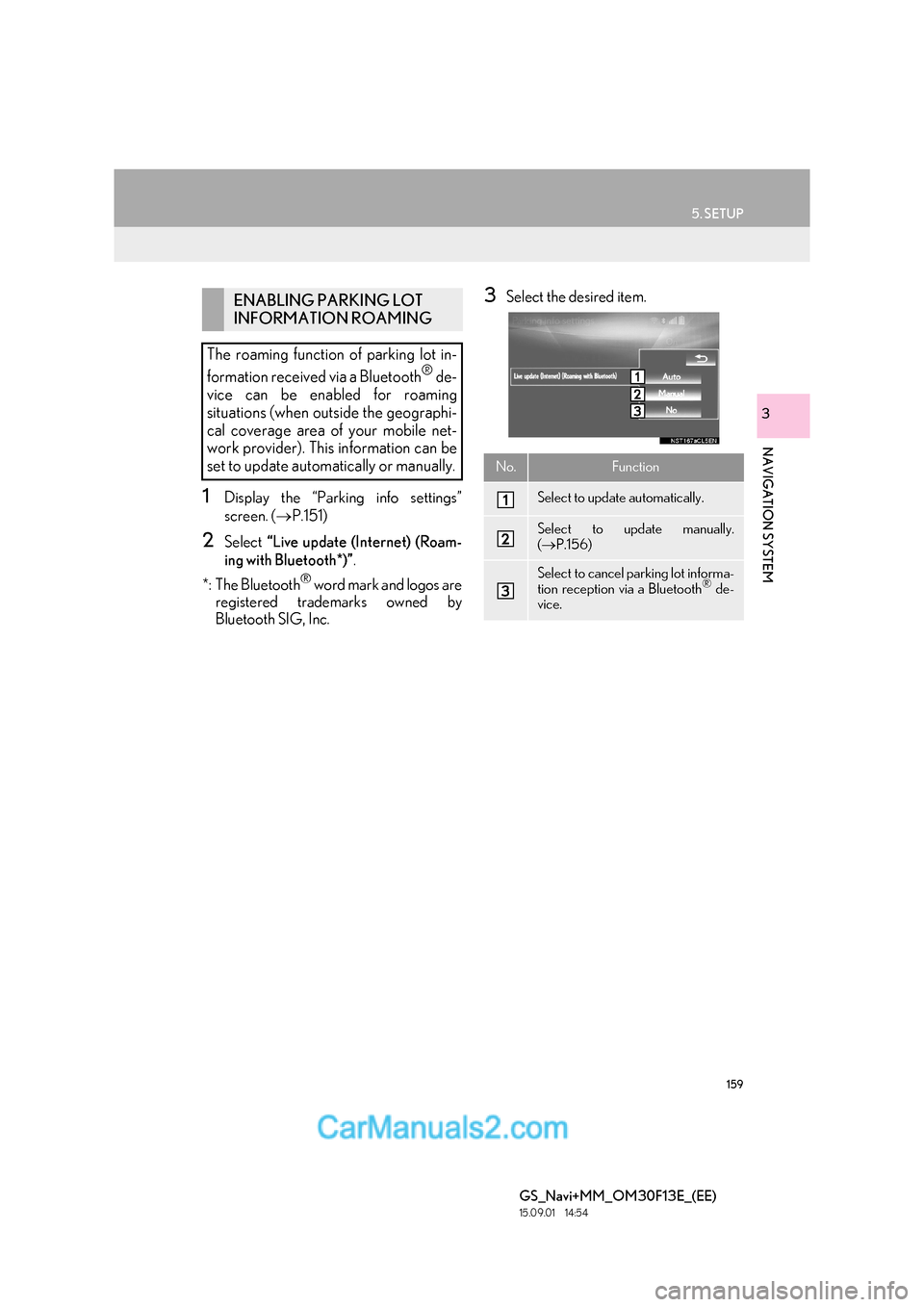
1Display the “Parking info settings”
screen. (→P.151)
2Select “Live update (Internet) (Roam-
ing with Bluetooth*)” .
*: The Bluetooth
® word mark and logos are
registered trademarks owned by
Bluetooth SIG, Inc.
3Select the desired item.ENABLING PARKING LOT
INFORMATION ROAMING
The roaming function of parking lot in-
formation received via a Bluetooth
® de-
vice can be enabled for roaming
situations (when outside the geographi-
cal coverage area of your mobile net-
work provider). This information can be
set to update automatically or manually.
No.Function
Select to update automatically.
Select to update manually.
( → P.156)
Select to cancel parking lot informa-
tion reception via a Bluetooth® de-
vice.
Page 166 of 383
166
GS_Navi+MM_OM30F13E_(EE)
15.09.01 14:52
1. QUICK REFERENCE ............................. 168
2. SOME BASICS ...........................................170
TURNING THE SYSTEM ON AND OFF .............................................................................. 170
SELECTING AN AUDIO SOURCE............... 171
DISC SLOT................................................................... 171
USB/AUX PORT ..................................................... 172
“Sound settings” SCREEN .................................... 174
SPEECH COMMAND SYSTEM ..................... 178
1. AM/FM/DAB RADIO.............................179
OVERVIEW ................................................................ 179
PRESETTING A STATION................................... 181
MANUAL TUNING ................................................ 181
RDS (RADIO DATA SYSTEM) ......................... 182
TIME SHIFT OPERATION (DAB) ................... 182
1BASIC OPERATION
2RADIO OPERATION
Page 167 of 383
167
4
GS_Navi+MM_OM30F13E_(EE)
15.09.01 14:52
1
2
3
4
5 6
7
8 9
1. CD................................................................... 183
OVERVIEW................................................................ 183
2. DVD................................................................ 186
OVERVIEW................................................................ 186
DVD OPTIONS........................................................ 189
3. USB MEMORY .......................................... 191
OVERVIEW.................................................................. 191
USB AUDIO ............................................................... 194
USB VIDEO ................................................................ 194
USB PHOTO ............................................................. 195
4. iPod ................................................................. 196
OVERVIEW................................................................ 196
iPod AUDIO ............................................................. 200
iPod VIDEO .............................................................. 200
5. Bluetooth® AUDIO .................................. 201
OVERVIEW................................................................ 201
CONNECTING A Bluetooth®
DEVICE.................................................................... 206
LISTENING TO Bluetooth
® AUDIO............ 206
6. AUX .............................................................. 207
OVERVIEW............................................................... 207
1. STEERING SWITCHES ......................... 209
2. REAR SEAT AUDIO CONTROL SWITCHES ............................................... 212
1. AUDIO SETTINGS................................... 215
AUDIO SETTINGS SCREEN ............................ 215
1. OPERATING INFORMATION .......... 221
RADIO .......................................................................... 221
DVD PLAYER AND DISC ................................. 223
iPod ................................................................................ 228
FILE INFORMATION........................................... 229
TERMS .......................................................................... 232
ERROR MESSAGES............................................. 234
3MEDIA OPERATION4AUDIO/VISUAL REMOTE
CONTROLS
5SETUP
6TIPS FOR OPERATING THE
AUDIO/VISUAL SYSTEM
AUDIO/VISUAL SYSTEM
For vehicles sold outside Europe, some of the functions cannot be operated while driving.