Touch screen Lexus GS350 2008 Owner's Guide
[x] Cancel search | Manufacturer: LEXUS, Model Year: 2008, Model line: GS350, Model: Lexus GS350 2008Pages: 598, PDF Size: 14.03 MB
Page 251 of 598
250
3-3. Using the audio system
GS_G_U
June 19, 2008 12:54 pm
File repeatTouch on the screen.
Folder repeatTouch and hold on the screen until the “FLD RPT” appears.
Random playback■ To play files from a particul ar folder in random order
Touch on the screen.
■ To play all the files on a disc in random order
Touch and hold on the screen until the “FLD RAND” appears.
■Canceling random, repeat and scan playback
Touch , or on the screen once again.
■Error messages
→ P. 2 7 0
GS_U_G.book Page 250 Thursday, June 19, 2008 12:54 PM
Page 253 of 598
252
3-3. Using the audio system
GS_G_U
June 19, 2008 12:54 pm
Loading a discs■ Loading a single disc
Push .
When the indicator changes from flashing amber to green, insert
a disc after the DVD player door opens.
■ Loading multiple discs
Press and hold until you hear a beep.
When the indicator changes from flashing amber to green, insert
a disc after the DVD player door opens.
After inserting a disc, wait until the indicator changes from flash-
ing amber to green, then insert the next disc after the DVD player
door has opened.
Repeat steps 2 and 3 until you have inserted all discs.
To cancel the operation, press the or button. If you do not
insert a disc within 15 seconds, loading will be canceled automatically.
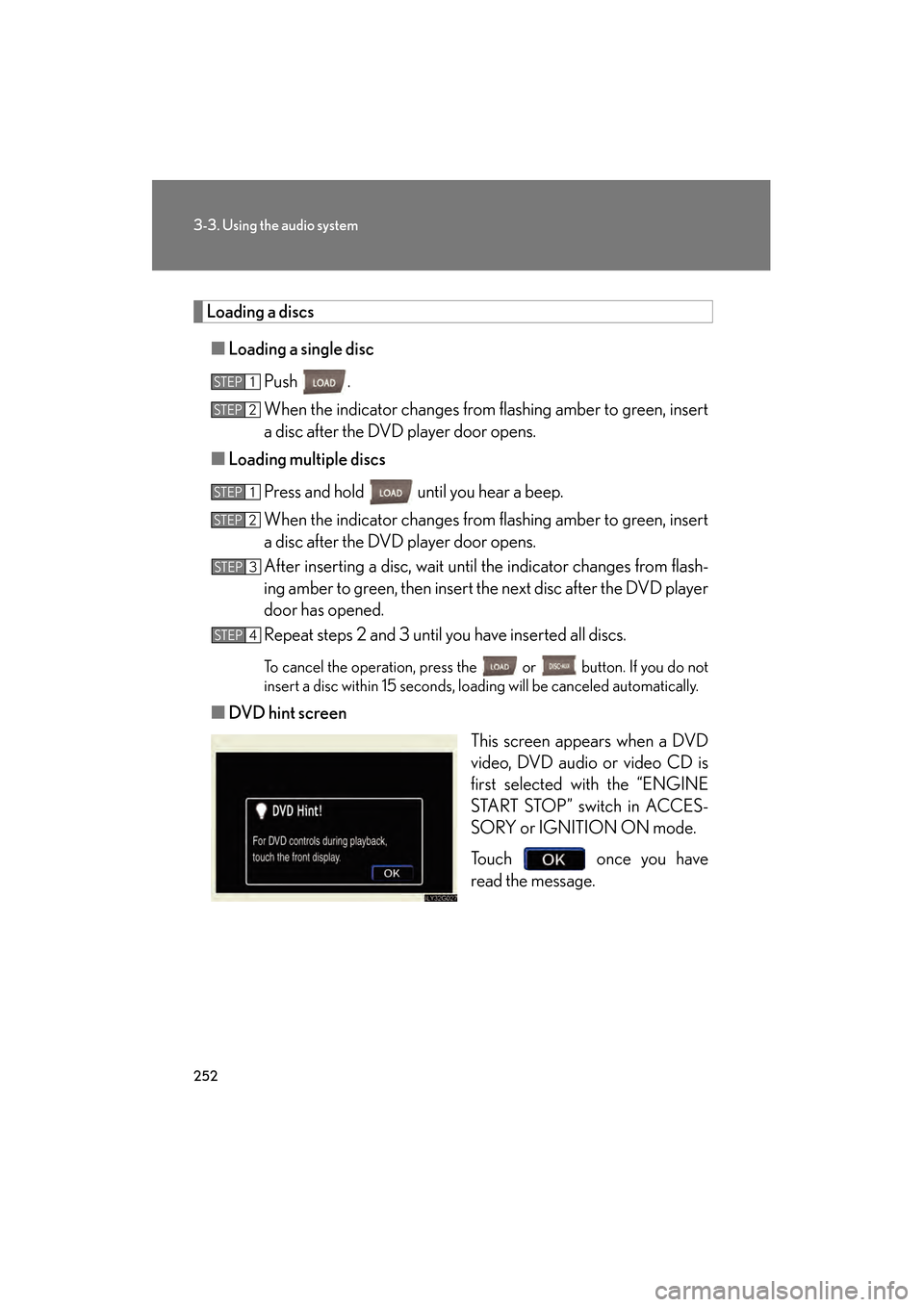
■DVD hint screen
This screen appears when a DVD
video, DVD audio or video CD is
first selected with the “ENGINE
START STOP” switch in ACCES-
SORY or IGNITION ON mode.
Touch once you have
read the message.
STEP1
STEP2
STEP1
STEP2
STEP3
STEP4
GS_U_G.book Page 252 Thursday, June 19, 2008 12:54 PM
Page 254 of 598
253
3-3. Using the audio system
3
Interior features
GS_G_U
June 19, 2008 12:54 pm
Ejecting discs■ Ejecting a disc
To select the disc to be ejected, touch the desired disc on the
screen or press ∧ or ∨ on .
Press and remove the disc.
■ Ejecting all discs
Press and hold until you hear a beep, then remove the discs.
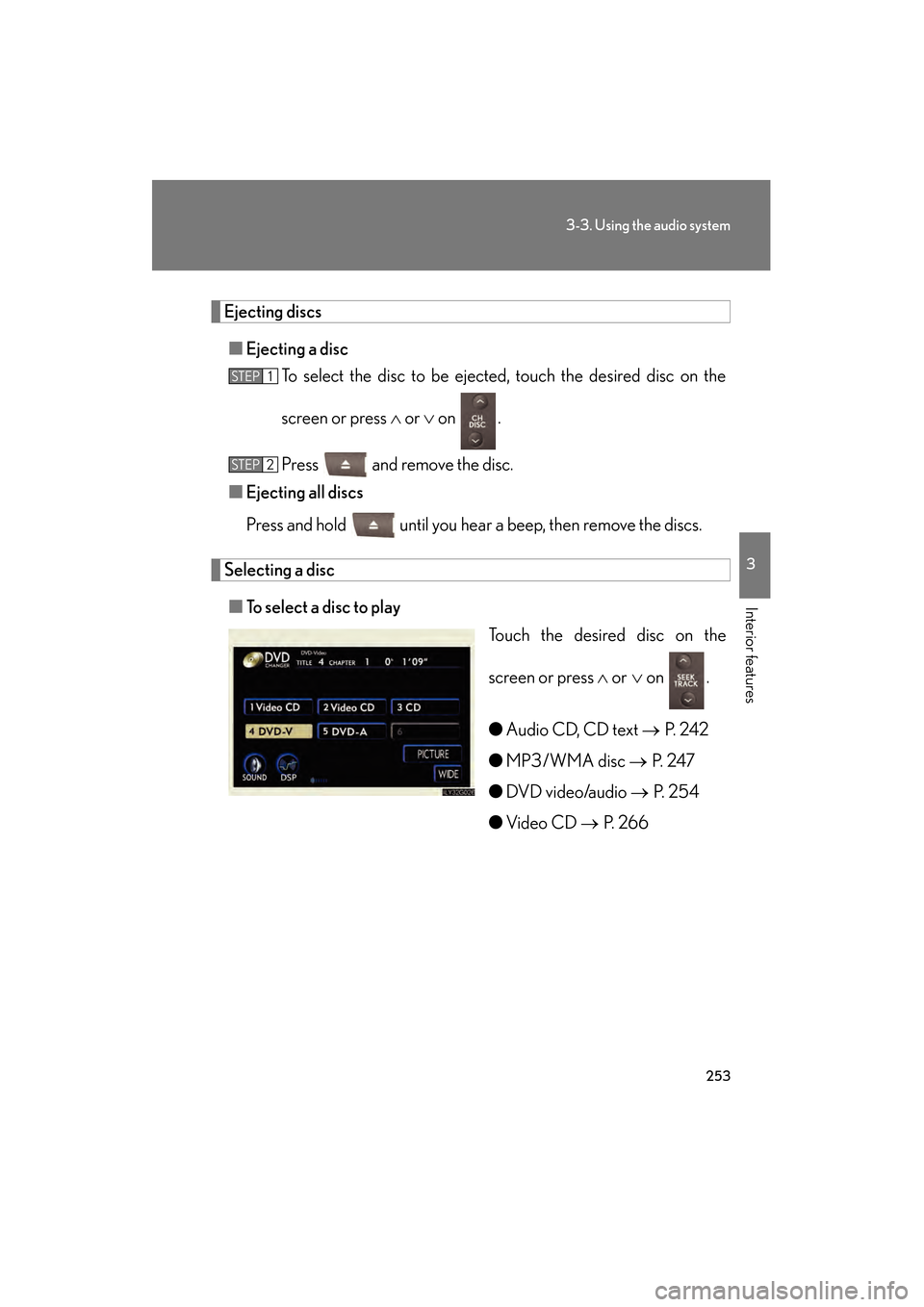
Selecting a disc
■ To select a disc to play
Touch the desired disc on the
screen or press ∧ or ∨ on .
● Audio CD, CD text → P. 2 4 2
● MP3/WMA disc → P. 2 4 7
● DVD video/audio → P. 2 5 4
● Video CD → P. 2 6 6
STEP1
STEP2
GS_U_G.book Page 253 Thursday, June 19, 2008 12:54 PM
Page 256 of 598
255
3-3. Using the audio system
3
Interior features
GS_G_U
June 19, 2008 12:54 pm
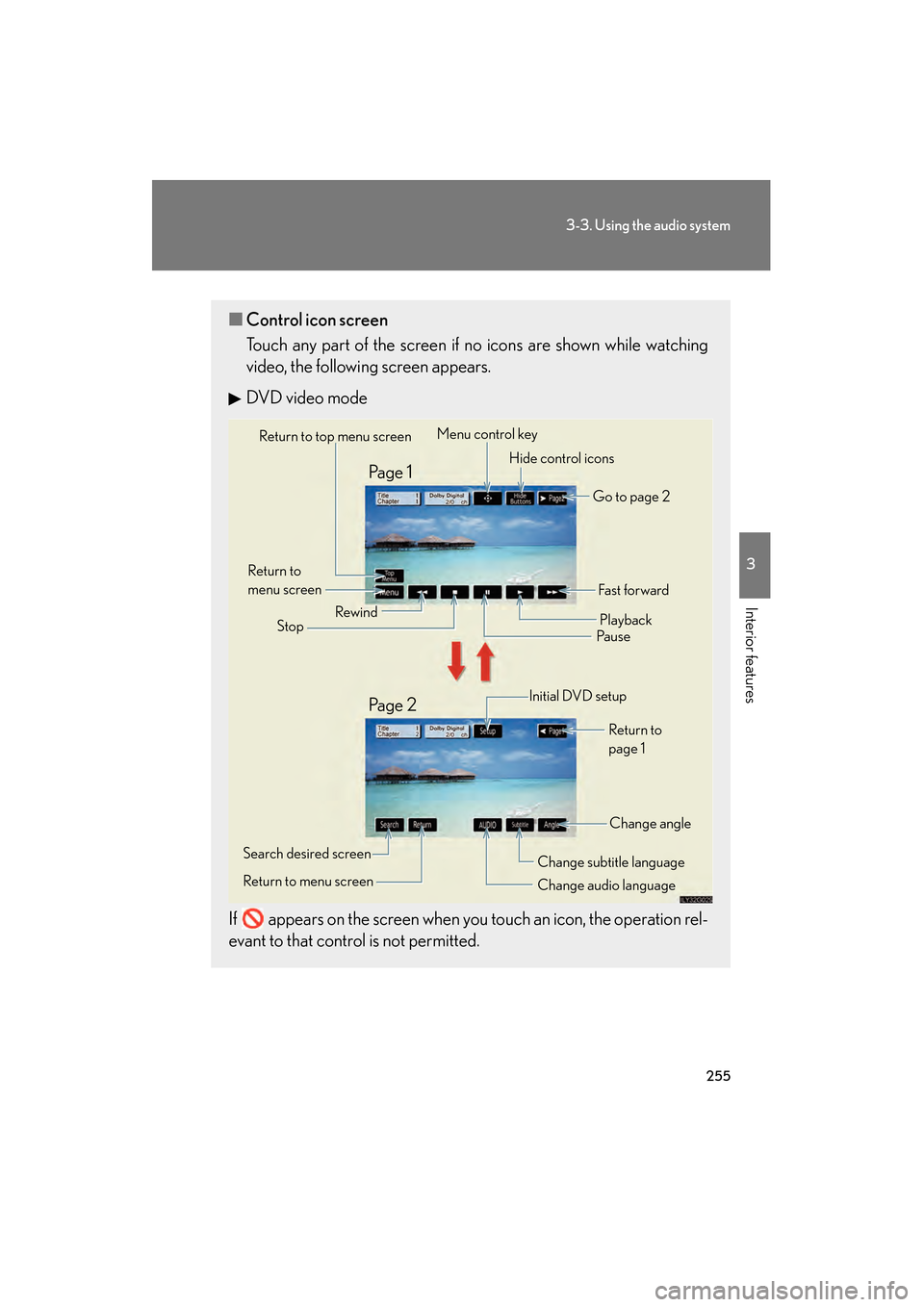
■Control icon screen
Touch any part of the screen if no icons are shown while watching
video, the following screen appears.
DVD video mode
If appears on the screen when you touch an icon, the operation rel-
evant to that control is not permitted.
Return to top menu screen Hide control icons
Return to
menu screen Rewind
Stop Fa s t f o r wa rd
Playback
Pau s e
Menu control key
Go to page 2
Search desired screen
Return to menu screen Change audio language Change subtitle language
Initial DVD setup
Return to
page 1
Change angle
Pa g e 2 Pa g e 1
GS_U_G.book Page 255 Thursday, June 19, 2008 12:54 PM
Page 257 of 598
256
3-3. Using the audio system
GS_G_U
June 19, 2008 12:54 pm
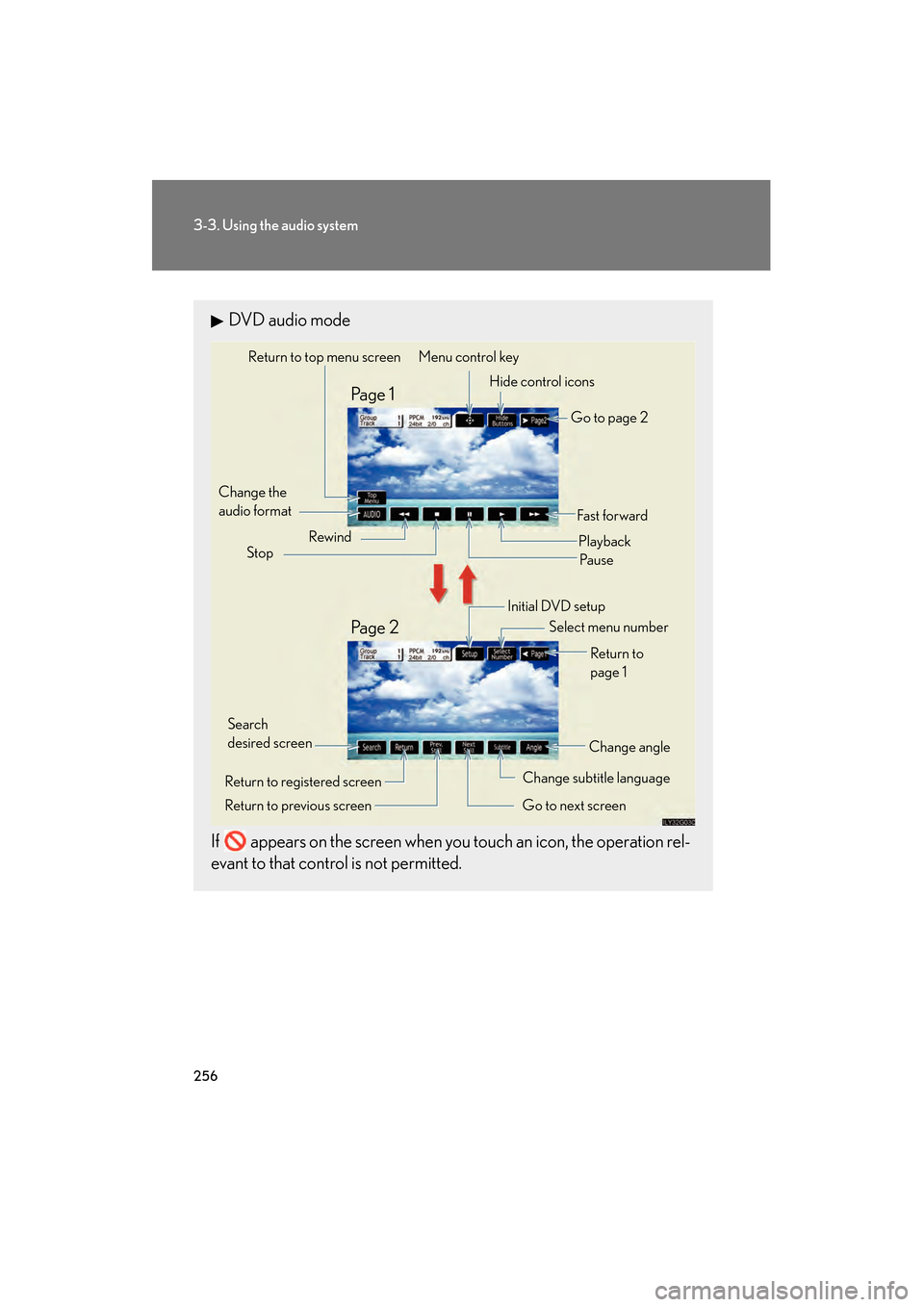
DVD audio mode
If appears on the screen when you touch an icon, the operation rel-
evant to that control is not permitted.
Change the
audio format Change angle
Initial DVD setup
Select menu number
Return to
page 1
Change subtitle language
Return to previous screen Go to next screen
Return to registered screen Return to top menu screen
Hide control icons
Rewind
Stop Fast for ward
PlaybackPa u s e
Go to page 2
Search
desired screen Menu control key
Pa g e 2 Pa g e 1
GS_U_G.book Page 256 Thursday, June 19, 2008 12:54 PM
Page 258 of 598
257
3-3. Using the audio system
3
Interior features
GS_G_U
June 19, 2008 12:54 pm
Loading, ejecting and selecting discs→ P. 2 5 2
Fast forwarding/rewinding disc
Touch and hold or on the screen or press and hold ∧ or ∨
on until you hear a beep.
Slow playback Touch and then touch . Video is played slowly while you
are touching .
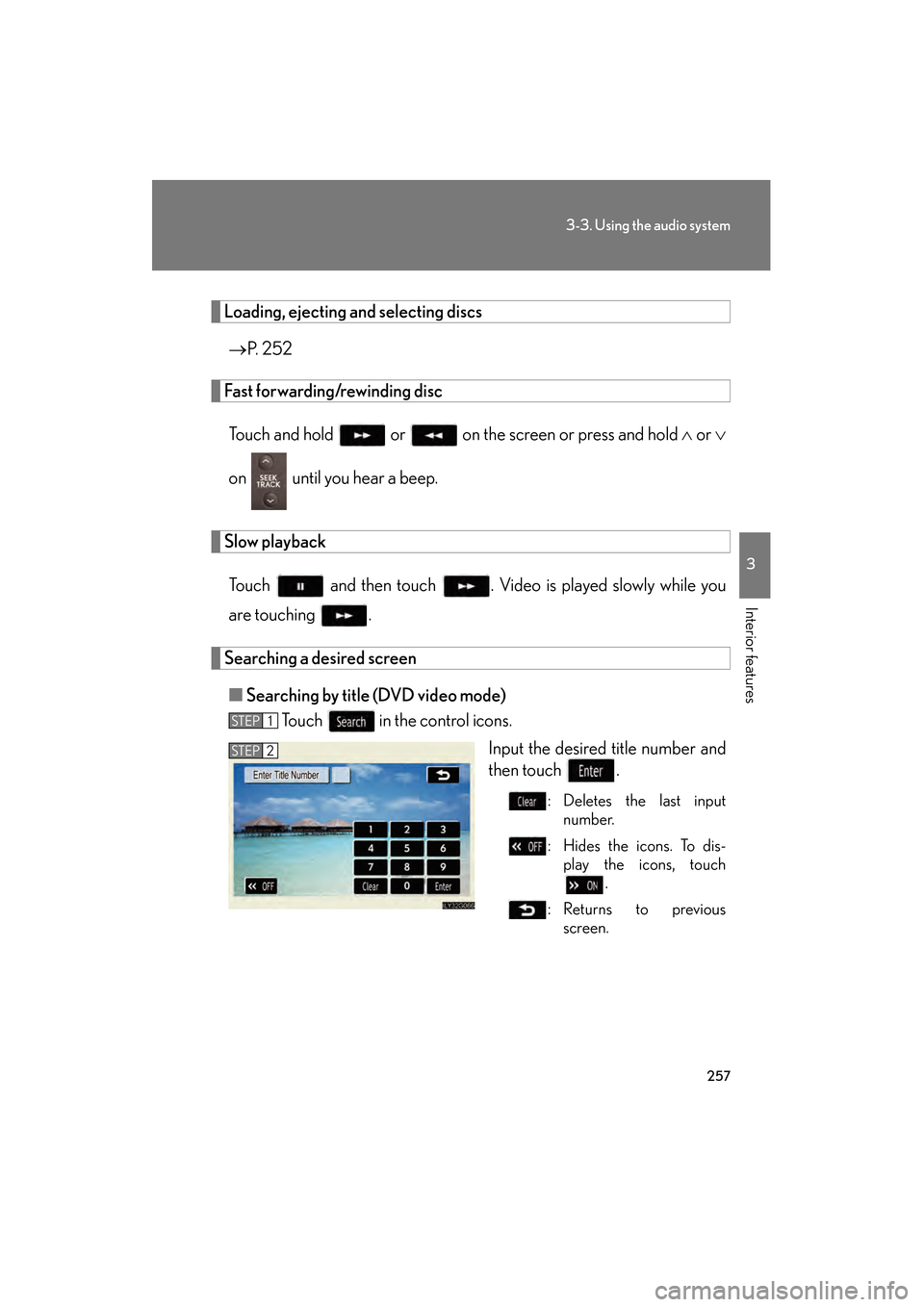
Searching a desired screen■ Searching by title (DVD video mode)
Touch in the control icons.
Input the desired title number and
then touch .
: Deletes the last inputnumber.
: Hides the icons. To dis- play the icons, touch .
:Returns to previous screen.
STEP1
STEP2
GS_U_G.book Page 257 Thursday, June 19, 2008 12:54 PM
Page 259 of 598
258
3-3. Using the audio system
GS_G_U
June 19, 2008 12:54 pm
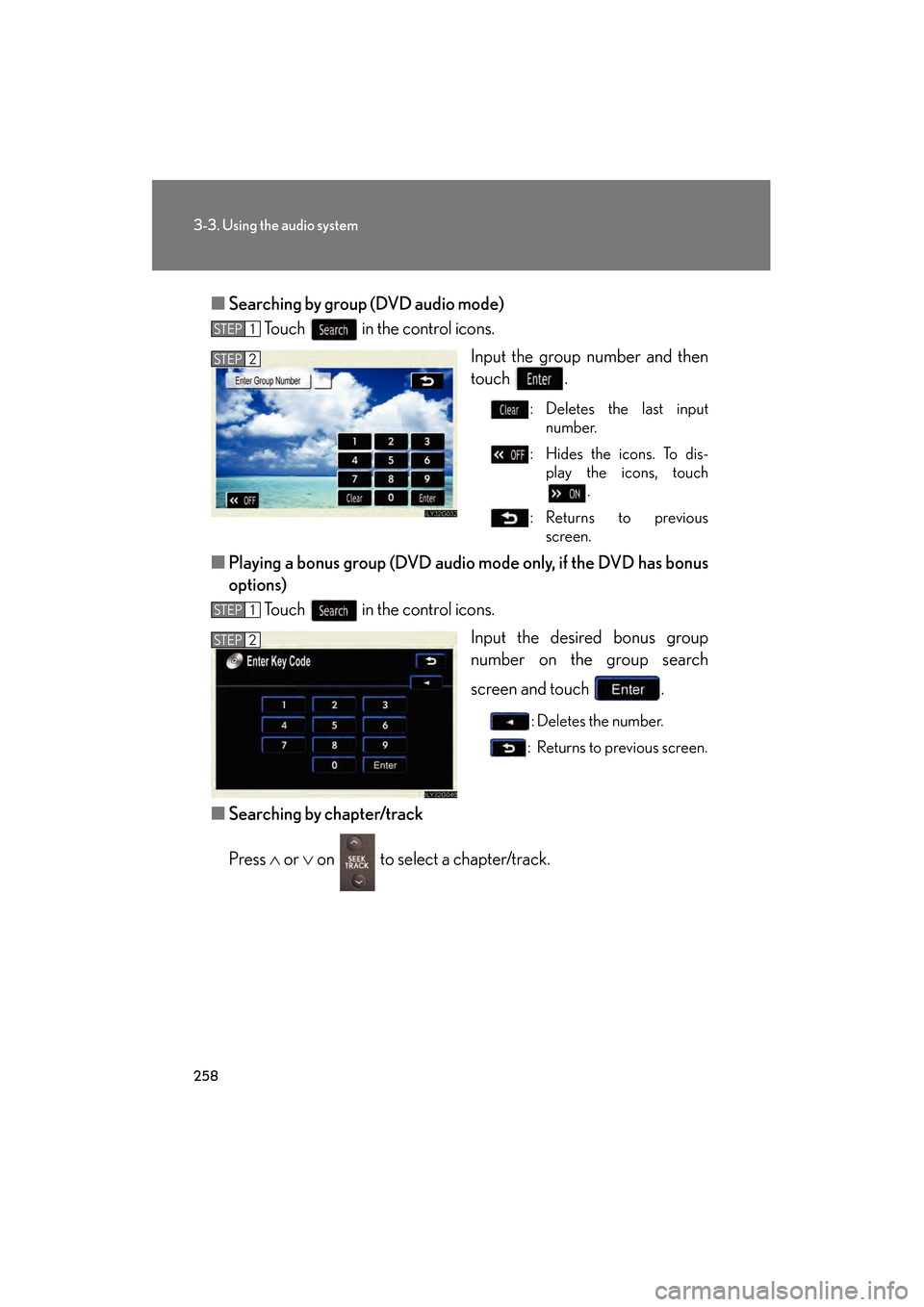
■Searching by group (DVD audio mode)
Touch in the control icons.
Input the group number and then
touch .
: Deletes the last inputnumber.
: Hides the icons. To dis- play the icons, touch .
:Returns to previous screen.
■ Playing a bonus group (DVD audio mode only, if the DVD has bonus
options)
Touch in the control icons.
Input the desired bonus group
number on the group search
screen and touch .
: Deletes the number.
: Returns to previous screen.
■ Searching by chapter/track
Press ∧ or ∨ on to select a chapter/track.
STEP1
STEP2
STEP1
STEP2
GS_U_G.book Page 258 Thursday, June 19, 2008 12:54 PM
Page 260 of 598
259
3-3. Using the audio system
3
Interior features
GS_G_U
June 19, 2008 12:54 pm
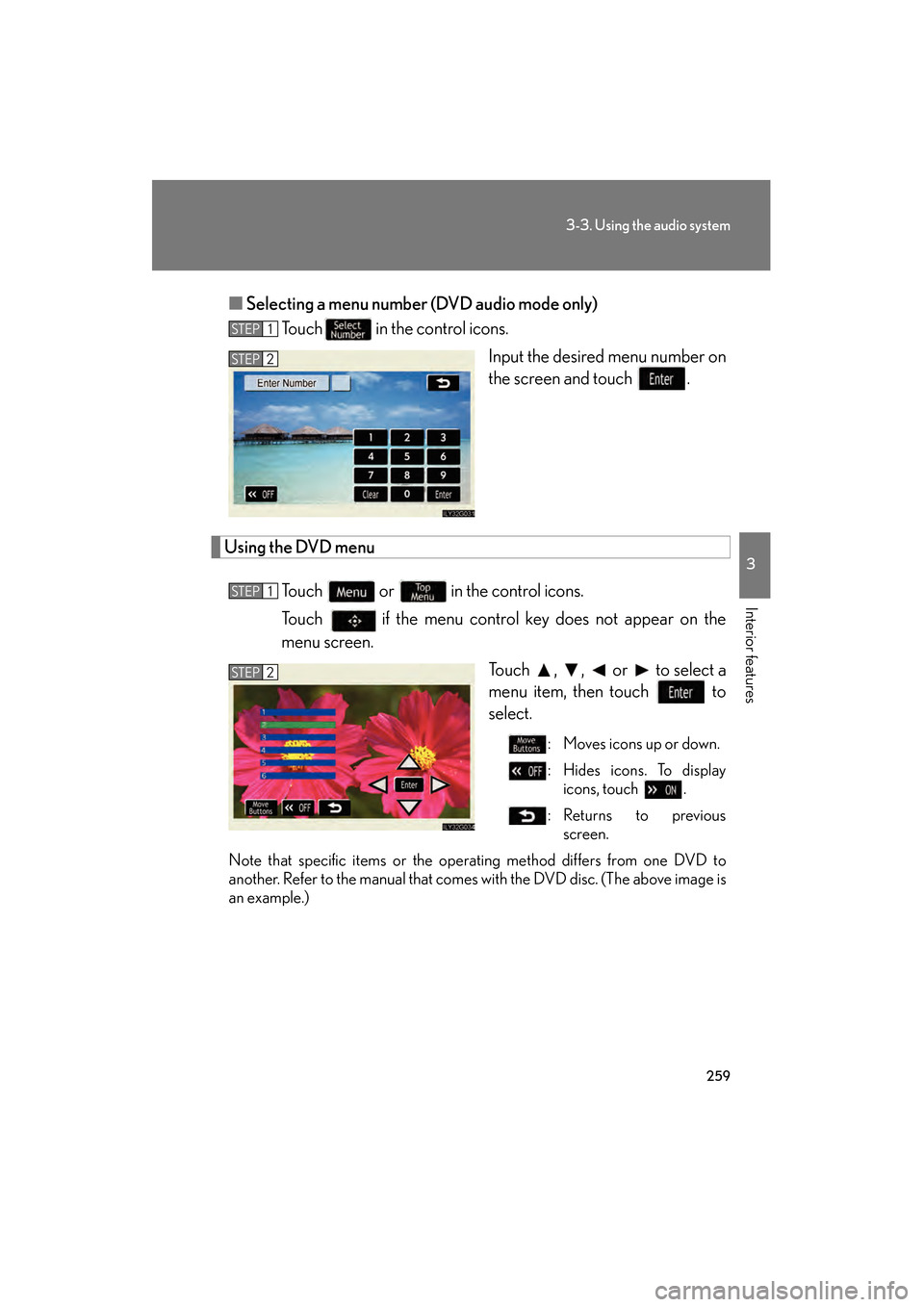
■Selecting a menu number (DVD audio mode only)
Touch in the control icons.
Input the desired menu number on
the screen and touch .
Using the DVD menu
Touch or in the control icons.
Touch if the menu control key does not appear on the
menu screen. Touch , , or to select a
menu item, then touch to
select.
: Moves icons up or down.
: Hides icons. To displayicons, touch .
:Returns to previous screen.
Note that specific items or the oper ating method differs from one DVD to
another. Refer to the manual that comes with the DVD disc. (The above image is
an example.)
STEP1
STEP2
STEP1
STEP2
GS_U_G.book Page 259 Thursday, June 19, 2008 12:54 PM
Page 261 of 598
260
3-3. Using the audio system
GS_G_U
June 19, 2008 12:54 pm
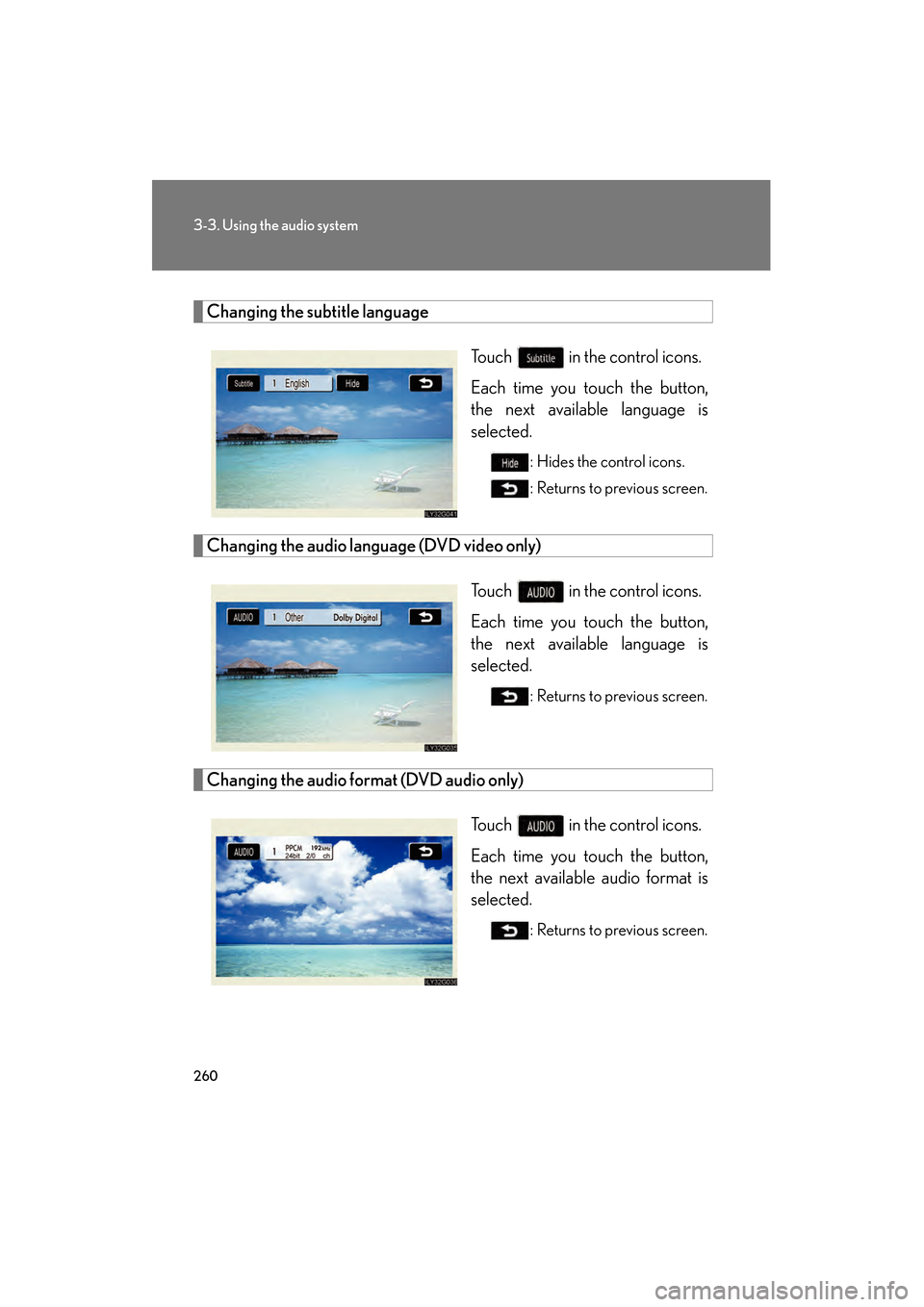
Changing the subtitle languageTouch in the control icons.
Each time you touch the button,
the next available language is
selected.
: Hides the control icons.
: Returns to previous screen.
Changing the audio language (DVD video only)Touch in the control icons.
Each time you touch the button,
the next available language is
selected.
: Returns to previous screen.
Changing the audio format (DVD audio only)Touch in the control icons.
Each time you touch the button,
the next available audio format is
selected.
: Returns to previous screen.
GS_U_G.book Page 260 Thursday, June 19, 2008 12:54 PM
Page 262 of 598
261
3-3. Using the audio system
3
Interior features
GS_G_U
June 19, 2008 12:54 pm
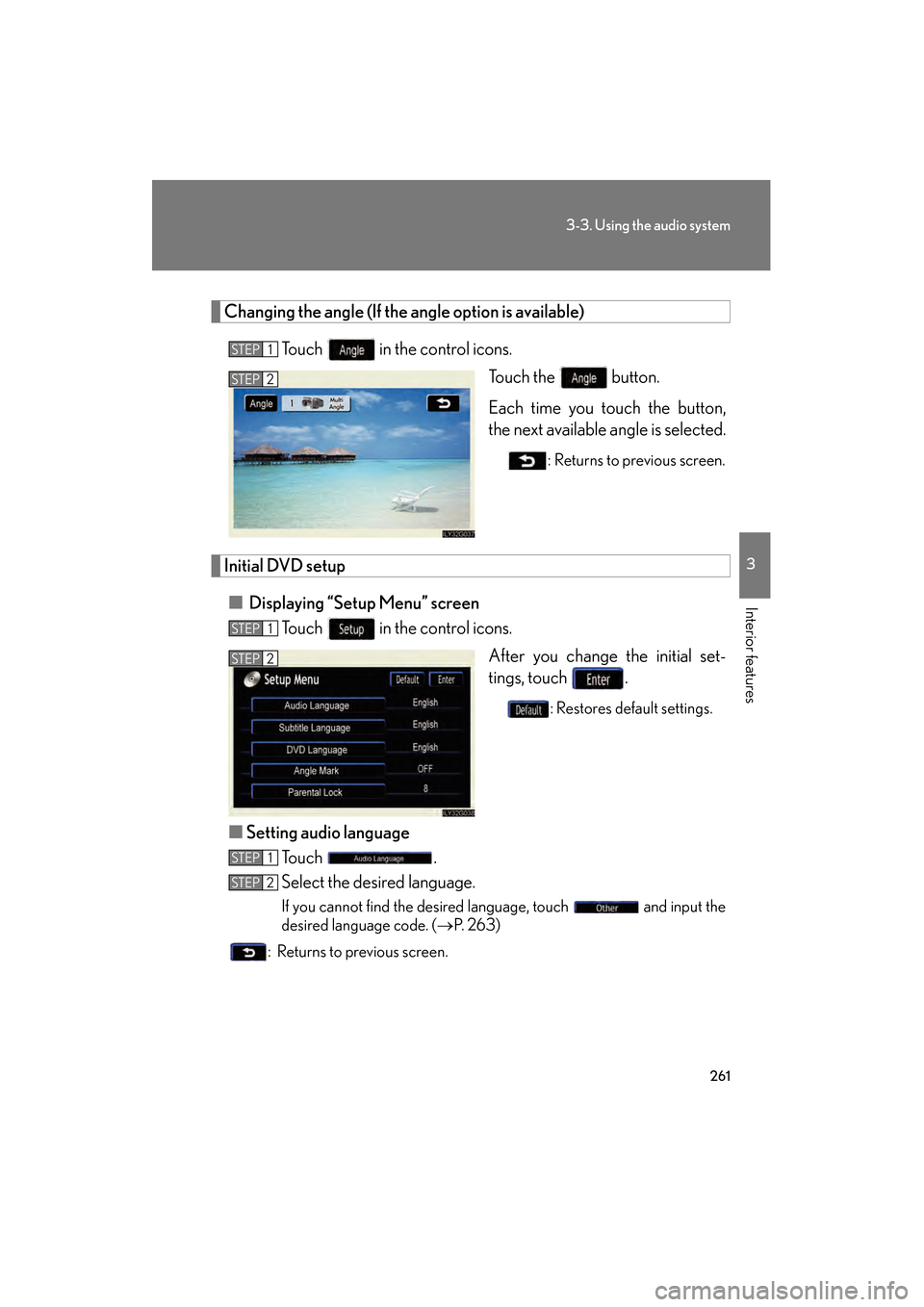
Changing the angle (If the angle option is available)
Touch in the control icons. Touch the button.
Each time you touch the button,
the next available angle is selected.
: Returns to previous screen.
Initial DVD setup
■ Displaying “Setup Menu” screen
Touch in the control icons.
After you change the initial set-
tings, touch .
: Restores default settings.
■Setting audio language
To u c h .
Select the desired language.
If you cannot find the desired language, touch and input the
desired language code. ( →P. 2 6 3 )
: Returns to previous screen.
STEP1
STEP2
STEP1
STEP2
STEP1
STEP2
GS_U_G.book Page 261 Thursday, June 19, 2008 12:54 PM