Touch screen Lexus GS350 2008 Service Manual
[x] Cancel search | Manufacturer: LEXUS, Model Year: 2008, Model line: GS350, Model: Lexus GS350 2008Pages: 598, PDF Size: 14.03 MB
Page 263 of 598
262
3-3. Using the audio system
GS_G_U
June 19, 2008 12:54 pm
■Setting subtitle language
Touch .
Select the desired language.
If you cannot find the desired language, touch and input the
desired language code. ( →P. 263)
: Returns to previous screen.
■ Setting menu language
Touch .
Select the desired language.
If you cannot find the desired language, touch and input the
desired language code. ( →P. 263)
: Returns to previous screen.
■ Setting angle mark ON or OFF
If the DVD has angle options, you can turn the angle mark on or off.
Touch . Each time you touch the button, the multi angle
mark on the screen turns on or off alternately.
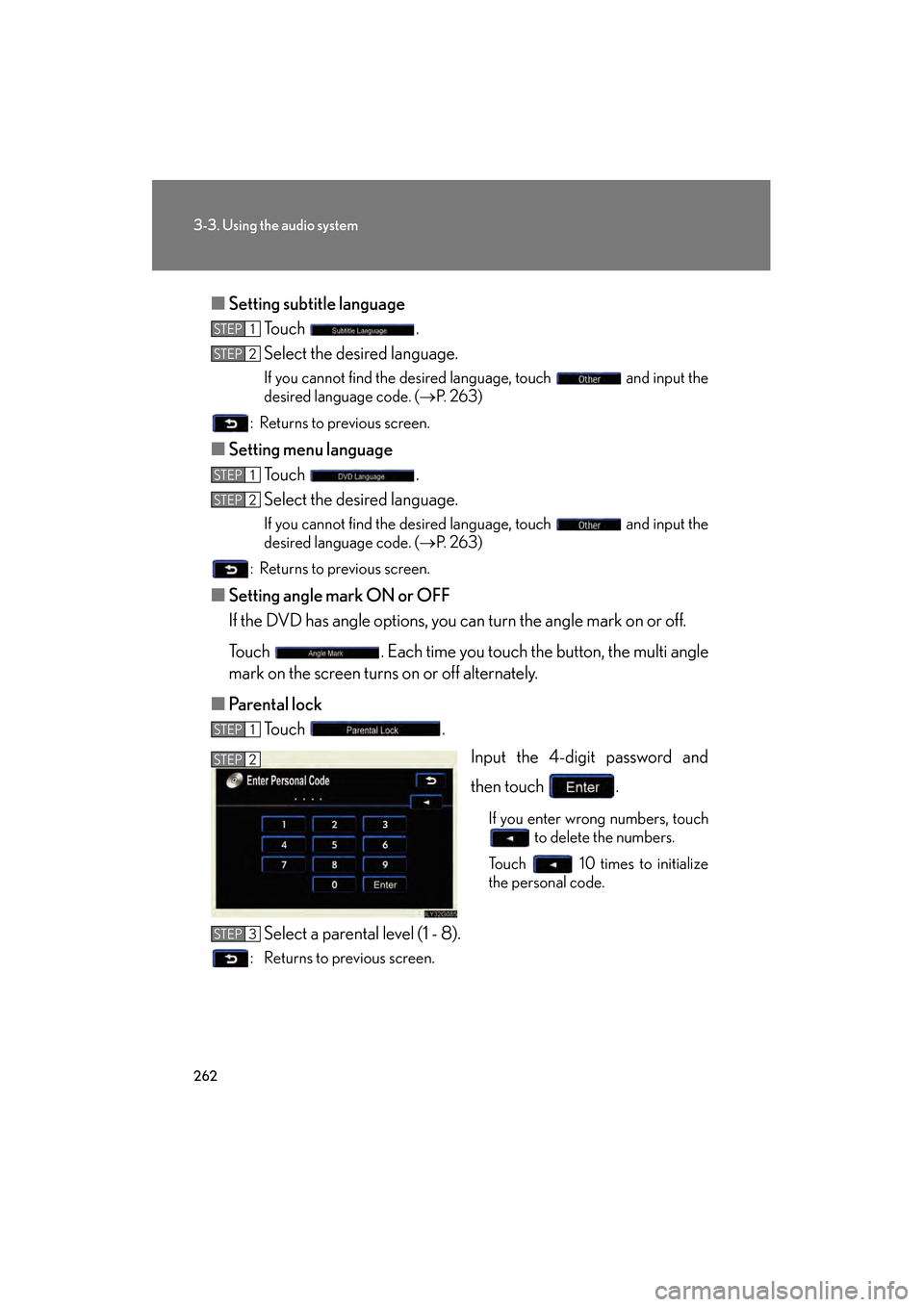
■ Parental lock
Touch .
Input the 4-digit password and
then touch .
If you enter wrong numbers, touch to delete the numbers.
Touch 10 times to initialize
the personal code.
Select a parental level (1 - 8).
: Returns to previous screen.
STEP1
STEP2
STEP1
STEP2
STEP1
STEP2
STEP3
GS_U_G.book Page 262 Thursday, June 19, 2008 12:54 PM
Page 264 of 598
263
3-3. Using the audio system
3
Interior features
GS_G_U
June 19, 2008 12:54 pm
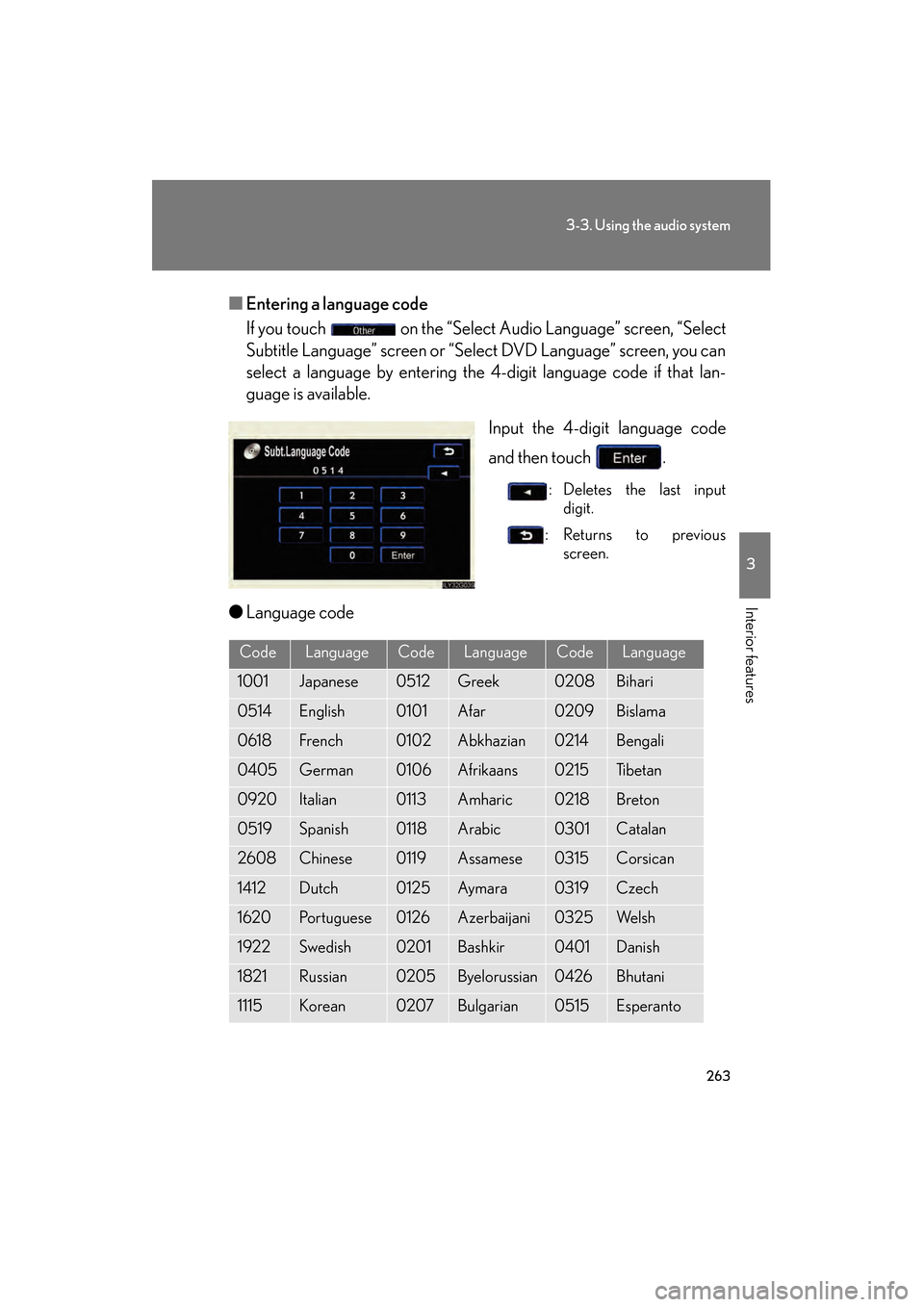
■Entering a language code
If you touch on the “Select Audio Language” screen, “Select
Subtitle Language” screen or “Select DVD Language” screen, you can
select a language by entering the 4-digit language code if that lan-
guage is available.
Input the 4-digit language code
and then touch .
: Deletes the last inputdigit.
:Returns to previous screen.
●Language code
CodeLanguageCodeLanguageCodeLanguage
1001Japanese0512Greek0208Bihari
0514English0101Afar0209Bislama
0618French0102Abkhazian0214Bengali
0405German0106Afrikaans0215Ti b e t a n
0920Italian0113Amharic0218Breton
0519Spanish0118Arabic0301Catalan
2608Chinese0119Assamese0315Corsican
1412Dutch0125Aym a ra0319Czech
1620Portuguese0126Azerbaijani0325We l s h
1922Swedish0201Bashkir0401Danish
1821Russian0205Byelorussian0426Bhutani
1115Korean0207Bulgarian0515Esperanto
GS_U_G.book Page 263 Thursday, June 19, 2008 12:54 PM
Page 268 of 598
267
3-3. Using the audio system
3
Interior features
GS_G_U
June 19, 2008 12:54 pm
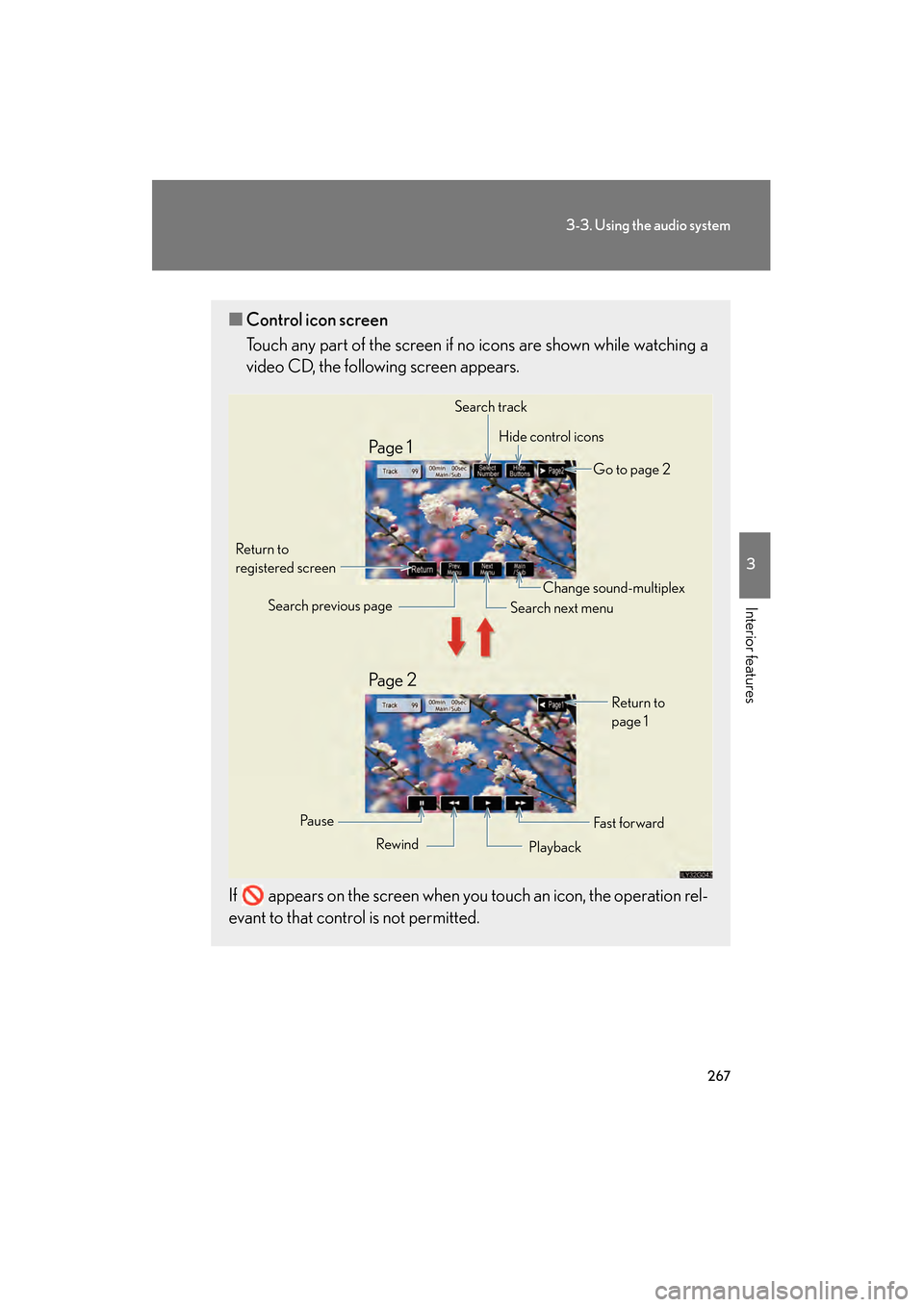
■Control icon screen
Touch any part of the screen if no icons are shown while watching a
video CD, the following screen appears.
If appears on the screen when you touch an icon, the operation rel-
evant to that control is not permitted.
Search track Hide control icons
Go to page 2
Return to
registered screen
Fa s t f o r wa rdReturn to
page 1
Change sound-multiplex
Search next menu
Search previous page
Rewind Playback
Pa u s e
Pa g e 2 Pa g e 1
GS_U_G.book Page 267 Thursday, June 19, 2008 12:54 PM
Page 270 of 598
269
3-3. Using the audio system
3
Interior features
GS_G_U
June 19, 2008 12:54 pm
Selecting a desired screen■ Searching manually
Touch or on the screen, or press ∧ or ∨ on until
the desired screen appears.
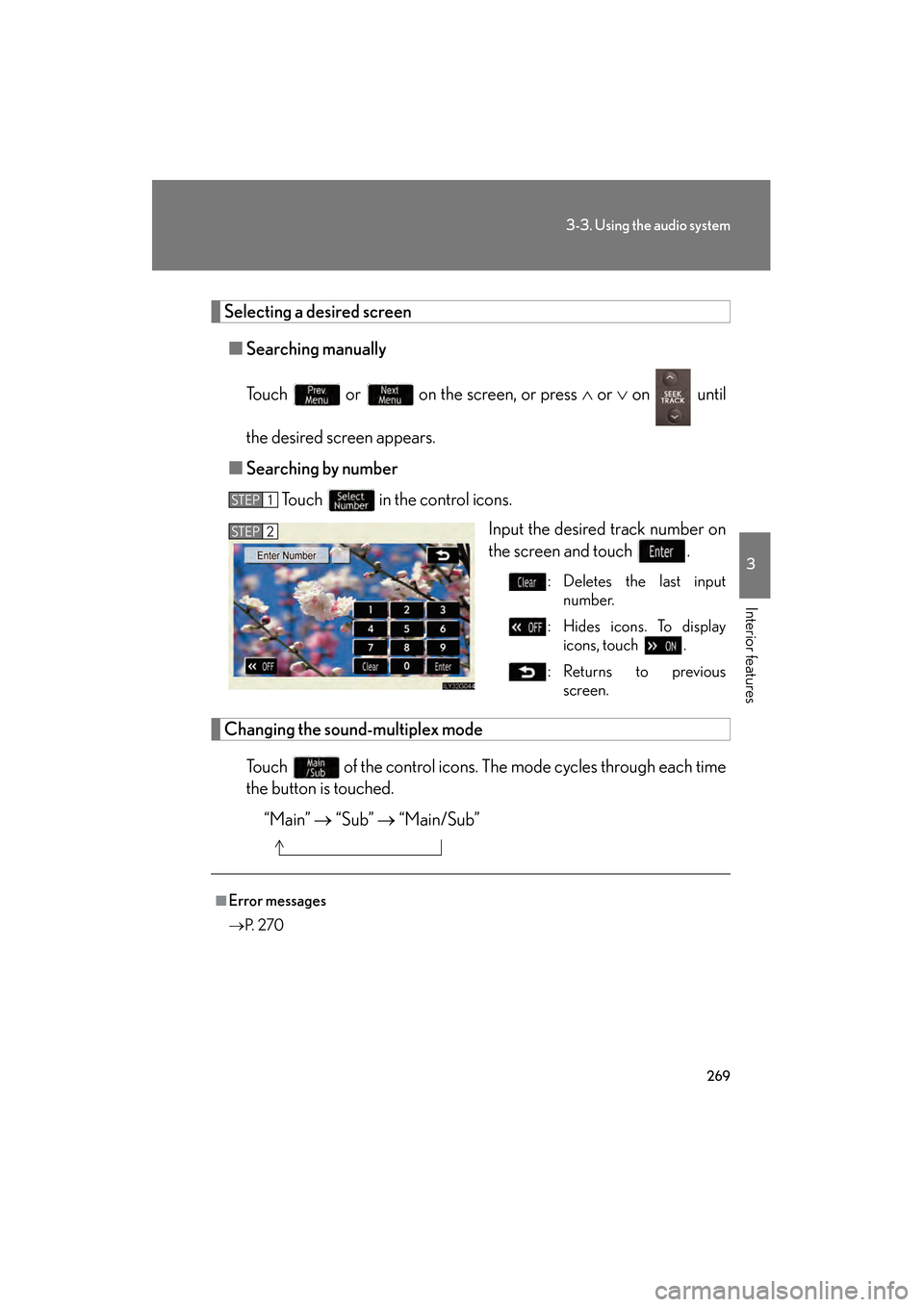
■ Searching by number
Touch in the control icons. Input the desired track number on
the screen and touch .
: Deletes the last inputnumber.
: Hides icons. To display icons, touch .
:Returns to previous screen.
Changing the soun d-multiplex mode
Touch of the control icons. The mode cycles through each time
the button is touched. “Main” → “Sub” → “Main/Sub”
STEP1
STEP2
■Error messages
→P. 2 7 0
GS_U_G.book Page 269 Thursday, June 19, 2008 12:54 PM
Page 284 of 598
283
3-3. Using the audio system
3
Interior features
GS_G_U
June 19, 2008 12:54 pm
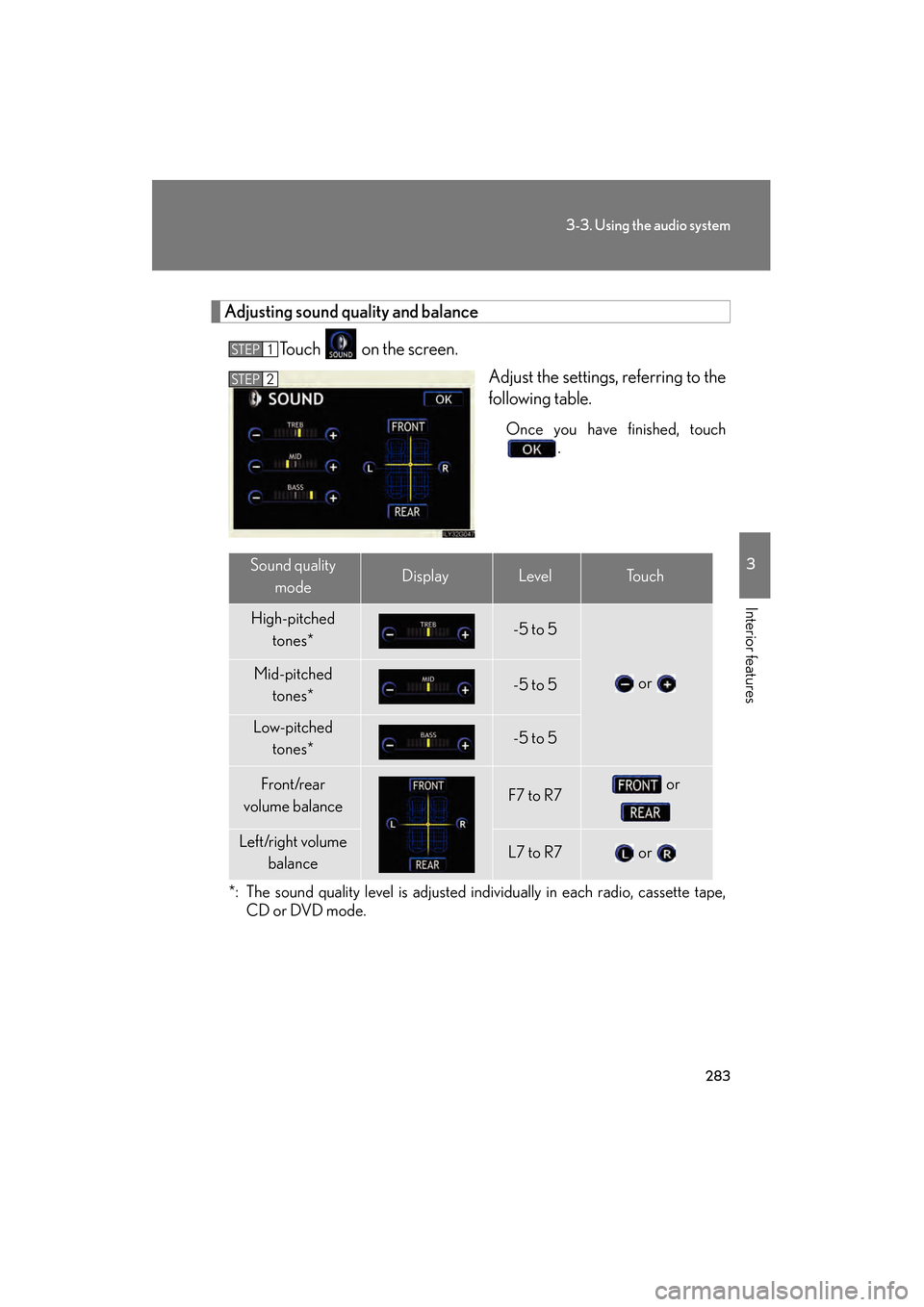
Adjusting sound quality and balanceTouch on the screen. Adjust the settings, referring to the
following table.
Once you have finished, touch.
*: The sound quality level is adjusted individually in each radio, cassette tape, CD or DVD mode.
STEP1
STEP2
Sound quality
modeDisplayLevelTo u c h
High-pitched tones*-5 to 5
or Mid-pitched tones*-5 to 5
Low-pitched tones*-5 to 5
Front/rear
volume balanceF7 to R7 or
Left/right volume balanceL7 to R7 or
GS_U_G.book Page 283 Thursday, June 19, 2008 12:54 PM
Page 285 of 598
284
3-3. Using the audio system
GS_G_U
June 19, 2008 12:54 pm
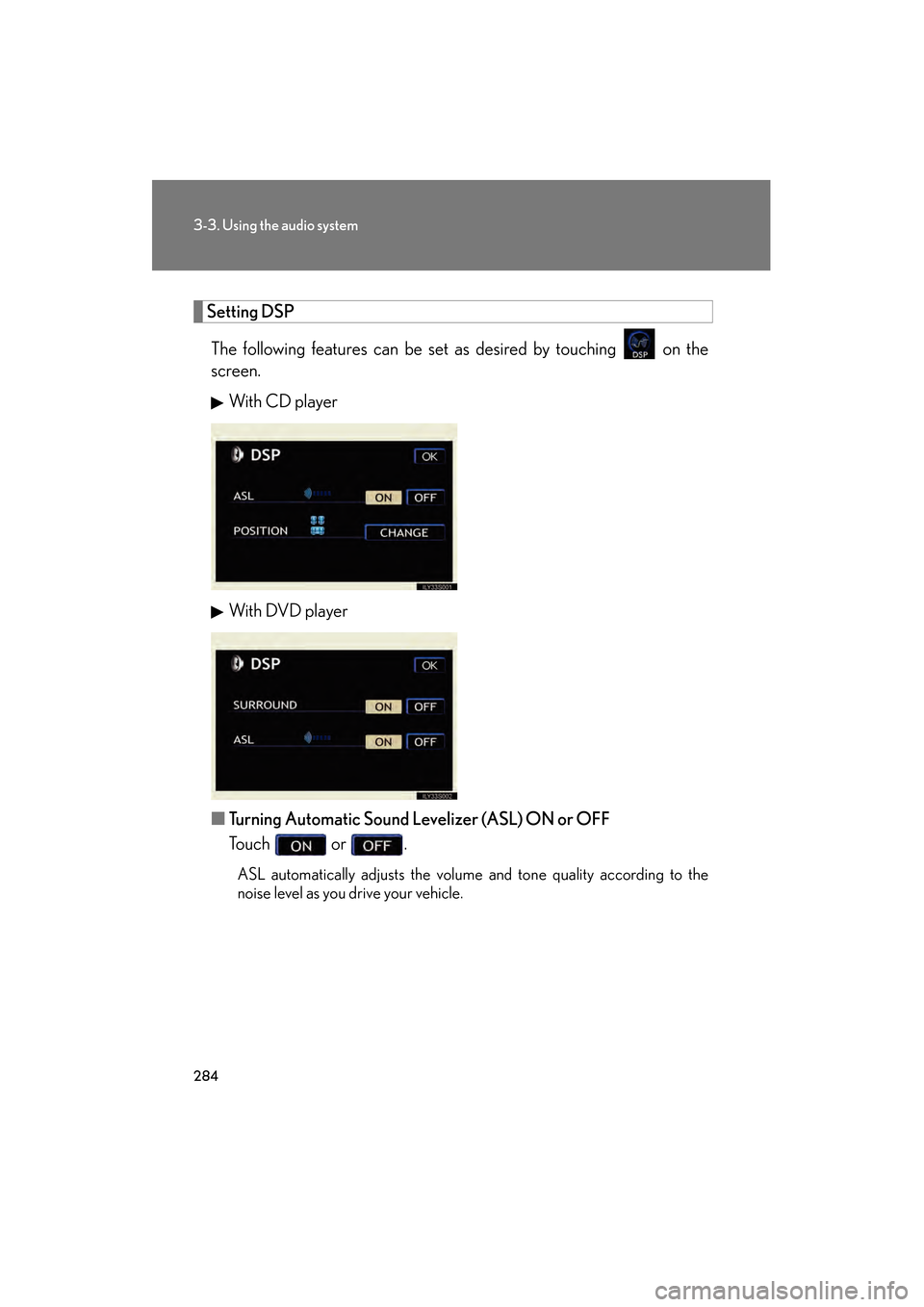
Setting DSPThe following features can be set as desired by touching on the
screen. With CD player
With DVD player
■ Turning Automatic Sound Levelizer (ASL) ON or OFF
Touch or .
ASL automatically adjusts the volume and tone quality according to the
noise level as you drive your vehicle.
GS_U_G.book Page 284 Thursday, June 19, 2008 12:54 PM
Page 287 of 598
286
3-3. Using the audio system
GS_G_U
June 19, 2008 12:54 pm
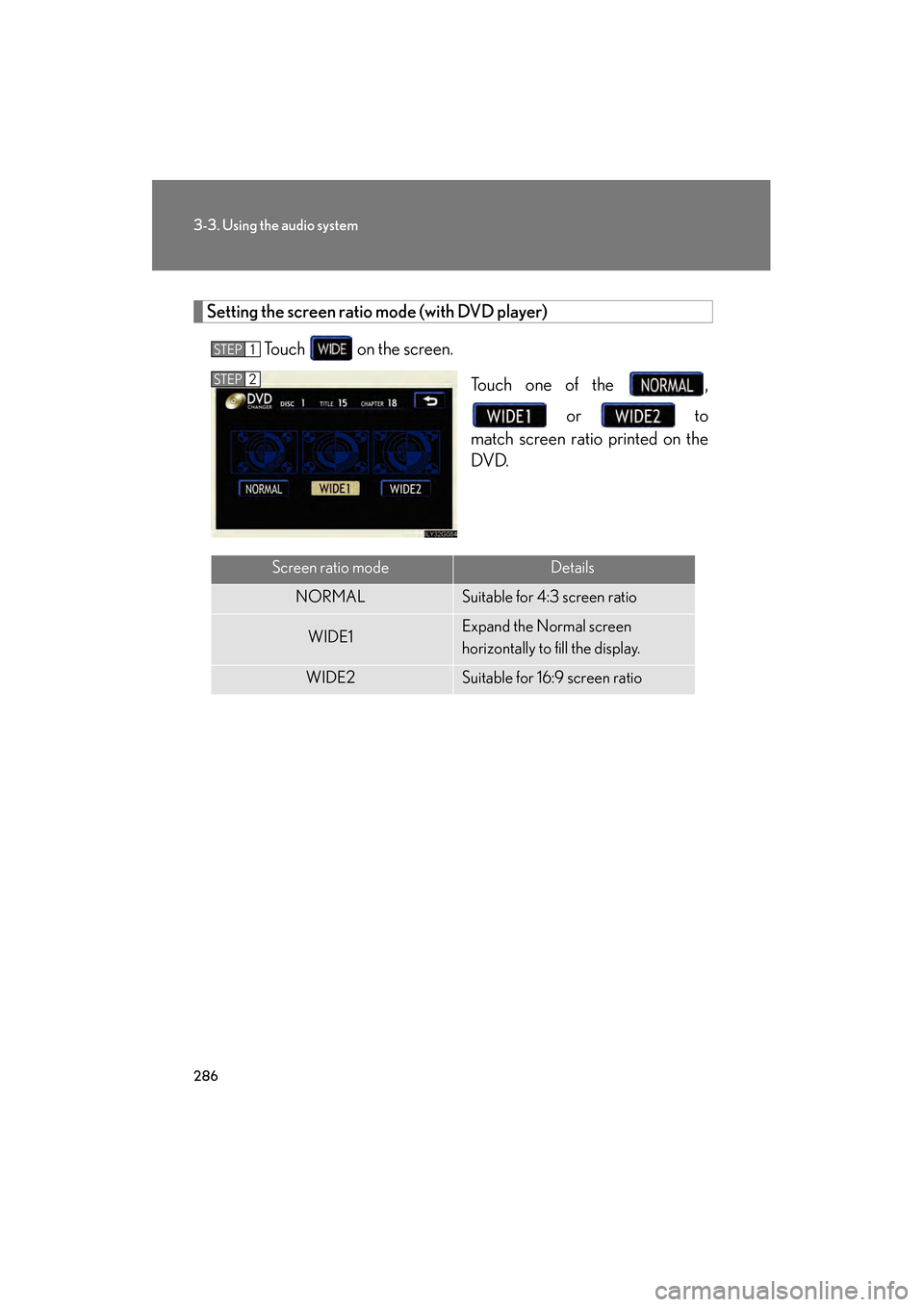
Setting the screen ratio mode (with DVD player)Touch on the screen. Touch one of the , or to
match screen ratio printed on the
DVD.
STEP1
STEP2
Screen ratio modeDetails
NORMALSuitable for 4:3 screen ratio
WIDE1Expand the Normal screen
horizontally to fill the display.
WIDE2Suitable for 16:9 screen ratio
GS_U_G.book Page 286 Thursday, June 19, 2008 12:54 PM
Page 292 of 598
291
3
Interior features
GS_G_U
June 19, 2008 12:54 pm
3-4. Using the hands-free system (for cellular phone)
Hands-free system (for cellular phone)
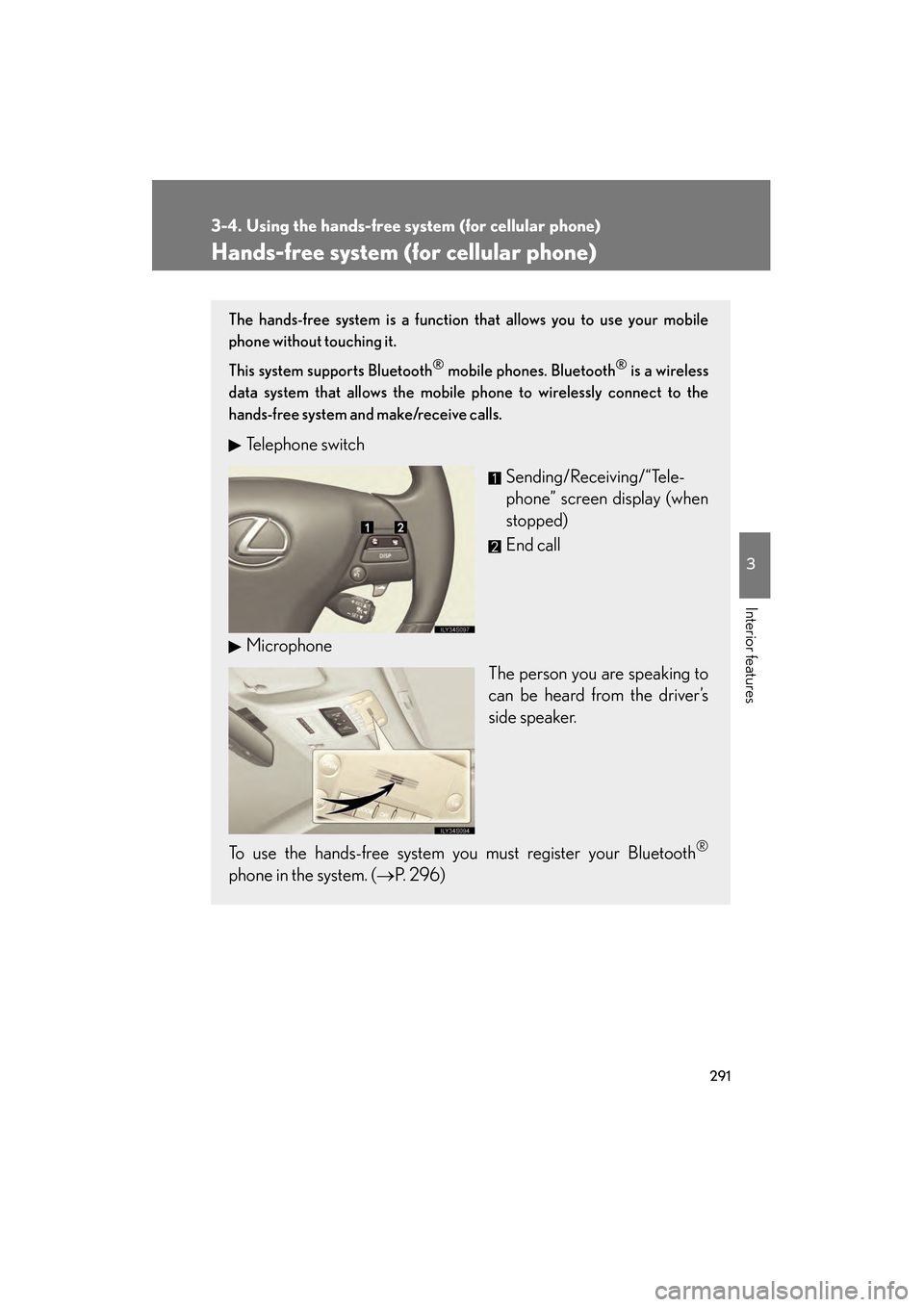
The hands-free system is a function that allows you to use your mobile
phone without touching it.
This system supports Bluetooth
® mobile phones. Bluetooth® is a wireless
data system that allows the mobile phone to wirelessly connect to the
hands-free system and make/receive calls.
Telephone switch
Sending/Receiving/“Tele-
phone” screen display (when
stopped)
End call
Microphone The person you are speaking to
can be heard from the driver’s
side speaker.
To use the hands-free system you must register your Bluetooth
®
phone in the system. ( →P. 2 9 6 )
GS_U_G.book Page 291 Thursday, June 19, 2008 12:54 PM
Page 297 of 598
296
3-4. Using the hands-free system (for cellular phone)
GS_G_U
June 19, 2008 12:54 pm
Using the Bluetooth® phone
Registering a Bluetooth® phone
You can register up to 6 phones in the system. Press .
Touch on the “Information” screen.
Touch on the “Telephone” screen.
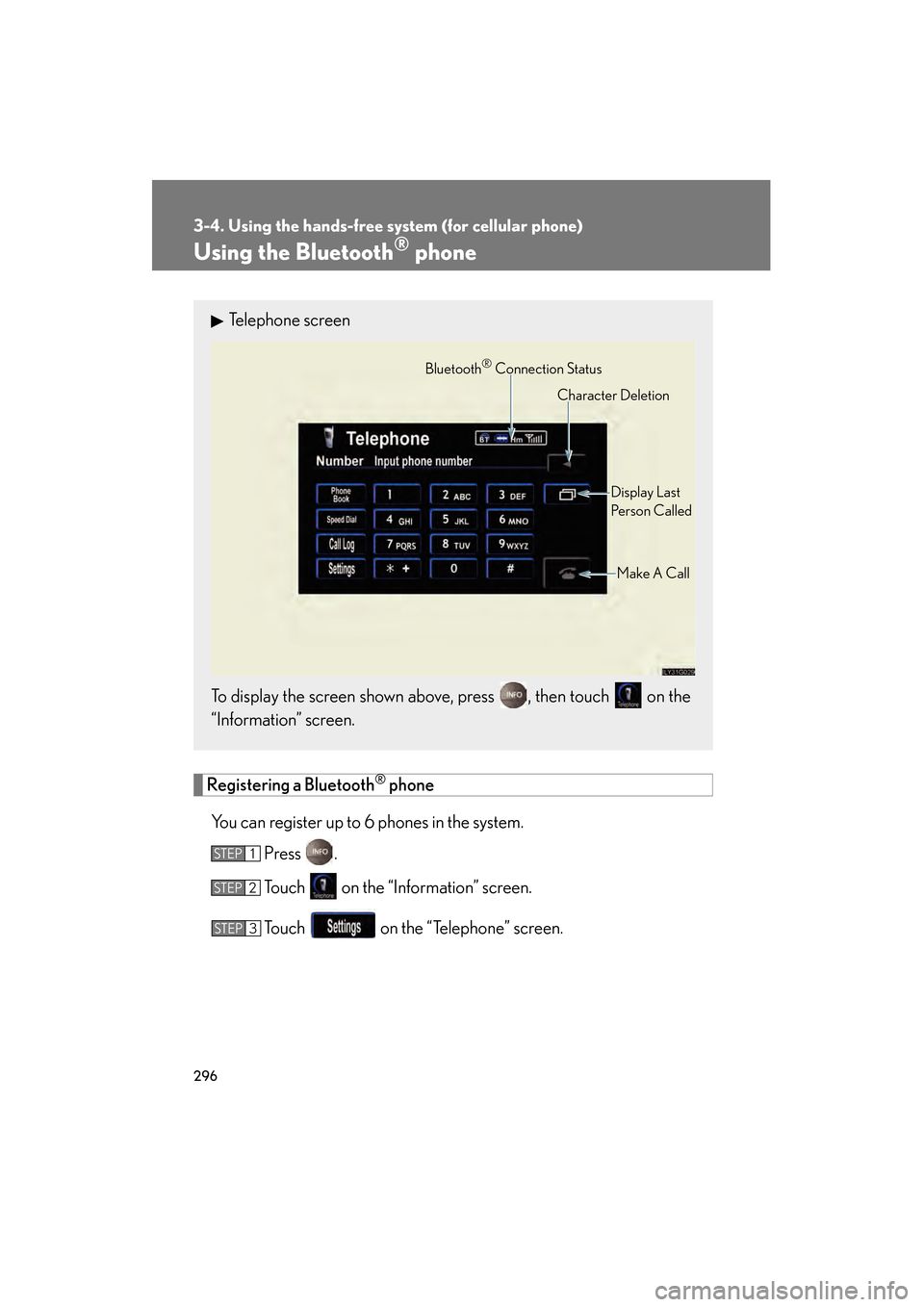
Telephone screen
To display the screen shown above, press , then touch on the
“Information” screen.
Bluetooth® Connection Status Display Last
Person CalledMake A Call
Character Deletion
STEP1
STEP2
STEP3
GS_U_G.book Page 296 Thursday, June 19, 2008 12:54 PM
Page 299 of 598
298
3-4. Using the hands-free system (for cellular phone)
GS_G_U
June 19, 2008 12:54 pm
Bluetooth® phone connection
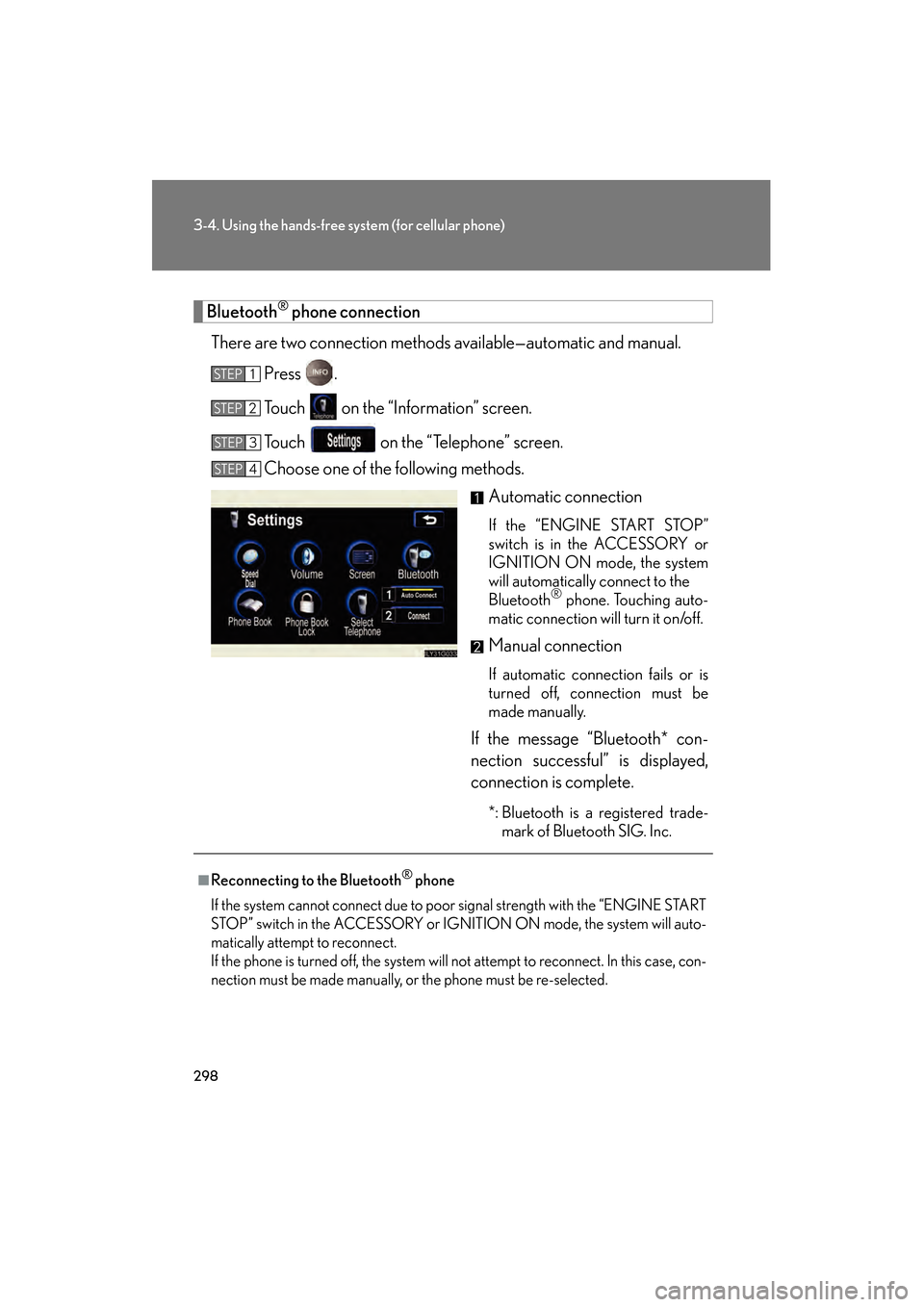
There are two connection methods available—automatic and manual. Press .
Touch on the “Information” screen.
Touch on the “Telephone” screen.
Choose one of the following methods. Automatic connection
If the “ENGINE START STOP”
switch is in the ACCESSORY or
IGNITION ON mode, the system
will automatically connect to the
Bluetooth
® phone. Touching auto-
matic connection will turn it on/off.
Manual connection
If automatic connection fails or is
turned off, connection must be
made manually.
If the message “Bluetooth* con-
nection successful” is displayed,
connection is complete.
*: Bluetooth is a registered trade- mark of Bluetooth SIG. Inc.
STEP1
STEP2
STEP3
STEP4
■Reconnecting to the Bluetooth® phone
If the system cannot connect due to poor signal strength with the “ENGINE START
STOP” switch in the ACCESSORY or IGNITION ON mode, the system will auto-
matically attempt to reconnect.
If the phone is turned off, the system will not attempt to reconnect. In this case, con-
nection must be made manually, or the phone must be re-selected.
GS_U_G.book Page 298 Thursday, June 19, 2008 12:54 PM