Touch screen Lexus GS350 2008 User Guide
[x] Cancel search | Manufacturer: LEXUS, Model Year: 2008, Model line: GS350, Model: Lexus GS350 2008Pages: 598, PDF Size: 14.03 MB
Page 212 of 598
211
3-1. Using the touch screen
3
Interior features
GS_G_U
June 19, 2008 12:54 pm
■Resetting the data
Touching will reset the “Average Speed” and “Distance”.
■To avoid damaging the touch screen
●Touch the screen lightly with your finger. If there is no response, remove your fin-
ger from the screen and try again.
●Remove any dirt on the screen by wiping with a soft cloth. Do not use detergent.
■When using the touch screen
●If the screen is cold, the display may be dark, or the system may seem to be
operating slightly slower than normal.
●The screen may seem dark and hard to see when viewed through sunglasses.
Change your angle of viewing, adjust the display on the “Display” screen or
remove your sunglasses.
GS_U_G.book Page 211 Thursday, June 19, 2008 12:54 PM
Page 213 of 598
212
3-1. Using the touch screen
GS_G_U
June 19, 2008 12:54 pm
Setting the touch screen
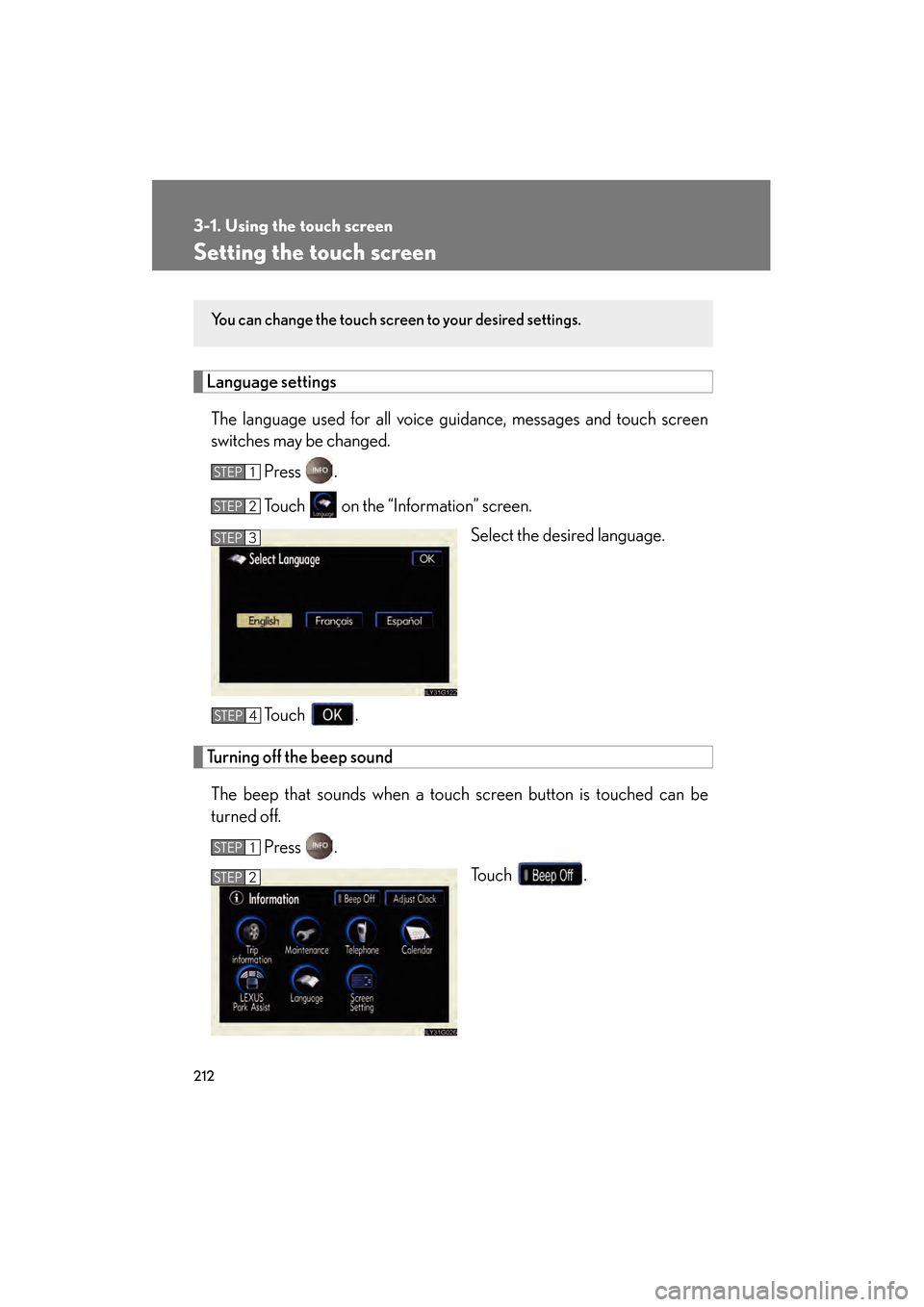
Language settingsThe language used for all voice guidance, messages and touch screen
switches may be changed. Press .
Touch on the “Information” screen. Select the desired language.
Touch .
Turning off the beep sound The beep that sounds when a touch screen button is touched can be
turned off. Press . Touch .
You can change the touch screen to your desired settings.
STEP1
STEP2
STEP3
STEP4
STEP1
STEP2
GS_U_G.book Page 212 Thursday, June 19, 2008 12:54 PM
Page 214 of 598
213
3-1. Using the touch screen
3
Interior features
GS_G_U
June 19, 2008 12:54 pm
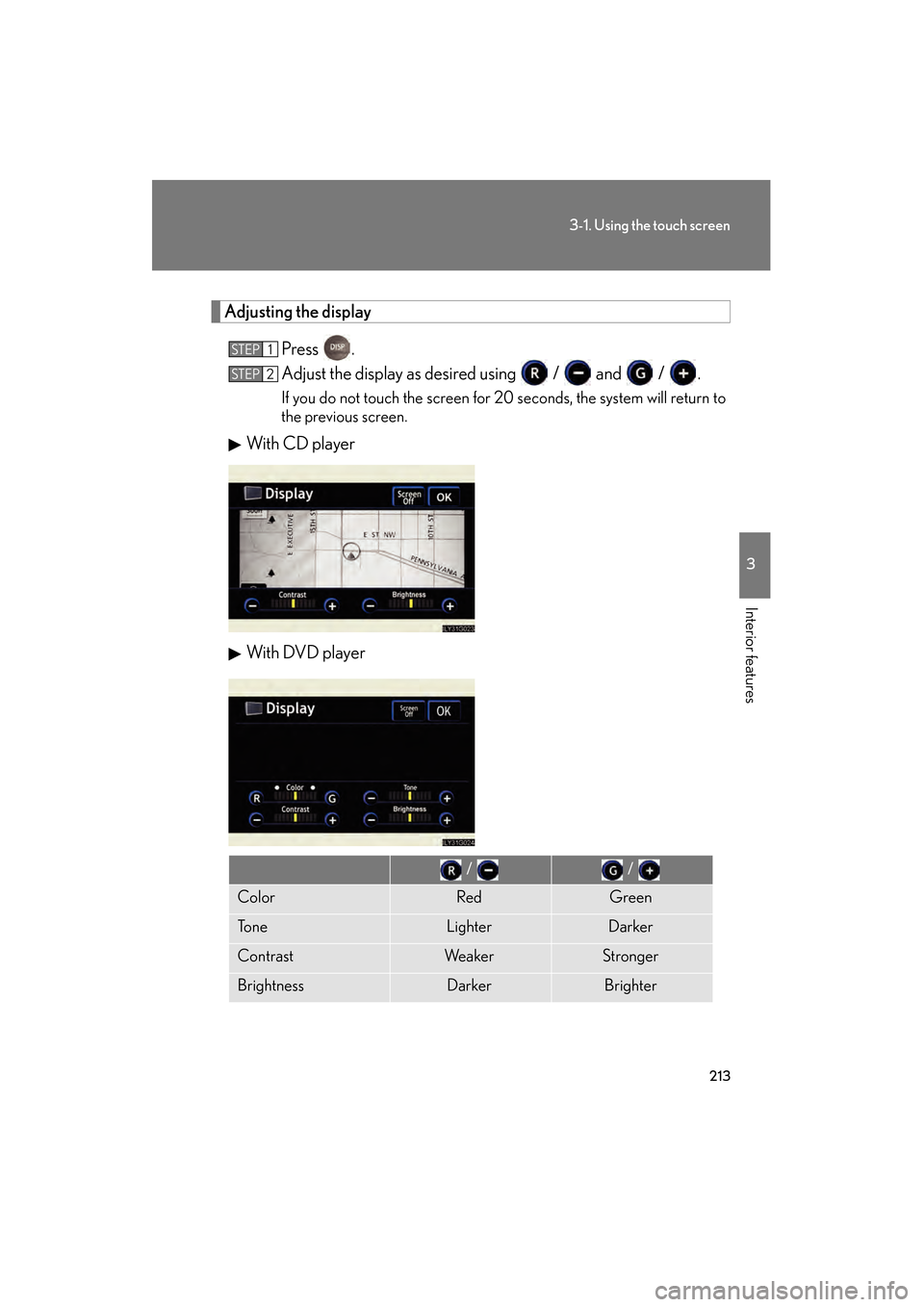
Adjusting the displayPress .
Adjust the display as desired using / and / .
If you do not touch the screen for 20 seconds, the system will return to
the previous screen.
With CD pla yer
With DVD player
STEP1
STEP2
/ /
ColorRedGreen
To n eLighterDarker
ContrastWe a k e rStronger
BrightnessDarkerBrighter
GS_U_G.book Page 213 Thursday, June 19, 2008 12:54 PM
Page 215 of 598
214
3-1. Using the touch screen
GS_G_U
June 19, 2008 12:54 pm
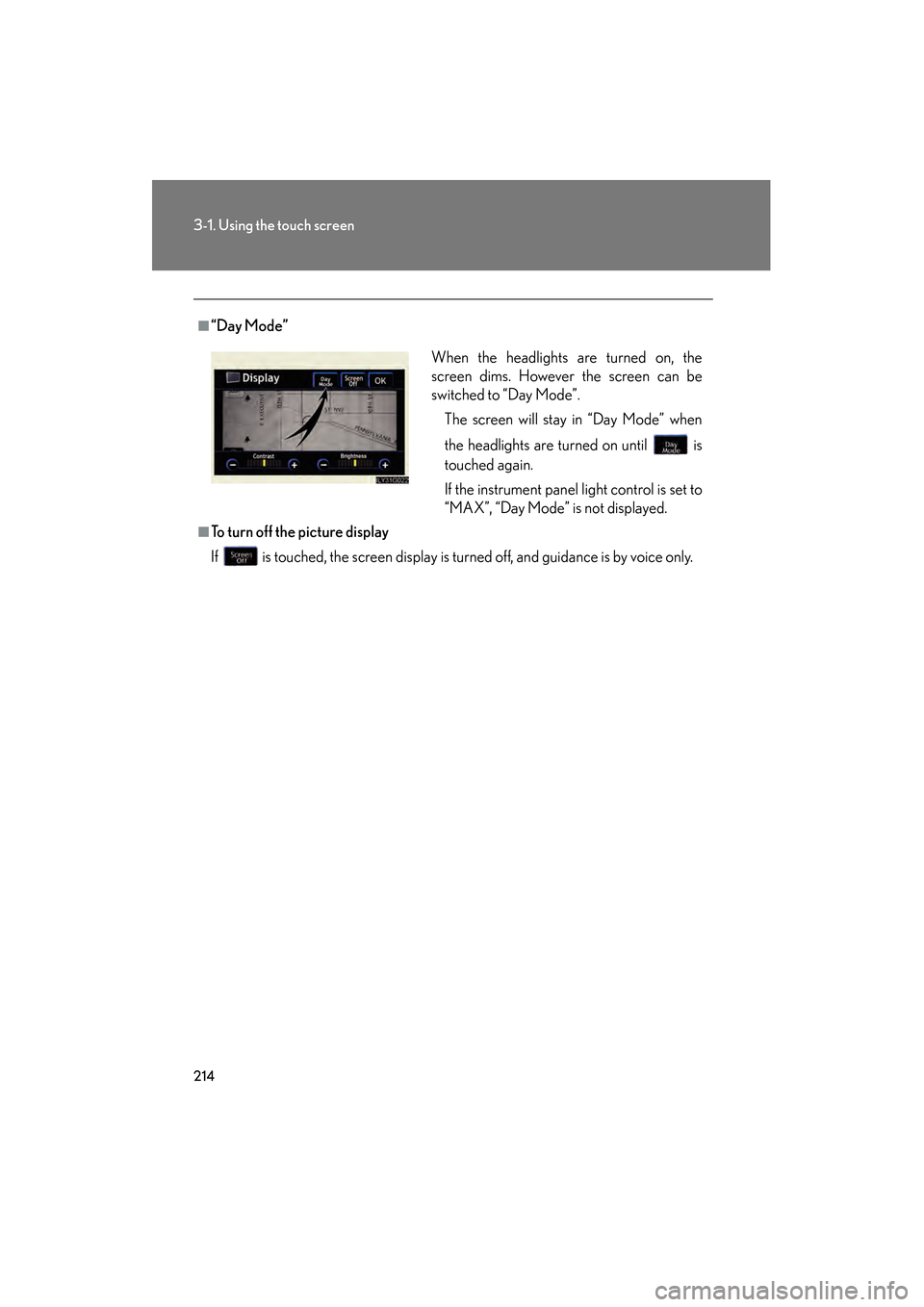
■“Day Mode”
■To turn off the picture display
If is touched, the screen display is turned off, and guidance is by voice only.When the headlights are turned on, the
screen dims. However the screen can be
switched to “Day Mode”.
The screen will stay in “Day Mode” when
the headlights are turned on until is
touched again.
If the instrument panel light control is set to
“MAX”, “Day Mode” is not displayed.
GS_U_G.book Page 214 Thursday, June 19, 2008 12:54 PM
Page 216 of 598
215
3-1. Using the touch screen
3
Interior features
GS_G_U
June 19, 2008 12:54 pm
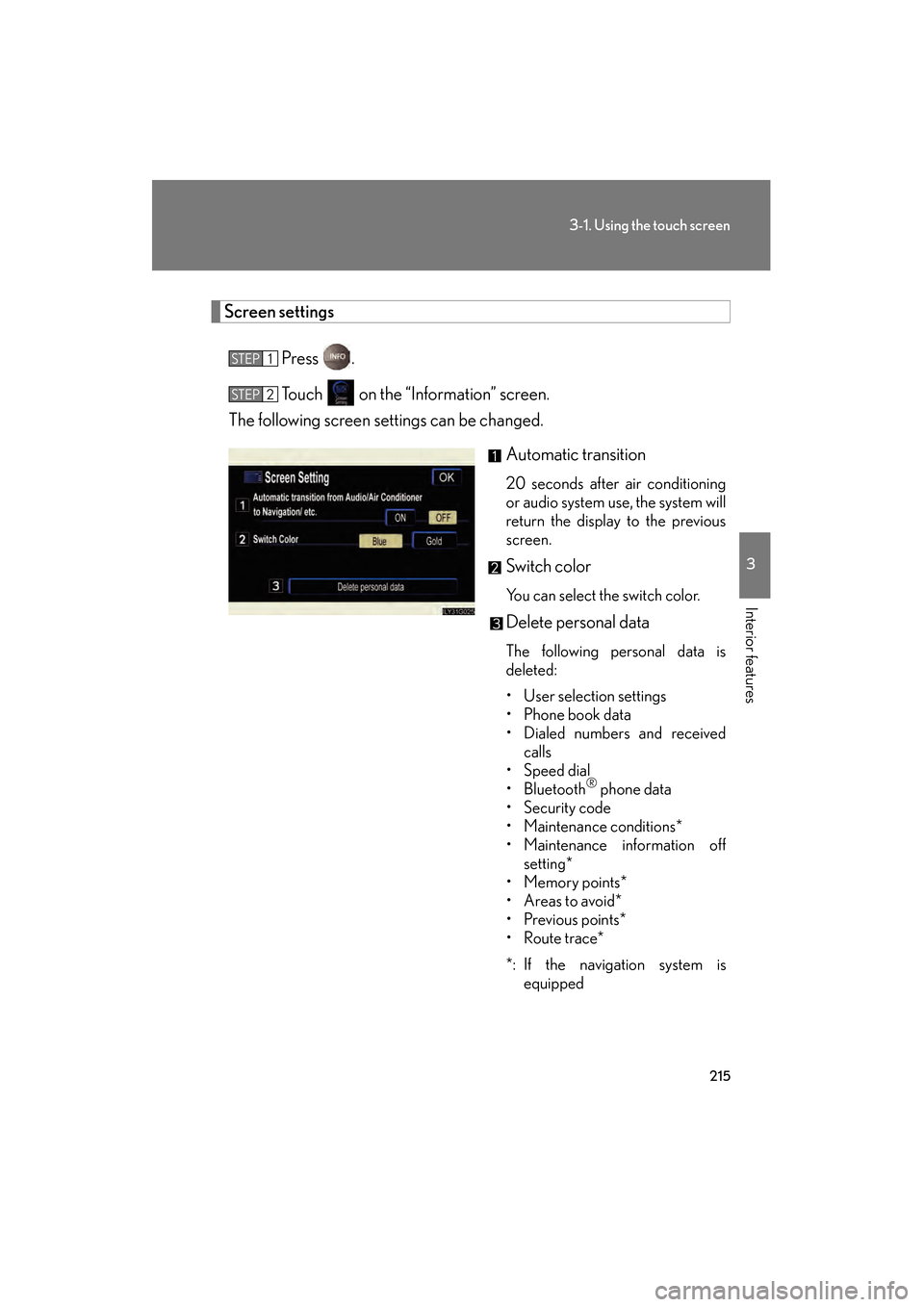
Screen settingsPress .
Touch on the “Information” screen.
The following screen settings can be changed.
Automatic transition
20 seconds after air conditioning
or audio system use, the system will
return the display to the previous
screen.
Switch color
You can select the switch color.
Delete personal data
The following personal data is
deleted:
• User selection settings
• Phone book data
• Dialed numbers and receivedcalls
• Speed dial
•Bluetooth
® phone data
• Security code
• Maintenance conditions*
• Maintenance information off setting*
•Memory points*
•Areas to avoid*
•Previous points*
•Route trace*
*: If the navigation system is equipped
STEP1
STEP2
GS_U_G.book Page 215 Thursday, June 19, 2008 12:54 PM
Page 217 of 598
216
3-1. Using the touch screen
GS_G_U
June 19, 2008 12:54 pm
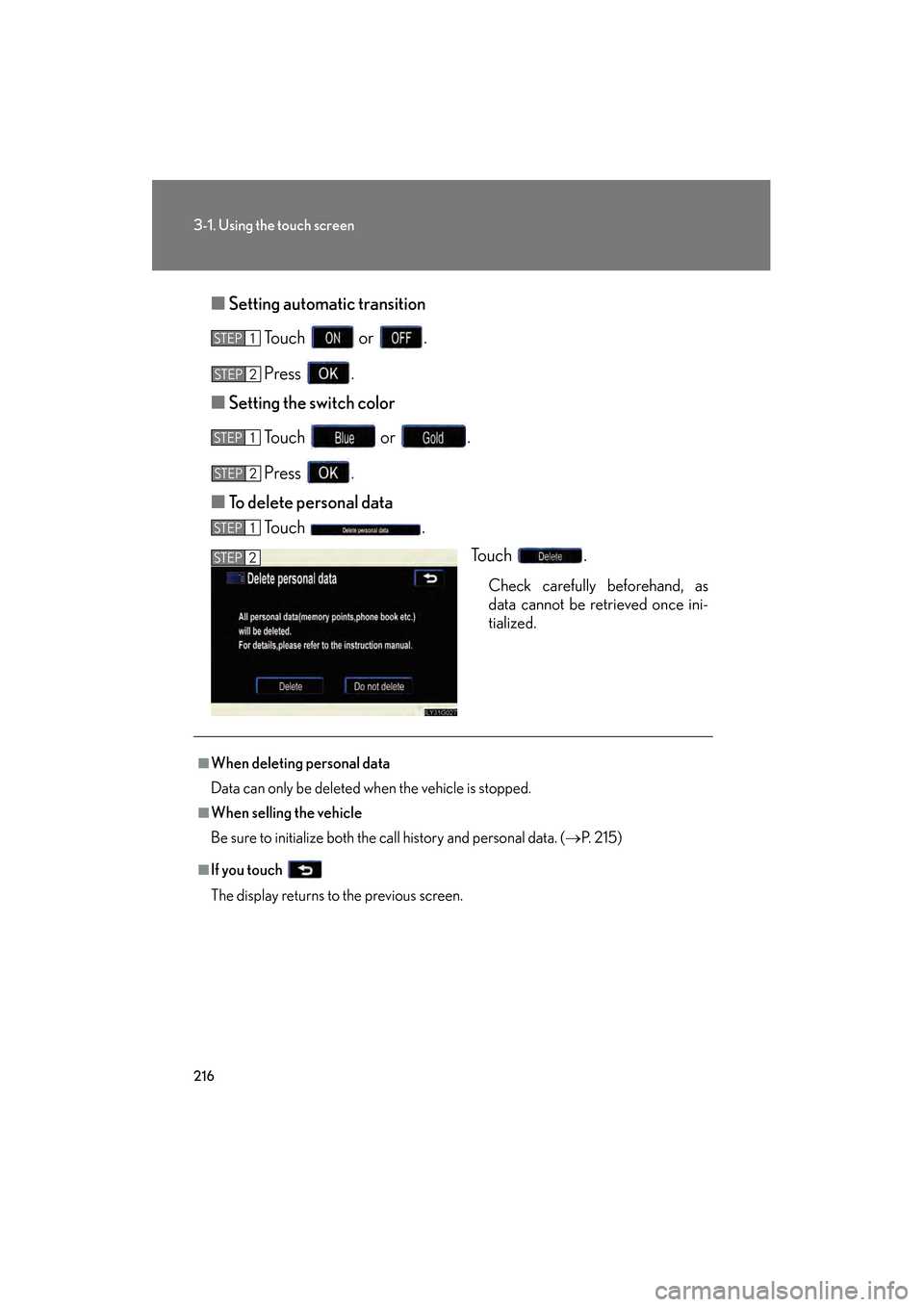
■Setting automatic transition
Touch or .
Press .
■ Setting the switch color
Touch or .
Press .
■ To delete personal data
Touch .
Touch .
Check carefully beforehand, as
data cannot be retrieved once ini-
tialized.
STEP1
STEP2
STEP1
STEP4STEP2
STEP1
STEP2
■When deleting personal data
Data can only be deleted when the vehicle is stopped.
■When selling the vehicle
Be sure to initialize both the call history and personal data. ( →P. 2 1 5 )
■If you touch
The display returns to the previous screen.
GS_U_G.book Page 216 Thursday, June 19, 2008 12:54 PM
Page 220 of 598
219
3-2. Using the air conditioning system and defogger
3
Interior features
GS_G_U
June 19, 2008 12:54 pm
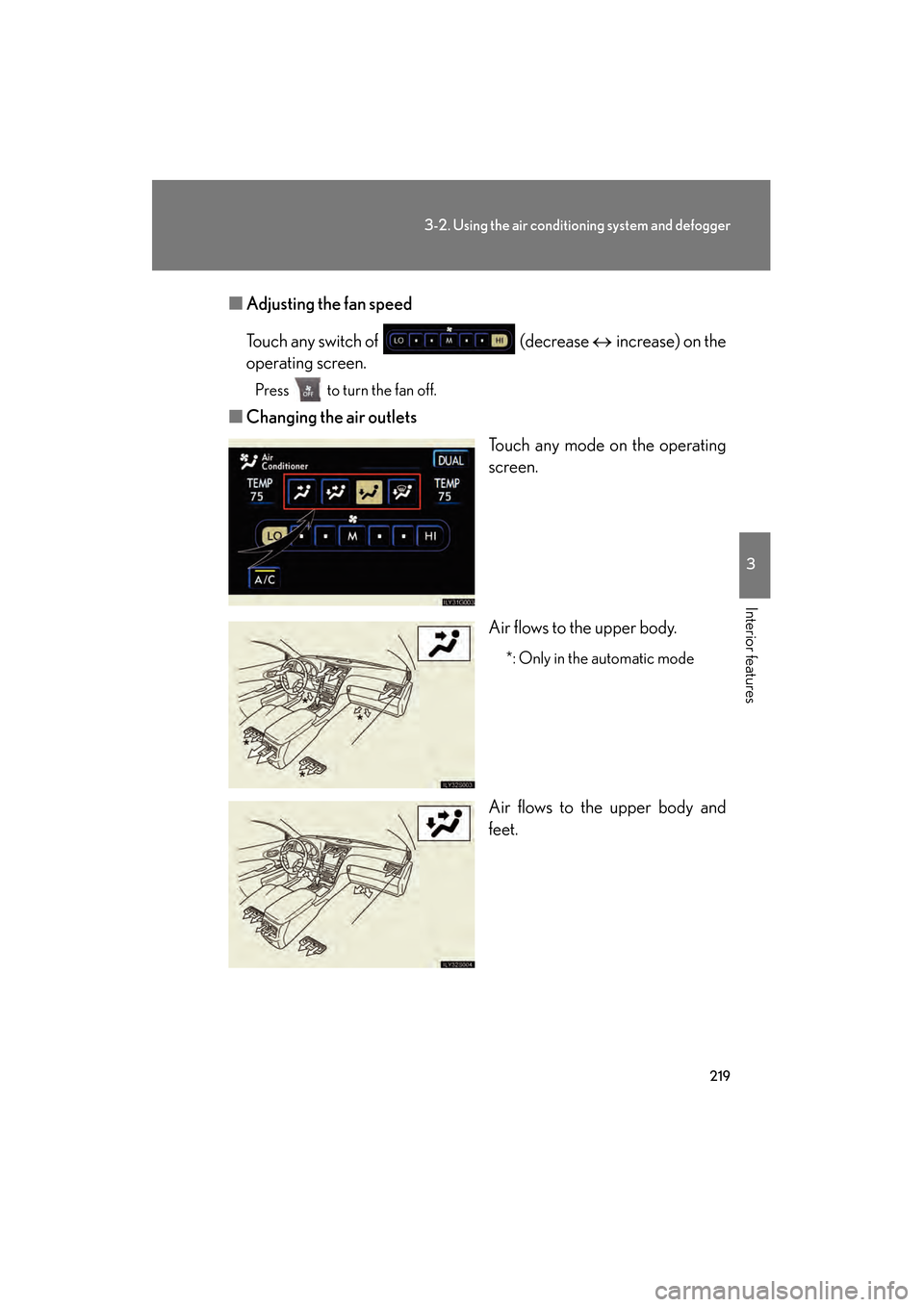
■Adjusting the fan speed
Touch any switch of (decrease ↔ increase) on the
operating screen.
Press to turn the fan off.
■ Changing the air outlets
Touch any mode on the operating
screen.
Air flows to the upper body.
*: Only in the automatic mode
Air flows to the upper body and
feet.
GS_U_G.book Page 219 Thursday, June 19, 2008 12:54 PM
Page 223 of 598
222
3-2. Using the air conditioning system and defogger
GS_G_U
June 19, 2008 12:54 pm
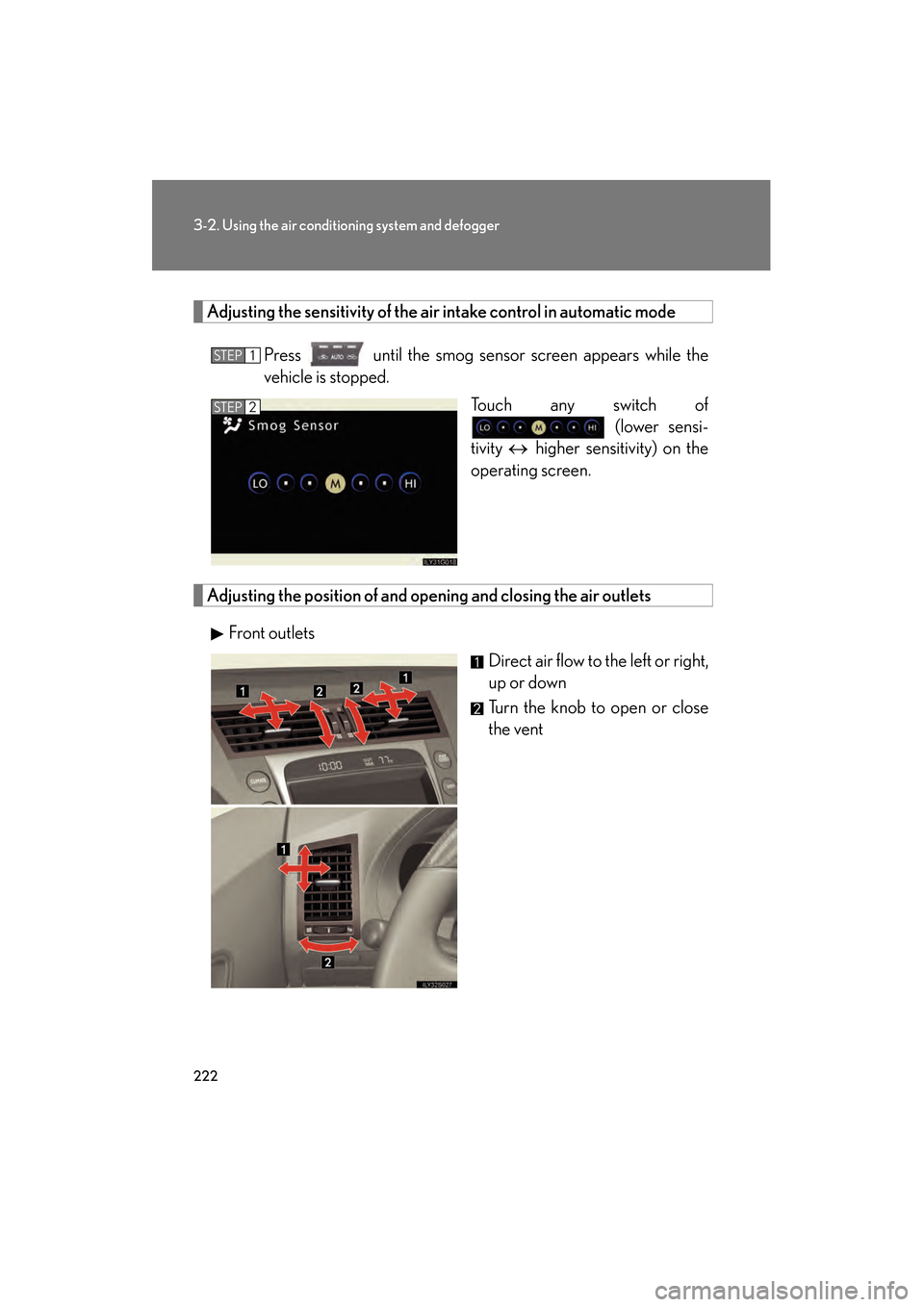
Adjusting the sensitivity of the air intake control in automatic modePress until the smog sensor screen appears while the
vehicle is stopped. Touch any switch of (lower sensi-
tivity ↔ higher sensitivity) on the
operating screen.
Adjusting the position of and op ening and closing the air outlets
Front outlets Direct air flow to the left or right,
up or down
Turn the knob to open or close
the vent
STEP1
STEP2
GS_U_G.book Page 222 Thursday, June 19, 2008 12:54 PM
Page 231 of 598
230
3-3. Using the audio system
GS_G_U
June 19, 2008 12:54 pm
Setting station presets (excluding XM® Satellite Radio)
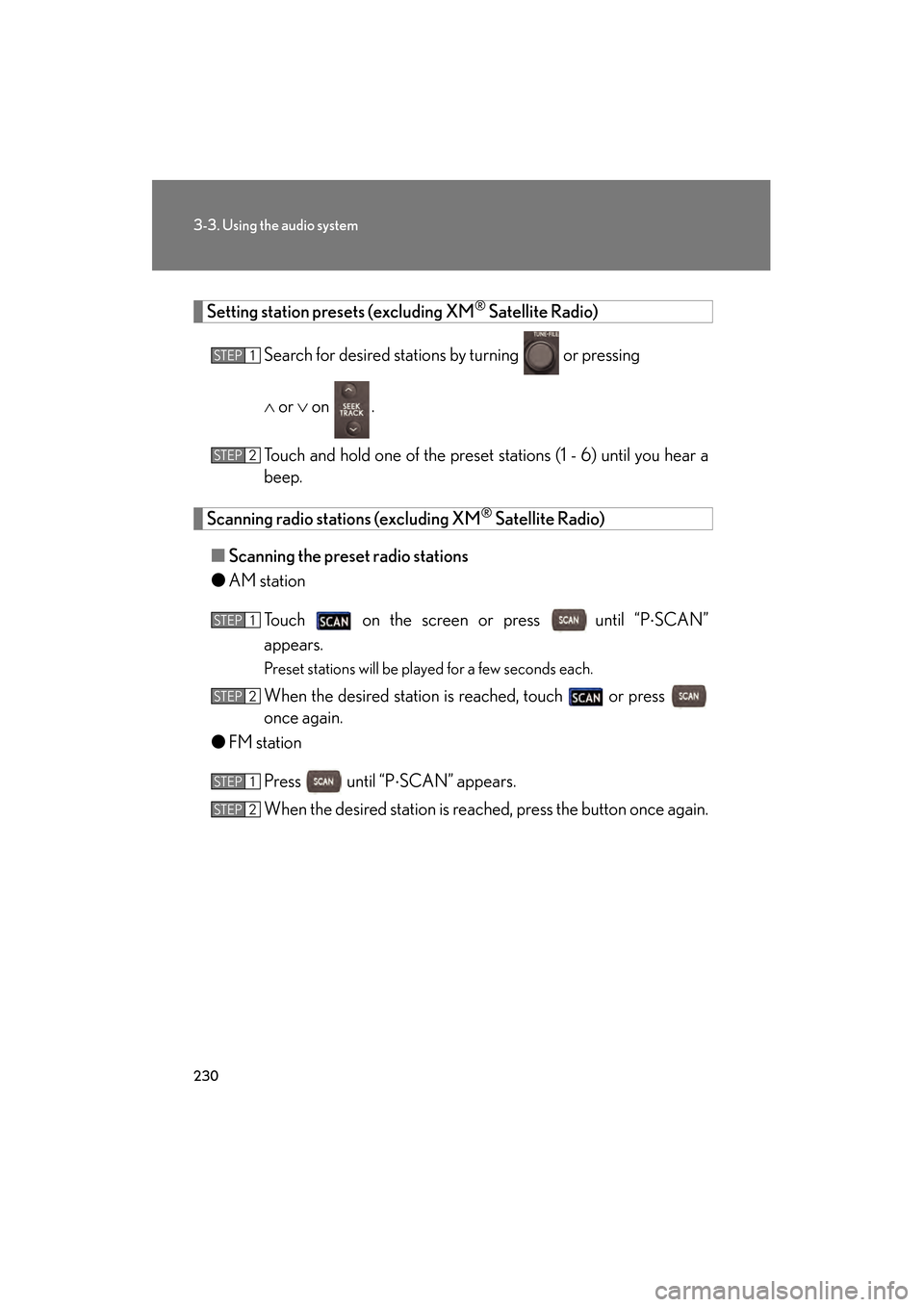
Search for desired stations by turning
or pressing
∧ or ∨ on .
Touch and hold one of the preset stations (1 - 6) until you hear a
beep.
Scanning radio stations (excluding XM® Satellite Radio)
■ Scanning the preset radio stations
● AM station
Touch on the screen or press
until “P ⋅SCAN”
appears.
Preset stations will be played for a few seconds each.
When the desired station is reached, touch or press
once again.
● FM station
Press until “P ⋅SCAN” appears.
When the desired station is reached, press the button once again.
STEP1
STEP2
STEP1
STEP2
STEP1
STEP2
GS_U_G.book Page 230 Thursday, June 19, 2008 12:54 PM
Page 232 of 598
231
3-3. Using the audio system
3
Interior features
GS_G_U
June 19, 2008 12:54 pm
■Scanning all radio stations within range
● AM station
Touch on the screen or press .
“SCAN” appears on the screen and all stations with reception will be
played for a few seconds each.
When the desired station is reached, touch or press
once again.
● FM station
Press .
“SCAN” appears on the screen and all stations with reception will be
played for a few seconds each.
When the desired station is reached, press the button once again.
RDS (Radio Data System) This feature allows your radio to receive station identification information
and program information (classical, jazz, etc.) from radio stations which
broadcast this information.
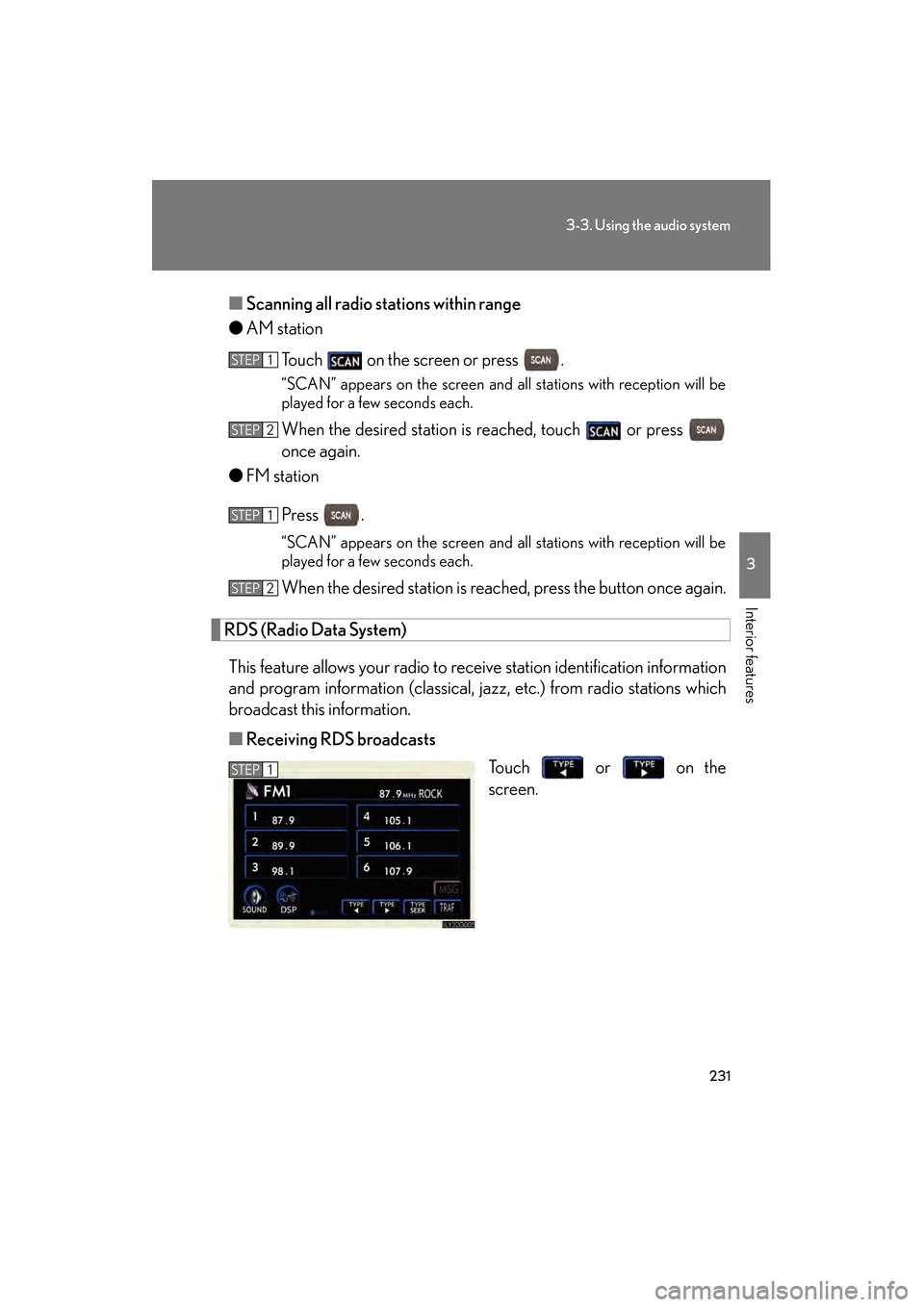
■ Receiving RDS broadcasts
Touch or on the
screen.
STEP1
STEP2
STEP1
STEP2
STEP1
GS_U_G.book Page 231 Thursday, June 19, 2008 12:54 PM