phone Lexus GS350 2014 Navigation manual
[x] Cancel search | Manufacturer: LEXUS, Model Year: 2014, Model line: GS350, Model: Lexus GS350 2014Pages: 438, PDF Size: 54.27 MB
Page 356 of 438

356
1. TELEPHONE OPERATION (HANDS-FREE SYSTEM FOR CELLULAR PHONES)
GS_Navi+MM_OM30E40E_(EE)
14.07.24 15:56
■BY DIAL PAD
1Select “0-9”.
2Enter the desired number.
■BY SELECTING “Release tones”
1Select “Release tones” .
SENDING TONES
“Release tones” appear when a contin-
uous tone signal(s) containing a (w) is
registered in the contact list.INFORMATION
●
A continuous tone signal is a character
string that consists of numbers and the
characters p or w. (e.g.
056133w0123p#1 ½)
●When the “p” pause tone is used, the tone
data up until the next pause tone will be
automatically sent after 2 seconds have
elapsed. When the “w” pause tone is
used, the tone data up until the next
pause tone will be automatically sent
after a user operation is performed.
●Release tones can be used when auto-
mated operation of a telephone based
service such as an answering machine or
bank telephone service is desired. A tele-
phone number with continuous tone sig-
nals can be registered in the contact list.
GS_Navi+MM_OM30E40E_(EE).book Page 356 Thursday, July 24, 201 4 3:57 PM
Page 357 of 438
357
1. TELEPHONE OPERATION (HANDS-FREE SYSTEM FOR CELLULAR PHONES)
TELEPHONE
GS_Navi+MM_OM30E40E_(EE)
14.07.24 15:56
7
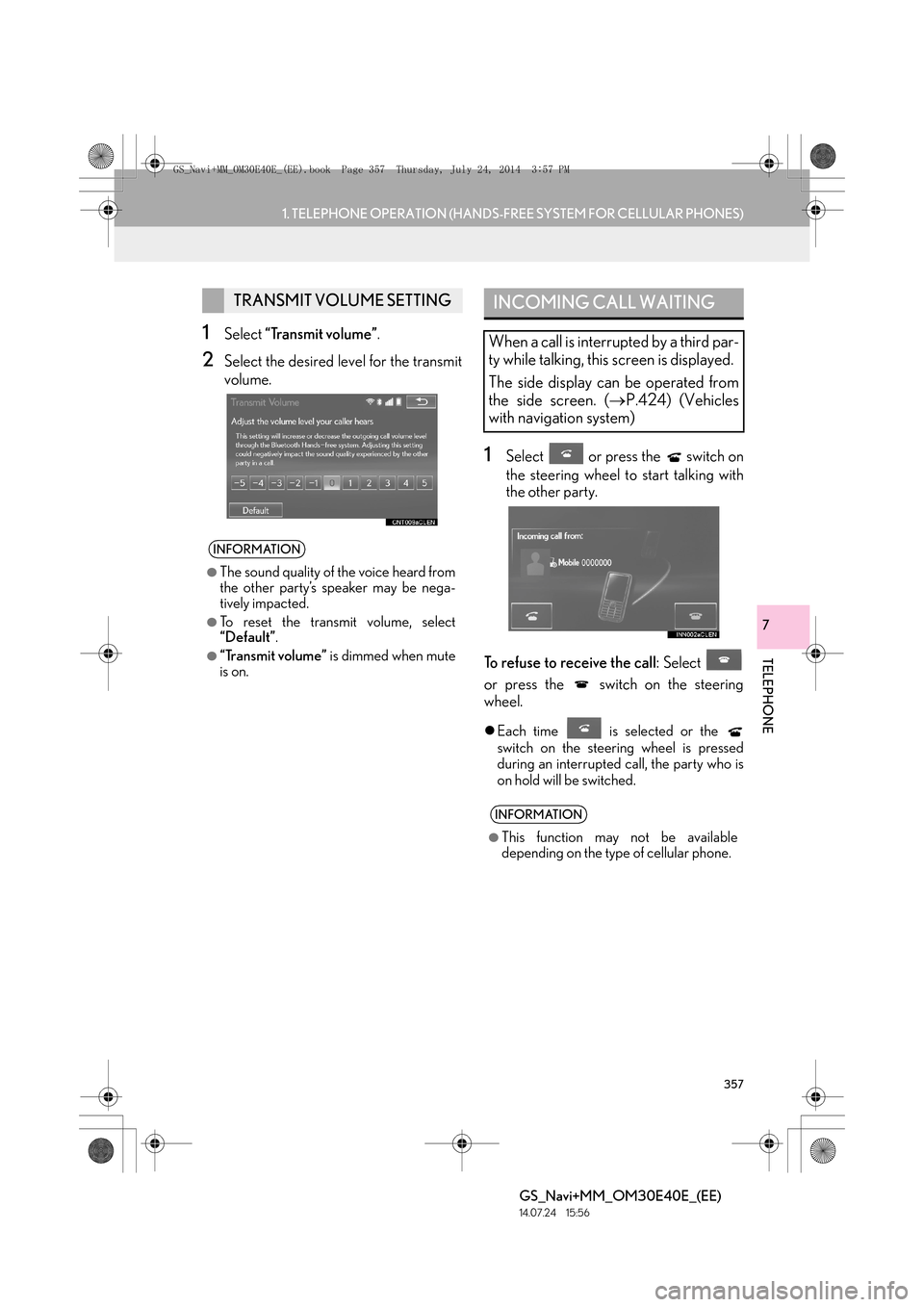
1Select “Transmit volume” .
2Select the desired level for the transmit
volume.
1Select or press the switch on
the steering wheel to start talking with
the other party.
To refuse to receive the call : Select
or press the switch on the steering
wheel.
z Each time is selected or the
switch on the steering wheel is pressed
during an interrupted call, the party who is
on hold will be switched.
TRANSMIT VOLUME SETTING
INFORMATION
●
The sound quality of the voice heard from
the other party’s speaker may be nega-
tively impacted.
●To reset the transmit volume, select
“Default” .
●“Transmit volume” is dimmed when mute
is on.
INCOMING CALL WAITING
When a call is interrupted by a third par-
ty while talking, this screen is displayed.
The side display can be operated from
the side screen. ( →P.424) (Vehicles
with navigation system)
INFORMATION
●
This function may not be available
depending on the type of cellular phone.
GS_Navi+MM_OM30E40E_(EE).book Page 357 Thursday, July 24, 201 4 3:57 PM
Page 358 of 438
358
1. TELEPHONE OPERATION (HANDS-FREE SYSTEM FOR CELLULAR PHONES)
GS_Navi+MM_OM30E40E_(EE)
14.07.24 15:56
6. Bluetooth® PHONE MESSAGE FUNCTION
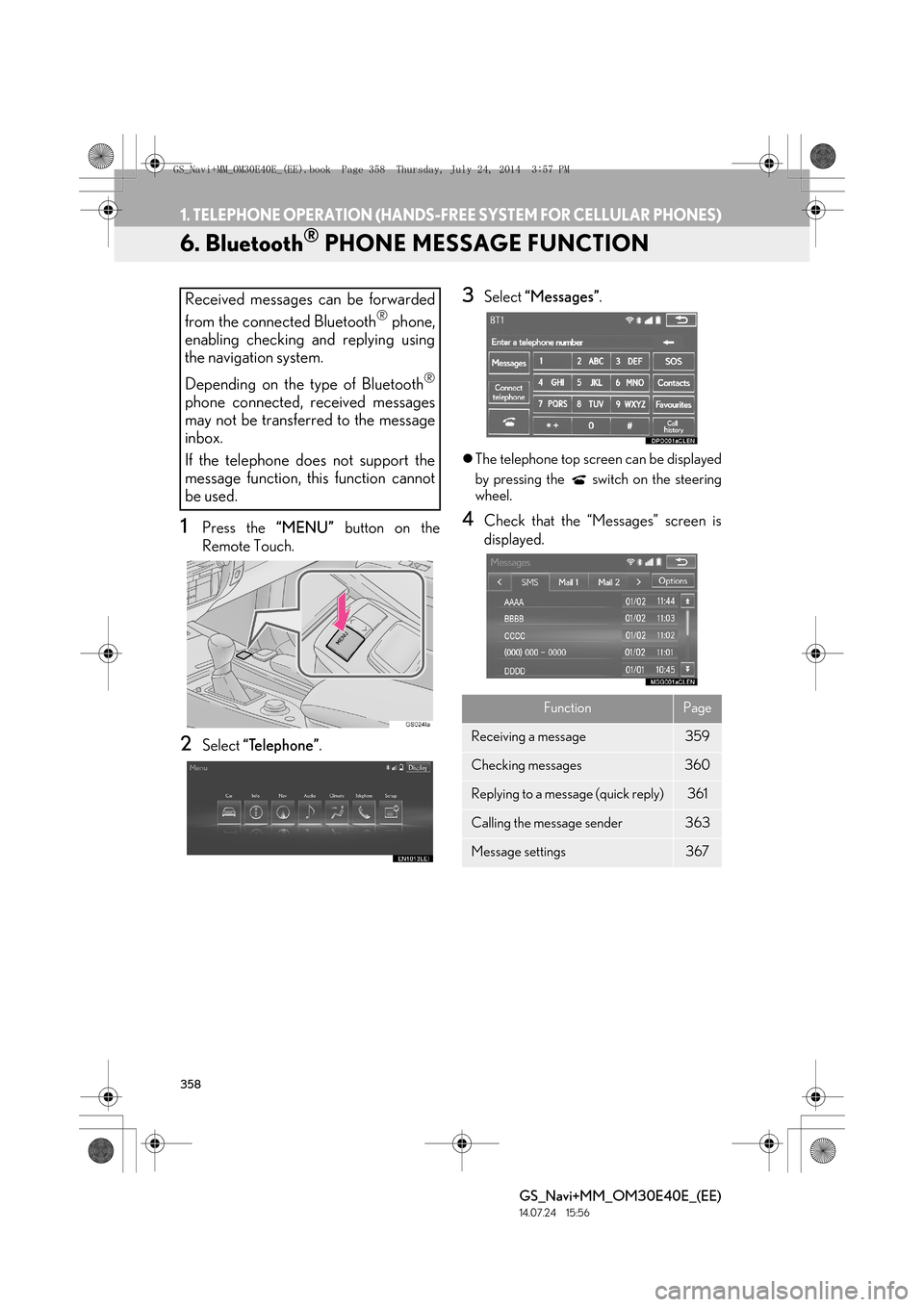
1Press the “MENU” button on the
Remote Touch.
2Select “Telephone” .
3Select “Messages” .
zThe telephone top screen can be displayed
by pressing the switch on the steering
wheel.
4Check that the “Messages” screen is
displayed.
Received messages can be forwarded
from the connected Bluetooth
® phone,
enabling checking and replying using
the navigation system.
Depending on the type of Bluetooth
®
phone connected, received messages
may not be transferred to the message
inbox.
If the telephone does not support the
message function, this function cannot
be used.
FunctionPage
Receiving a message359
Checking messages 360
Replying to a message (quick reply)361
Calling the message sender363
Message settings367
GS_Navi+MM_OM30E40E_(EE).book Page 358 Thursday, July 24, 201 4 3:57 PM
Page 359 of 438

359
1. TELEPHONE OPERATION (HANDS-FREE SYSTEM FOR CELLULAR PHONES)
TELEPHONE
GS_Navi+MM_OM30E40E_(EE)
14.07.24 15:56
7
RECEIVING A MESSAGE
When an e-mail/SMS/MMS is re-
ceived, the incoming message screen
pops up with sound and is ready to be
operated on the screen.
No.Function
Select to check the message.
Select to not open the message.
Select to call the message sender.
INFORMATION
●
Depending on the cellular phone used for
receiving messages, or its registration
status with the navigation system, some
information may not be displayed.
●The pop up screen is separately available
for incoming e-mail and SMS/MMS mes-
sages under the following conditions:
E-mail:
• “Incoming E-mail display” is set to “Full screen”. ( →P. 3 6 7 )
• “E-mail notification popup” is set to on. (→ P. 3 6 7 )
SMS/MMS:
• “Incoming SMS/MMS display” is set to “Full screen”. ( →P. 3 6 7 )
• “SMS/MMS notification popup” is set to on. ( →P. 3 6 7 )
GS_Navi+MM_OM30E40E_(EE).book Page 359 Thursday, July 24, 201 4 3:57 PM
Page 360 of 438
360
1. TELEPHONE OPERATION (HANDS-FREE SYSTEM FOR CELLULAR PHONES)
GS_Navi+MM_OM30E40E_(EE)
14.07.24 15:56
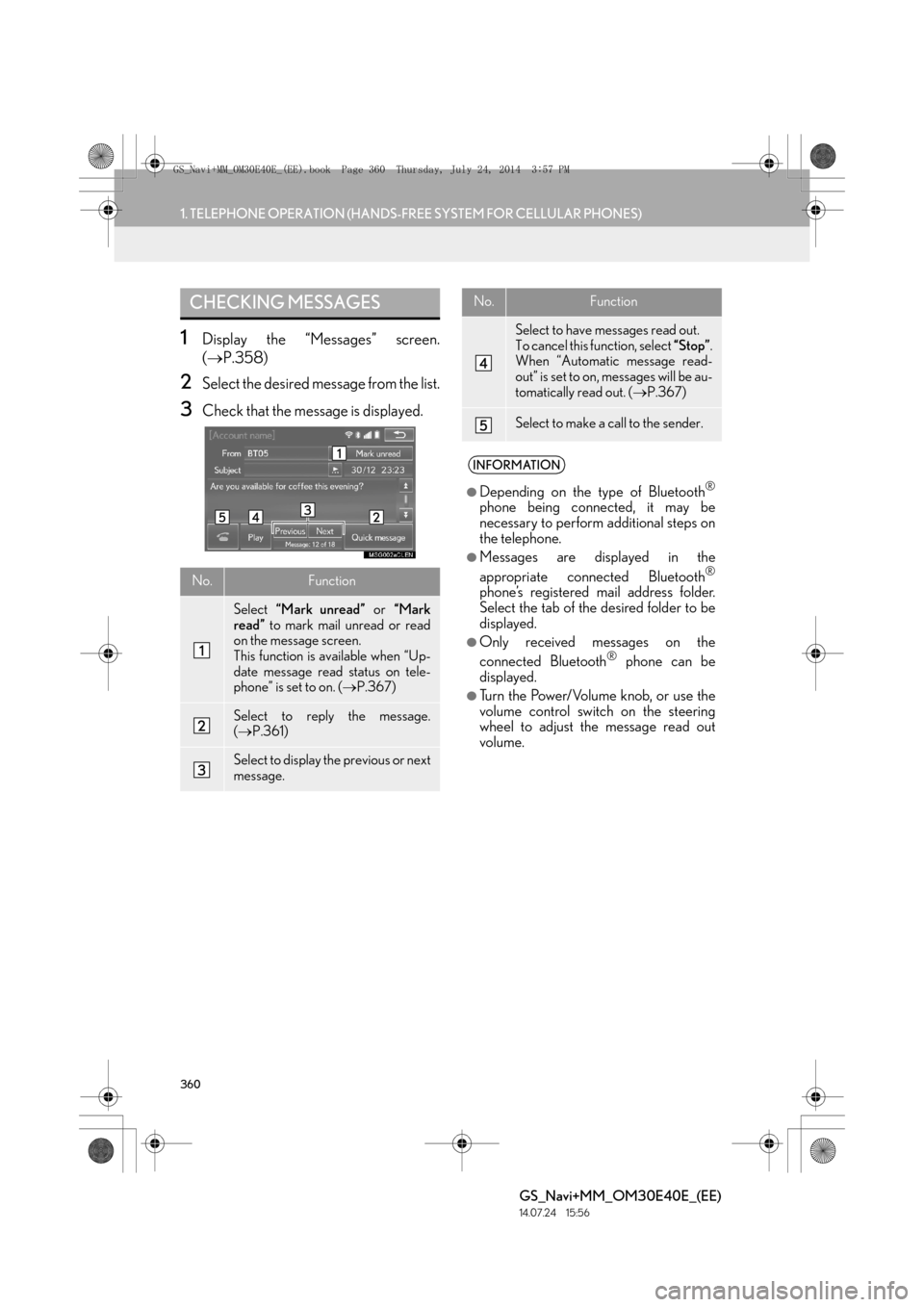
1Display the “Messages” screen.
(→ P.358)
2Select the desired message from the list.
3Check that the message is displayed.
CHECKING MESSAGES
No.Function
Select “Mark unread” or “Mark
read” to mark mail unread or read
on the message screen.
This function is available when “Up-
date message read status on tele-
phone” is set to on. ( →P.367)
Select to reply the message.
(→ P.361)
Select to display the previous or next
message.
Select to have messages read out.
To cancel this function, select “Stop”.
When “Automatic message read-
out” is set to on, messages will be au-
tomatically read out. ( →P.367)
Select to make a call to the sender.
INFORMATION
●
Depending on the type of Bluetooth®
phone being connected, it may be
necessary to perform additional steps on
the telephone.
●Messages are displayed in the
appropriate connected Bluetooth®
phone’s registered mail address folder.
Select the tab of the desired folder to be
displayed.
●Only received messages on the
connected Bluetooth® phone can be
displayed.
●Turn the Power/Volume knob, or use the
volume control switch on the steering
wheel to adjust the message read out
volume.
No.Function
GS_Navi+MM_OM30E40E_(EE).book Page 360 Thursday, July 24, 201 4 3:57 PM
Page 361 of 438

361
1. TELEPHONE OPERATION (HANDS-FREE SYSTEM FOR CELLULAR PHONES)
TELEPHONE
GS_Navi+MM_OM30E40E_(EE)
14.07.24 15:56
7
1Display the “Messages” screen.
(→ P.358)
2Select the desired message from the list.
3Select “Quick message” .
4Select the desired message.
5Select “Send” .
zWhile the message is being sent, a sending
message screen is displayed.
z To cancel sending the message, select
“Cancel” .
6Check that a confirmation screen is dis-
played when the operation is complete.
zIf an error message is displayed, follow the
guidance on the screen to try again.
REPLYING TO A MESSAGE
(QUICK REPLY)
15 messages have already been stored.
GS_Navi+MM_OM30E40E_(EE).book Page 361 Thursday, July 24, 201 4 3:57 PM
Page 362 of 438
362
1. TELEPHONE OPERATION (HANDS-FREE SYSTEM FOR CELLULAR PHONES)
GS_Navi+MM_OM30E40E_(EE)
14.07.24 15:56
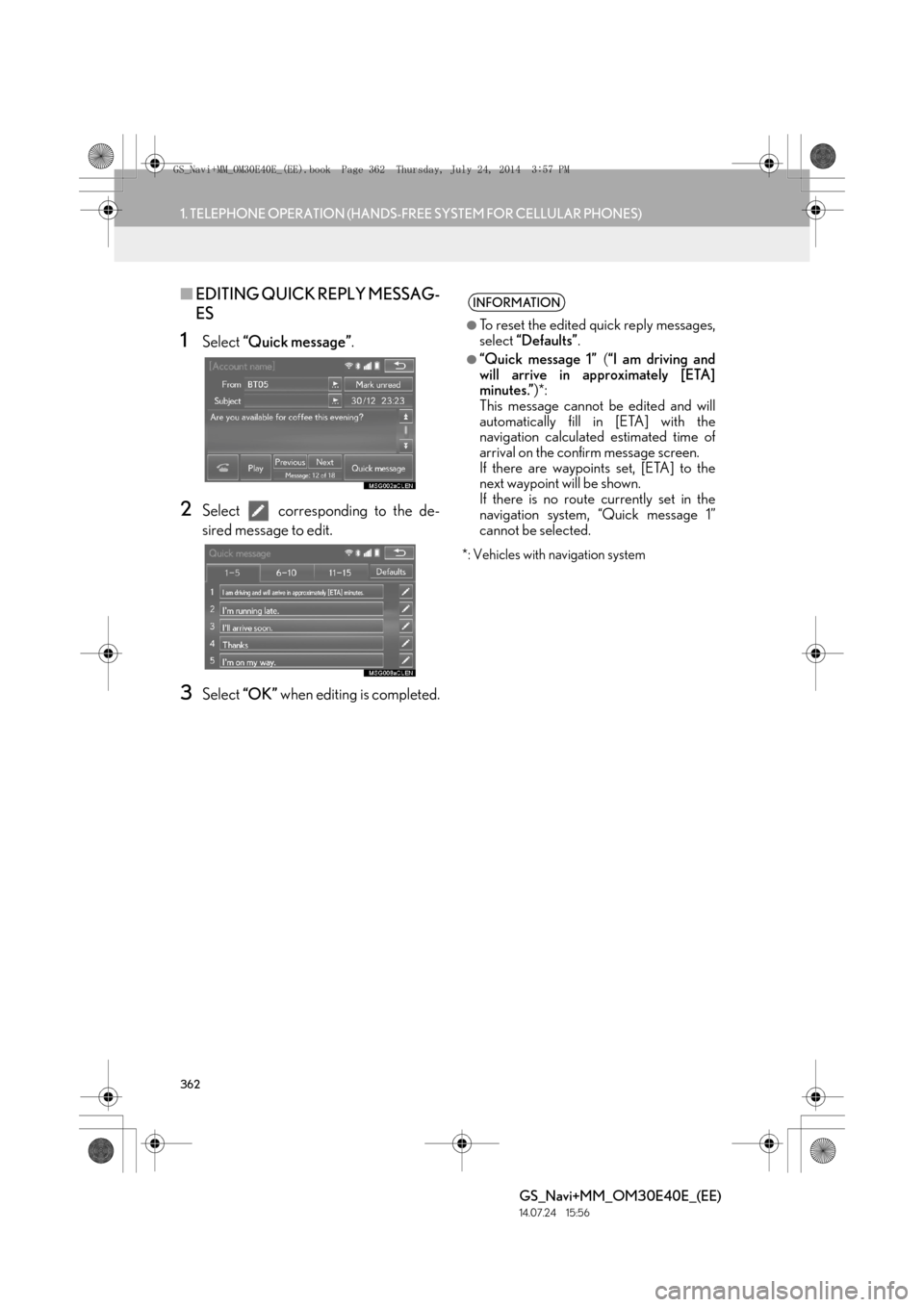
■EDITING QUICK REPLY MESSAG-
ES
1Select “Quick message” .
2Select corresponding to the de-
sired message to edit.
3Select “OK” when editing is completed.
*: Vehicles with navigation system
INFORMATION
●
To reset the edited quick reply messages,
select “Defaults” .
●“Quick message 1” (“I am driving and
will arrive in approximately [ETA]
minutes.” )*:
This message cannot be edited and will
automatically fill in [ETA] with the
navigation calculated estimated time of
arrival on the confirm message screen.
If there are waypoints set, [ETA] to the
next waypoint will be shown.
If there is no route currently set in the
navigation system, “Quick message 1”
cannot be selected.
GS_Navi+MM_OM30E40E_(EE).book Page 362 Thursday, July 24, 201 4 3:57 PM
Page 363 of 438

363
1. TELEPHONE OPERATION (HANDS-FREE SYSTEM FOR CELLULAR PHONES)
TELEPHONE
GS_Navi+MM_OM30E40E_(EE)
14.07.24 15:56
7
■CALLING FROM E-MAIL/SMS/
MMS MESSAGE DISPLAY
1Display the “Messages” screen.
(→ P.358)
2Select the desired message.
3Select .
zIf there are 2 or more telephone numbers,
select the desired number.
4Check that the “Call” screen is dis-
played.
■ CALLING FROM A NUMBER
WITHIN A MESSAGE
1Display the “Messages” screen.
(→ P.358)
2Select the desired message.
3Select the text area.
4Select corresponding to the de-
sired number.
zIdentified telephone numbers contained in
the message are displayed.
CALLING THE MESSAGE
SENDER
Calls can be made to an e-mail/SMS/
MMS message sender’s telephone
number.
Calls can be made to a number identi-
fied in a message’s text area.
GS_Navi+MM_OM30E40E_(EE).book Page 363 Thursday, July 24, 201 4 3:57 PM
Page 364 of 438

364
1. TELEPHONE OPERATION (HANDS-FREE SYSTEM FOR CELLULAR PHONES)
GS_Navi+MM_OM30E40E_(EE)
14.07.24 15:56
5Check that the “Call” screen is dis-
played.
■CALLING FROM THE INCOMING
MESSAGE SCREEN
→ P.359
INFORMATION
●
A series of numbers may be recognized
as a telephone number. Additionally,
some telephone numbers may not be
recognized, such as those for other
countries.
GS_Navi+MM_OM30E40E_(EE).book Page 364 Thursday, July 24, 201 4 3:57 PM
Page 365 of 438

365
GS_Navi+MM_OM30E40E_(EE)
14.07.24 15:56
TELEPHONE
7
2. SETUP
1. TELEPHONE SETTINGS
1Press the “MENU” button on the
Remote Touch.
2Select “Setup” .
3Select “Telephone” .
4Select the item to be set.
TELEPHONE SETTINGS
SCREEN
No.InformationPage
Sound settings366
Contact settings372
Messaging settings367
Telephone display settings369
Lexus Euro assistance 24
settings370
GS_Navi+MM_OM30E40E_(EE).book Page 365 Thursday, July 24, 201 4 3:57 PM