Can Lexus IS300h 2015 Owner's Manual
[x] Cancel search | Manufacturer: LEXUS, Model Year: 2015, Model line: IS300h, Model: Lexus IS300h 2015Pages: 628, PDF Size: 137.89 MB
Page 321 of 628
3214-6. Driving tips
4
Driving
IS300h_EE(OM53D56E)
■Air conditioning
Use the air conditioning only when necessary. Doing so can help reduce
excessive gasoline consumption.
In summer: When the ambient temperature is high, use the recirculated air
mode. Doing so will help to reduce the burden on the air conditioning system
and reduce fuel consumption as well.
In winter: Because the gasoline engine will not automatically cut out until it
and the interior of the vehicle are warm, it will consume fuel. Fuel consumption
can be improved by avoiding overuse of the heater.
■Checking tire inflation pressure
Make sure to check the tire inflation pressure frequently. Improper tire infla-
tion pressure can cause poor fuel economy.
Also, as snow tires can cause large amounts of friction, their use on dry roads
can lead to poor fuel economy. Use tires that are appropriate for the season.
■Luggage
Carrying heavy luggage can lead to poor fuel economy. Avoid carrying
unnecessary luggage. Installing a large roof rack can also cause poor fuel
economy.
■Warming up before driving
Since the gasoline engine starts up and cuts out automatically when cold,
warming up the engine is unnecessary. Moreover, frequently driving short dis-
tances will cause the engine to repeatedly warm up, which can lead to excess
fuel consumption.
Page 322 of 628
3224-6. Driving tips
IS300h_EE(OM53D56E)
●Use fluids that are appropriate to the prevailing outside temperatures. •Engine oil
• Engine/power control unit coolant
•Washer fluid
●Have a service technician inspect the condition of the 12-volt battery.
●Have the vehicle fitted with four snow tires or purchase a set of tire chains for
the rear tires.
*
Ensure that all tires are the specified size and brand, and that chains match the size
of the tires.
*: Tire chains cannot be mounted on the 18-inch tires.
Perform the following according to the driving conditions:
●Do not try to forcibly open a window or move a wiper that is frozen. Pour
warm water over the frozen area to melt the ice. Wipe away the water imme-
diately to prevent it from freezing.
●To ensure proper operation of the climate control system fan, remove any
snow that has accumulated on the air inlet vents in front of the windshield.
●Check for and remove any excess ice or snow that may have accumulated on
the exterior lights, vehicle’s roof, chassis, around the tires or on the brakes.
●Remove any snow or mud from the bottom of your shoes before getting in the
vehicle.
Accelerate the vehicle slowly, keep a safe distance between you and the vehicle
ahead, and drive at a reduced speed suitable to road conditions.
Winter driving tips
Carry out the necessary preparations and inspections before driving the vehi-
cle in winter. Always drive the vehicle in a manner appropriate to the prevail-
ing weather conditions.
Preparation for winter
Before driving the vehicle
When driving the vehicle
Page 323 of 628
3234-6. Driving tips
4
Driving
IS300h_EE(OM53D56E)
Park the vehicle and move the shift lever to P without setting the parking brake.
The parking brake may freeze up, preventing it from being released. If necessary,
block the wheels to prevent inadvertent sliding or creeping.
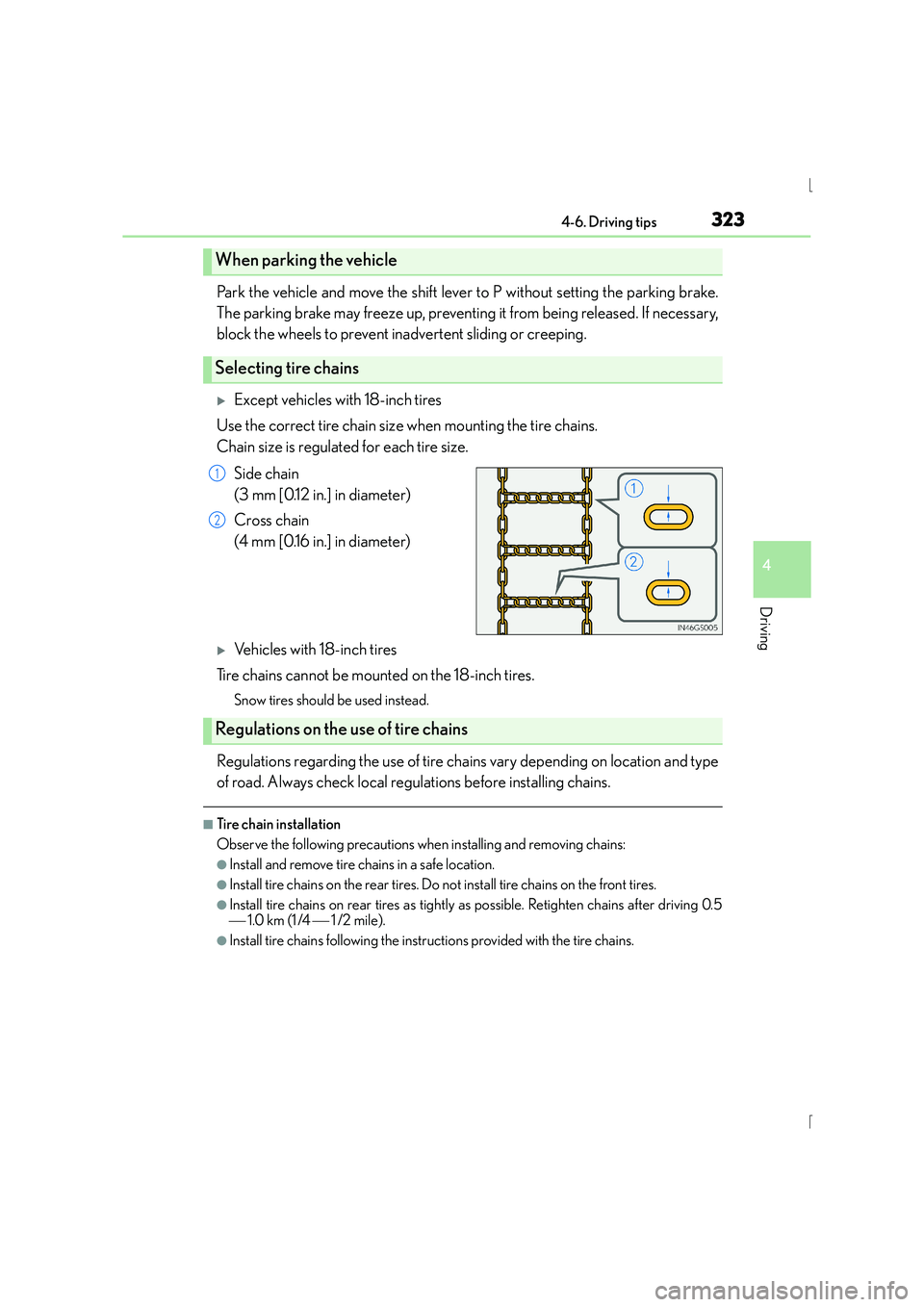
XExcept vehicles with 18-inch tires
Use the correct tire chain size when mounting the tire chains.
Chain size is regulated for each tire size.
Side chain
(3 mm [0.12 in.] in diameter)
Cross chain
(4 mm [0.16 in.] in diameter)
XVehicles with 18-inch tires
Tire chains cannot be mounted on the 18-inch tires.
Snow tires should be used instead.
Regulations regarding the use of tire chains vary depending on location and type
of road. Always check local regulations before installing chains.
■Tire chain installation
Observe the following precautions when installing and removing chains:
●Install and remove tire chains in a safe location.
●Install tire chains on the rear tires. Do not install tire chains on the front tires.
●Install tire chains on rear tires as tightly as possible. Retighten chains after driving 0.5
1.0 km (1 /4 1 /2 mile).
●Install tire chains following the instructions provided with the tire chains.
When parking the vehicle
Selecting tire chains
1
2
Regulations on the use of tire chains
Page 330 of 628
3305-1. Basic Operations
IS300h_EE(OM53D56E)
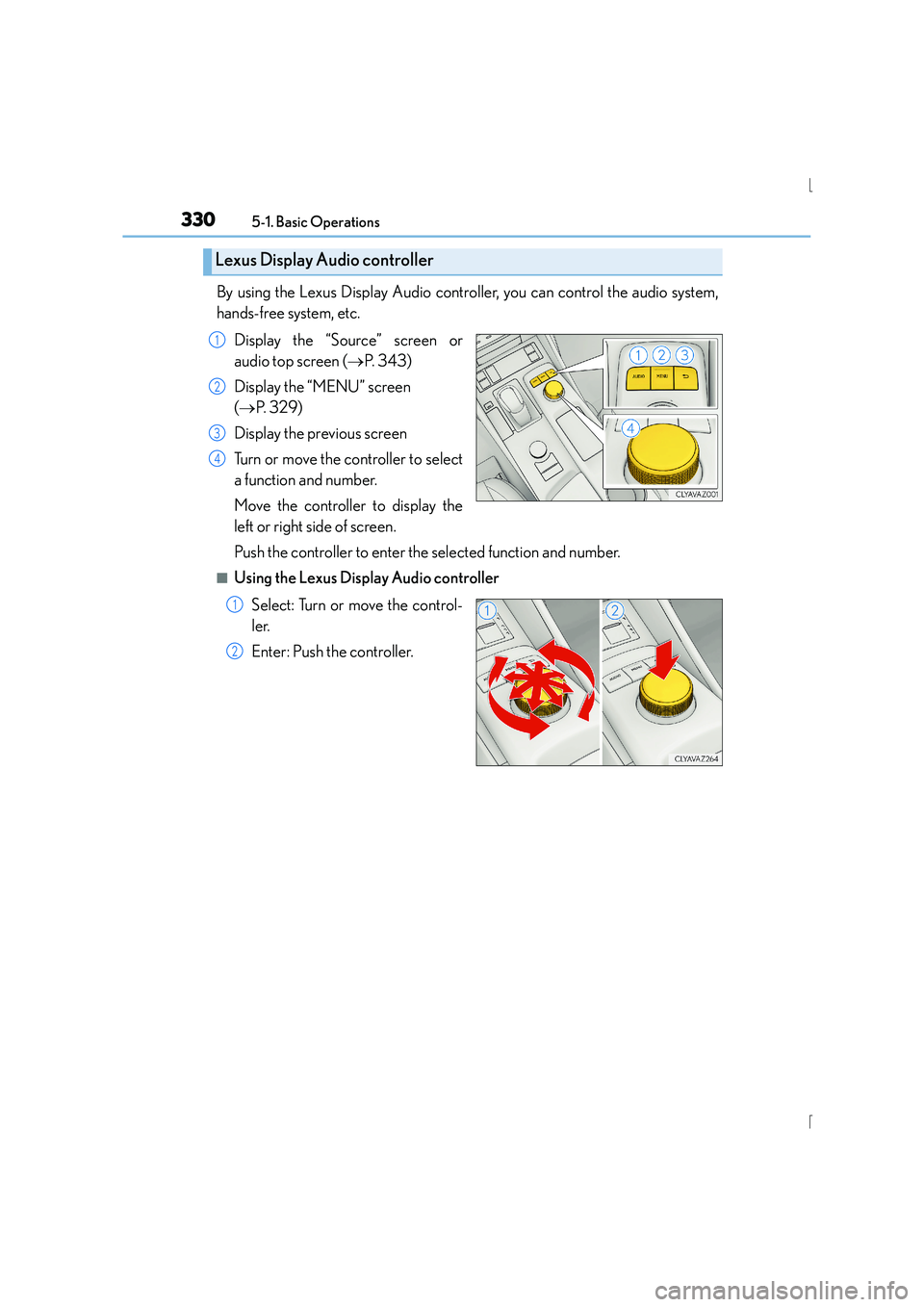
By using the Lexus Display Audio controller, you can control the audio system,
hands-free system, etc.Display the “Source” screen or
audio top screen ( →P. 3 4 3 )
Display the “MENU” screen
( → P. 3 2 9 )
Display the previous screen
Turn or move the controller to select
a function and number.
Move the controller to display the
left or right side of screen.
Push the controller to enter the selected function and number.
■Using the Lexus Display Audio controller
Select: Turn or move the control-
ler.
Enter: Push the controller.
Lexus Display Audio controller
1
2
3
4
1
2
Page 331 of 628
3315-1. Basic Operations
5
Lexus Display Audio system
IS300h_EE(OM53D56E)
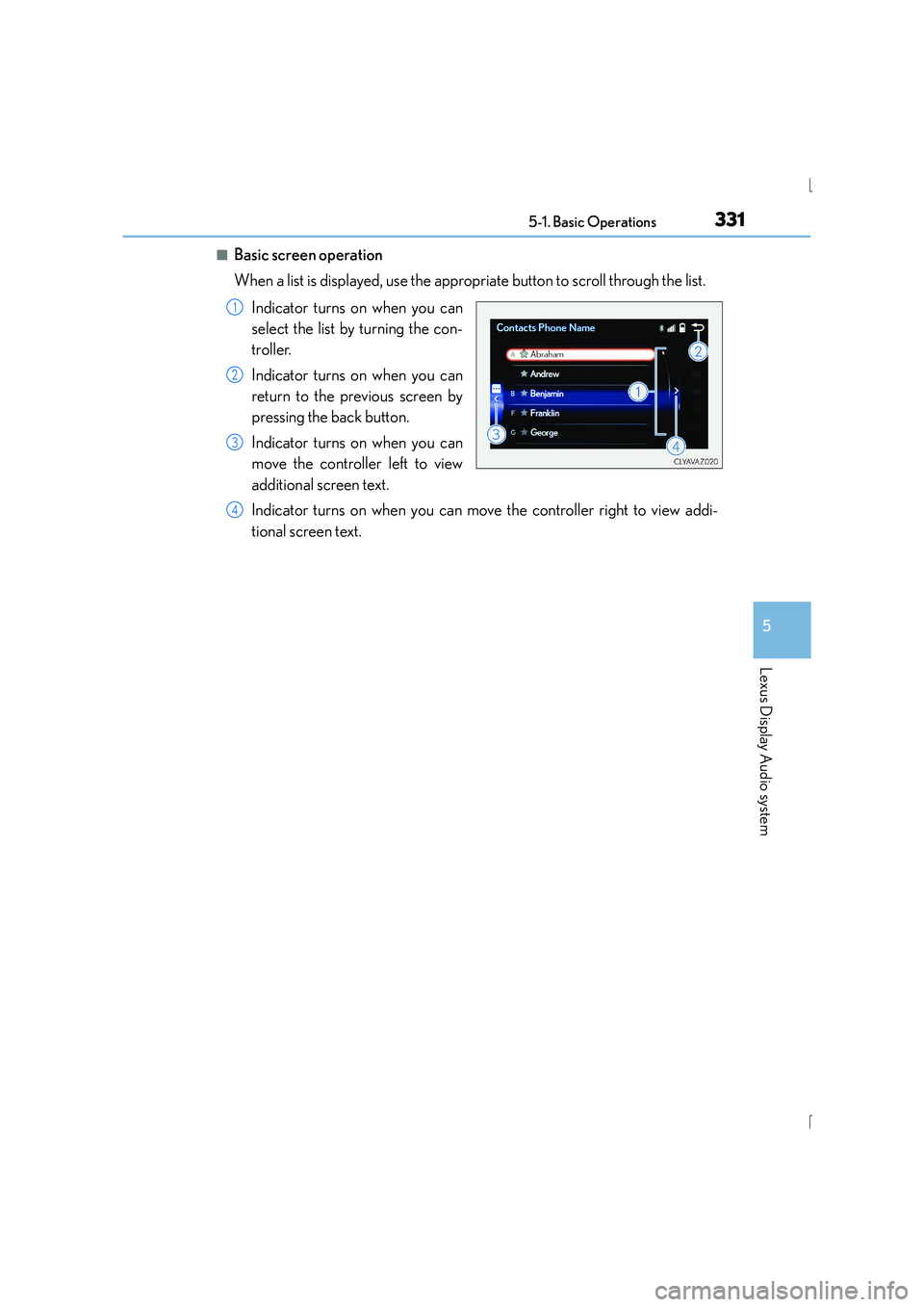
■Basic screen operation
When a list is displayed, use the appropriate button to scroll through the list.Indicator turns on when you can
select the list by turning the con-
troller.
Indicator turns on when you can
return to the previous screen by
pressing the back button.
Indicator turns on when you can
move the controller left to view
additional screen text.
Indicator turns on when you can move the controller right to view addi-
tional screen text.
1
2
3
4
Page 332 of 628
3325-1. Basic Operations
IS300h_EE(OM53D56E)
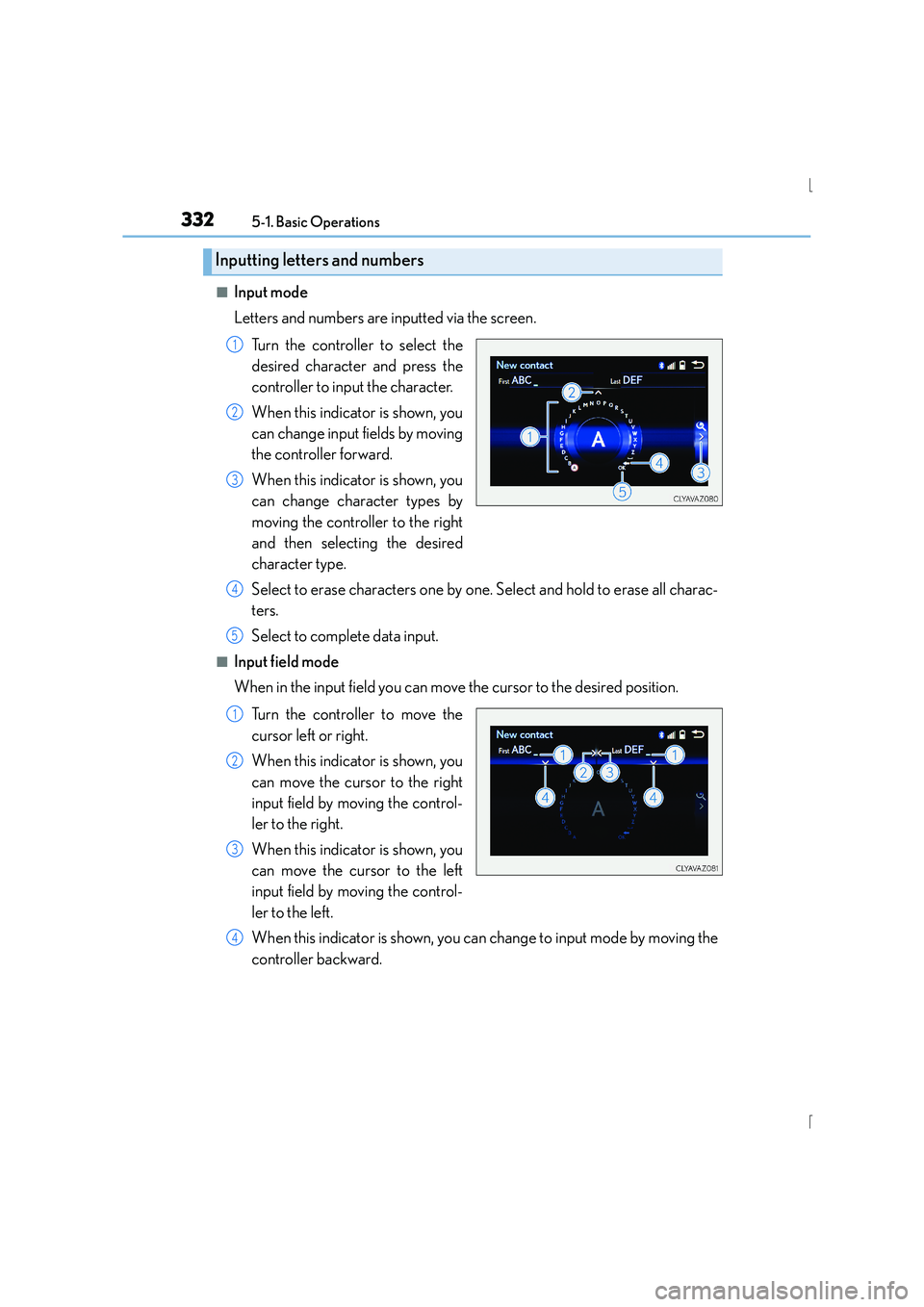
■Input mode
Letters and numbers are inputted via the screen.Turn the controller to select the
desired character and press the
controller to input the character.
When this indicator is shown, you
can change input fields by moving
the controller forward.
When this indicator is shown, you
can change character types by
moving the controller to the right
and then selecting the desired
character type.
Select to erase characters one by one. Select and hold to erase all charac-
ters.
Select to complete data input.
■Input field mode
When in the input field you can move the cursor to the desired position.
Turn the controller to move the
cursor left or right.
When this indicator is shown, you
can move the cursor to the right
input field by moving the control-
ler to the right.
When this indicator is shown, you
can move the cursor to the left
input field by moving the control-
ler to the left.
When this indicator is shown, you can change to input mode by moving the
controller backward.
Inputting letters and numbers
1
2
3
4
5
1
2
3
4
Page 334 of 628
3345-1. Basic Operations
IS300h_EE(OM53D56E)
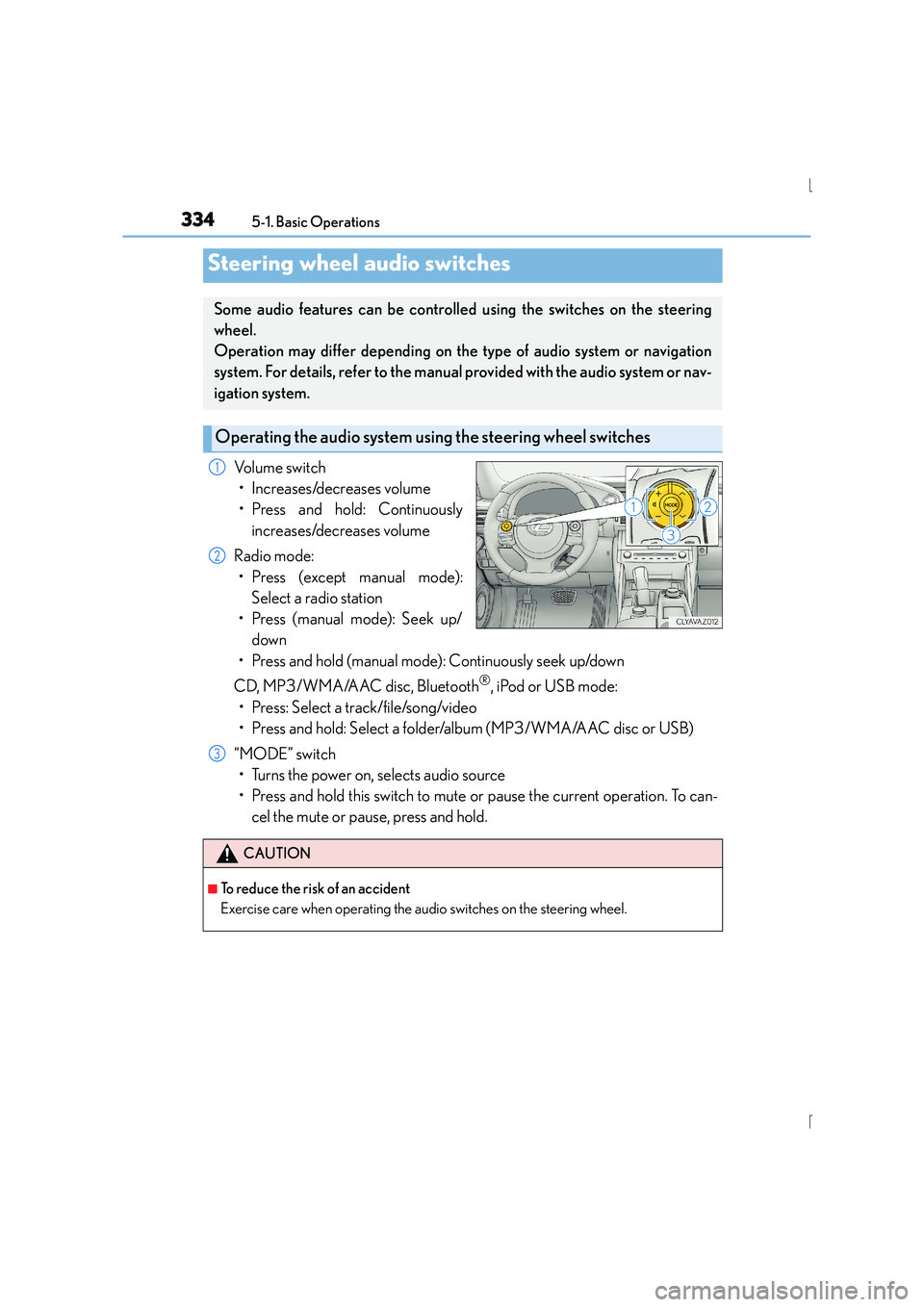
Volume switch• Increases/decreases volume
• Press and hold: Continuously increases/decreases volume
Radio mode: • Press (except manual mode): Select a radio station
• Press (manual mode): Seek up/ down
• Press and hold (manual mode): Continuously seek up/down
CD, MP3/WMA/AAC disc, Bluetooth
®, iPod or USB mode:
• Press: Select a track/file/song/video
• Press and hold: Select a folder/album (MP3/WMA/AAC disc or USB)
“MODE” switch • Turns the power on, selects audio source
• Press and hold this switch to mute or pause the current operation. To can- cel the mute or pause, press and hold.
Steering wheel audio switches
Some audio features can be controlled using the switches on the steering
wheel.
Operation may differ depending on the type of audio system or navigation
system. For details, refer to the manual provided with the audio system or nav-
igation system.
Operating the audio system us ing the steering wheel switches
1
2
CAUTION
■To reduce the risk of an accident
Exercise care when operating the audio switches on the steering wheel.
3
Page 335 of 628
3355-1. Basic Operations
5
Lexus Display Audio system
IS300h_EE(OM53D56E)
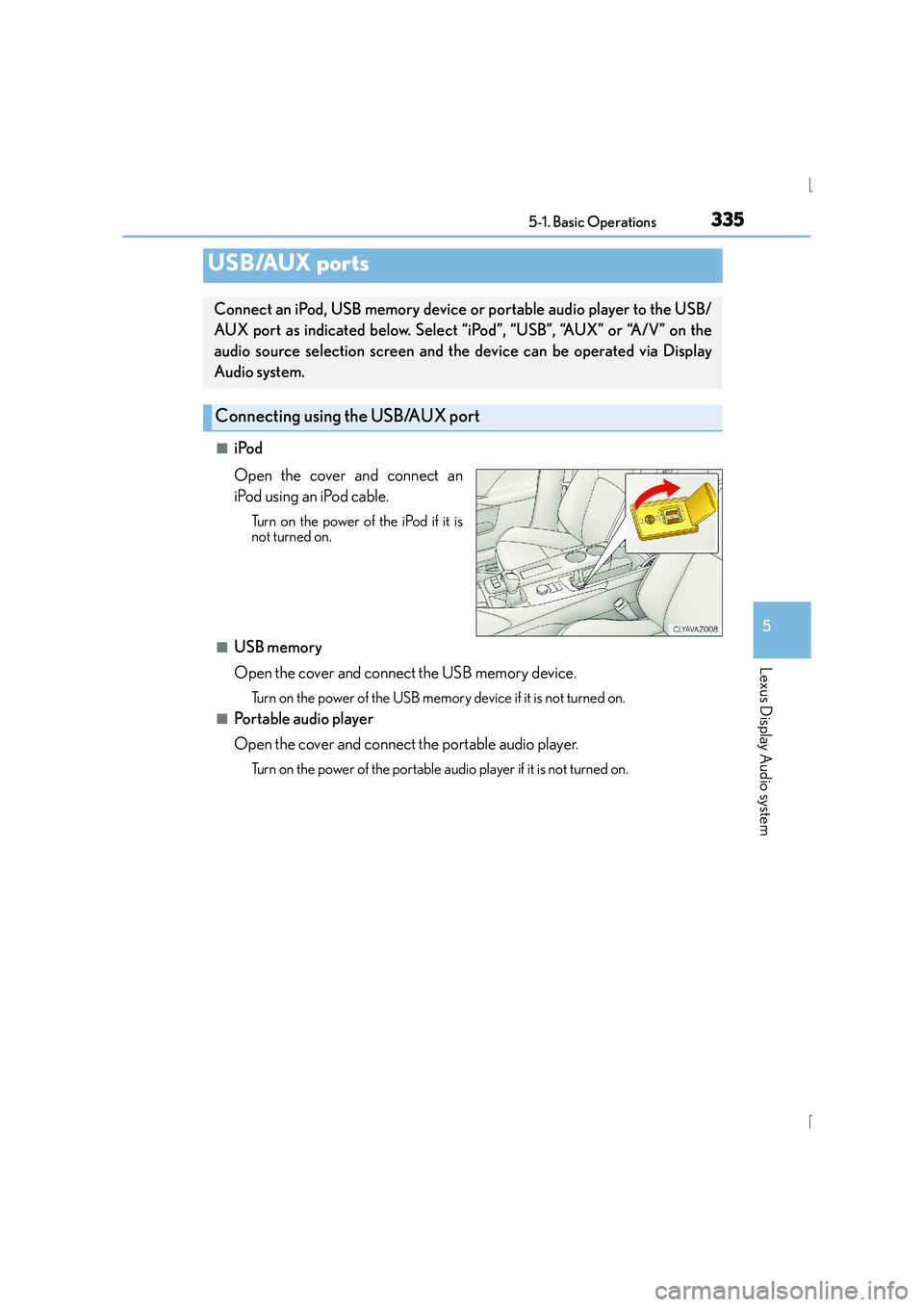
■iPod
Open the cover and connect an
iPod using an iPod cable.
Turn on the power of the iPod if it is
not turned on.
■USB memory
Open the cover and connect the USB memory device.
Turn on the power of the USB memory device if it is not turned on.
■Portable audio player
Open the cover and connect the portable audio player.
Turn on the power of the portable audio player if it is not turned on.
USB/AUX ports
Connect an iPod, USB memory device or portable audio player to the USB/
AUX port as indicated below. Select “iPod”, “USB”, “AUX” or “A/V” on the
audio source selection screen and the device can be operated via Display
Audio system.
Connecting using the USB/AUX port
Page 337 of 628
337
5
Lexus Display Audio system
IS300h_EE(OM53D56E)5-2. Setup
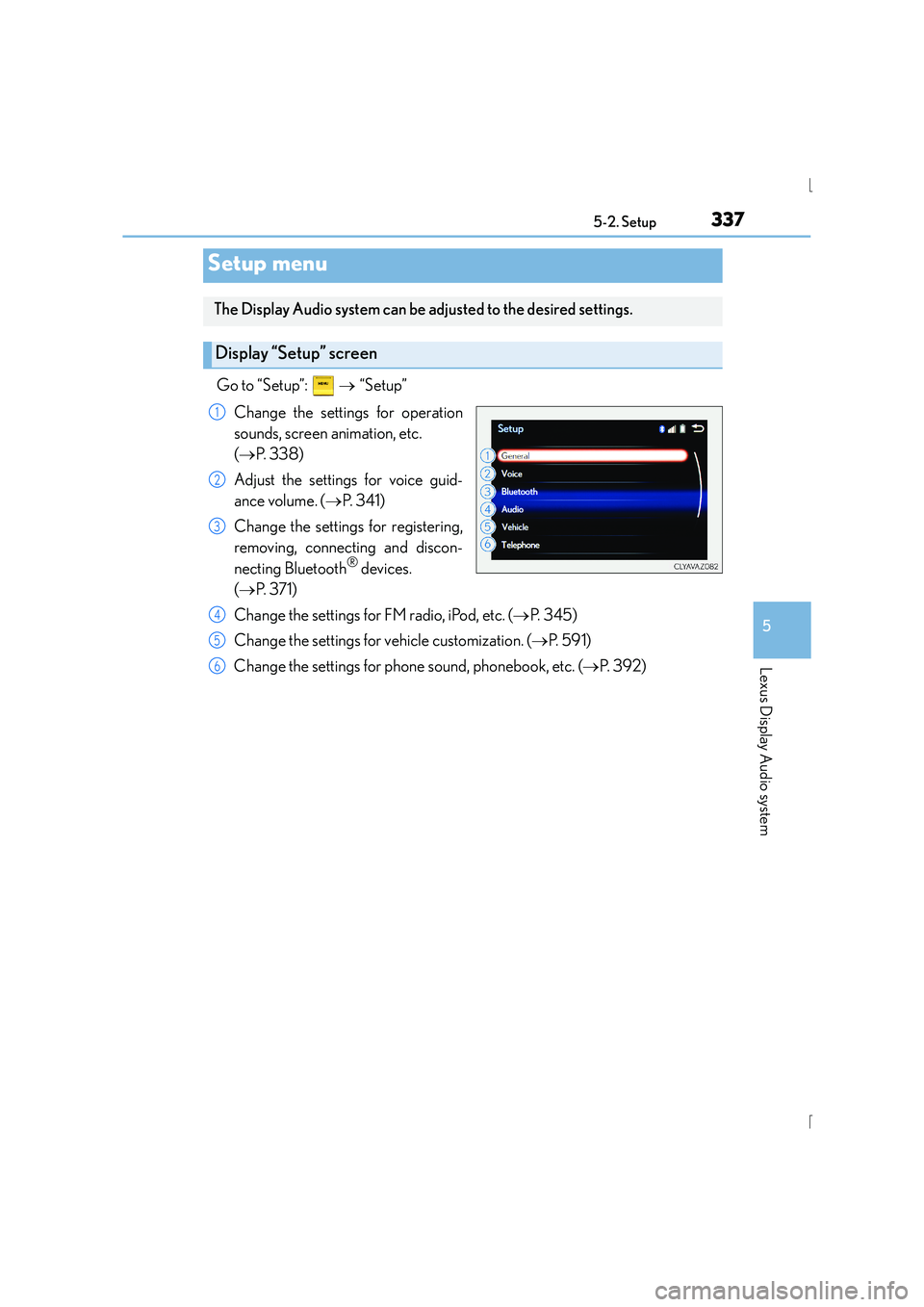
Go to “Setup”:
→ “Setup”
Change the settings for operation
sounds, screen animation, etc.
( → P. 3 3 8 )
Adjust the settings for voice guid-
ance volume. ( →P. 3 4 1 )
Change the settings for registering,
removing, connecting and discon-
necting Bluetooth
® devices.
( → P. 3 7 1 )
Change the settings for FM radio, iPod, etc. ( →P. 3 4 5 )
Change the settings for vehicle customization. ( →P. 5 9 1 )
Change the settings for phon e sound, phonebook, etc. (→P. 3 9 2 )
Setup menu
The Display Audio system can be adjusted to the desired settings.
Display “Setup” screen
1
2
3
4
5
6
Page 339 of 628

3395-2. Setup
5
Lexus Display Audio system
IS300h_EE(OM53D56E)
Go to “Customize images”: → “Setup” → “General” → “Customize
images”
Select “Set images” and then select the desired image.
Set as startup image.
Set as screen off image.
■Adding an imageConnect a USB memory device. ( →P. 3 3 5 )
Select “Copy from USB” on the “C ustomize images” screen and then
select the desired image.
Move the controller to the left and then select “Copy”.
Up to 10 images can be downloaded.
■Deleting images
Select “Delete images” on the “Customize images” screen and then select the
desired images.
■USB memory
When saving the images to a USB memory device, name the folder that the images are
saved to “Image”.
●Compatible device formats
The following device format can be used: • The image’s file format must be JPEG
• USB communication format: USB2.0 FS (480 Mbps)
• File system format: FAT16/32 (Windows)
• Correspondence class: Mass storage class
●JPEG file compatibility
Compatible image size: Maximum 10 MB
Customizing images
1
2
1
2
1
2
3