steering LINCOLN CORSAIR 2023 Owners Manual
[x] Cancel search | Manufacturer: LINCOLN, Model Year: 2023, Model line: CORSAIR, Model: LINCOLN CORSAIR 2023Pages: 690, PDF Size: 15.04 MB
Page 526 of 690
SWITCHING SHUFFLE MODE ON
AND OFF
Press the button on thetouchscreen to switch shufflemode on or off.
Note:Not all sources have shuffle mode.
SWITCHING REPEAT MODE ON
AND OFF
Press the button on thetouchscreen to switch repeat modeon or off.
Note:Not all sources have repeat mode.
SETTING A MEMORY PRESET
1.Select a station or channel.
2.Press and hold a memory preset buttonon the touchscreen.
Note:The audio mutes briefly while thesystem saves the preset and returns once itis stored.
Note:You can save presets from multiplesources to the memory preset bar.
MUTING THE AUDIO
Press the button on the steeringwheel to mute the audio.
Press to mute the signal. Pressagain to restore the signal.
ADJUSTING THE SOUND
SETTINGS
Balance and Fade (If Equipped)
1.Press Settings on the touchscreen.
2.Press Sound Settings.
3.Press Balance / Fade.
4.Press the arrows to adjust the settings.
Tone Settings
1.Press Settings on the touchscreen.
2.Press Sound Settings.
3.Press Tone Settings.
4.Press the arrows or slider bar to adjustthe settings.
Speed Compensated Volume
1.Press Settings on the touchscreen.
2.Press Sound Settings.
3.Press Speed Compensated Volume.
4.Press a setting.
Occupancy Mode (If Equipped)
1.Press Settings on the touchscreen.
2.Press Sound Settings.
3.Press Occupancy Mode.
4.Press a setting.
Sound Mode (If Equipped)
1.Press Settings on the touchscreen.
2.Press Sound Settings.
3.Press Sound Mode.
4.Press a setting.
522
2023 Corsair (CTF) Canada/United States of America, enUSA, Edition date: 202208, DOMAudio System
Page 537 of 690
Vehicle data sharing on.
Vehicle data sharing off.
Vehicle location sharing on.
Vehicle data and vehicle locationsharing on.
Vehicle Software Update
See Software Update Indicators (page 555).
Wireless Accessory Charger
Wireless accessory charger active.
HOME SCREEN
Features, such as navigation, audio andphone, are located in the main portion of thedisplay. The icons located on the side of thedisplay allow you to access other vehiclefeatures and settings.
Press to adjust system settings.
Press to view features.
Note:The icon may be different dependingon your vehicle.
Press to search for and usecompatible apps on your iOS orAndroid device.
INFORMATION ON DEMAND
SCREEN
The information on demand screen displayscards on the side of the display and allowsyou to see information from differentfeatures.
You can swipe up or down to view a differentcard.
You can swipe toward the main screen tomove the content into the main screen.
Note:This can only be done with someinformation on demand screens.
REBOOTING THE CENTER DISPLAY
You can reboot the center display using thecontrols on the steering wheel.
1.Simultaneously press and hold the seekforward and audio system power buttonfor 10 seconds.
CENTER DISPLAY OVERVIEW
VIDEOS
Lincoln SYNC 4 Basics Video Link
533
2023 Corsair (CTF) Canada/United States of America, enUSA, Edition date: 202208, DOMCenter Display Overview E335292 E353214 E280315 E335299 E353220
Page 538 of 690
LINCOLN PERSONAL ASSISTANT
USING LINCOLN PERSONALASSISTANT
The digital assistant allows you to controlvehicle features using conversationalrequests.
To begin a voice interaction using the wakeword, say the selected wake word, then sayyour command.
Press the voice interaction buttonon the steering wheel. A tonesounds before you can say yourcommand.
Note:You may need to enable your vehicle'smodem to use certain voice commands. SeeEnabling and Disabling the Modem (page514).
Note:When you are not driving, additionalcommands are available by using popularchat applications. Use LincolnWay to setupa conversation with your Lincoln assistant.
Voice Command Examples
To see examples of what voice commandsyou can use with different features:
Press the button on thetouchscreen.
1.Press Lincoln Assistant.
2.Press Voice Command Help.
3.Select a feature.
LINCOLN PERSONAL ASSISTANTSETTINGS
To access the settings menu:
Press the button on thetouchscreen.
1.Press Lincoln Assistant.
From the settings menu you can do thefollowing:
•Switch listen for wake word on or off.
•Set the preferred wake word.
•Switch advance mode on or off.
•Switch phone confirmation on or off.
•Switch the commands list on or off.
•View the commands help menu.
Press the button next to a menuoption for more information.
LINCOLN PERSONAL ASSISTANT –FREQUENTLY ASKED QUESTIONS
Why does the system not understandwhat I am saying?
•You are speaking too soon. When usingthe button of the steering wheel, wait forthe tone before you speak.
534
2023 Corsair (CTF) Canada/United States of America, enUSA, Edition date: 202208, DOMVoice InteractionE142599 E280315 E280315 E366956
Page 540 of 690
WHAT IS ALEXA BUILT-IN
Allows you to use Alexa in your vehicle forauto specific use cases on the road andgives you access to an ever evolving numberof skills that help to make your life moreproductive, entertaining, and connectedwhile using your vehicle.
ALEXA BUILT-IN REQUIREMENTS
To use Alexa, all of the following must occur:
•Your vehicle modem is enabled.
•You are logged into an existing Amazonaccount.
•Vehicle location services are enabled.
•Vehicle connectivity and vehicle datasharing is enabled.
SIGNING INTO YOUR ACCOUNT
Press the button in the status barand follow the on-screen prompts.
To sign in using the settings menu:
1.Press Settings on the touchscreen.
2.Press Amazon Alexa.
3.Press Get Started.
4.Sign into your account by either scanningthe QR code or entering the on-screencode into the Amazon website.
5.Once logged in, follow the on-screenprompts.
6.When complete, the vehicle informs youthat Alexa is ready to be used in thevehicle.
Signing Out of Your Account
1.Press Settings on the touchscreen.
2.Press Amazon Alexa.
3.Press Sign Out.
USING ALEXA BUILT-IN
To use Alexa, say “Alexa” or press the voiceinteraction button on the steering wheel andthen say “Alexa” to invoke Alexa to startlistening.
Note:If the wake word is not enabled, youcan only use the voice interaction button.
You can use Alexa for the following andmore:
•Entertainment.
•Hands-free calling.
•Traffic and navigation.
•Vehicle controls.
•Smart home device control.
•Weather and news information.
ALEXA BUILT-IN SETTINGS
Enabling the Wake Word
1.Press Settings on the touchscreen.
2.Press Amazon Alexa.
3.Switch Listen for Wake Word on or off.
Note:If the wake word is not enabled, youcan only use the voice interaction button.
Contact List
Displays a list of connected phones andcontact sharing status for each phone.
536
2023 Corsair (CTF) Canada/United States of America, enUSA, Edition date: 202208, DOMAlexa Built-InE368039
Page 544 of 690
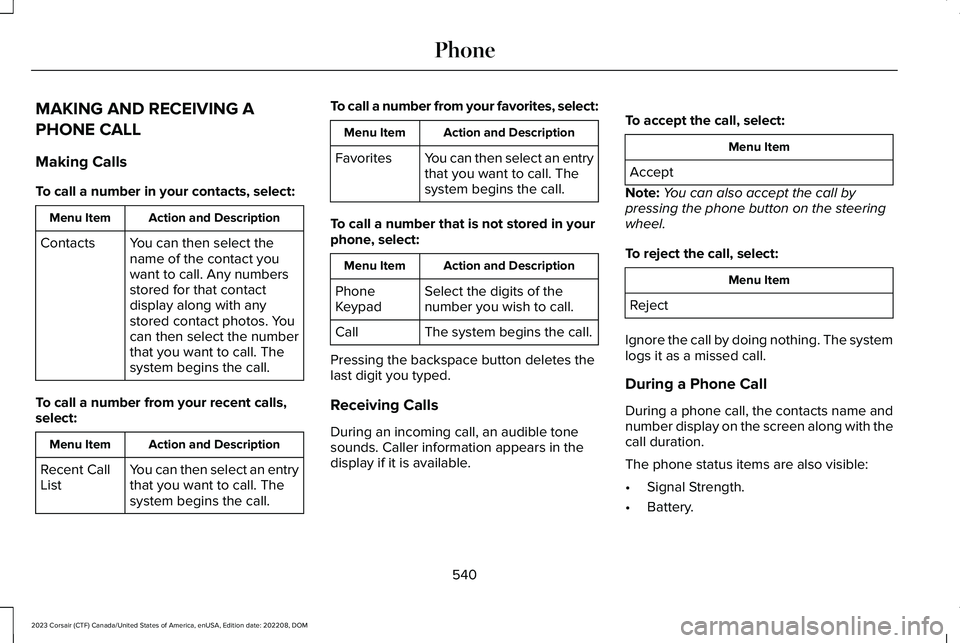
MAKING AND RECEIVING A
PHONE CALL
Making Calls
To call a number in your contacts, select:
Action and DescriptionMenu Item
You can then select thename of the contact youwant to call. Any numbersstored for that contactdisplay along with anystored contact photos. Youcan then select the numberthat you want to call. Thesystem begins the call.
Contacts
To call a number from your recent calls,select:
Action and DescriptionMenu Item
You can then select an entrythat you want to call. Thesystem begins the call.
Recent CallList
To call a number from your favorites, select:
Action and DescriptionMenu Item
You can then select an entrythat you want to call. Thesystem begins the call.
Favorites
To call a number that is not stored in yourphone, select:
Action and DescriptionMenu Item
Select the digits of thenumber you wish to call.PhoneKeypad
The system begins the call.Call
Pressing the backspace button deletes thelast digit you typed.
Receiving Calls
During an incoming call, an audible tonesounds. Caller information appears in thedisplay if it is available.
To accept the call, select:
Menu Item
Accept
Note:You can also accept the call bypressing the phone button on the steeringwheel.
To reject the call, select:
Menu Item
Reject
Ignore the call by doing nothing. The systemlogs it as a missed call.
During a Phone Call
During a phone call, the contacts name andnumber display on the screen along with thecall duration.
The phone status items are also visible:
•Signal Strength.
•Battery.
540
2023 Corsair (CTF) Canada/United States of America, enUSA, Edition date: 202208, DOMPhone
Page 545 of 690
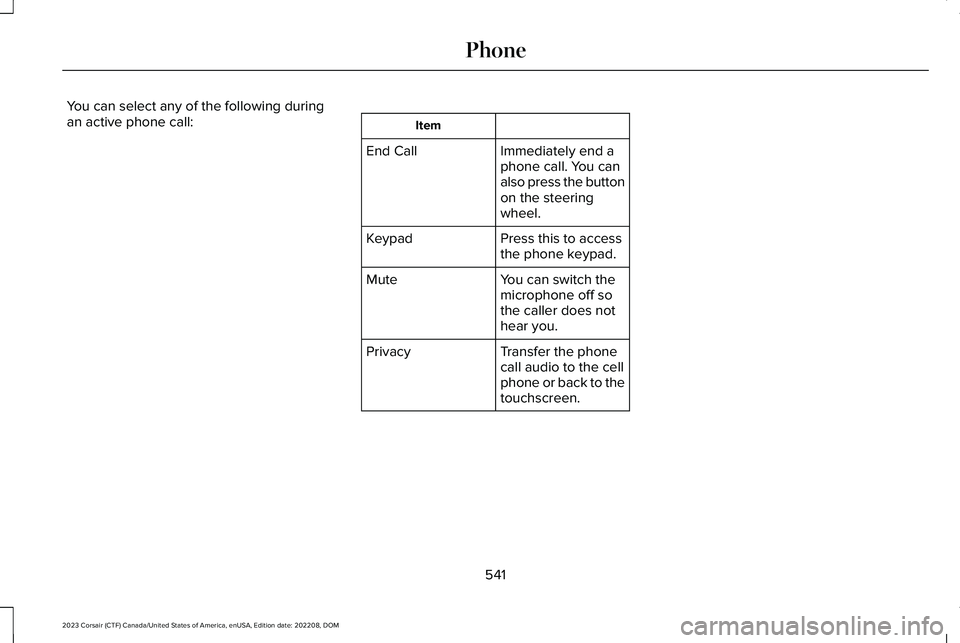
You can select any of the following duringan active phone call:Item
Immediately end aphone call. You canalso press the buttonon the steeringwheel.
End Call
Press this to accessthe phone keypad.Keypad
You can switch themicrophone off sothe caller does nothear you.
Mute
Transfer the phonecall audio to the cellphone or back to thetouchscreen.
Privacy
541
2023 Corsair (CTF) Canada/United States of America, enUSA, Edition date: 202208, DOMPhone
Page 571 of 690
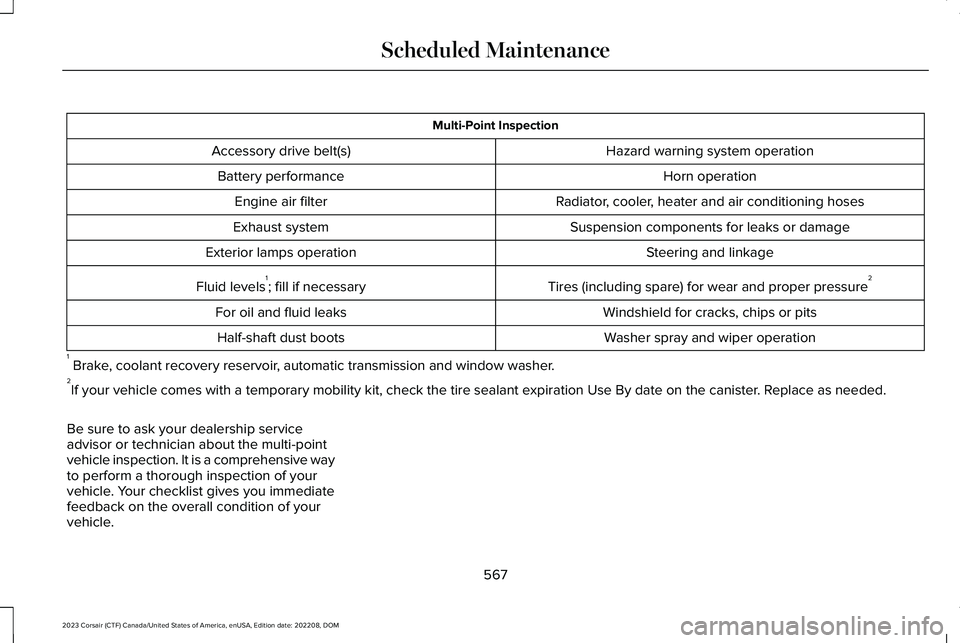
Multi-Point Inspection
Hazard warning system operationAccessory drive belt(s)
Horn operationBattery performance
Radiator, cooler, heater and air conditioning hosesEngine air filter
Suspension components for leaks or damageExhaust system
Steering and linkageExterior lamps operation
Tires (including spare) for wear and proper pressure2Fluid levels1; fill if necessary
Windshield for cracks, chips or pitsFor oil and fluid leaks
Washer spray and wiper operationHalf-shaft dust boots
1 Brake, coolant recovery reservoir, automatic transmission and window washer.2If your vehicle comes with a temporary mobility kit, check the tire sealant expiration Use By date on the canister. Replace as needed.
Be sure to ask your dealership serviceadvisor or technician about the multi-pointvehicle inspection. It is a comprehensive wayto perform a thorough inspection of yourvehicle. Your checklist gives you immediatefeedback on the overall condition of yourvehicle.
567
2023 Corsair (CTF) Canada/United States of America, enUSA, Edition date: 202208, DOMScheduled Maintenance
Page 574 of 690
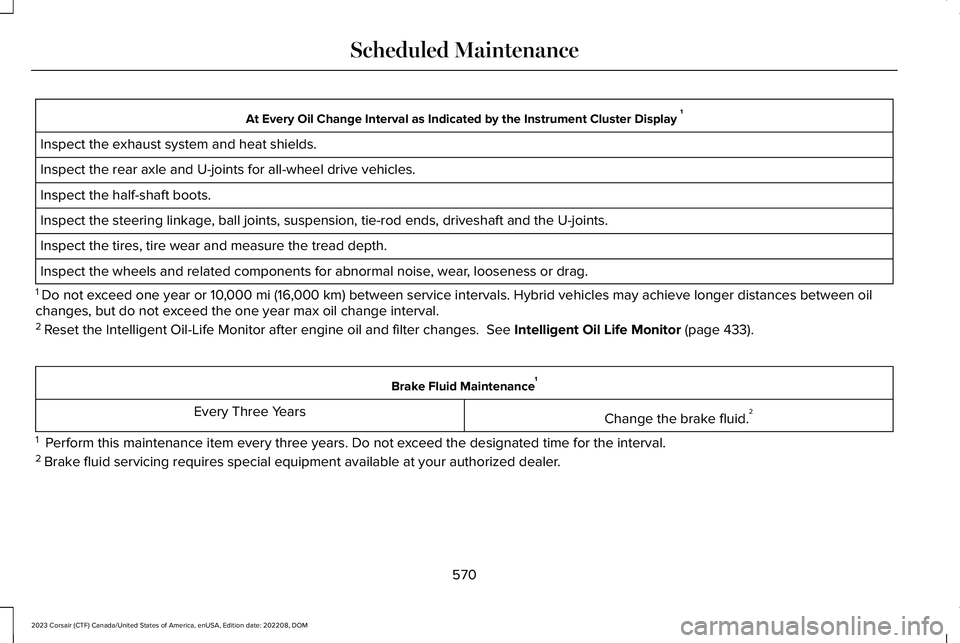
At Every Oil Change Interval as Indicated by the Instrument Cluster Display 1
Inspect the exhaust system and heat shields.
Inspect the rear axle and U-joints for all-wheel drive vehicles.
Inspect the half-shaft boots.
Inspect the steering linkage, ball joints, suspension, tie-rod ends, driveshaft and the U-joints.
Inspect the tires, tire wear and measure the tread depth.
Inspect the wheels and related components for abnormal noise, wear, looseness or drag.
1 Do not exceed one year or 10,000 mi (16,000 km) between service intervals. Hybrid vehicles may achieve longer distances between oilchanges, but do not exceed the one year max oil change interval.2 Reset the Intelligent Oil-Life Monitor after engine oil and filter changes. See Intelligent Oil Life Monitor (page 433).
Brake Fluid Maintenance1
Change the brake fluid.2Every Three Years
1 Perform this maintenance item every three years. Do not exceed the designated time for the interval.2 Brake fluid servicing requires special equipment available at your authorized dealer.
570
2023 Corsair (CTF) Canada/United States of America, enUSA, Edition date: 202208, DOMScheduled Maintenance
Page 580 of 690
ROLLOVER WARNING
WARNING: Utility vehicles have asignificantly higher rollover rate than othertypes of vehicles.
WARNING: Vehicles with a highercenter of gravity (utility and four-wheeldrive vehicles) handle differently thanvehicles with a lower center of gravity(passenger cars). Avoid sharp turns,excessive speed and abrupt steering inthese vehicles. Failure to drive cautiouslyincreases the risk of losing control of yourvehicle, vehicle rollover, personal injuryand death.
WARNING: In a rollover crash, anunbelted person is significantly more likelyto die than a person wearing a seatbelt.
WARNING: Do not becomeoverconfident in the ability of four-wheeldrive vehicles. Although a four-wheel drivevehicle may accelerate better than atwo-wheel drive vehicle in low tractionsituations, it won't stop any faster thantwo-wheel drive vehicles. Always drive ata safe speed.
Utility vehicles and trucks handle differentlythan passenger cars in the various drivingconditions that are encountered on streets,highways and off-road. Utility vehicles andtrucks are not designed for cornering atspeeds as high as passenger cars any morethan low-slung sports cars are designed toperform satisfactorily under off-roadconditions.
THE BETTER BUSINESS BUREAU
AUTO LINE PROGRAM
Your satisfaction is important to Ford MotorCompany and to your dealer. If a warrantyconcern has not been resolved using thethree-step procedure outlined earlier in thischapter in the Getting the Services you needsection, you may be eligible to participate inthe BBB AUTO LINE program.
The BBB AUTO LINE program consists oftwo parts – mediation and arbitration. Duringmediation, a representative of the BBB willcontact both you and Ford Motor Companyto explore options for settlement of the claim.If an agreement is not reached duringmediation or you do not want to participatein mediation, and if your claim is eligible, youmay participate in the arbitration process. Anarbitration hearing will be scheduled so thatyou can present your case in an informalsetting before an impartial person. Thearbitrator considers the testimony providedand makes a decision after the hearing.
576
2023 Corsair (CTF) Canada/United States of America, enUSA, Edition date: 202208, DOMCustomer Information
Page 666 of 690
Predictive Speed Assist –Troubleshooting.............................................325
Adaptive Cruise Control AutomaticCancellation.................................................314Adaptive Cruise Control Indicators..........318Adaptive Cruise Control Limitations..........311Adaptive Cruise Control Precautions......310Adaptive Cruise Control –Troubleshooting.........................................325Adaptive Cruise Control – InformationMessages.........................................................325
Adaptive Cruise Control Videos...............327Adaptive Front Lighting...............................125How Does Adaptive Front LightingWork...................................................................125Switching Adaptive Front Lighting On andOff.......................................................................127
Adaptive Front Lighting –Troubleshooting..........................................127Adaptive Front Lighting – InformationMessages..........................................................127
Adjusting the Exterior Mirrors....................134Adjusting the Headlamps...........................448Adjusting the Instrument Panel LightingBrightness....................................................129Adjusting the Map.........................................551Changing the Format of the Map....................551Zooming the Map In and Out...........................551
Adjusting the Seatbelt Height.....................60Adjusting the Seatbelts DuringPregnancy......................................................59Adjusting the Sound Settings...................522Adjusting the Steering Wheel - VehiclesWith: Manual Adjustable SteeringColumn............................................................111Adjusting the Steering Wheel - VehiclesWith: Power Adjustable SteeringColumn............................................................111Adjusting the Volume...................................521Aid Mode........................................................344How Does Aid Mode Work..............................345What Is Aid Mode...............................................344
Airbag Precautions.........................................68Airbags..............................................................65Front Passenger Sensing System....................69
Air ConditioningSee: Climate Control..........................................168
Air Conditioning System Capacity andSpecification - 2.0L EcoBoost™..............507Air Conditioning System Capacity andSpecification - 2.5L, Plug-In HybridElectric Vehicle (PHEV)............................509Alert and Aid Mode......................................345How Does Alert and Aid Mode Work............345What Is Alert and Aid Mode.............................345
Alert Mode......................................................344How Does Alert Mode Work............................344What Is Alert Mode.............................................344
Alexa Built-In.................................................536Alexa Built-In Requirements......................536Alexa Built-In Settings.................................536All-Wheel Drive.............................................266All-Wheel Drive – Troubleshooting................267
All-Wheel Drive Limitations.......................266All-Wheel Drive Precautions.....................266All-Wheel Drive – Troubleshooting..........267All-Wheel Drive – InformationMessages.........................................................267
AM/FM Radio.................................................523AM/FM Radio Limitations.................................523Selecting a Radio Station.................................523
Ambient Lighting...........................................129Adjusting Ambient Lighting..............................129Switching Ambient Lighting On and Off........129
Anti-Lock Braking System..........................268Anti-Lock Braking System Indicators............268Anti-Lock Braking System Limitations..........268
Anti-Theft Alarm System..............................107Arming the Anti-Theft Alarm System.............108Disarming the Anti-Theft Alarm System........108How Does the Anti-Theft Alarm SystemWork...................................................................107What Are the Inclination Sensors...................108
662
2023 Corsair (CTF) Canada/United States of America, enUSA, Edition date: 202208, DOMIndex